
We’re excited to welcome you to our Support Portal!
Our centralized platform enables you to efficiently locate answers, explore valuable resources, and communicate with our support team as needed.
Whether you are resolving an issue, seeking instructional guides, or submitting a support request, the portal is designed to streamline and expedite the process.
This video provides a comprehensive overview of how to utilize the Structured Support Portal effectively to access resources and engage with the support team. It emphasizes essential features such as the Knowledge Base, support requests, and live chat options to facilitate seamless assistance.
1. Welcome And Video Overview
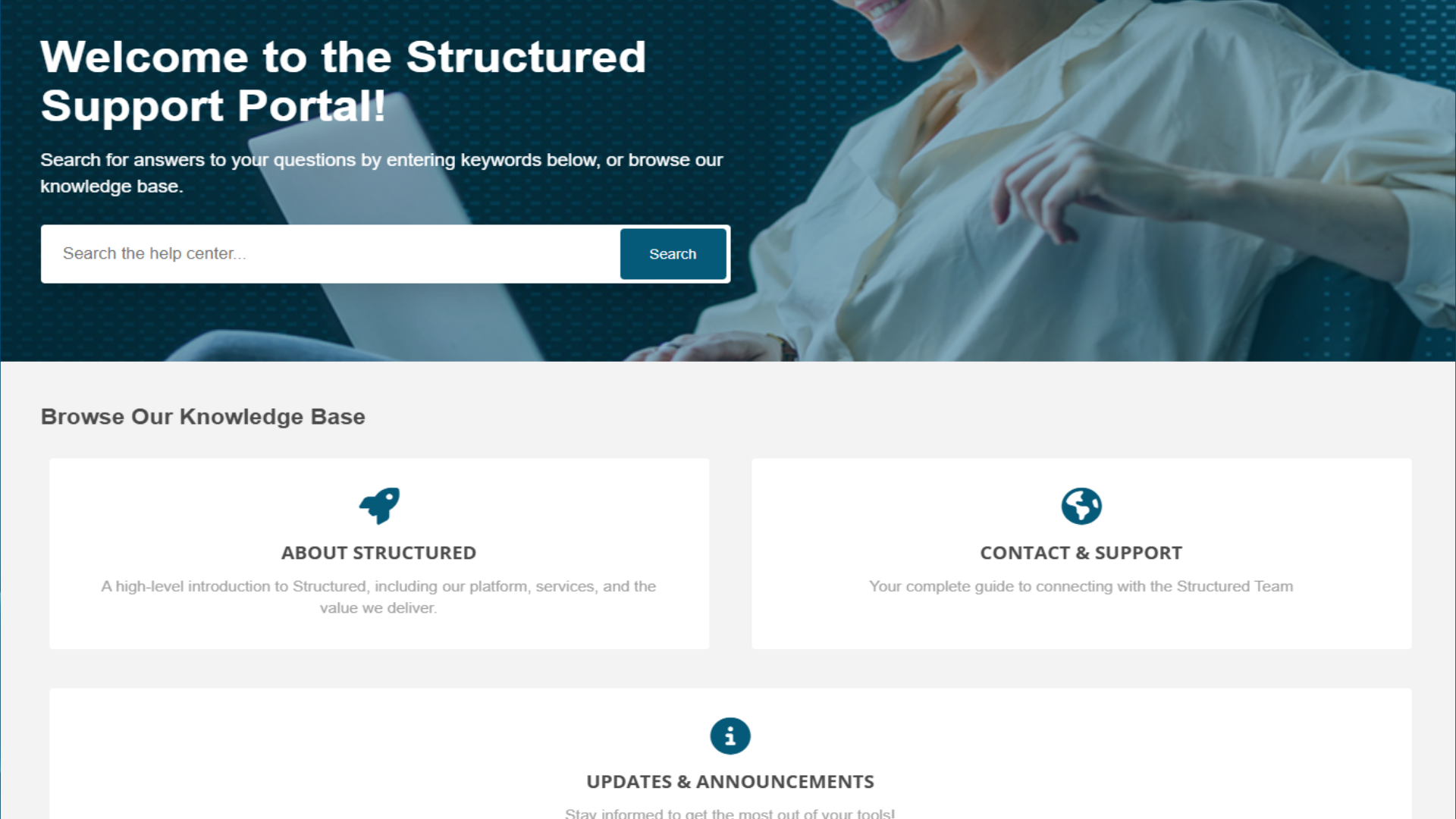
2. Support Portal Introduction
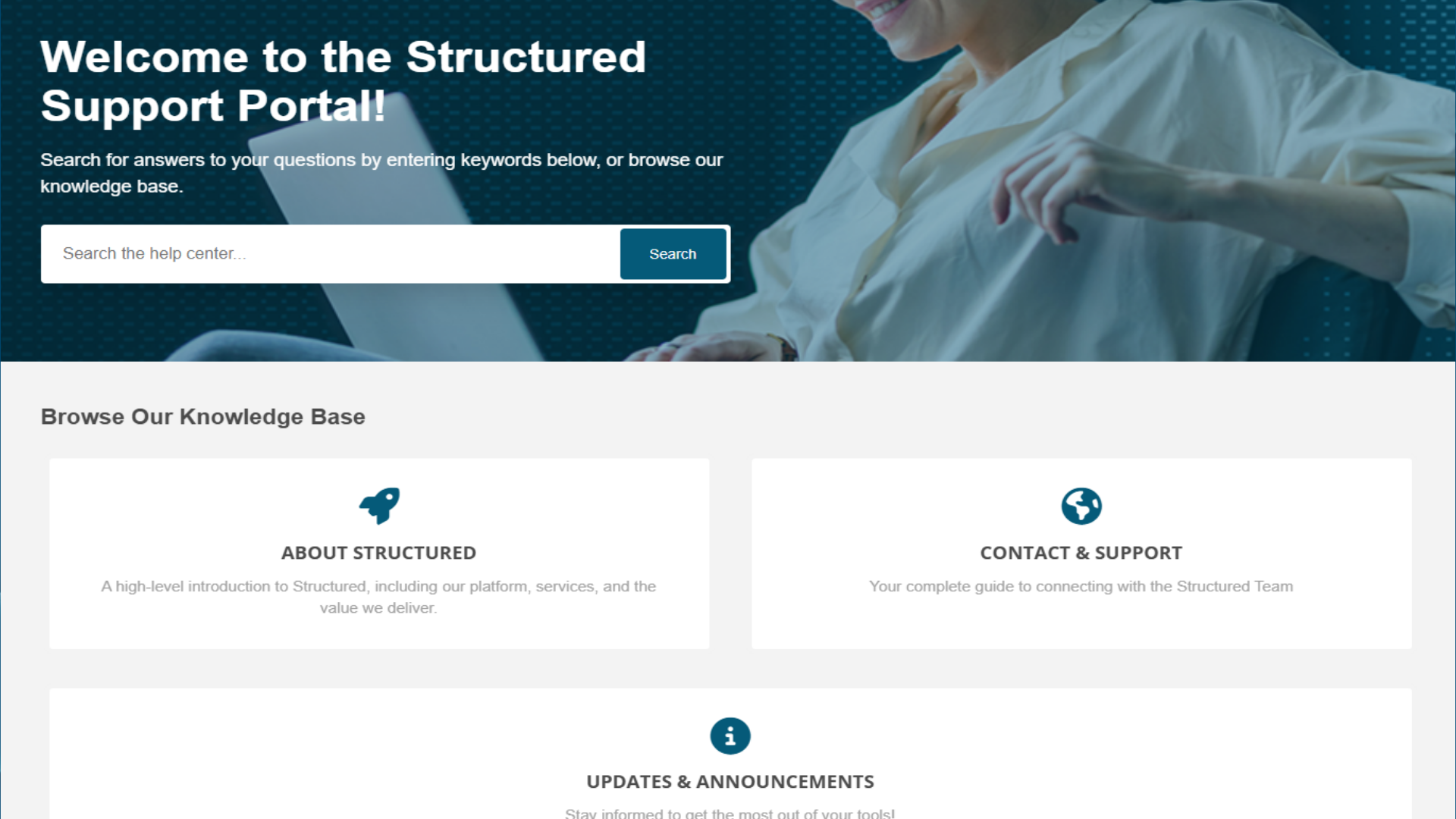
3. Portal Login Instructions
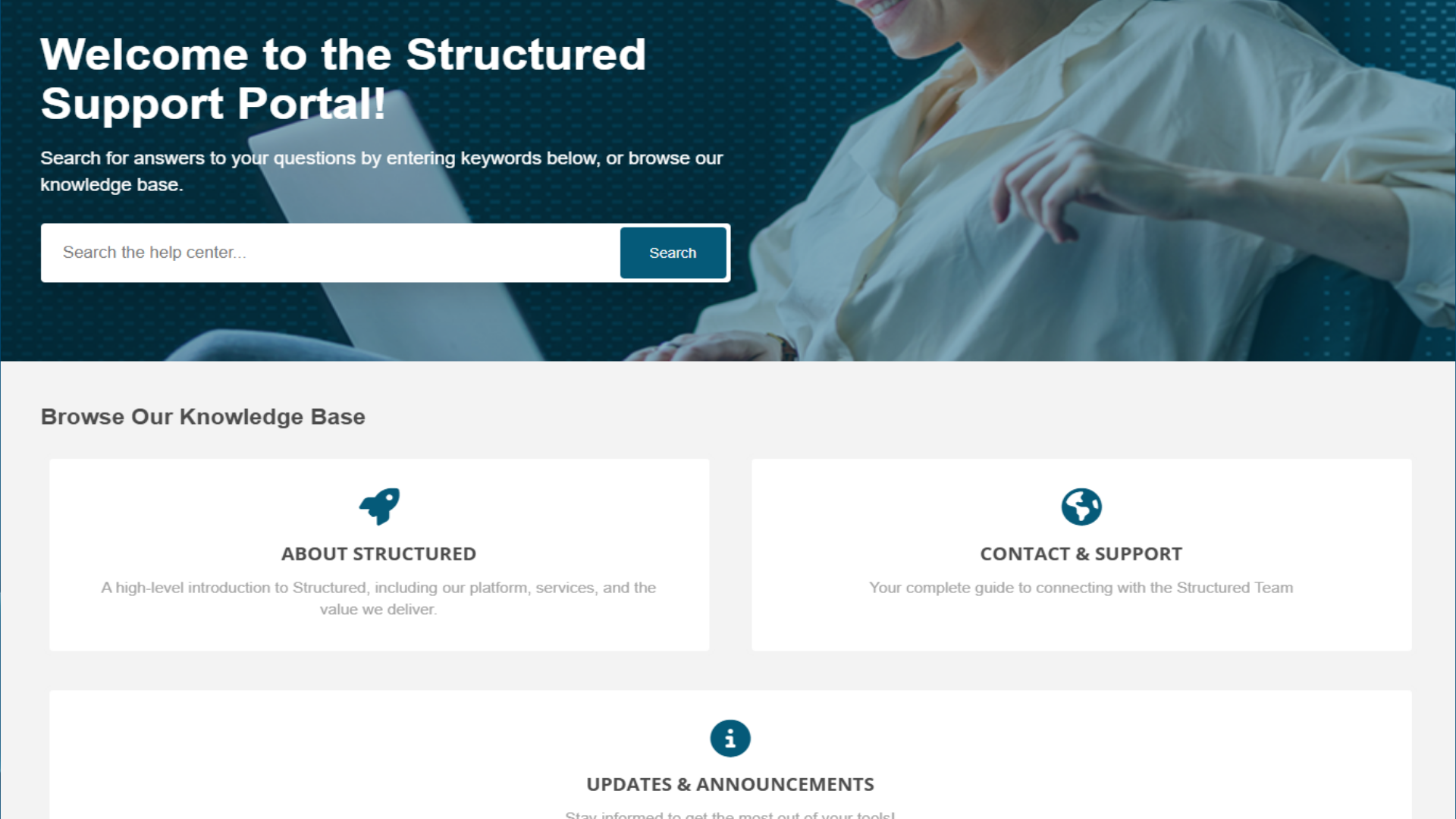
4. Sign In Process Details
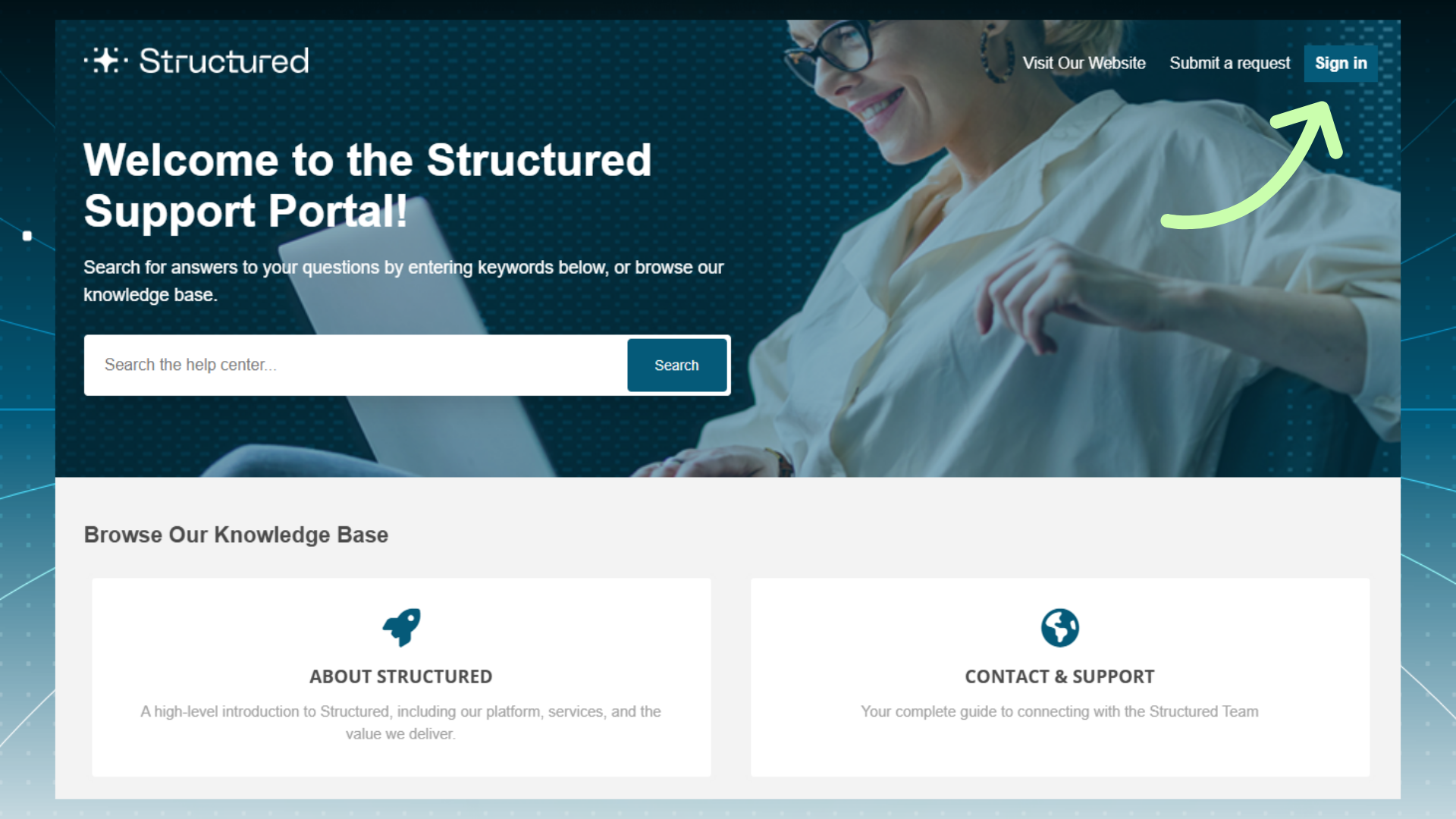
5. Logging in to the Portal
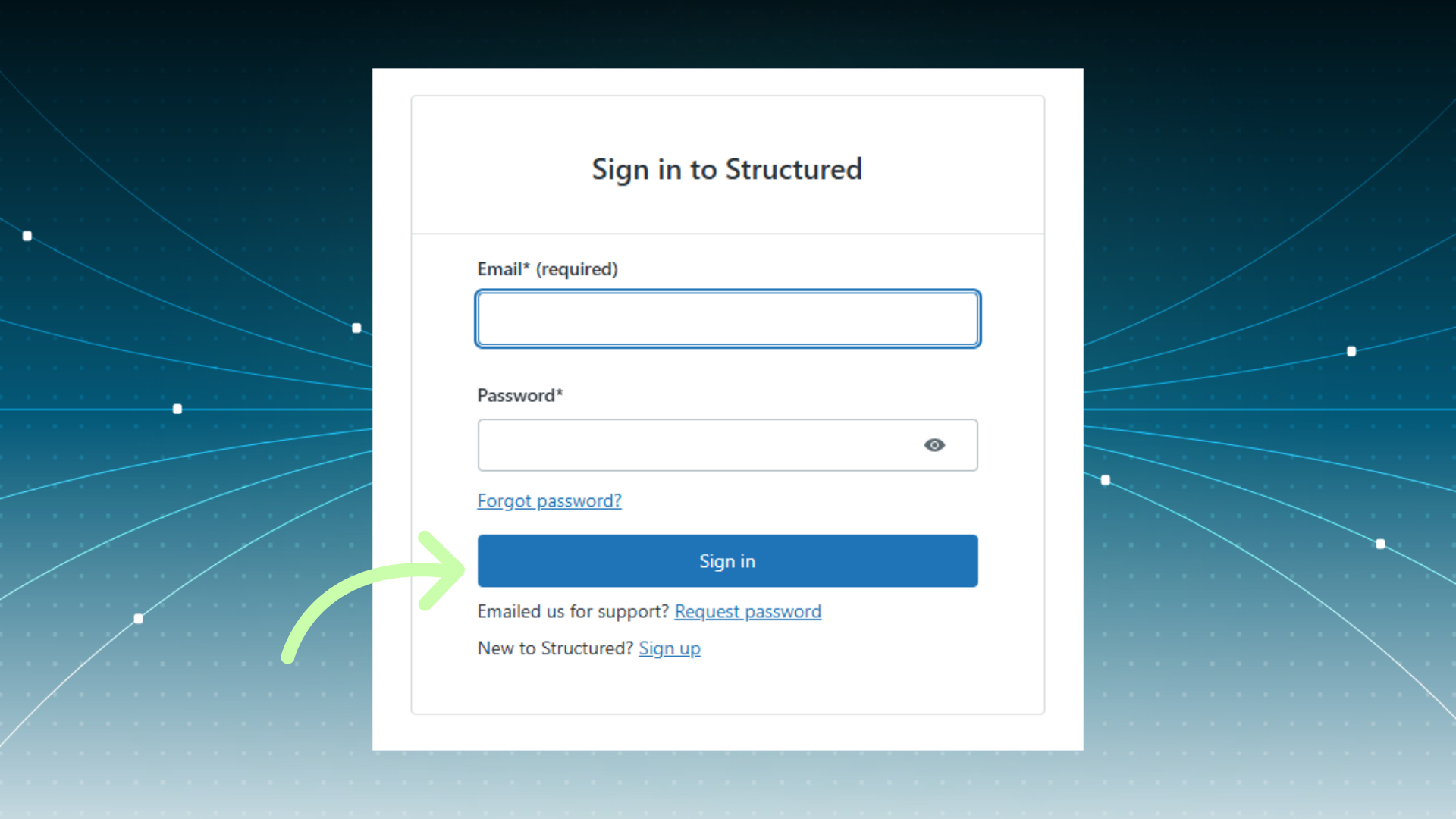
6. Home Page Access Requirements
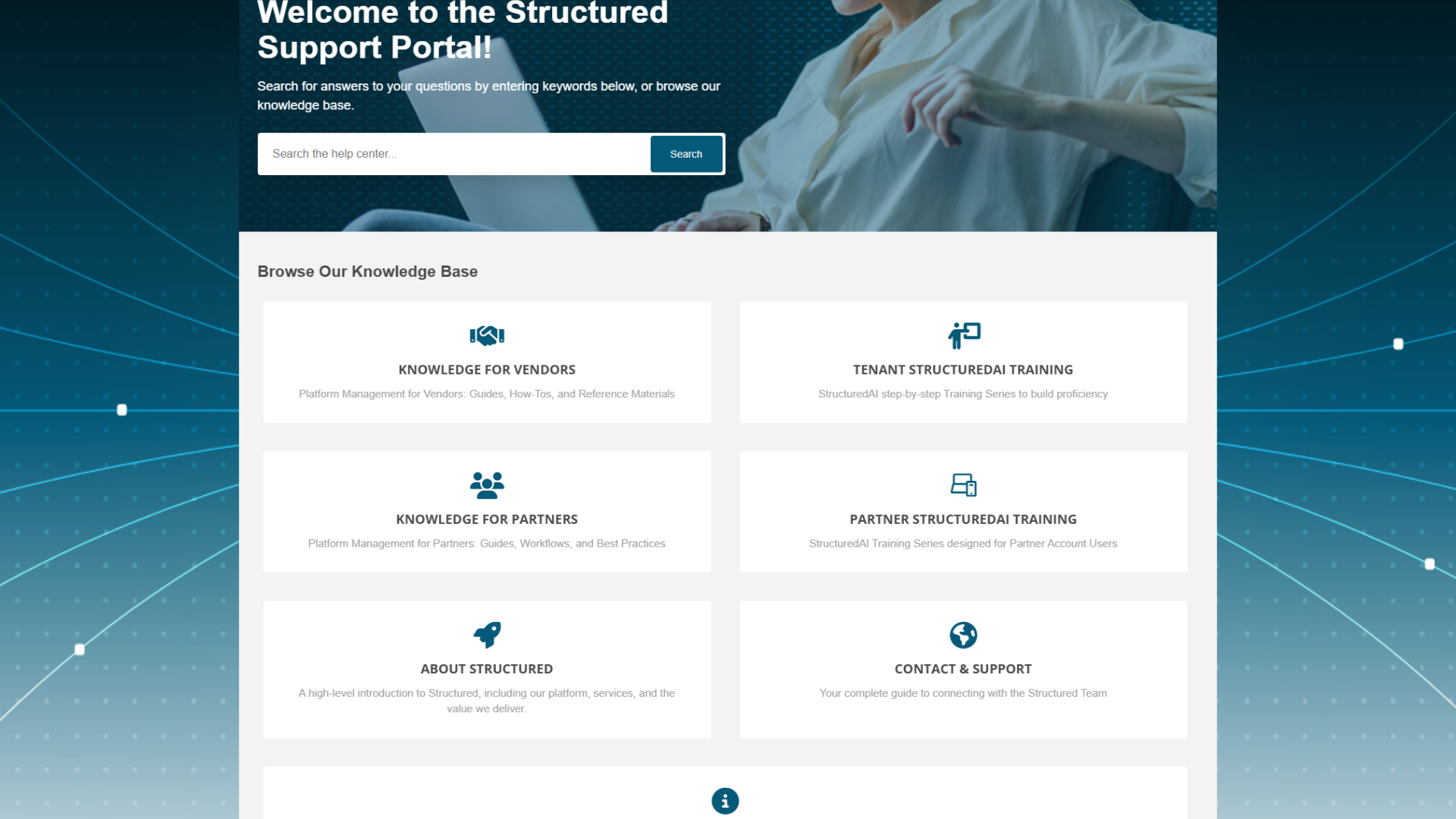
7. Knowledge Base Overview
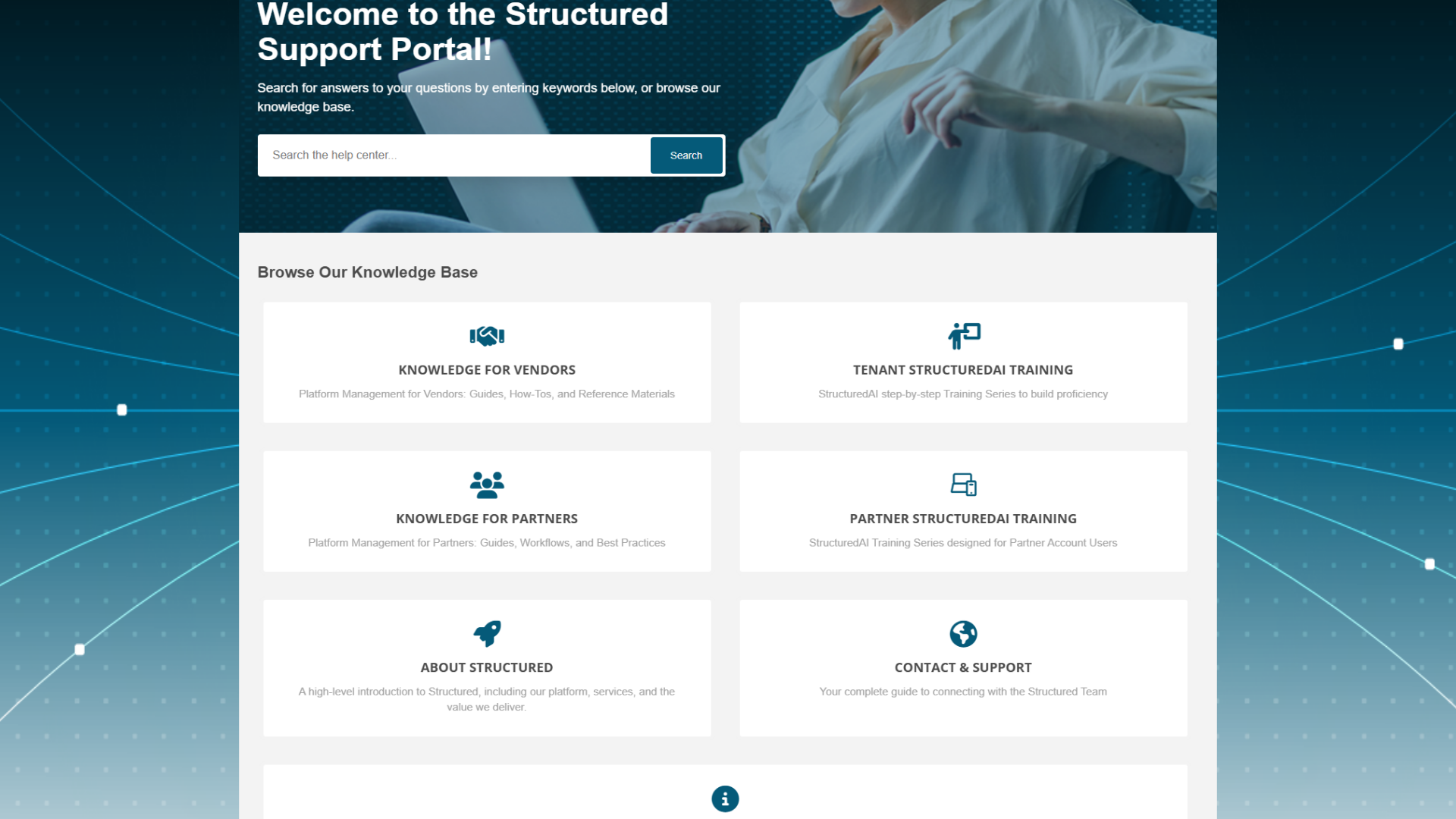
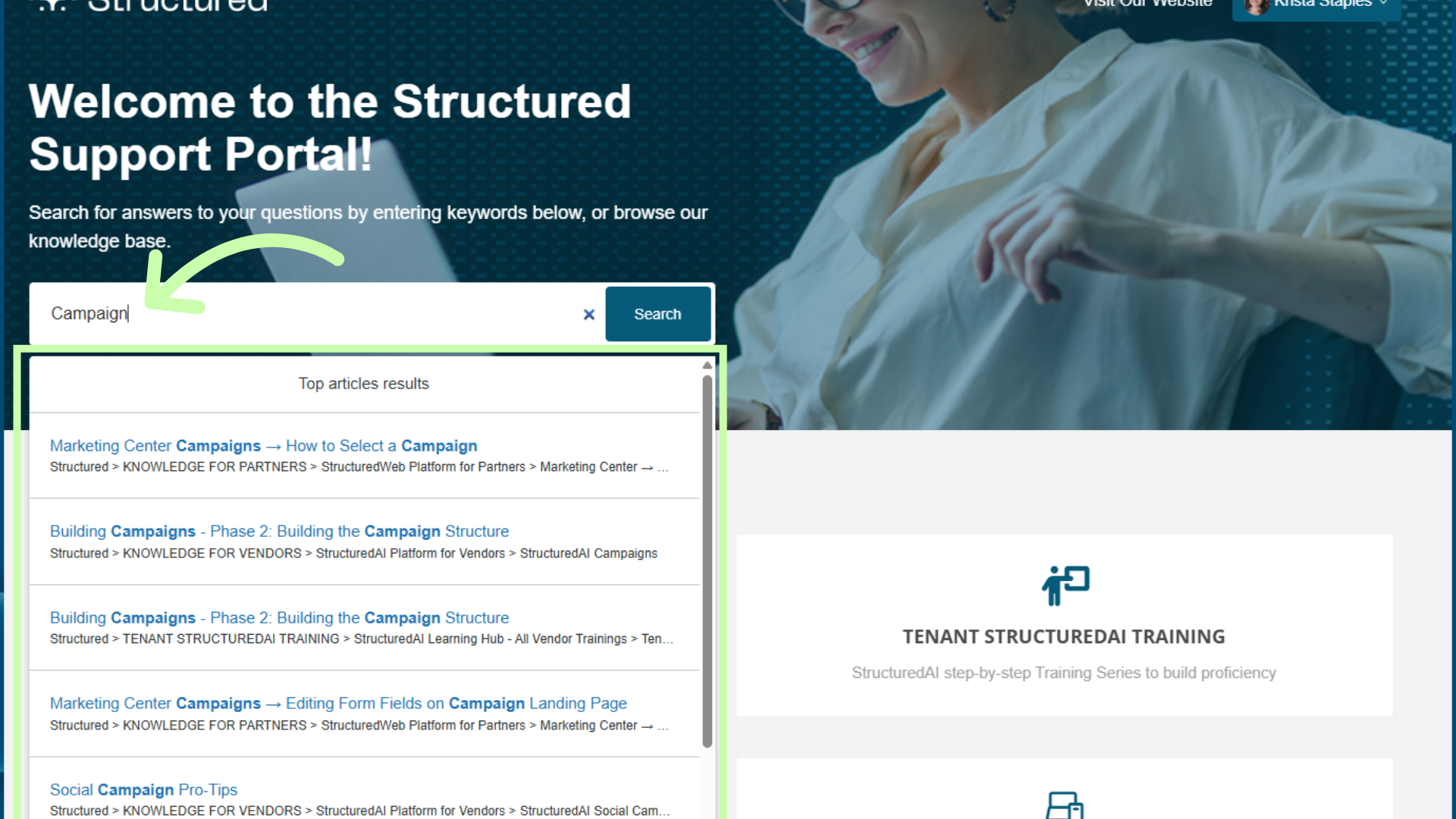
8. Using Search Bar Effectively
Before submitting a ticket to support, try using the built-in search to find answers right away. We’ve added a growing library of articles covering:
Common troubleshooting steps
Product walkthroughs
FAQs and best practices
Prefer to explore by topic? Head to the Knowledge Base section where articles are organized into categories for easy navigation.
For example:
Learn About Structured
Knowledge & Training for Vendors and Partners
Updates & Announcements
Each article includes screenshots, step-by-step instructions, and tips to help you solve your issue.
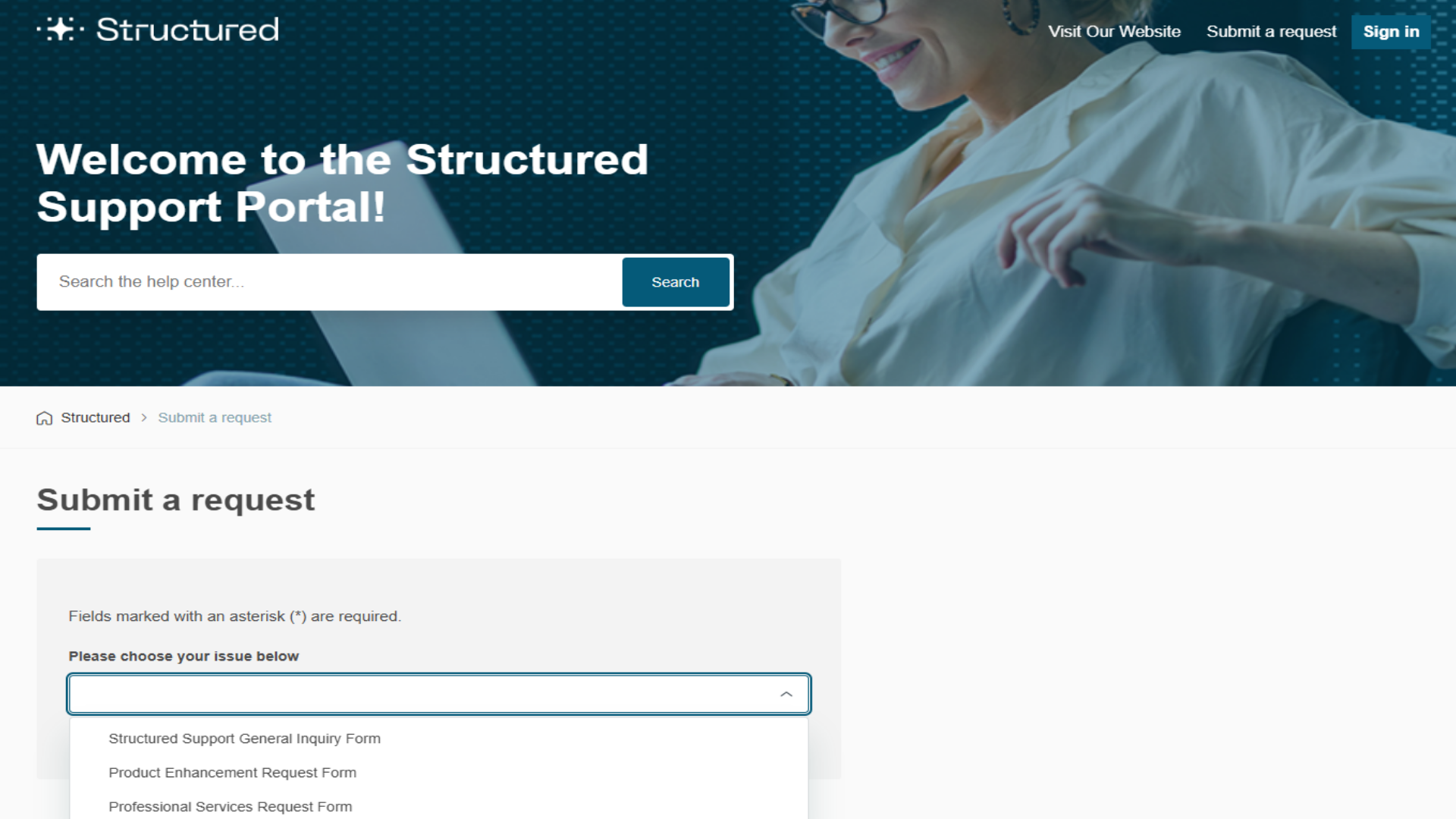
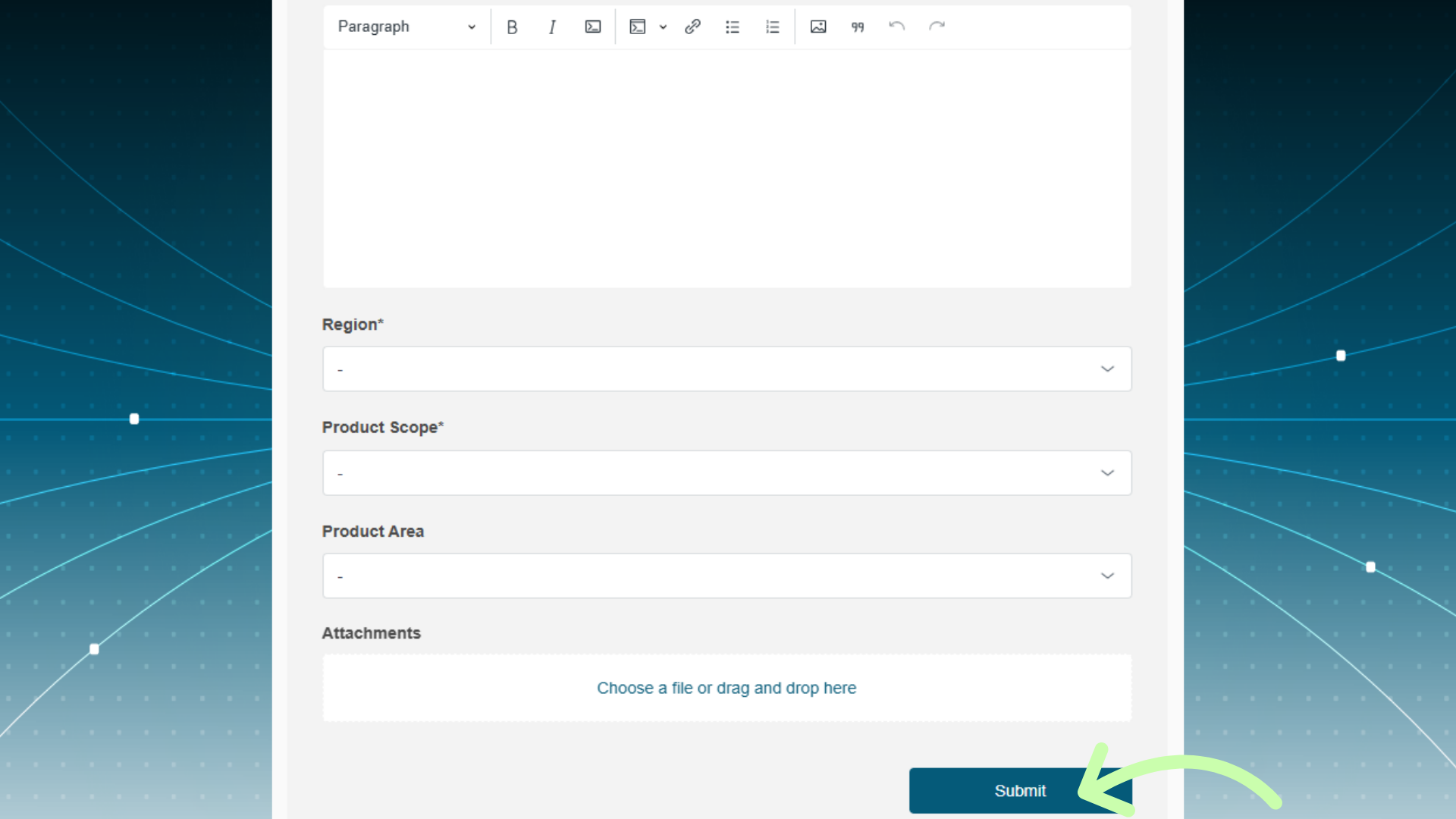
9. Request Submission Steps
Learn How to Submit a Support Request to the Support Team
Tracking Your Support Tickets
View Ticket Status
Method 1: Through the Portal
- Log into the support portal
- Click "My Requests" in the navigation menu
- You'll see a list of all your submitted tickets with their current status
Method 2: Through Email
- All ticket updates are automatically sent to your email
- Reply directly to the email to add information to your ticket
- Your response will be added to the ticket conversation
Responding to Support Agent Updates
When a support agent responds to your ticket:
- You'll receive an email notification
- Click the link in the email to view the full response in the portal
- To respond:
- Reply directly to the email, OR
- Log into the portal and add a comment to the ticket
Important: It is best to keep all communication within the ticket thread. This ensures all information stays organized and accessible to the support team.
Providing Additional Information
If the support agent requests more information:
- Open the ticket in the portal or reply to the email
- Provide the requested details clearly and completely
- Attach any additional screenshots or files if needed
- Click "Submit" or send your email reply
Quick response times help resolve your issue faster!
9. Ticket Confirmation Email
If you’ve submitted a support request, you can log in at any time to check its status.
Go to the "Requests" section to:
View all your open and past tickets
See responses from the support team
Add comments or updates to your request
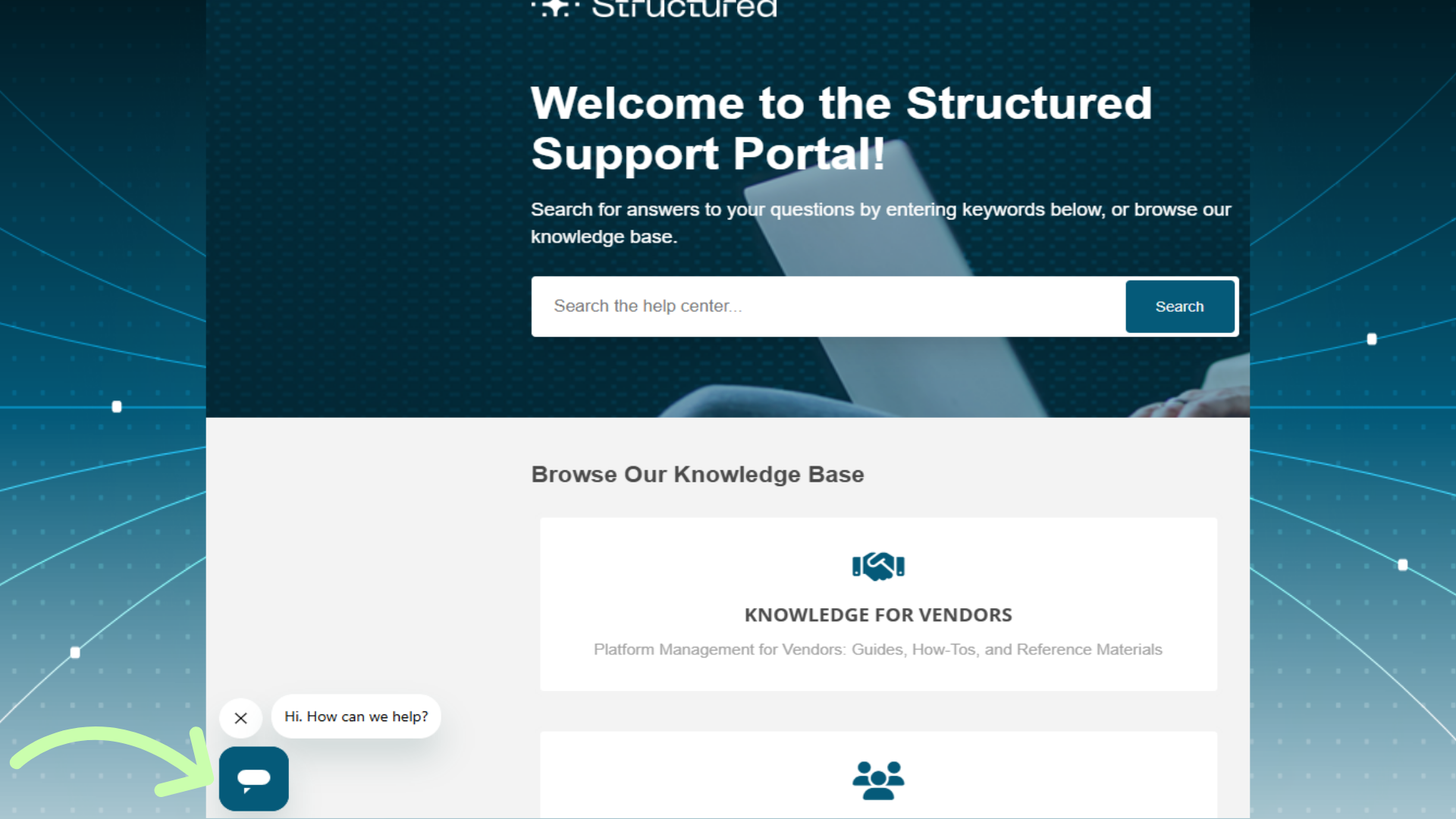
10. Live Chat Availability
 Why Use the Support Portal?
Faster resolutions: Search for answers before waiting for a response!
24/7 access: Help is available whenever you need it!
Better visibility: Keep track of your requests in one place!
More control: Add updates, attach files, and close resolved issues directly!