
 Freshness Rules - Phase 2: Defining Timeframes
Estimated Time
~15 minutes
Current Phase
Phase 2 of 2
What You'll Accomplish
- The purpose of Freshness Rules and how they indicate how recently a lead has engaged.
- How Freshness Rules help you quickly assess lead activity and engagement recency.
- The framework behind how lead freshness labeling is structured within the system.
- How to configure and manage Freshness Rules to maintain accurate and useful lead insights.
|
Before you begin — open your account This is a hands-on, learning-by-doing session. Open app.structured.ai in your browser and log in to your Tenant Account so you can follow along and apply each step in real time. |
Direct Links to the Next Phases in this Training Series
This module is part of a 2-part series. Each session builds on the
last, and reviewing them in order ensures you don't miss any critical
steps and get a complete understanding of the workflow.
|
Phase 1
Purpose & Framework
|
Start Training ➡ |
|
Phase 2
Defining Timeframes
|
Current Phase ✔ |
Follow Our Step-By-Step Training
1. Introduction
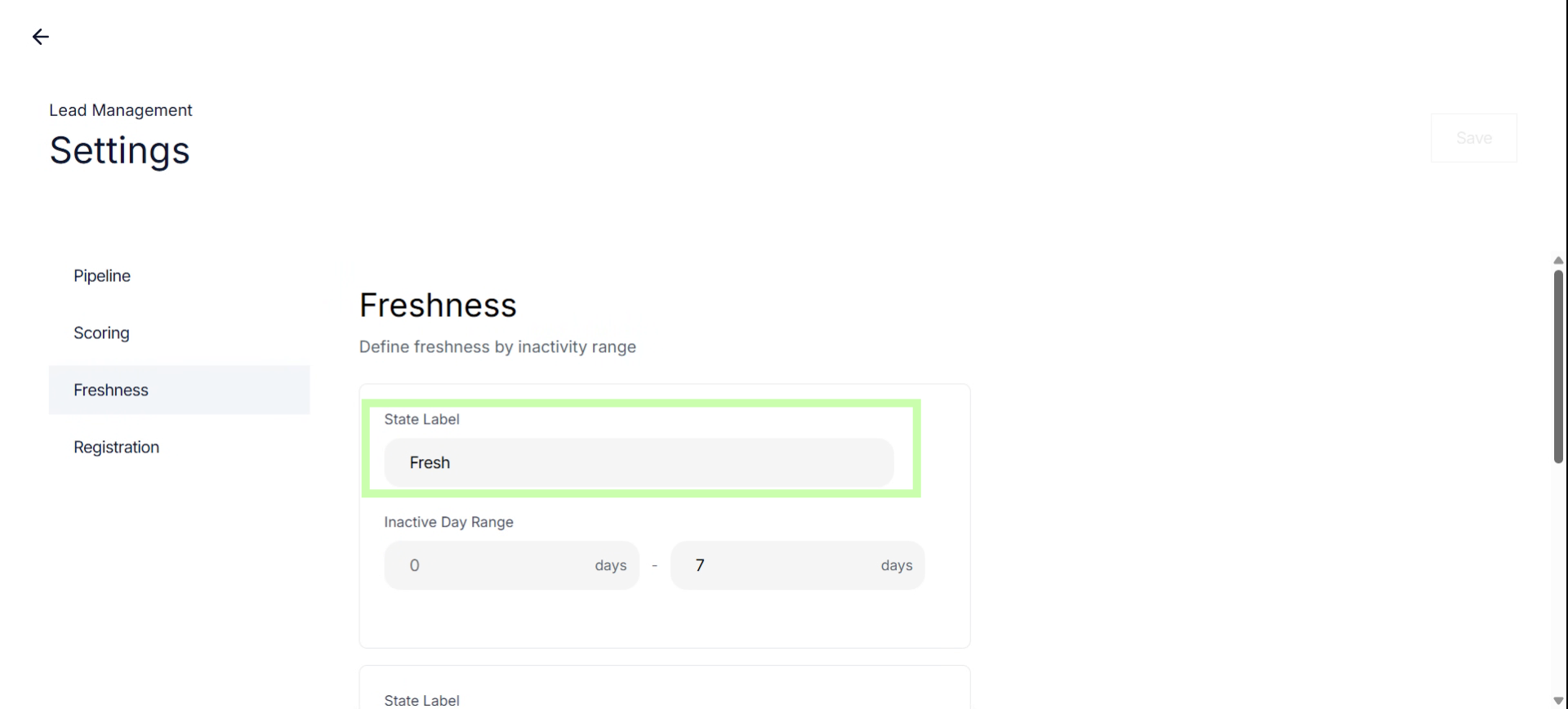
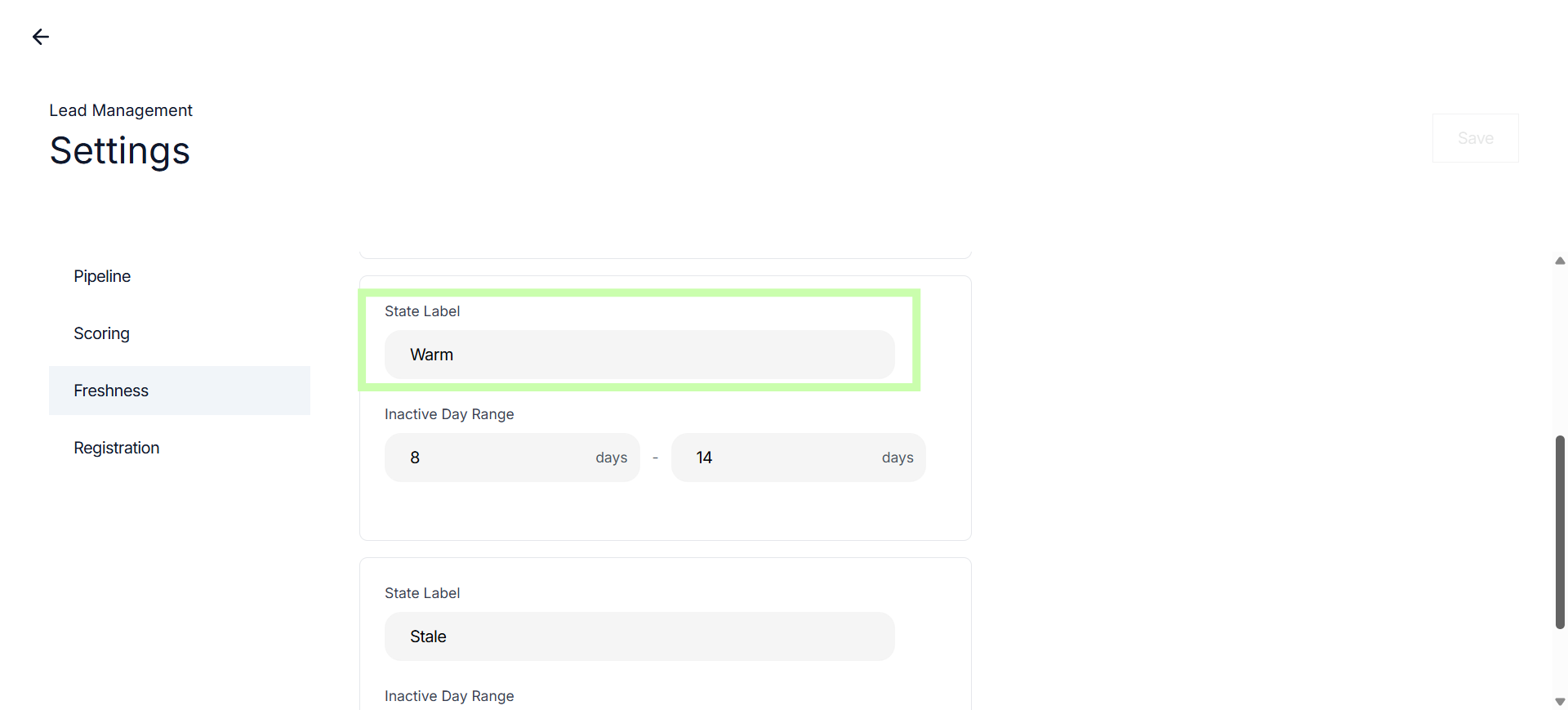
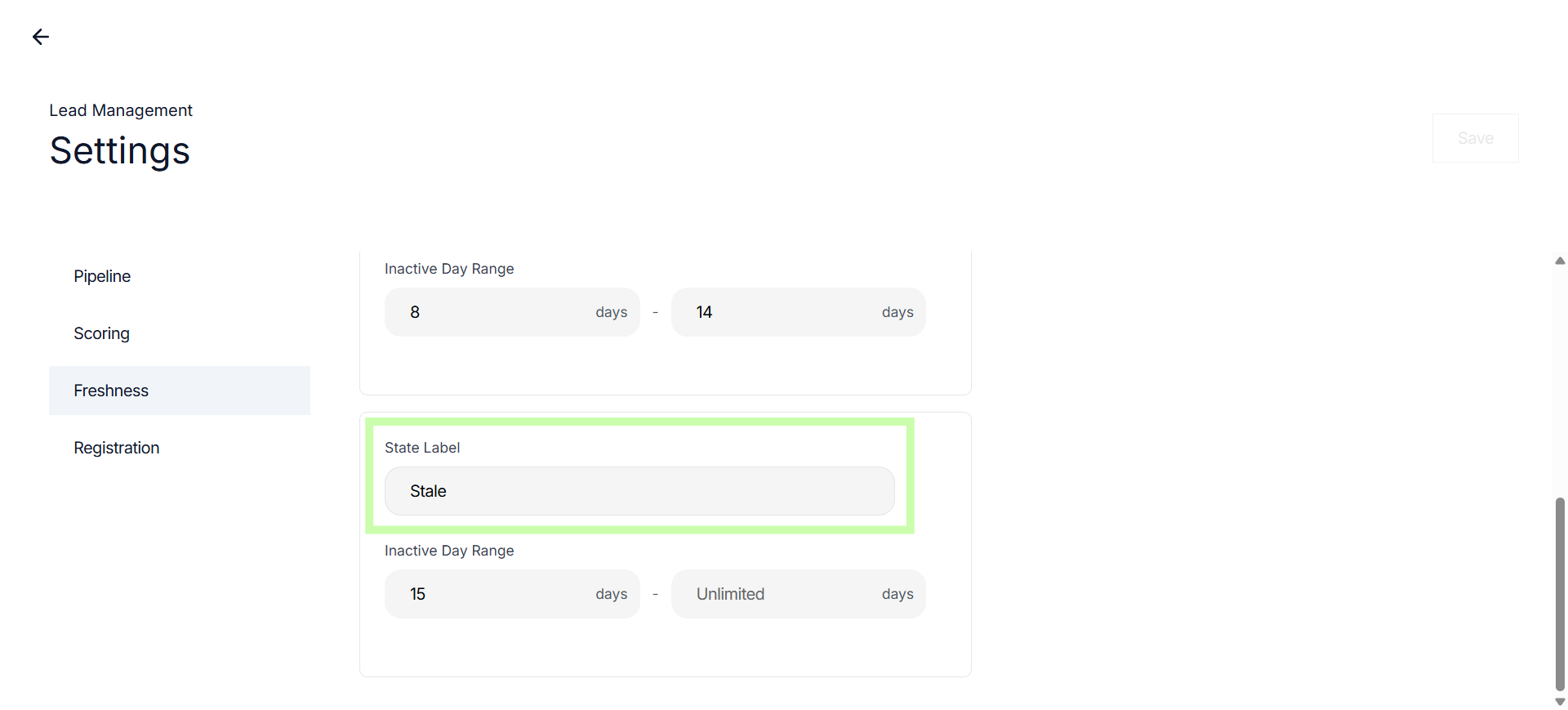
In the Freshness settings, you can adjust the timeframes and labels. By default you'll see Fresh, Warm and Stale.
2. Enter Freshness State Label
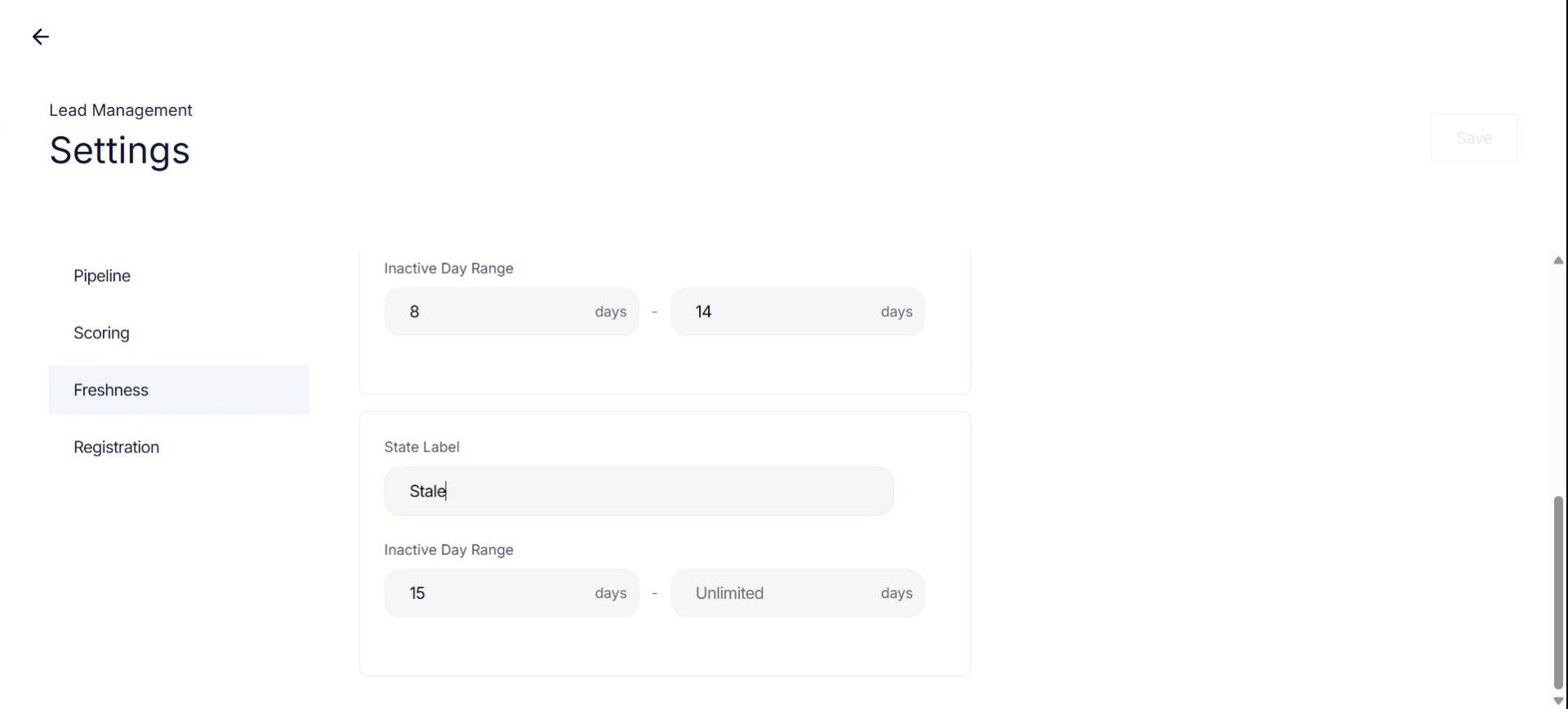
You can change any label. In this example, I'll change stale to old.
3. Select Inactive Day Range
Click the Inactive Day Range field to specify the number of days defining inactivity.
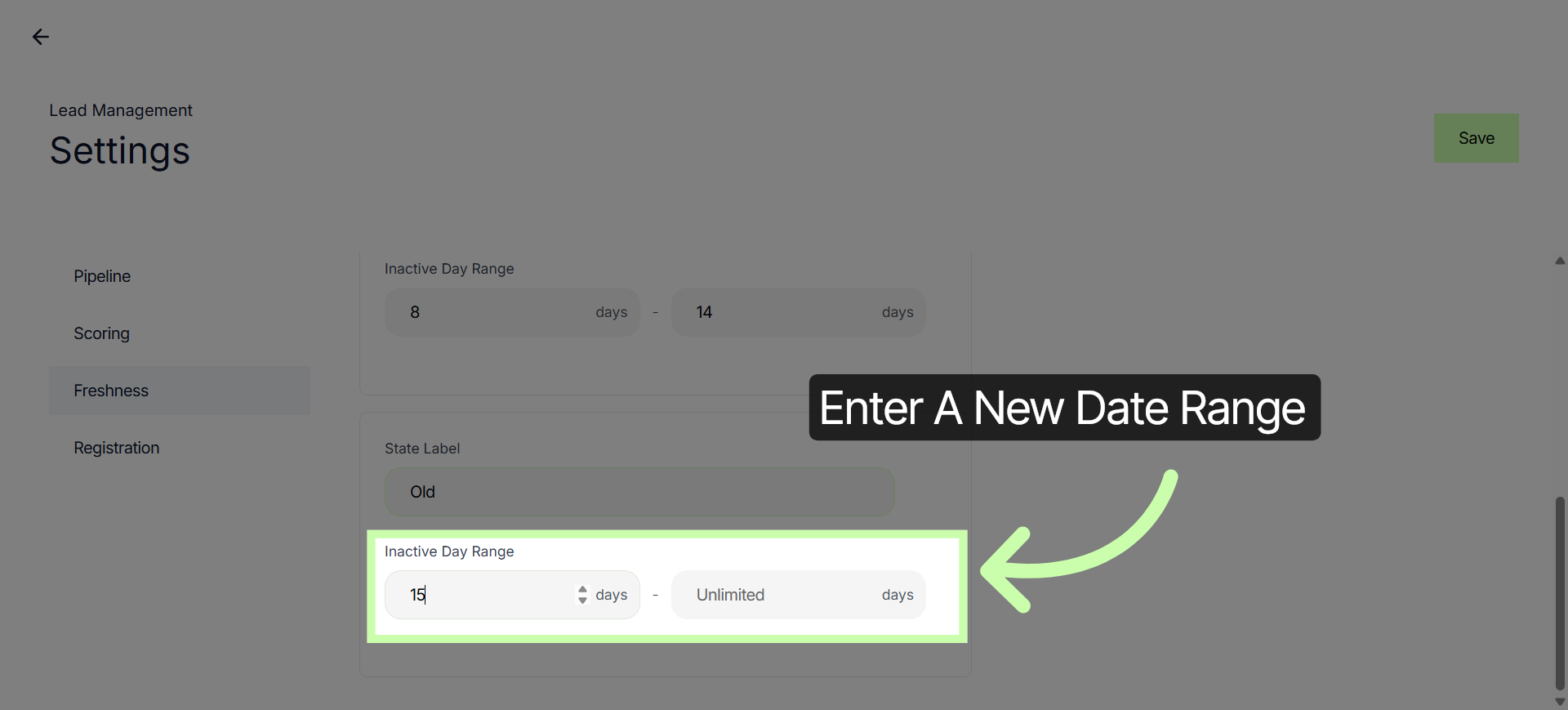
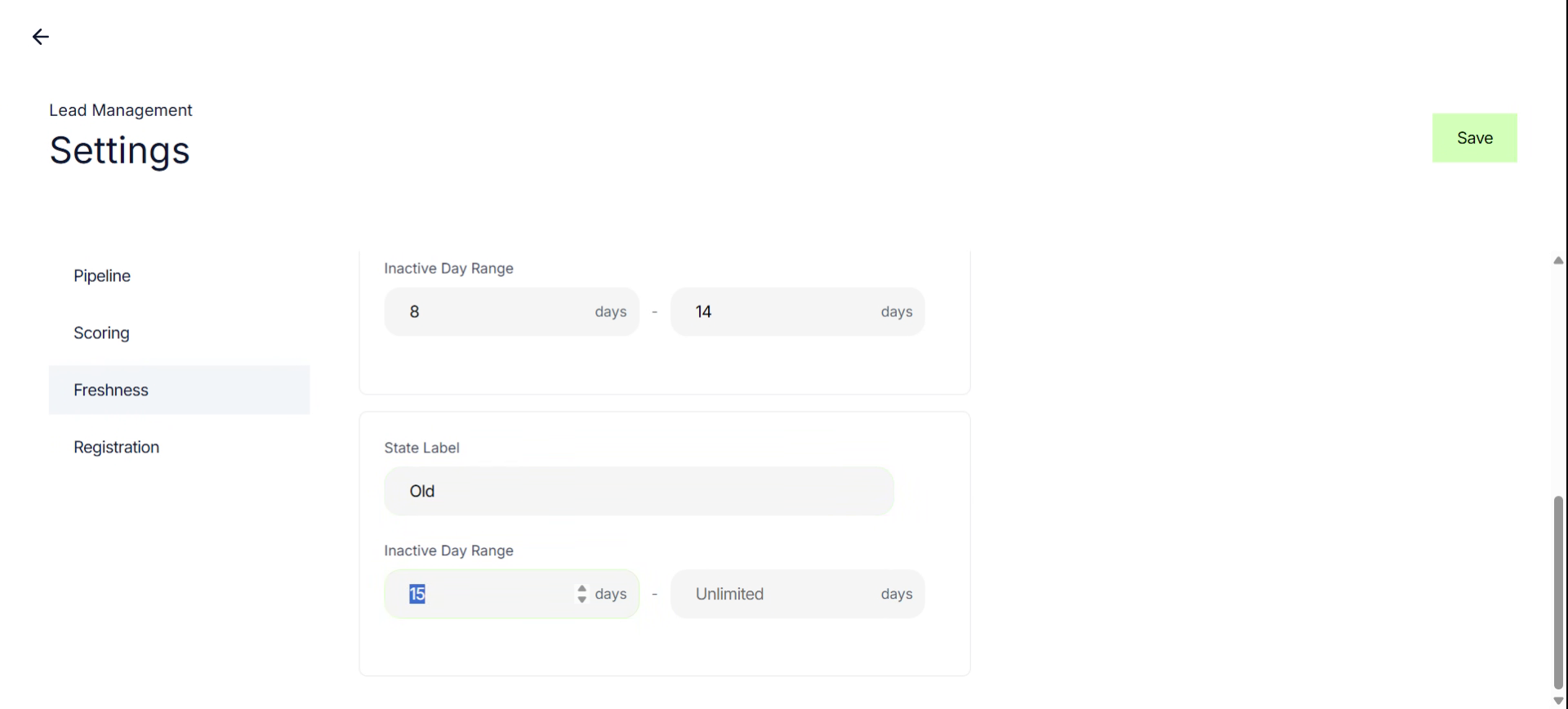
4. Set Inactivity Days
In this example we will enter 30 in the Inactive Day Range field. to set the inactivity period to 30 days.
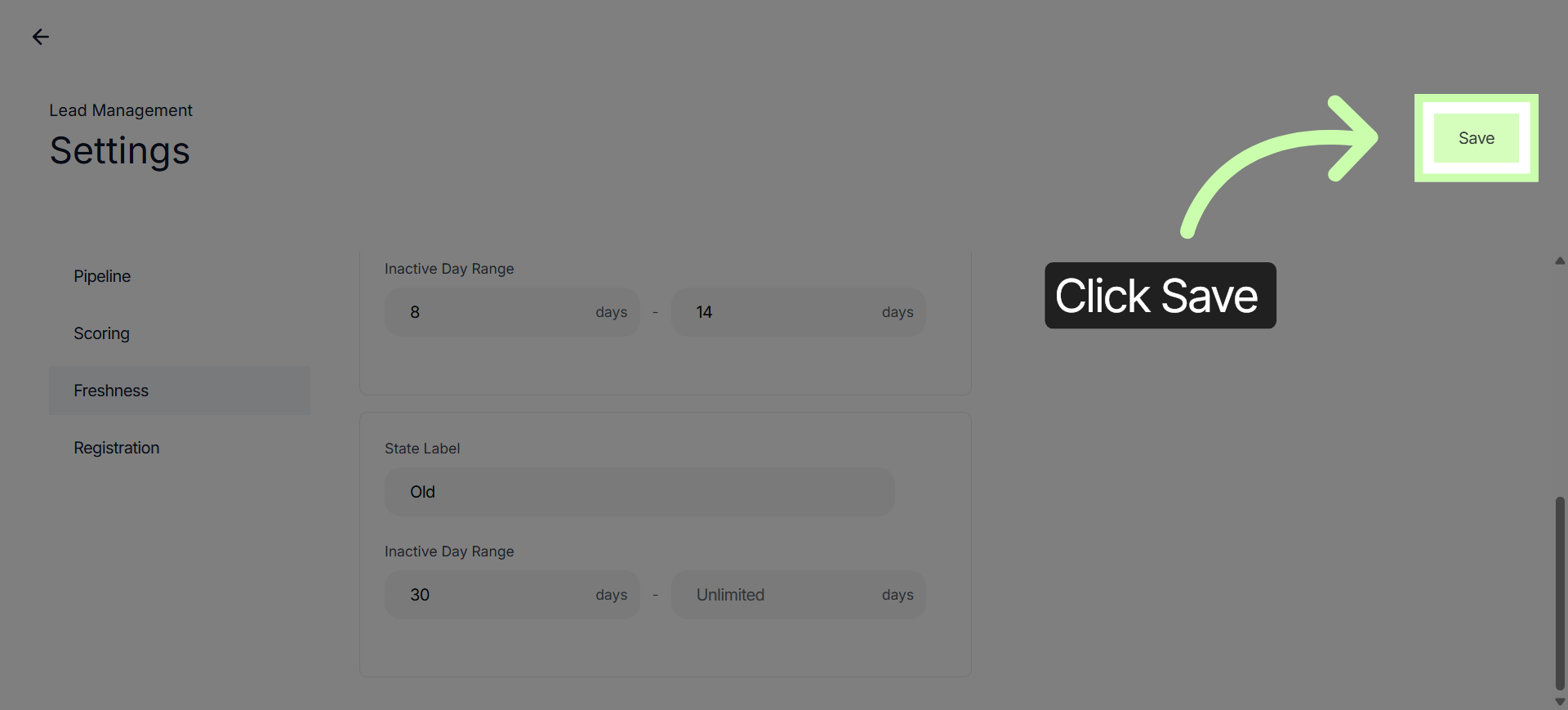
5. Save Freshness Configuration
Click the Save button to apply all your Lead Management Settings.
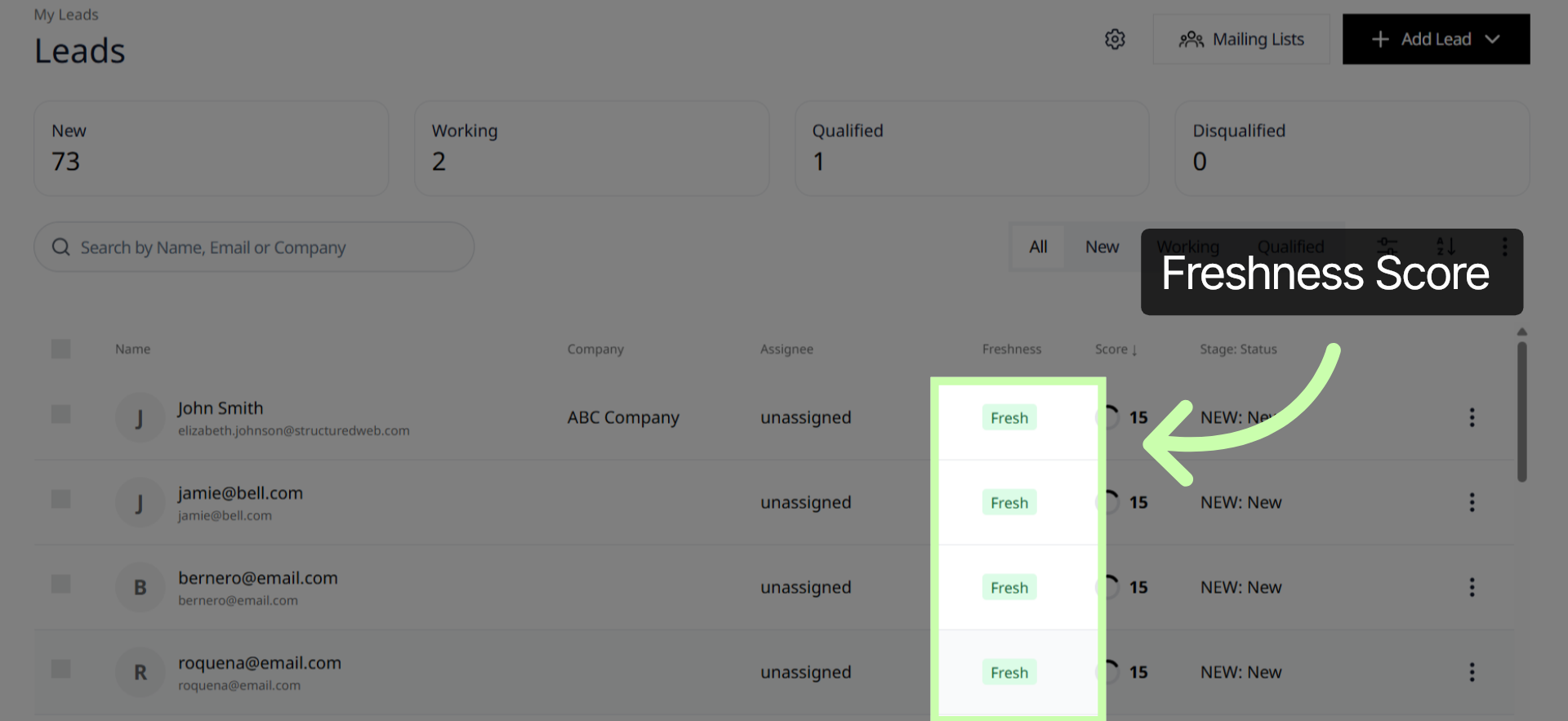
6. Freshness Score
These labels appear as a dedicated column in the partner’s lead management table. This helps partners immediately distinguish between leads that need an urgent call and high-scoring leads that may need re-engagement".
You have successfully configured lead freshness settings.