Web Syndication is a managed solution designed to let you handle the design and customization while giving your partners control over what they choose to display. This video provides an overview of how these assets are constructed and managed.
This tutorial provides an overview of how Web Syndication assets are constructed and managed.
Before you begin — open your account This is a hands-on, learning-by-doing session. Open app.structured.ai in your browser and log in to your Tenant Account so you can follow along and apply each step in real time.
Follow Our Step-By-Step Training
1. Introduction
Web Syndication is a managed solution designed to let YOU handle the design and customization while giving your partners control over what they choose to display.
2. Open Content Library Creation
To get started, navigate to the Content Library.
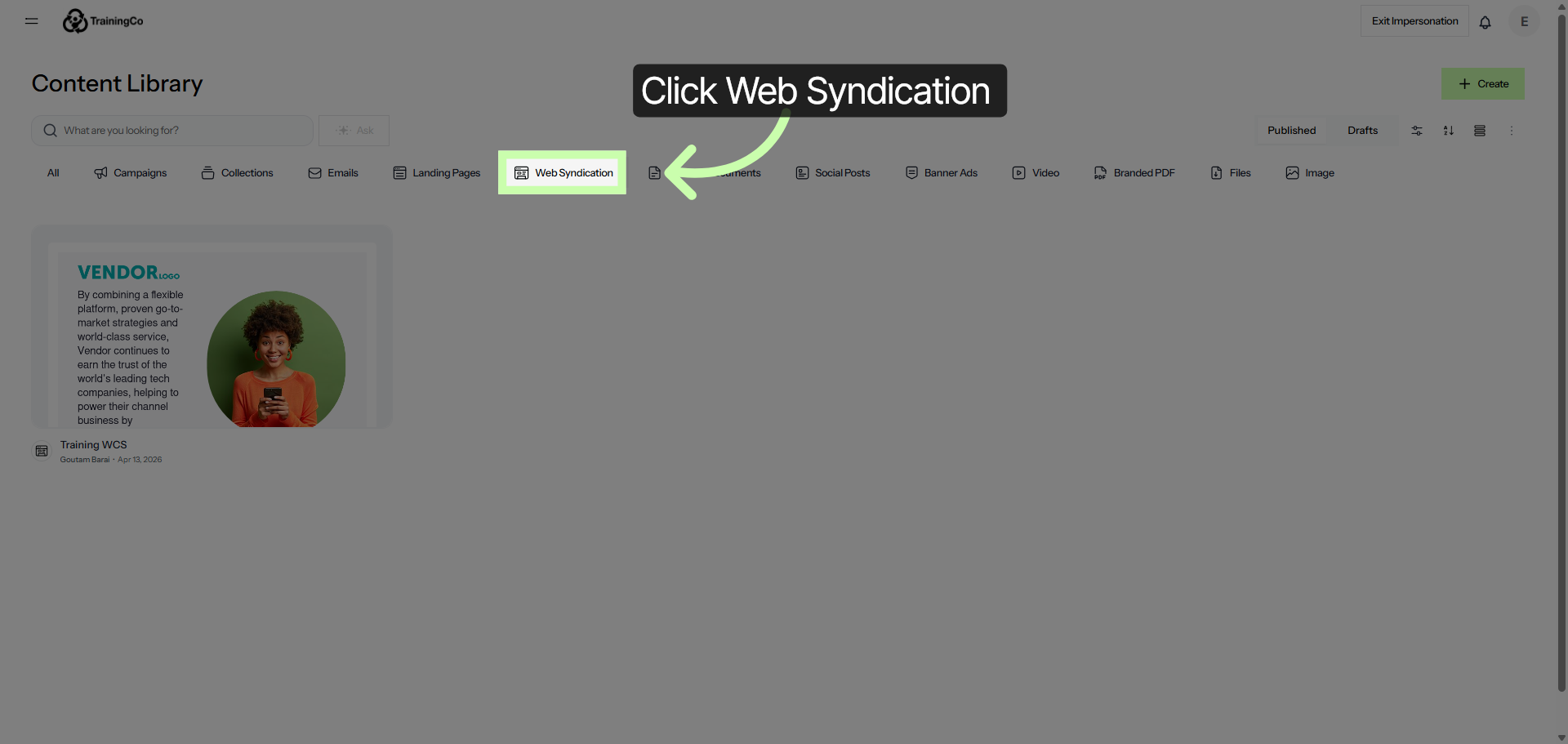
3. Navigate to Web Syndication
Once you are in the Content Library, select Web Syndication.
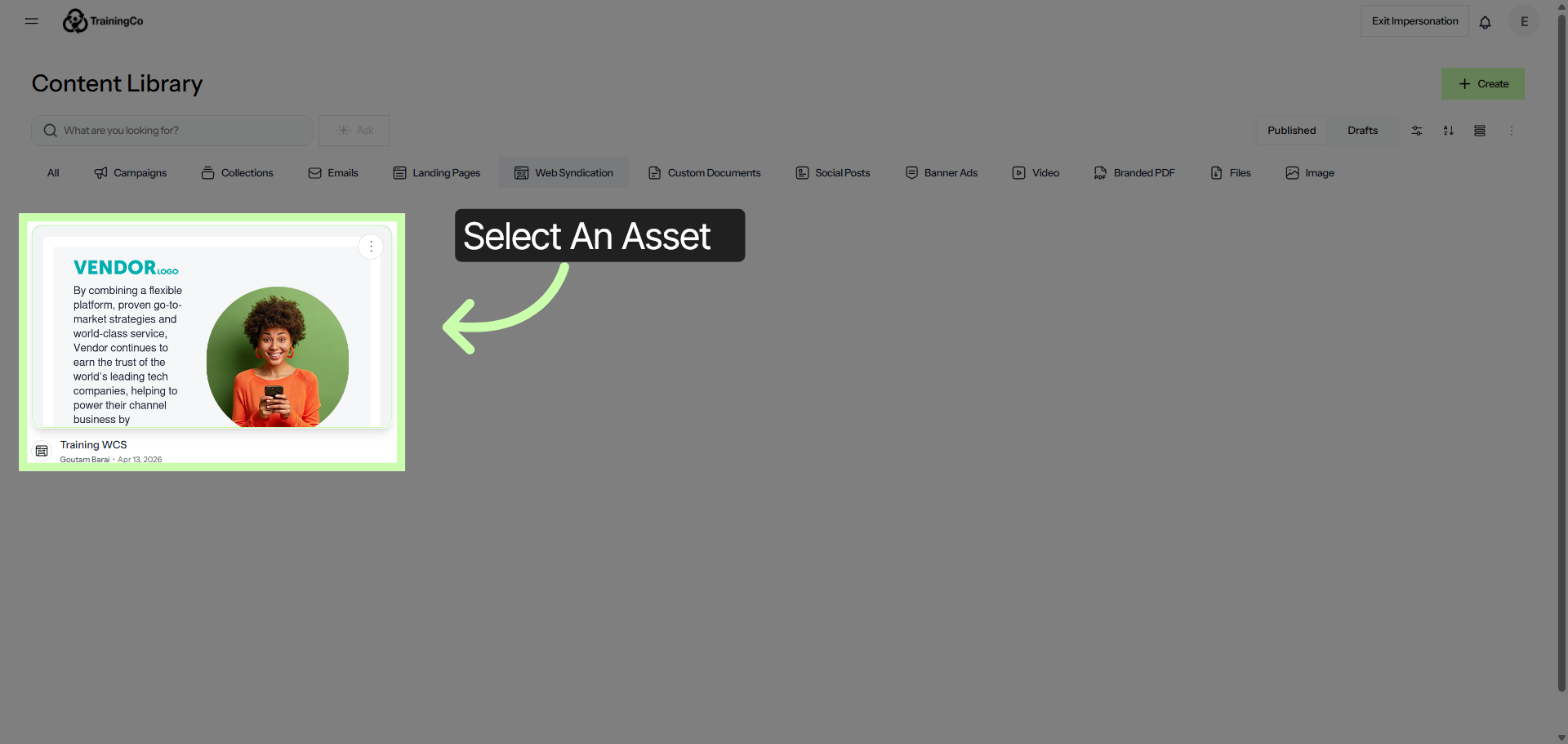
4. Open Web Syndication Details
Choose an asset and click to open it.
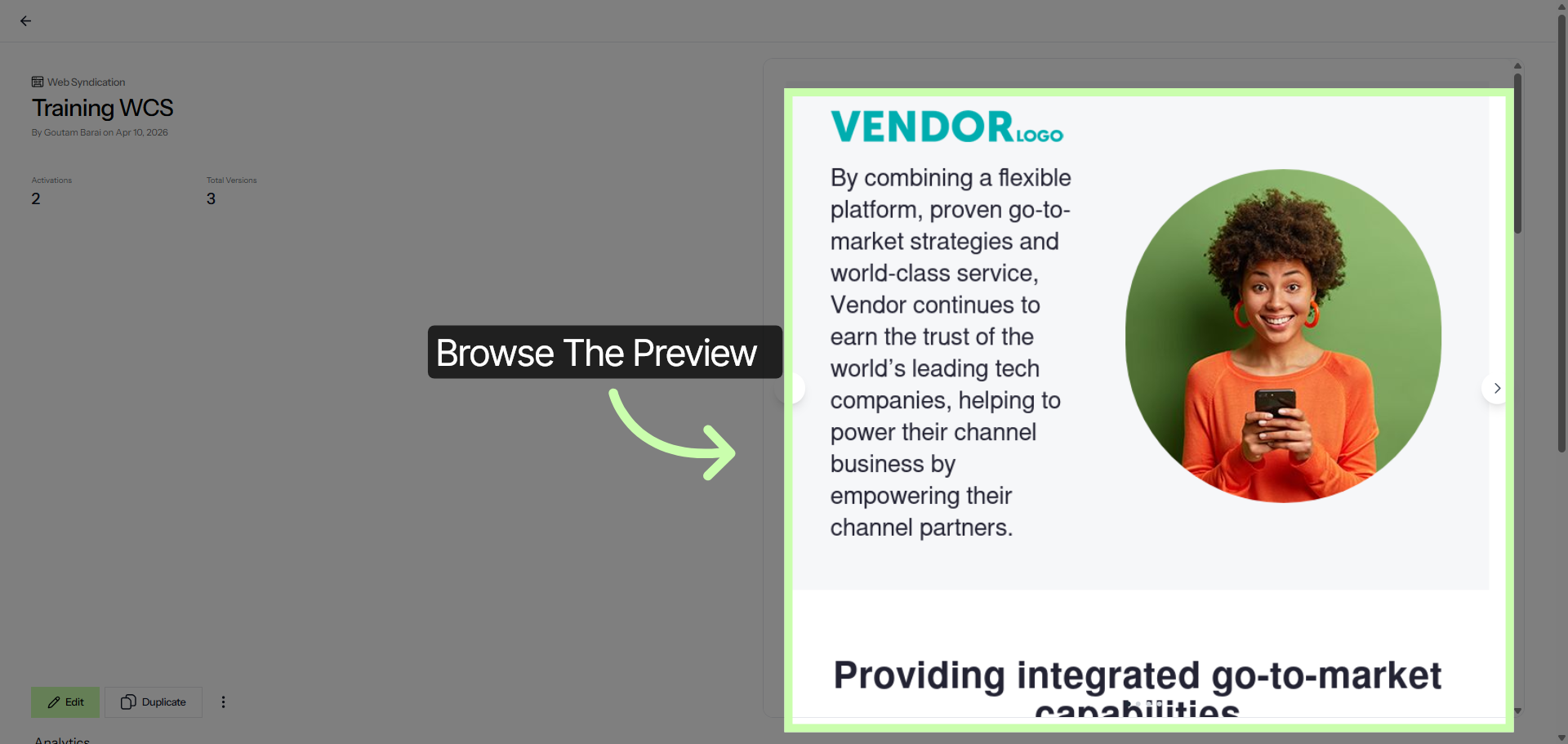
5. Preview Web Syndication Content
This brings you to the Overview page, which provides a preview.
6. View Performance Overview
You'll also see Real Time Analytics.
7. Access Activations Accounts
And account activations!
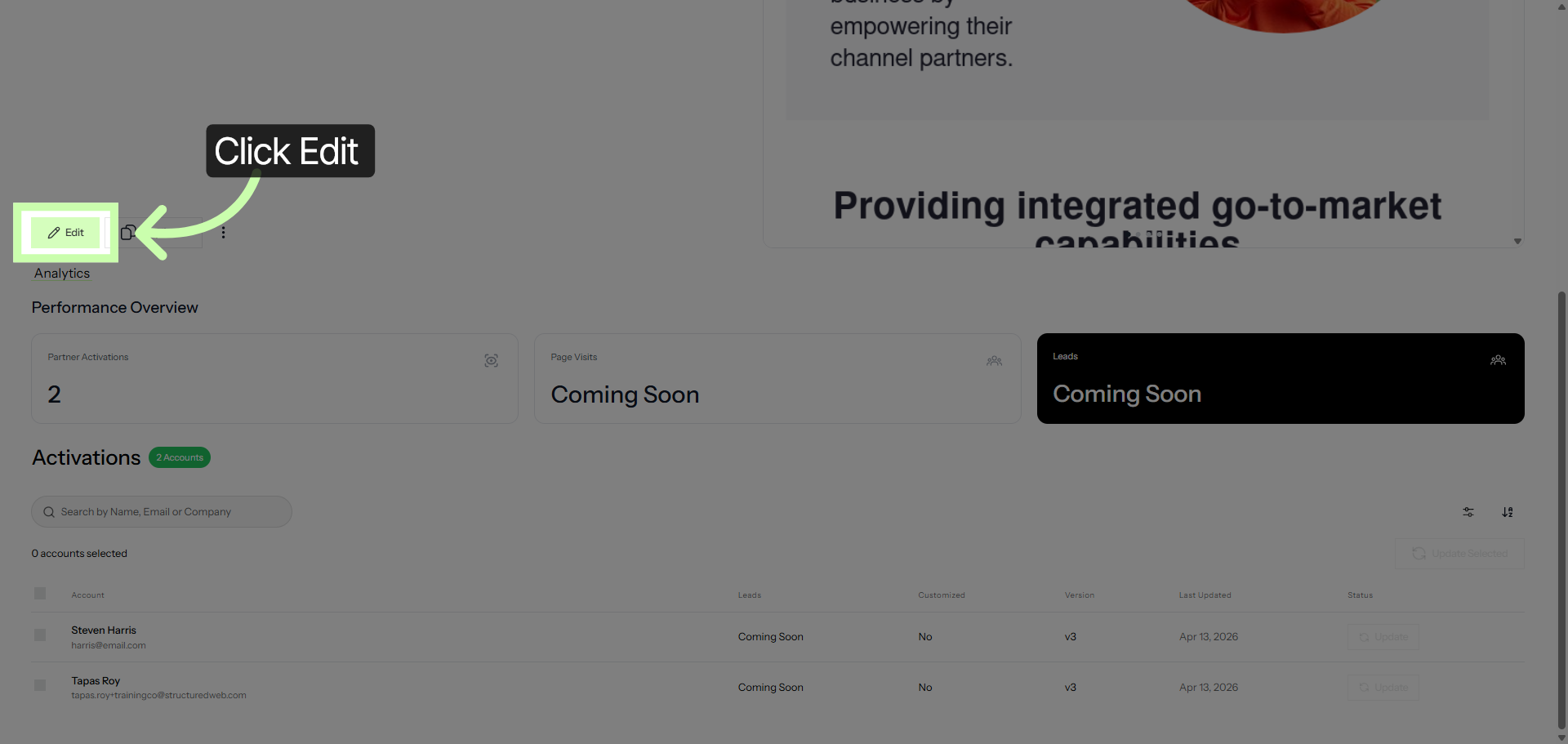
8. Edit Web Syndication Content
Click Edit to enter the workspace.
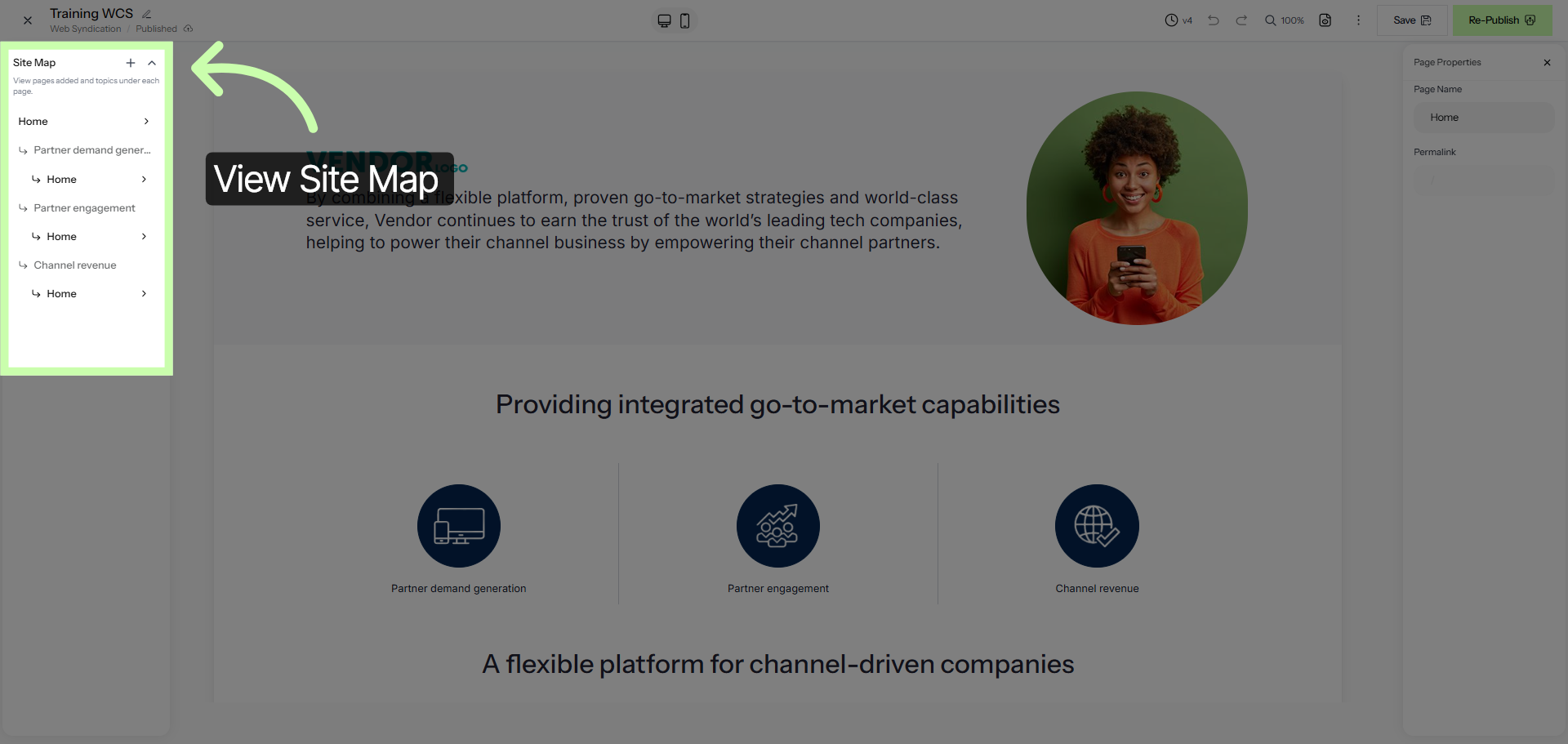
9. Open Site Map
Once you are in the workspace, you'll find the Site Map.
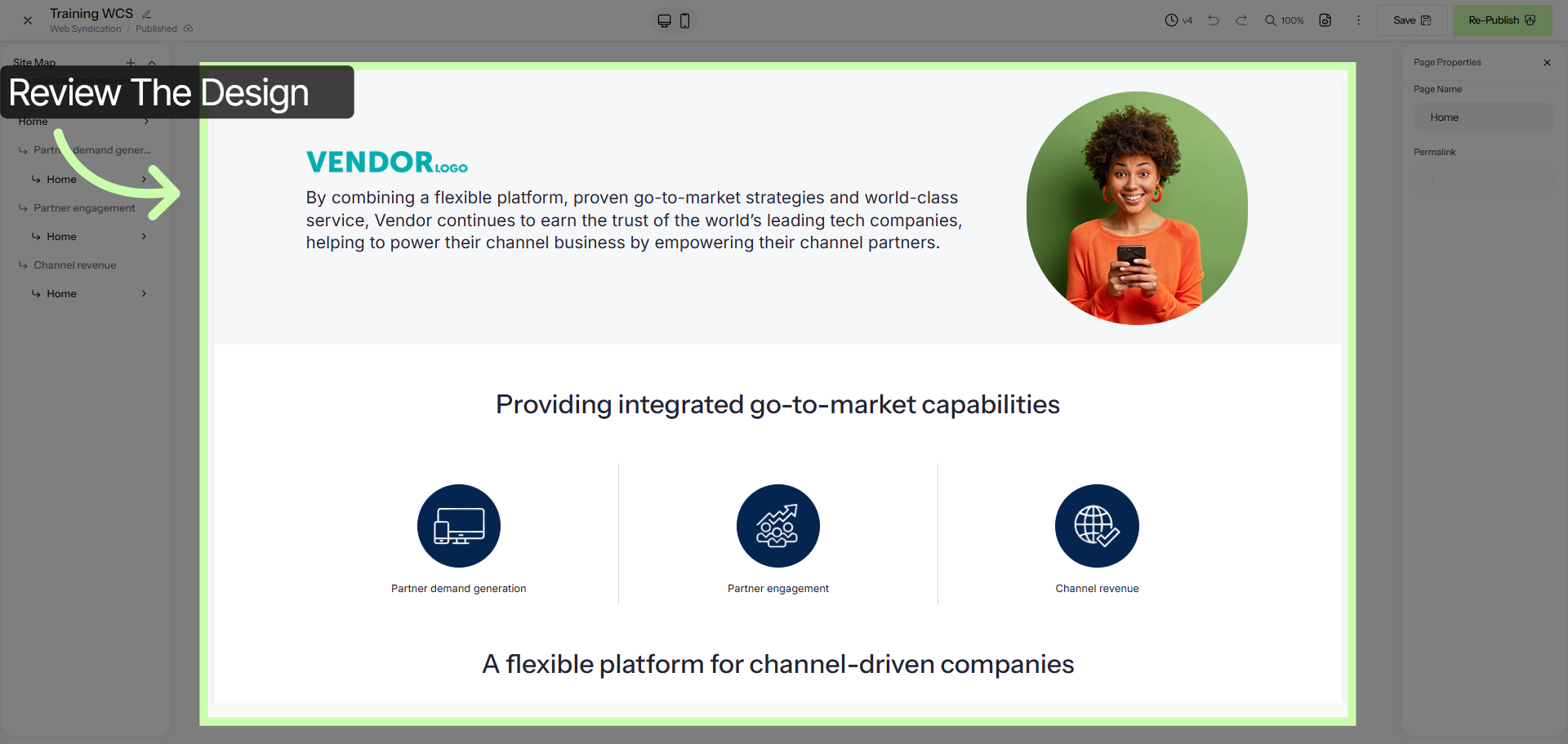
10. Select Content Section
You'll also see the Design Canvas.
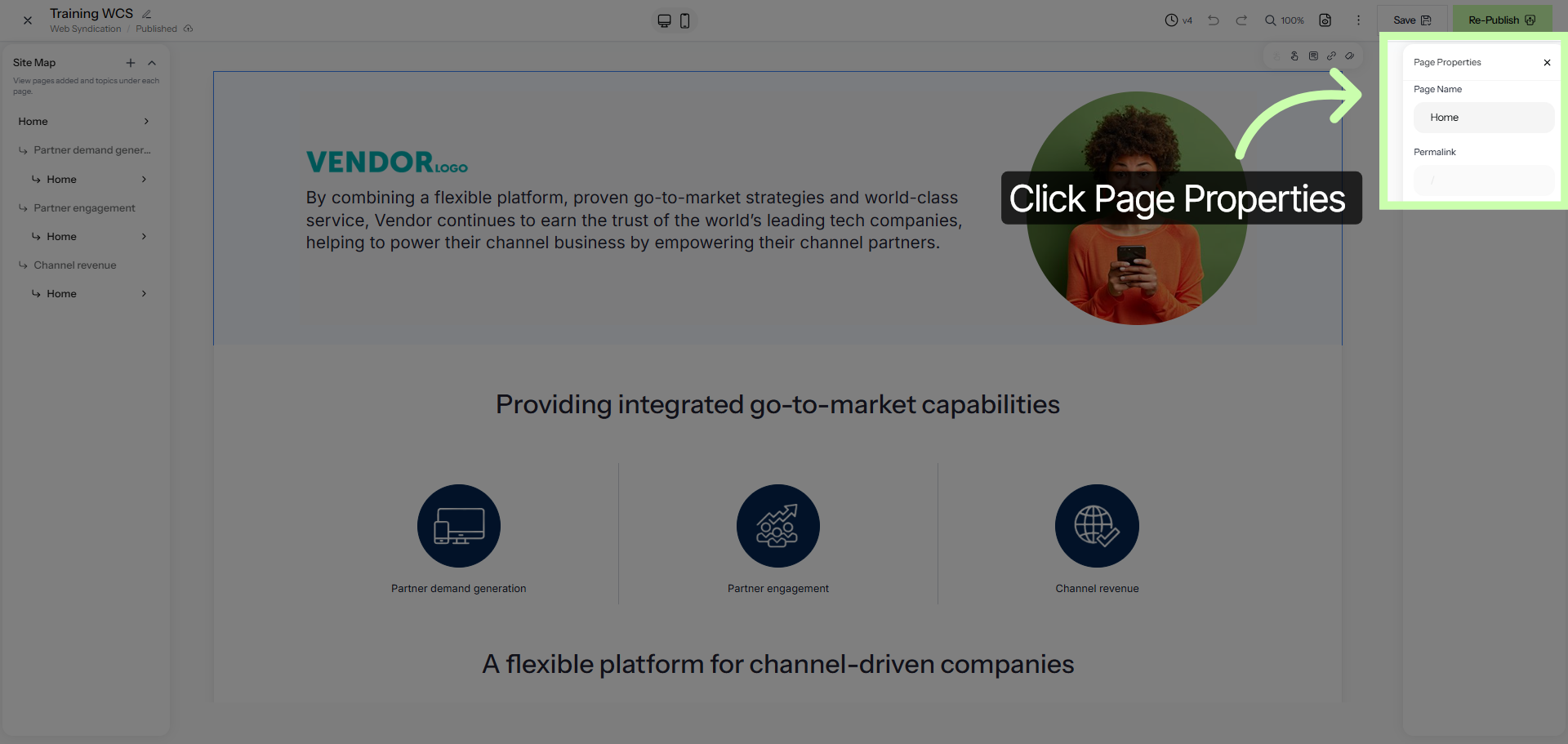
11. Access Page Properties
And finally, the Properties Panel.
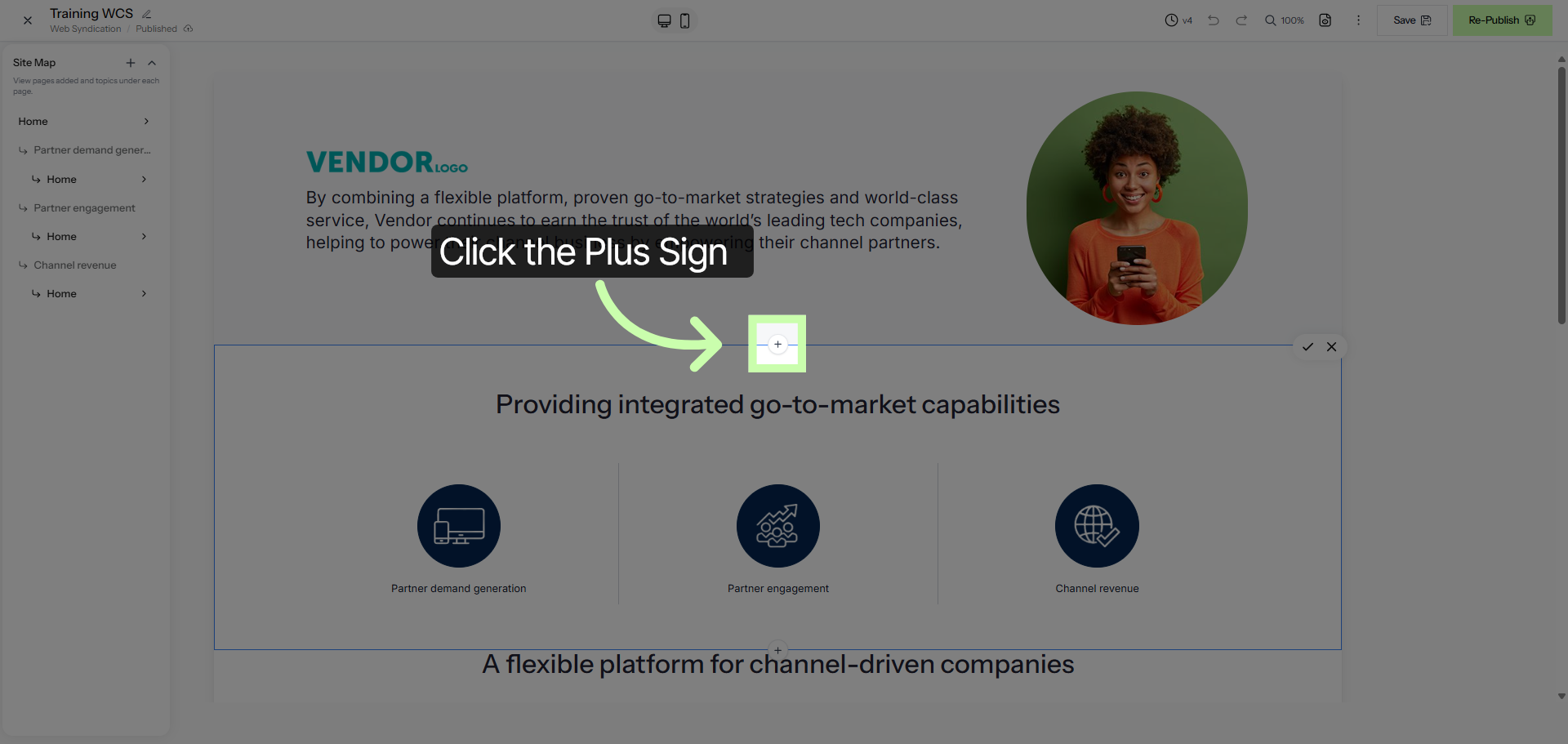
12. Open Content Options
Double click within any section. Then click the plus sign above or below it to add a new section.
13. Navigate to Library
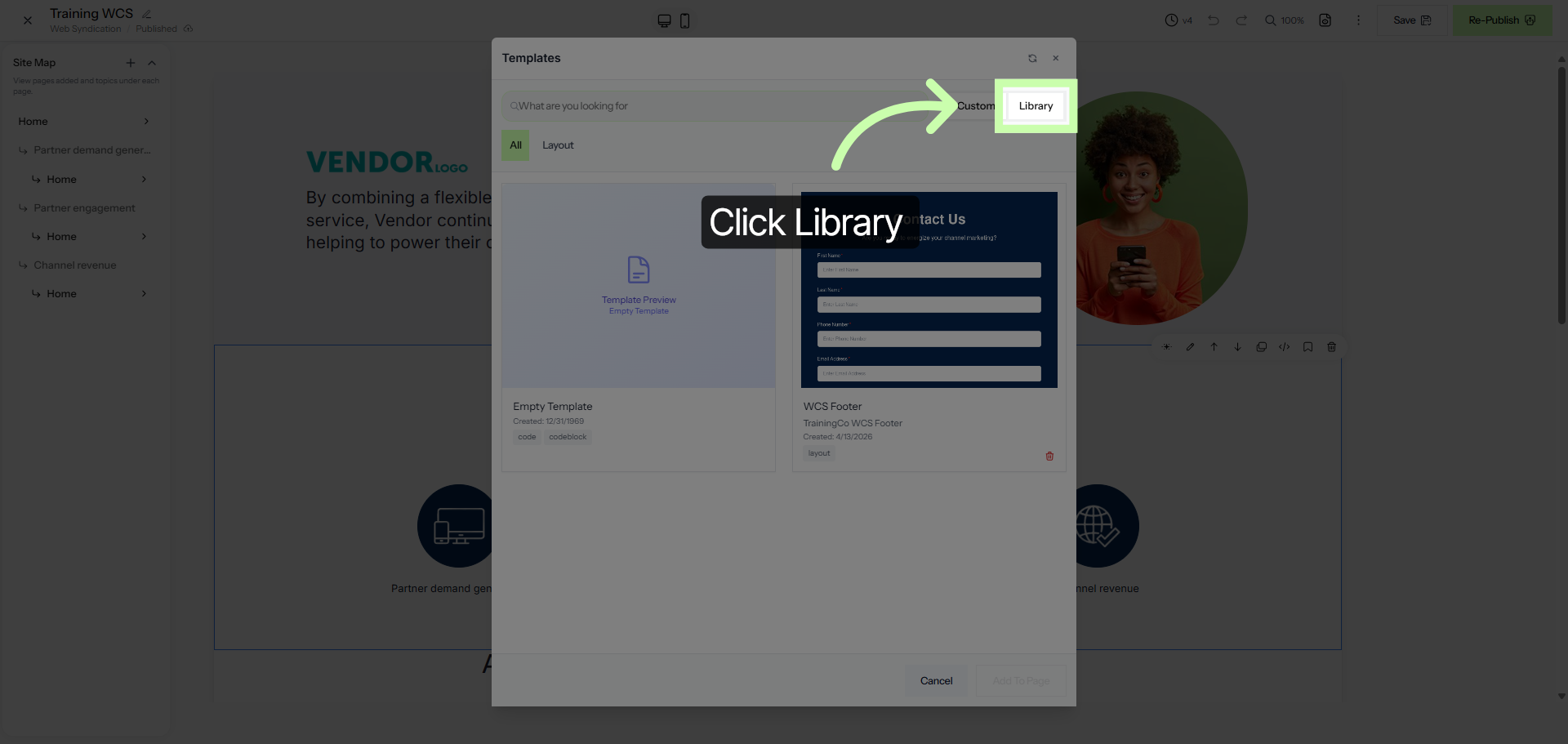
Click Library to add a new template to your canvas.
14. Open Library Content
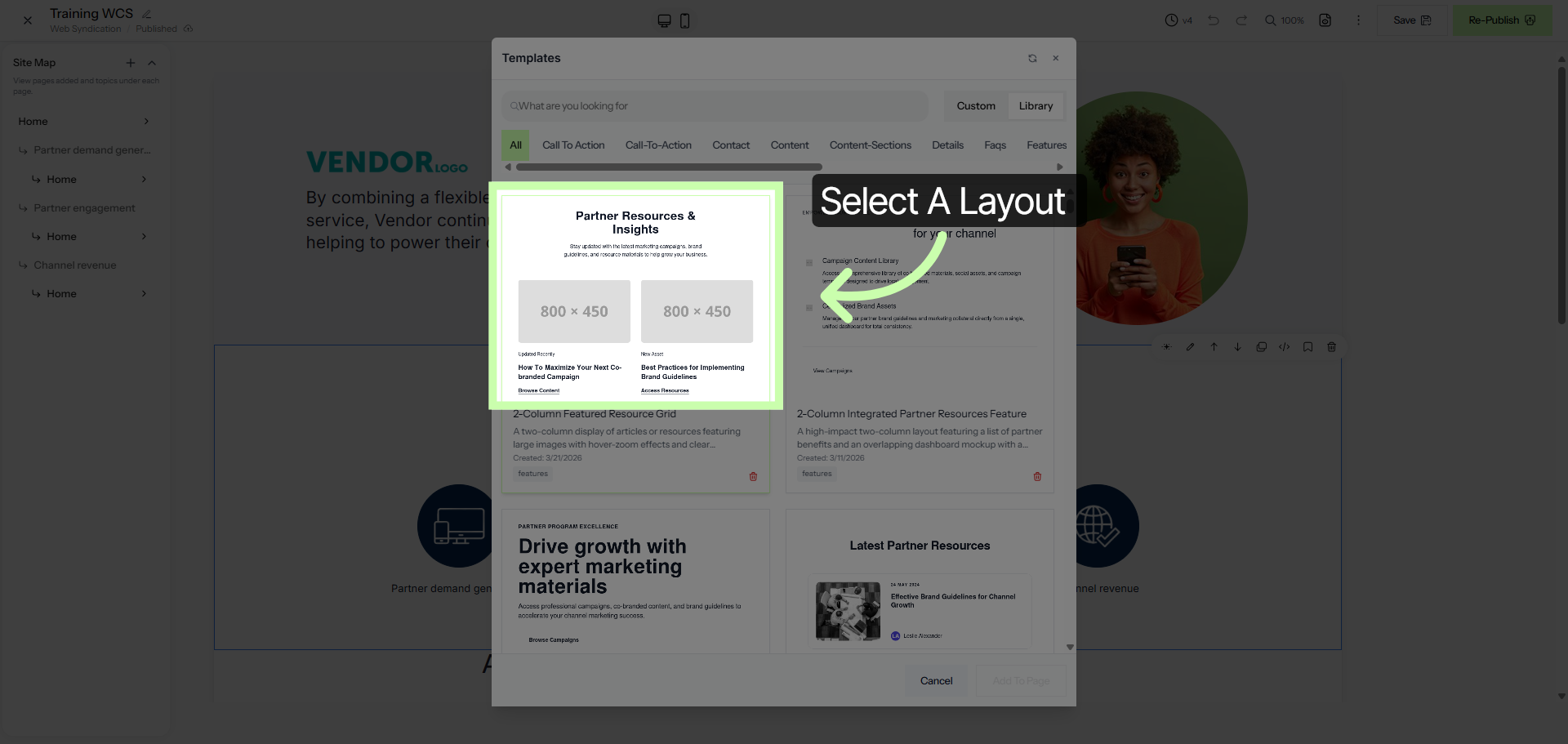
In this example, I'll choose the first layout.
15. Add Content To Page
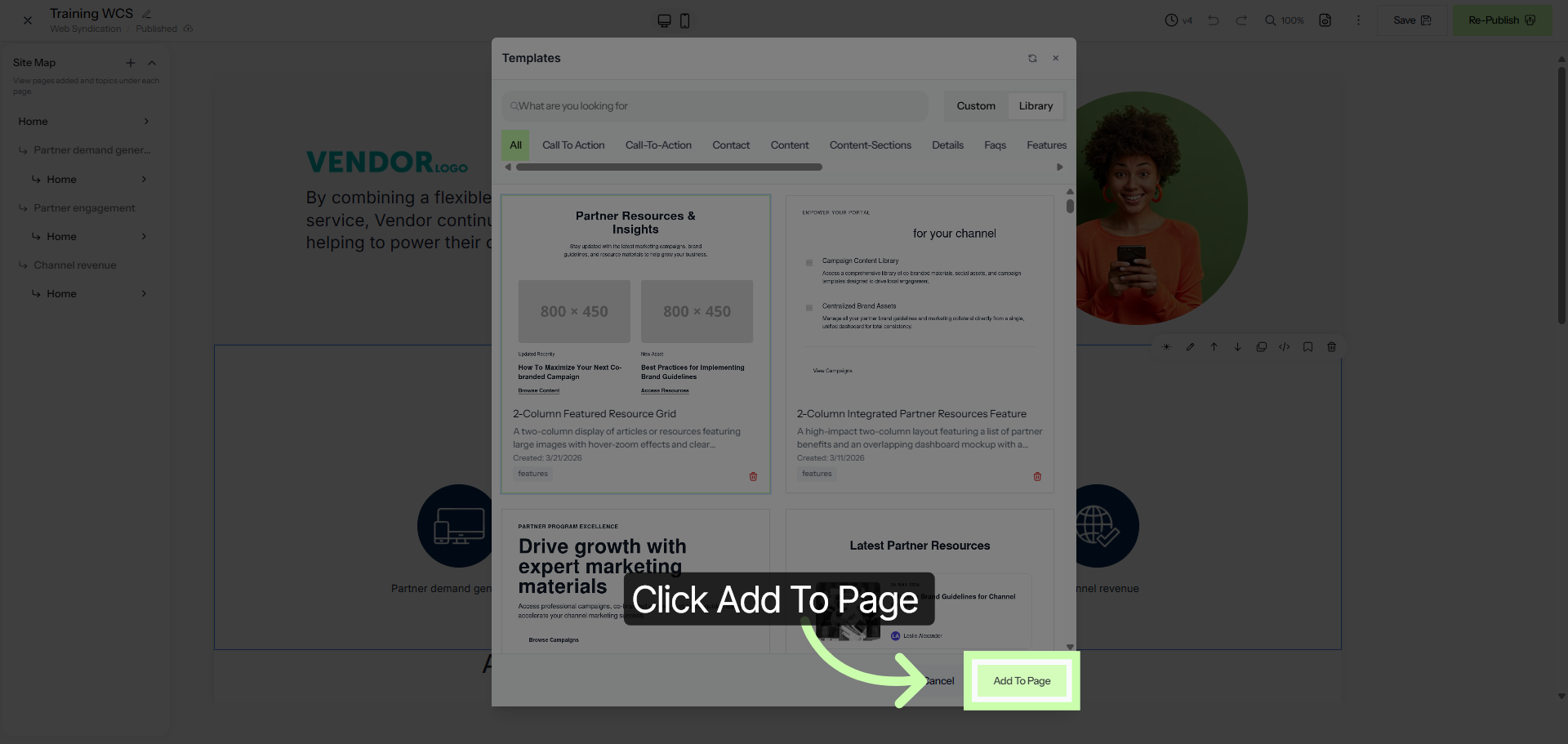
Click the Add To Page button to add it to the canvas.
16. Select Content Item
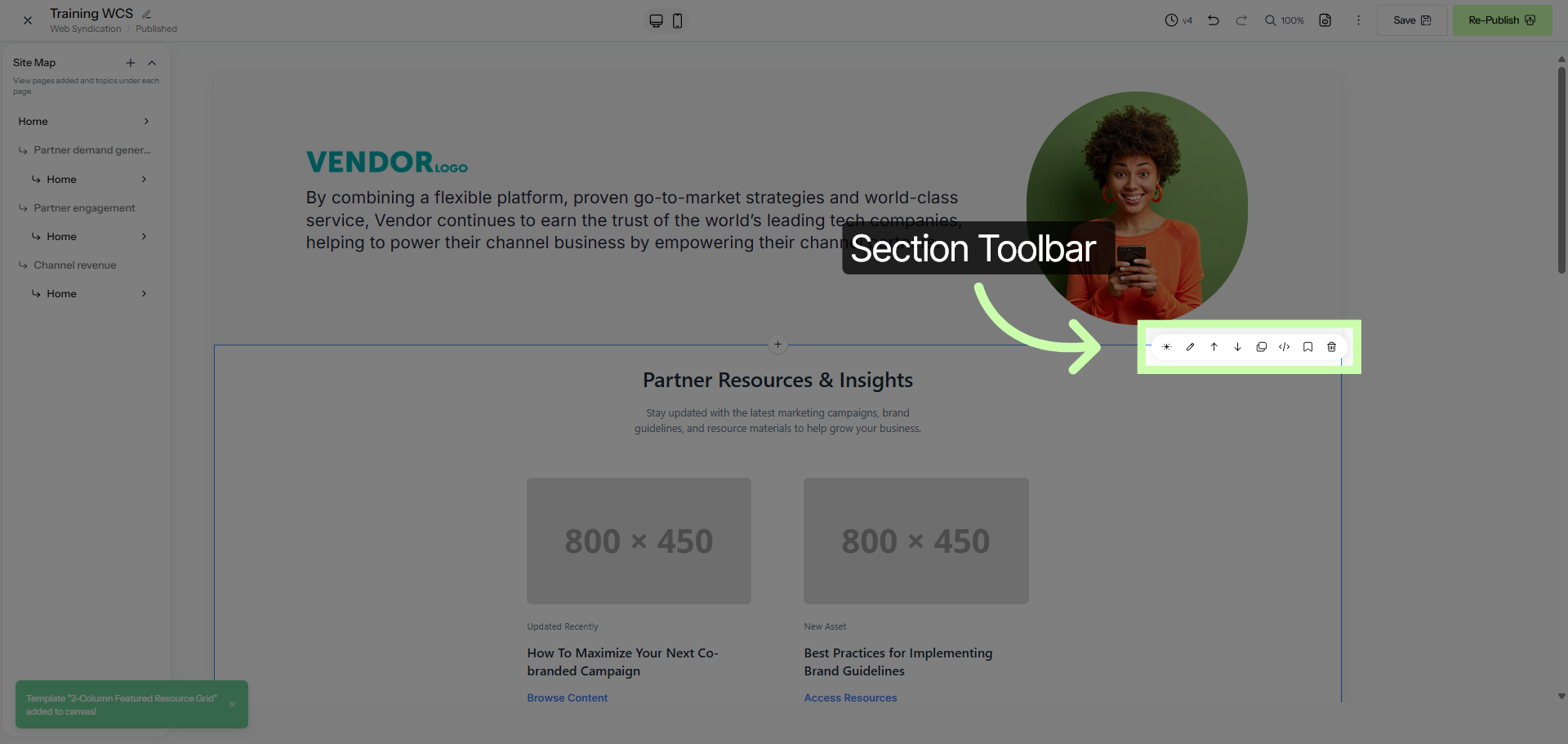
In the corner of the new element, you'll find a toolbar featuring:
AI feature
Move elements
Editing and more
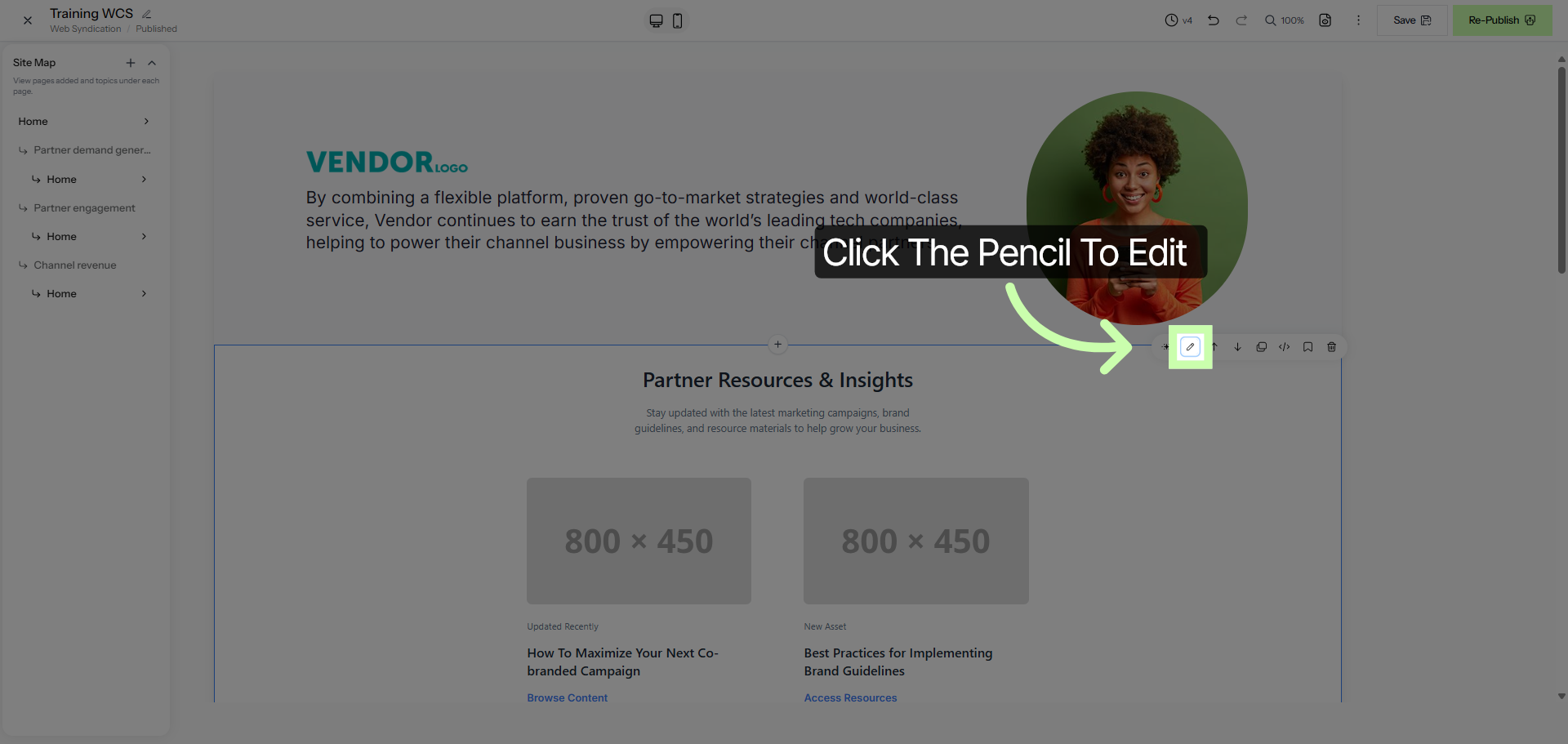
17. Choose Content Element
Click the pencil icon to begin editing.
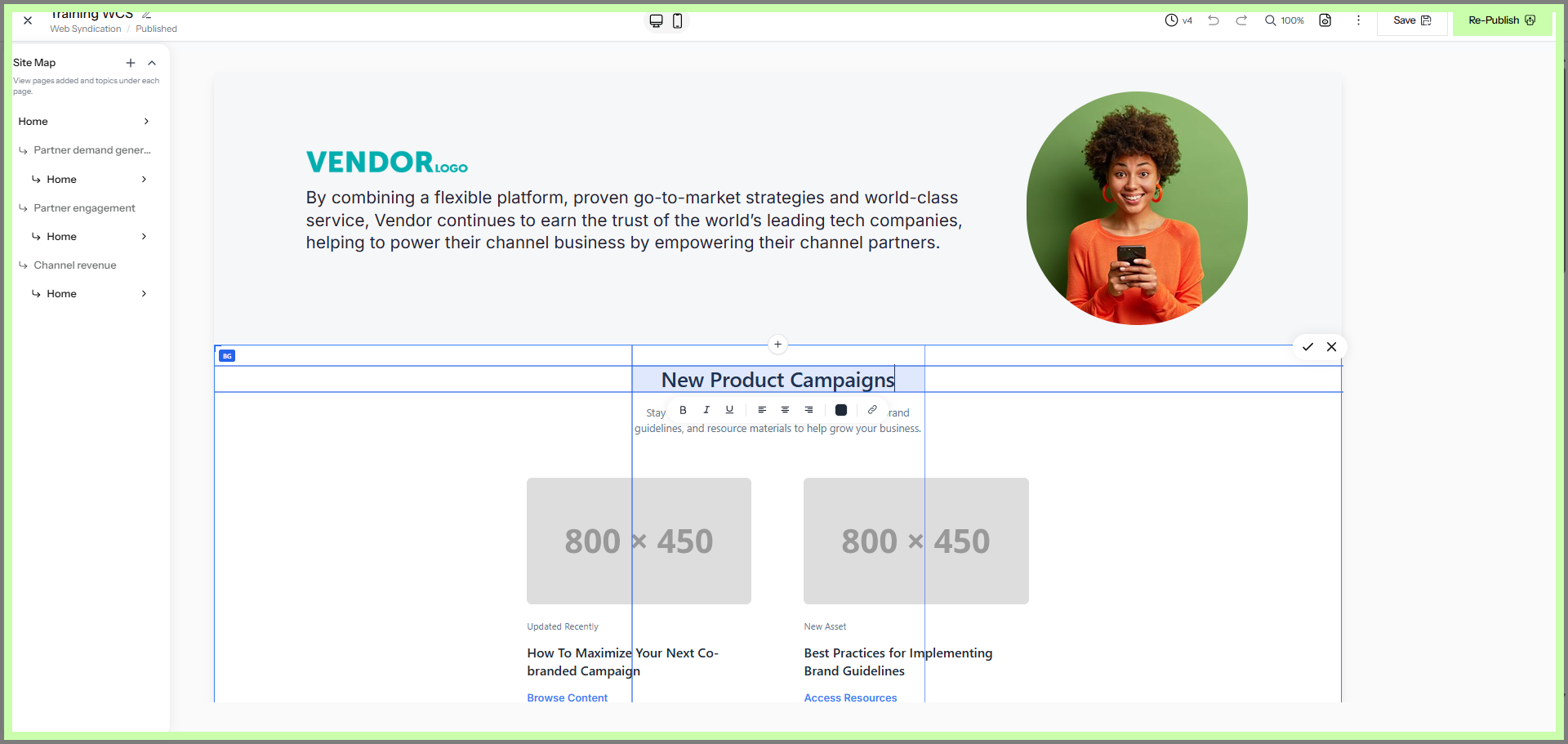
18. Enter Campaign Name
Update a text element directly on the canvas.
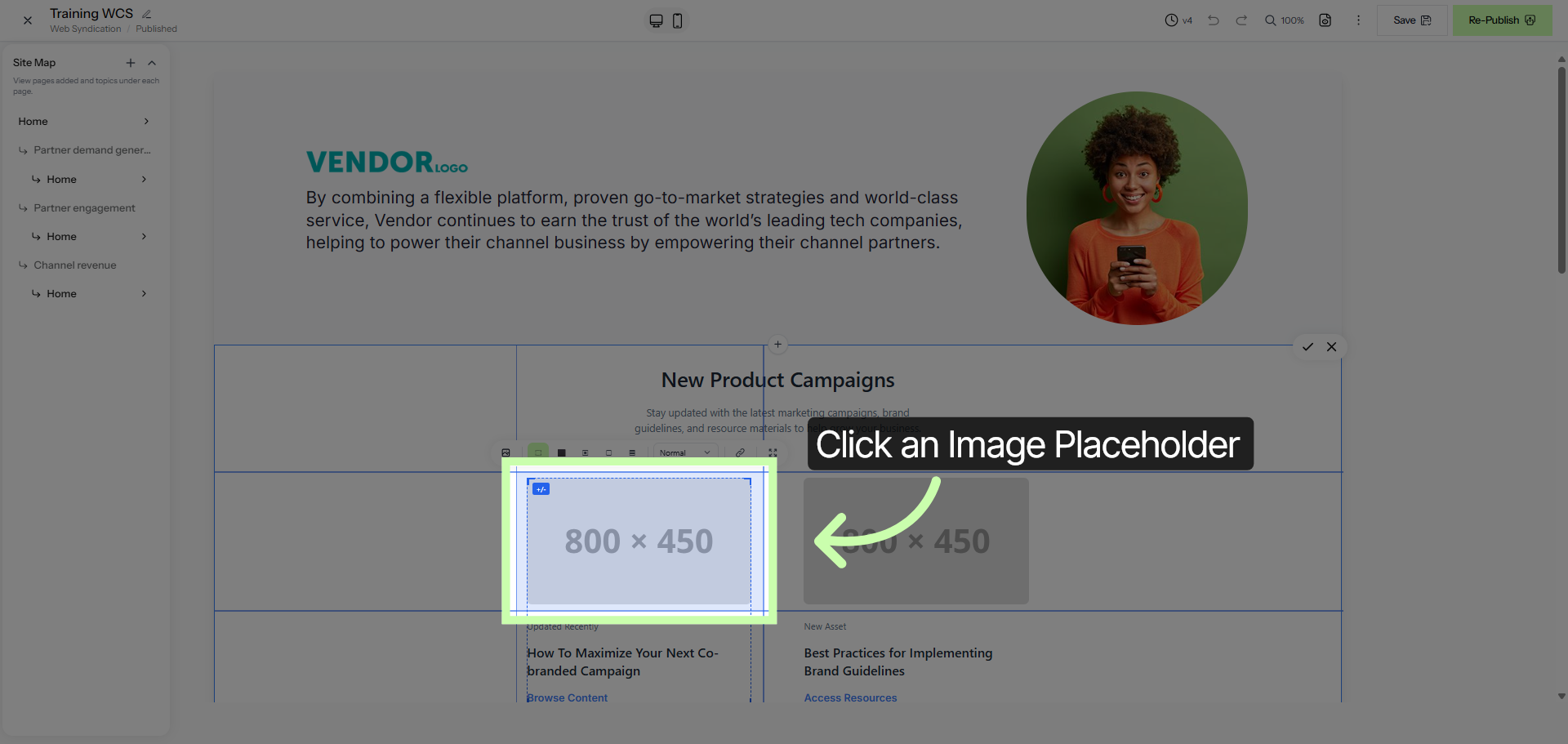
19. Open Campaign Options
Click on an image placeholder to add an image.
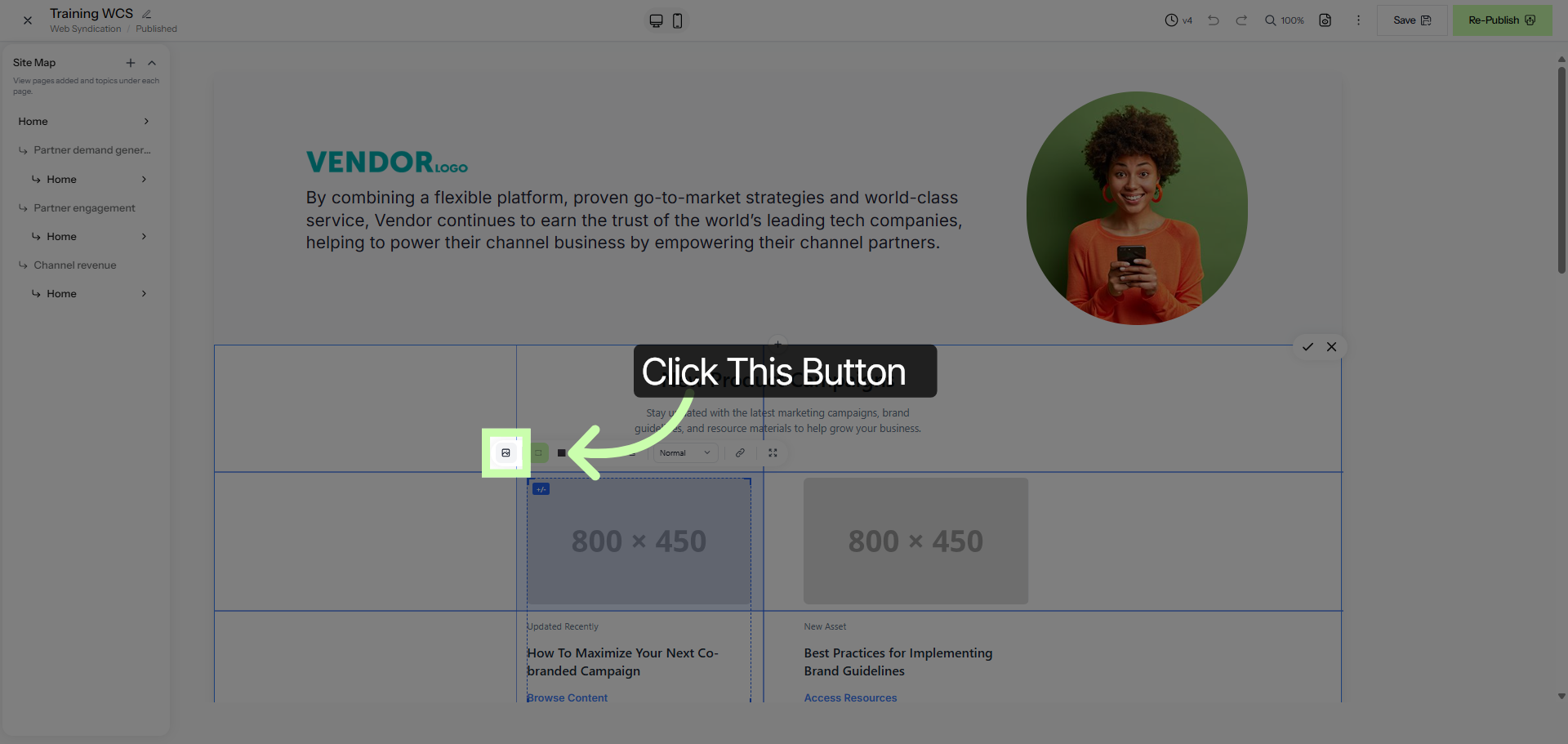
20. Select Campaign Elements
Then choose this button from the toolbar.
21. Choose Campaign Components
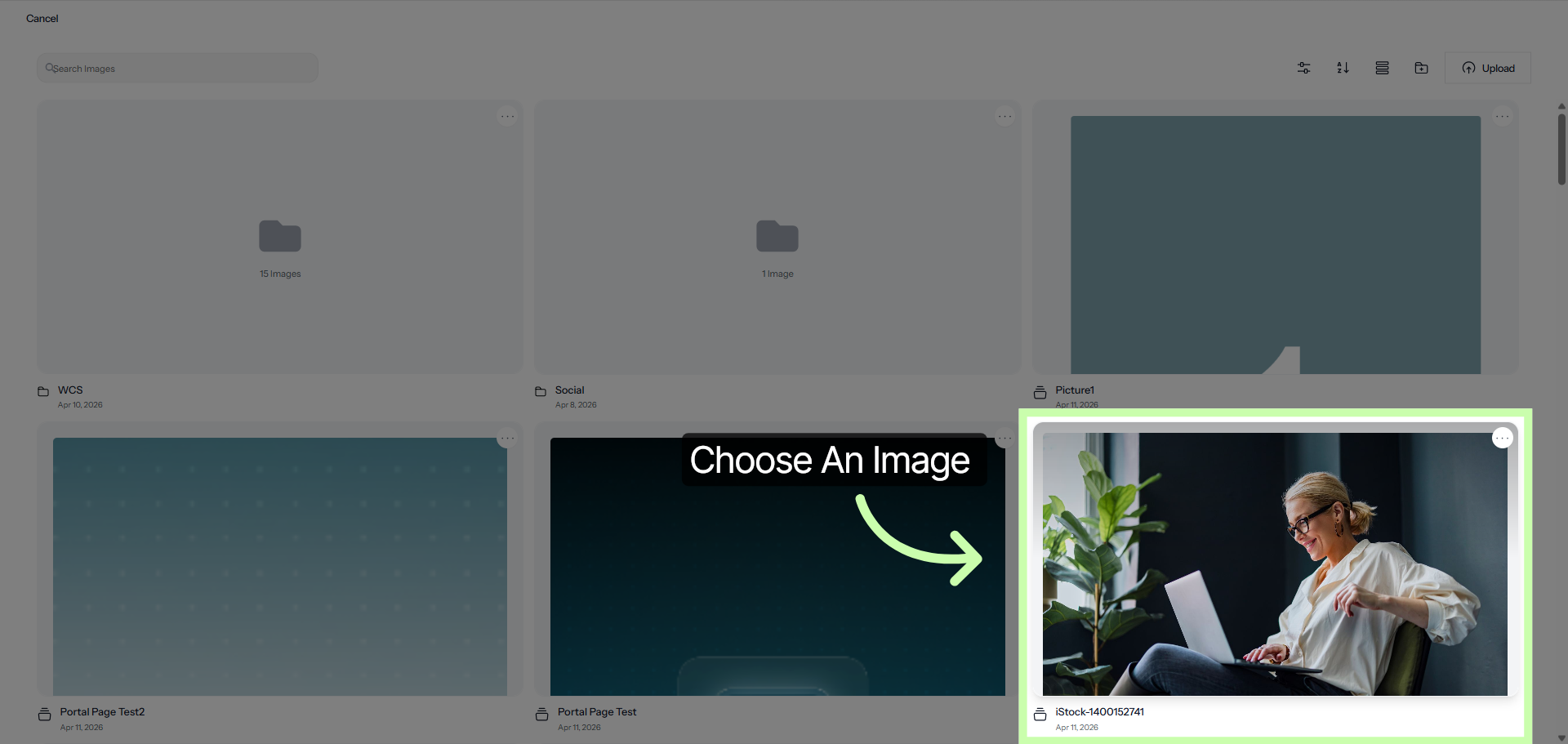
Select an image from the image library.
22. Add Selected Items
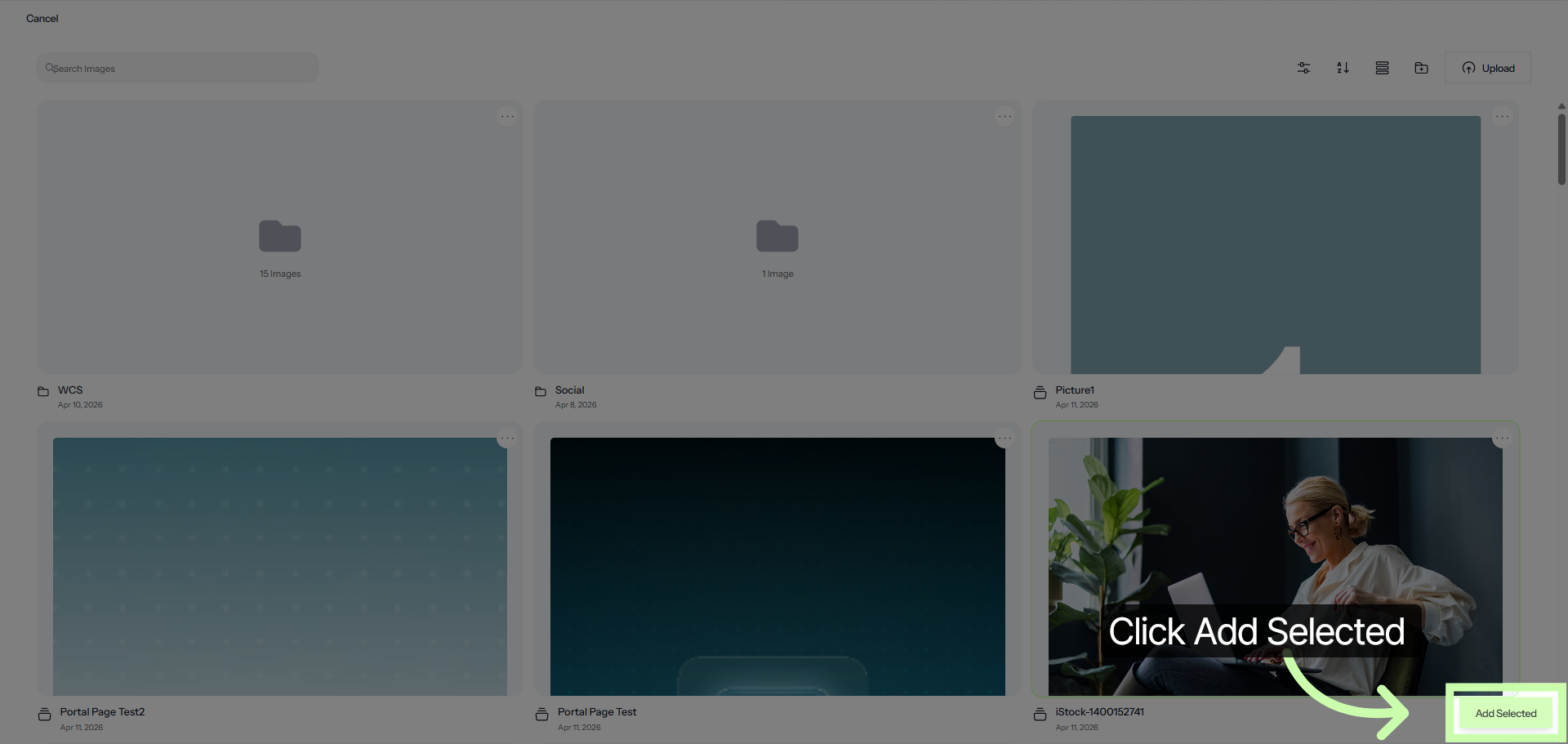
Then choose Add Selected. Repeat this step for all image placeholders.
23. Select Campaign Overview
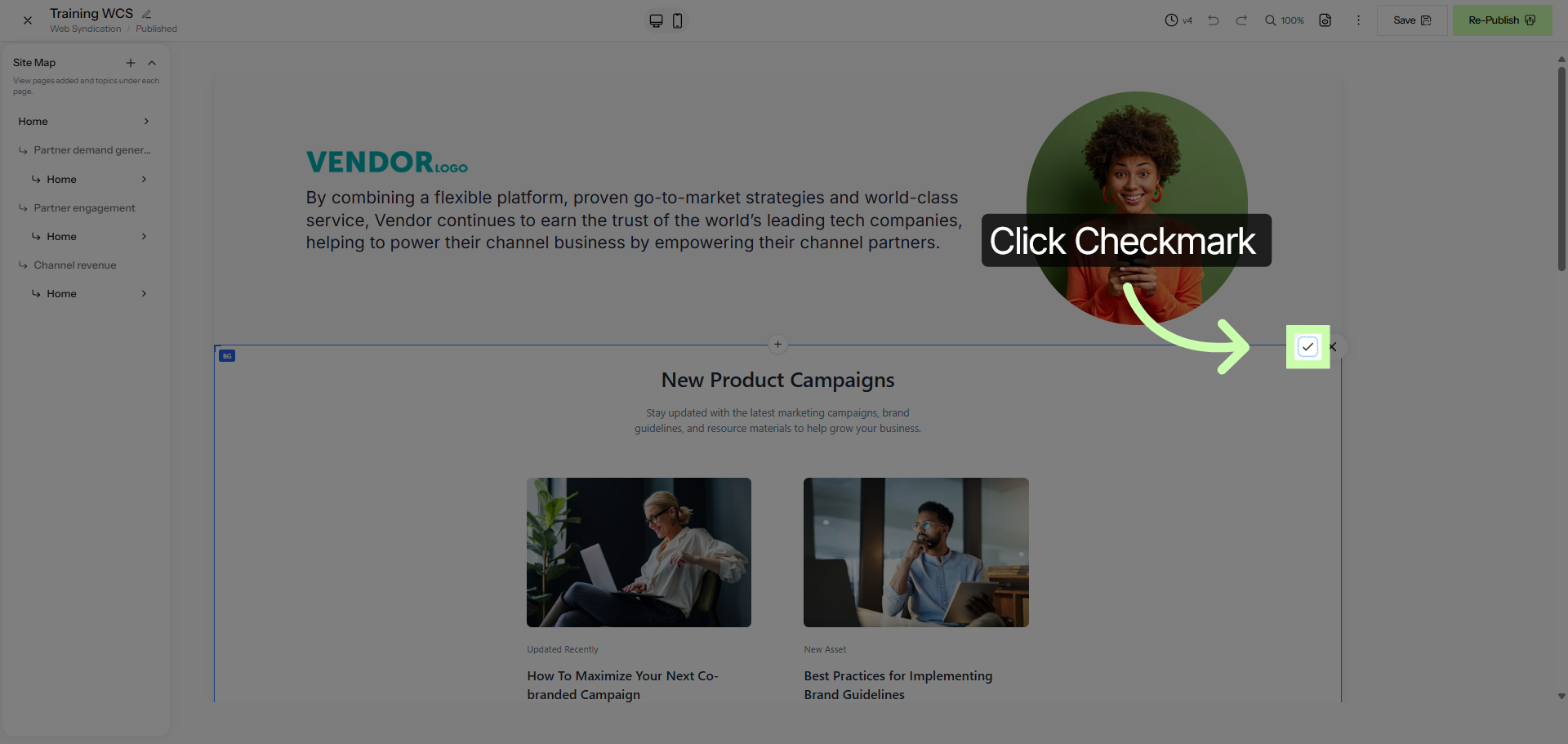
Click the checkmark to accept the updates.
24. Open Campaign Details
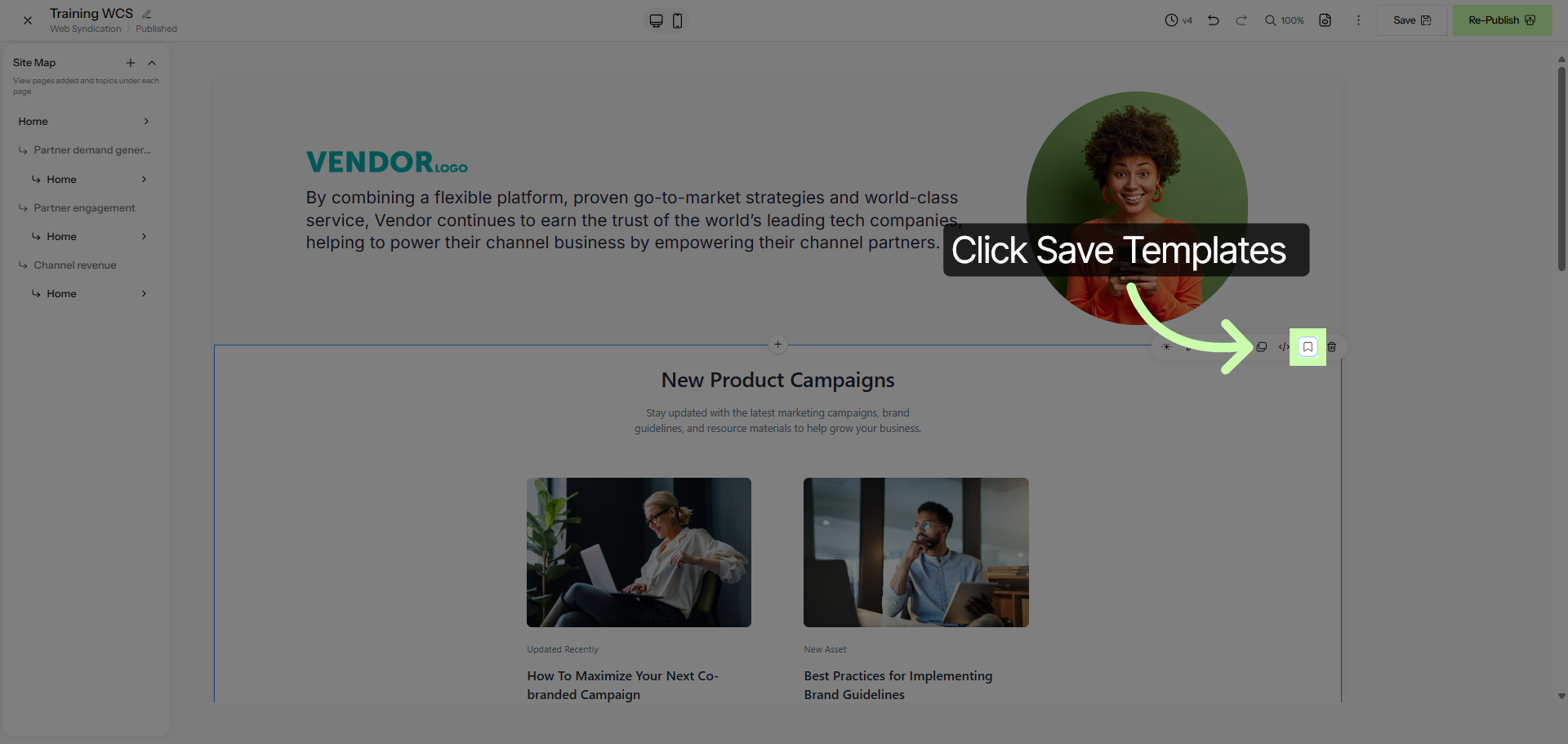
To save your section to reuse again, click this button.
25. Access Content Field
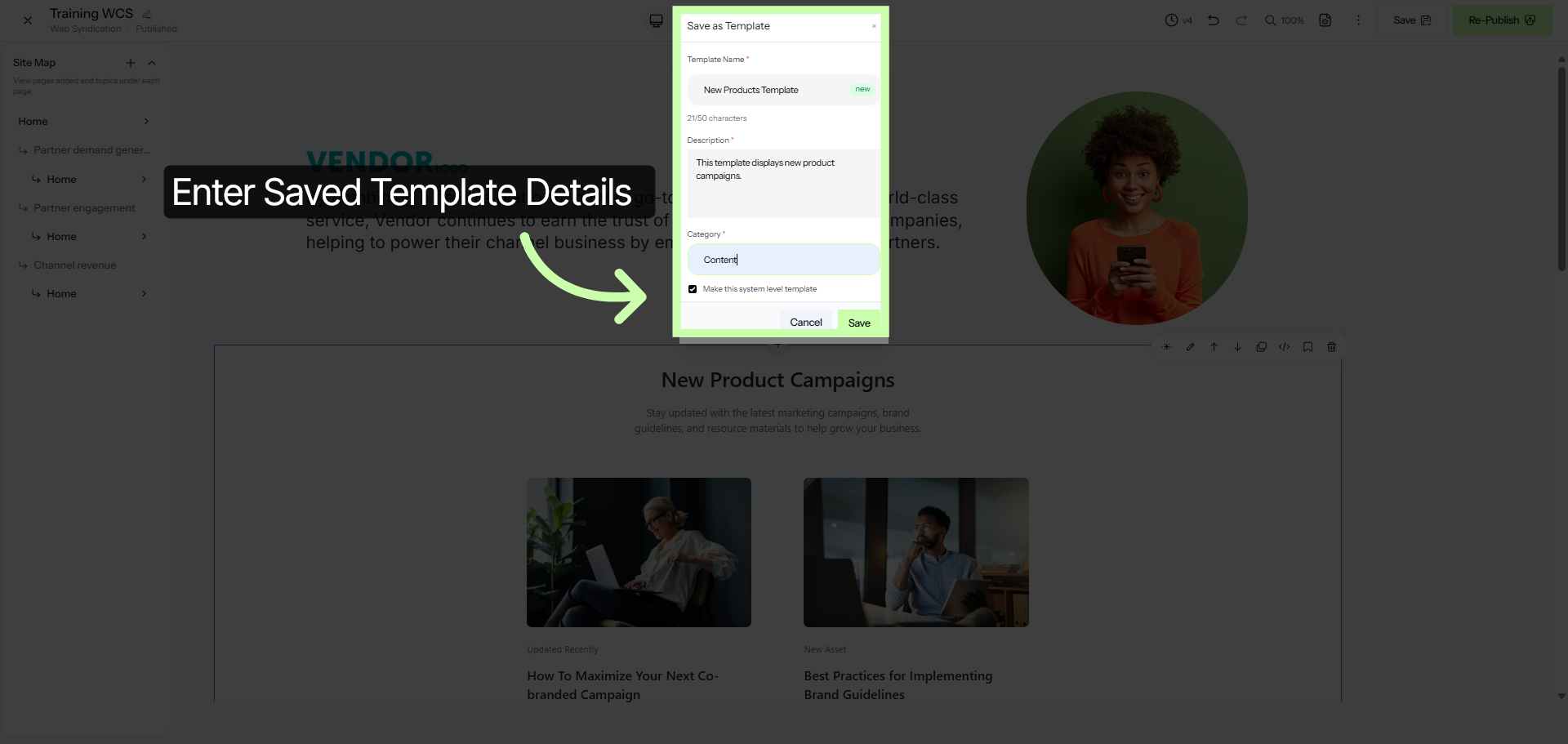
Enter your details in the Save as Template box and click save.
26. Add New Page
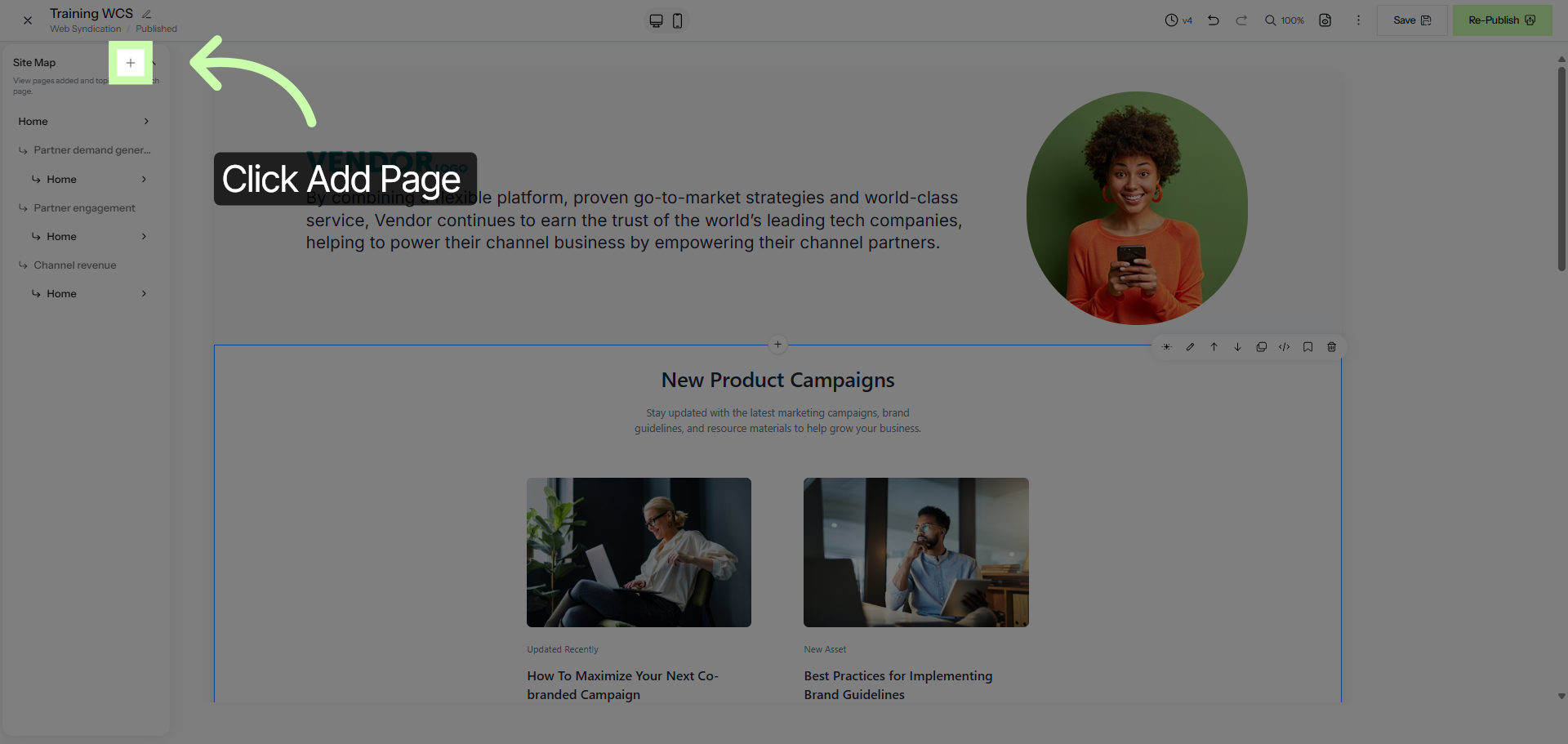
Expanding your site is just as simple. Click the Add Page option to build out new pages.
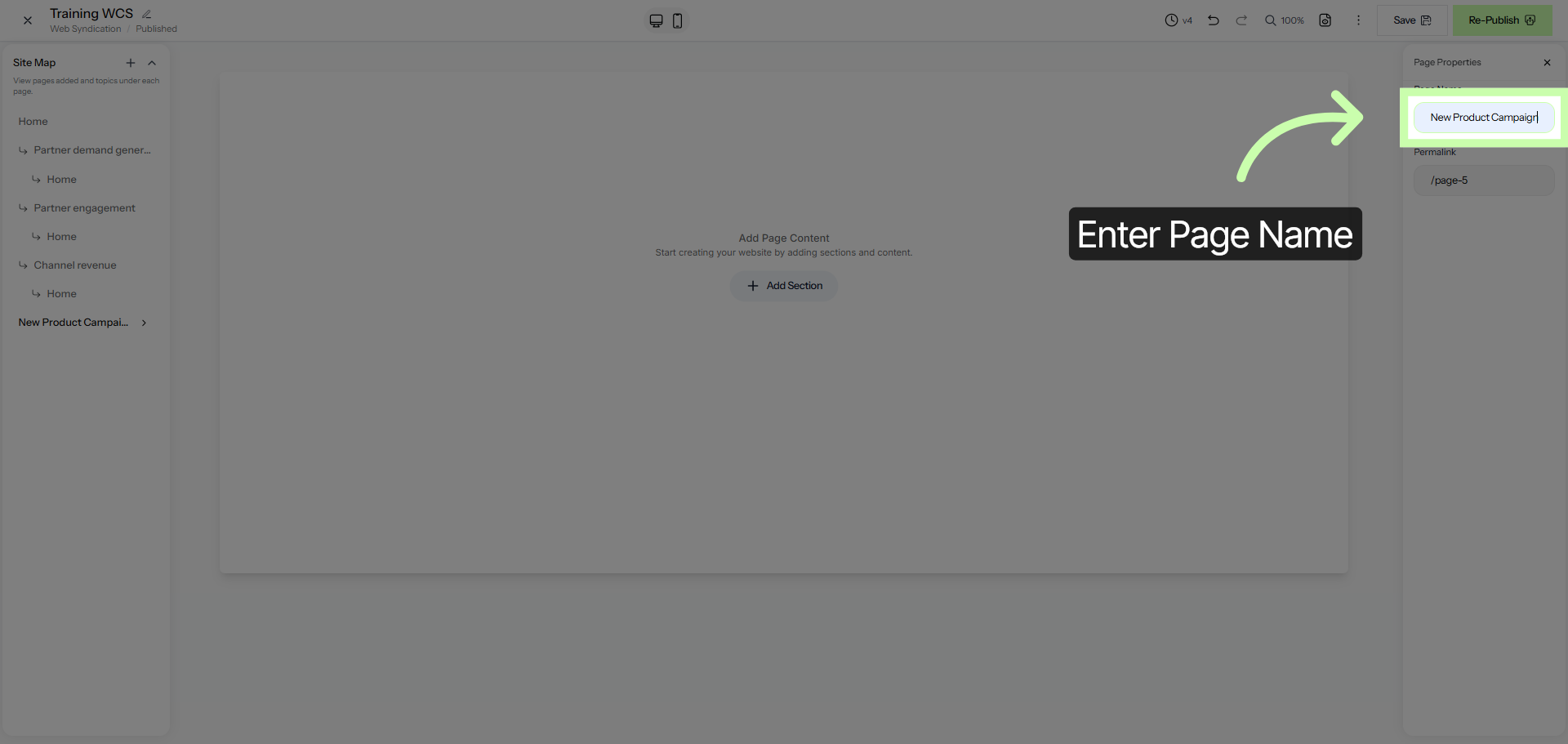
27. Enter Page Name
Enter a name for your page. In this example I'll enter "New Product Campaign".
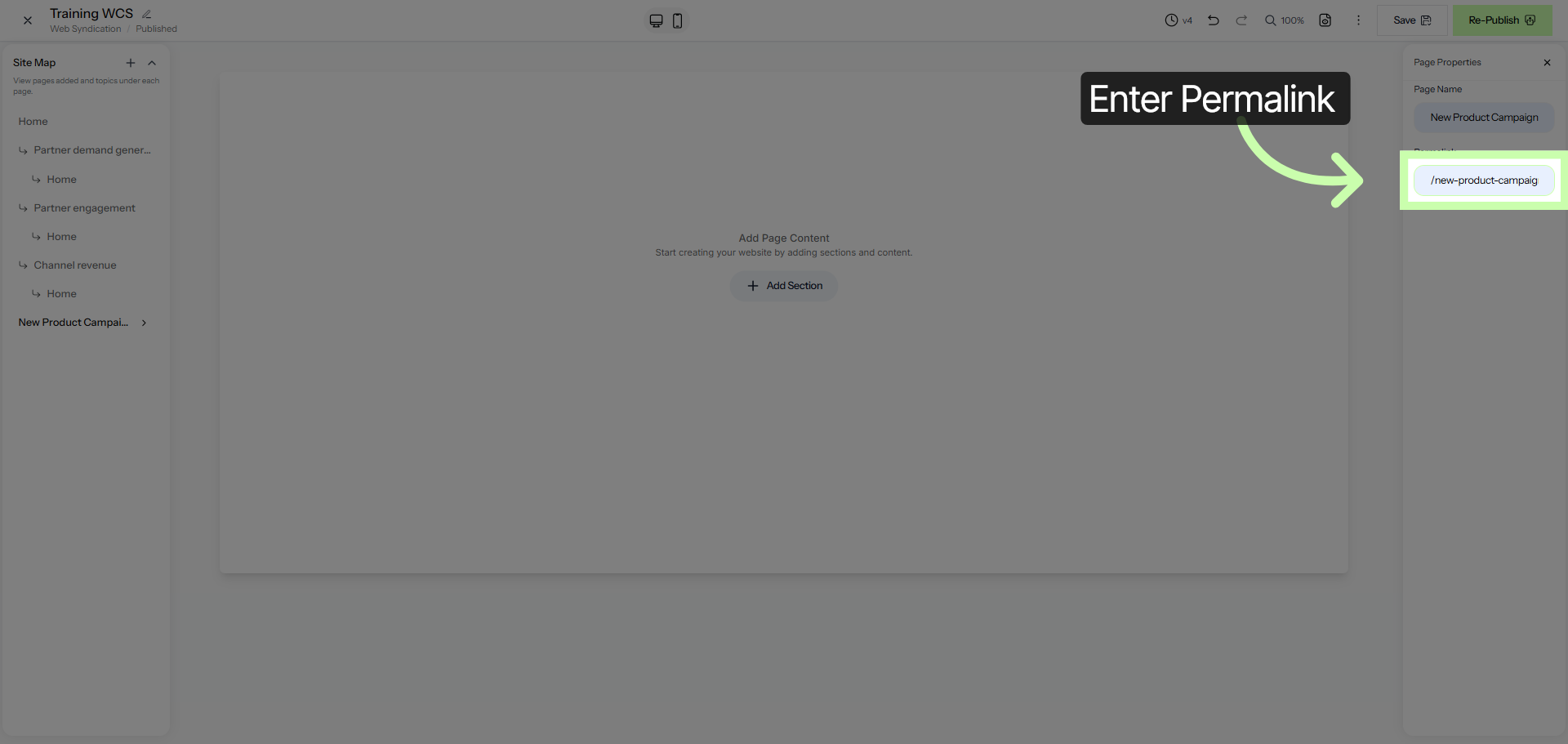
28. Enter Permalink
Then Enter a permalink.
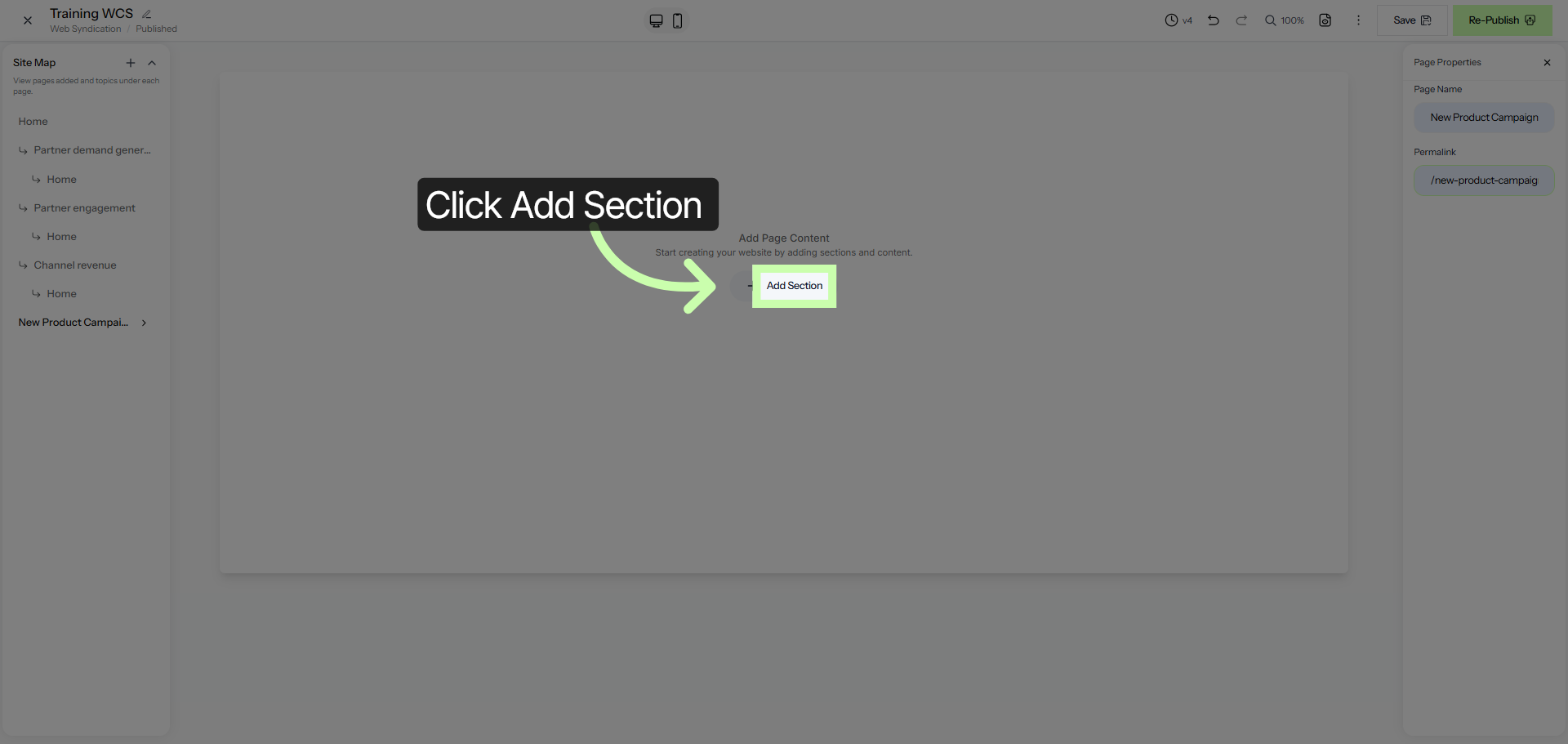
29. Add New Section
Click Add Section to include a new content section on the page.
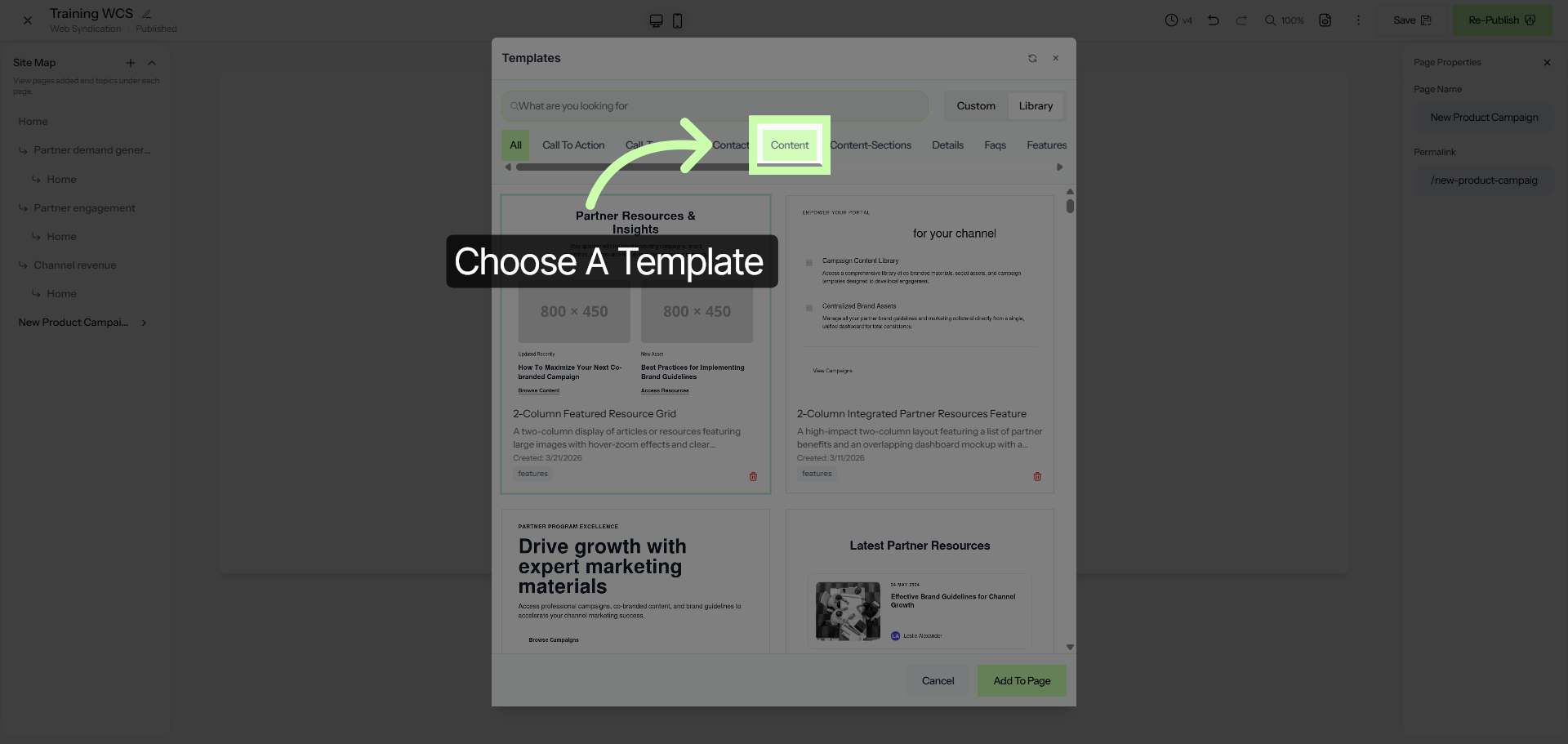
30. Access Content Section
Once again, choose a template from the library.
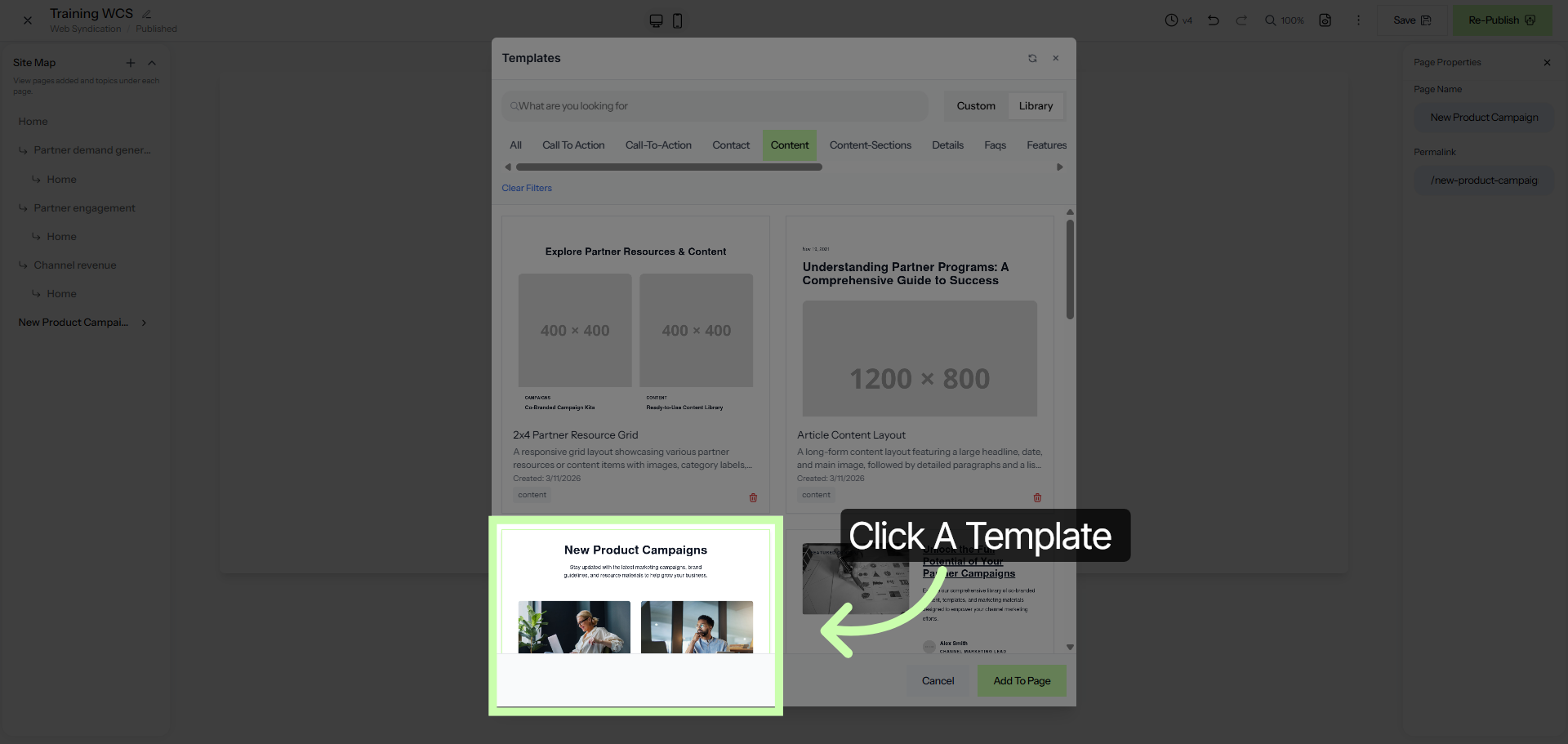
31. Select Content Section
In this example, I'll choose the template I just saved.
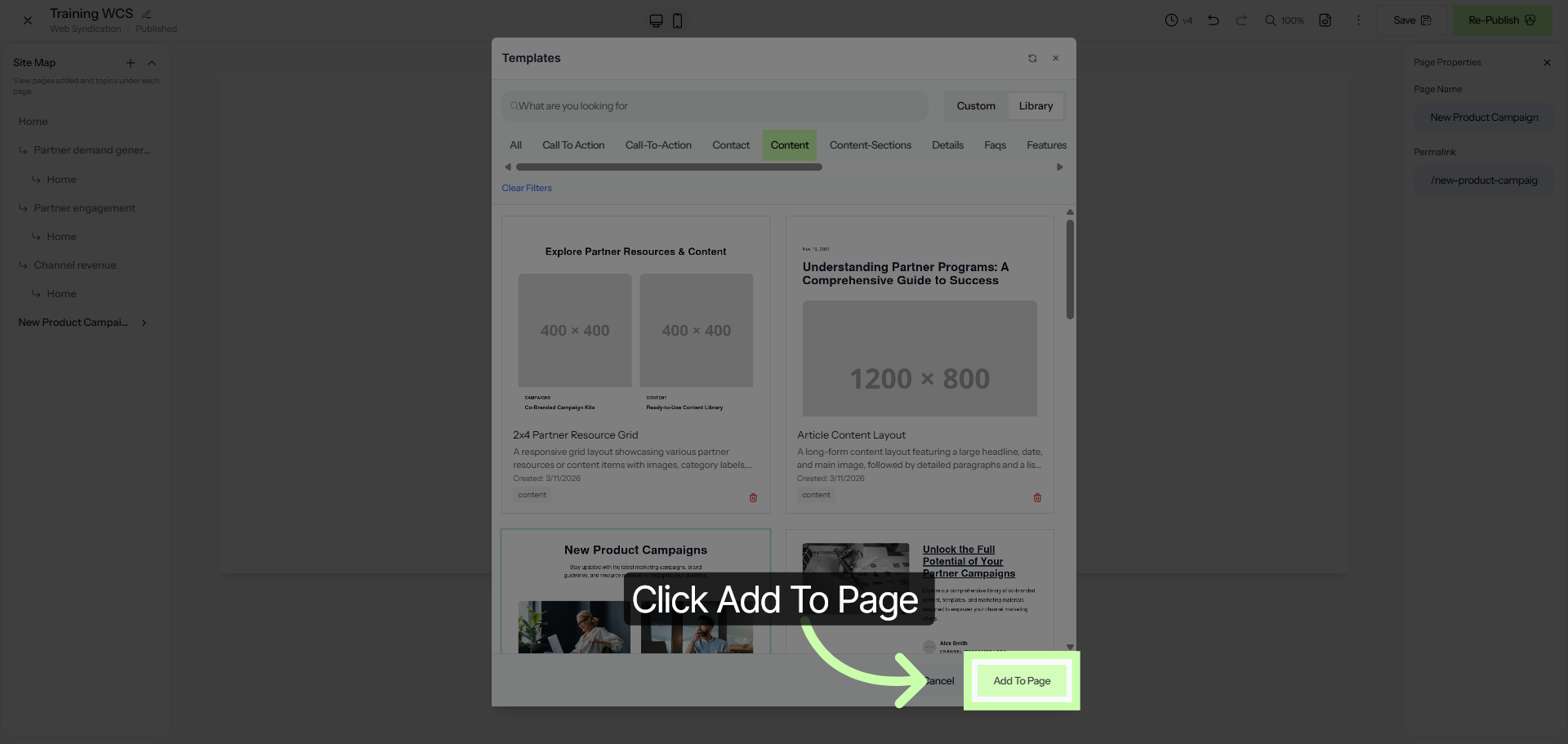
32. Add Content To Page
Click the Add to page button.
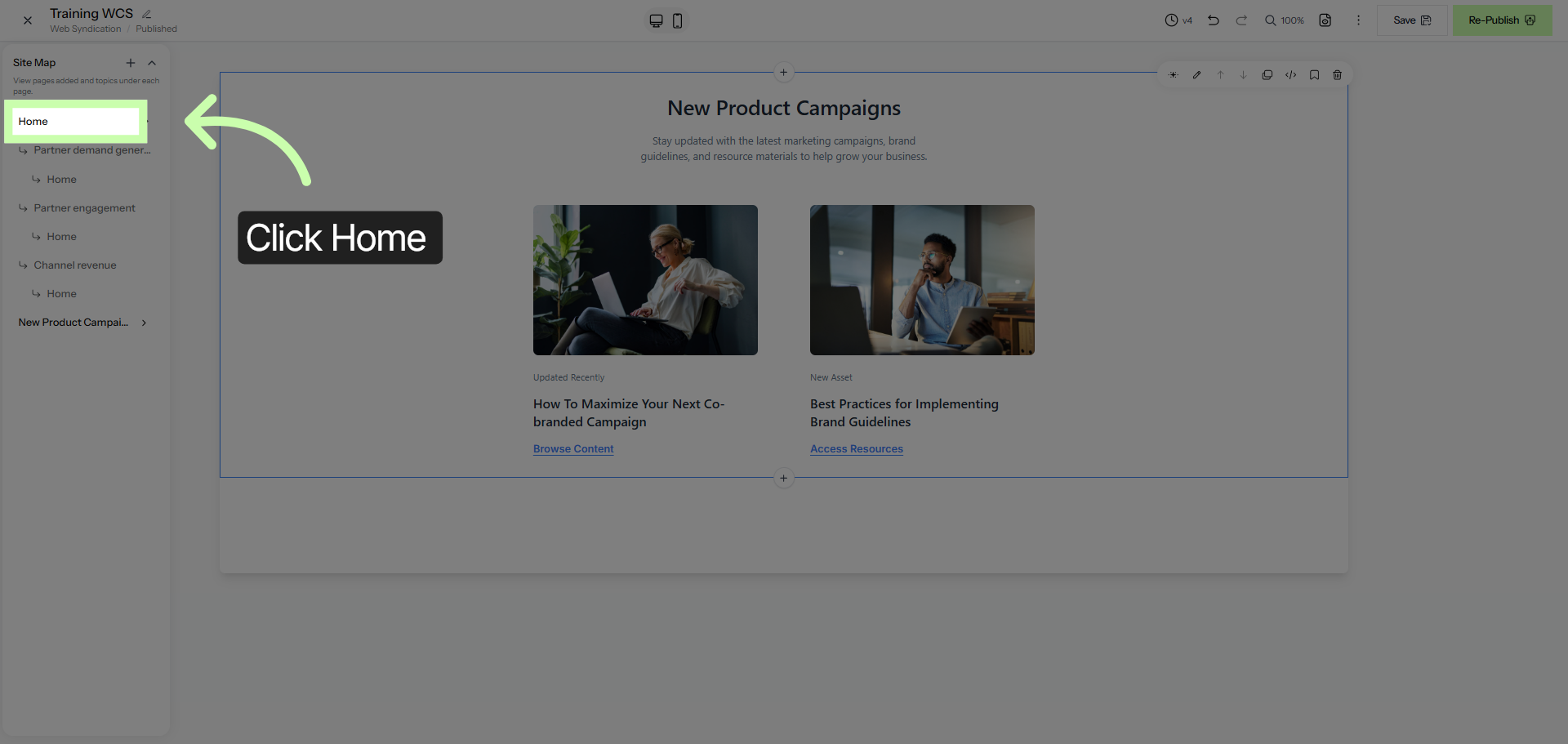
33. Return to Home
Finally, let’s link it all together. Start by returning to the Home page.
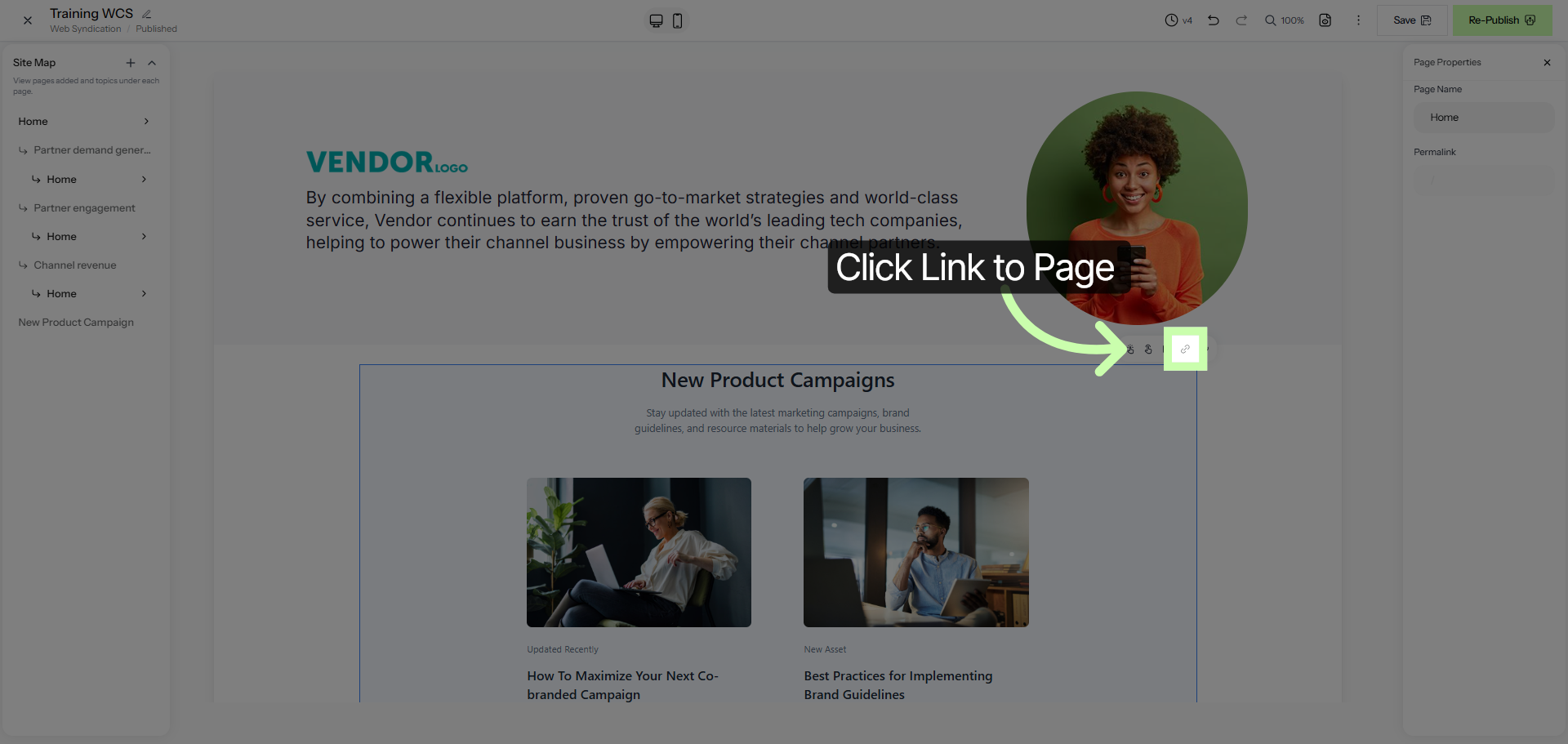
34. Link To Page
Click to activate a section and select the link button.
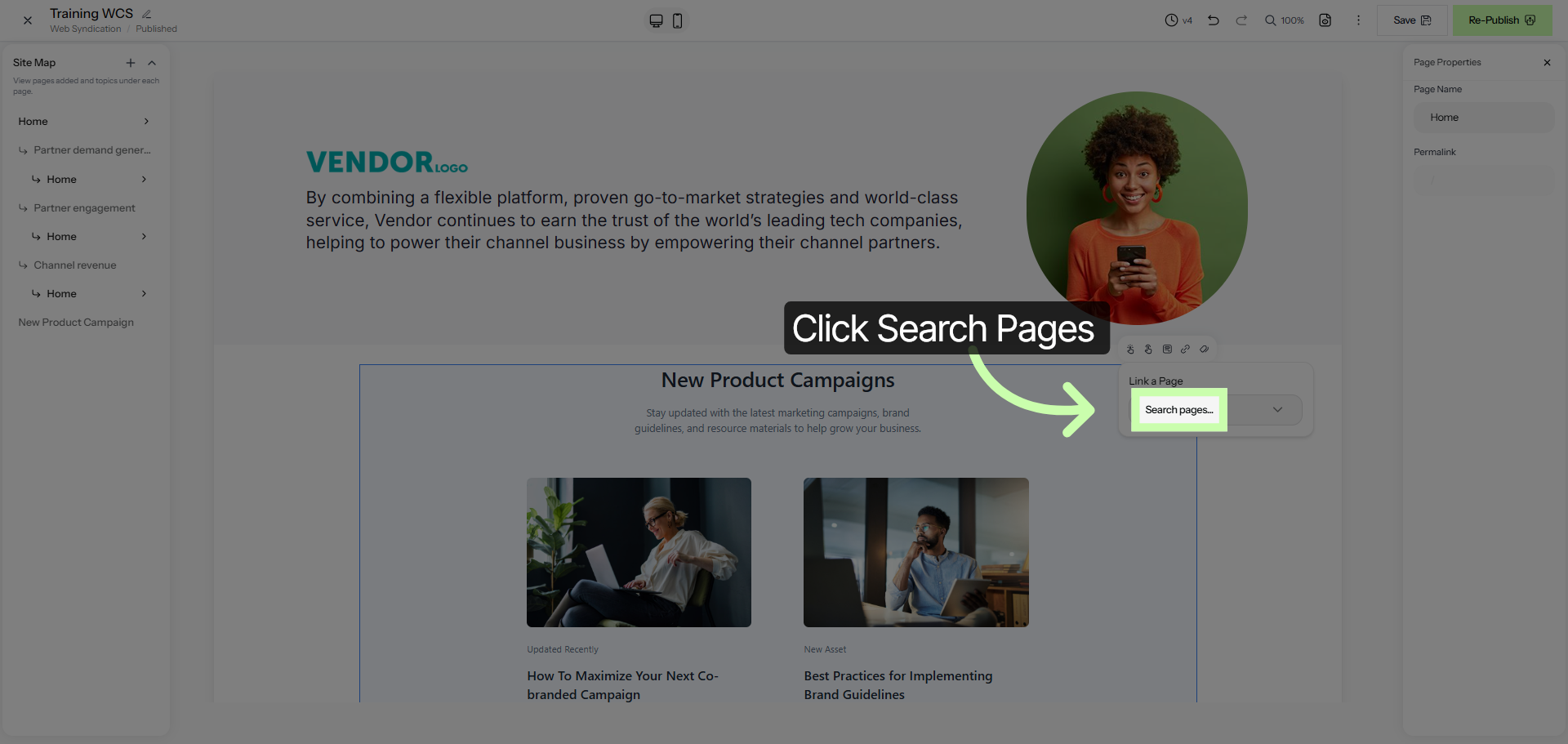
35. Search Pages
Select a page from the drop down menu.
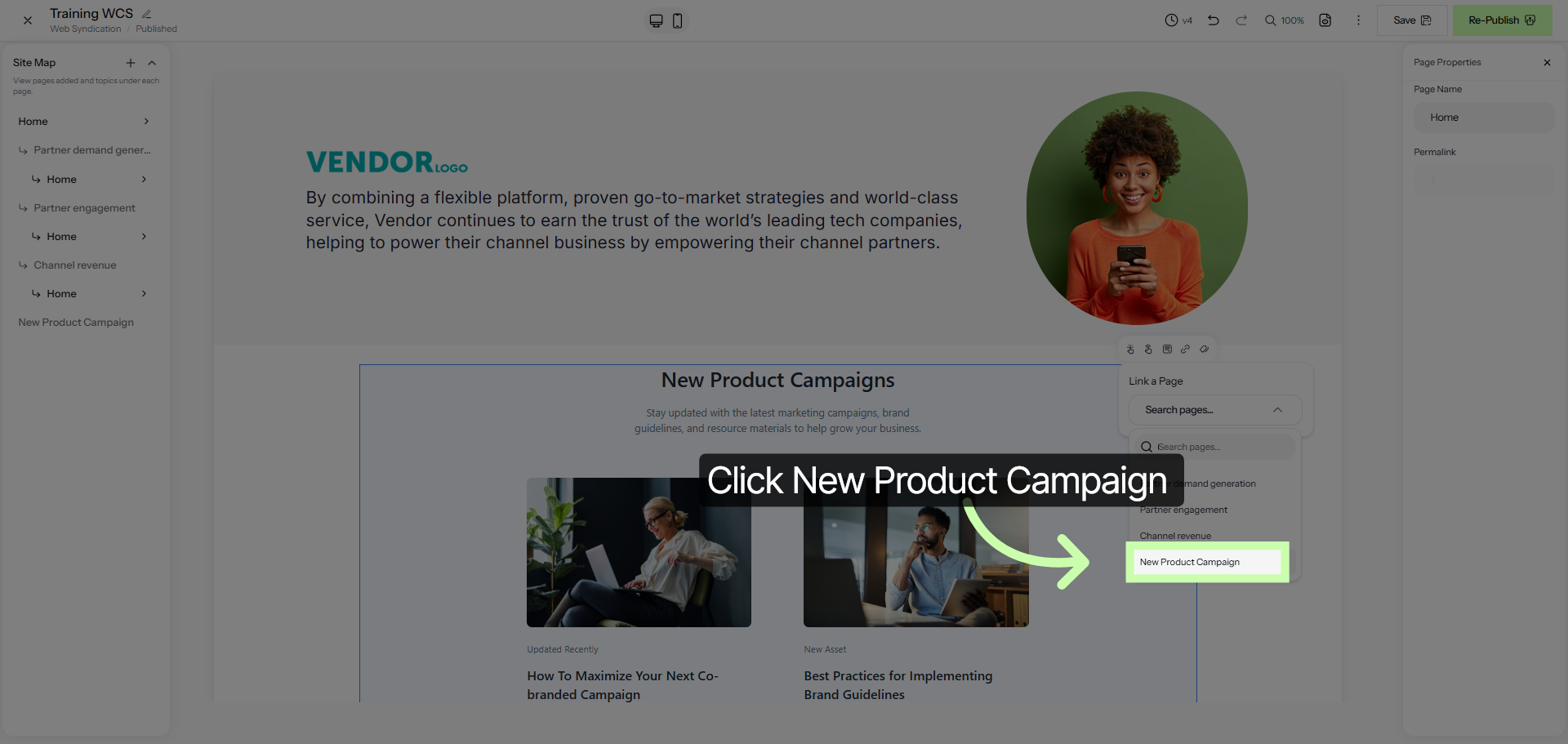
36. Select Target Page
In this example, I'll choose my new page, New Product Campaign.
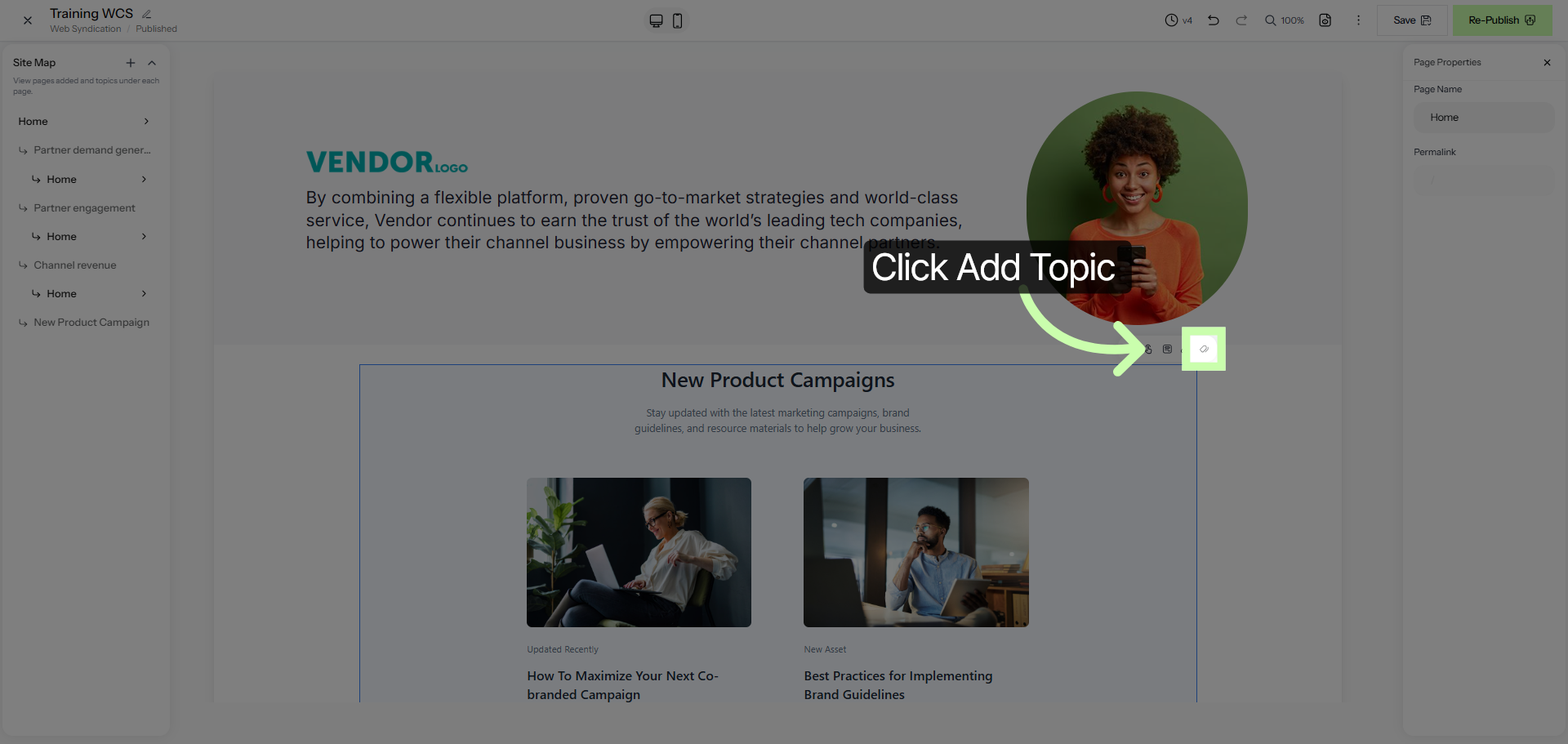
37. Add New Topic
To give your partners ultimate flexibility, you can add and link a Topic. This empowers your partners to toggle specific sections on or off, ensuring they only show the content that is most relevant to their own customers. Start by clicking the Add Topic button.
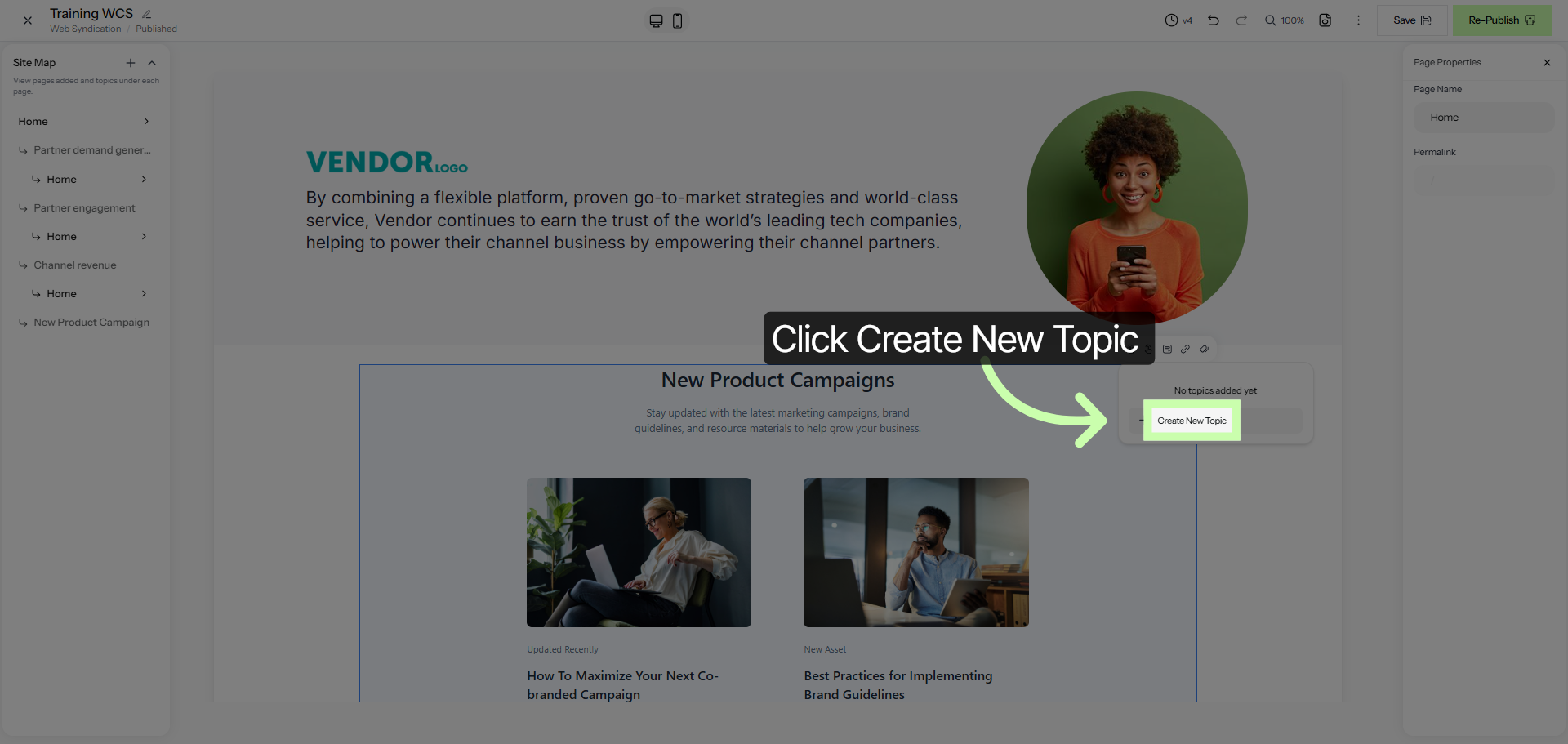
38. Create New Topic
Click Create New Topic to start defining a new topic.
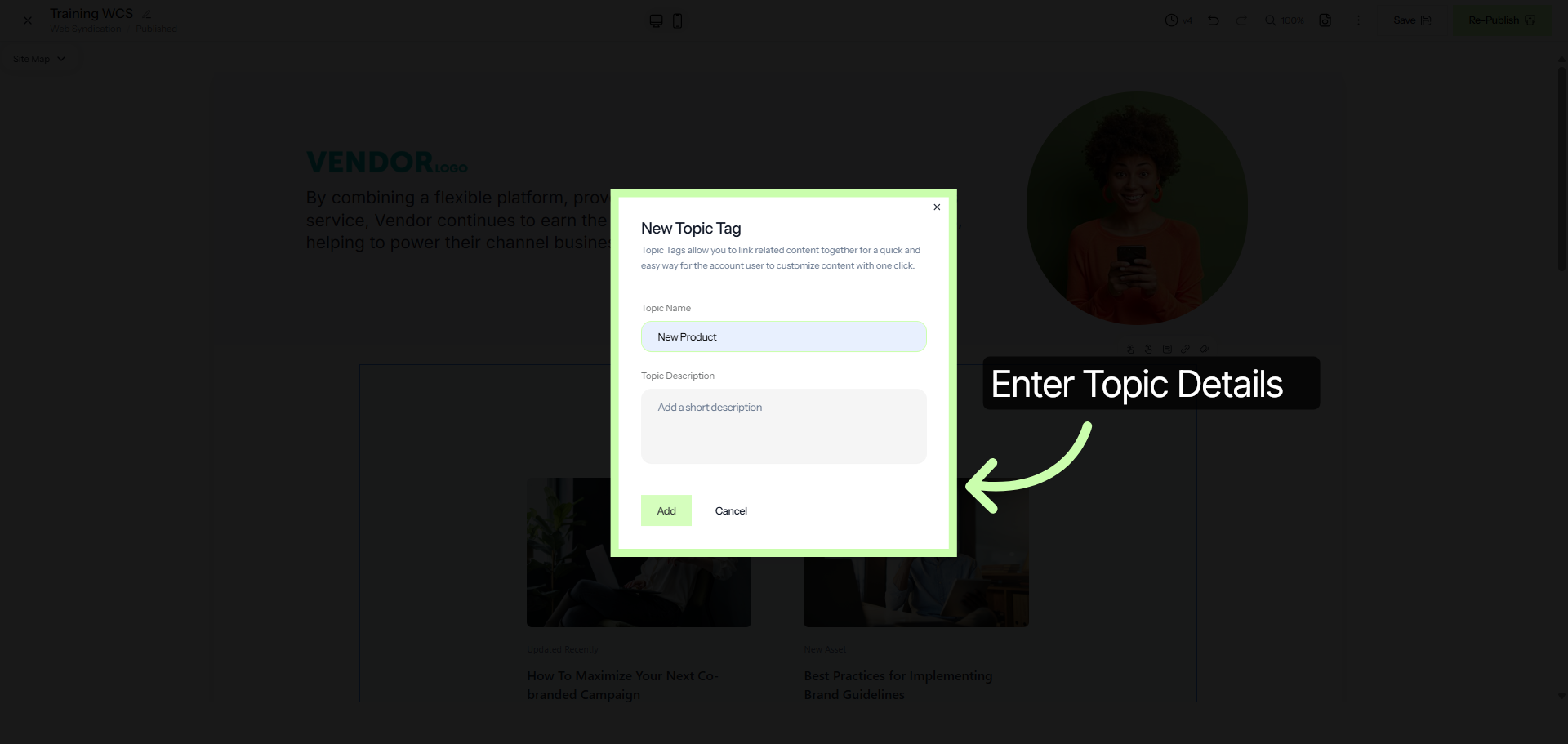
39. Add Topic
Enter details in the New Topic Tag button and click add.
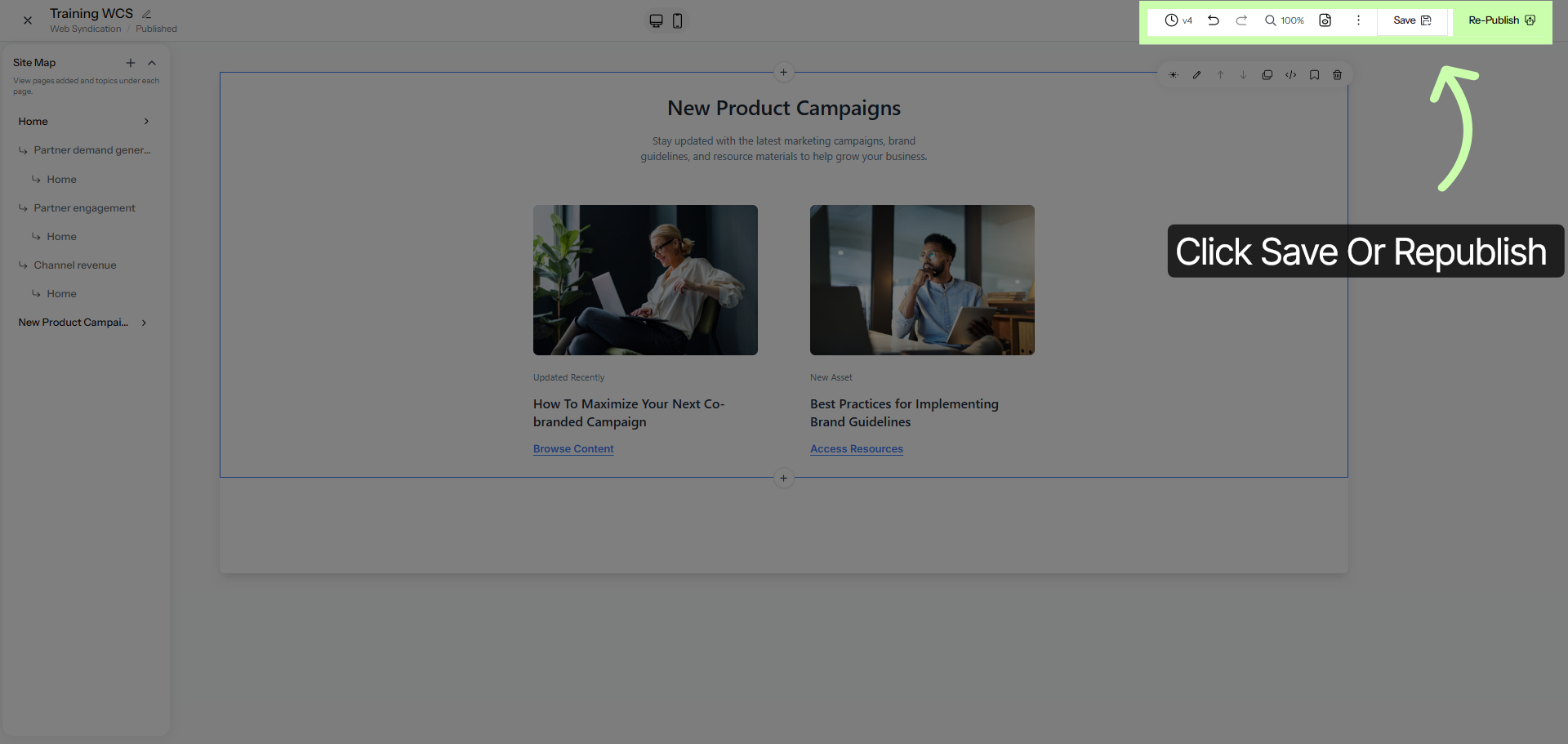
40. Return to Home
When your satisfied with your updates, click save. Or, republish and make your updates live for your partners.
You now have the basic skills to create your own Web Syndication asset.

 Introduction to Web Syndication