
 Uploading Files, Videos & Images - Phase 1: Purpose & Framework
Estimated Time
~15 minutes
Current Phase
Phase 1 of 3
What You'll Accomplish
- Navigate the Content Library within Structured AI.
- Access and use the Files section to locate stored content.
- Manage and organize content efficiently within the library.
- Understand how content is structured for easier retrieval and use.
|
Before you begin — open your account This is a hands-on, learning-by-doing session. Open app.structured.ai in your browser and log in to your Tenant Account so you can follow along and apply each step in real time. |
Direct Links to the Next Phases in this Training Series
This module is part of a 3-part series. Each session builds on the
last, and reviewing them in order ensures you don't miss any critical
steps and get a complete understanding of the workflow.
|
Phase 1
Purpose & Framework
|
Current Phase ✔ |
|
Phase 2
Uploading Files & Images
|
Start Training ➡ |
|
Phase 3
Bulk Import
|
Start Training ➡ |
Follow Our Step-By-Step Training
1. Introduction
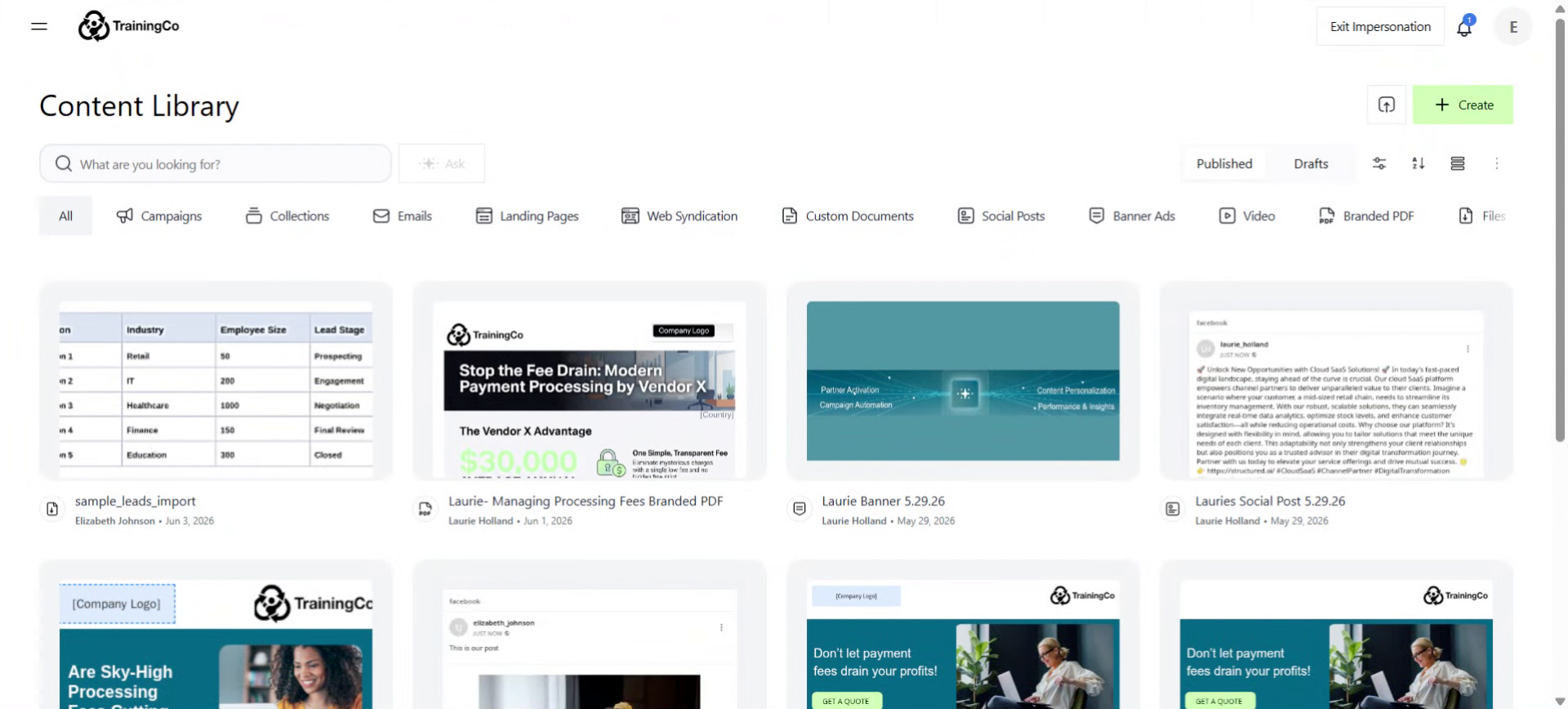
In this training, we will review how to access the Content Library giving you the ability to manage your content effectively.
The Content Library is the centralized powerhouse of the entire Structured AI platform, serving as the total hub that houses all of your partner-facing marketing materials.
Uploaded files include helpful resources, like infographics and whitepapers that educate your partners and help their customers make informed purchasing decisions.
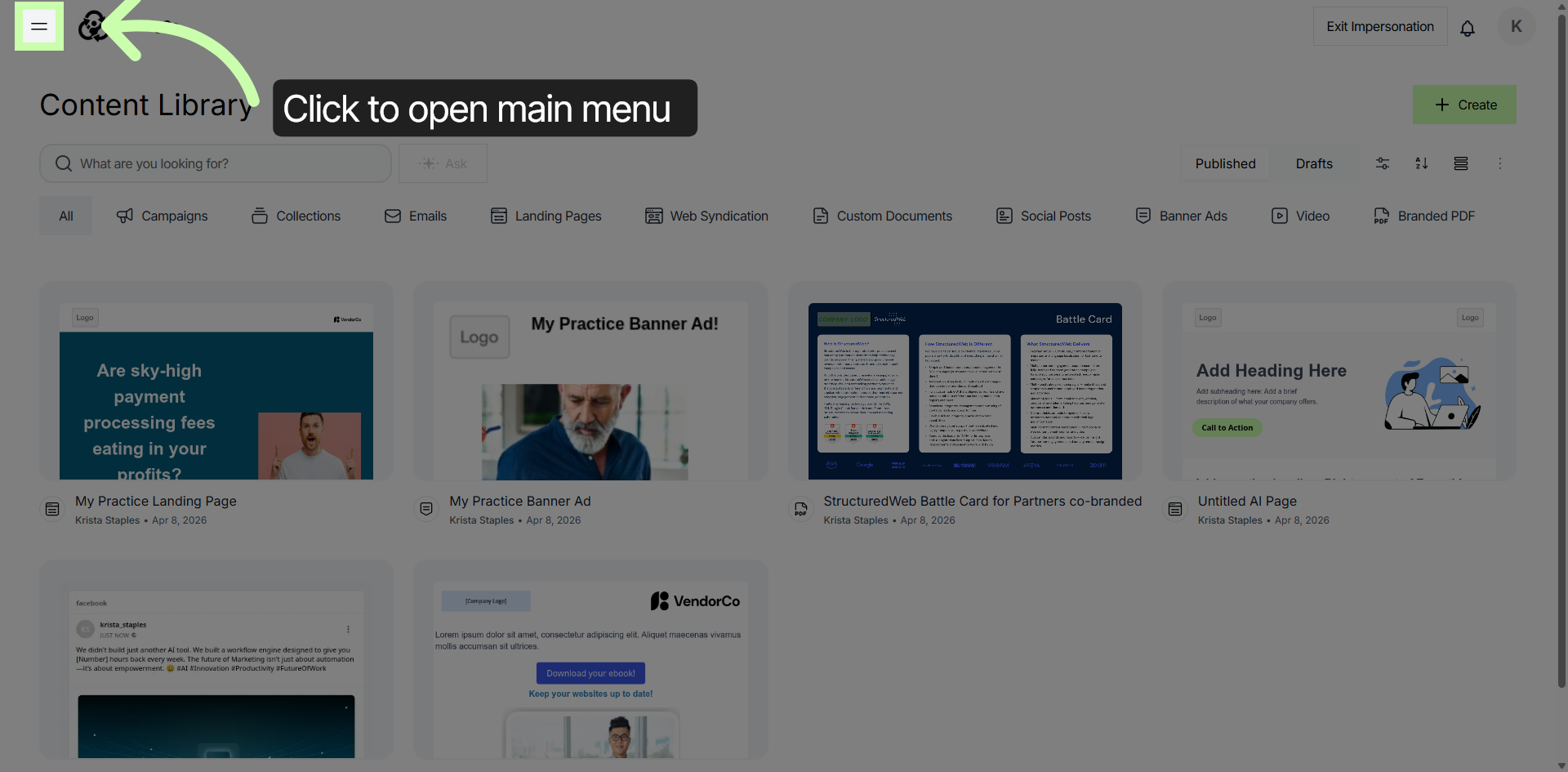
2. Access Content Library
Click into the main menu to open the Content Library within Structured AI.
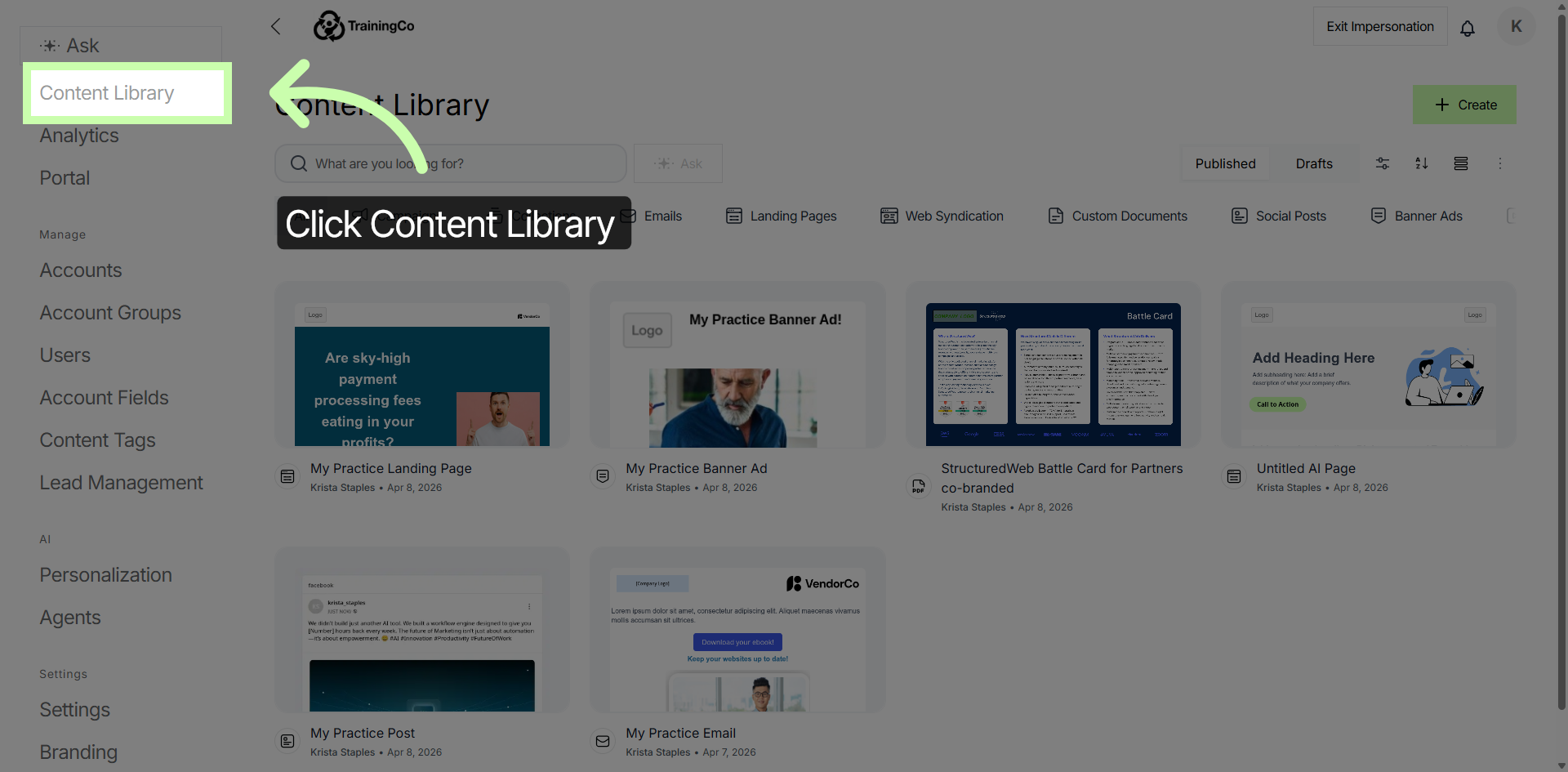
3. Open Content Library Section
To access the section where all your content assets are stored and managed, simply click on the Content Library. This area serves as a centralized hub, allowing you to easily organize, review, and manage all your digital content in one convenient location.
Whether you need to upload new materials, edit existing files, or categorize your assets for better accessibility, the Content Library provides all the necessary tools to streamline your content management process.
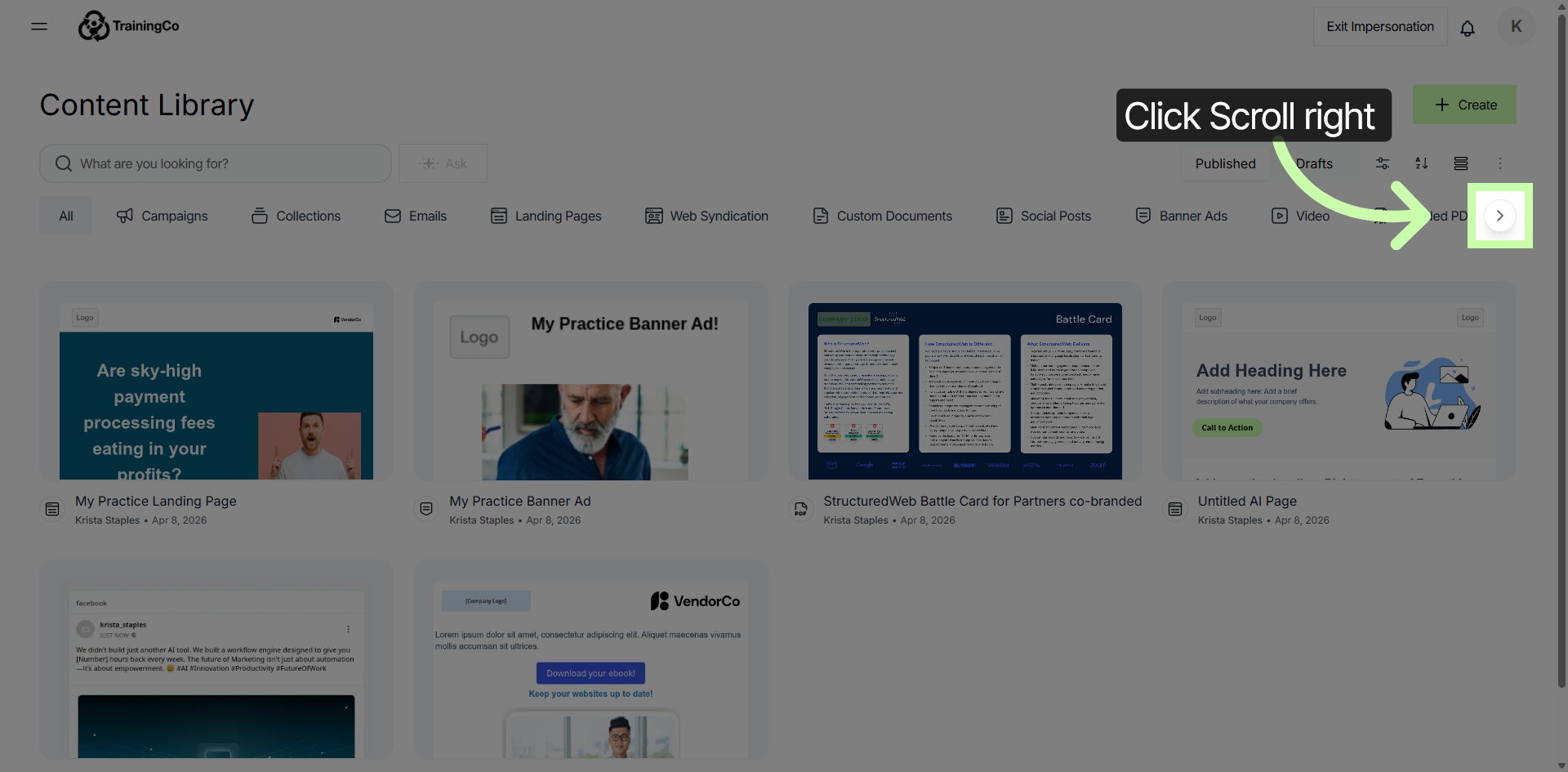
4. Scroll Through Content Items
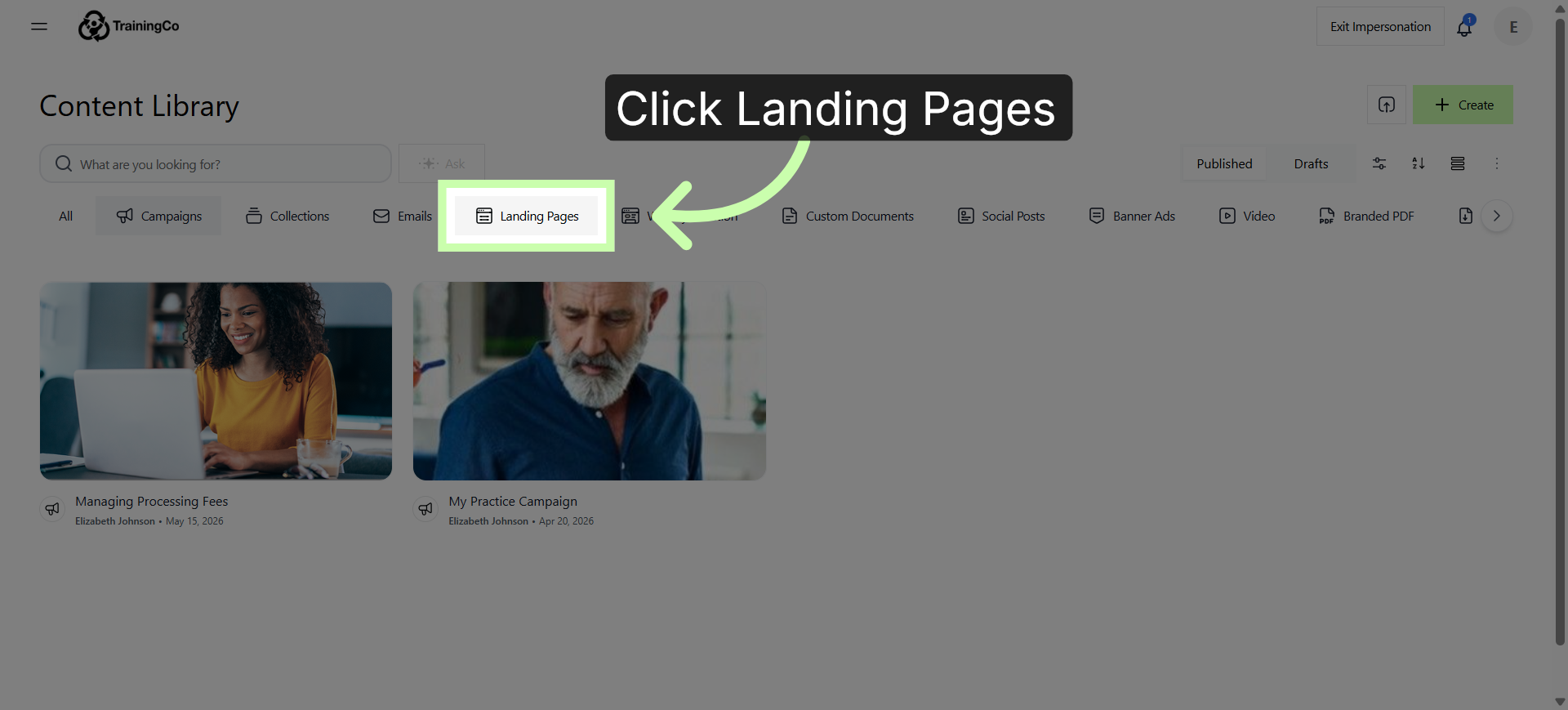
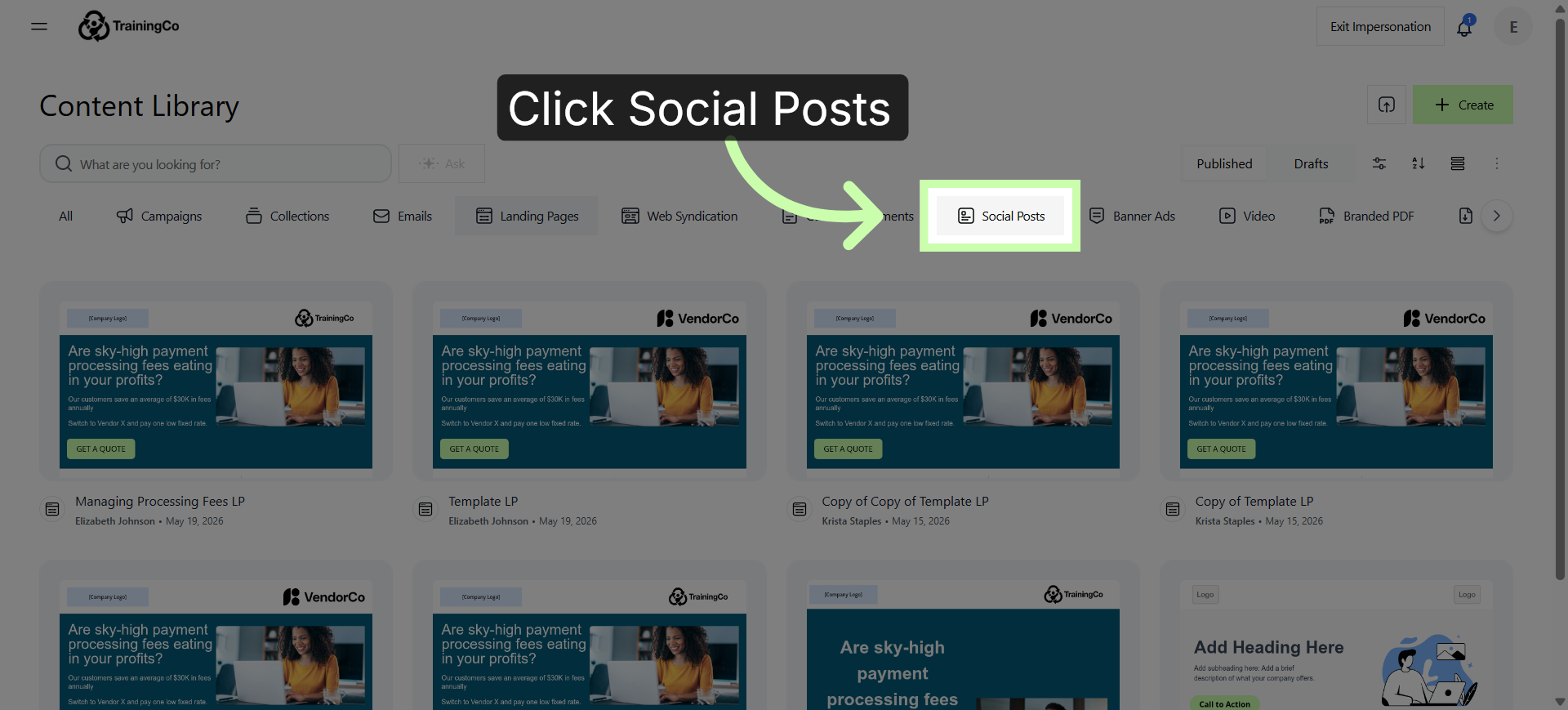
Scroll to the right to browse all the content items available to you. From Campaigns to Landing Pages to Social Posts and More!
5. Foundational Media Assets
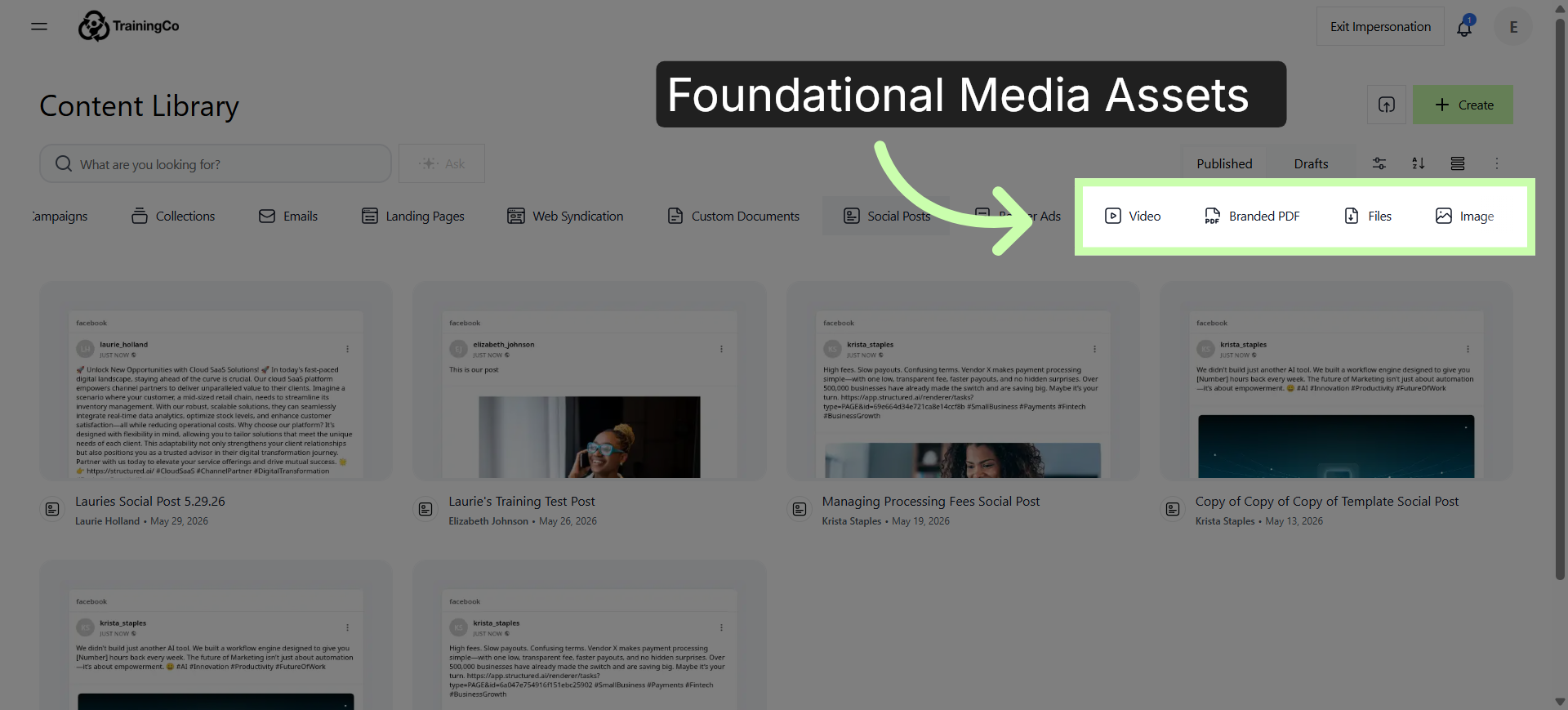
Within this master library, you also find foundational media assets, including Files, Videos, and Images. Not only do these resources supply their end-customers with the critical information needed to make purchasing decisions, but they also provide your partners with deeper education about your products, strengthening your brand recognition and your partner relationships.
You have successfully navigated through the Content Library in Structured AI by accessing the main menu, opening the library section, scrolling through content, and selecting the files tab. This enables efficient content management and file access within the platform.