 Branded Documents - Phase 3: Testing & Management
- Configure content settings within the Structured AI PDF Editor.
- Manage document details, tags, and metadata for better organization.
- Adjust accessibility settings to support proper content use.
- Set publishing options to prepare PDFs for release.
|
Before you begin — open your account This is a hands-on, learning-by-doing session. Open app.structured.ai in your browser and log in to your Tenant Account so you can follow along and apply each step in real time. |
|
Phase 1
Purpose & Framework
|
Start Training ➡ |
|
Phase 2
The Branding Editor
|
Start Training ➡ |
|
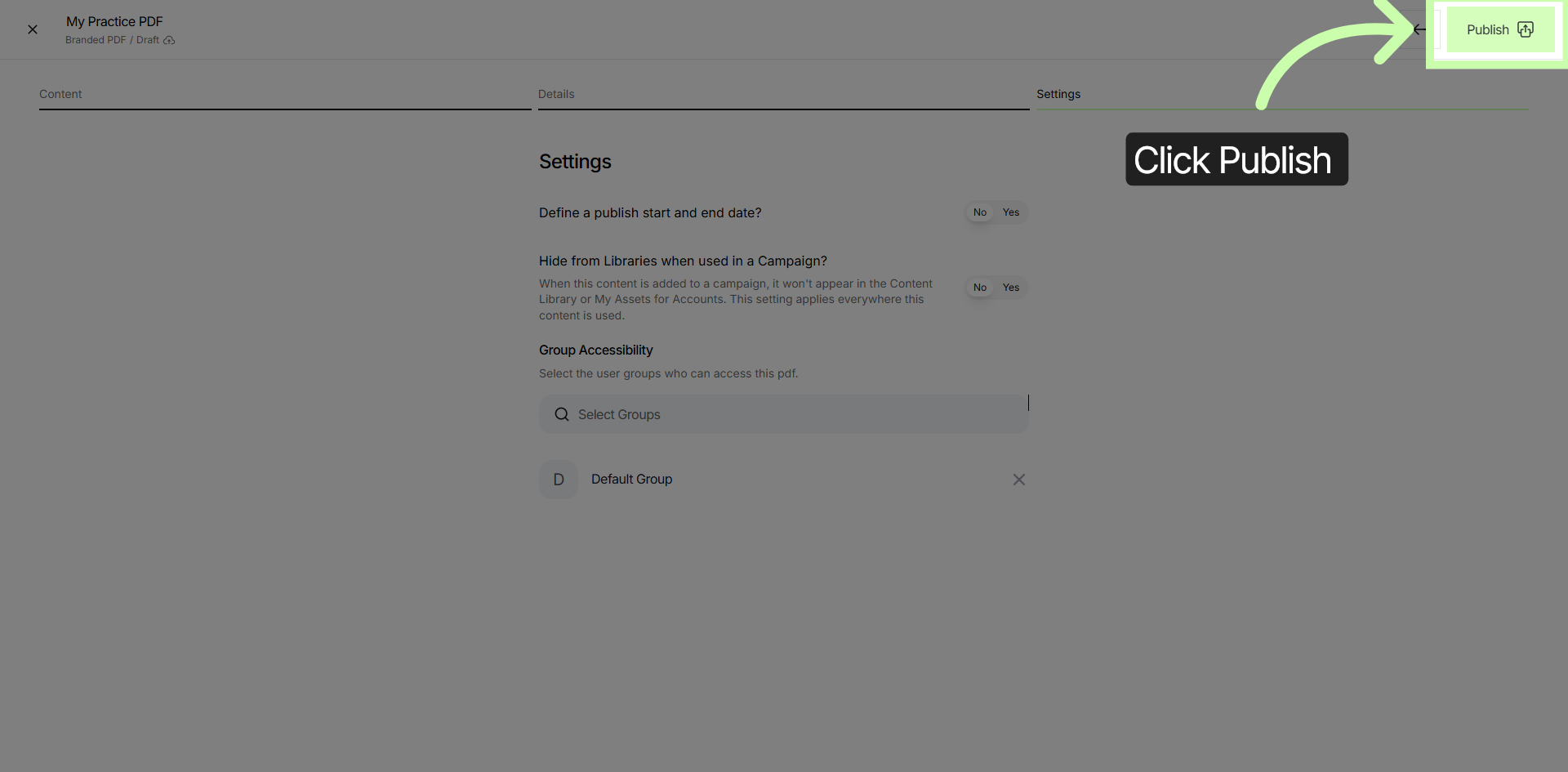
Phase 3
Testing & Management
|
Current Phase ✔ |
Follow Our Step-By-Step Training
1. Introduction
Building upon the progress made in Phase 2, our next focus is to efficiently handle various aspects of content management. This includes meticulously managing the finer details of the content, such as its structure and presentation, to ensure clarity and coherence.
Additionally, we will pay close attention to the use of tags, which play a crucial role in organizing and categorizing content for easier navigation and retrieval. Furthermore, we will prioritize accessibility to make sure that the content is usable and understandable by all users, including those with disabilities.
This involves implementing best practices and standards that enhance the overall user experience. Lastly, we will explore and configure the publishing options available, allowing for optimal distribution and timely release of the content across the intended platforms.
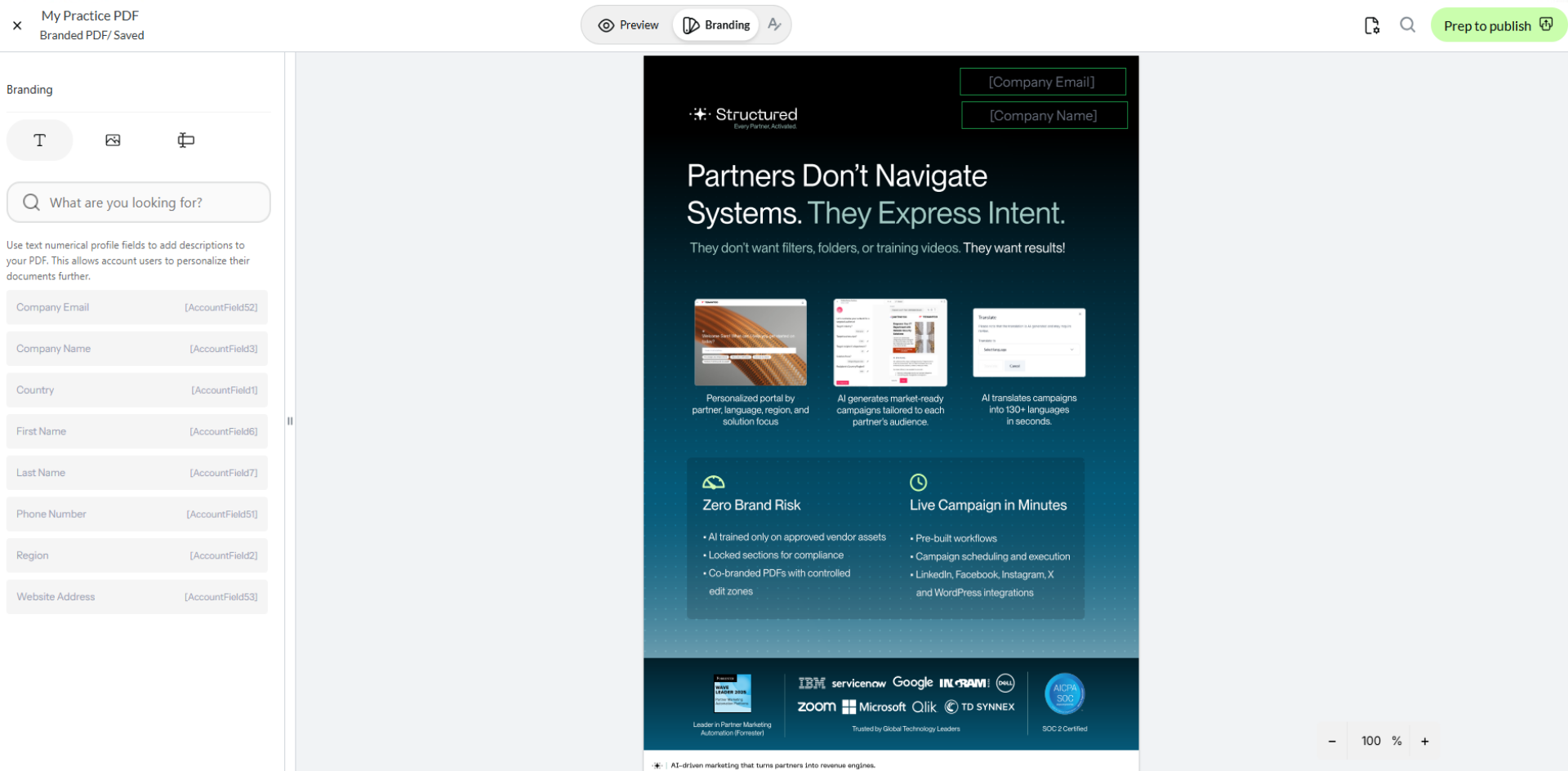
2. Editing Your Branded Document
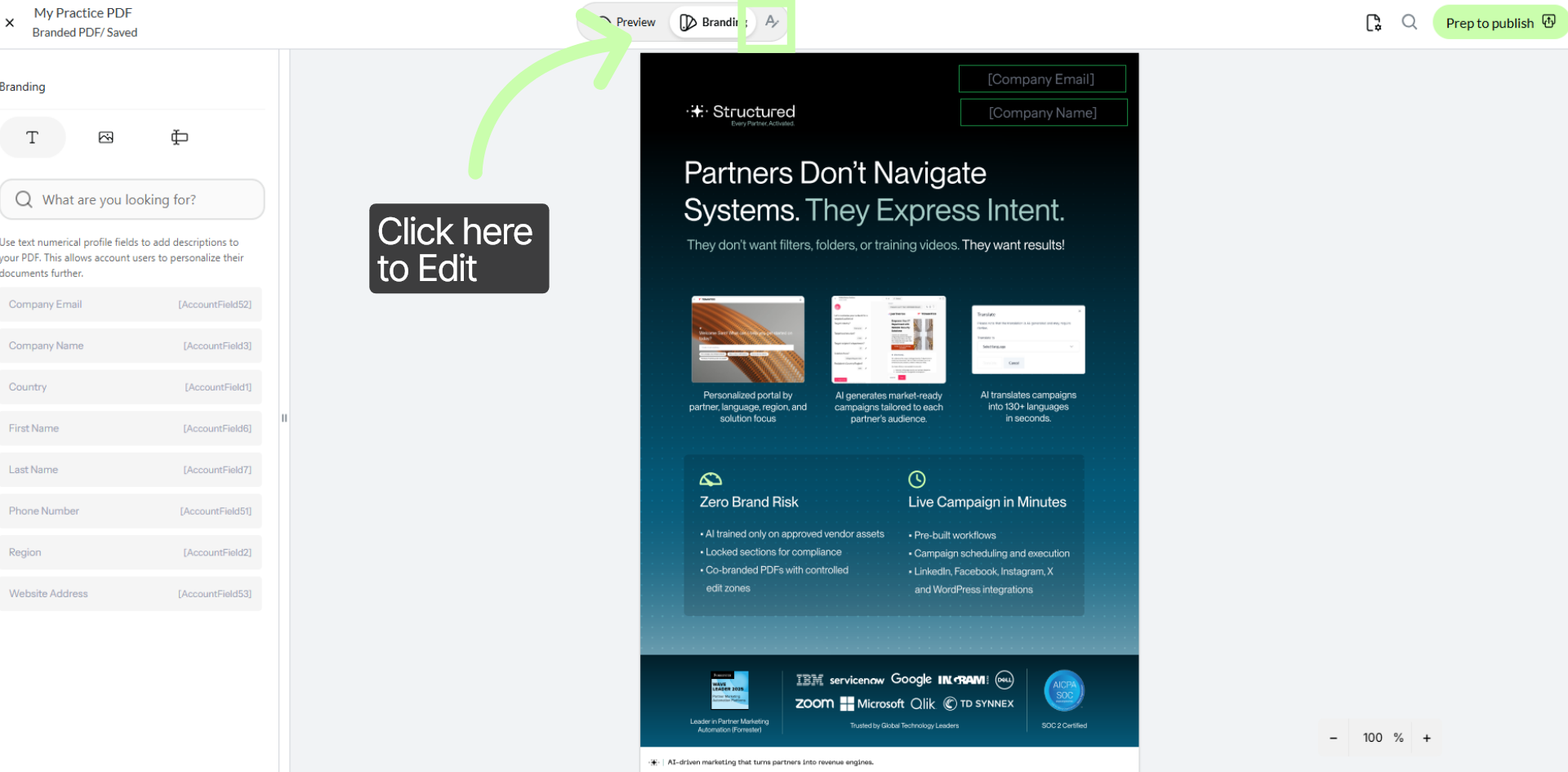
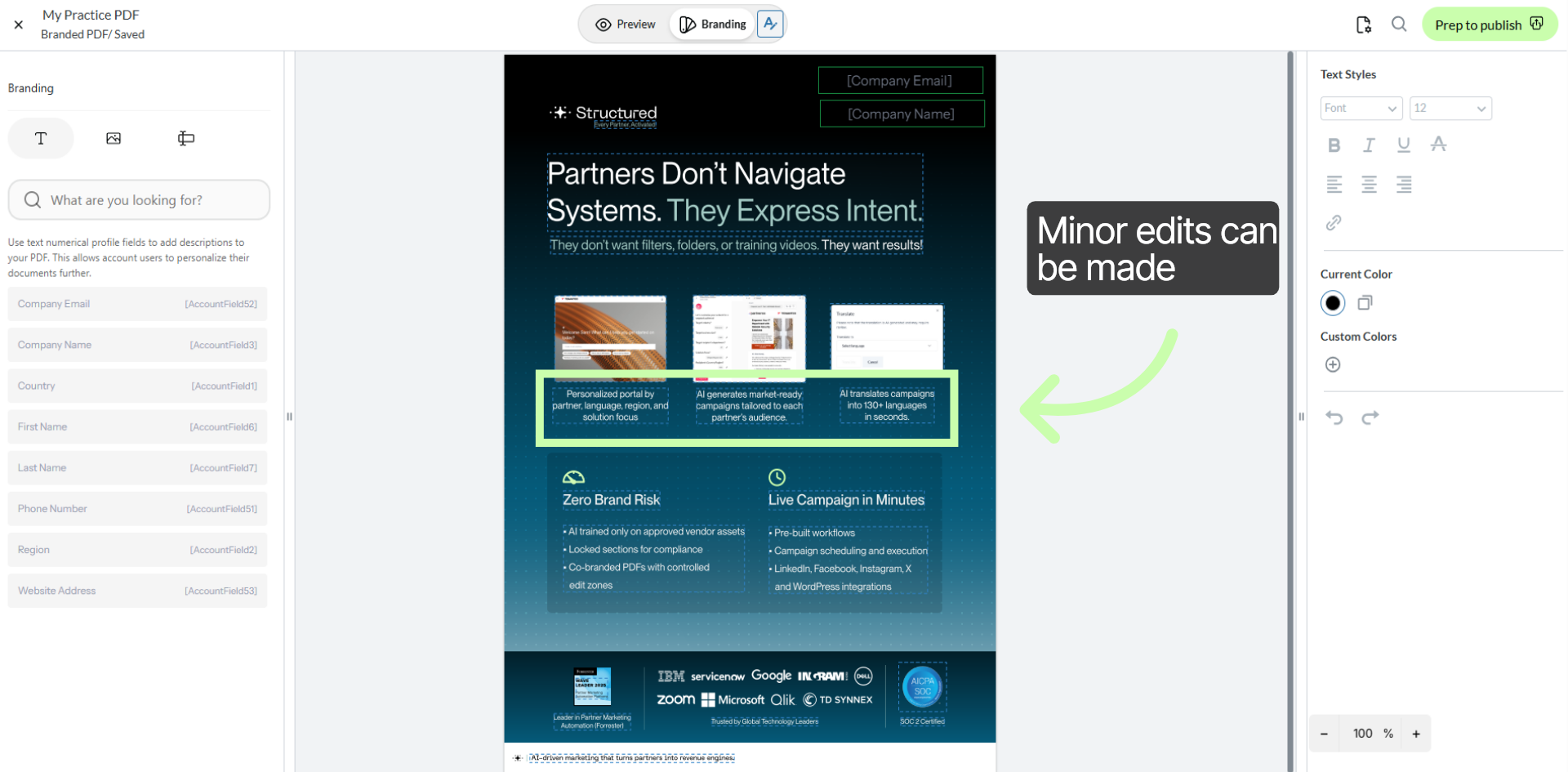
3. Making Minor Edits
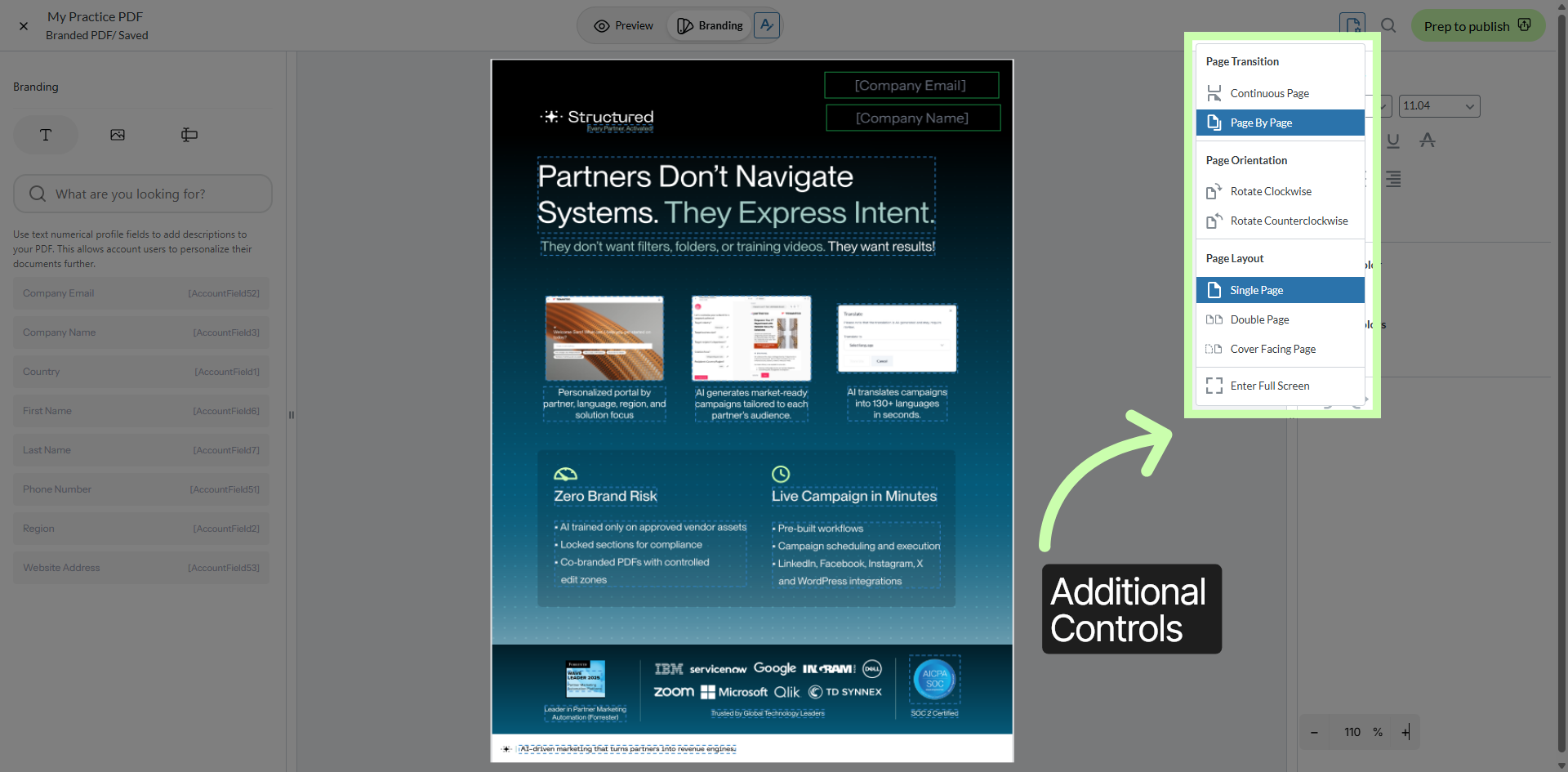
4. Open View Controls
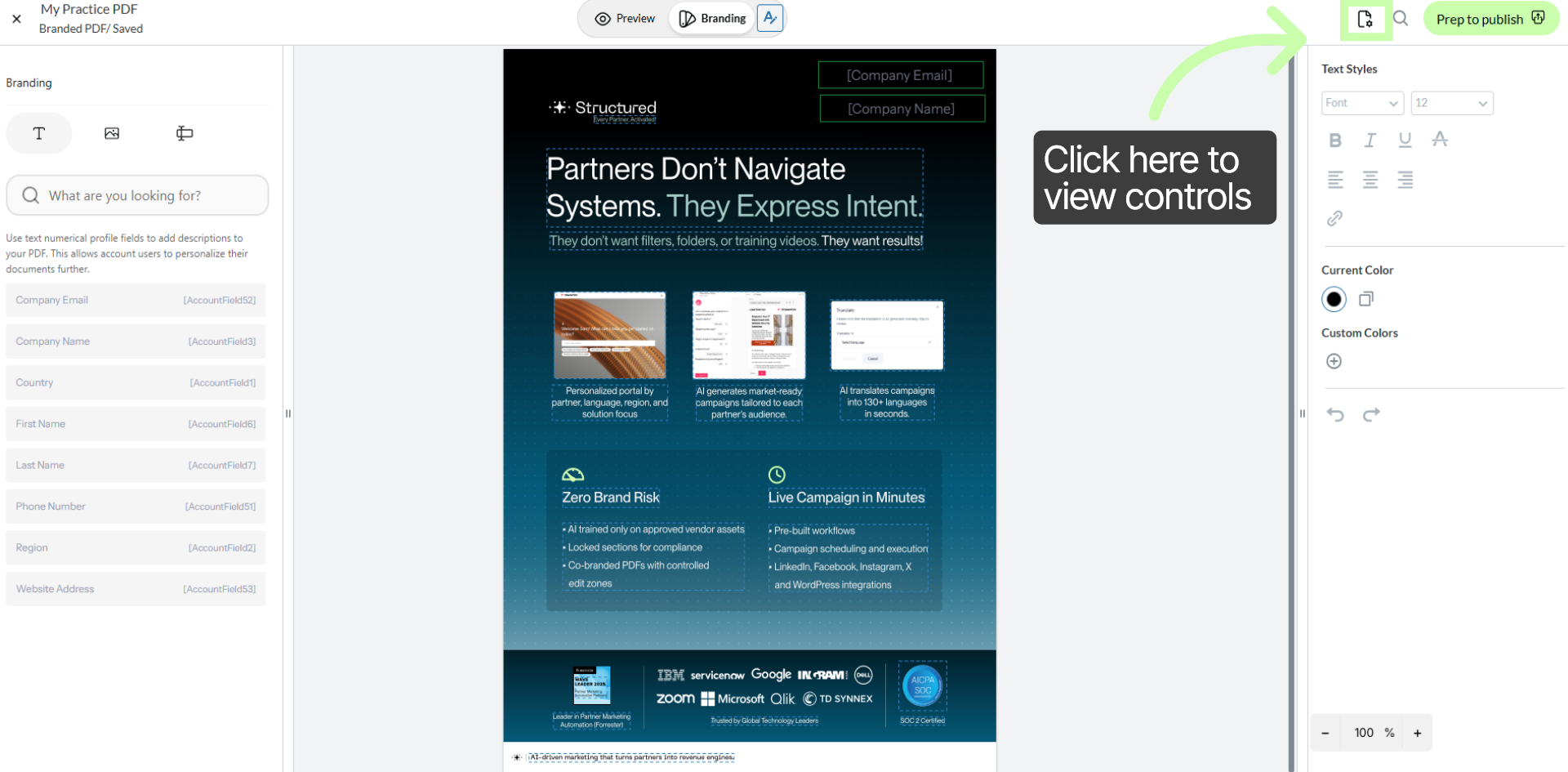
5. Open Control Panel
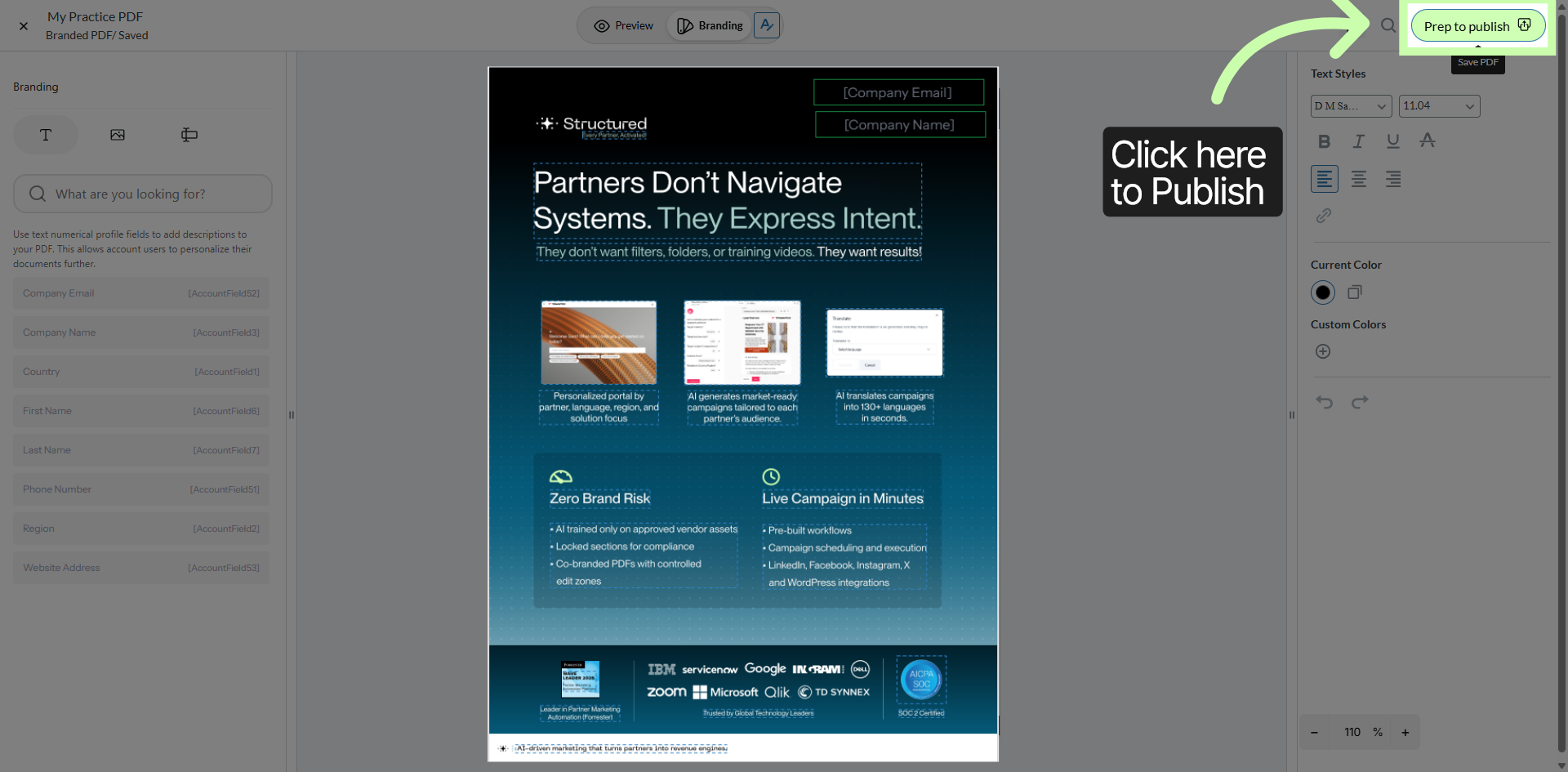
6. Prepare to Publish
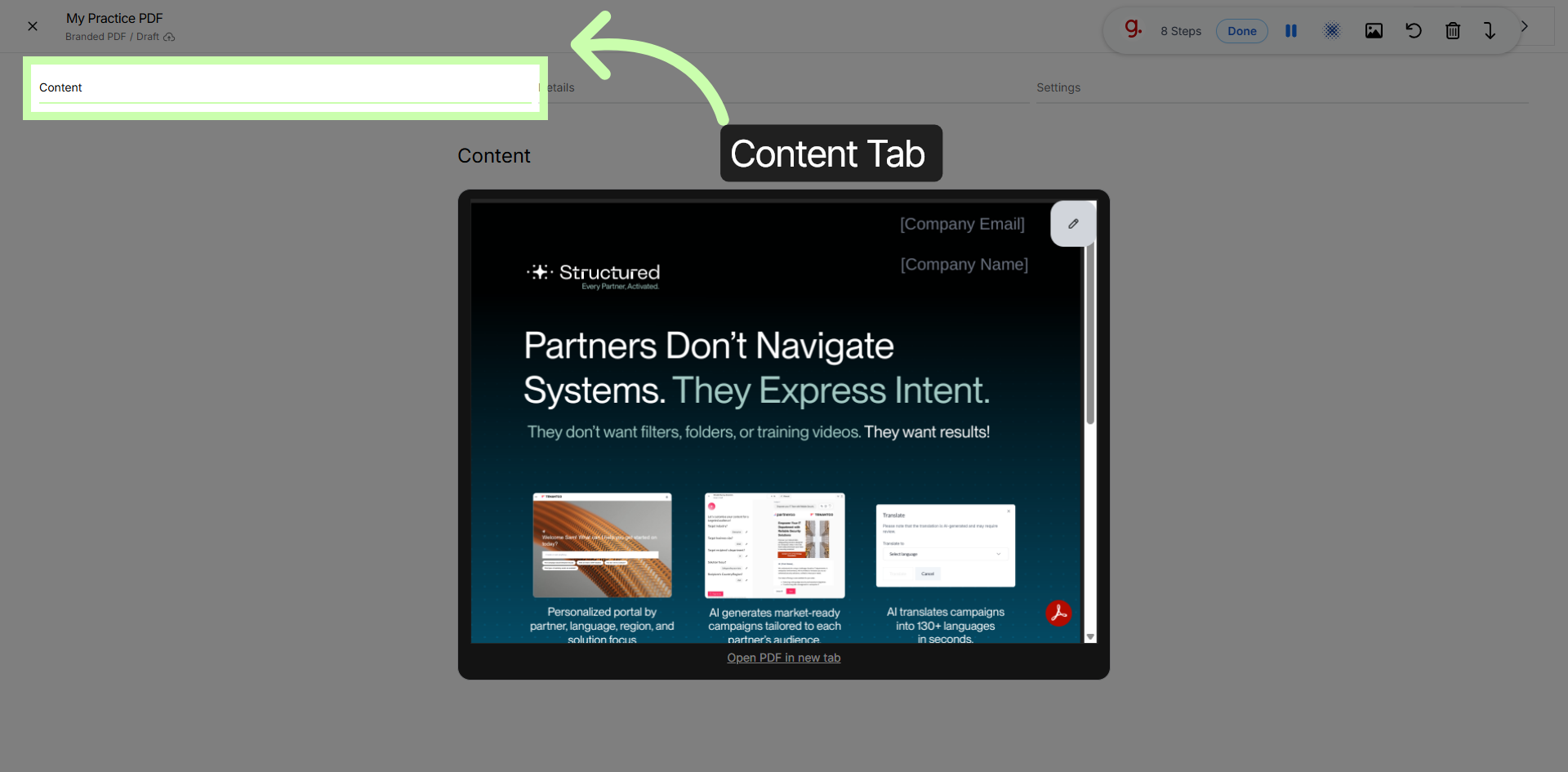
7. Content Tab
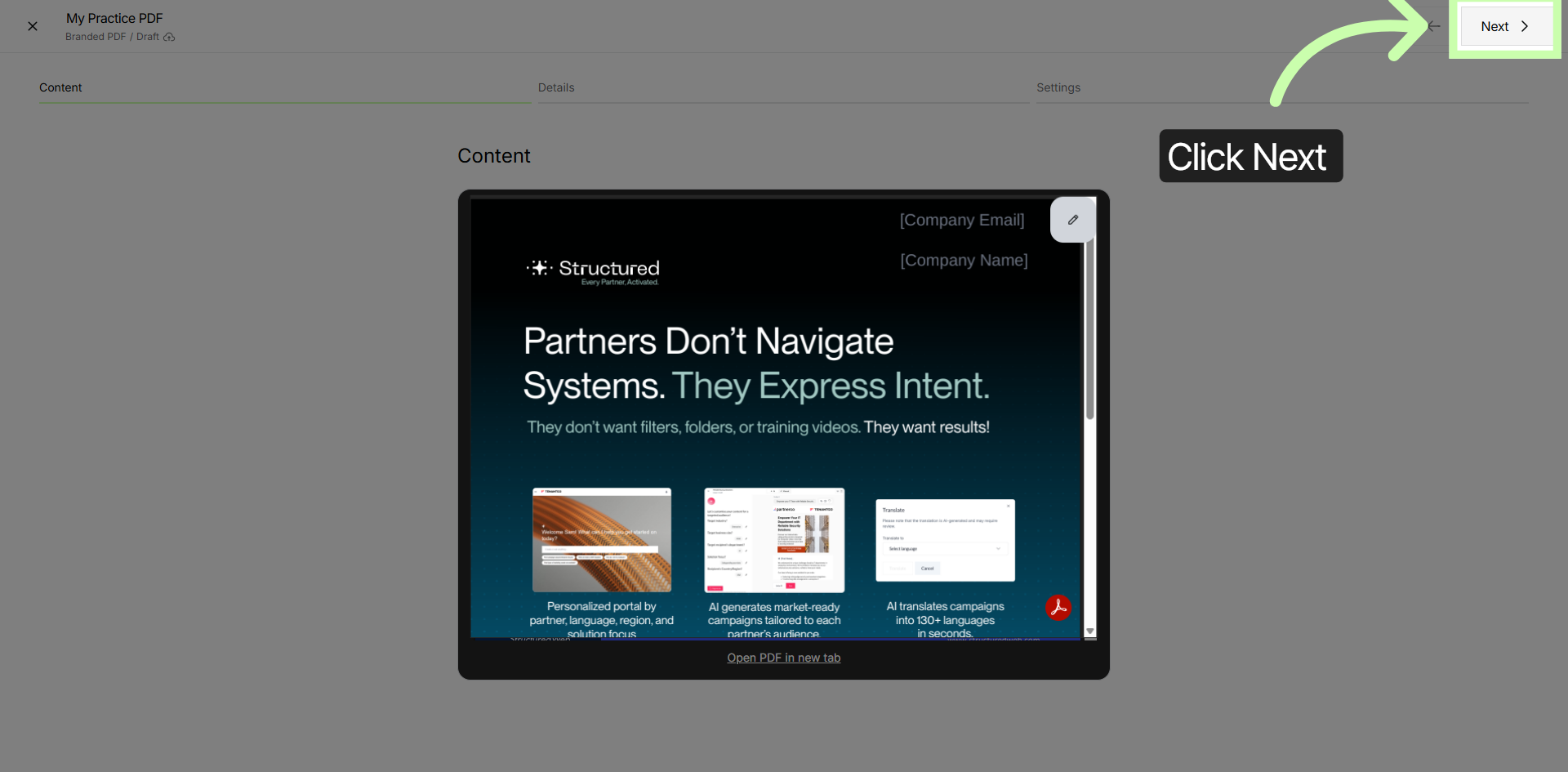
8. Proceed To Next Step
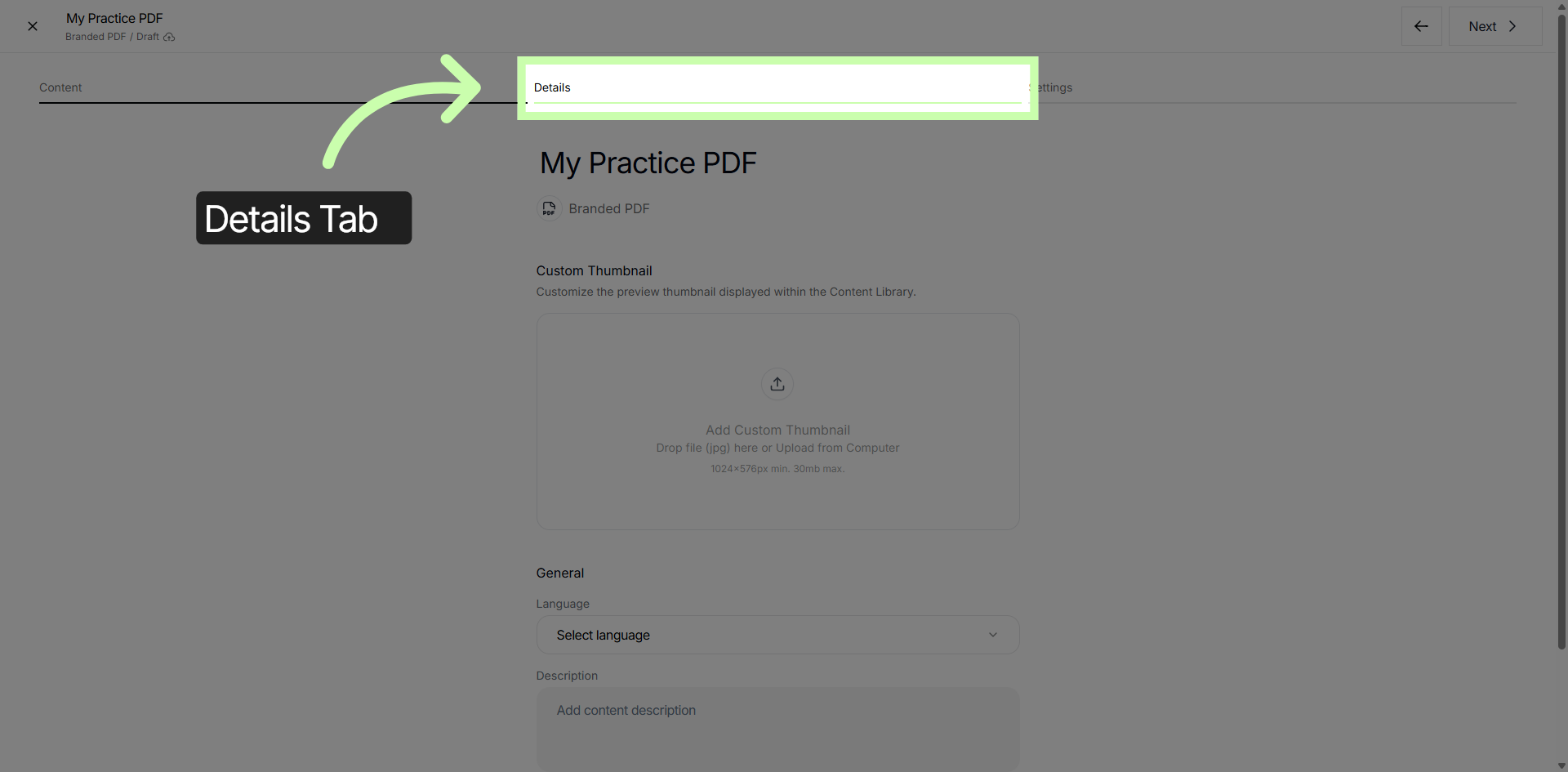
9. Details Tab
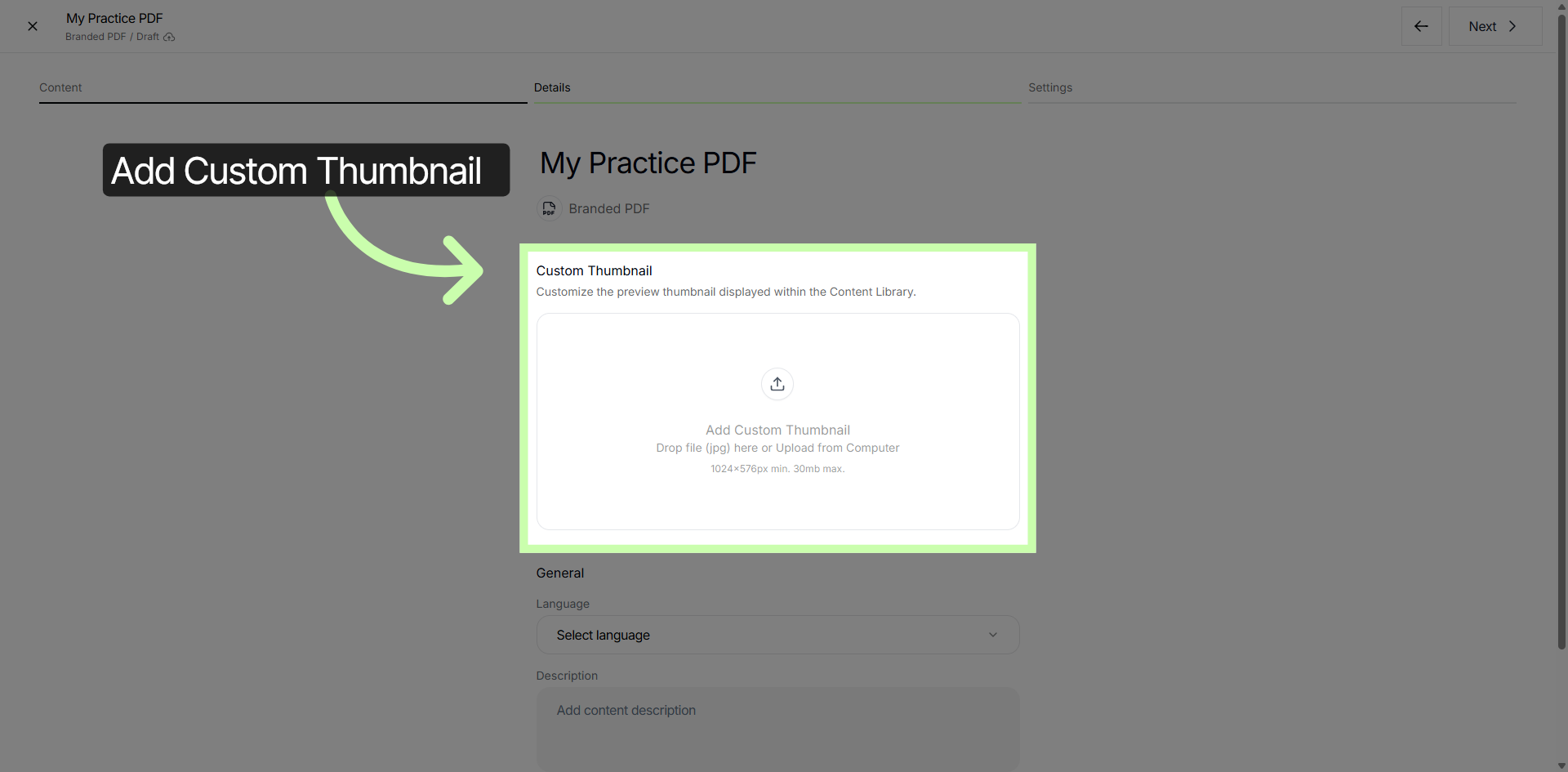
10. Choose Custom Thumbnail
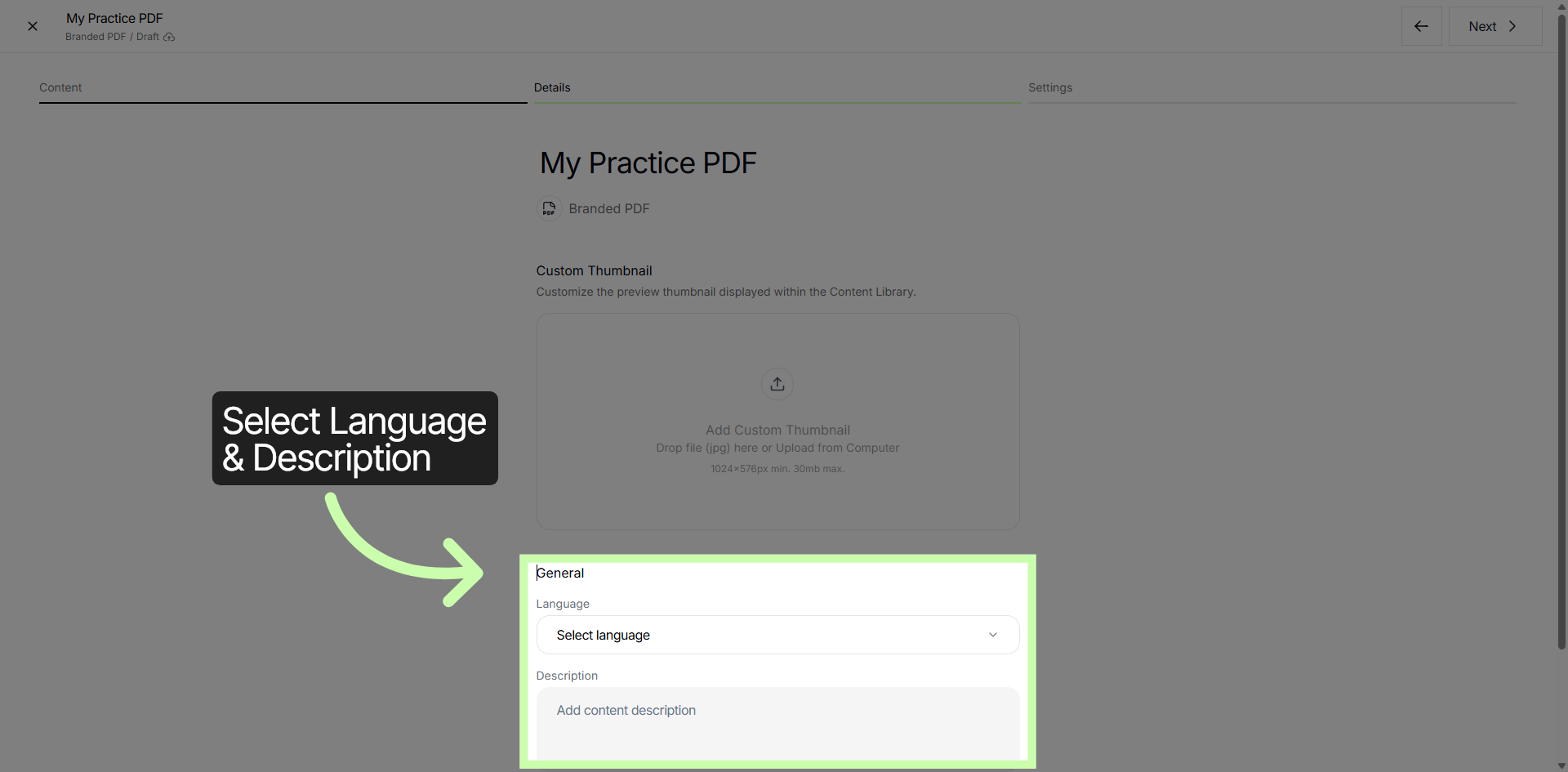
11. Set Language & Description
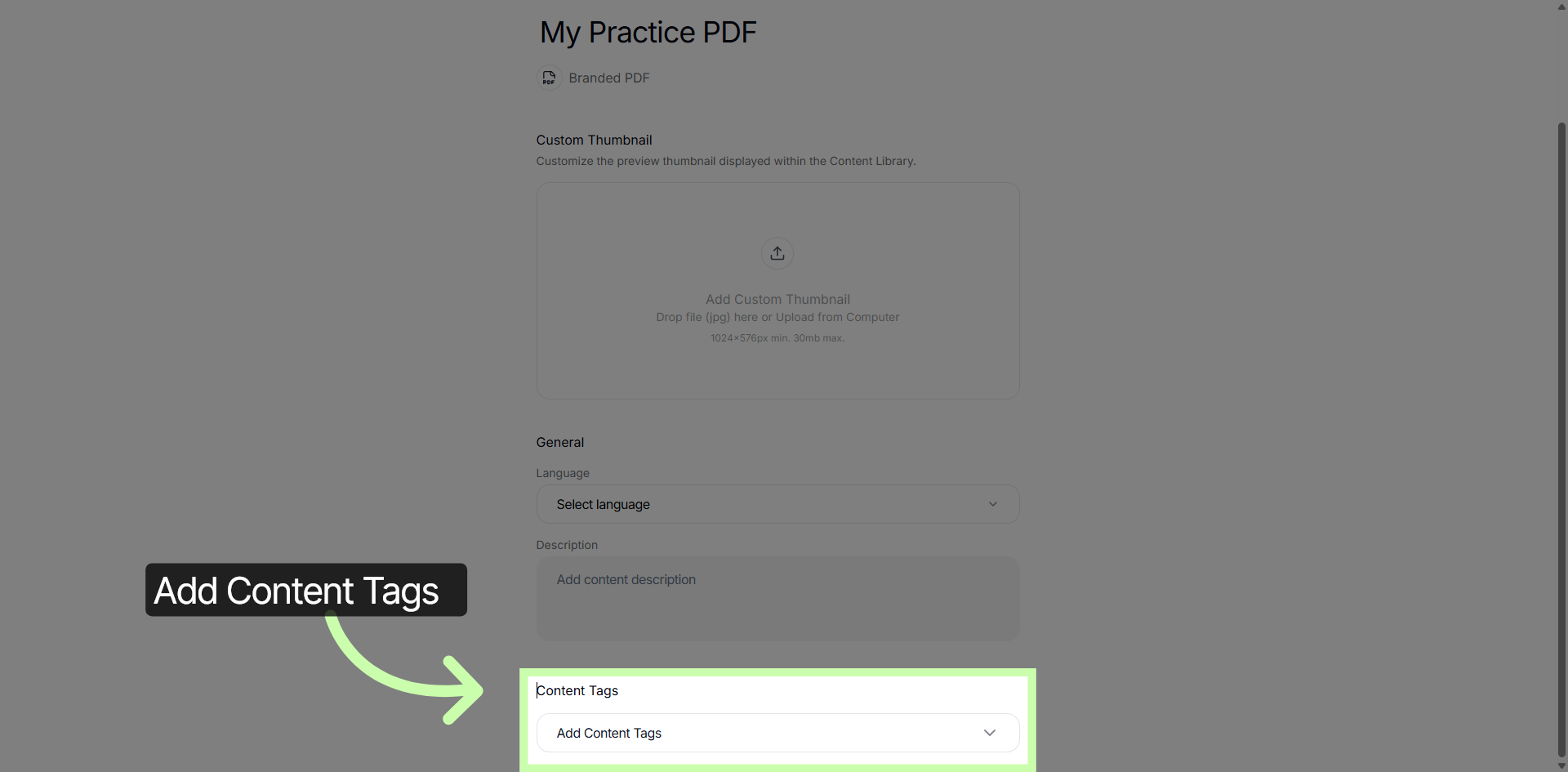
12. Manage Content Tags
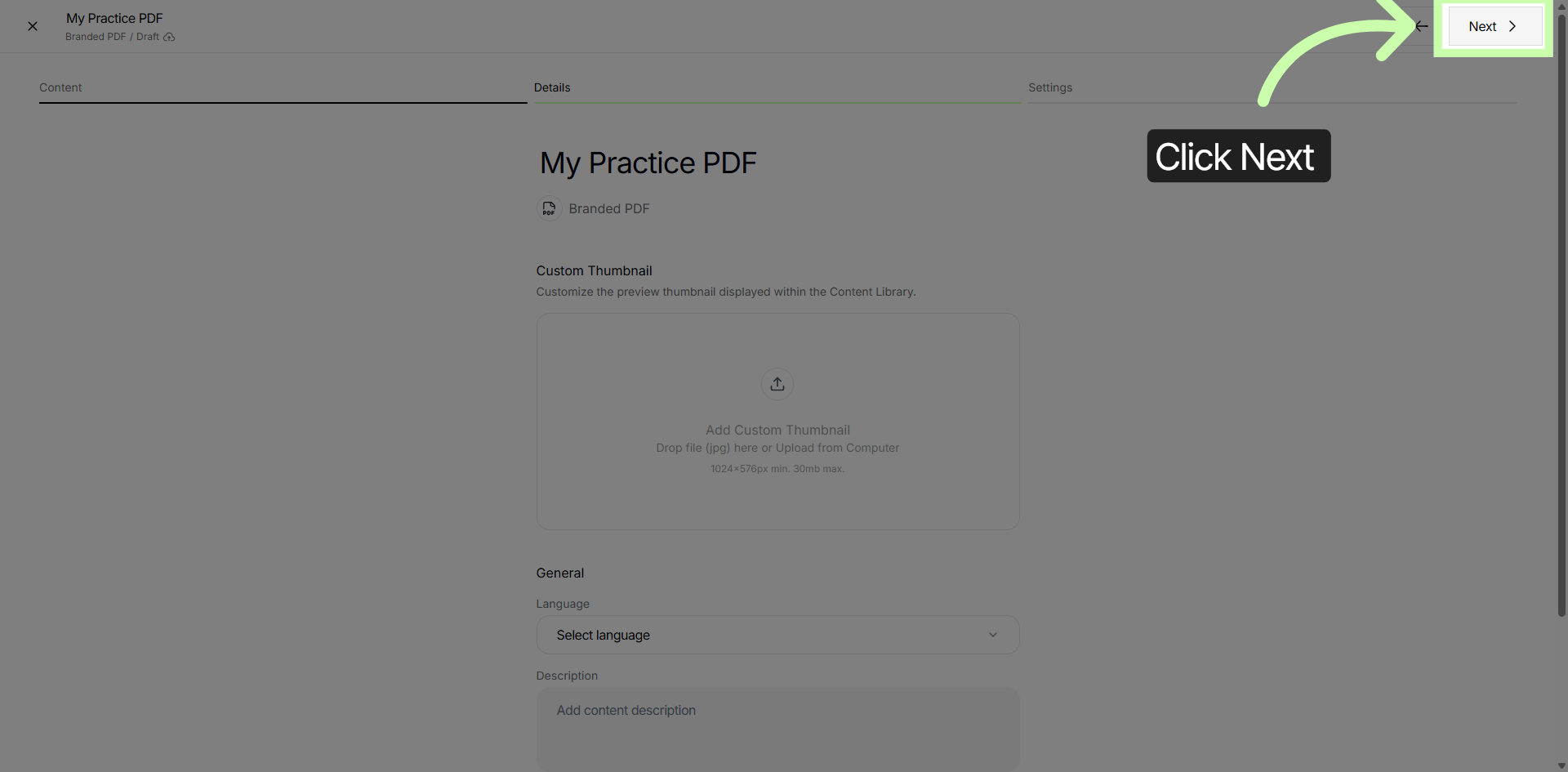
13. Continue To Next Section
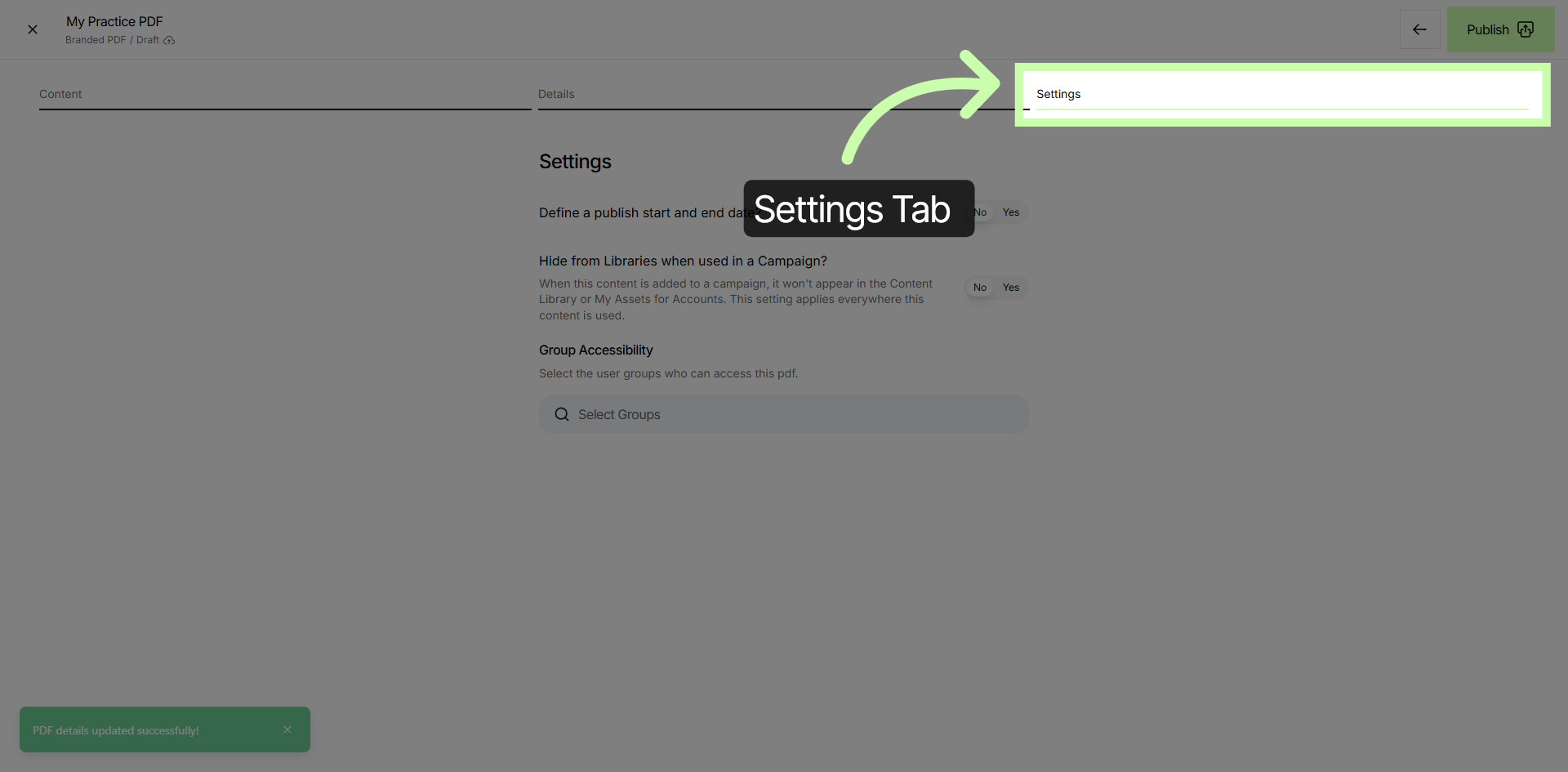
14. Open Settings Tab
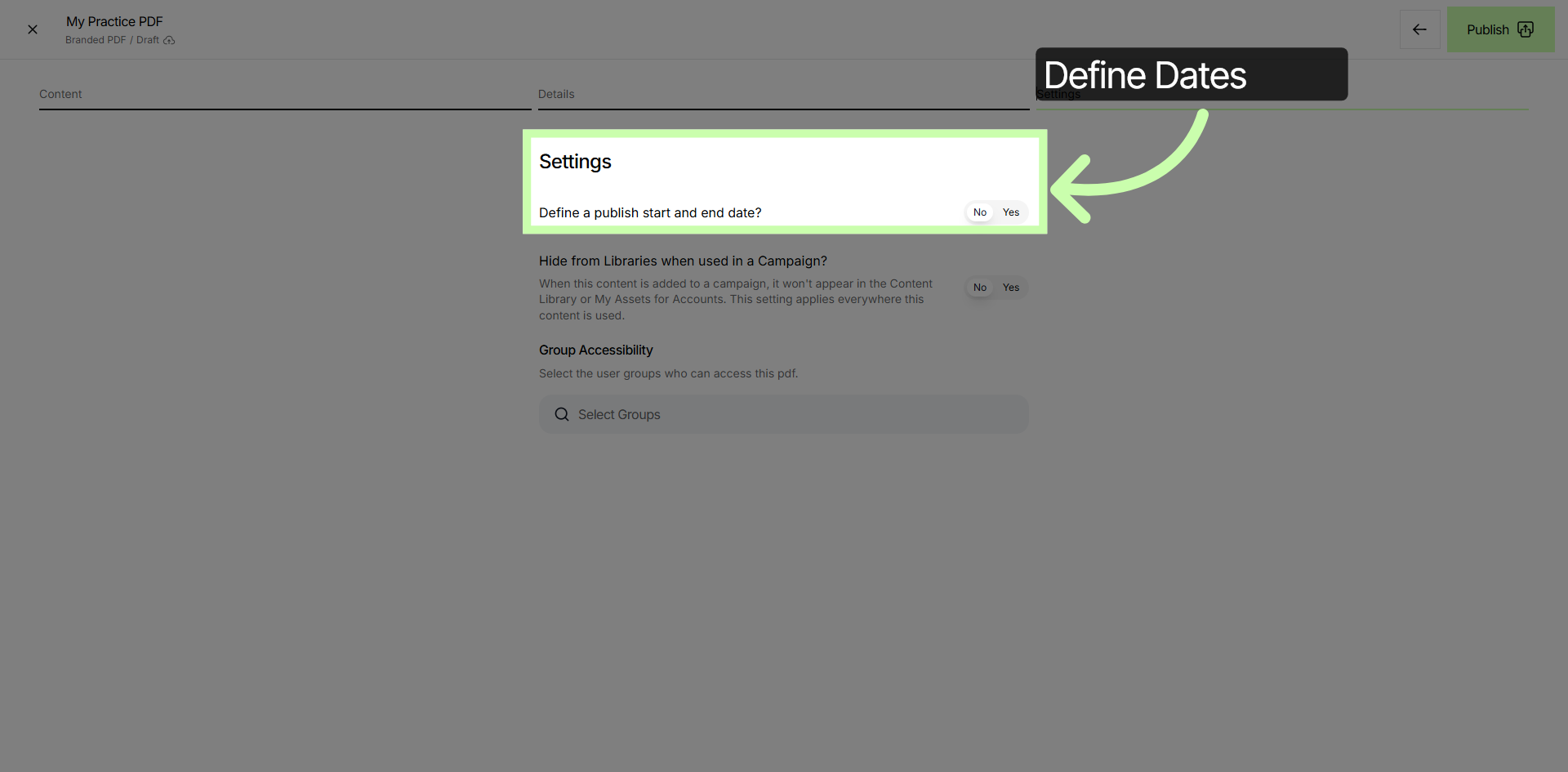
15. Define Publish Dates
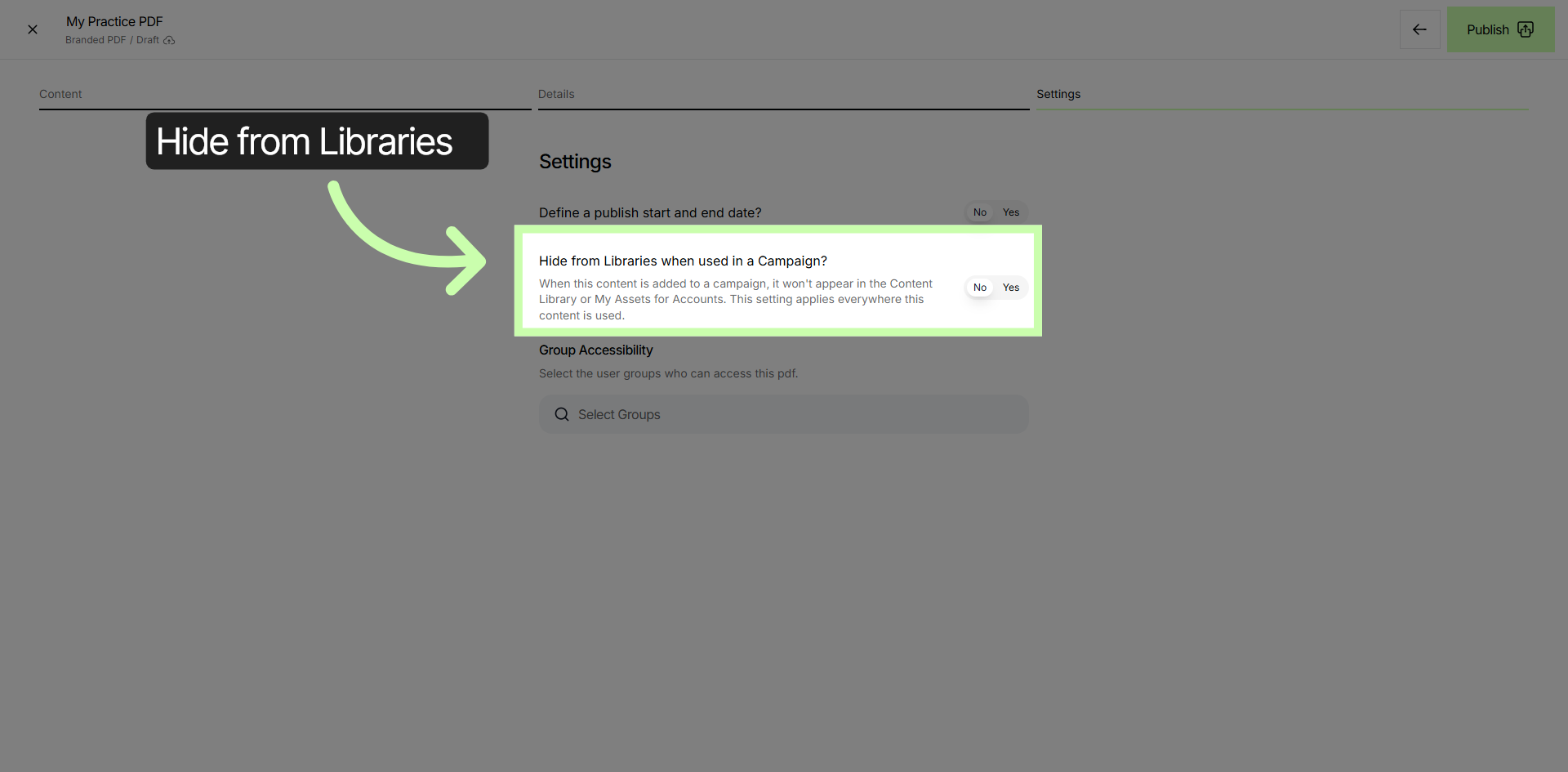
16. Toggle Library Visibility
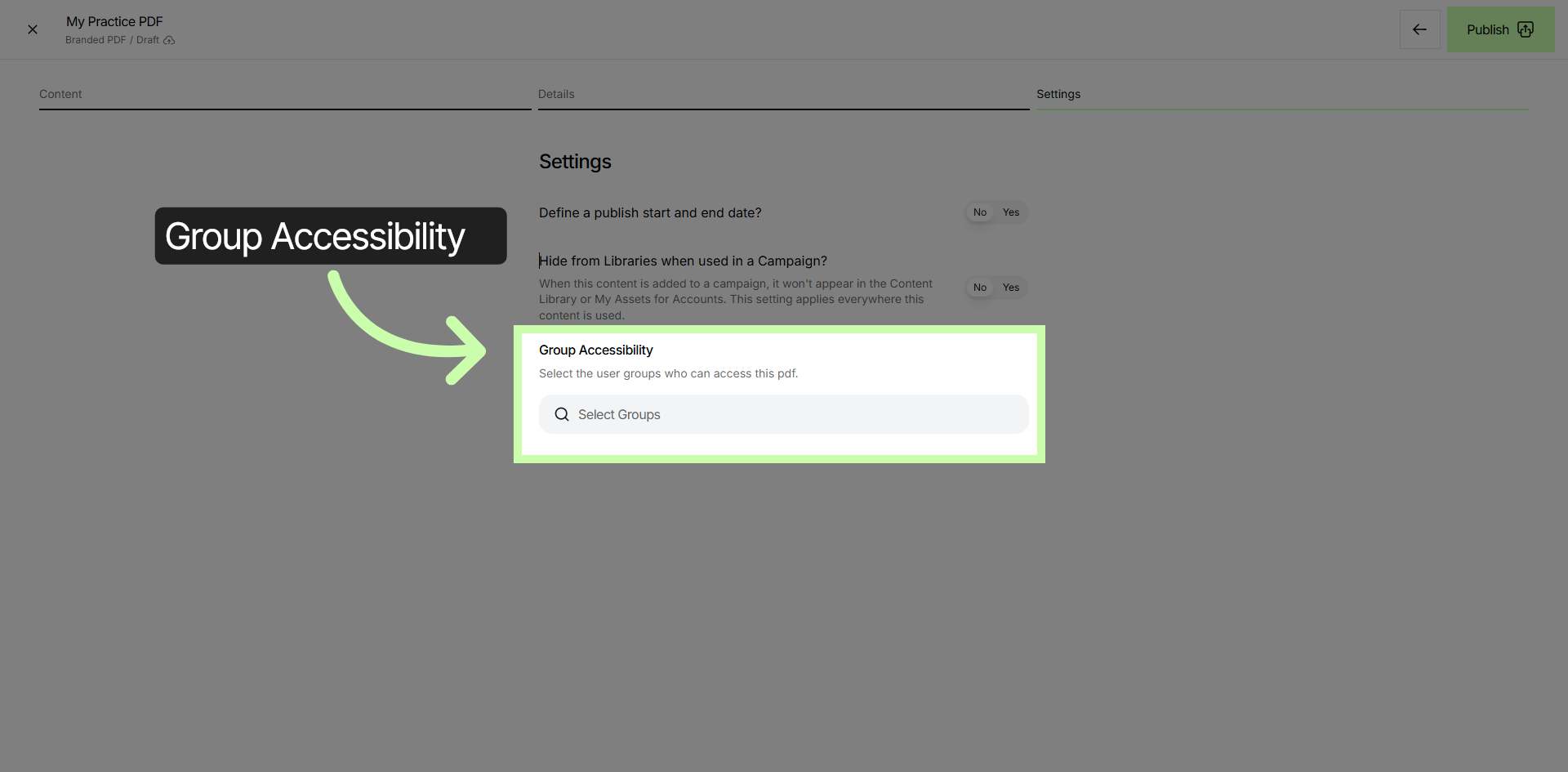
17. Access Group Accessibility
18. Publish Content