
 Building Custom Video Templates - Phase 1: Purpose & Framework
Estimated Time
~10 minutes
Current Phase
Phase 1 of 3
What You'll Accomplish
- This tutorial outlines the purpose & framework of Custom Videos.
|
Before you begin — open your account This is a hands-on, learning-by-doing session. Open app.structured.ai in your browser and log in to your Tenant Account so you can follow along and apply each step in real time. |
Direct Links to the Next Phases in this Training Series
This module is part of a 3-part series. Each session builds on the
last, and reviewing them in order ensures you don't miss any critical
steps and get a complete understanding of the workflow.
|
Phase 1
Purpose & Framework
|
Current Phase ✔ |
|
Phase 2
Upload & Configure Videos
|
Start Training ➡ |
|
Phase 3
Render & Publish
|
Start Training ➡ |
Follow Our Step-By-Step Training
1. Introduction
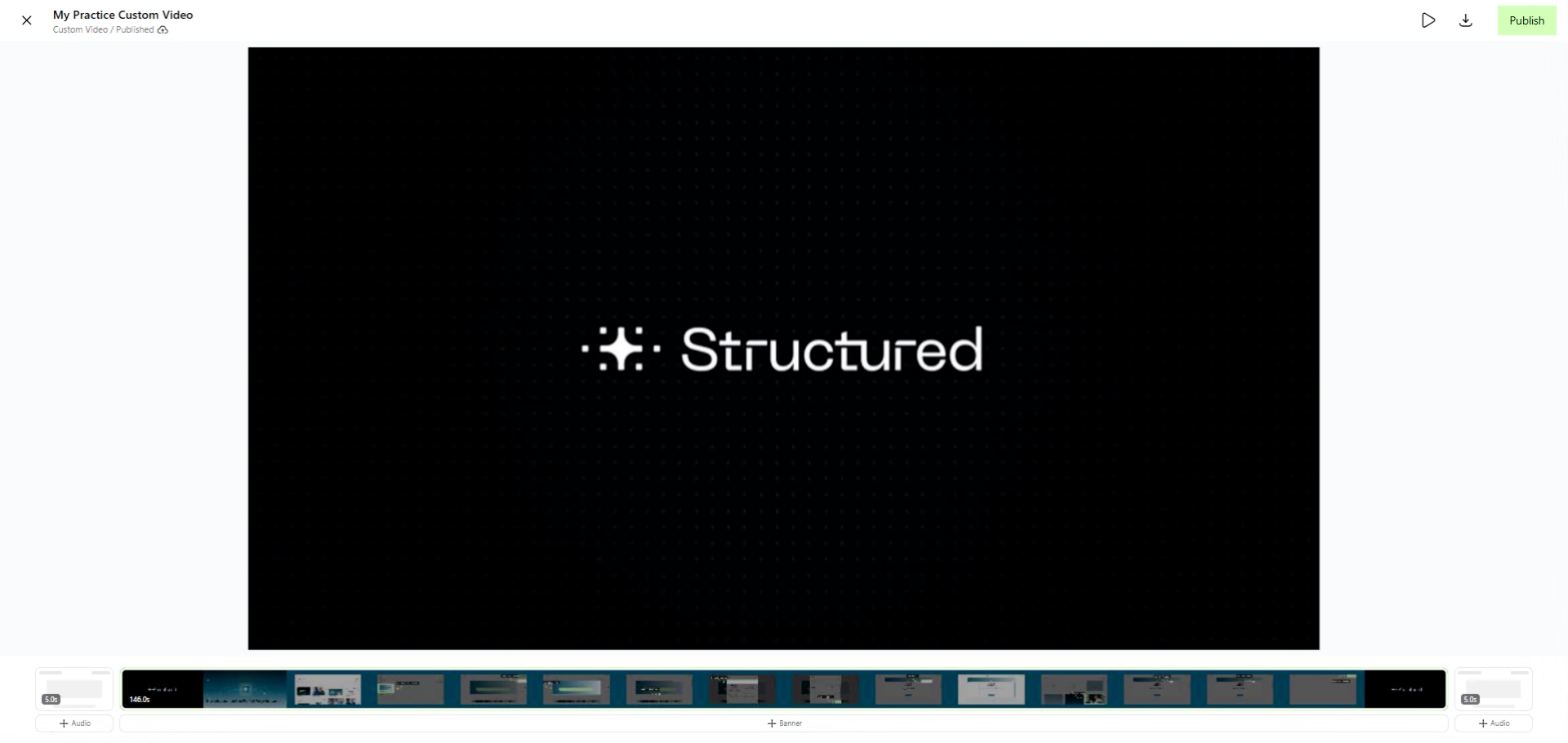
Video is one of the highest-converting assets on the market, and Customized Video puts that power directly into your partners' hands without risking your brand's integrity.
2. Benefit of Custom Video
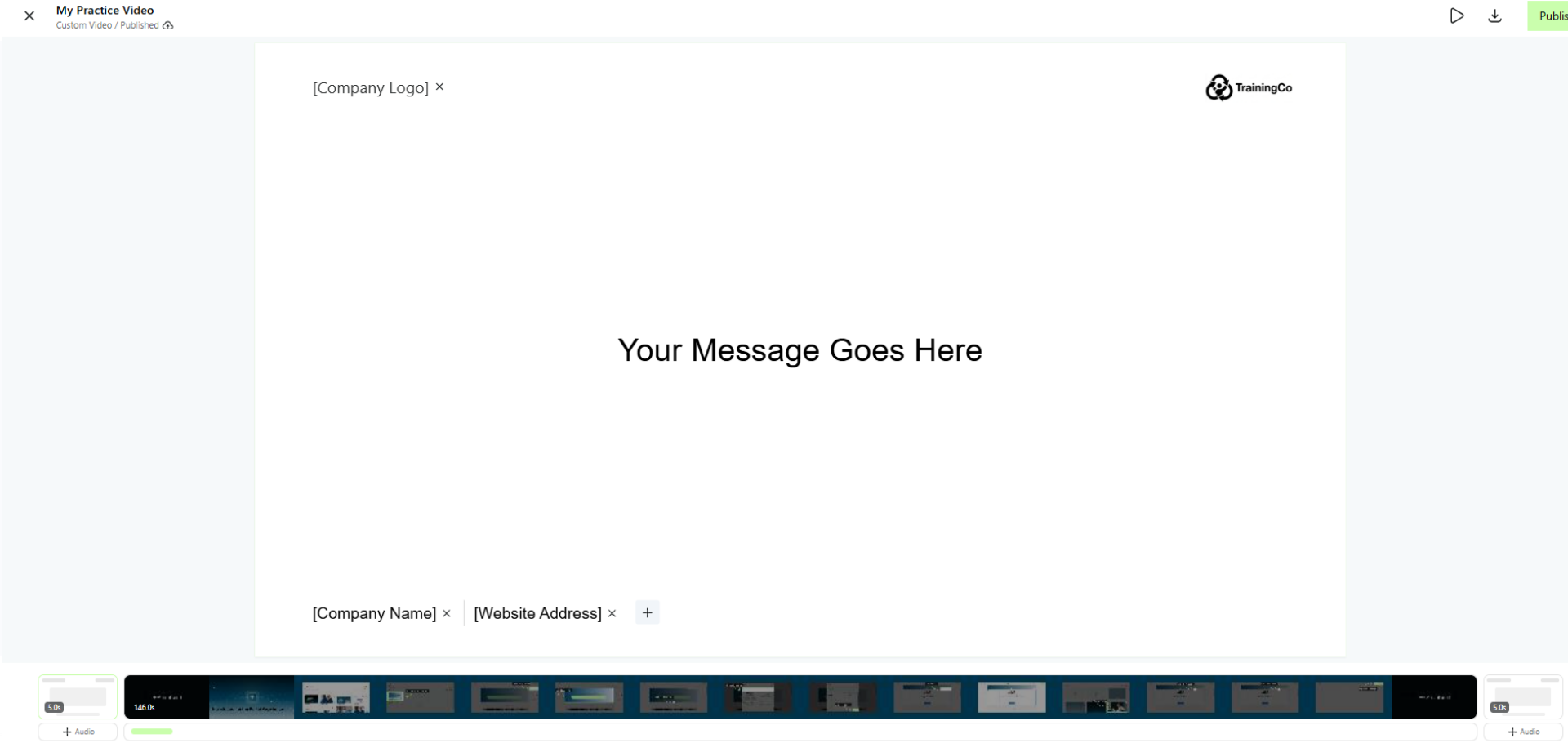
This feature allows you to build video templates that your partners can personalize and deploy completely on-demand. Everything happens natively in the platform, meaning zero reliance on third party rendering services.
3. Click Create
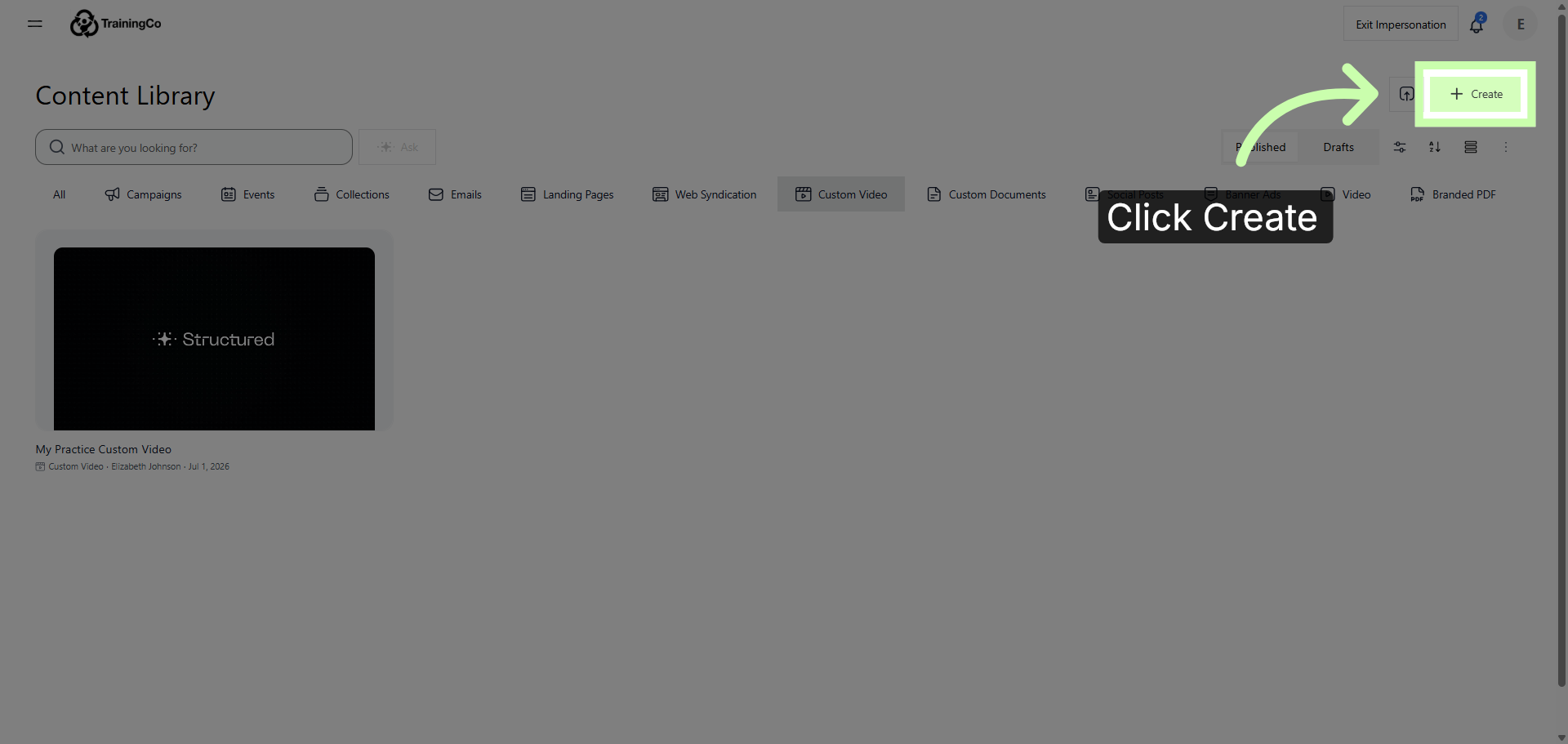
To start, from the Content Library, click Create
4. Select Custom Video
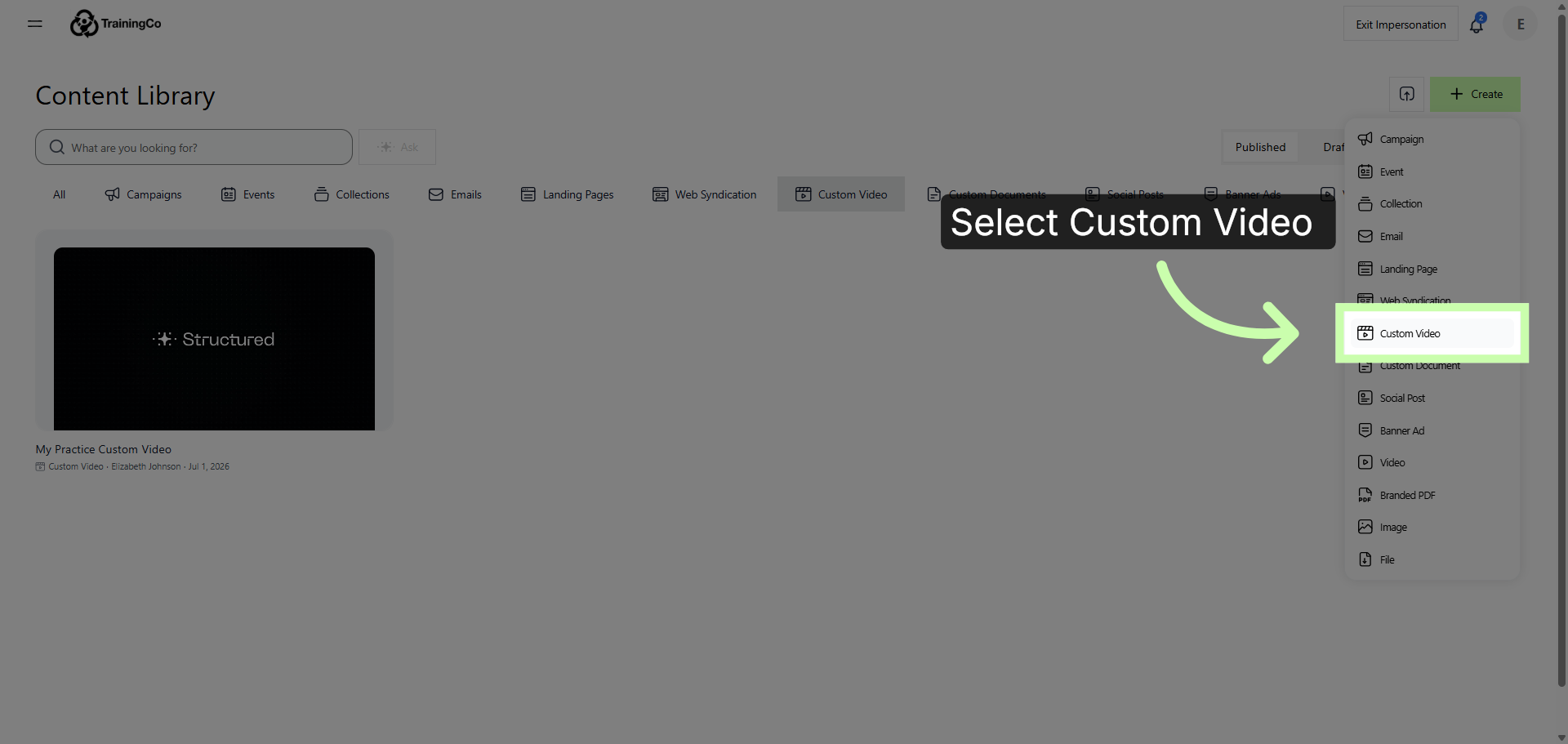
Then select Custom Video. Ensure that your source media files are prepped and your total project size stays under 300 MB.
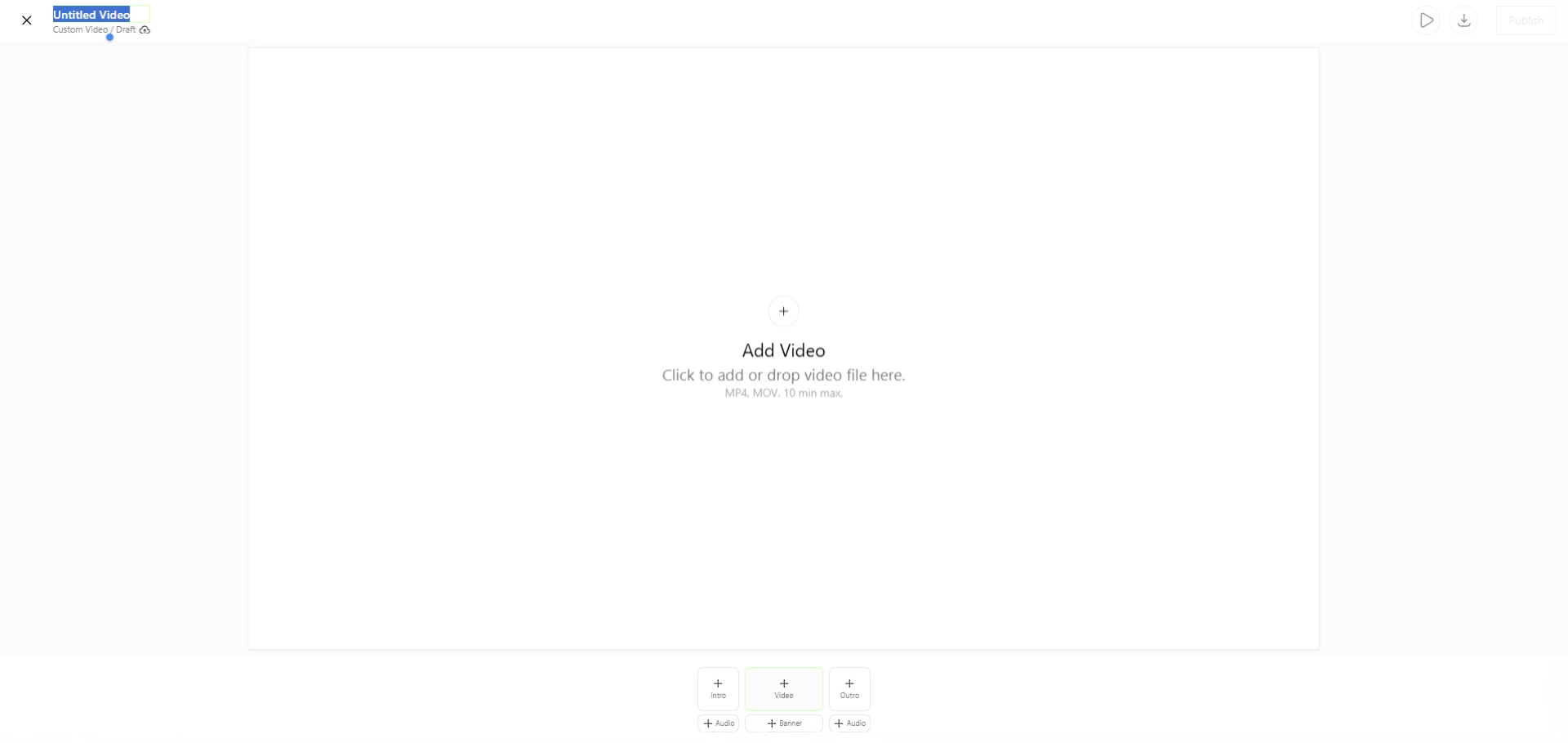
5. Enter a Name For your Video
Enter a name for your video template. In this example, I'll choose My Practice Video.
The next video demonstrates how to upload and configure your custom video template.