
 Building Custom Video Templates - Phase 3: Render & Publish
Estimated Time
~10 minutes
Current Phase
Phase 3 of 3
What You'll Accomplish
- This tutorial demonstrates how to render and publish custom video templates.
|
Before you begin — open your account This is a hands-on, learning-by-doing session. Open app.structured.ai in your browser and log in to your Tenant Account so you can follow along and apply each step in real time. |
Direct Links to the Next Phases in this Training Series
This module is part of a 3-part series. Each session builds on the
last, and reviewing them in order ensures you don't miss any critical
steps and get a complete understanding of the workflow.
|
Phase 1
Purpose & Framework
|
Start Training ➡ |
|
Phase 2
Upload & Configure Videos
|
Start Training ➡ |
|
Phase 3
Render & Publish
|
Current Phase ✔ |
Follow Our Step-By-Step Training
This tutorial demonstrates how to render and publish custom video templates.
1. Introduction
After creating your custom video template and generate the preview, your ready to render & publish!
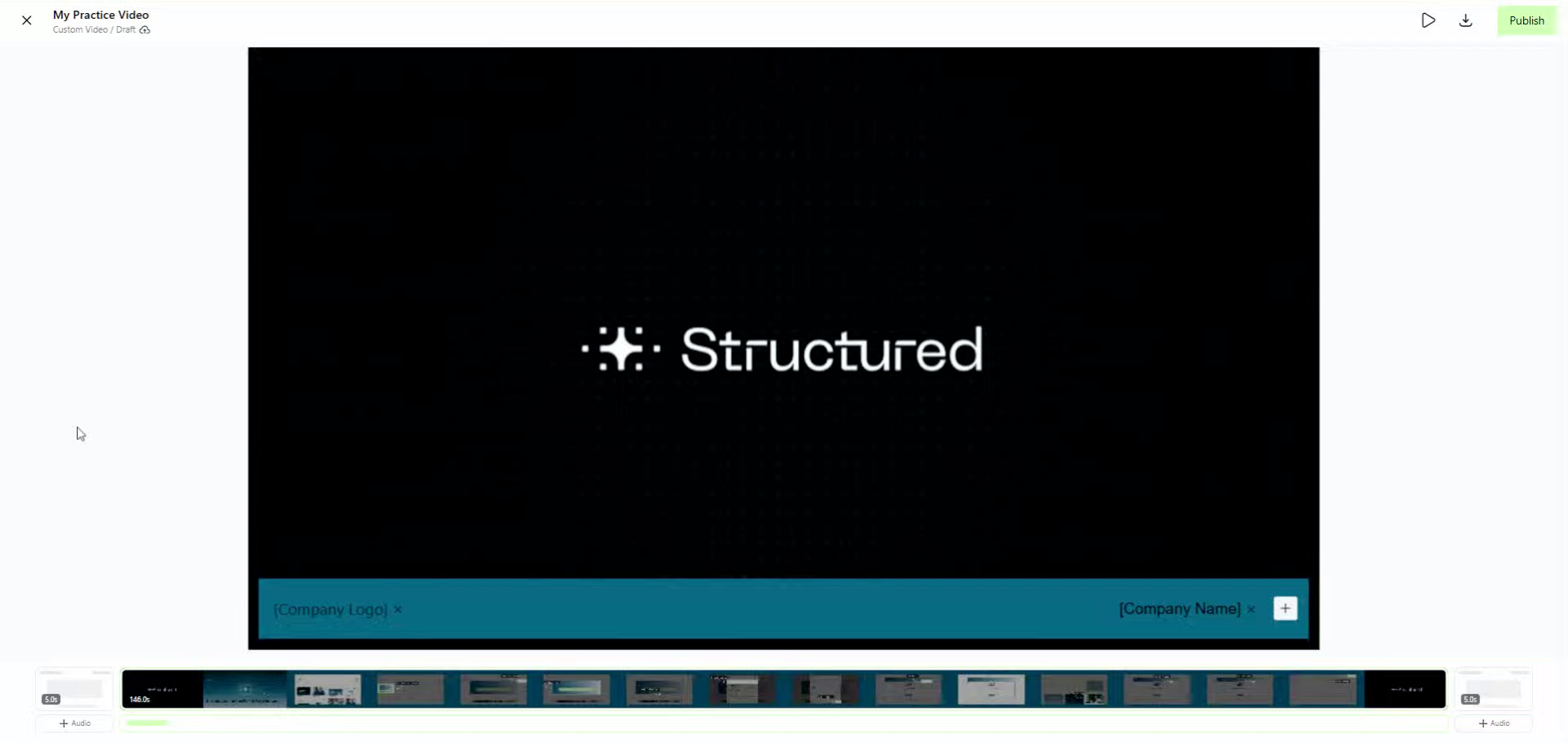
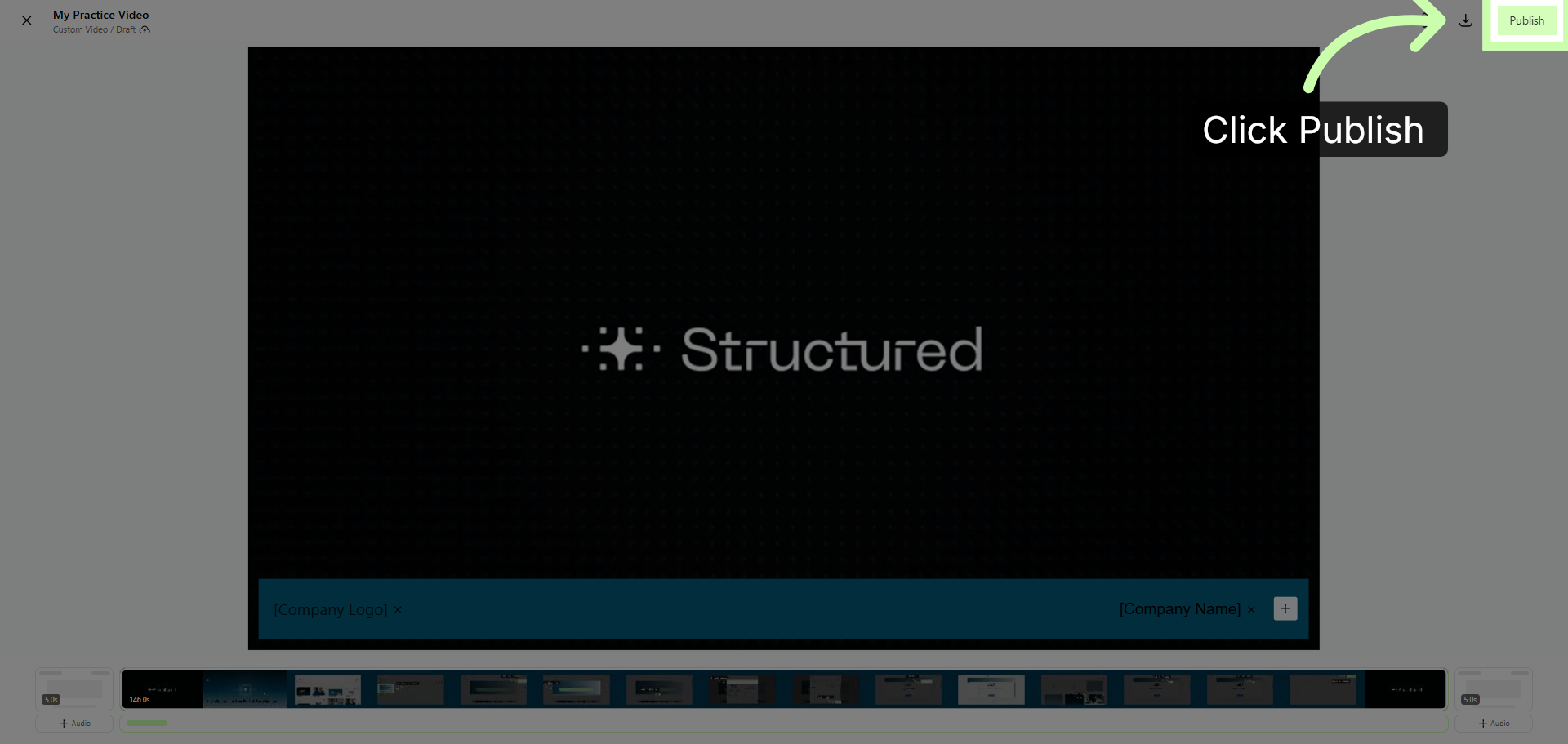
2. Publish Your Video
Start by clicking Publish.
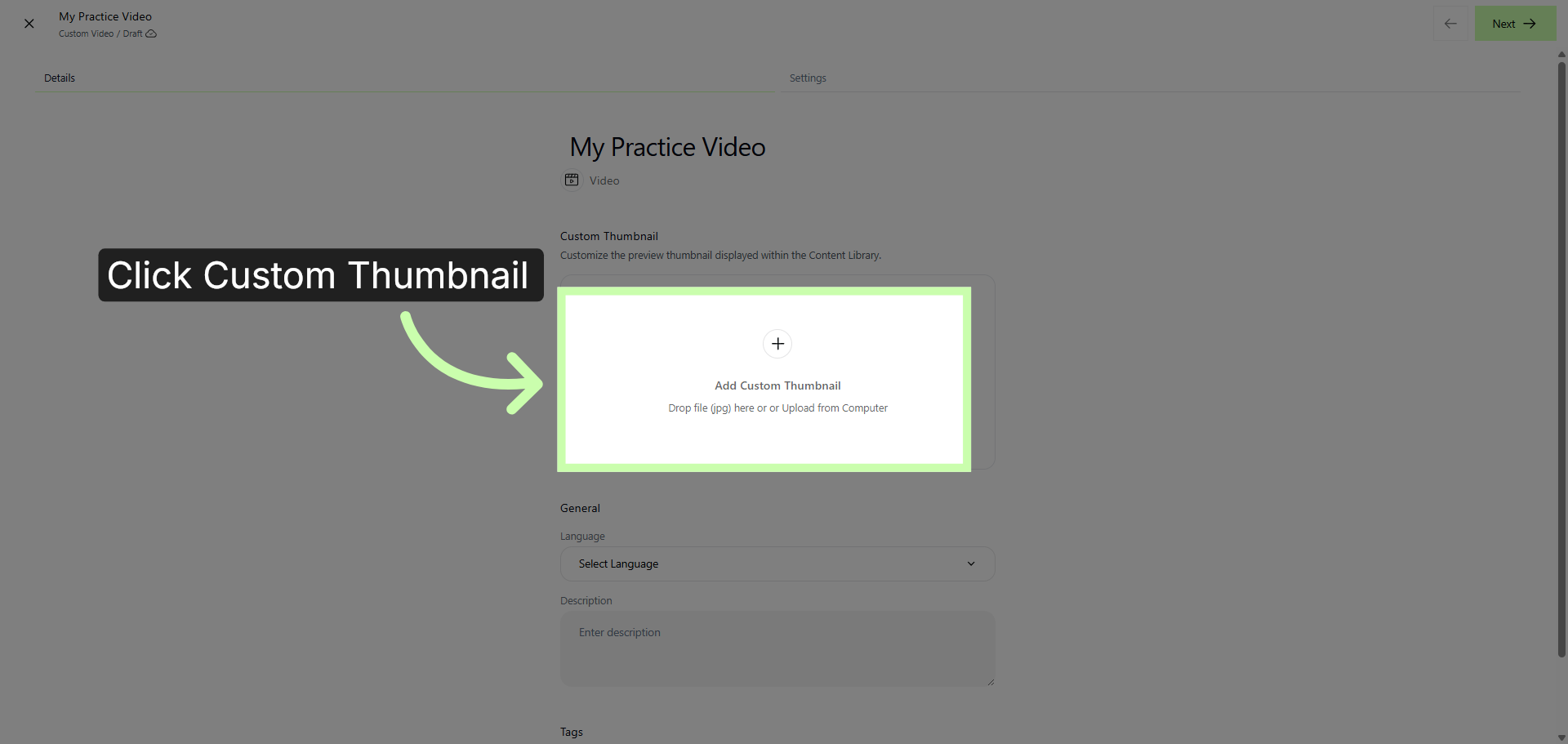
3. Customize Video Thumbnail
The platform autogenerates a thumbnail, but you can also add your own custom thumbnail if you choose.
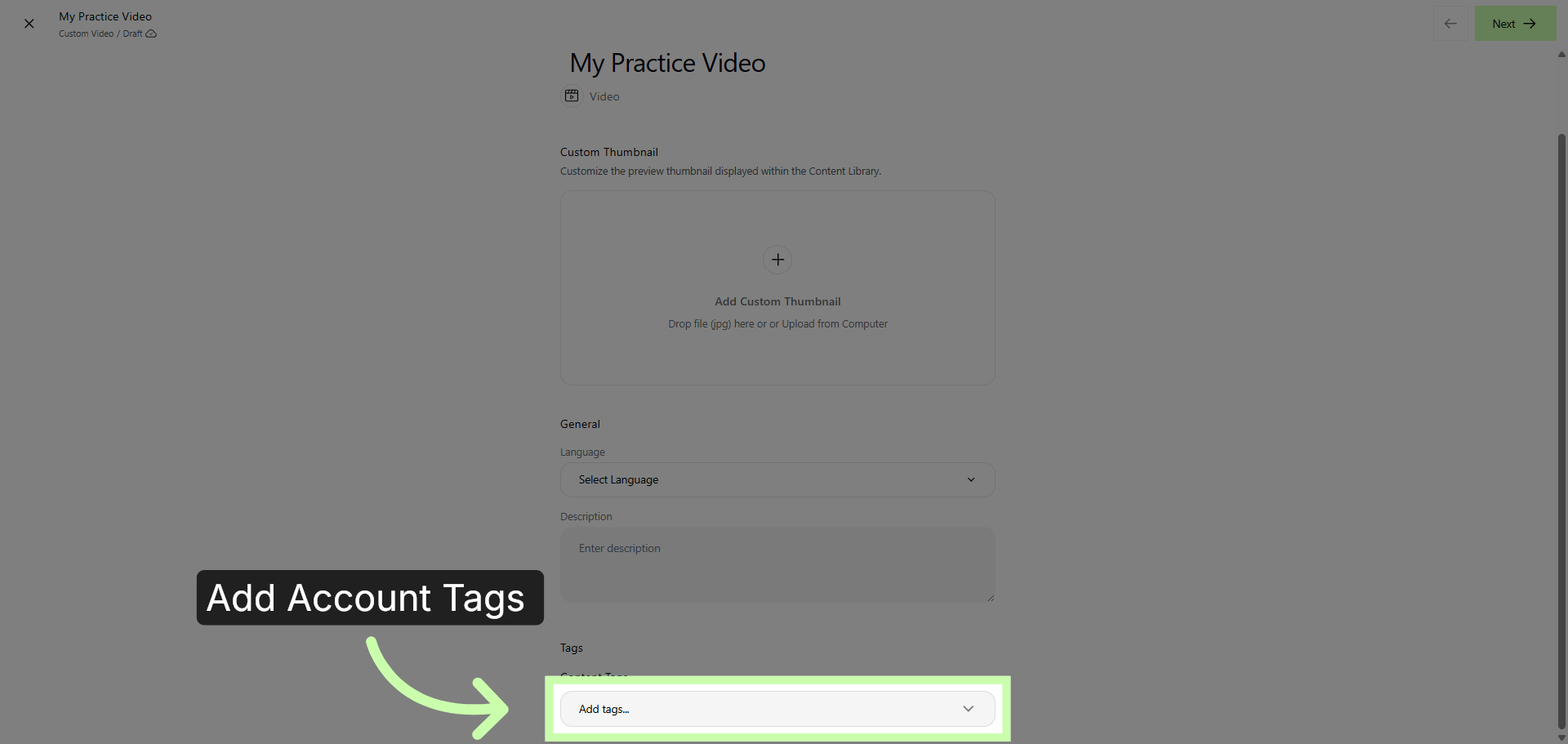
4. Add Content Tags
Add Account tags to allow partners to discover the customer video template using filters.
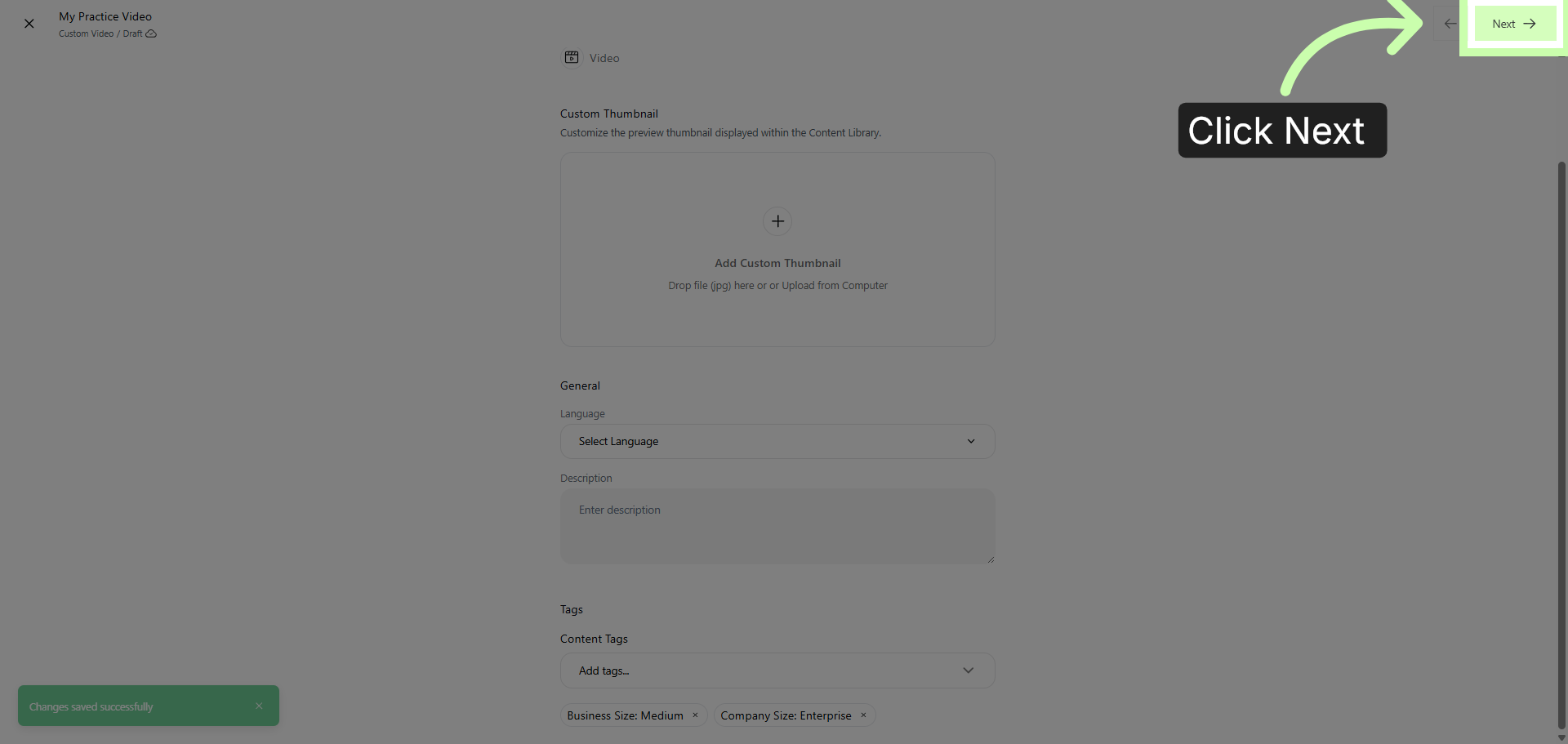
5. Navigate to Next Tab
Click Next.
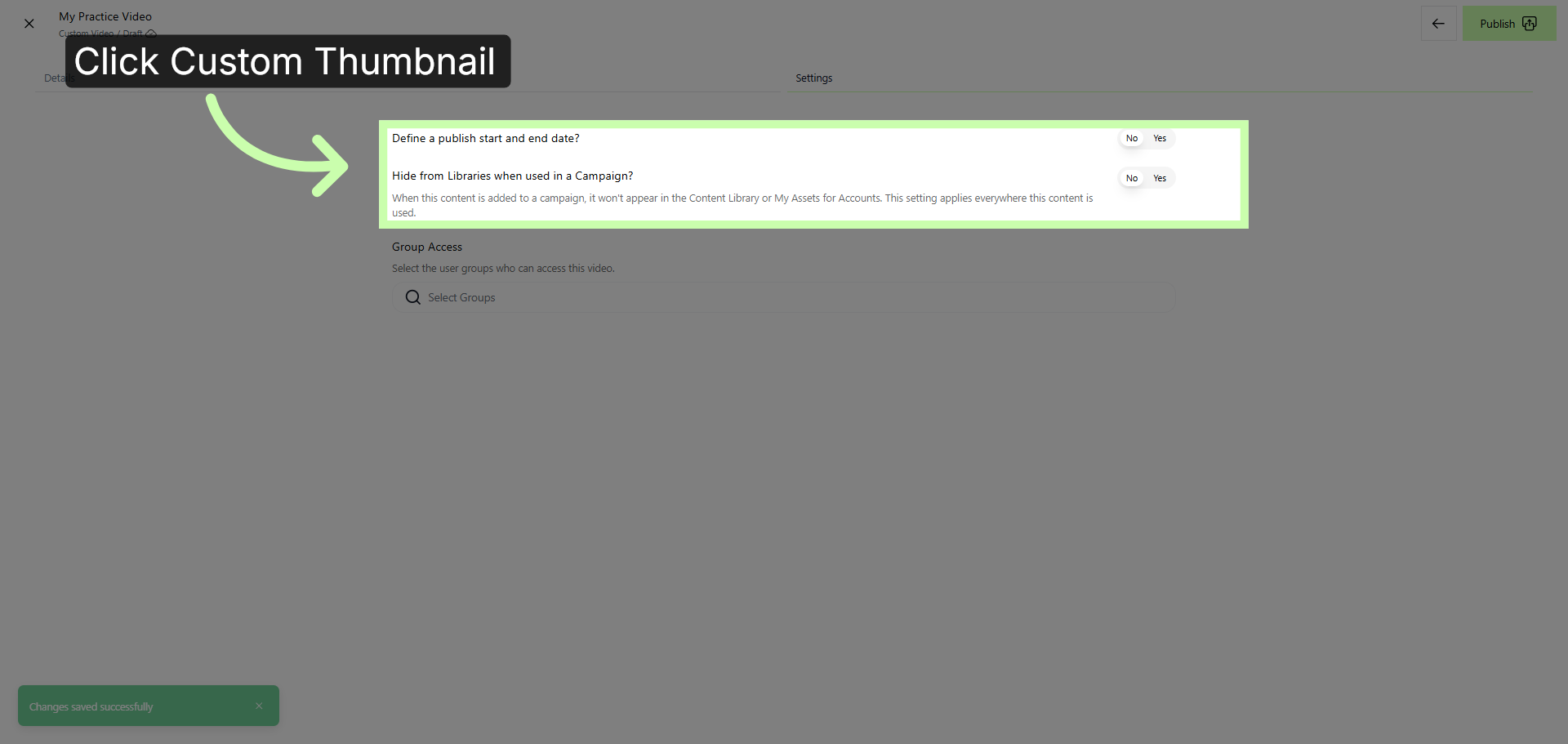
6. Access Thumbnail Settings Again
On this page, choose your publishing options.
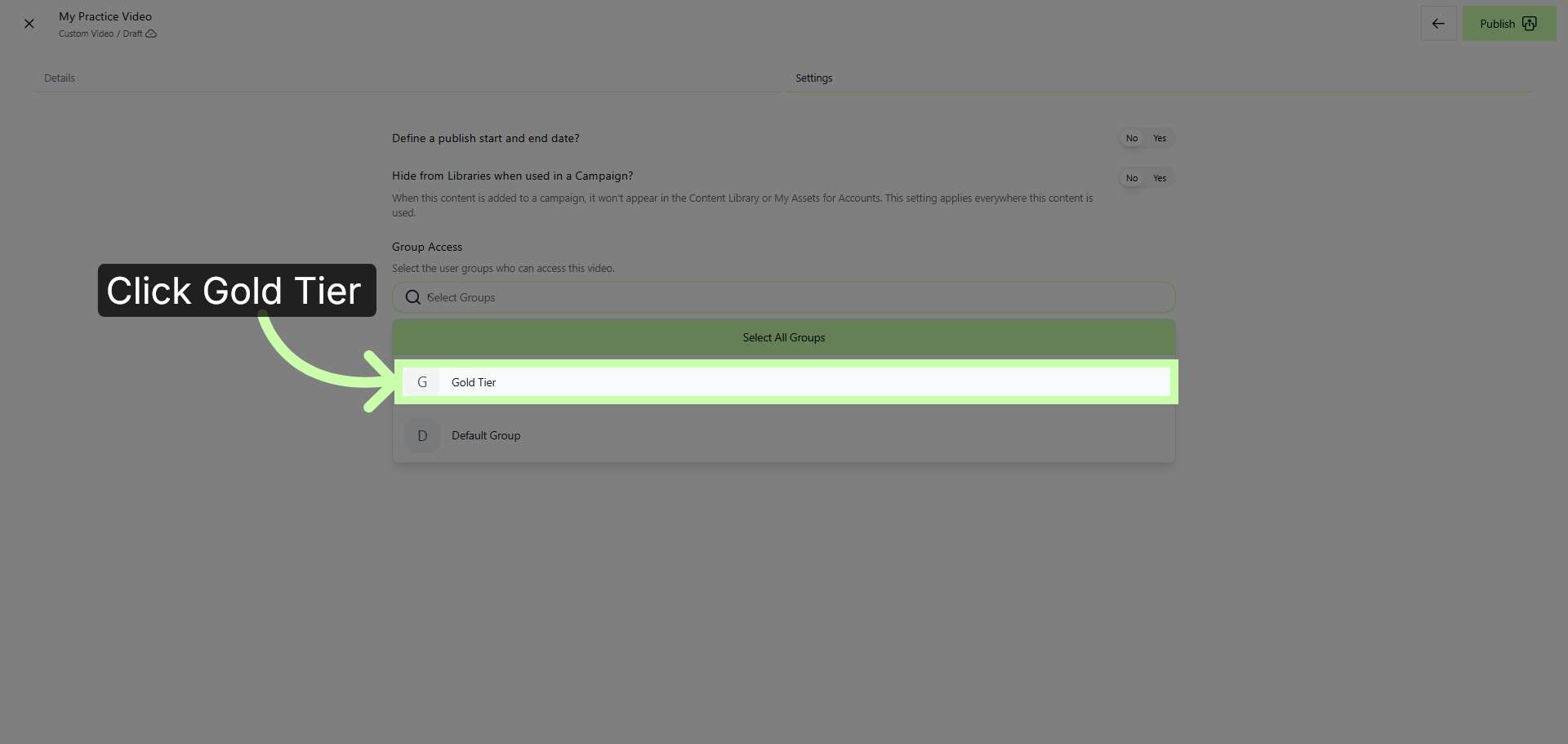
7. Choose Gold Tier Group
Then choose the appropriate user groups.
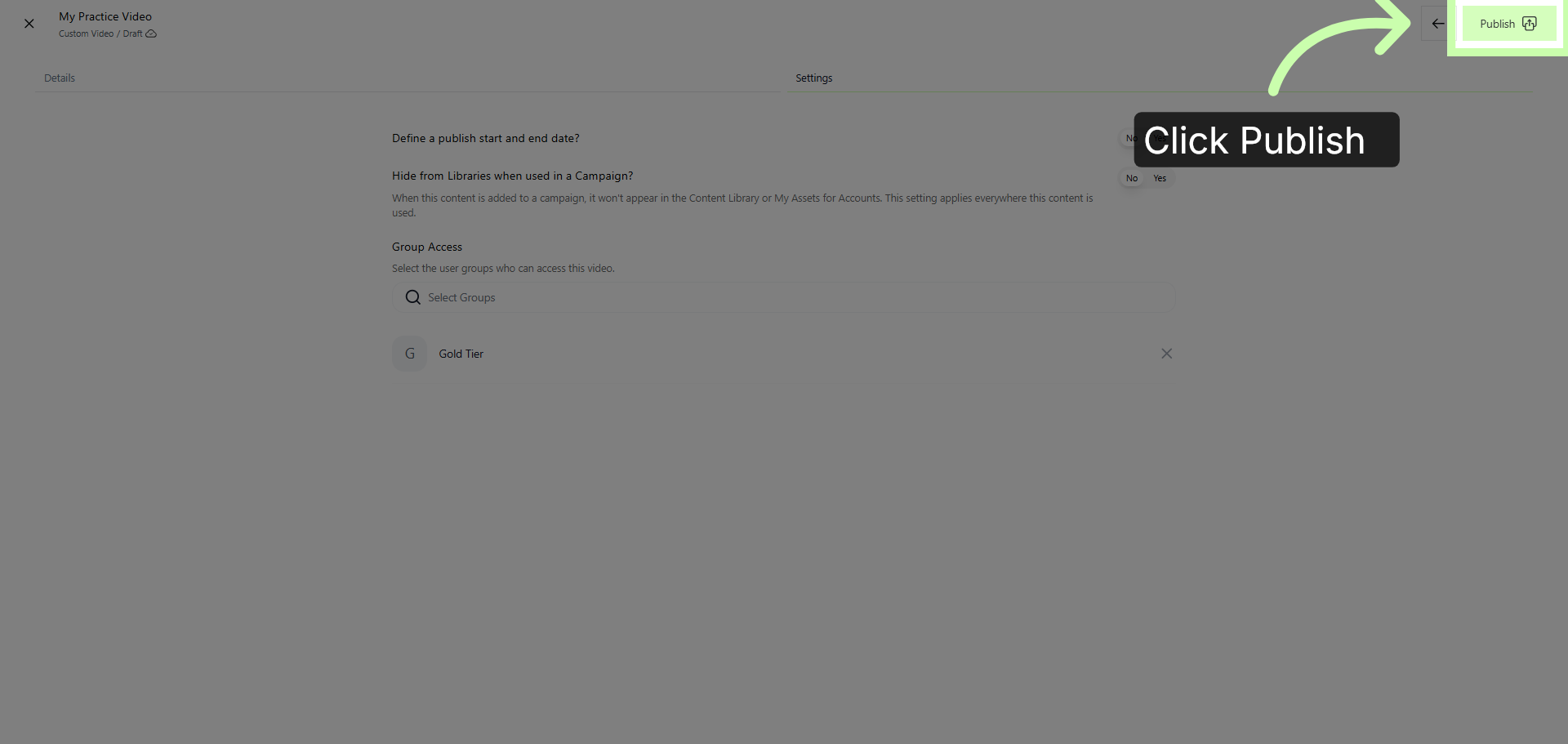
8. Publish Custom Video
Once complete, click publish. Your video is now available for partners to customize and share.
You've now completed the custom video template series! Thank you!