
 Creating Your Social Campaign - Phase 1: Strategy & Setup
Estimated Time
~10 minutes
Current Phase
Phase 1 of 3
What You'll Accomplish
- Navigate the social content interface with confidence and efficiency.
- Use platform tools and features to manage and organize social posts.
- Schedule, edit, and publish social content accurately within your workflow.
- Improve productivity by streamlining how you handle social media content.
|
Before you begin — open your account This is a hands-on, learning-by-doing session. Open app.structured.ai in your browser and log in to your Tenant Account so you can follow along and apply each step in real time. |
Direct Links to the Next Phases in this Training Series
This module is part of a 3-part series. Each session builds on the
last, and reviewing them in order ensures you don't miss any critical
steps and get a complete understanding of the workflow.
|
Phase 1
Strategy & Setup
|
Current Phase ✔ |
|
Phase 2
Content & Scheduling
|
Start Training ➡ |
|
Phase 3
Testing & Management
|
Start Training ➡ |
Follow Our Step-By-Step Training
1. Introduction
This tutorial demonstrates how to access the Content Library and create social posts within Structured AI. Social posts are assets designed to boost your reach by featuring your products directly within your partner’s social networks.
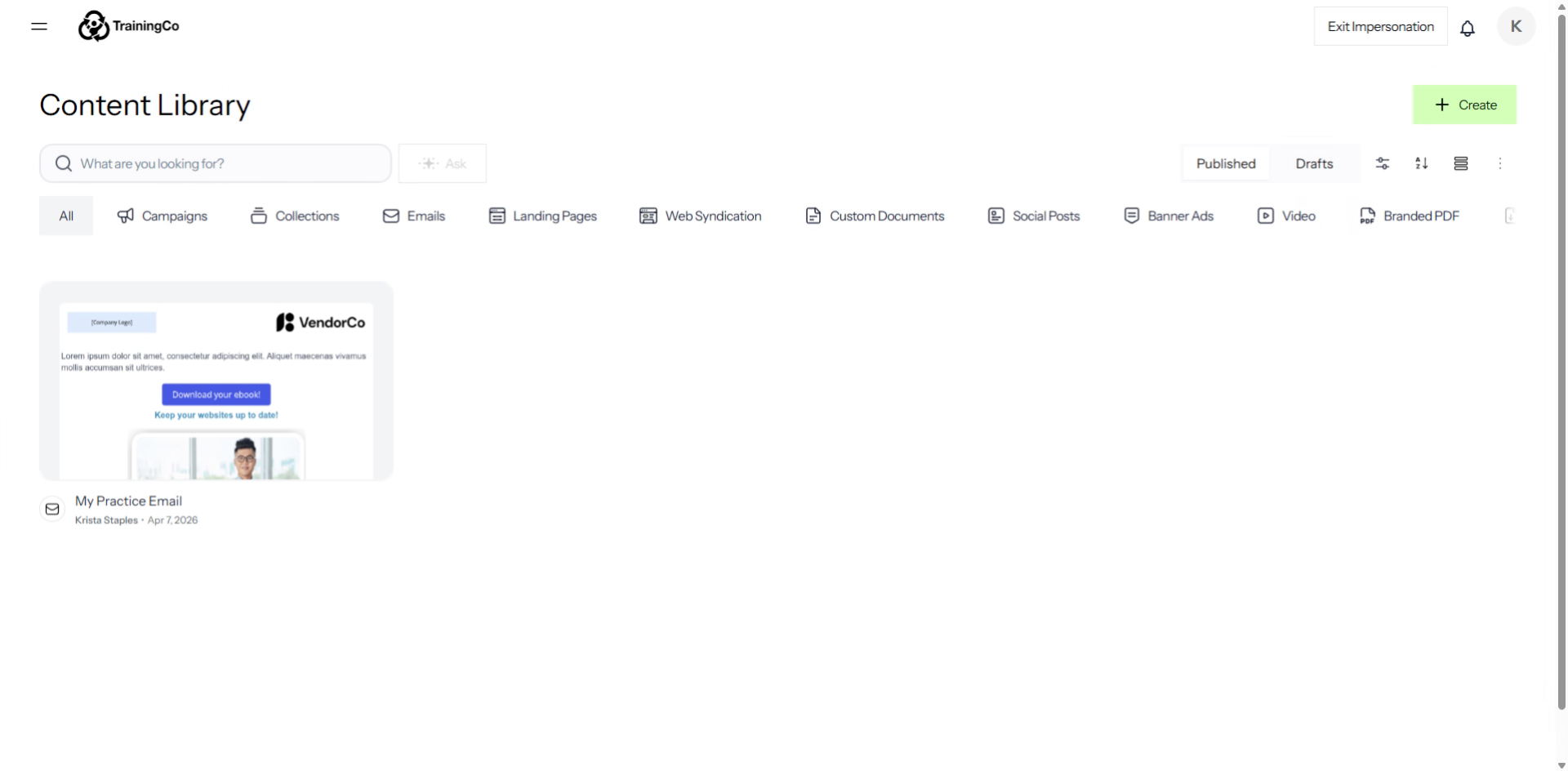
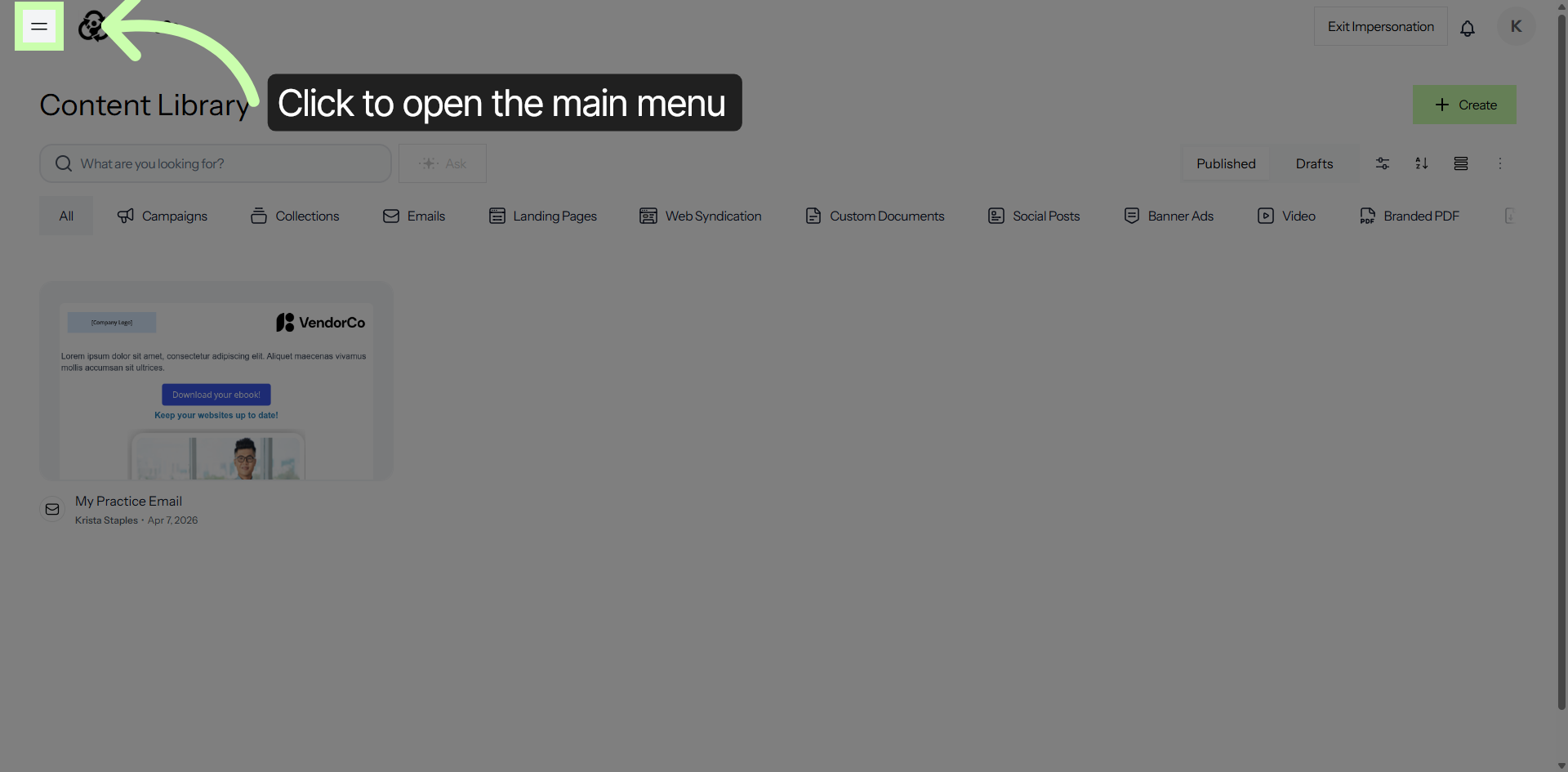
2. Access Content Library Menu
Click into the menu to open the Content Library within Structured AI.
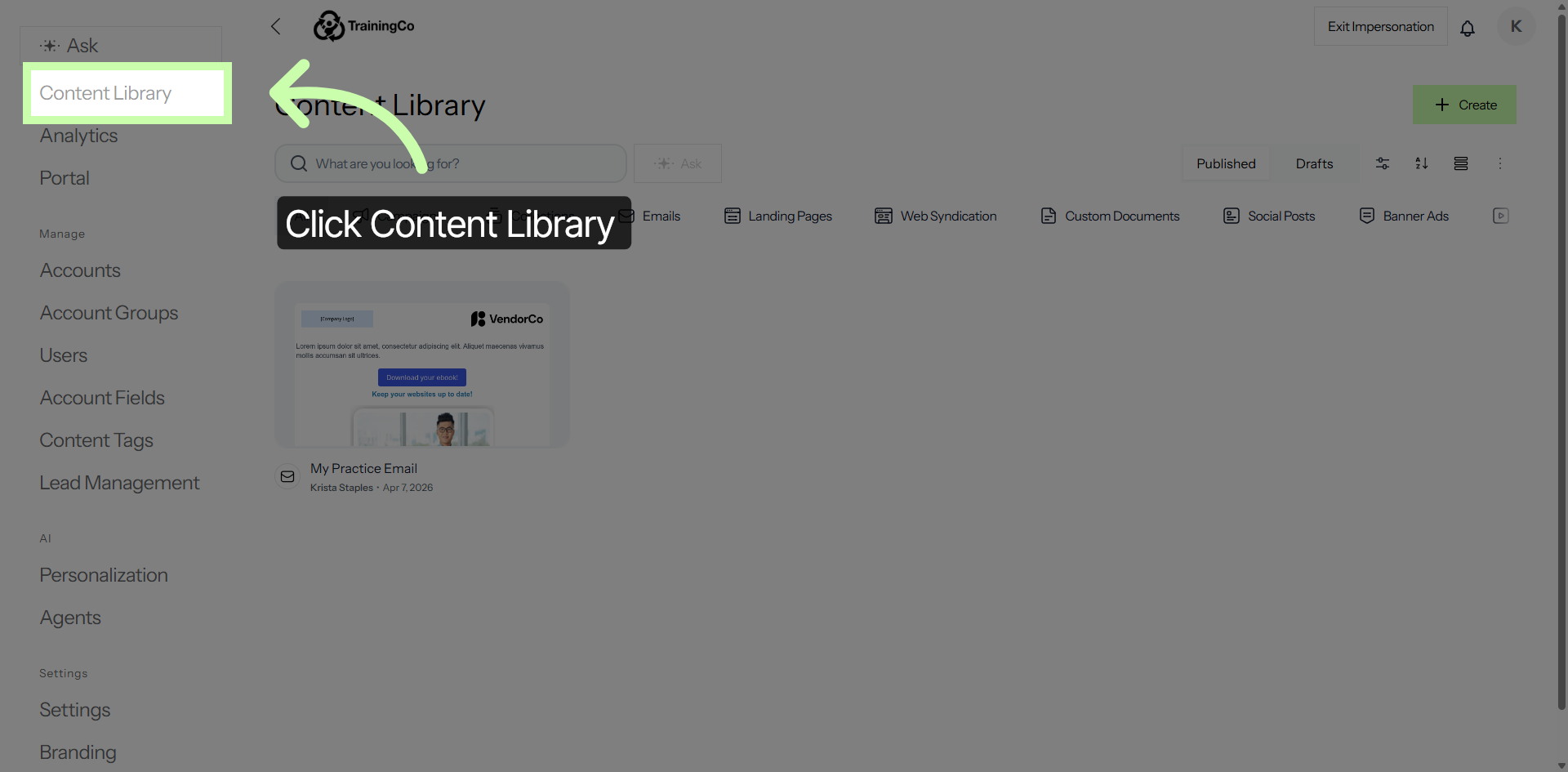
3. Open Content Library Section
To access the section where all your content assets are stored and managed, simply click on the Content Library. This area serves as a centralized hub, allowing you to easily organize, review, and manage all your digital content in one convenient location.
Whether you need to upload new materials, edit existing files, or categorize your assets for better accessibility, the Content Library provides all the necessary tools to streamline your content management process.
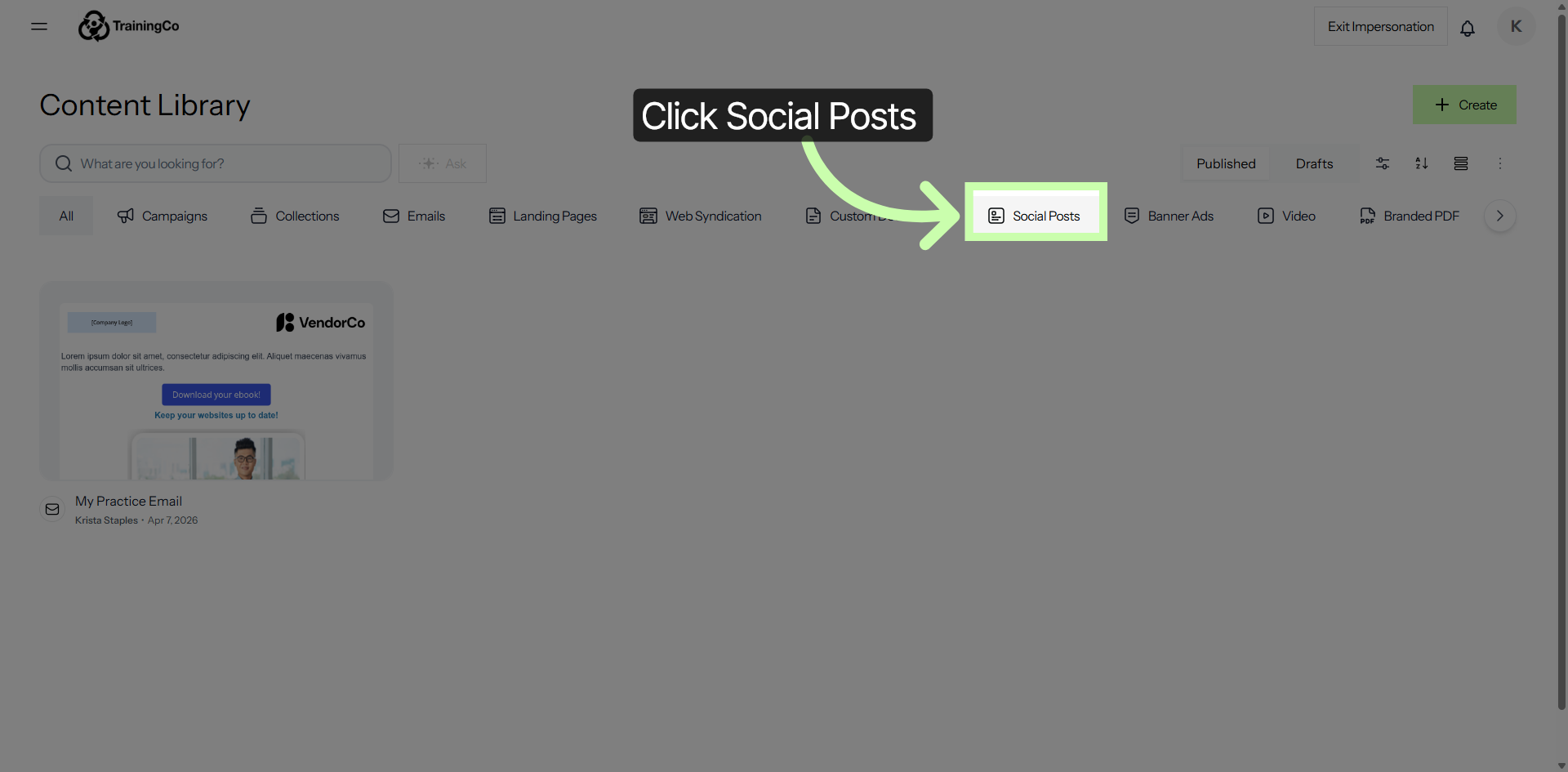
4. Select Social Posts Category
To view social media content within the library, simply click on the Social Posts option. This action will filter the available materials and display only the posts related to social media, making it easier for you to find and access the specific content you are looking for.
5. Initiate New Social Post
Click "Create Social Post" to start composing a new social media post in Structured AI. This opens the social post editor.
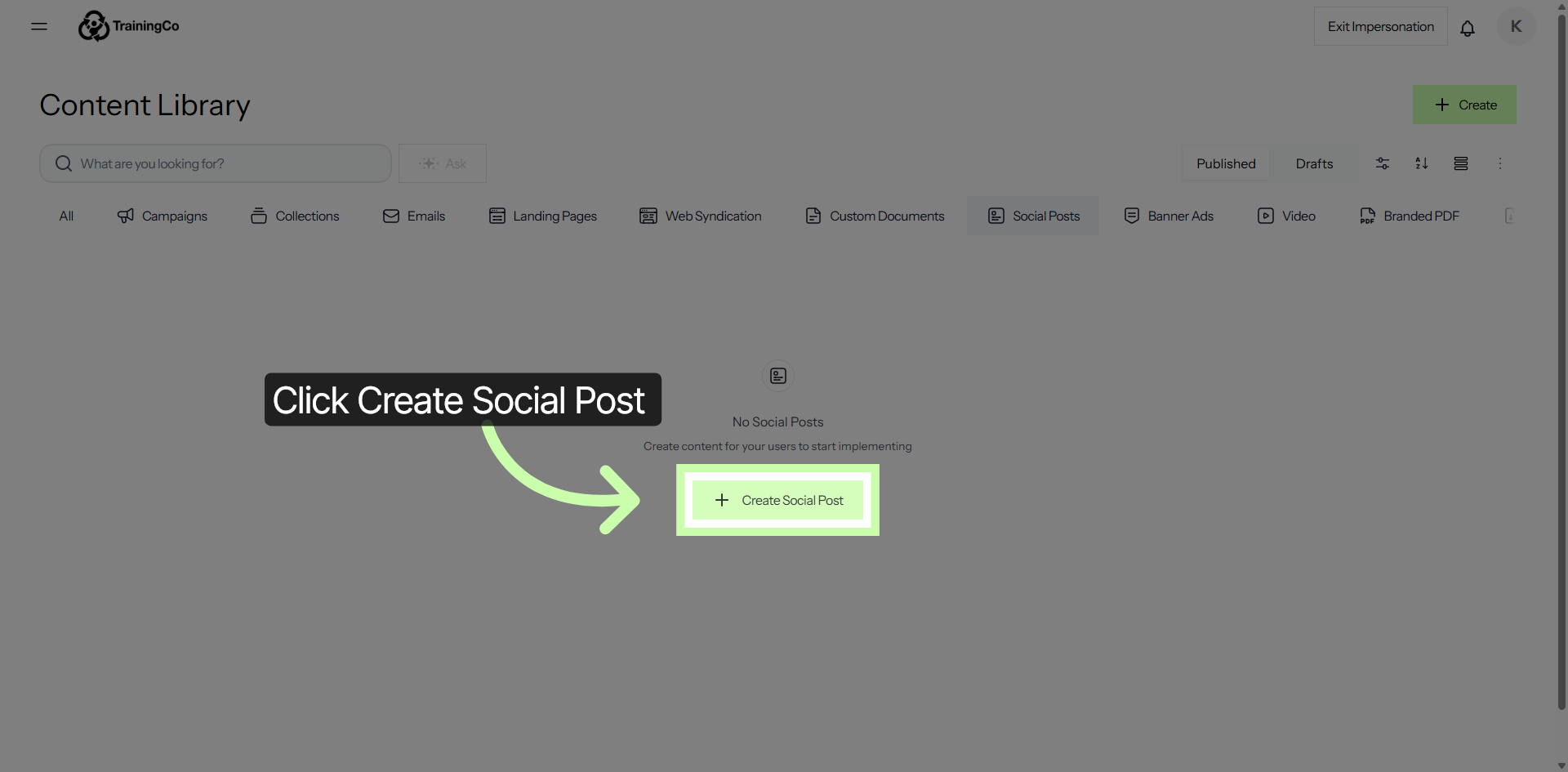
You have successfully navigated to the Content Library and initiated the creation of a new social post in Structured AI. This process enables efficient management and creation of social media content within the platform.