 Creating Your Banner Ad Campaign - Phase 1: Setup & Framework
- Create banner ads using the Structured AI platform.
- Use platform tools and features to design visually engaging ad creatives.
- Follow a step-by-step process to produce professional-quality banner ads.
- Customize banner ads to align with specific marketing goals and audience needs.
|
Before you begin — open your account This is a hands-on, learning-by-doing session. Open app.structured.ai in your browser and log in to your Tenant Account so you can follow along and apply each step in real time. |
|
Phase 1
Setup & Framework
|
Current Phase ✔ |
|
Phase 2
Customizing the Ad
|
Start Training ➡ |
|
Phase 3
Testing & Management
|
Start Training ➡ |
Follow Our Step-By-Step Training
1. Introduction
2. Access Content Library
3. Open Content Library Section
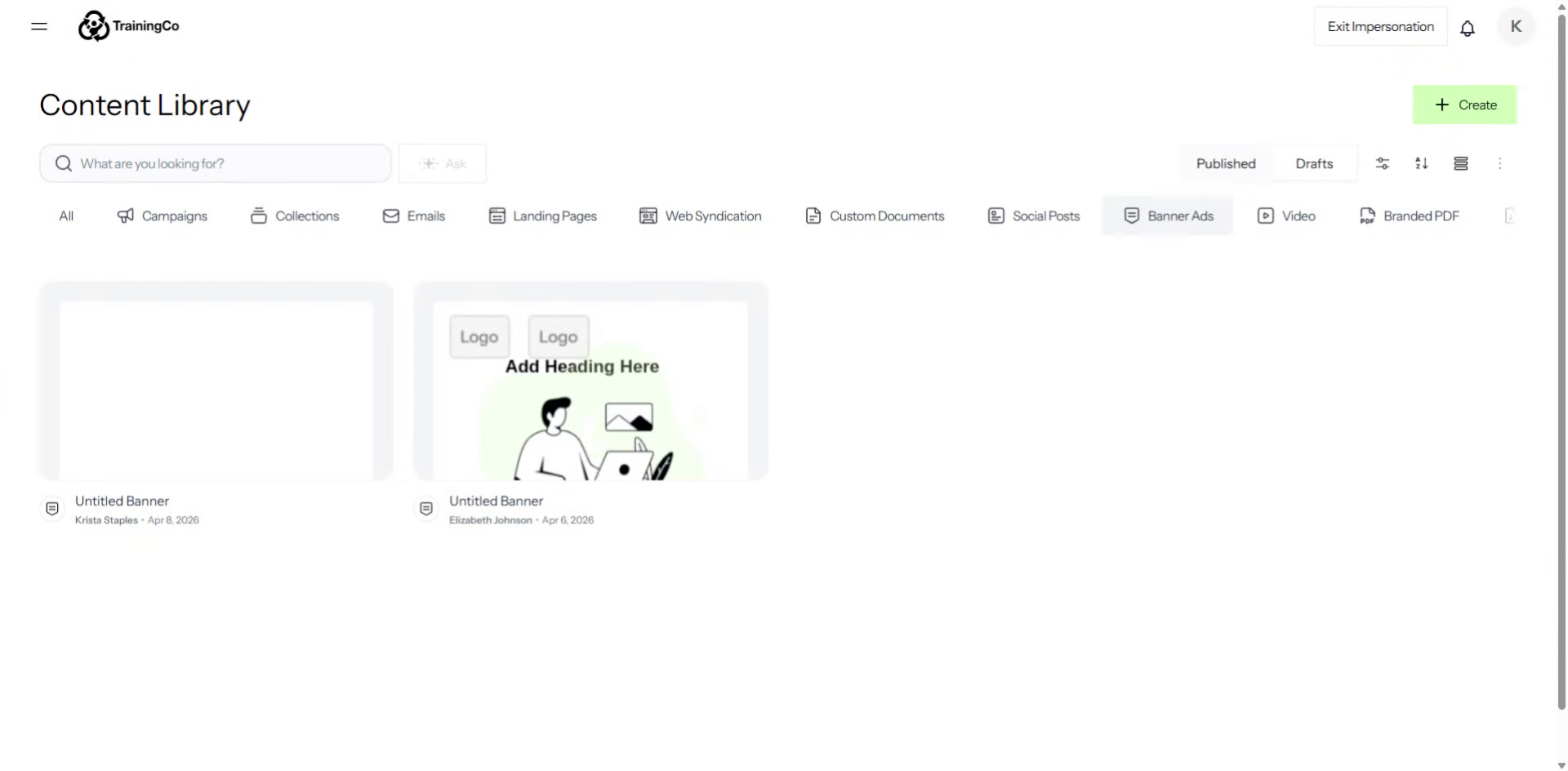
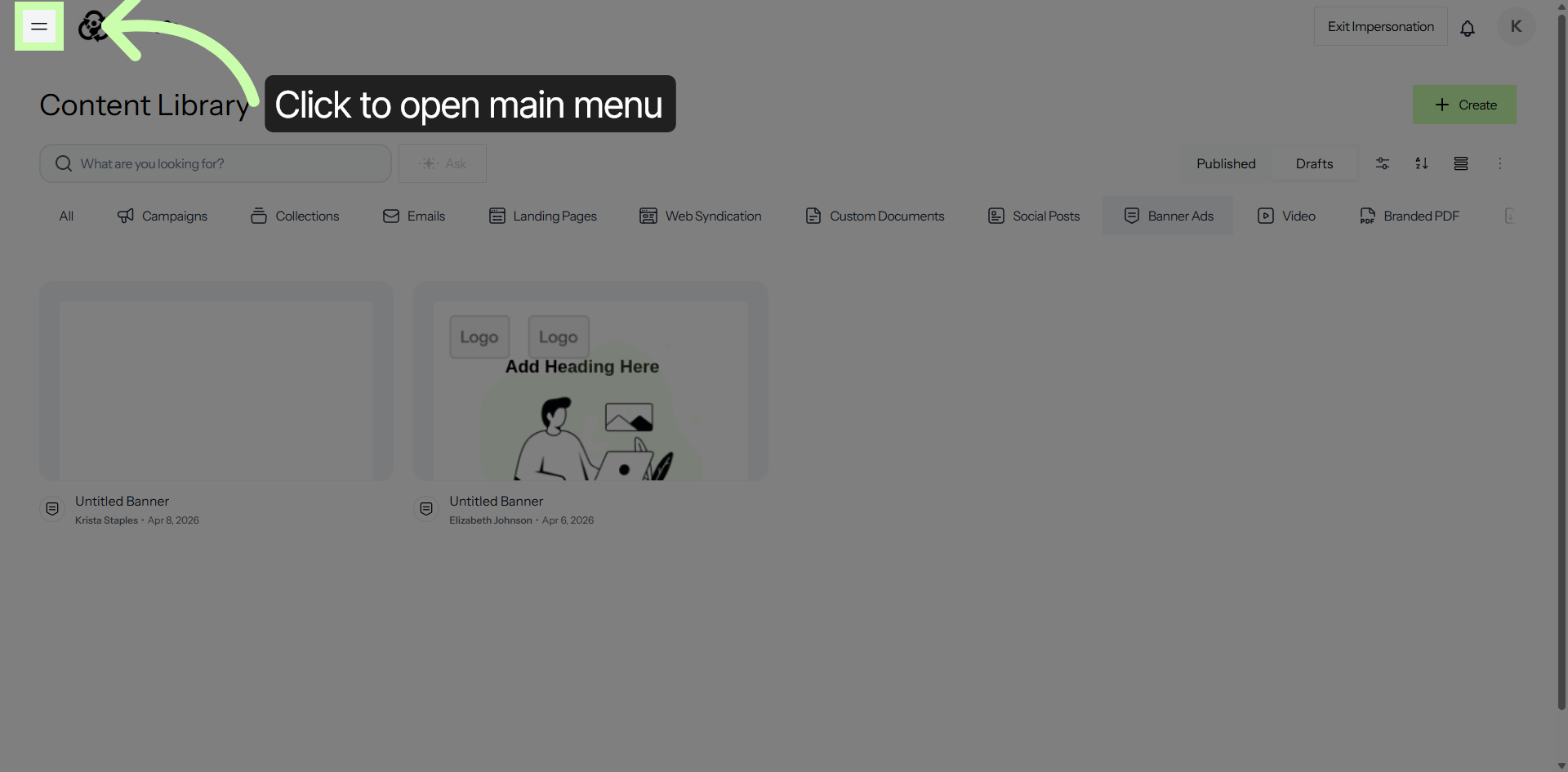
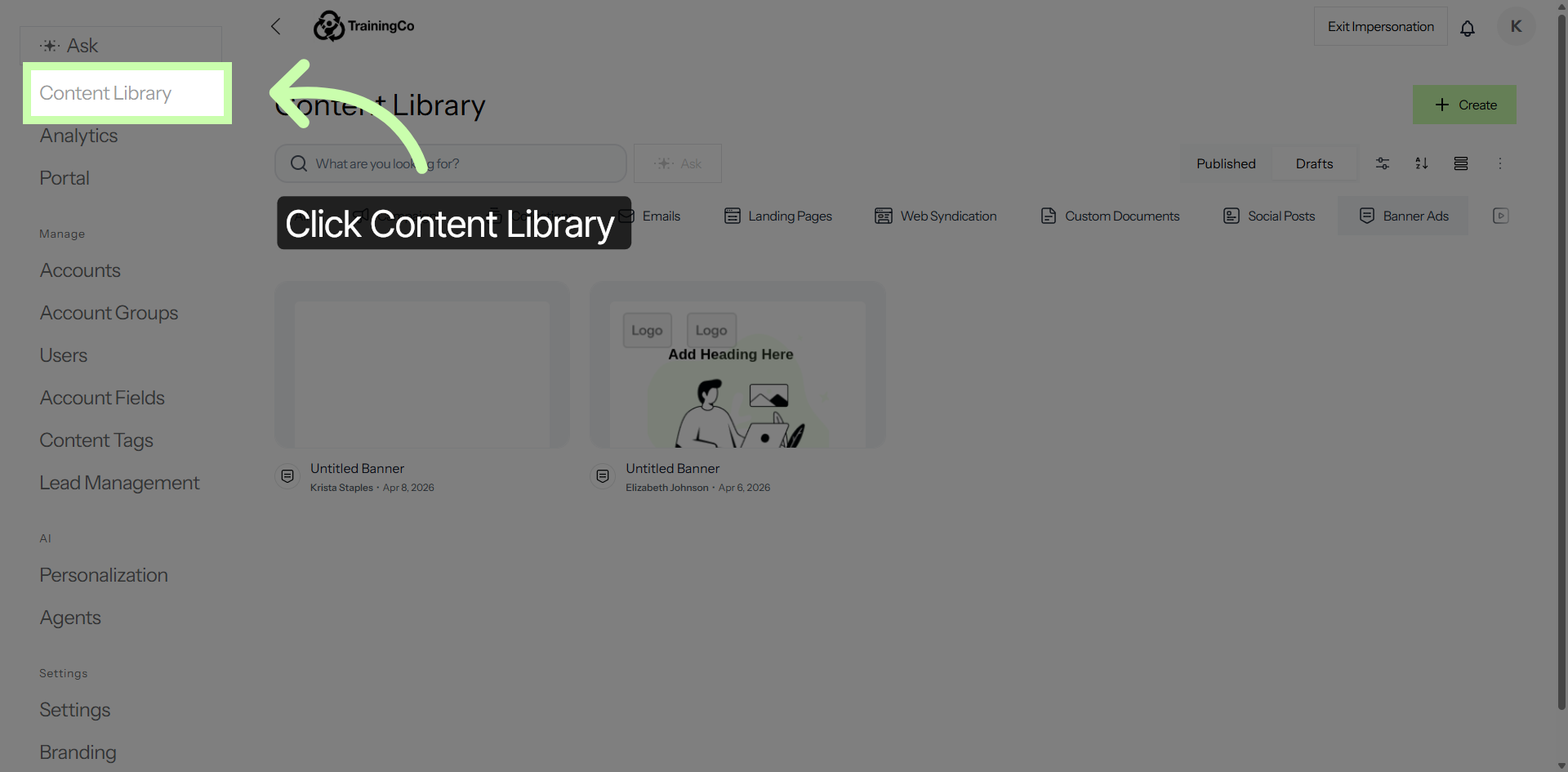
To access the section where all your content assets are stored and managed, simply click on the Content Library. This area serves as a centralized hub, allowing you to easily organize, review, and manage all your digital content in one convenient location.
Whether you need to upload new materials, edit existing files, or categorize your assets for better accessibility, the Content Library provides all the necessary tools to streamline your content management process.
4. Select Banner Ads Category
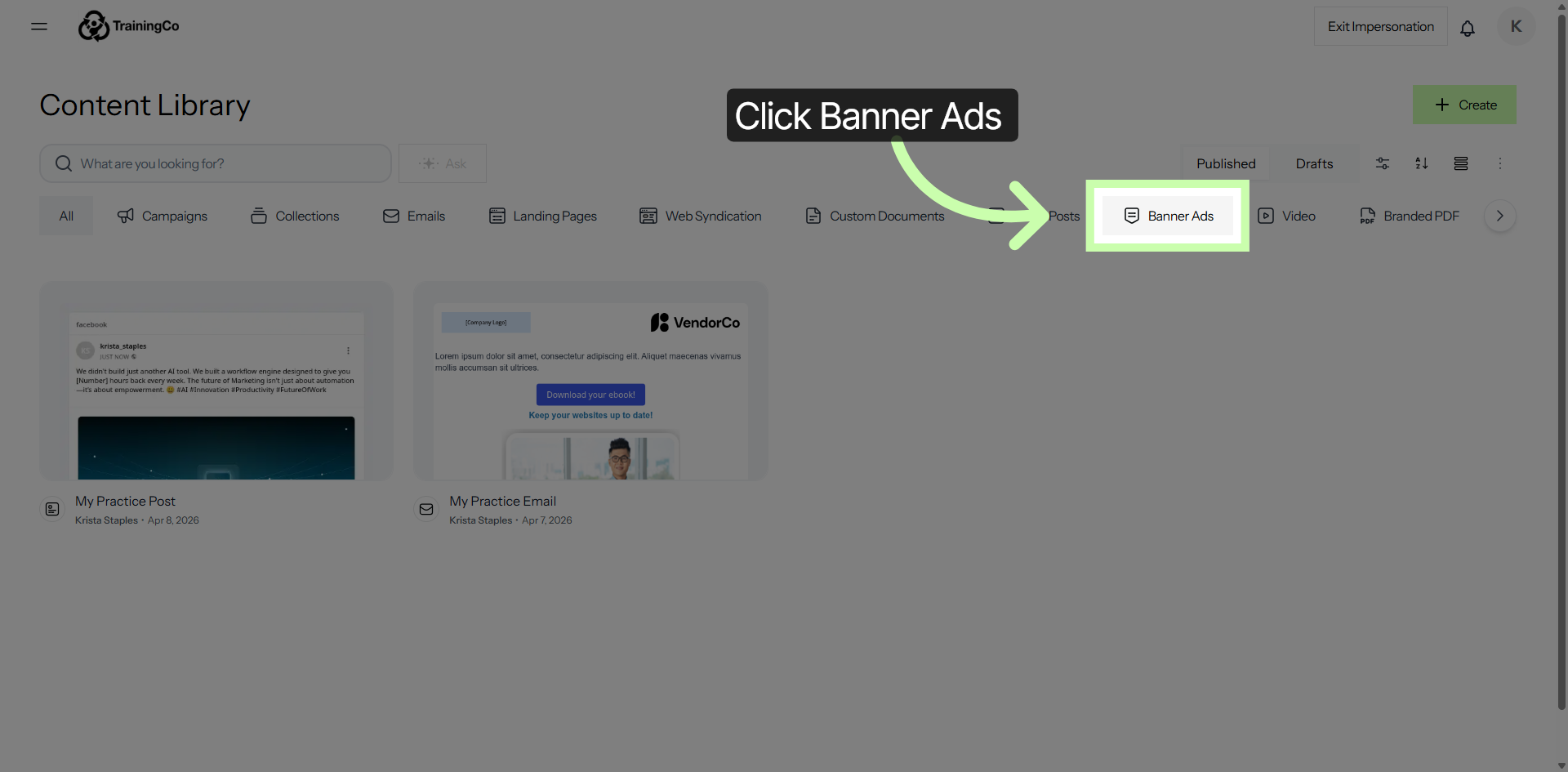
Click on Banner Ads to access and manage all of your banner advertisement assets. This section allows you to view your current banner ads, make edits, upload new banners, and organize your advertising materials efficiently.
5. Initiate Banner Ad Creation
6. Open Canvas Layout Options
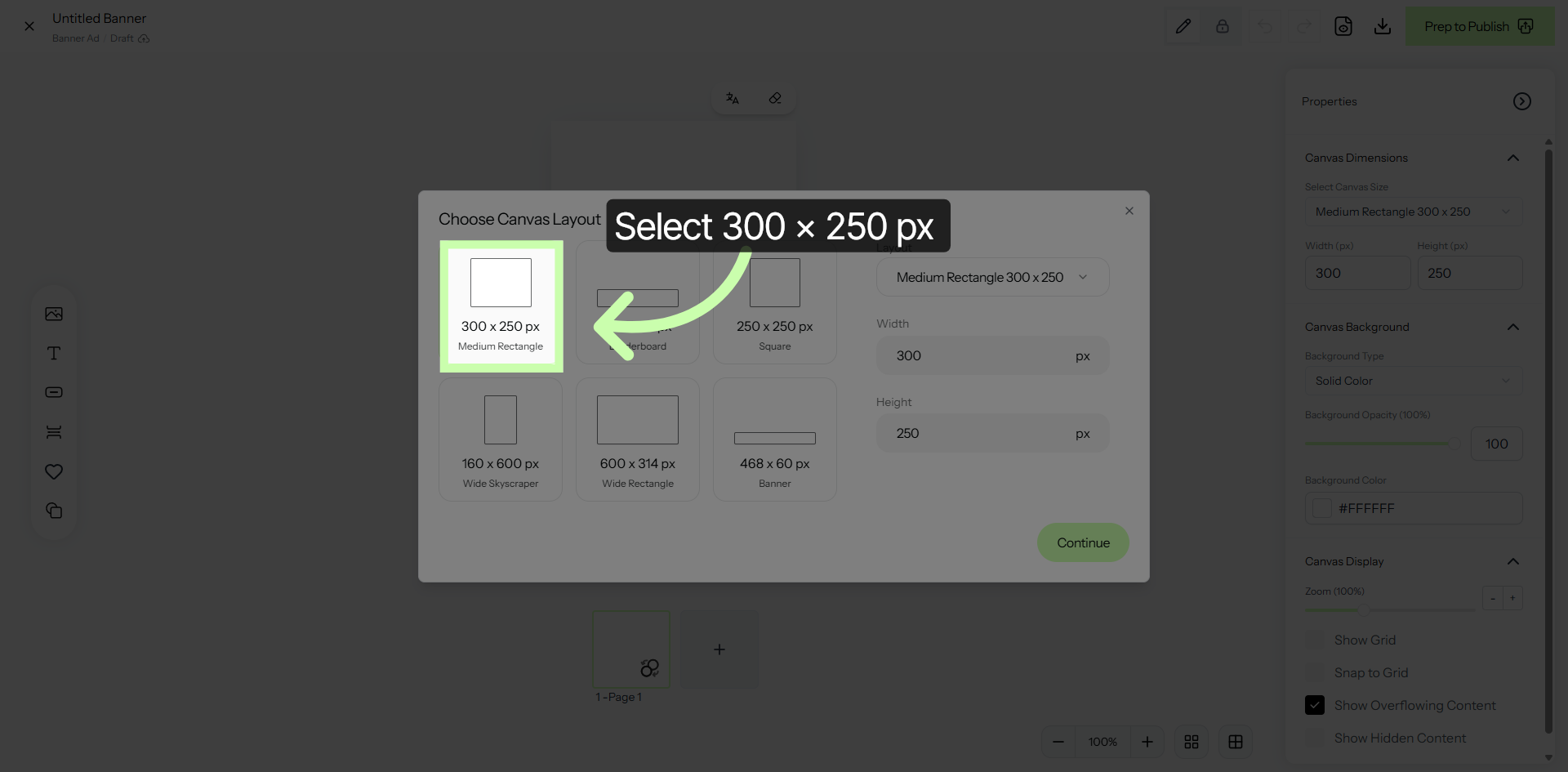
7. Choose 300 x 250 Canvas
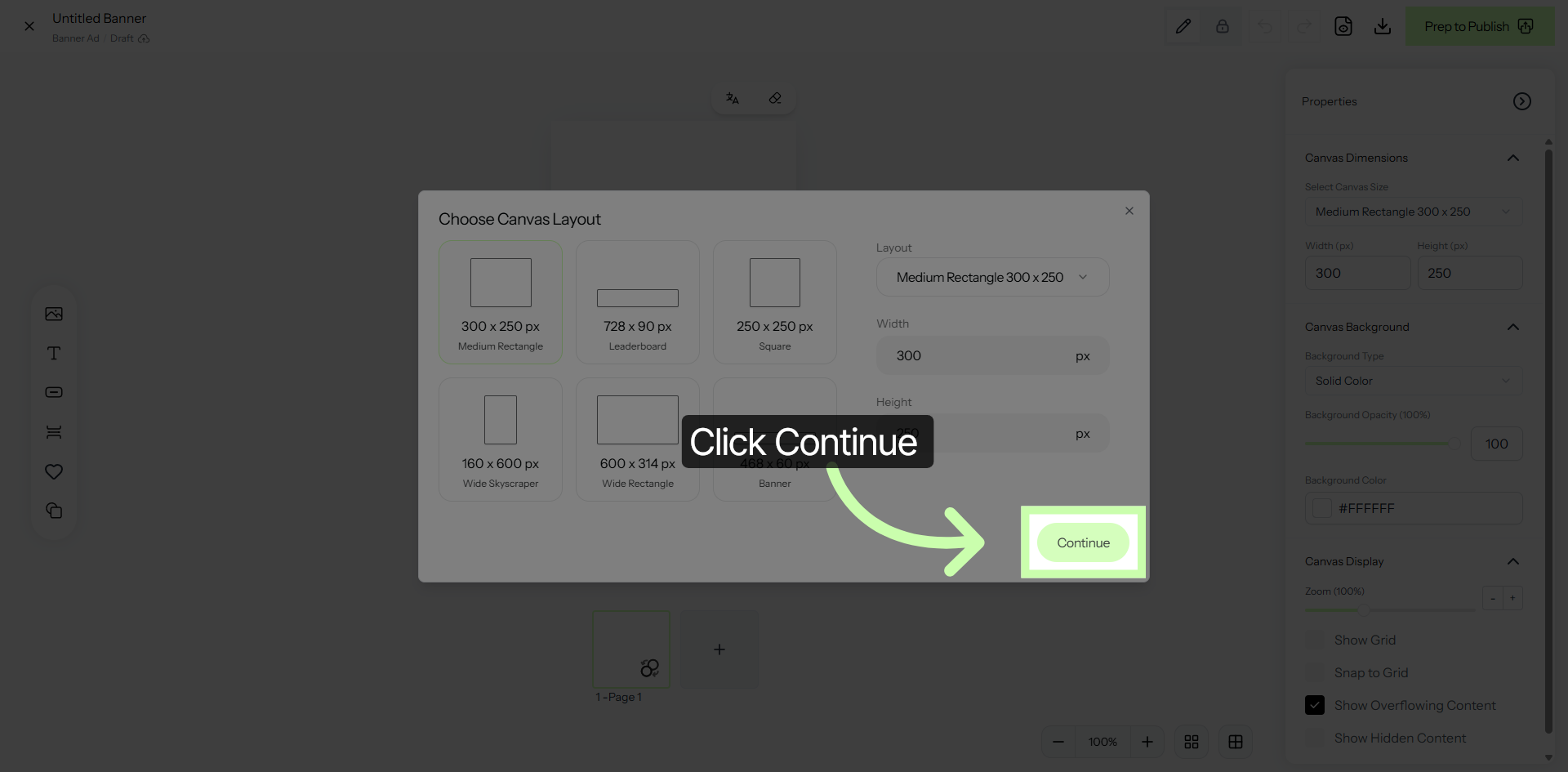
8. Proceed to Next Step
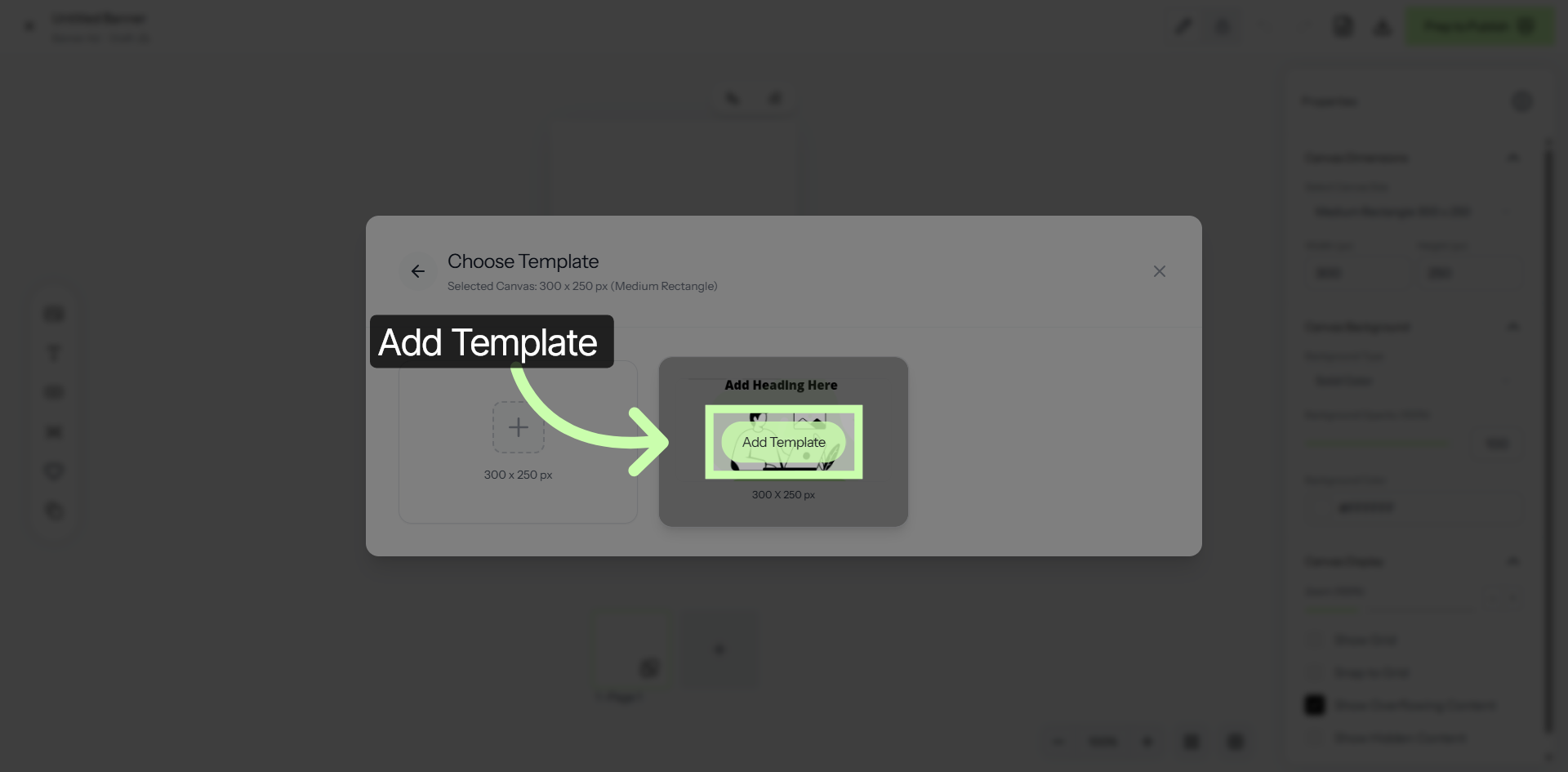
9. Add Template to Canvas