
 Creating Forms & Landing Pages - Phase 1: Purpose & Framework
Estimated Time
~10 minutes
Current Phase
Phase 1 of 3
What You'll Accomplish
- Learn how to duplicate a landing page in the Structured AI Content Library
- Follow a step-by-step process to copy an existing landing page
- Create accurate copies of existing pages for reuse
- Save time by quickly replicating landing page content
|
Before you begin — open your account This is a hands-on, learning-by-doing session. Open app.structured.ai in your browser and log in to your Tenant Account so you can follow along and apply each step in real time. |
Direct Links to the Next Phases in this Training Series
This module is part of a 3-part series. Each session builds on the
last, and reviewing them in order ensures you don't miss any critical
steps and get a complete understanding of the workflow.
|
Phase 1
Setup & Framework
|
Current Phase ✔ |
|
Phase 2
Drag & Drop Editor
|
Start Training ➡ |
|
Phase 3
Confirmations & Activation
|
Start Training ➡ |
Follow Our Step-By-Step Training
1. Introduction
Welcome! By following this training, you will learn how to efficiently replicate your landing pages, which can save you time and effort when managing multiple pages with similar structures or content. Whether you are new to the Structured AI Content Library or looking to streamline your workflow, this guide will help you master the duplication process with ease.
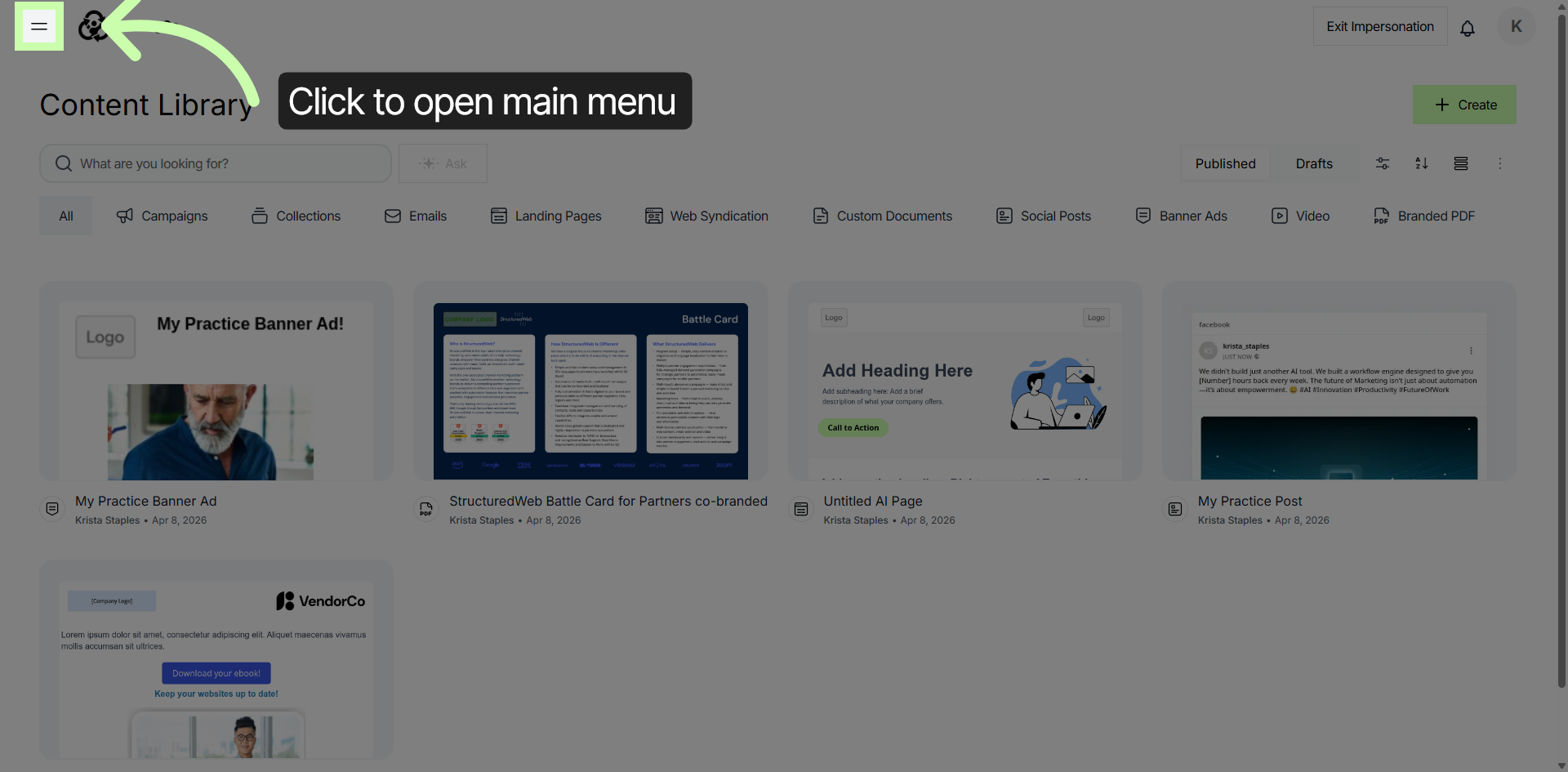
2. Access Content Library Menu
Click into the Main Menu to access the Content Library within the Structured AI platform.
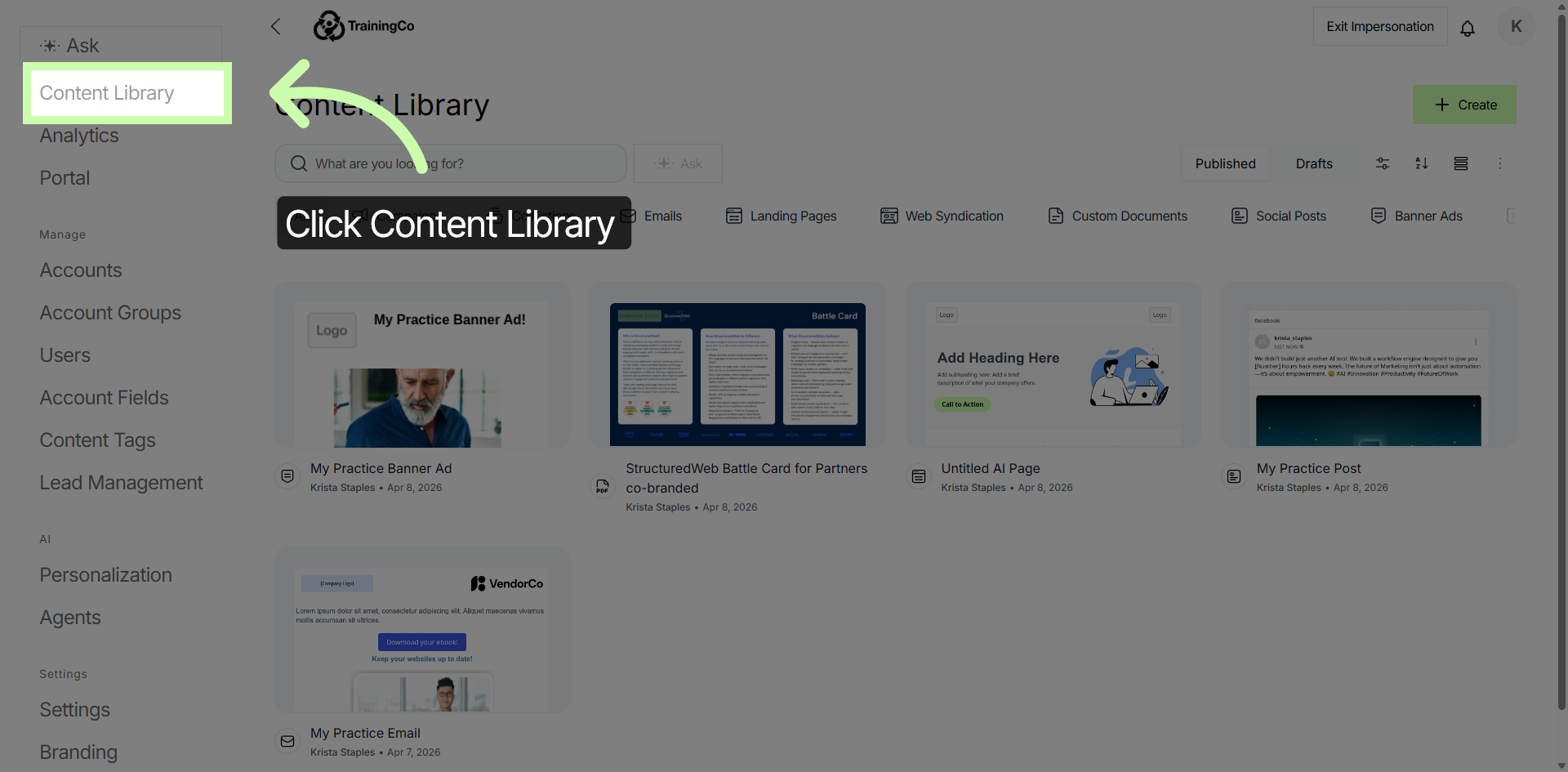
3. Open Content Library Section
To begin the process, navigate to the Content Library. This is the central location where you can manage and organize all your content resources.
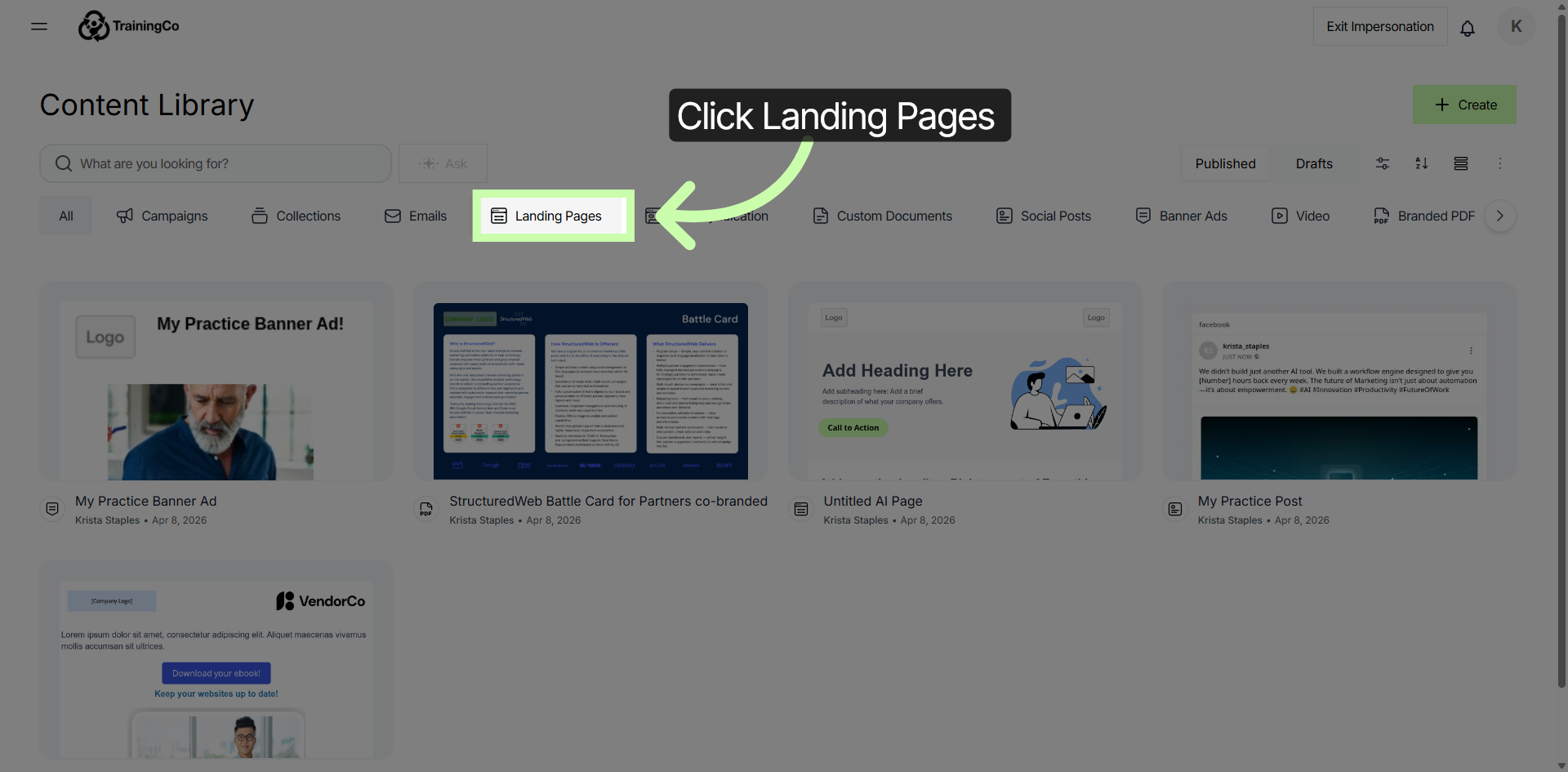
4. Navigate to Landing Pages
Click the menu item for Landing Pages to view all landing page content available in the library.
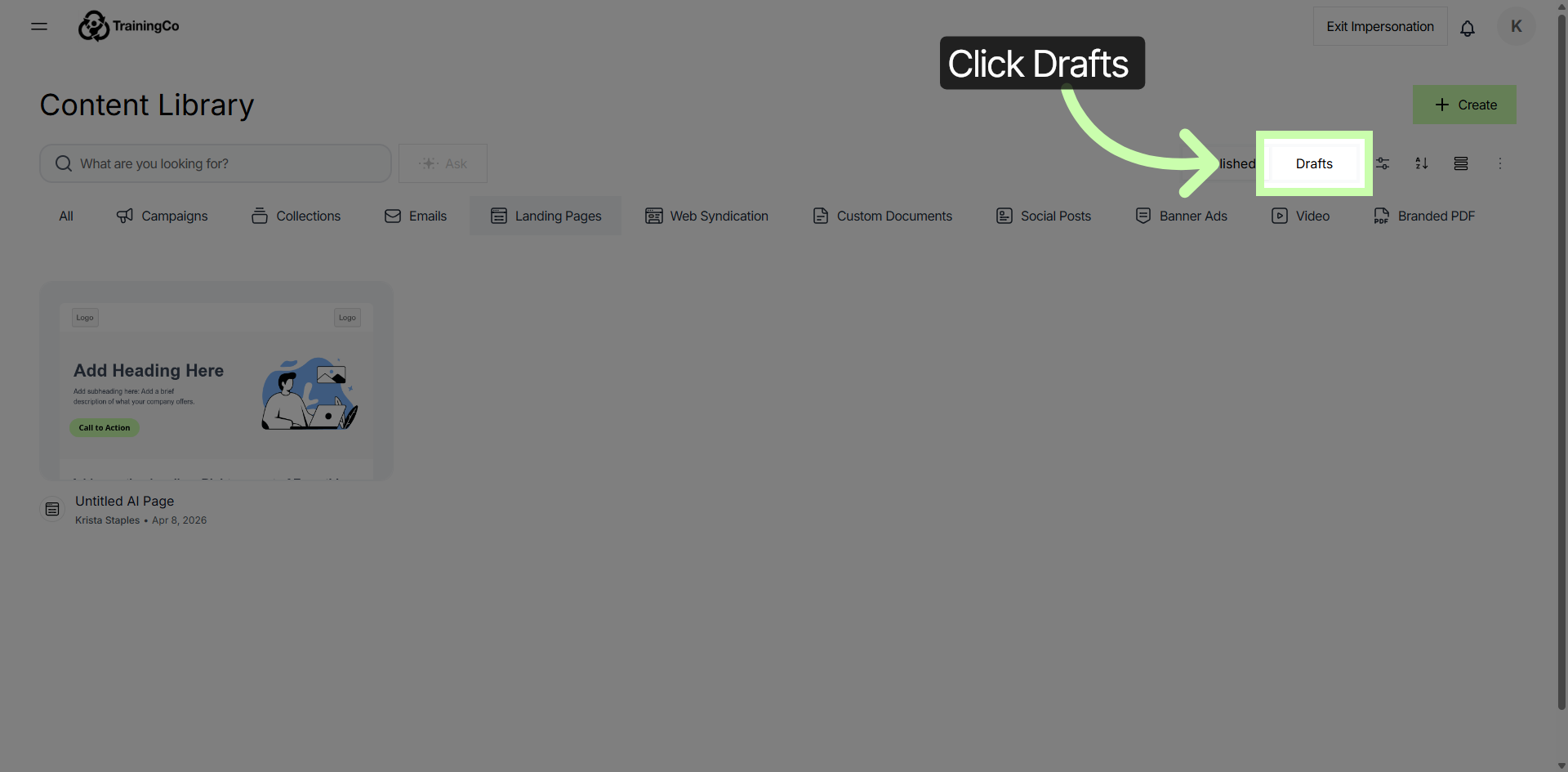
5. View Draft Landing Pages
Click Drafts to filter and display landing pages that are currently in draft status.
6. Open More Options Menu
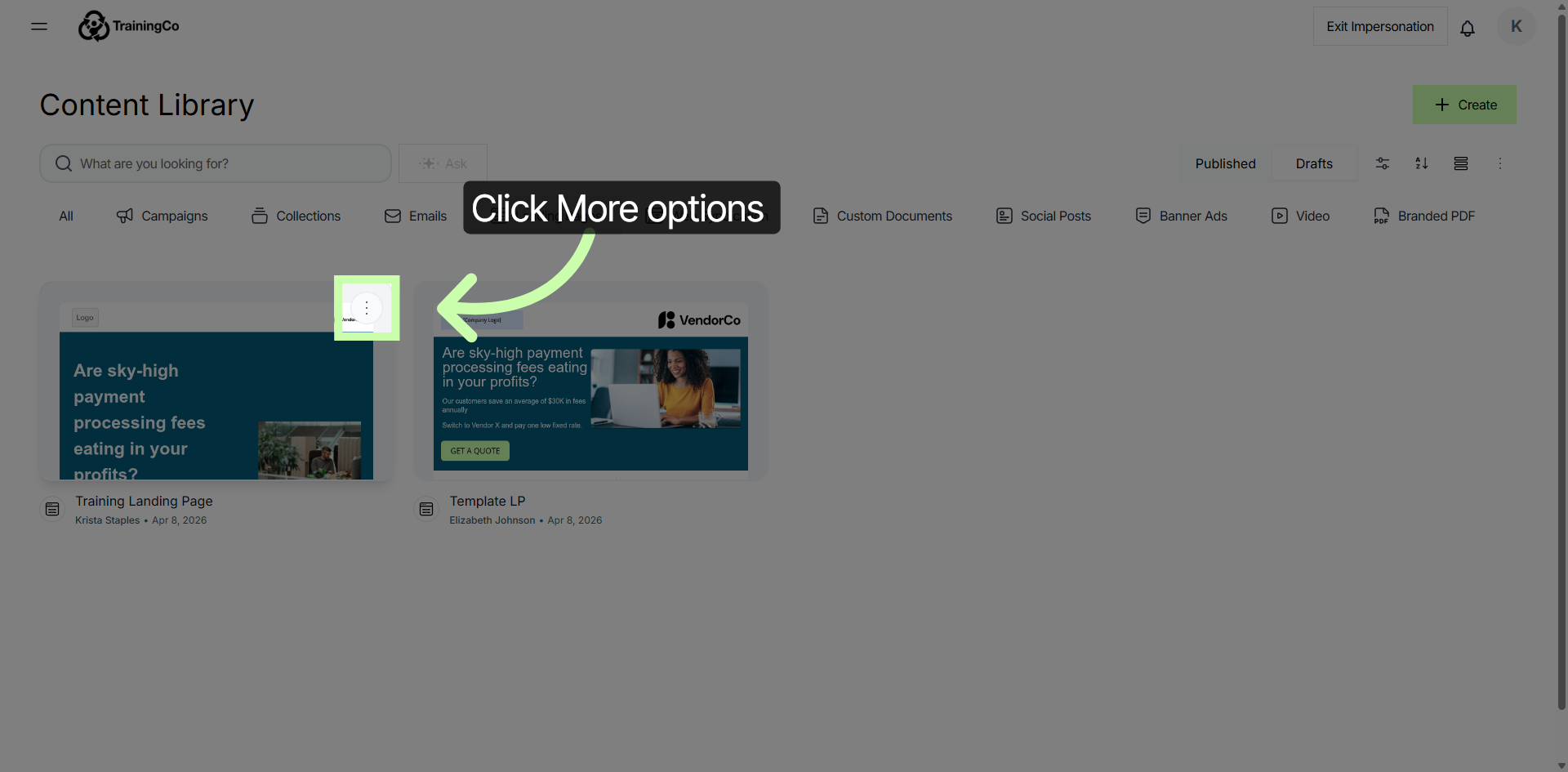
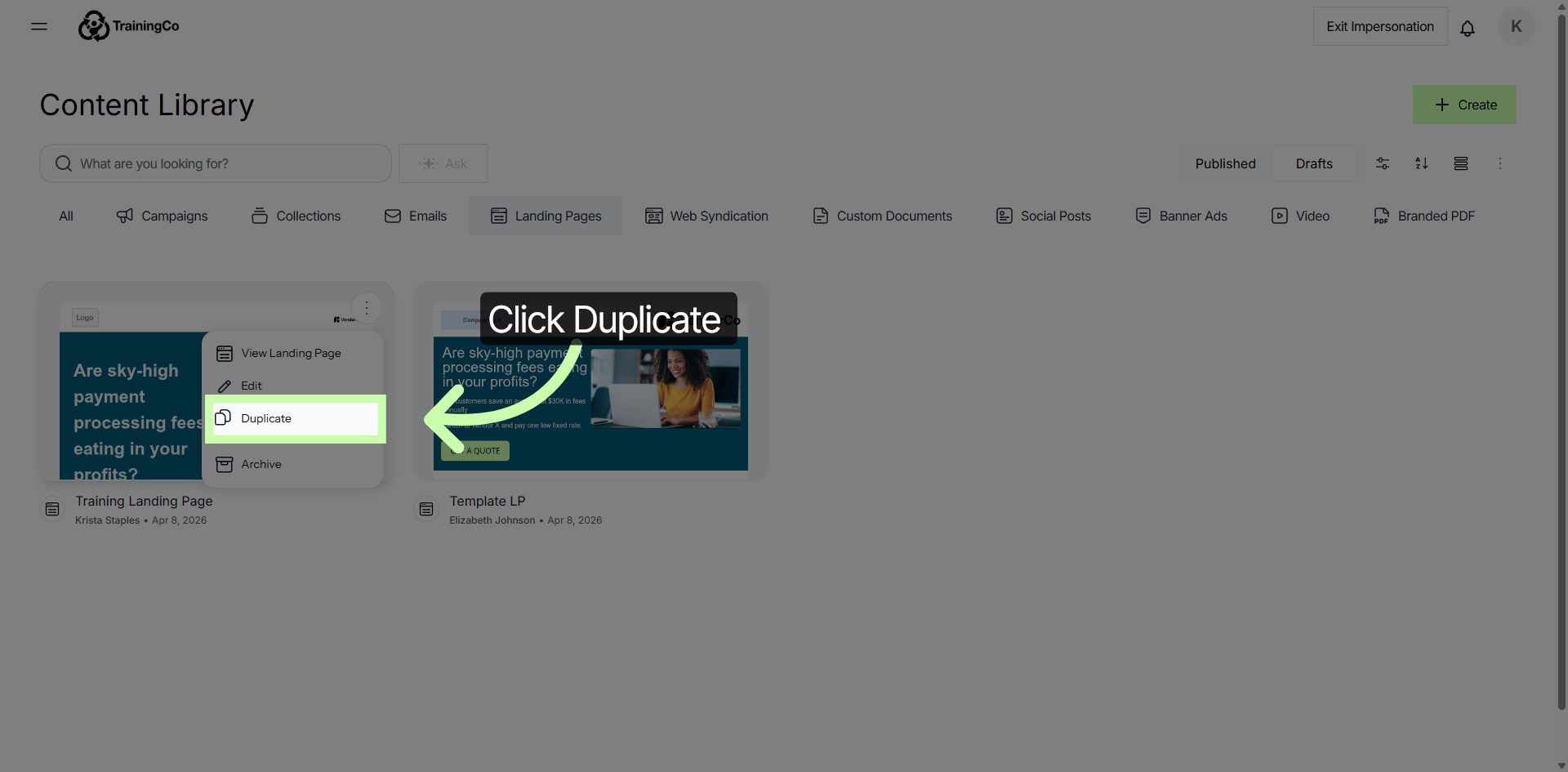
Click the 3 dots in the upper right corner (More Options) to reveal additional actions you can perform on your email drafts. Some options here are: View, Edit, Duplicate & Archive.
7. Duplicate Selected Draft
It is best practice to always start by duplicating an existing Landing Page to use as your framework. Choose a version that mirrors the structure you want to build. Click the More Options menu, and click Duplicate to create a copy of the selected email draft for further customization without altering the original.
This concludes Phase 1. You have successfully duplicated a landing page draft within the Structured AI Content Library. This process allows you to create editable copies of existing content for efficient content management and updates.