 Creating Forms & Landing Pages - Phase 2: Drag & Drop Editor
- Learn how to configure landing pages using the Structured AI Page Editor
- Follow step-by-step instructions to build landing pages
- Use editor tools to create clear and visually appealing pages
- Build functional and well-structured landing pages efficiently
|
Before you begin — open your account This is a hands-on, learning-by-doing session. Open app.structured.ai in your browser and log in to your Tenant Account so you can follow along and apply each step in real time. |
|
Phase 1
Setup & Framework
|
Start Training ➡ |
|
Phase 2
Drag & Drop Editor
|
Current Phase ✔ |
|
Phase 3
Confirmations & Activation
|
Start Training ➡ |
Follow Our Step-By-Step Training
1. Introduction
Building on Phase 1, this guide helps both beginners and experienced users optimize landing pages for better engagement and conversions.
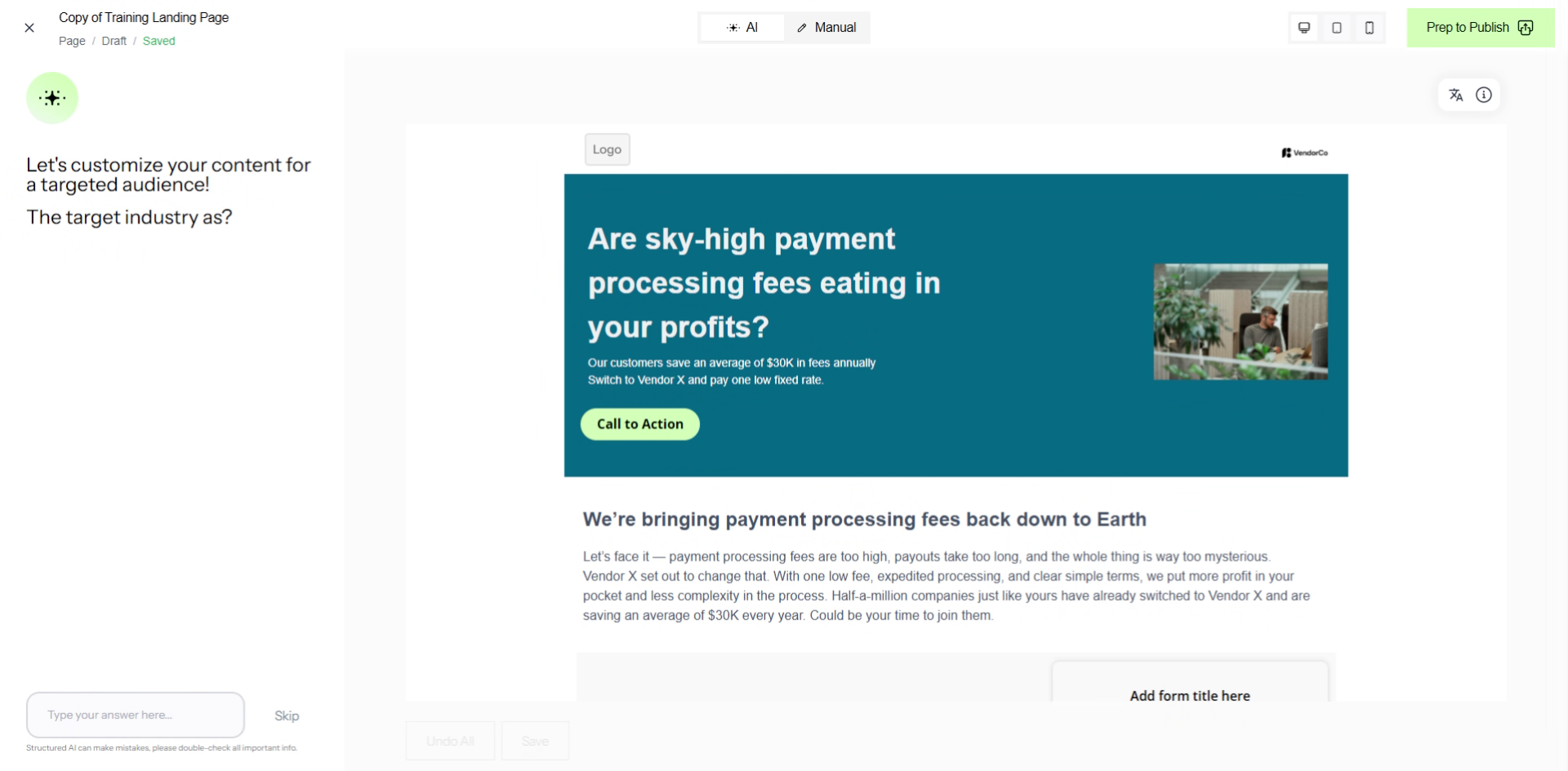
2. Name Your Landing Page
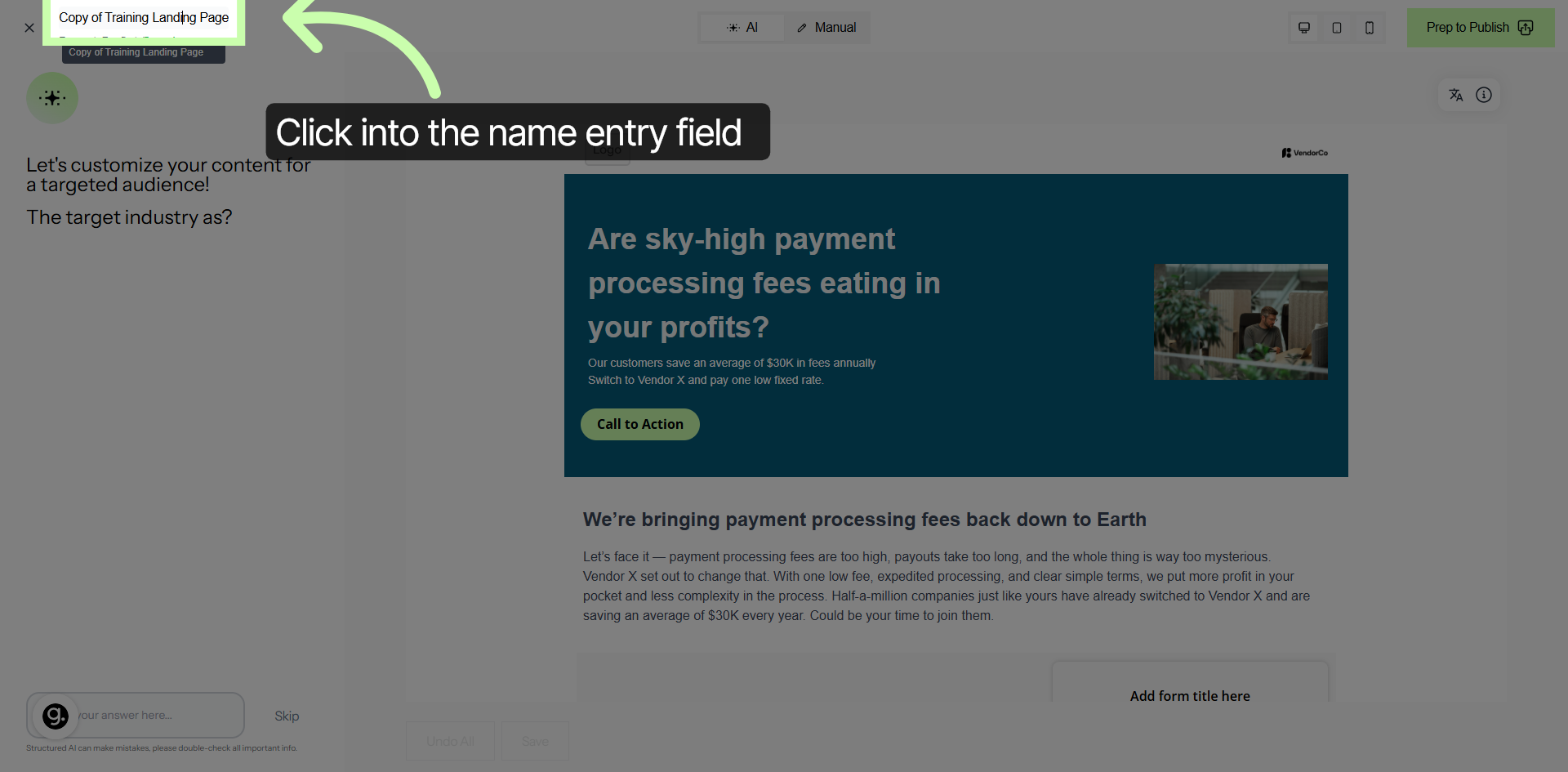
3. Rename Landing Page
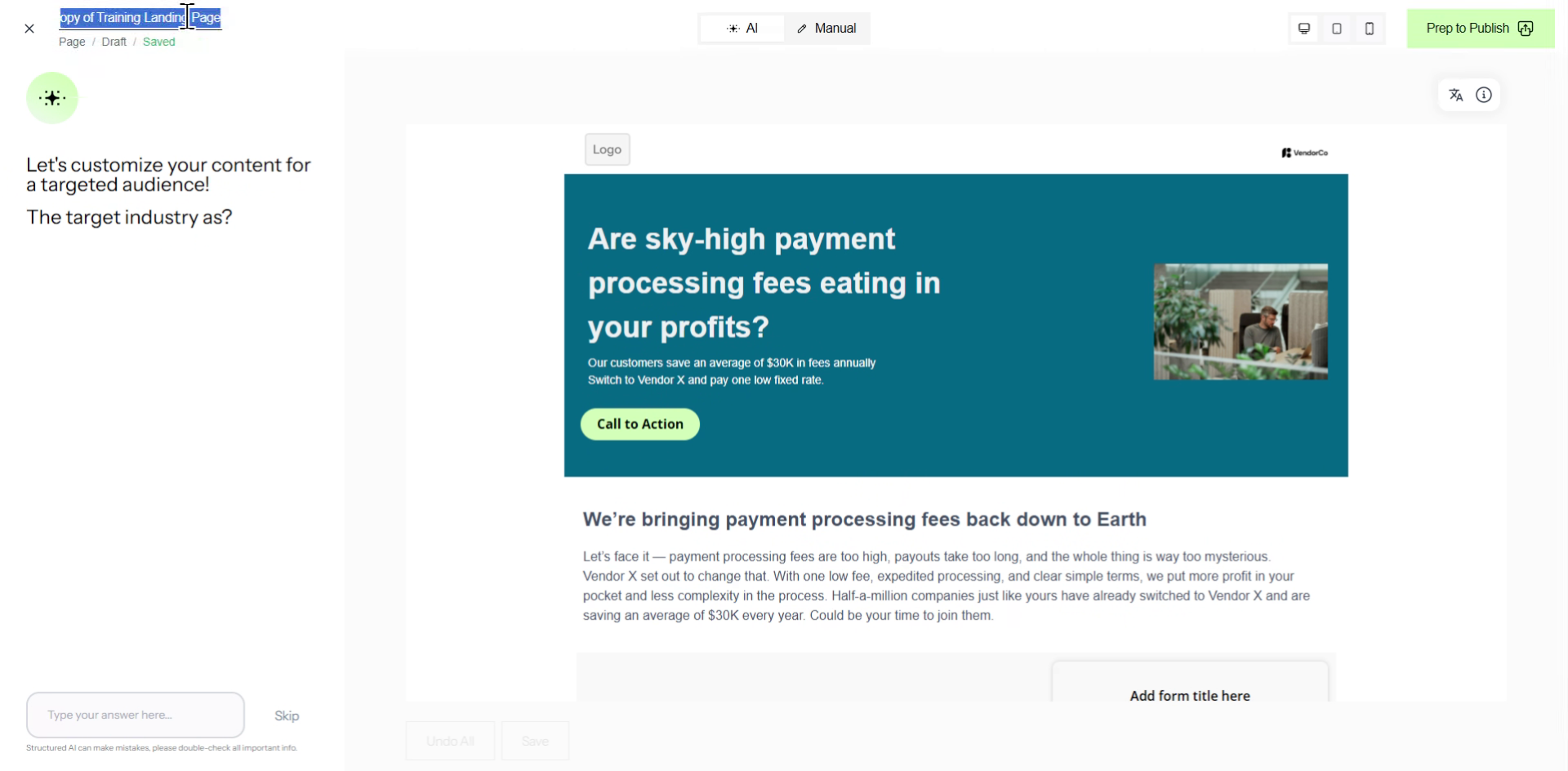
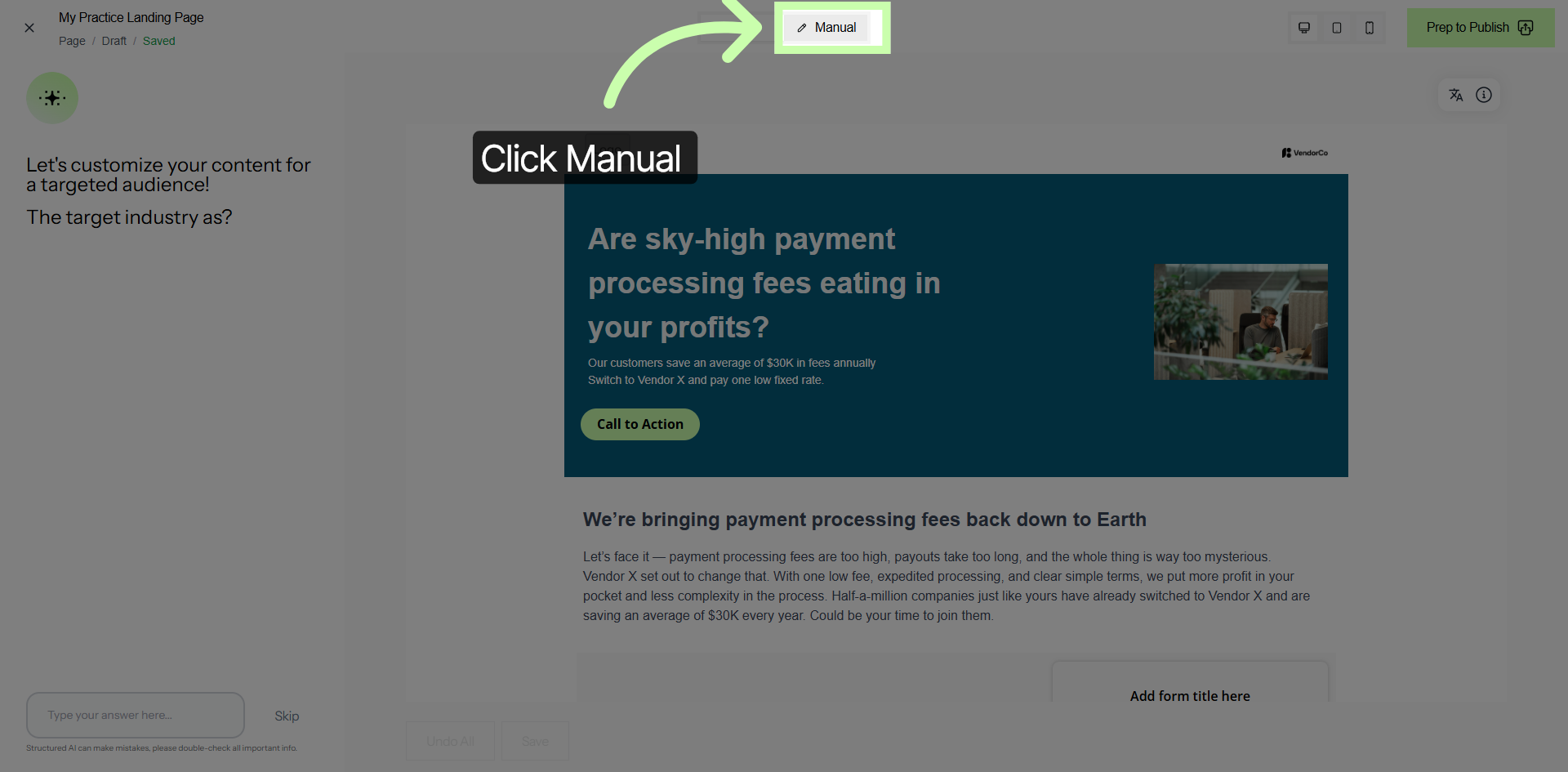
4. Select Manual Editing Mode
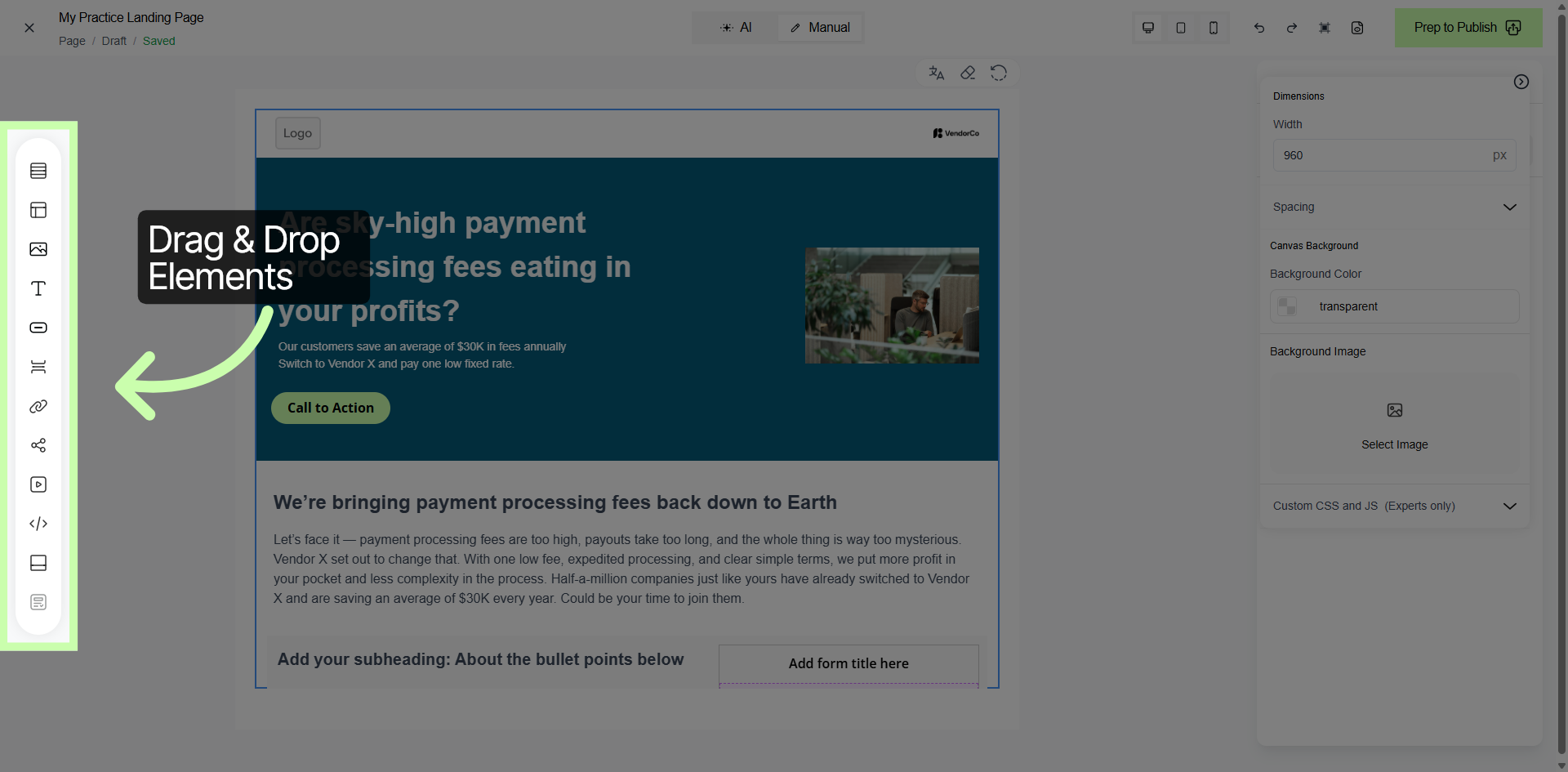
5. Landing Page Editor Tour
A quick tour is necessary before we dive in to creating!
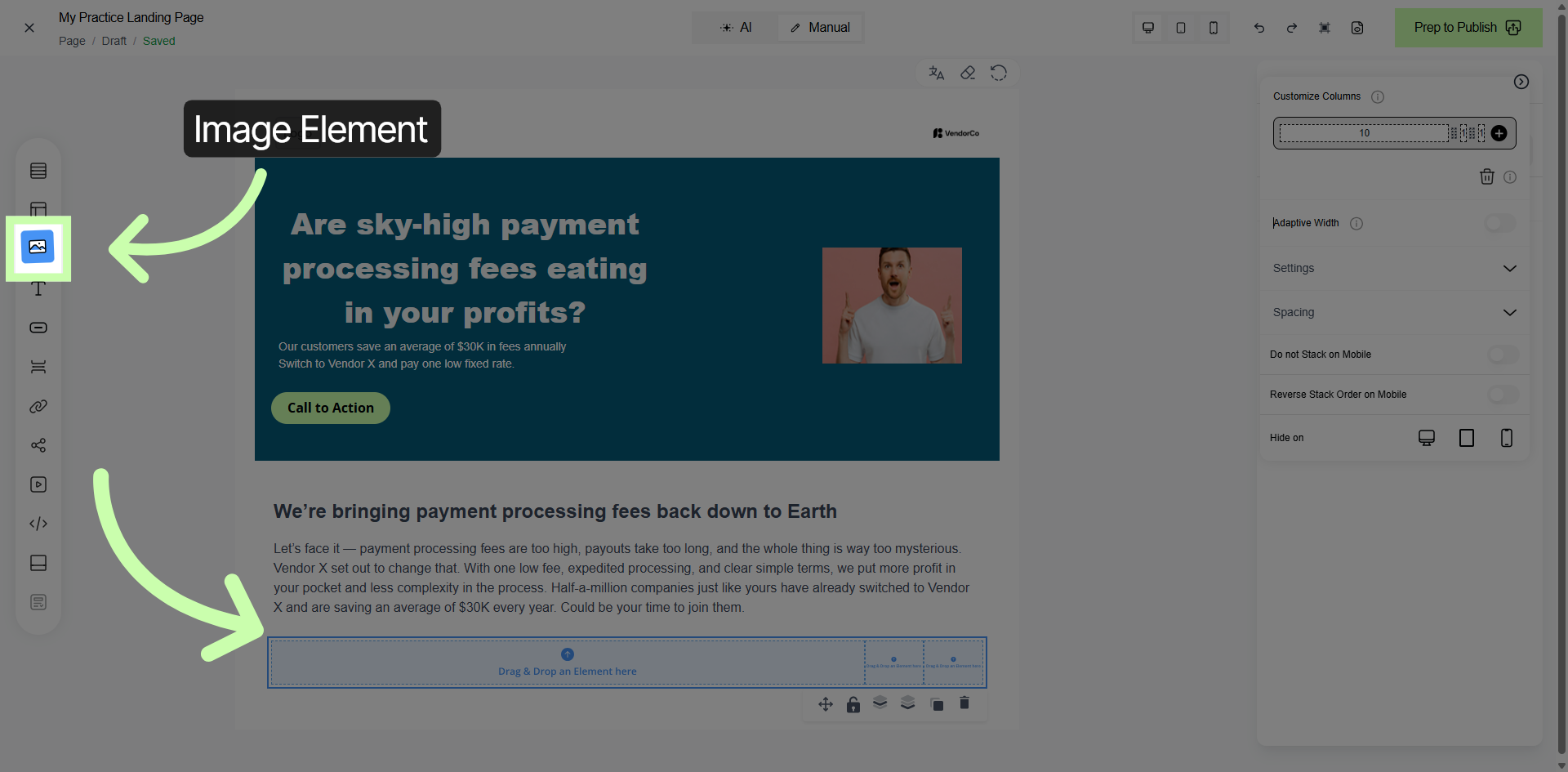
In the left panel of the interface, you will find a comprehensive collection of Drag & Drop elements. These elements are designed to be easily selected and pulled into your email layout, allowing you to customize your email content with great flexibility.
By simply dragging these components from the panel and dropping them into your email template, you can tailor the design and structure to suit your specific needs and preferences.
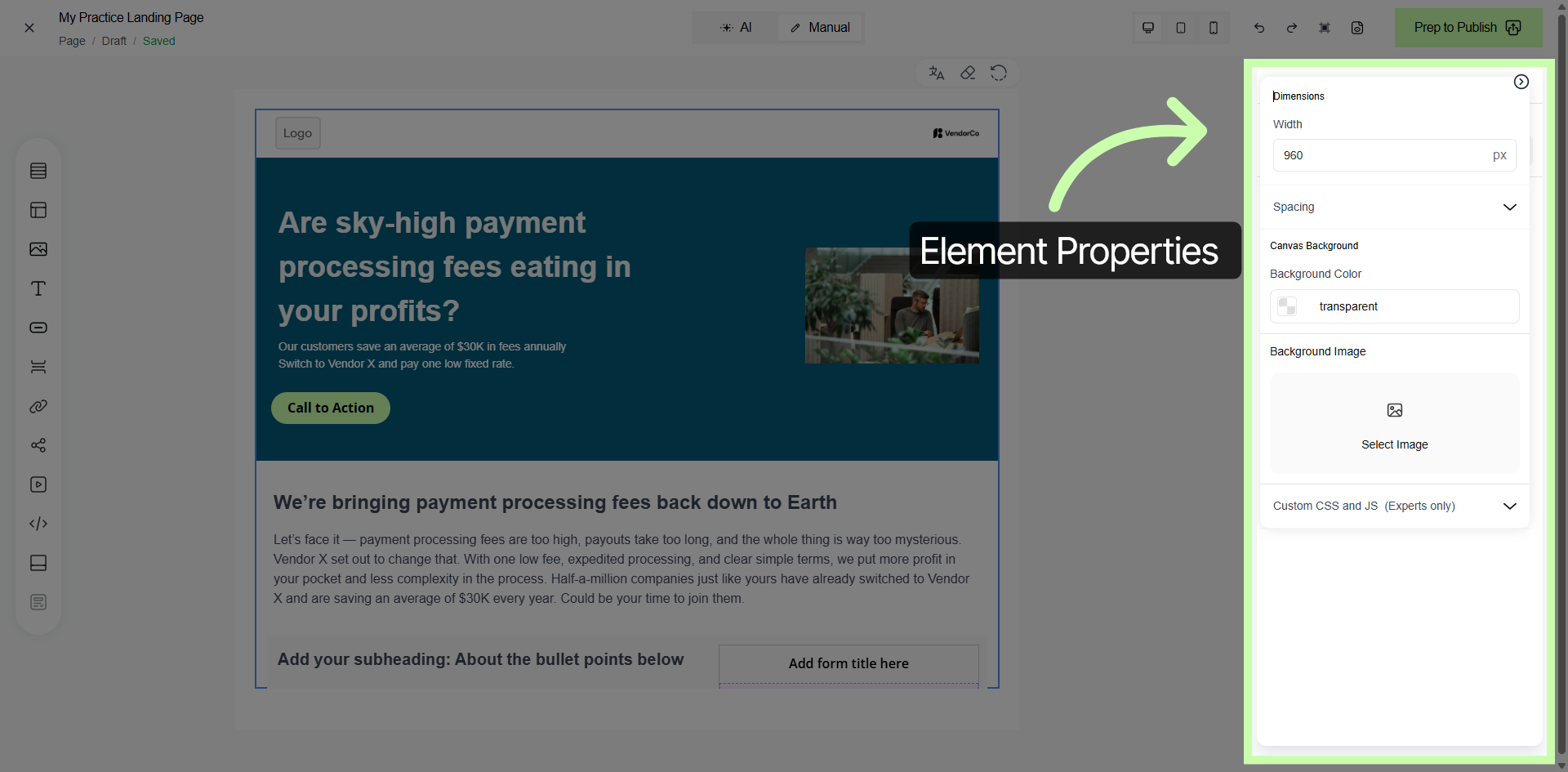
6. Element Properties Panel
7. Edit Heading
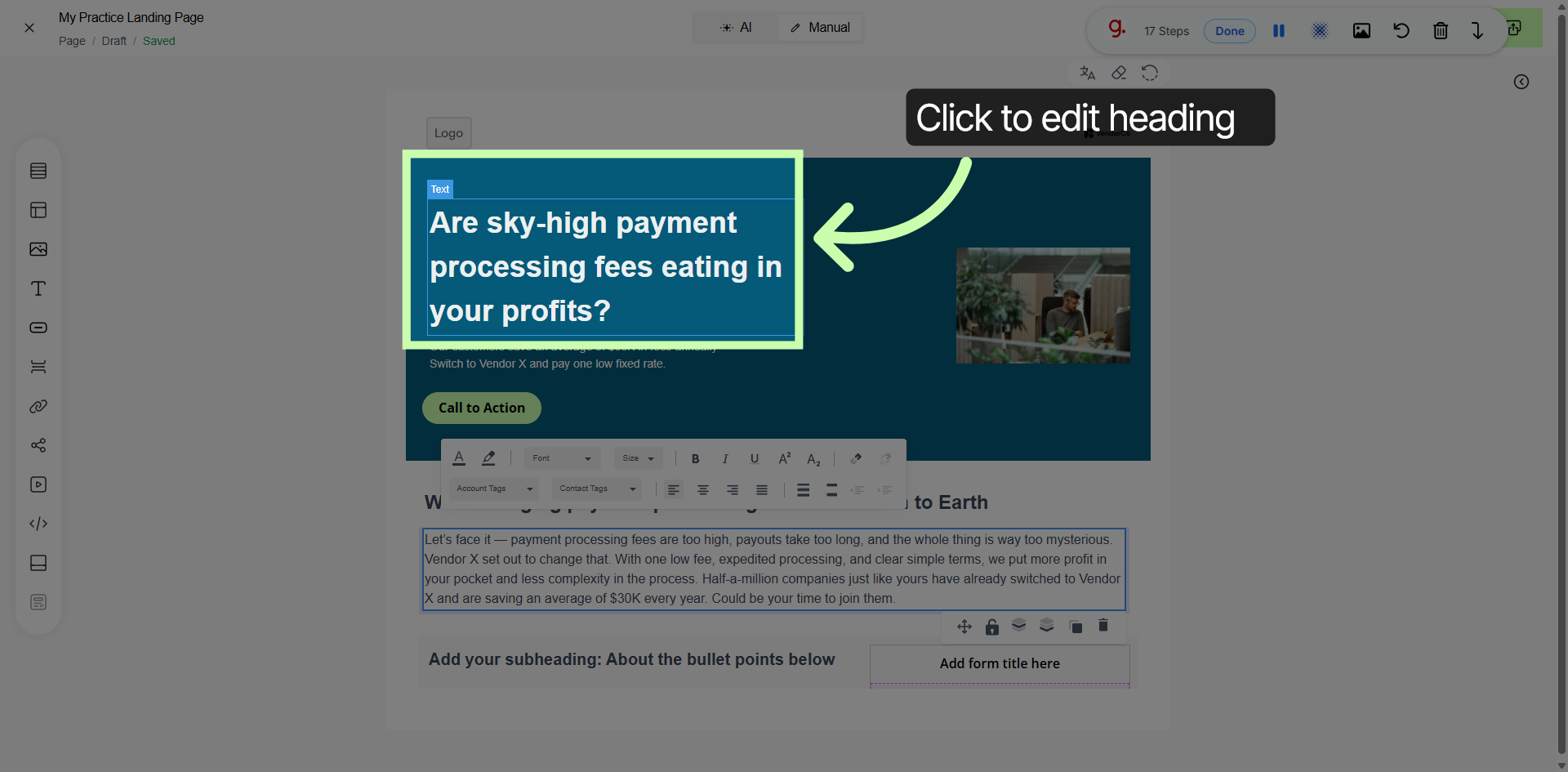
8. Editing Text Element
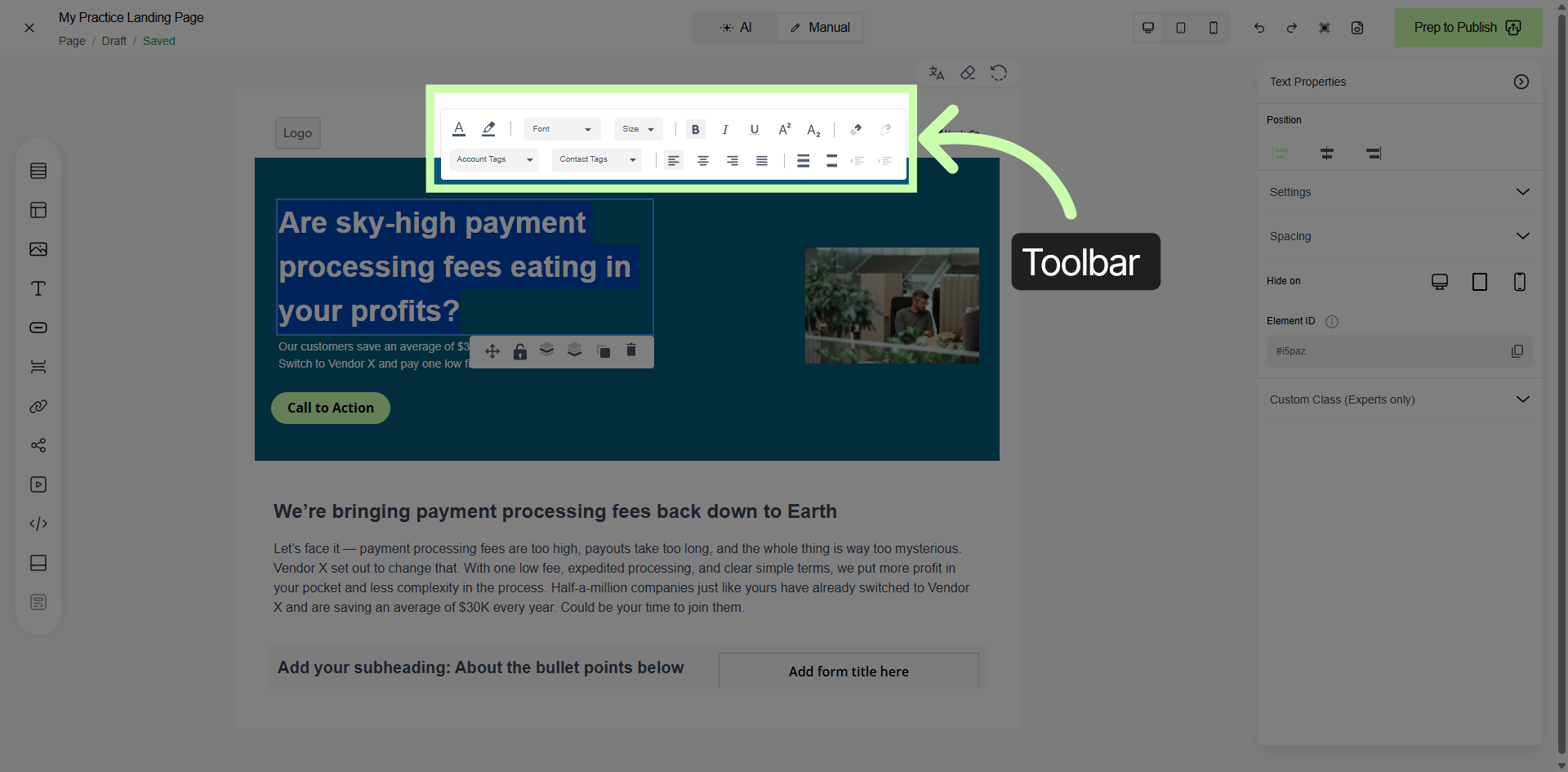
9. Editing an Image
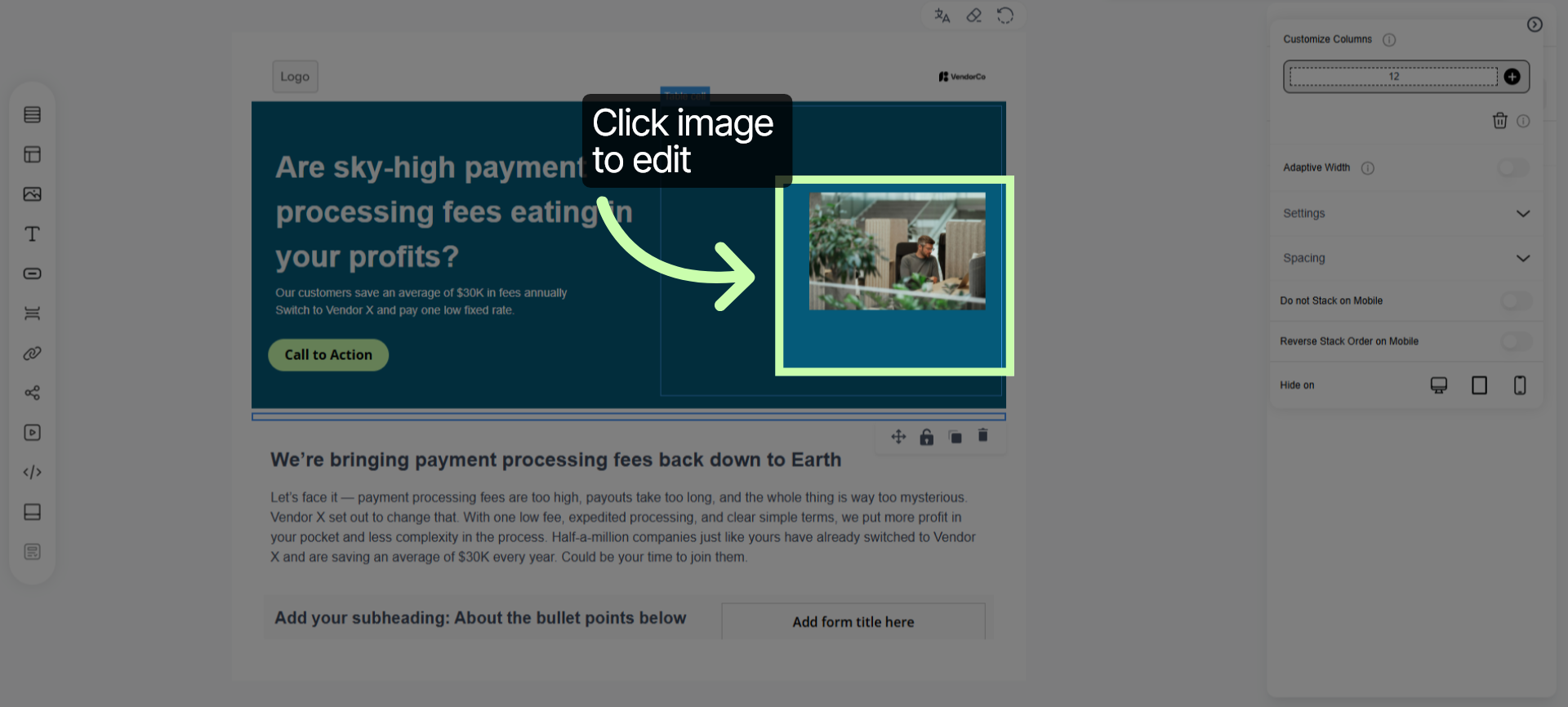
10. Upload or Add New Image
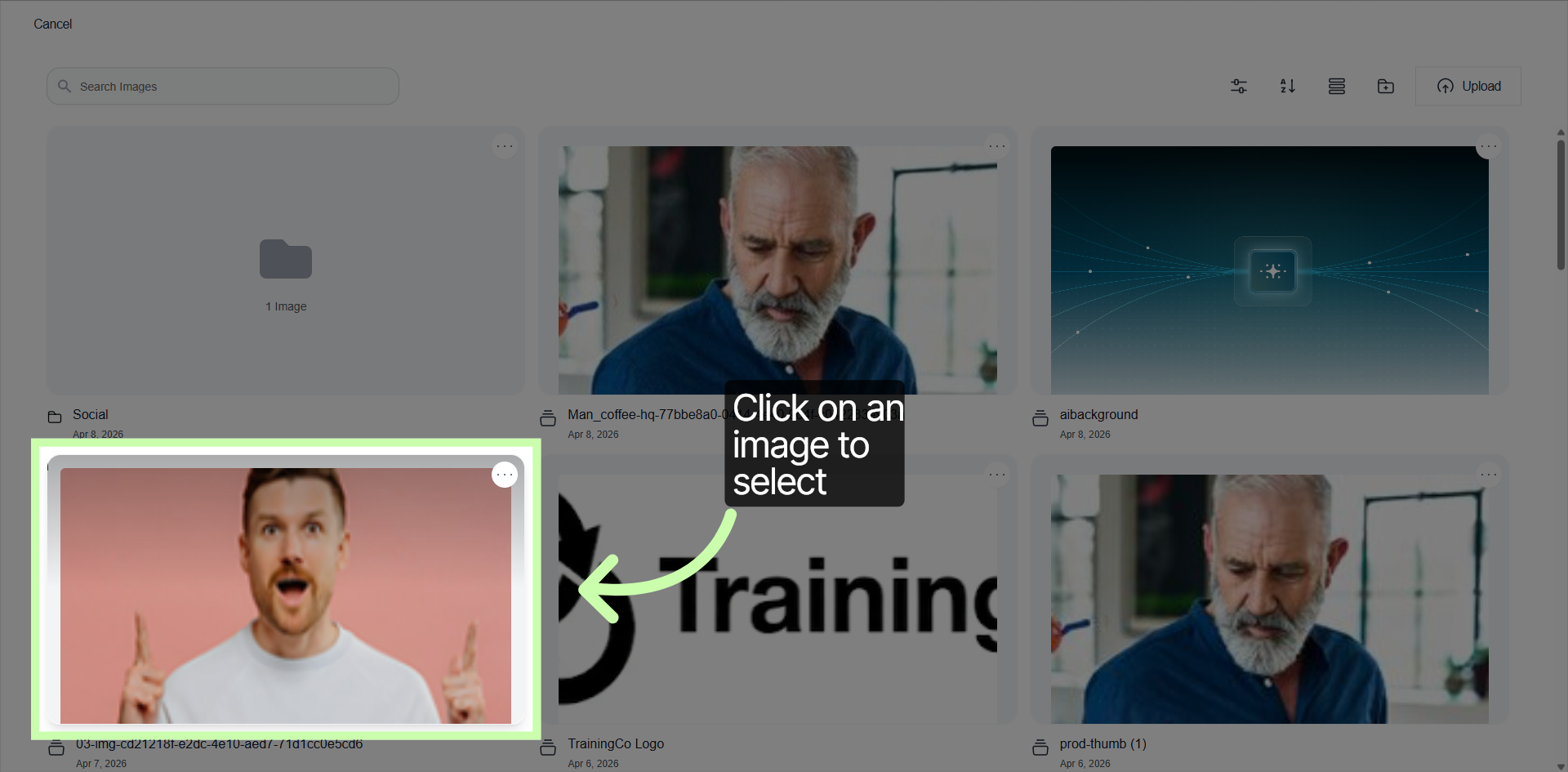
11. Add Selected Items
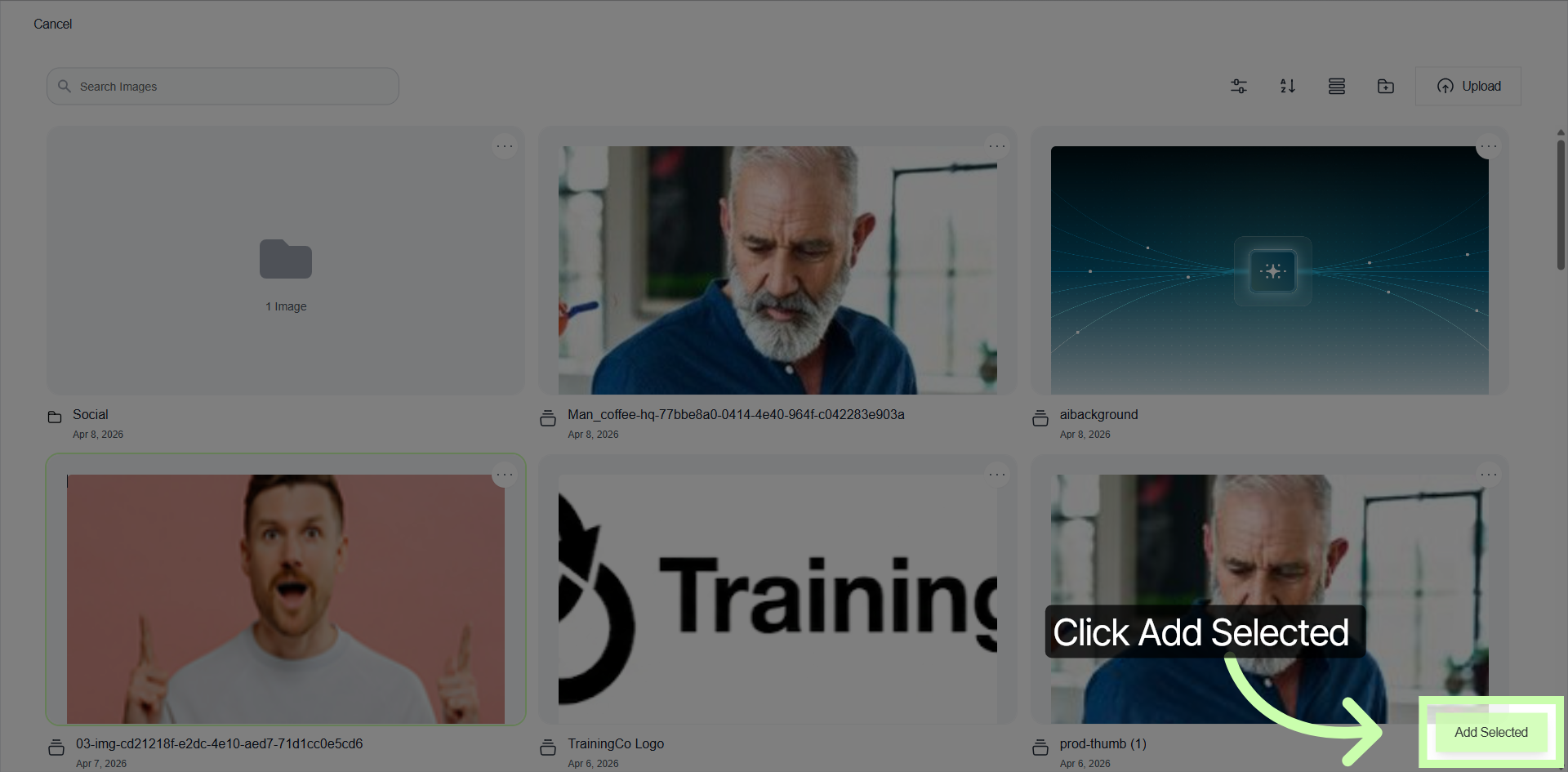
12. Open Image Properties
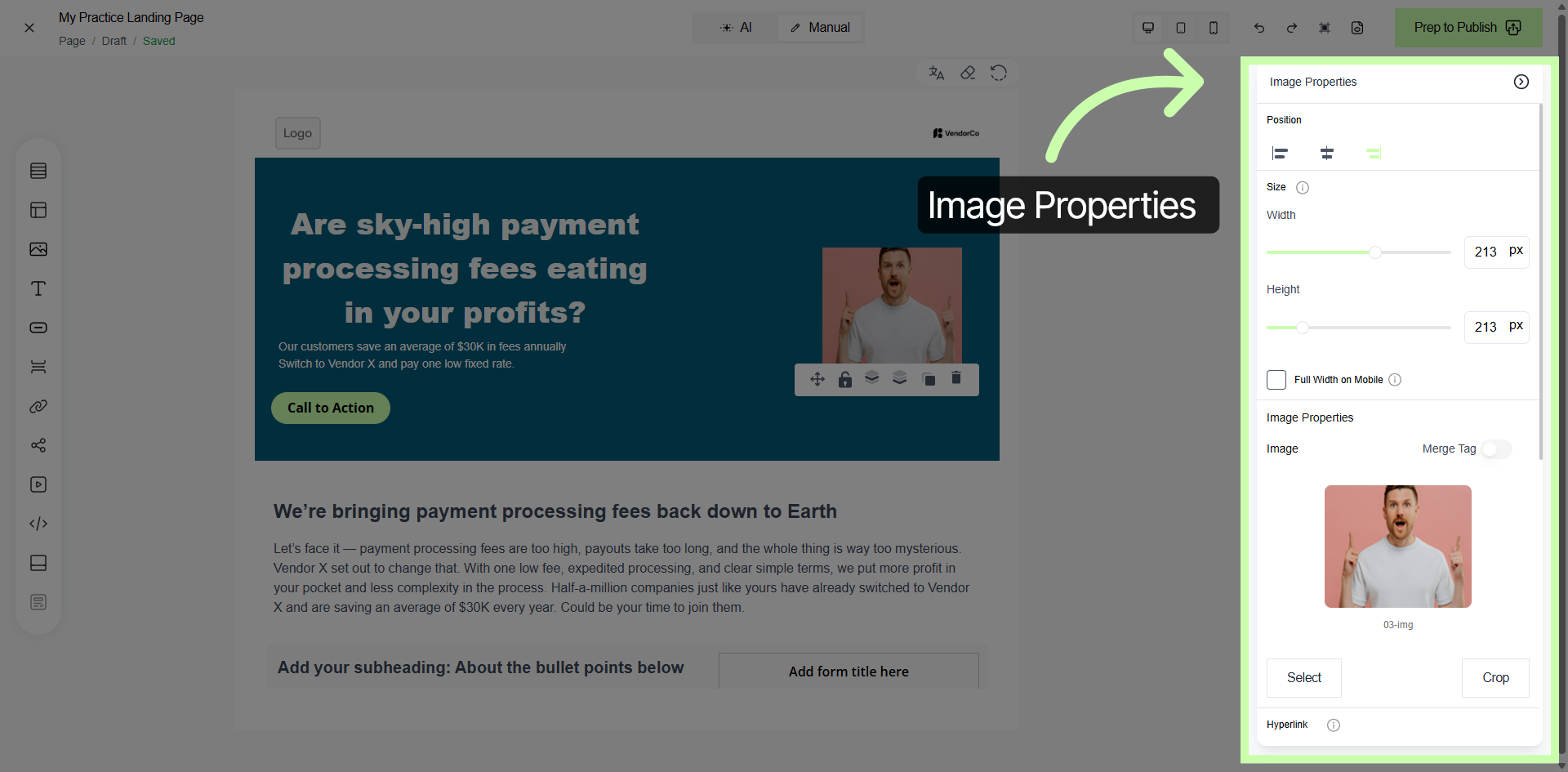
13. Edit Vendor X Description
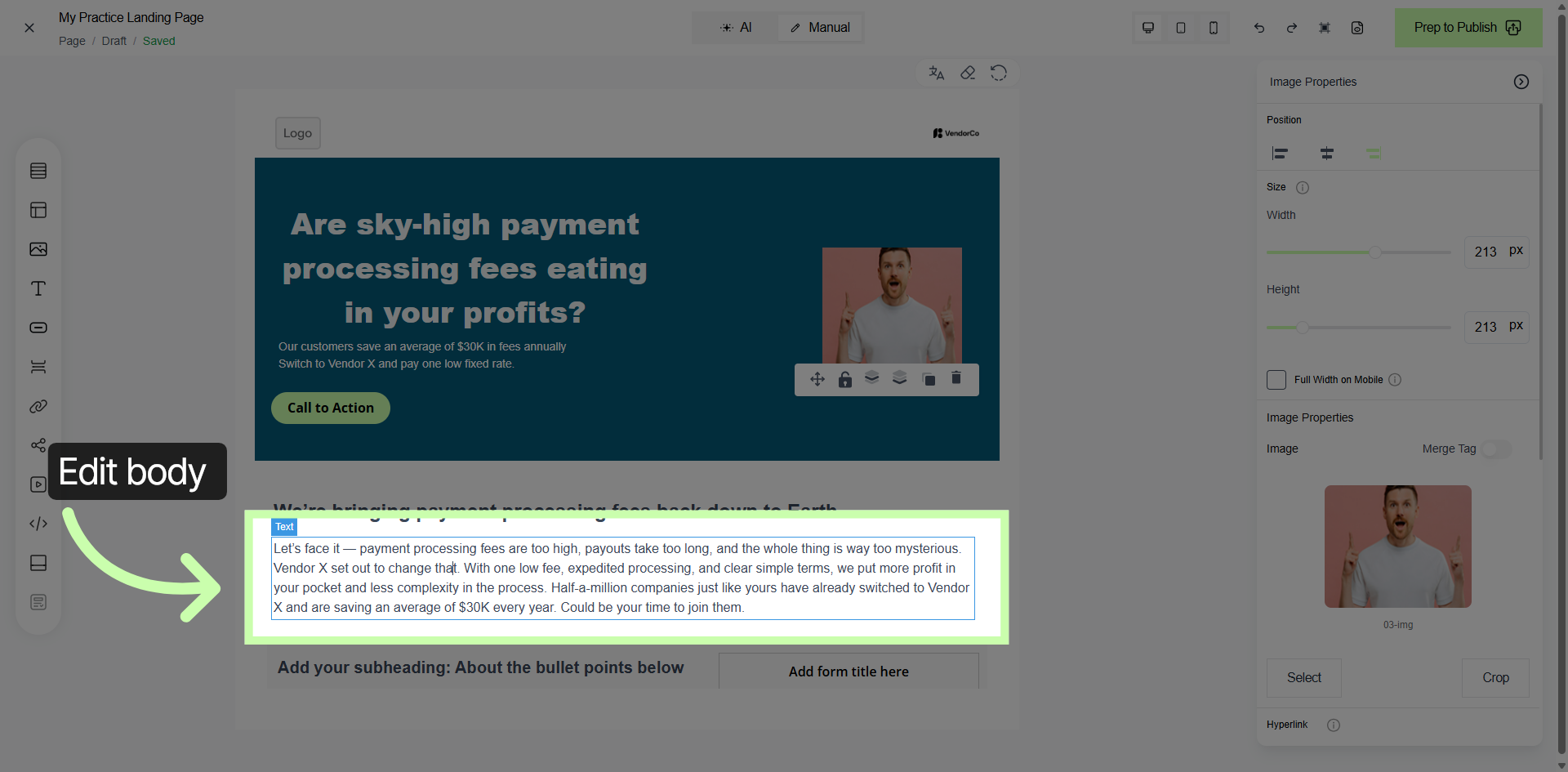
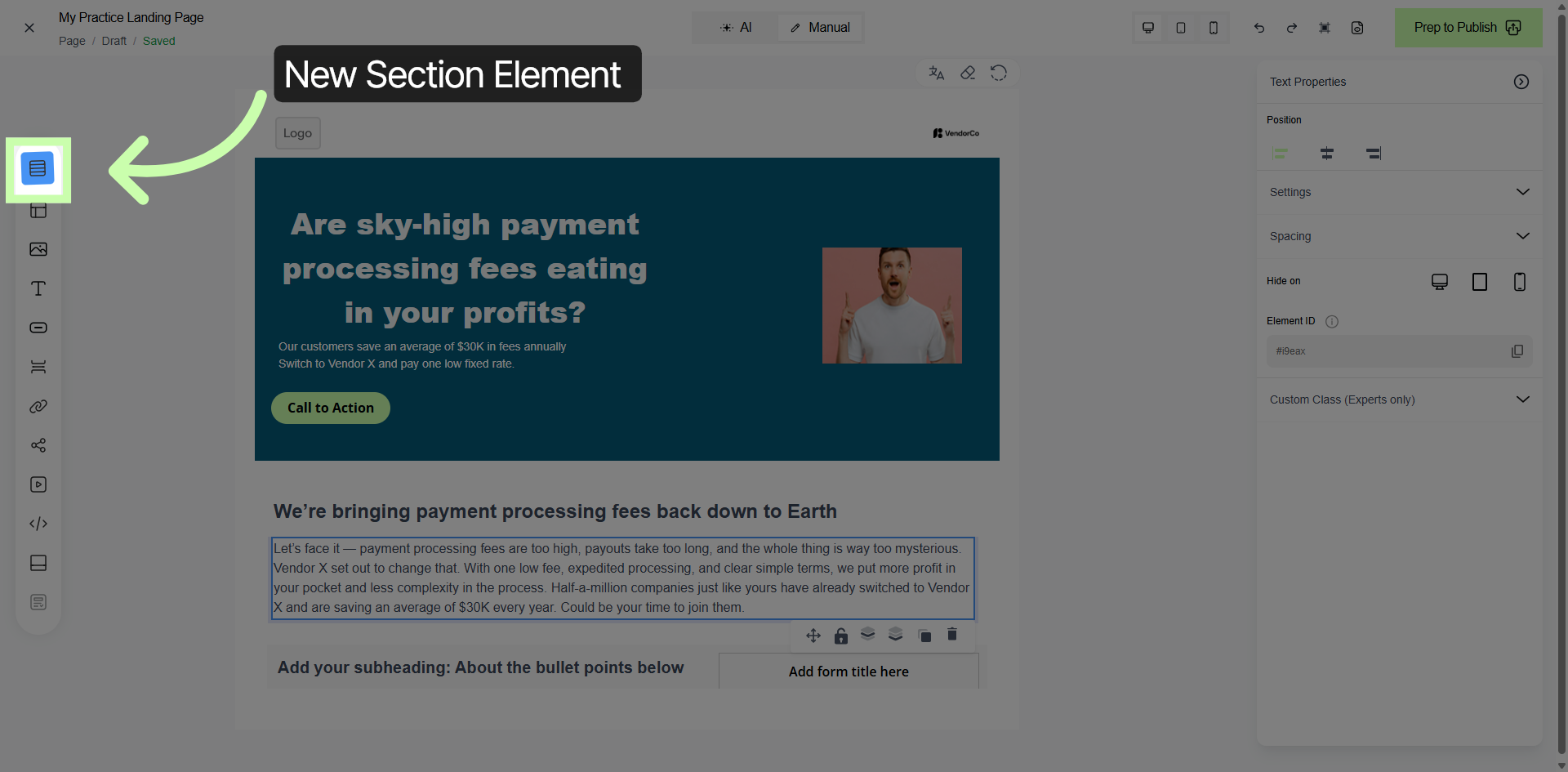
14. Access Additional Settings
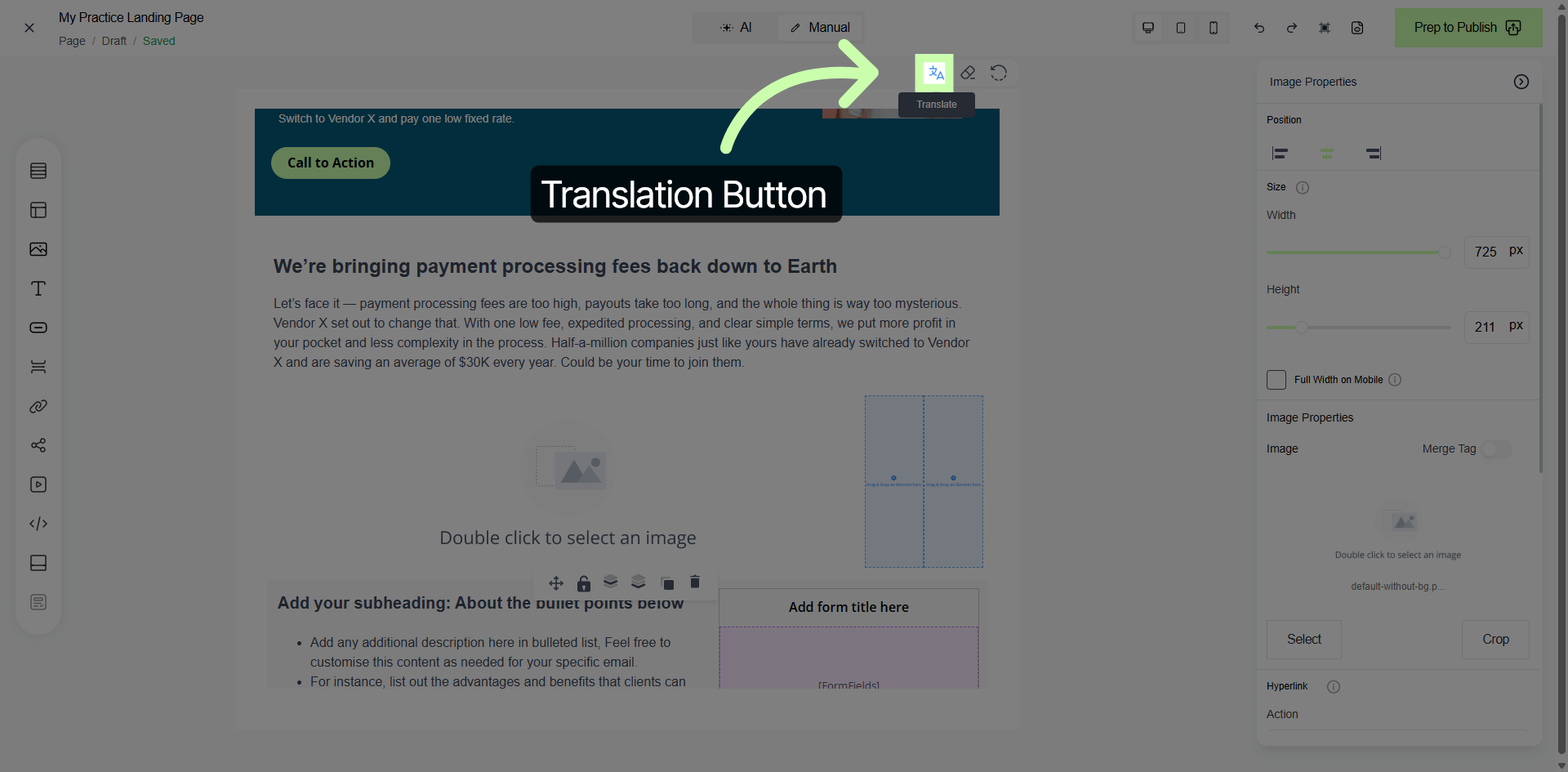
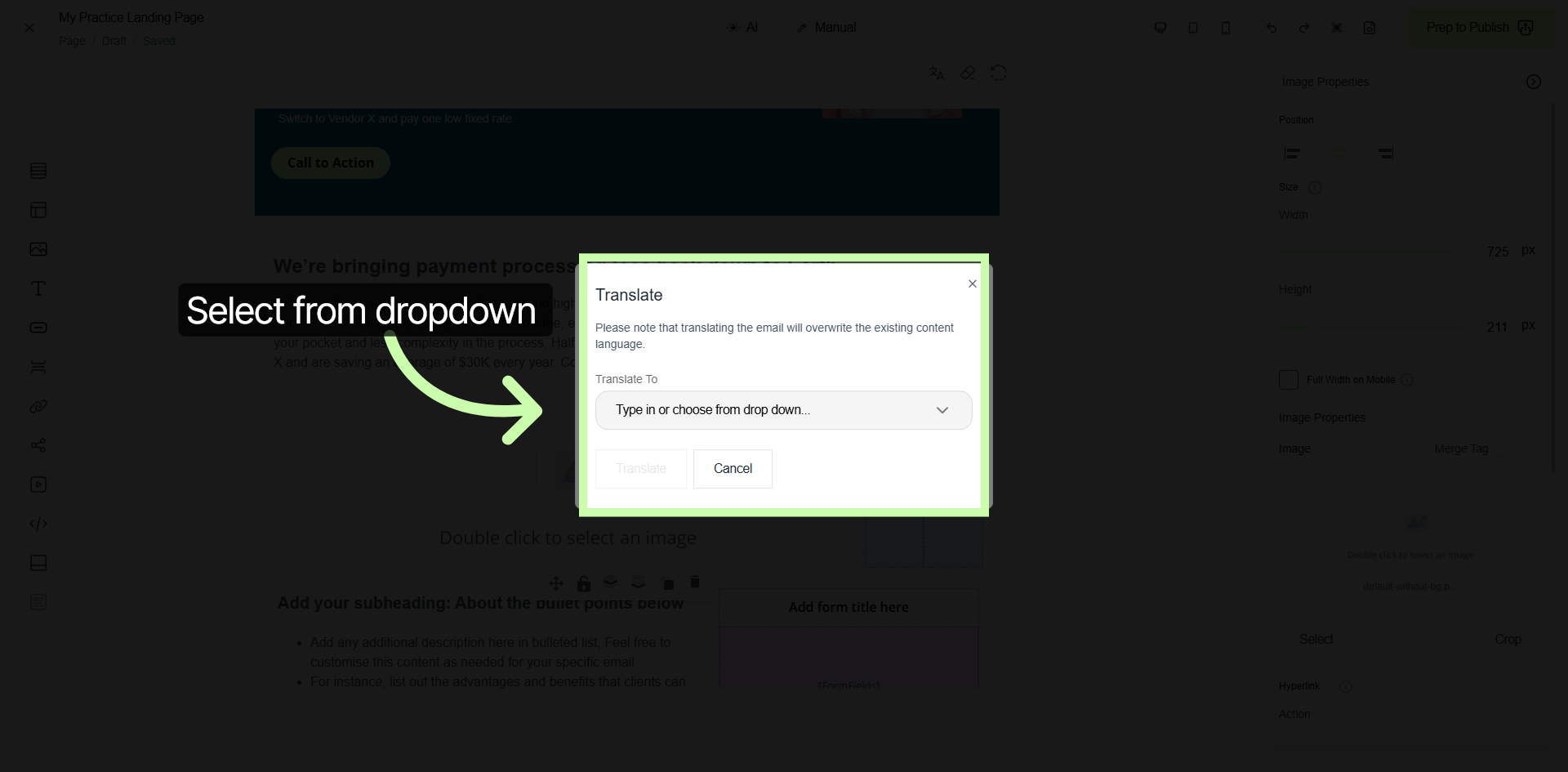
15. Translation Feature