 Creating Custom Documents - Phase 1: Purpose & Framework
- Navigate the Content Library and access available custom document content.
- Identify custom documents and understand their purpose within the platform.e
- Duplicate custom documents for use in campaigns and partner marketing activities.
- Provide partners with professionally branded, multi-page PDF assets such as eBooks, brochures, and guides.
|
Before you begin — open your account This is a hands-on, learning-by-doing session. Open app.structured.ai in your browser and log in to your Tenant Account so you can follow along and apply each step in real time. |
|
Phase 1
Purpose & Framework
|
Current Phase ✔ |
|
Phase 2
Drag & Drop Editor
|
Start Training ➡ |
|
Phase 3
Personalization & Activation
|
Start Training ➡ |
Follow Our Step-By-Step Training
1. Introduction
This training provides a comprehensive guide to effectively managing your content library within Structured AI. It will walk you through the various features and tools available, helping you organize, update, and optimize your content to ensure it is both accessible and useful.
Whether you are adding new materials, categorizing existing items, or maintaining your library for better performance, this training will equip you with the knowledge and skills needed to handle your content efficiently within the Structured AI platform.
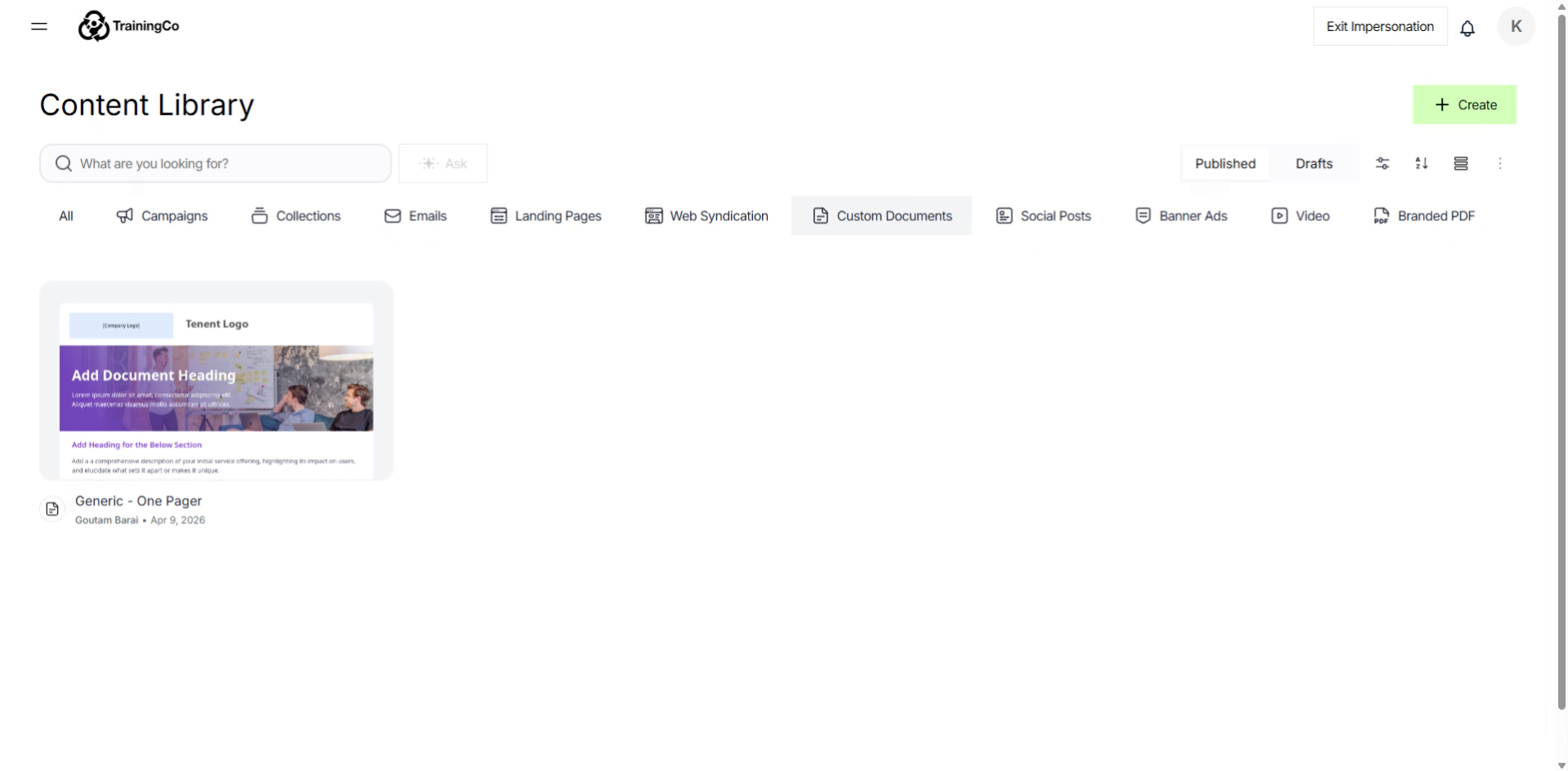
2. Open Content Library Menu
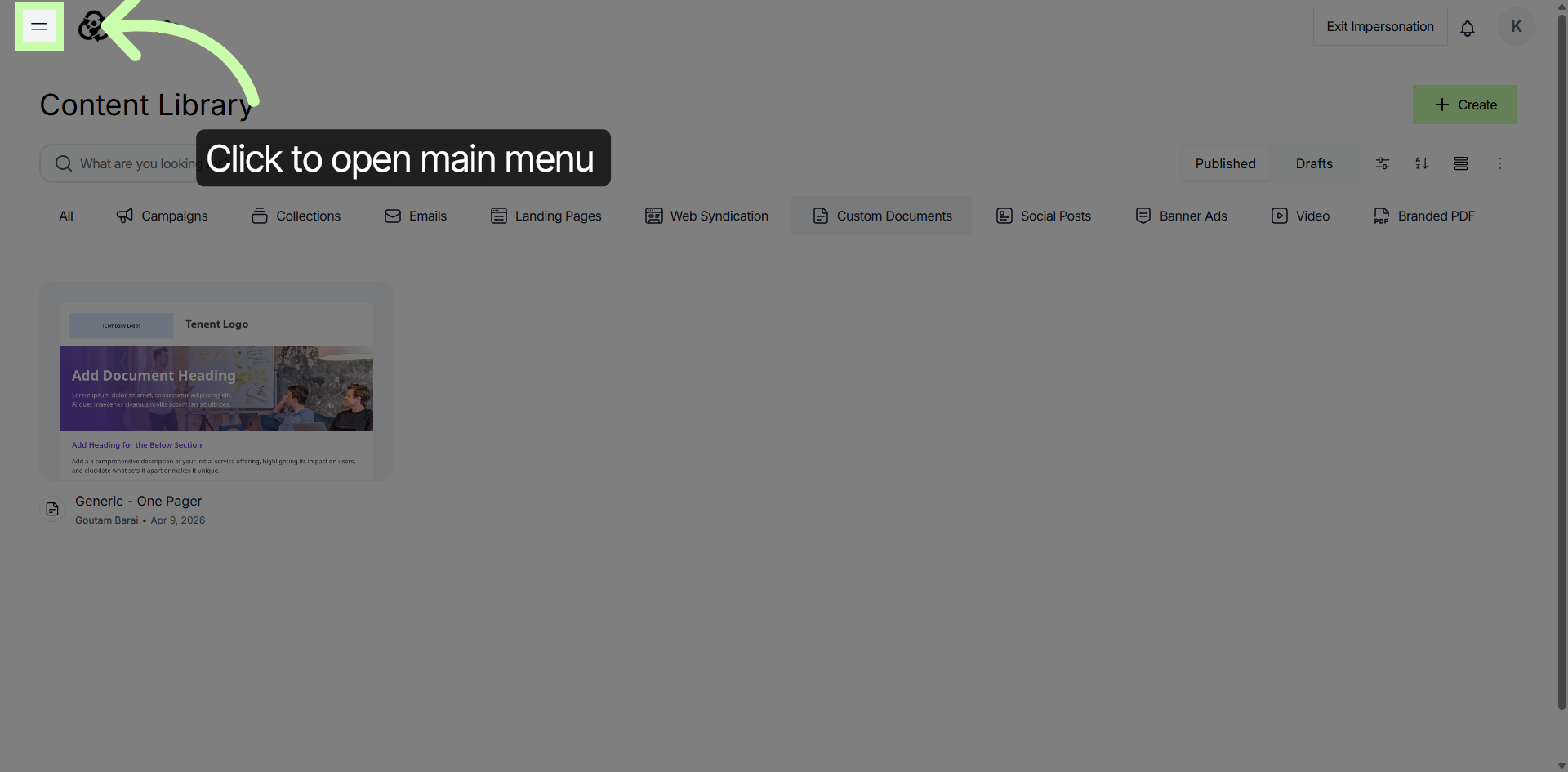
3. Access Content Library Section
To access all of your stored content assets within Structured AI, simply click on the Content Library option. This feature allows you to conveniently view and manage every piece of content you have saved in one centralized location, making it easier to organize and utilize your assets efficiently.
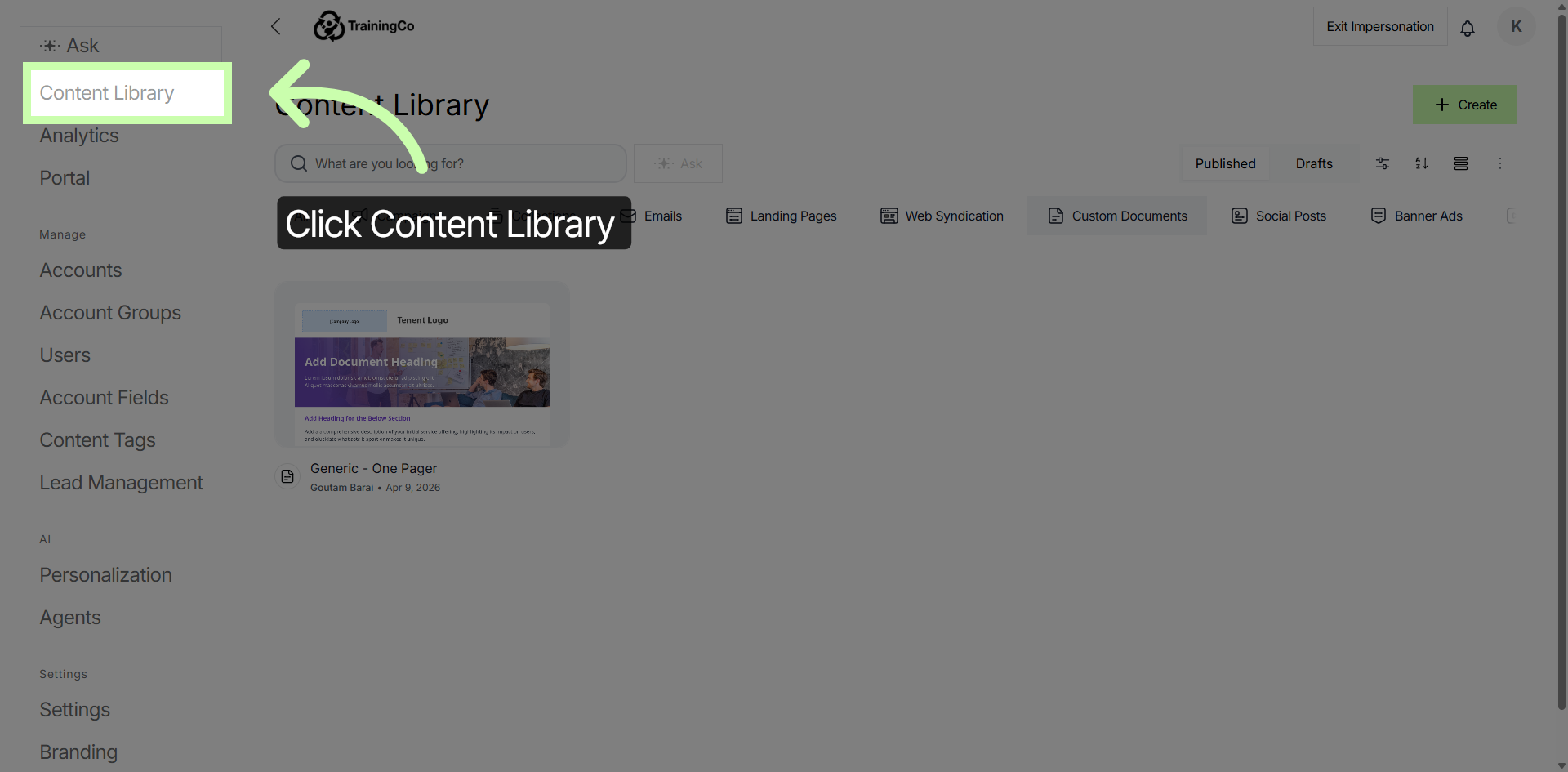
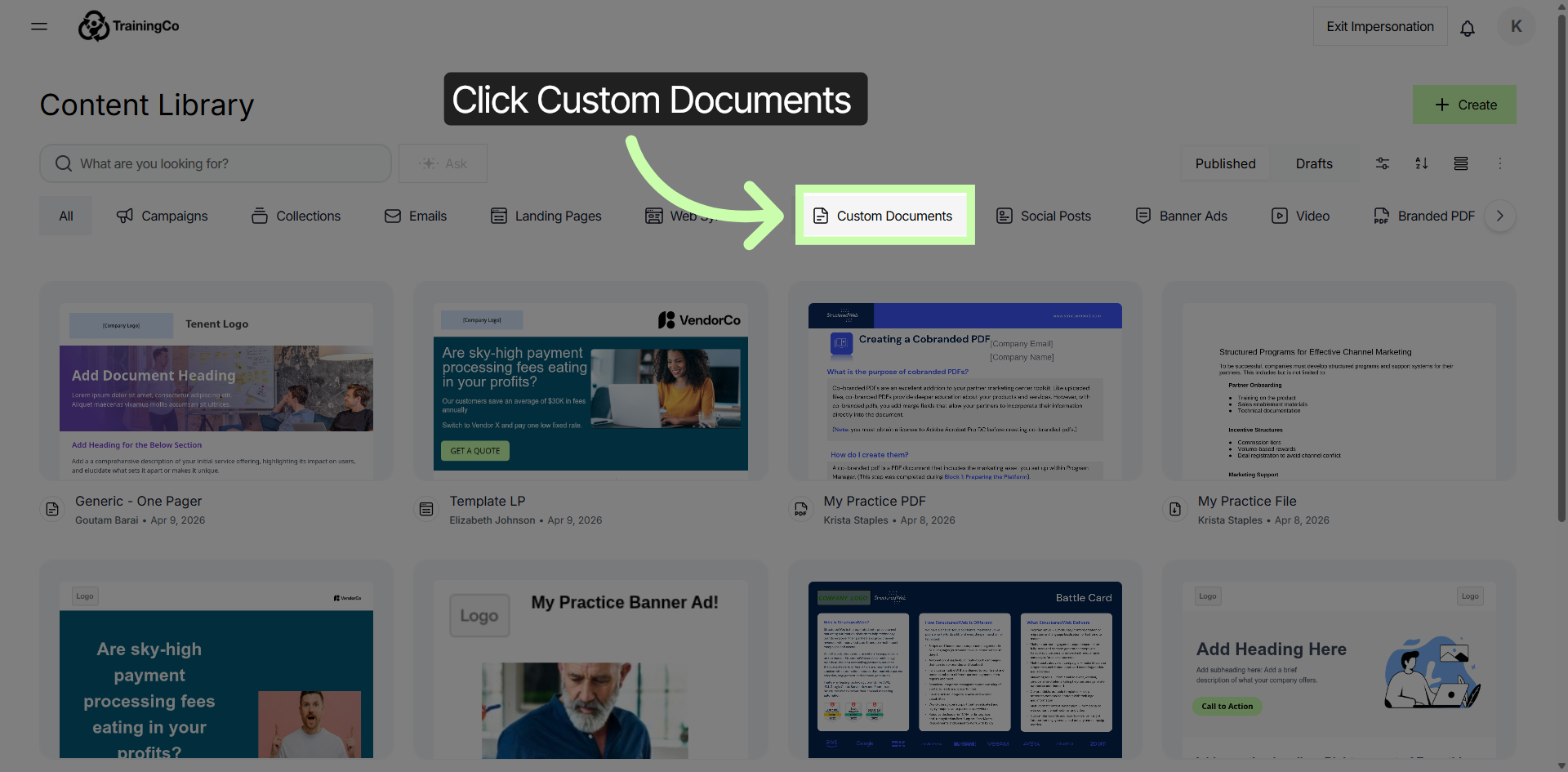
4. Open Custom Documents
To access your personalized document templates and files, simply click on the Custom Documents option. This section allows you to manage and utilize all your customized documents in one convenient location, making it easier to create, edit, and organize your files according to your specific needs.
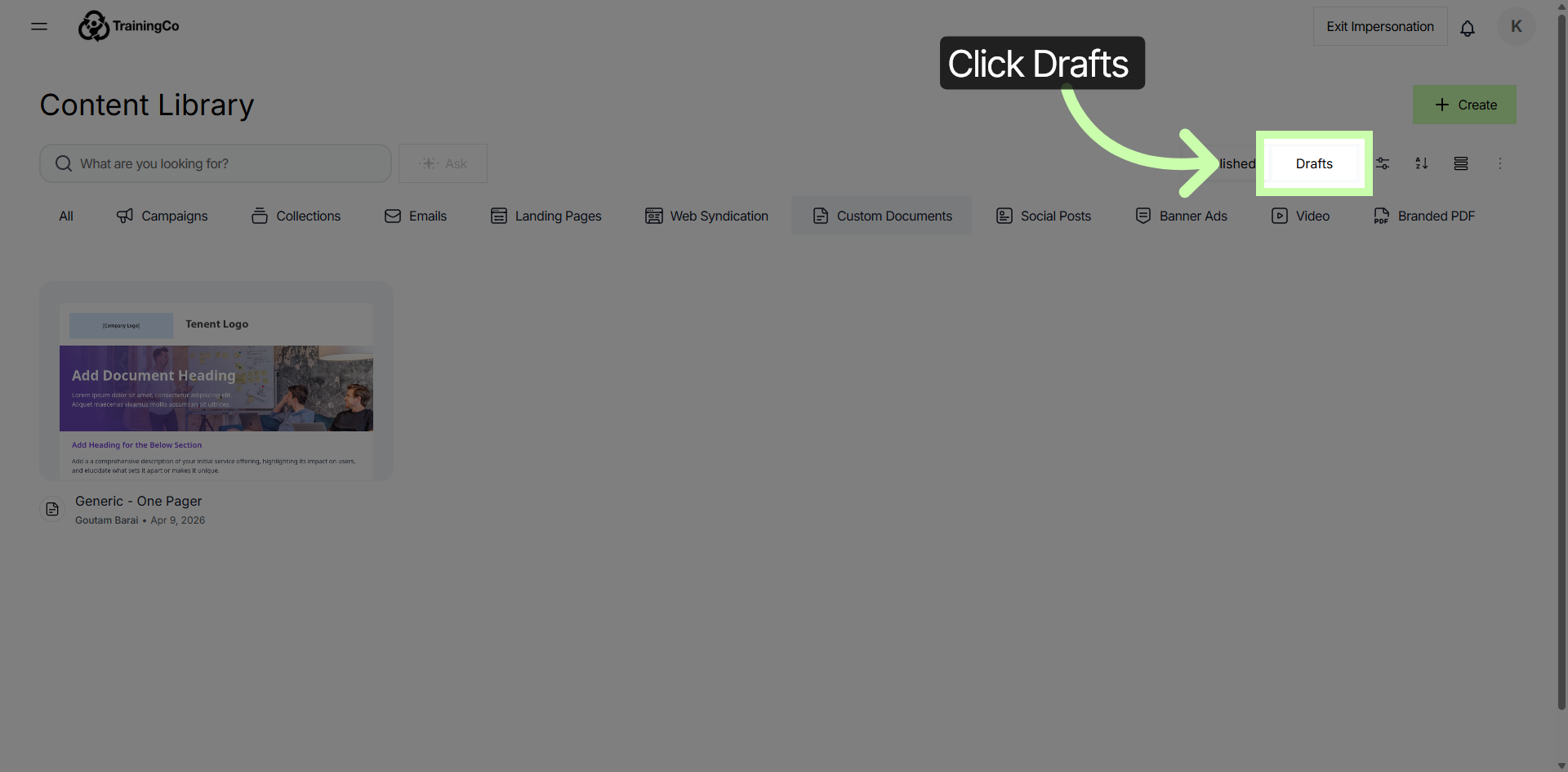
5. View Draft Documents
Click on the Drafts section to view a comprehensive list of all documents that are currently saved in draft status. These documents are awaiting further actions such as completion, duplication, or review. This section allows you to easily manage and keep track of any unfinished work, ensuring that no important document is overlooked before it is finalized or processed further.
6. Open More Options Menu
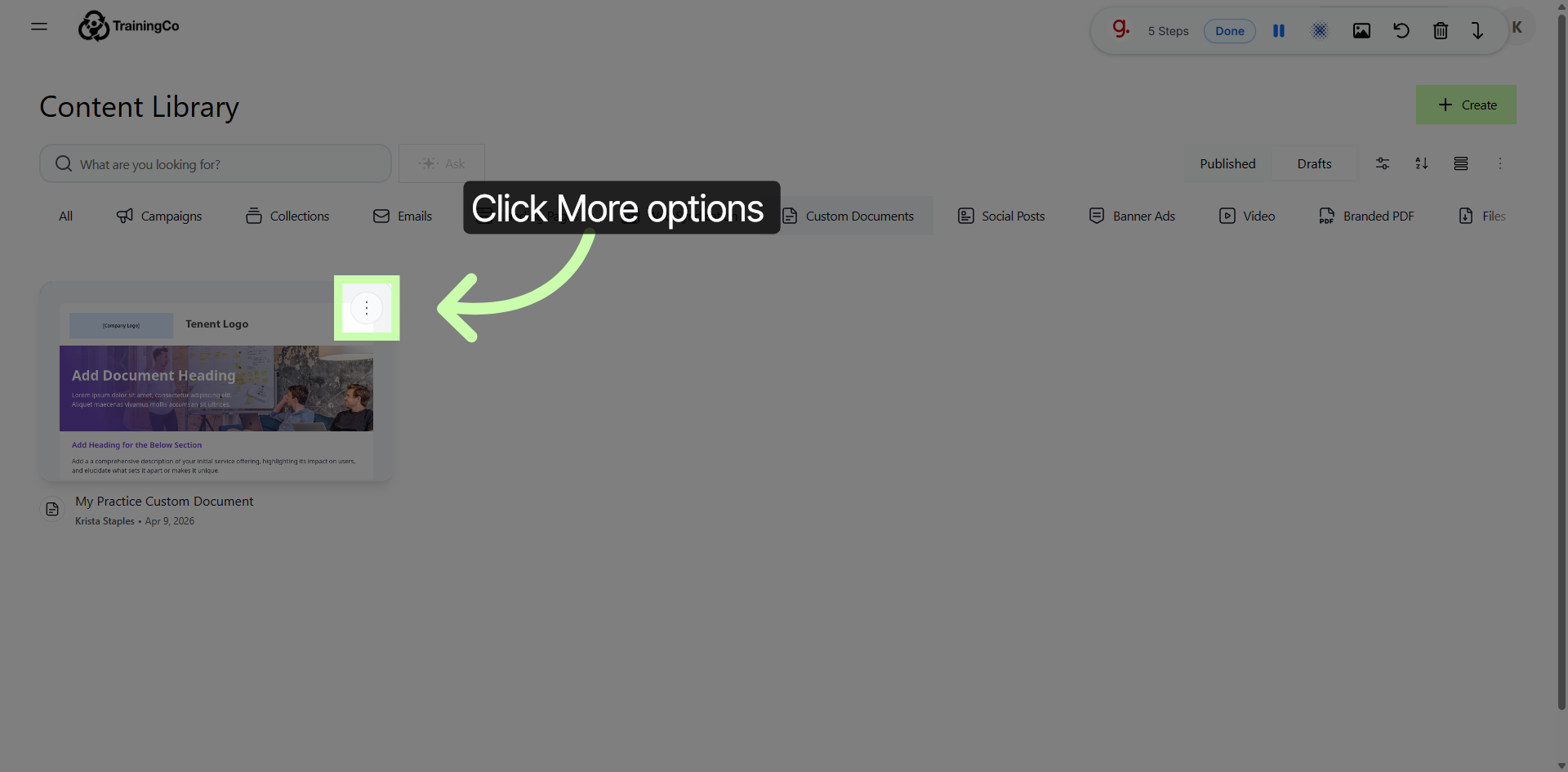
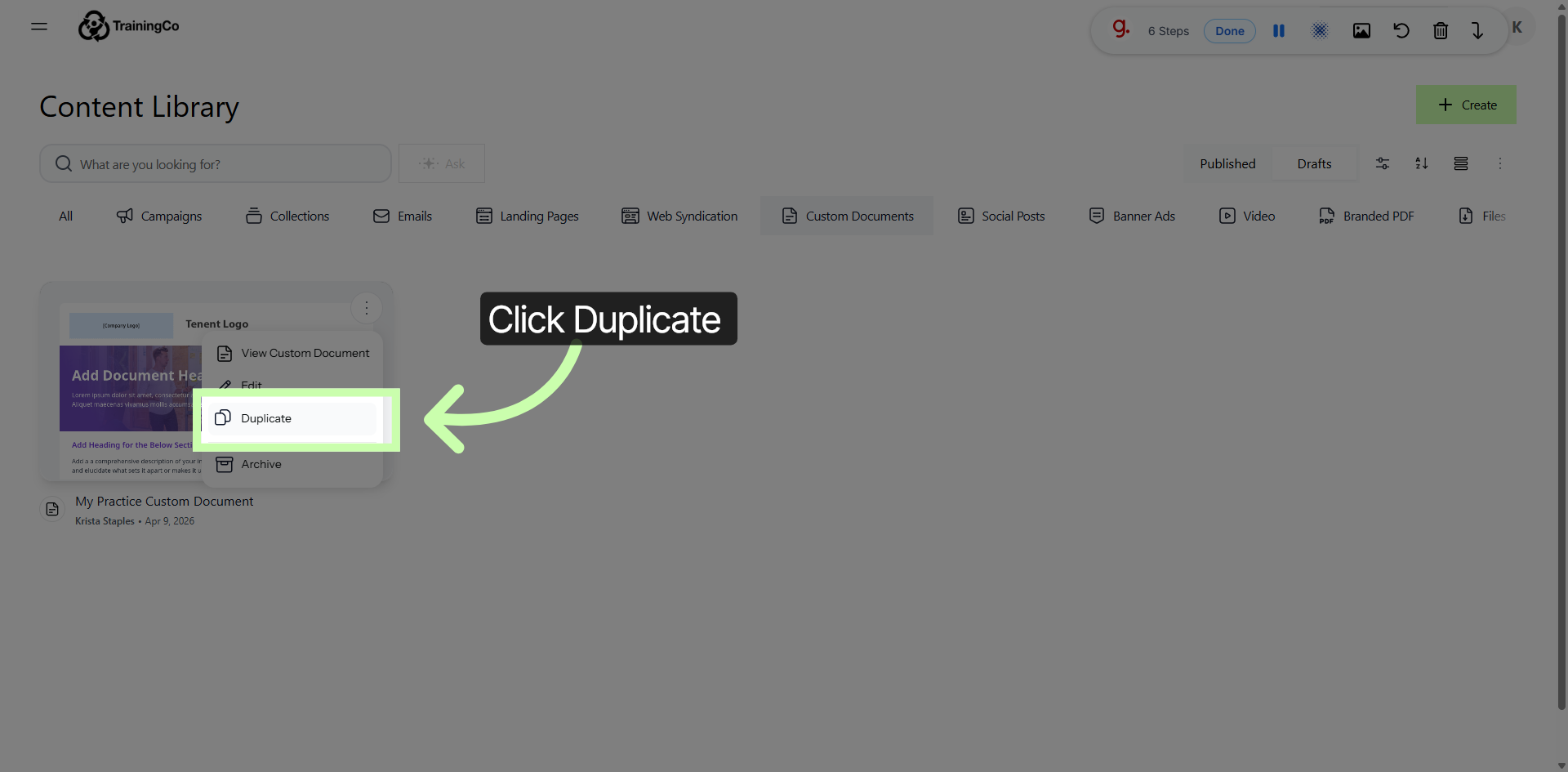
7. Duplicate Selected Document