 Creating Custom Documents - Phase 2: The Drag & Drop Editor
- Navigate the Content Library and access available custom document content.
- Identify custom documents and understand their purpose within the platform.
- Duplicate custom documents for use in campaigns and partner marketing activities.
- Provide partners with professionally branded, multi-page PDF assets such as eBooks, brochures, and guides.
|
Before you begin — open your account This is a hands-on, learning-by-doing session. Open app.structured.ai in your browser and log in to your Tenant Account so you can follow along and apply each step in real time. |
|
Phase 1
Purpose & Framework
|
Start Training ➡ |
|
Phase 2
Drag & Drop Editor
|
Current Phase ✔ |
|
Phase 3
Personalization & Activation
|
Start Training ➡ |
Follow Our Step-By-Step Training
1. Introduction
This training provides a comprehensive guide to help you configure a custom document by using the Structured AI editor. Throughout this step-by-step walkthrough, you will learn how to effectively utilize the features and tools available within the Structured AI editor to tailor your document according to your specific needs.
Whether you are creating a detailed report, a complex data structure, or a personalized template, this guide will assist you in understanding the essential settings and customization options to achieve the desired outcome with ease and precision.
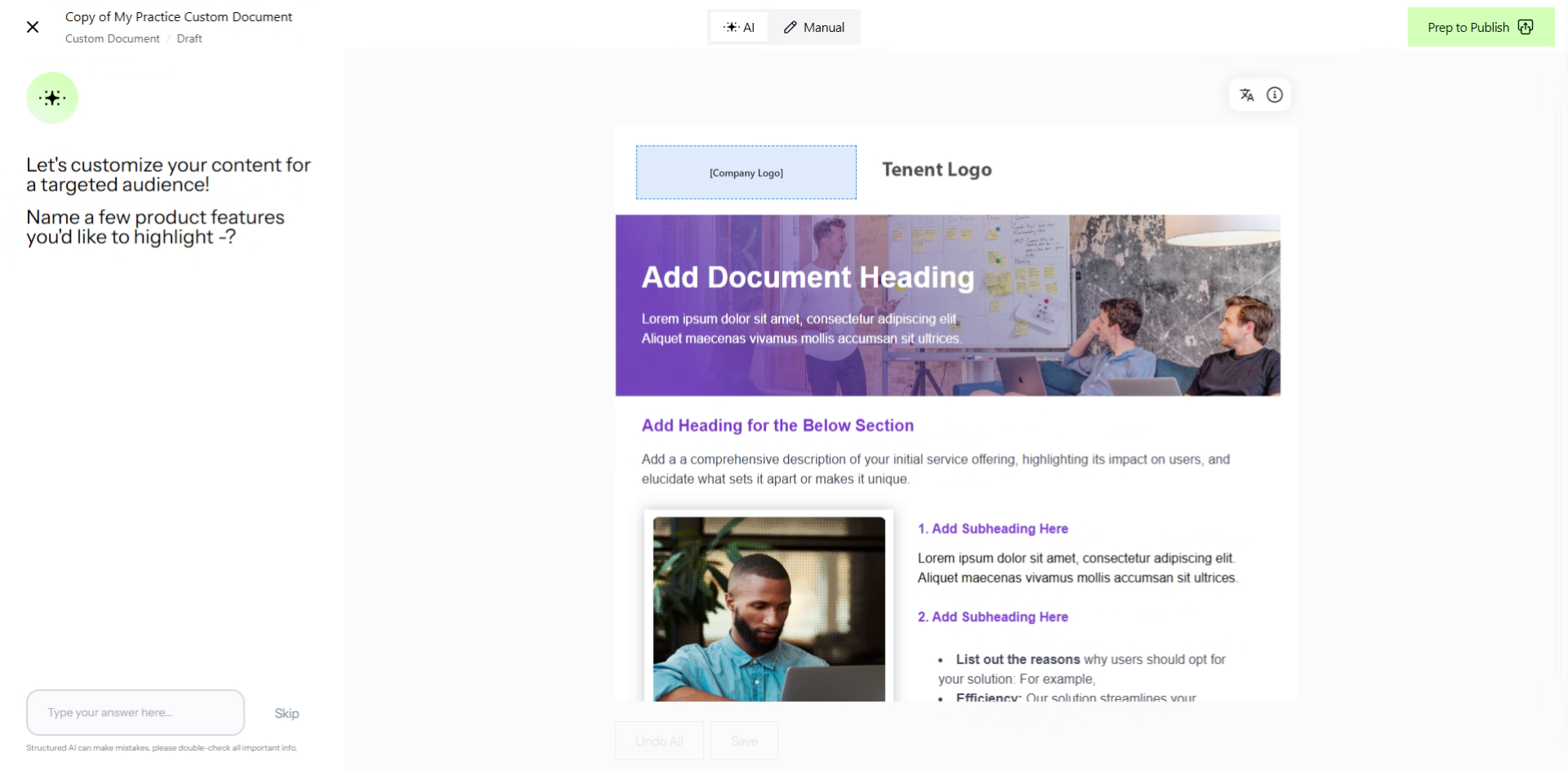
2. Access Manual Document Mode
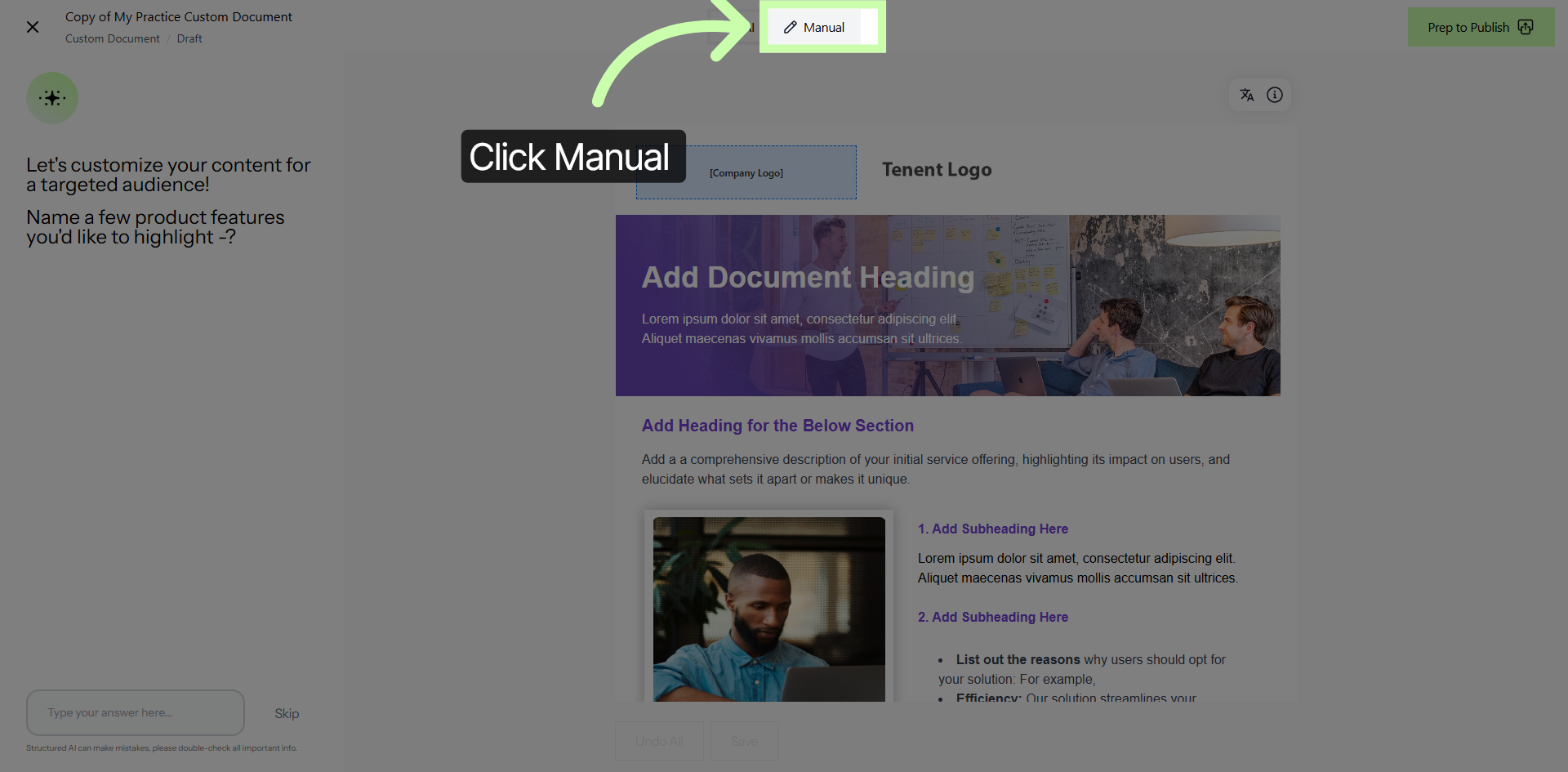
3. Naming Your Custom Document
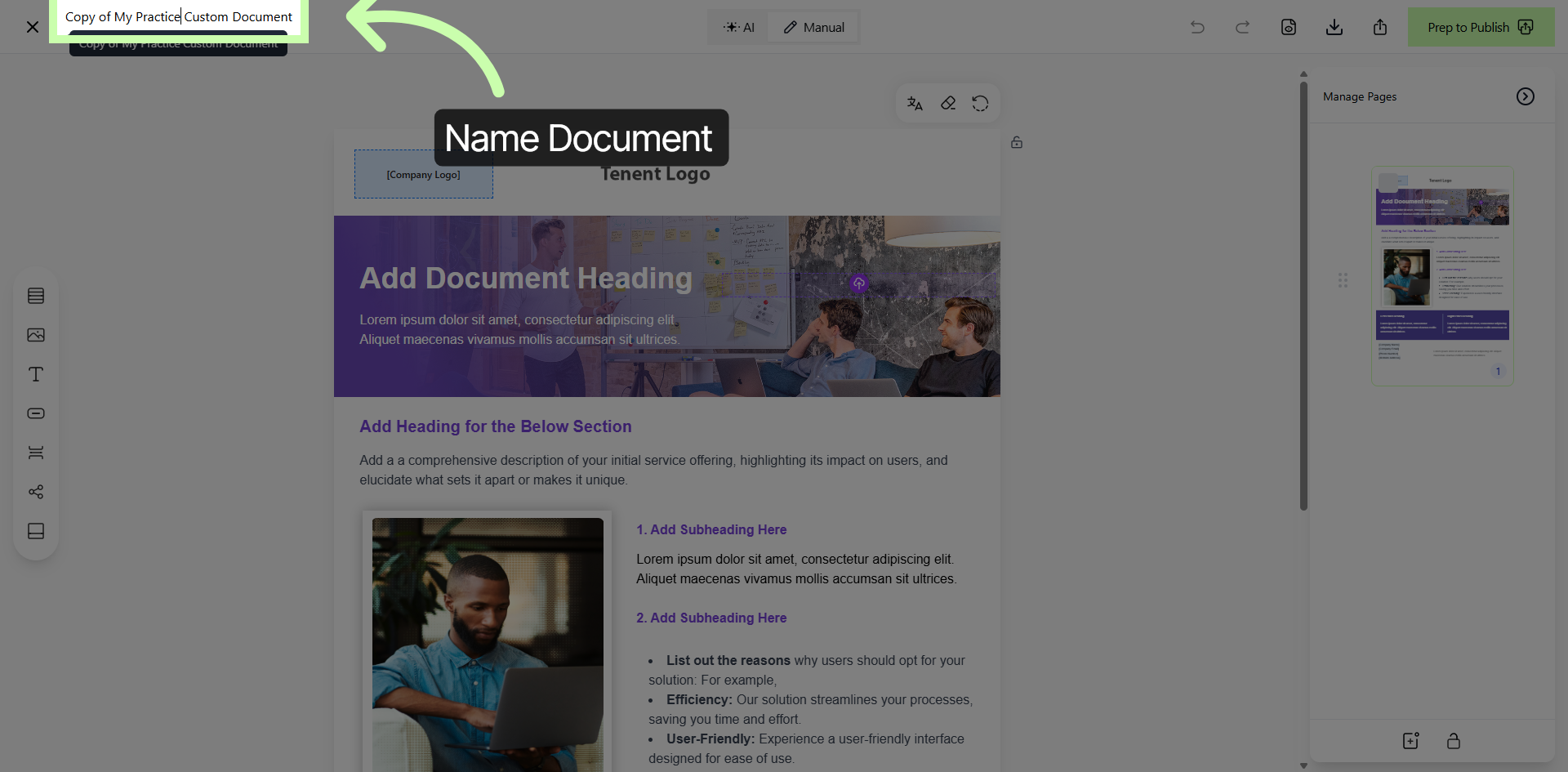
4. Update Document Heading
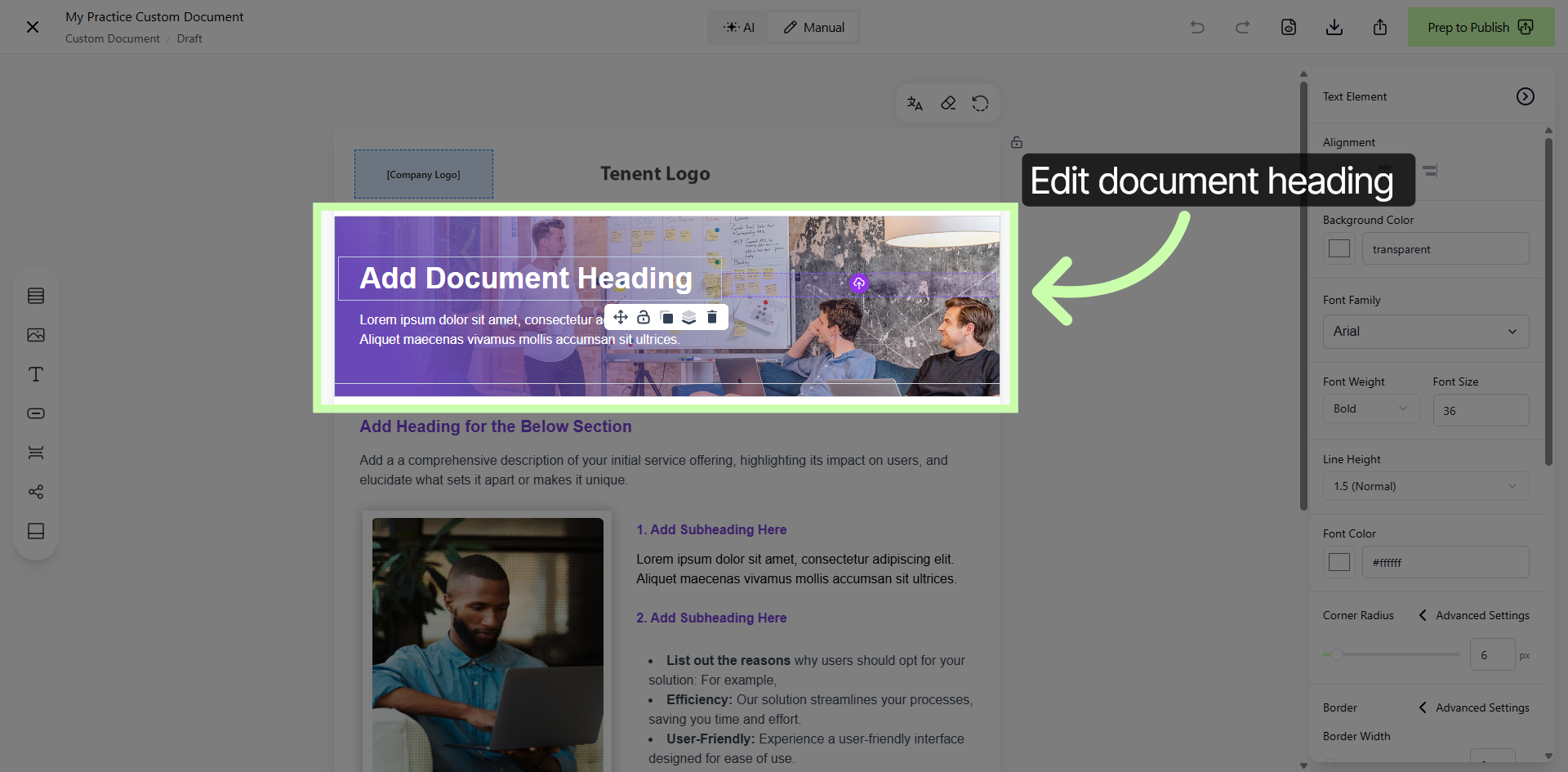
5. Focus on Parent Section
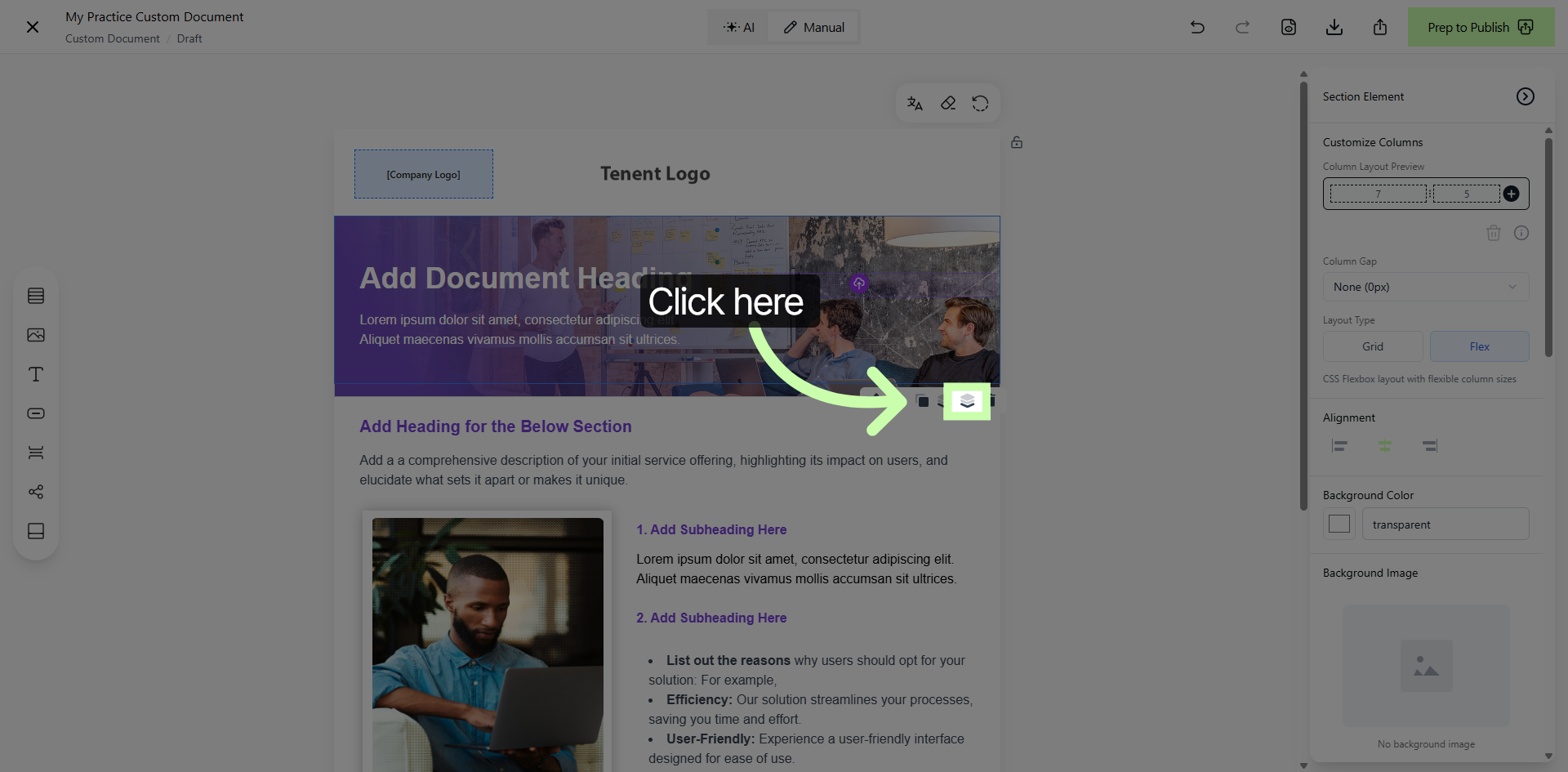
6. Open Column Customization
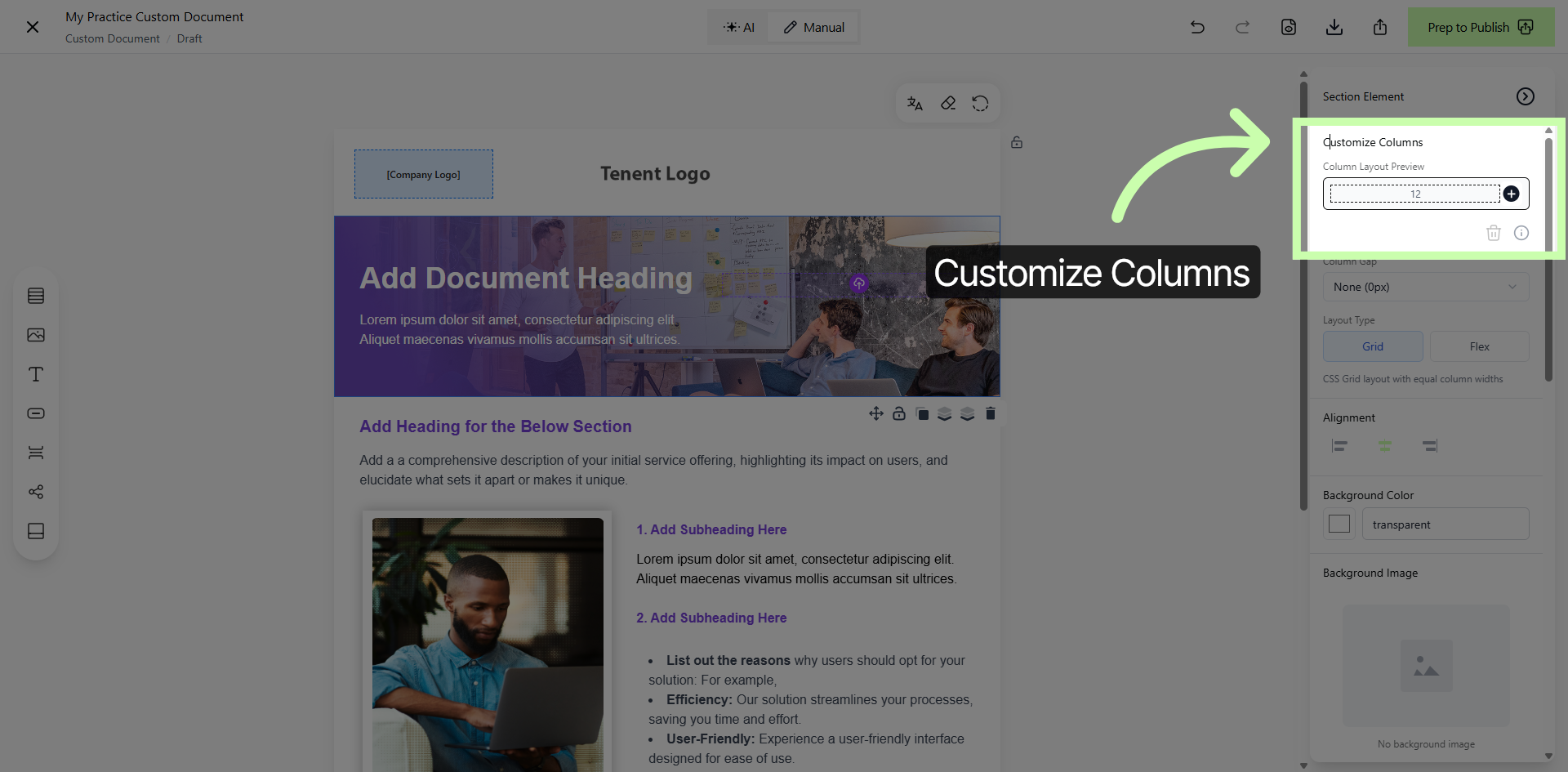
7. Access Drag & Drop Elements Area
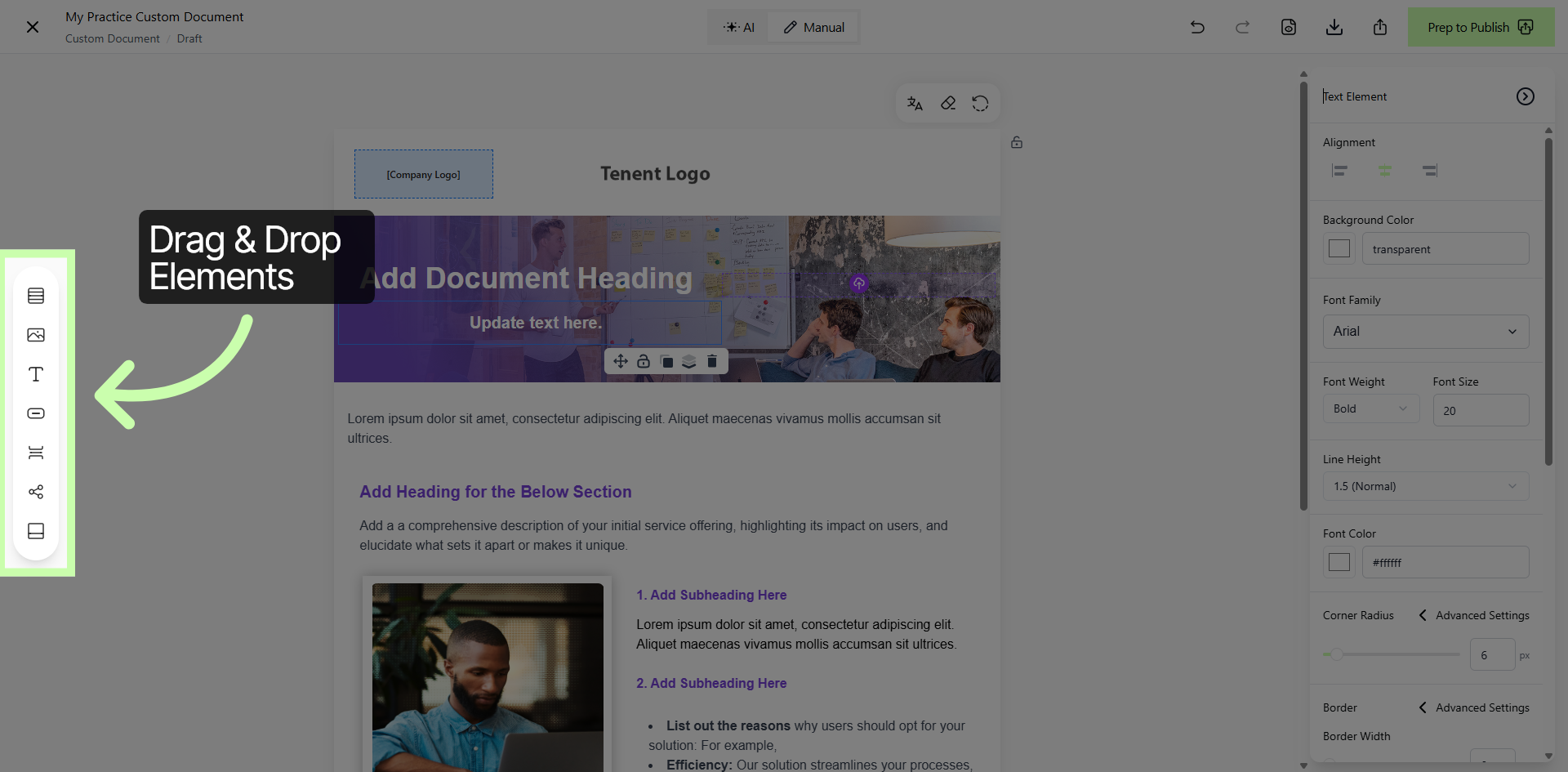
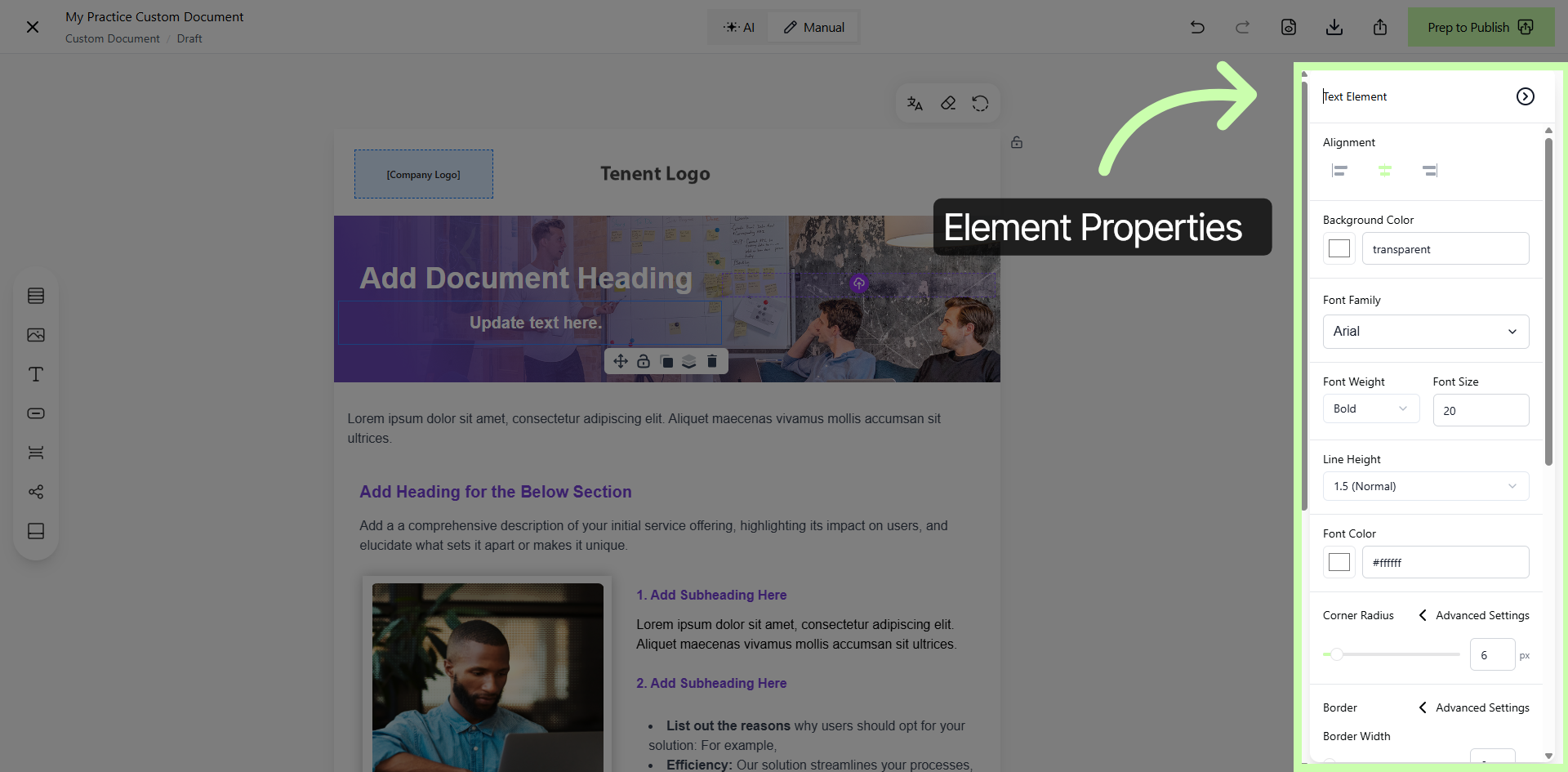
8. Open Properties Panel
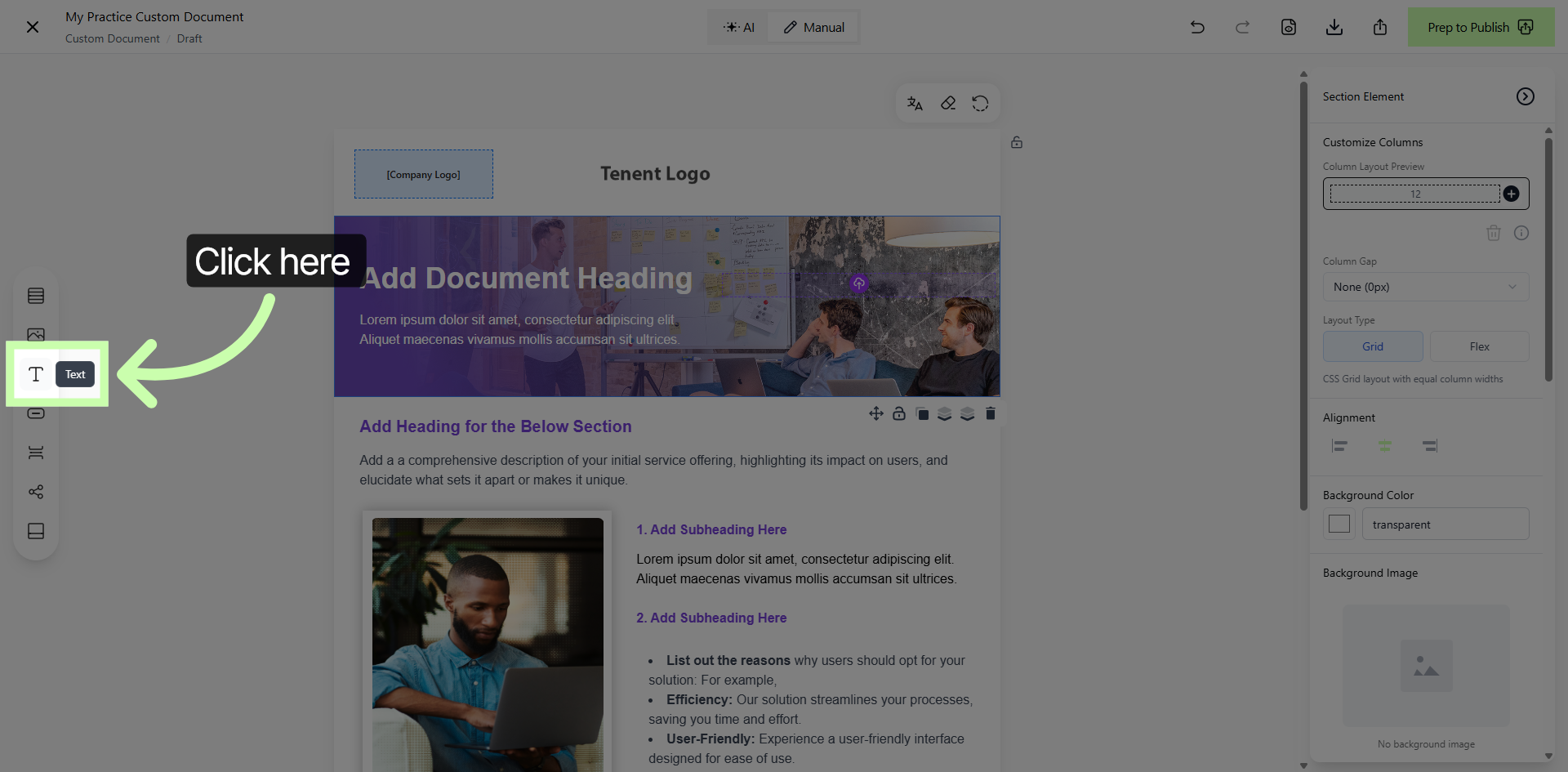
9. Add Additional Elements
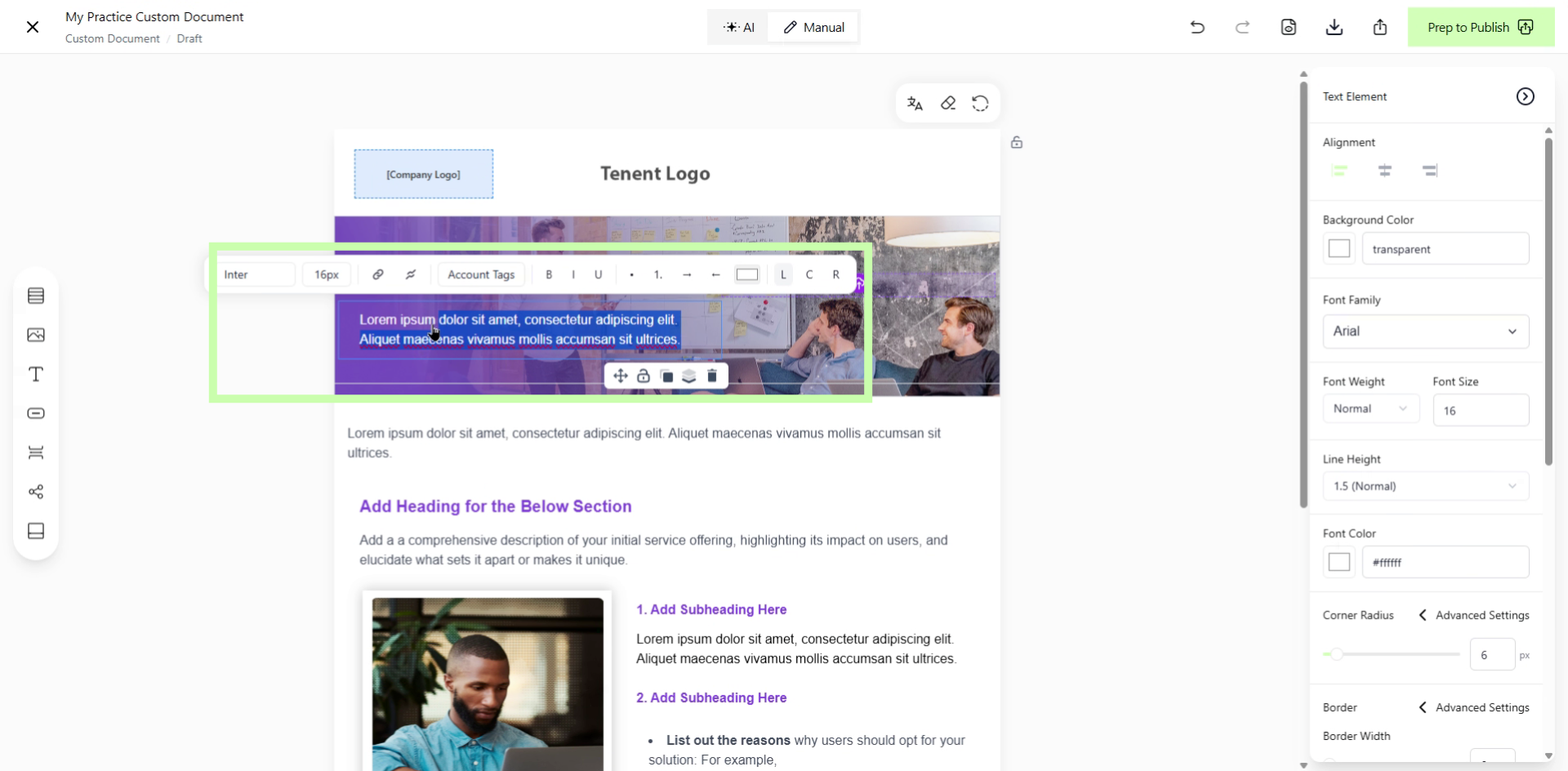
10. Update Text Content
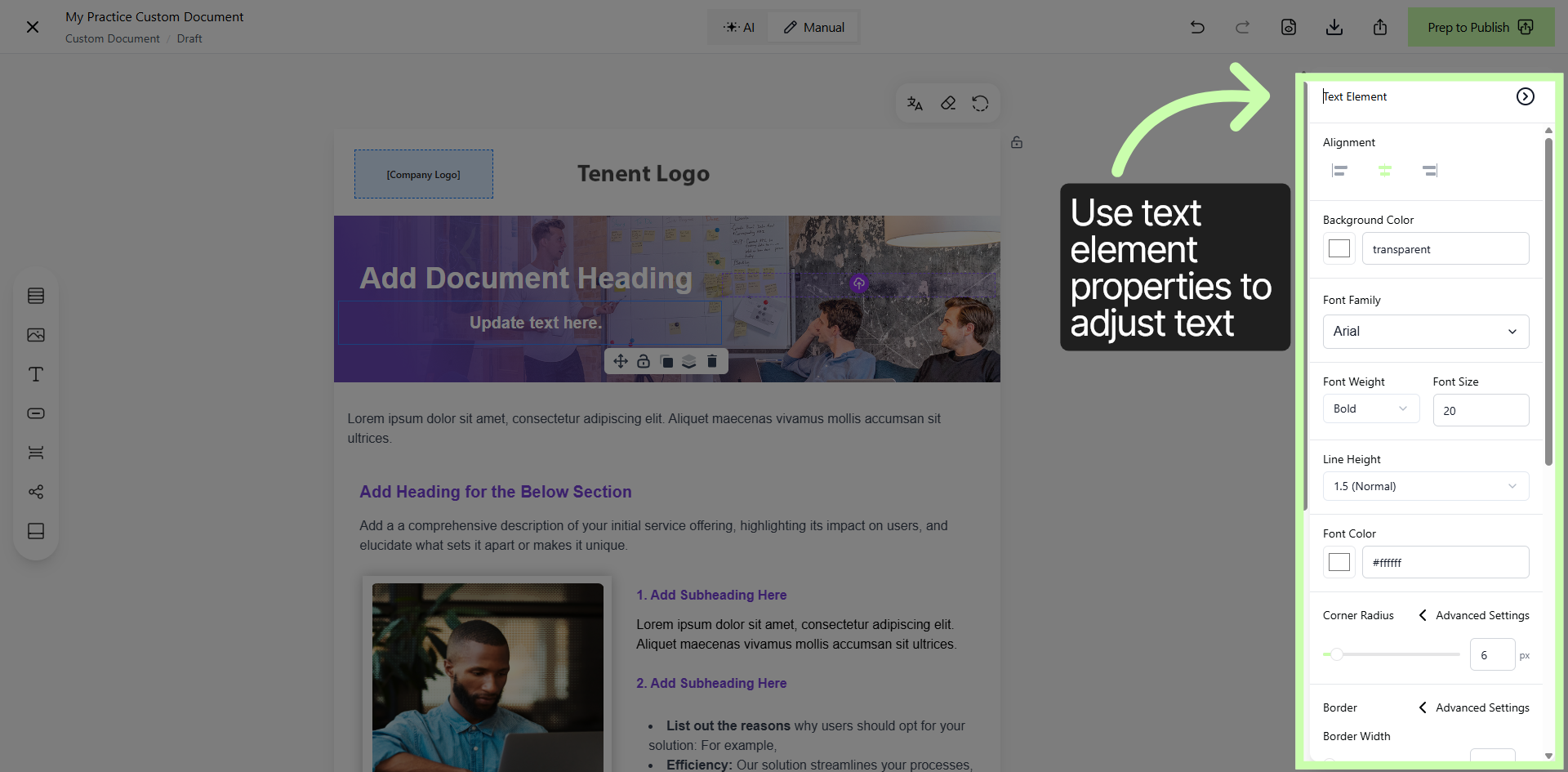
11. Text Element Properties Panel
12. Add Additional Pages
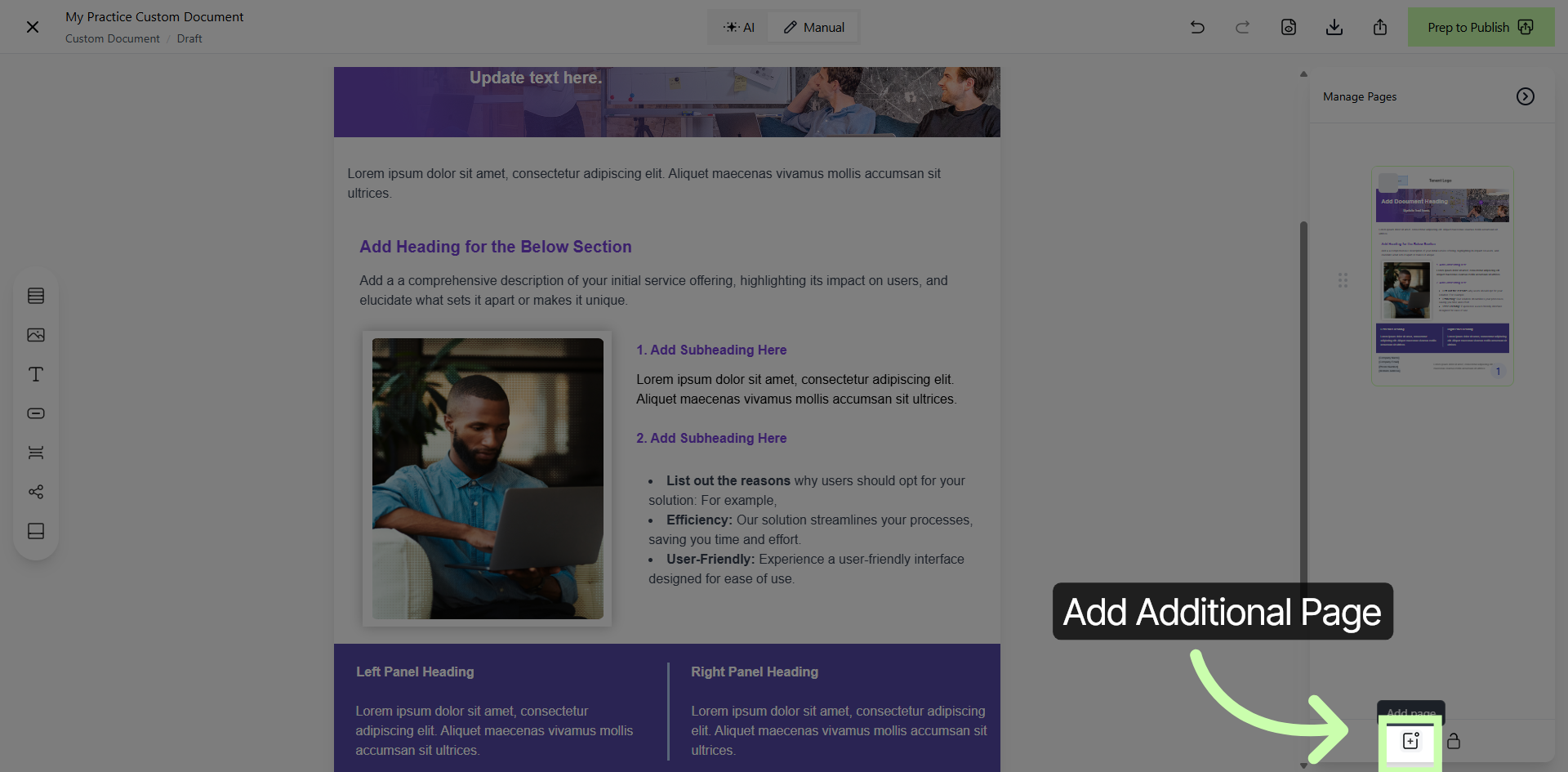
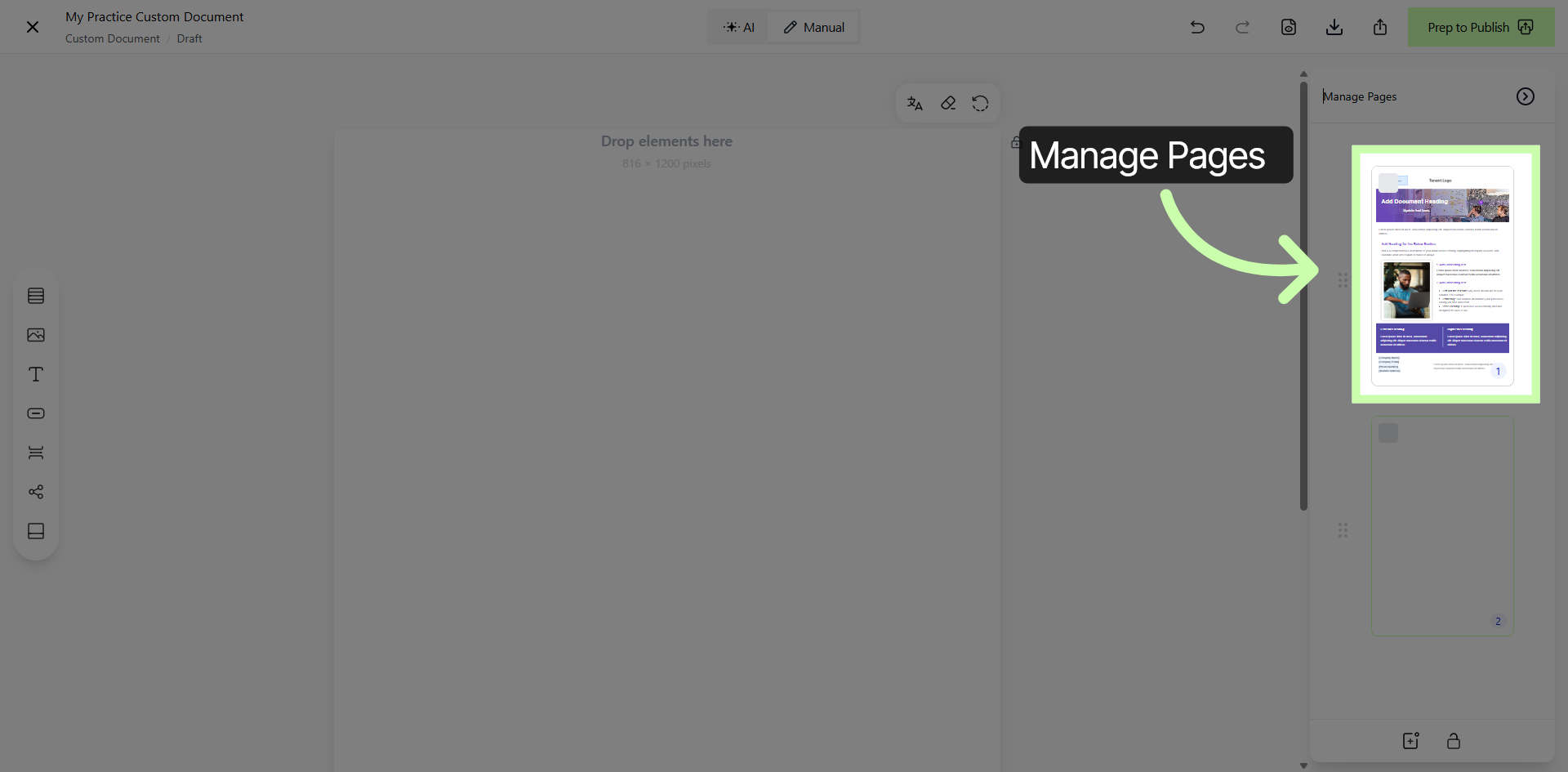
13. Selecting Pages to Edit
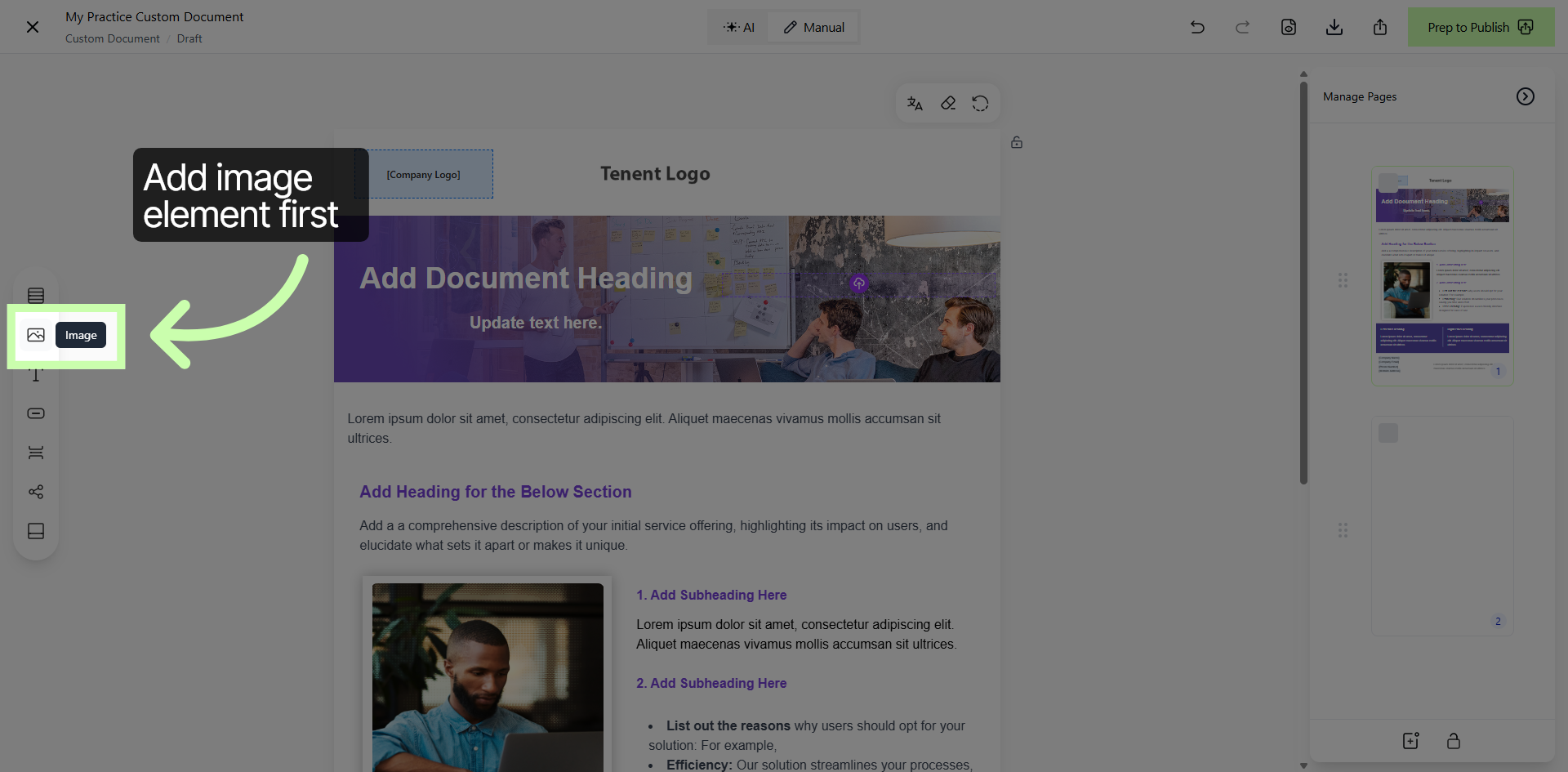
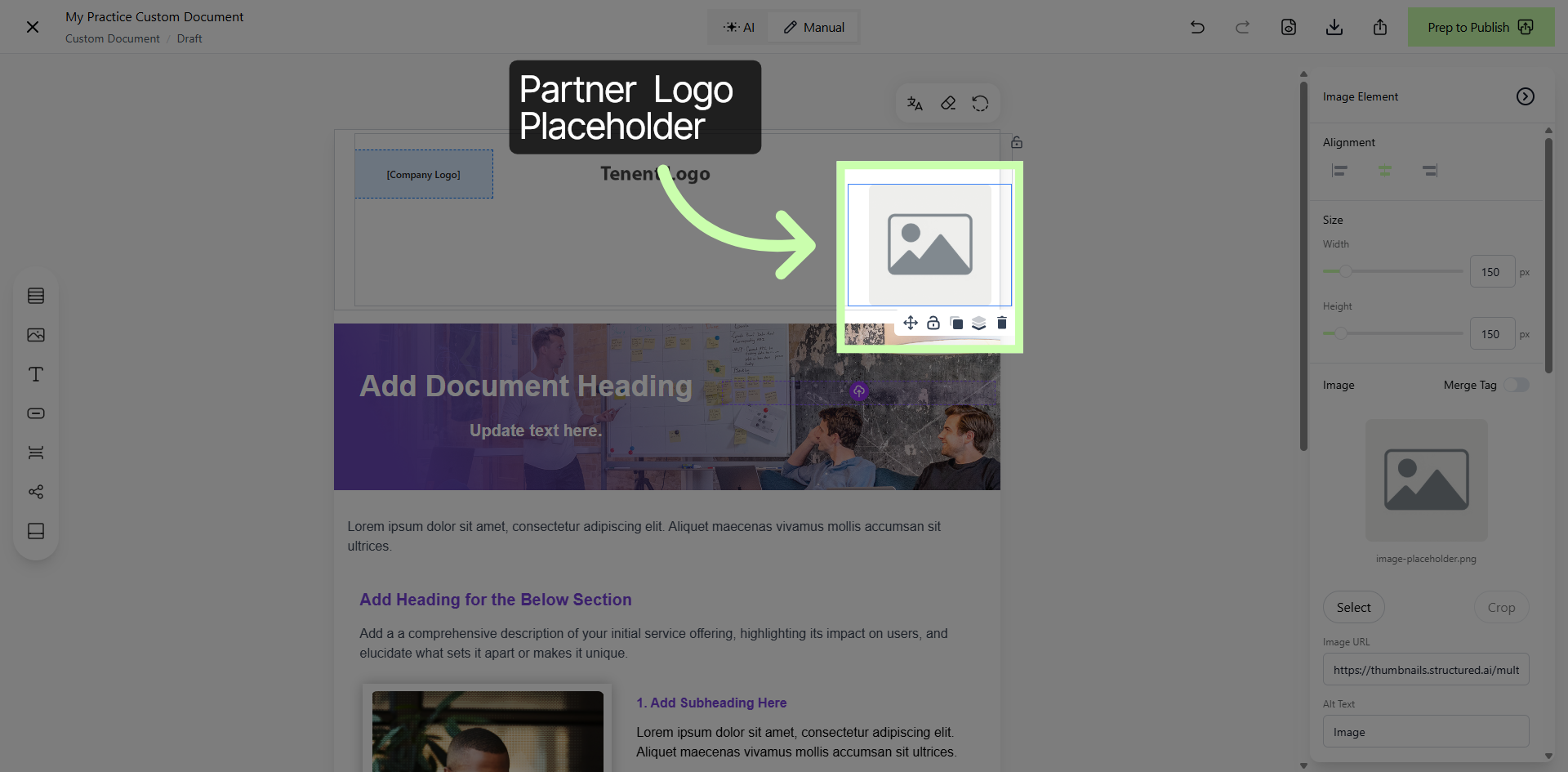
14. Partner Tag Placeholder
15. Image Element Acts as a Placeholder
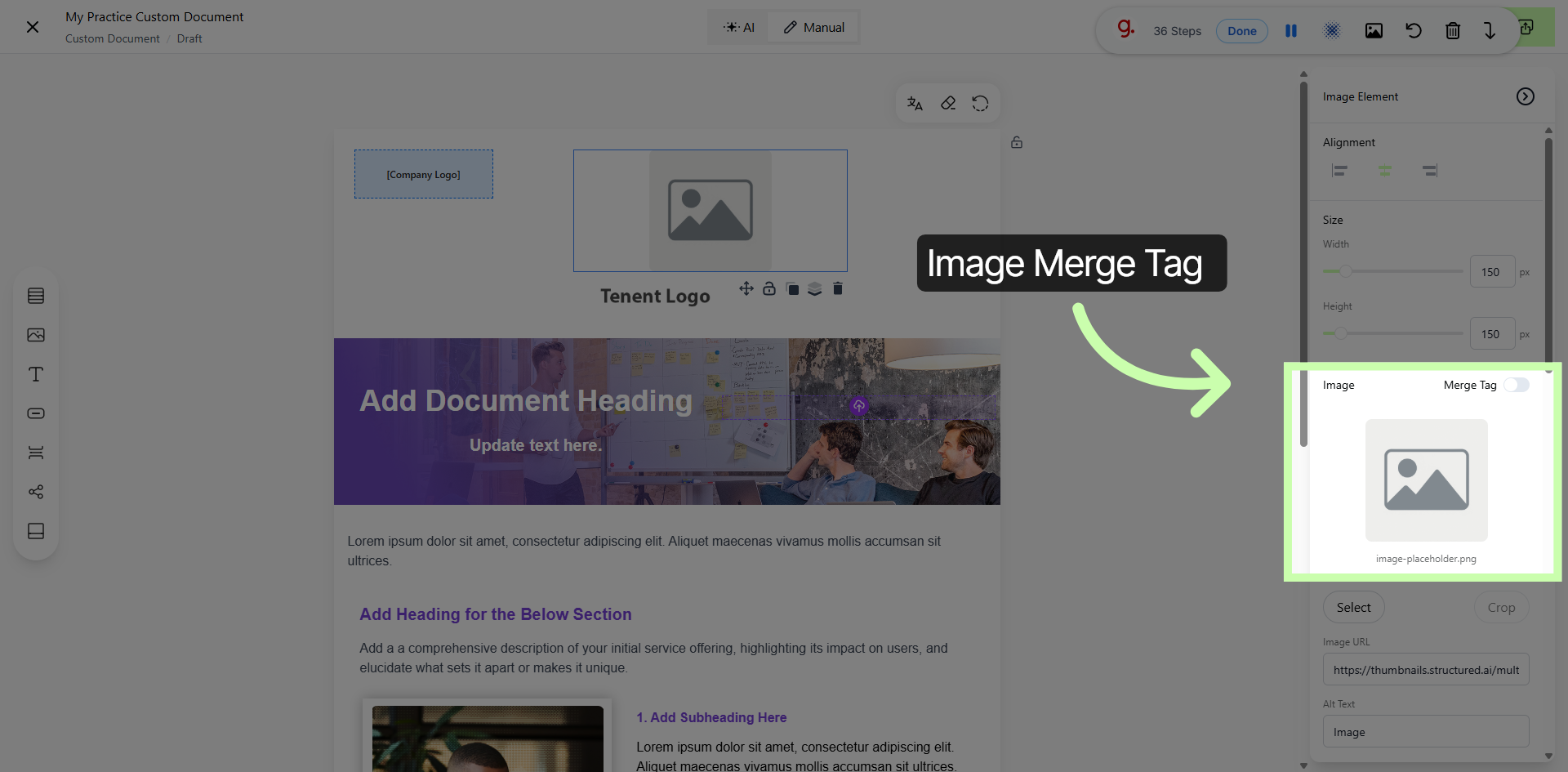
16. Open Image Merge Tag Settings
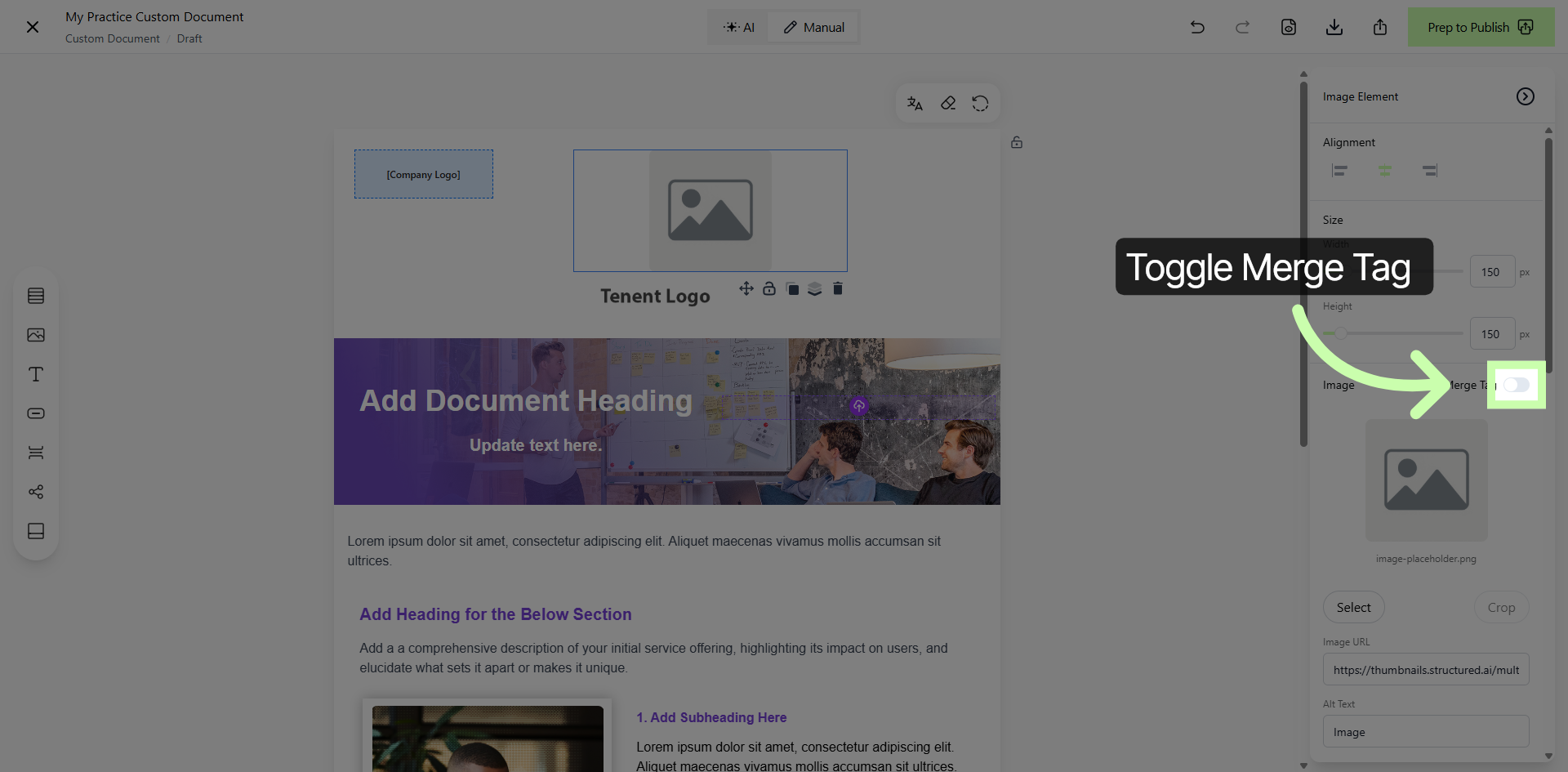
17. Toggle Merge Tag
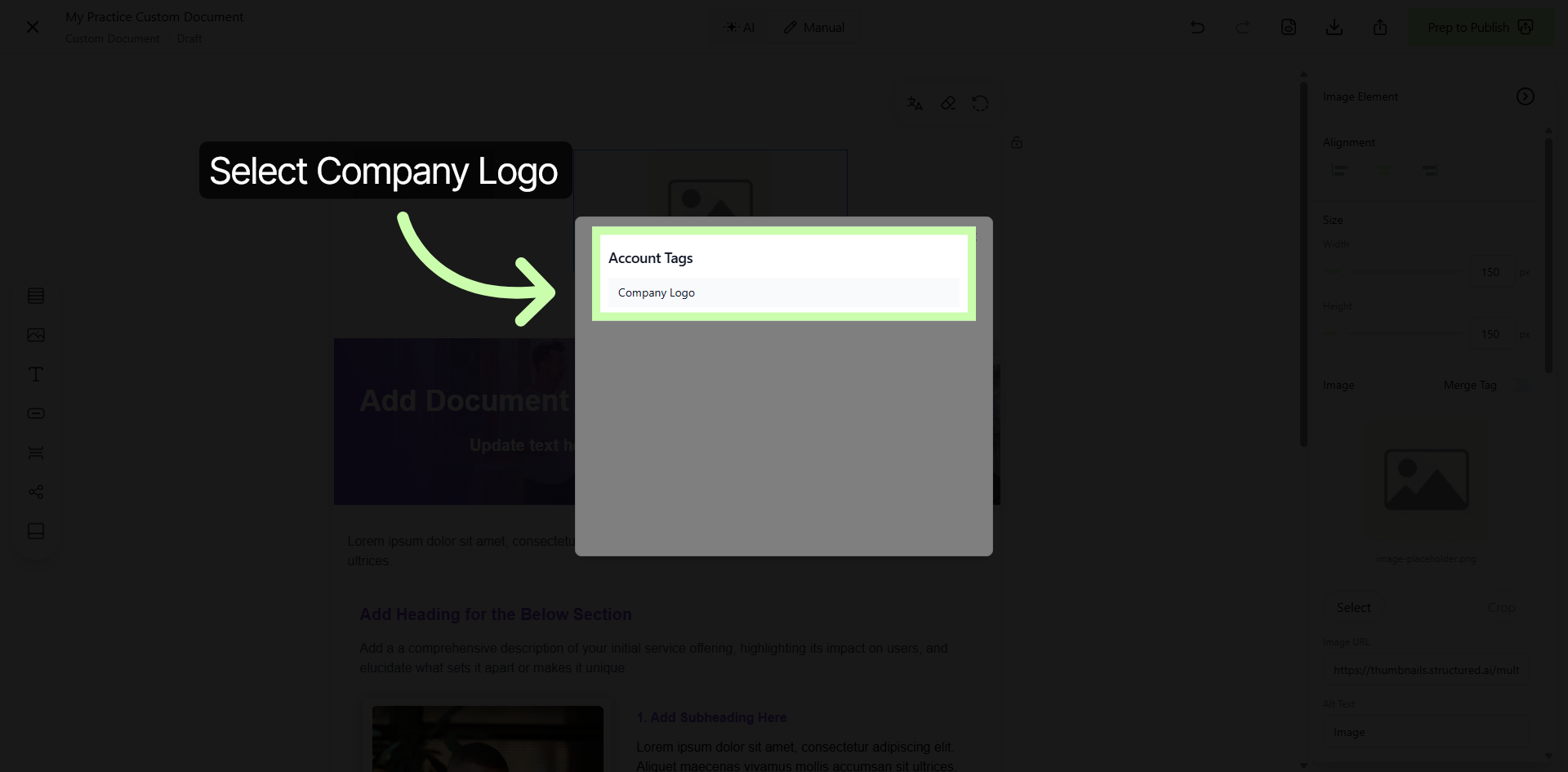
18. Select Company Logo Tag
19. Select Translation