
 Managing Users - Phase 3: Suspending Users
Estimated Time
~15 minutes
Current Phase
Phase 3 of 3
What You'll Accomplish
- How to suspend users within Structured AI.
- The impact of user suspension on access and platform permissions.
- When and why user suspension should be applied.
|
Before you begin — open your account This is a hands-on, learning-by-doing session. Open app.structured.ai in your browser and log in to your Tenant Account so you can follow along and apply each step in real time. |
Direct Links to the Next Phases in this Training Series
This module is part of a 3-part series. Each session builds on the
last, and reviewing them in order ensures you don't miss any critical
steps and get a complete understanding of the workflow.
|
Phase 1
Purpose & Framework
|
Start Training ➡ |
|
Phase 2
Adding New Users
|
Start Training ➡ |
|
Phase 3
Suspending Users
|
Current Phase ✔ |
Follow Our Step-By-Step Training
1. Introduction
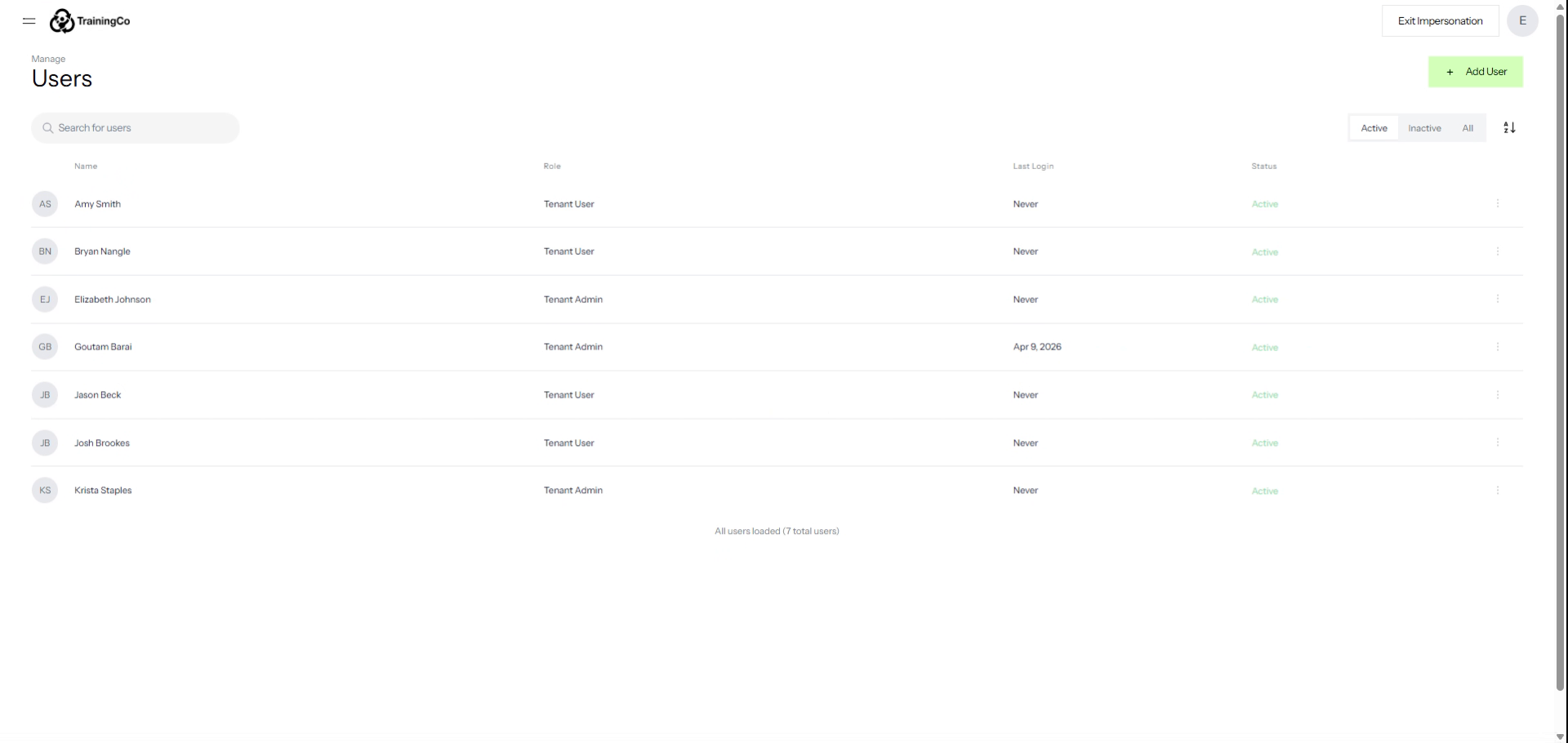
As your firm evolves, you can manage your active user list at any time. The dashboard provides a clear overview of all current users and their last login activity.
2. Open User Options Menu
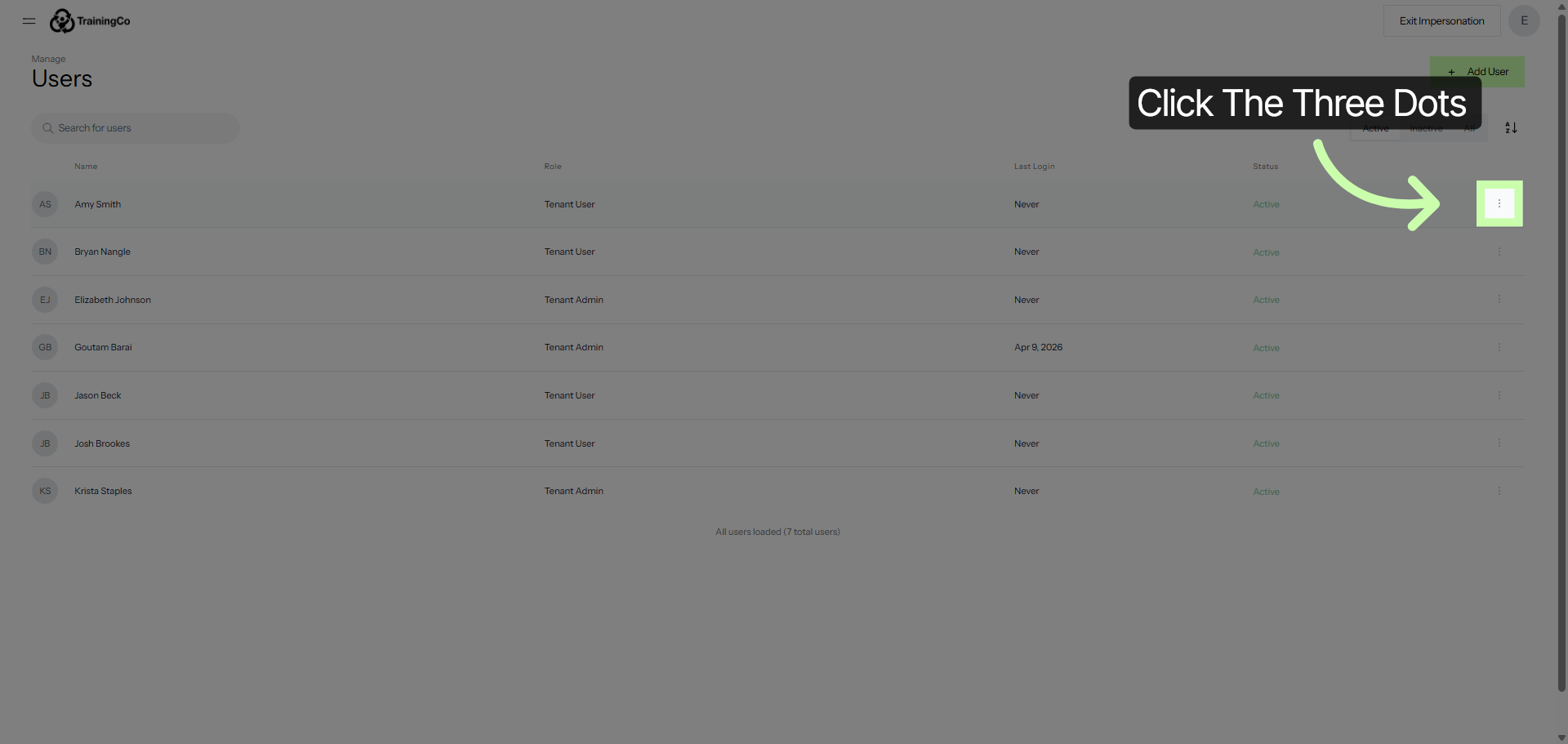
If a team member leaves the firm or no longer requires access, click the three dots to view options.
3. Initiate User Suspension
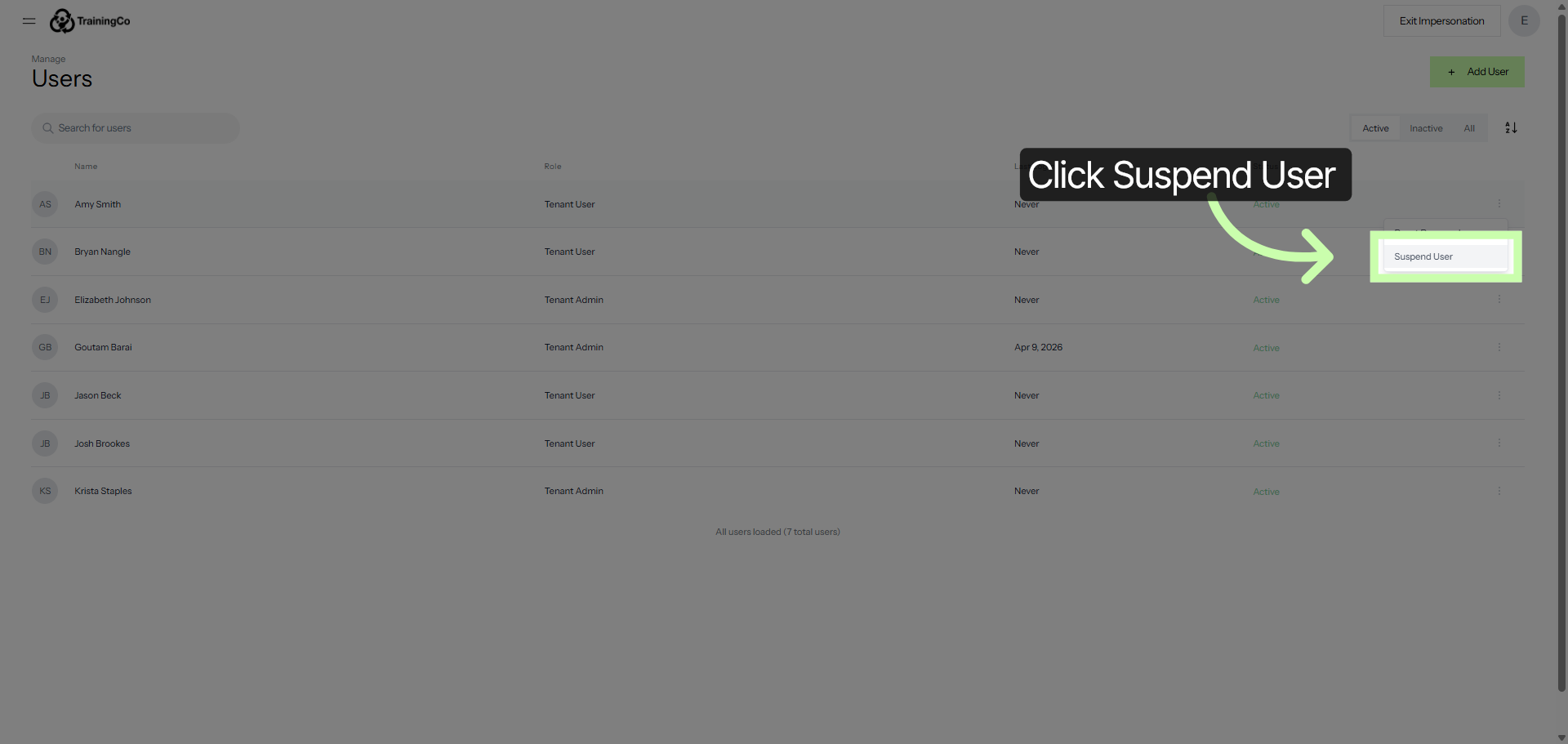
Click Suspend User.
4. Confirm User Suspension
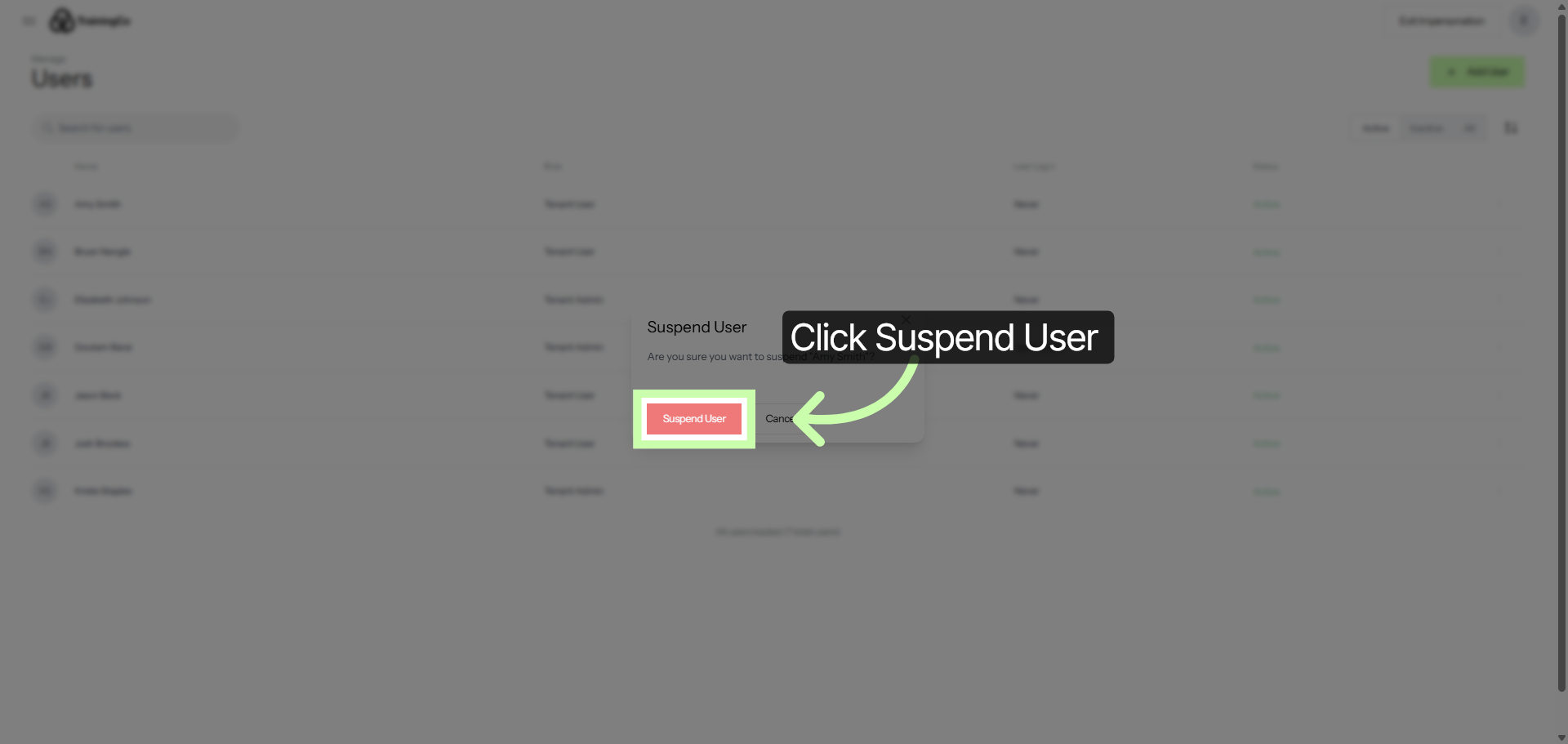
Click Suspend User again to confirm and apply the suspension to the user's account.
5. Set User Status to Inactive
Click Inactive to view suspended users.
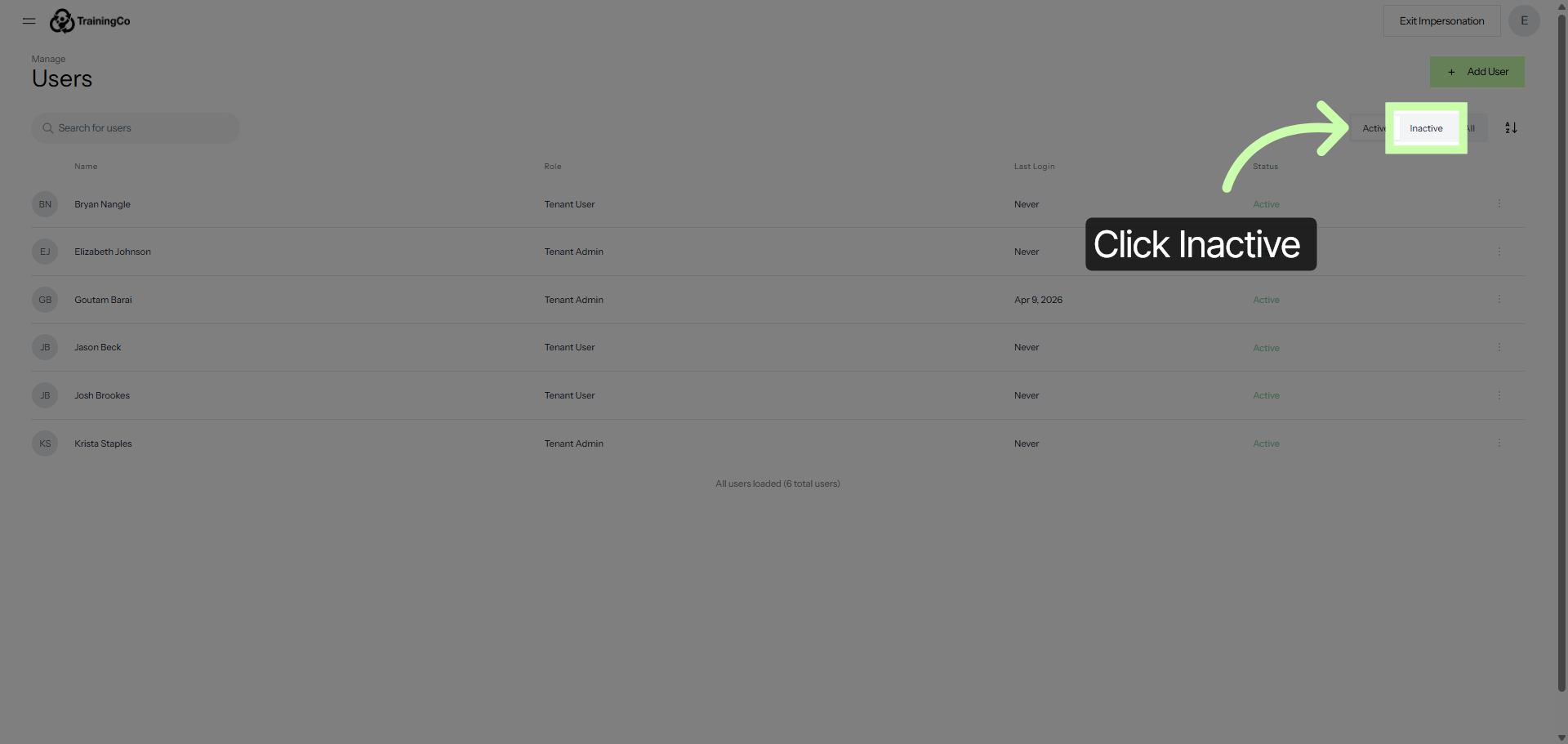
You have successfully suspended the user. This means that the user's account has been temporarily deactivated or restricted, preventing them from accessing their account or using the associated services.
Please note that the suspension can be lifted or extended depending on the circumstances and the policies in place.