
Estimated Time
~15 minutes
What You'll Accomplish
- This tutorial guides you through working with individual leads.
|
Before you begin — open your account This is a hands-on, learning-by-doing session. Open app.structured.ai in your browser and log in to your Account so you can follow along and apply each step in real time. |
 Follow Our Step-By-Step Training
1. Introduction
The Leads tab is your primary workspace, the engine behind your daily outreach.
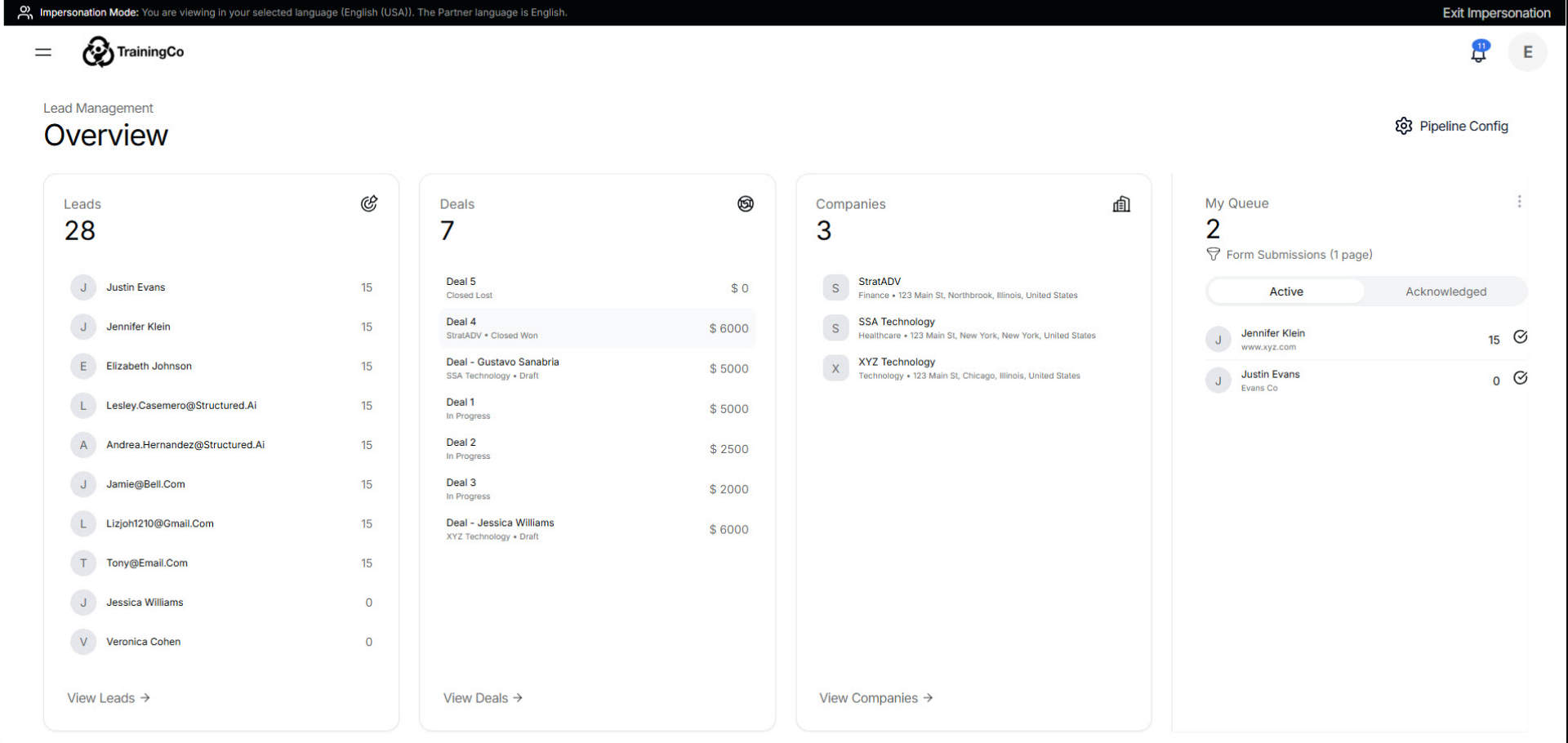
2. Access Lead Management Dashboard
To access your leads dashboard, click View Leads.
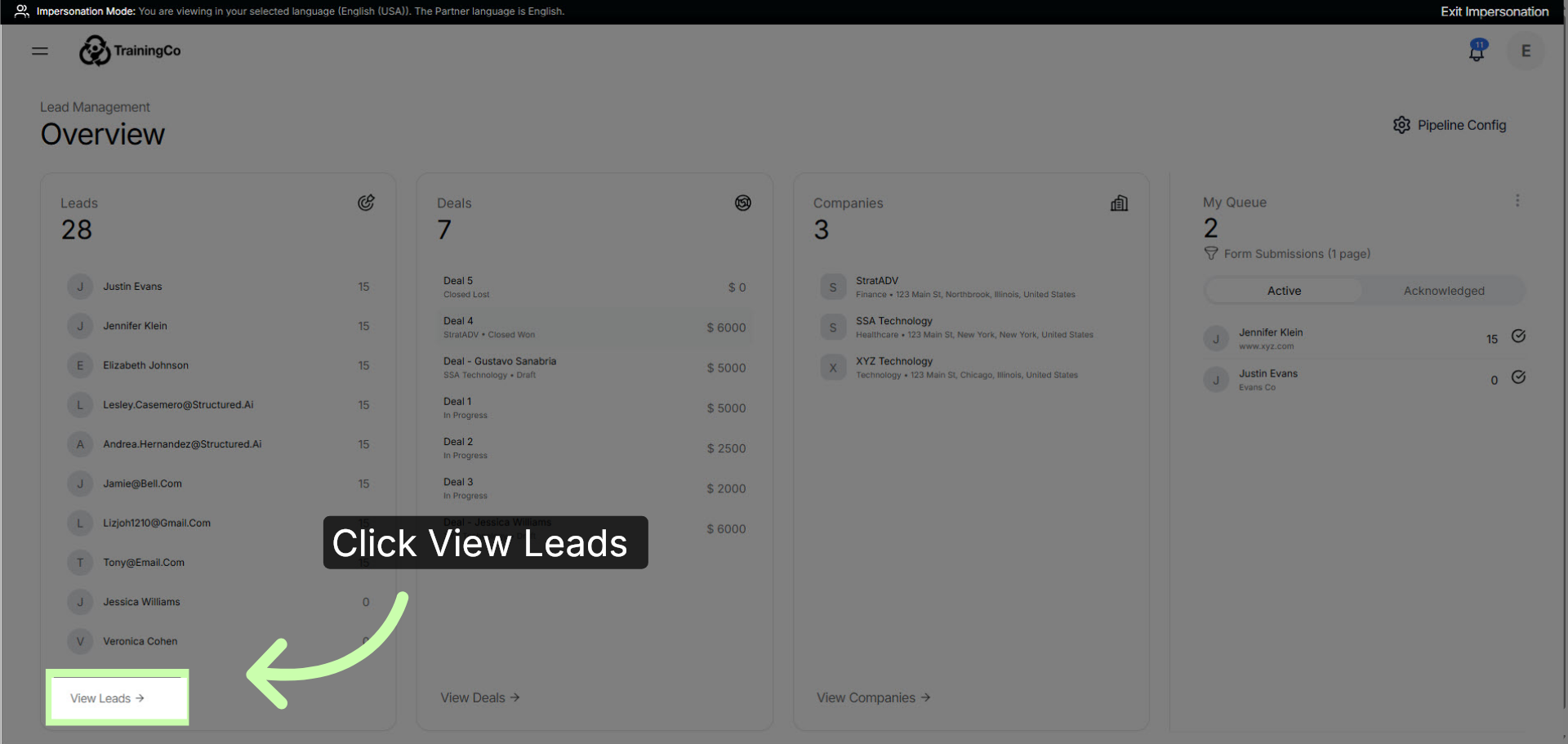
3. Review Lead Stages
At the top, you’ll find lead stages that summarize your pipeline health at a glance.
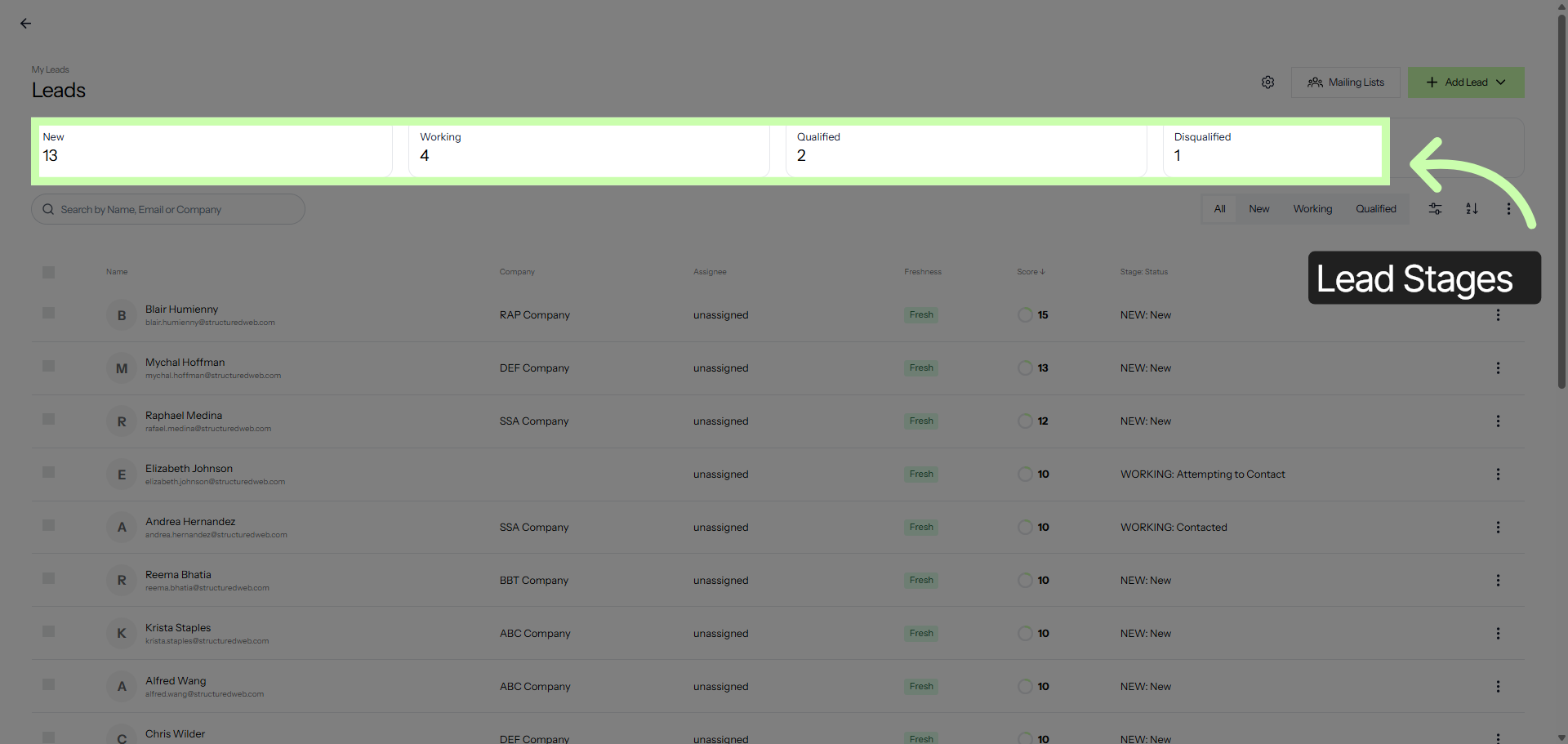
4. Review Leads Table
The table view lets you easily explore, filter, and analyze your leads from multiple angles.
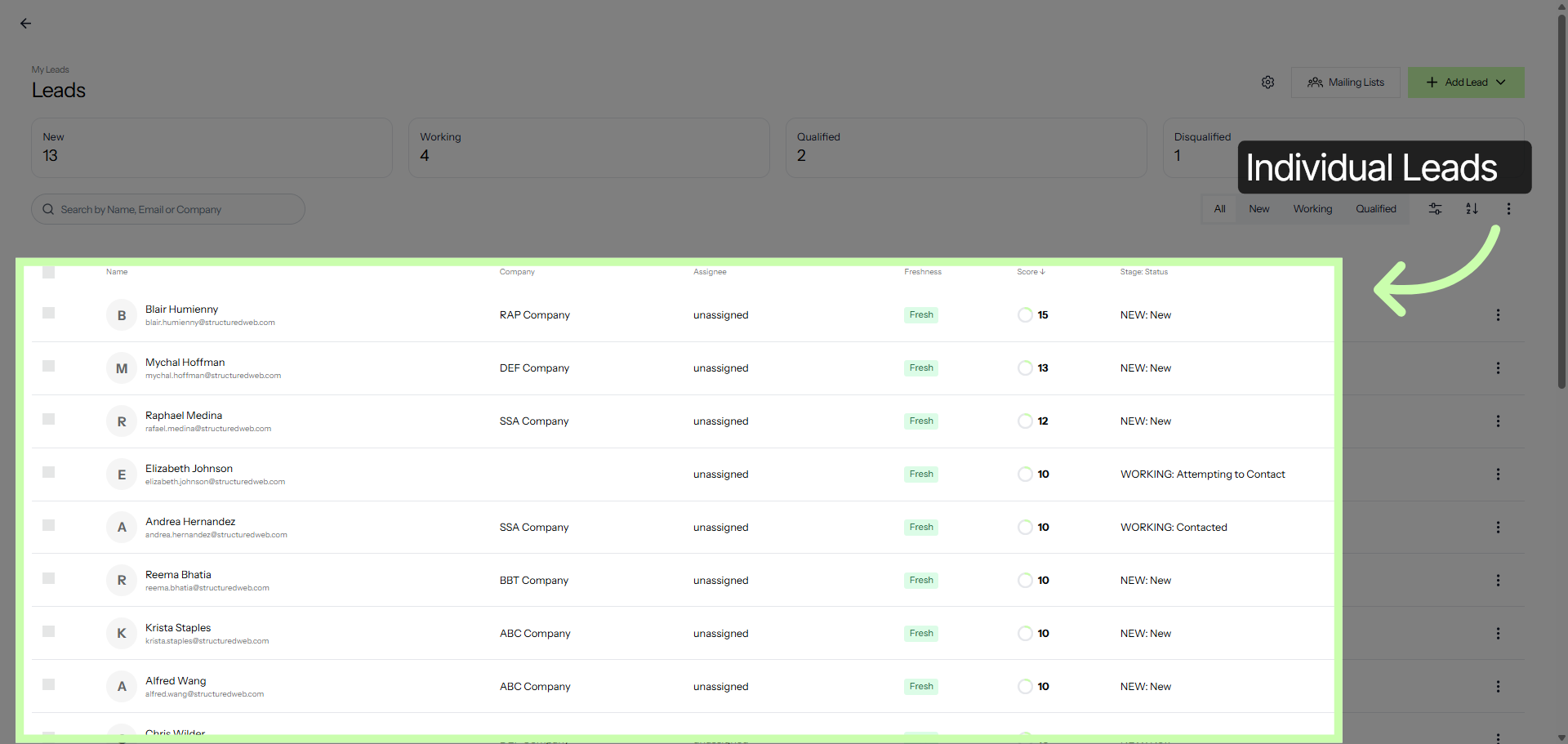
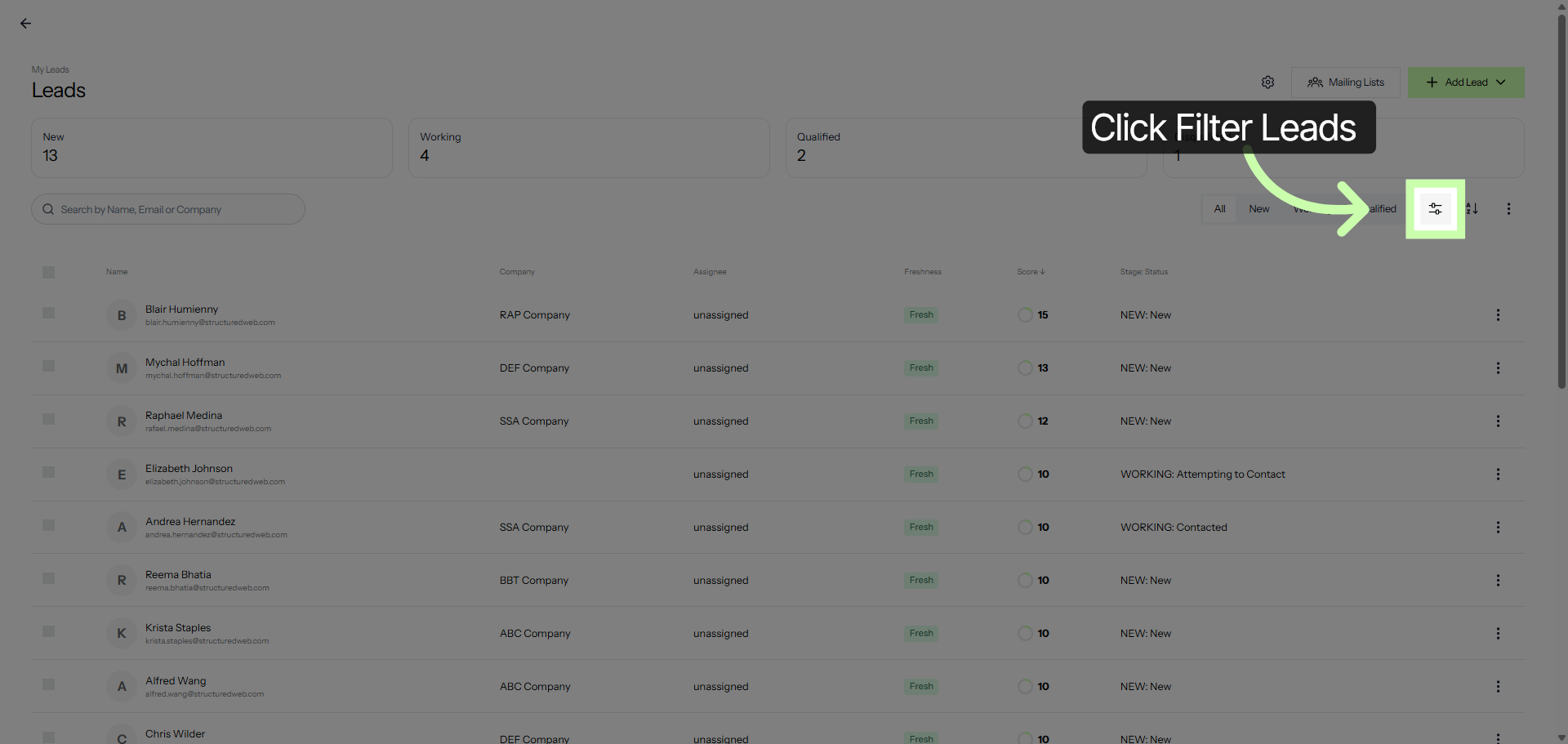
5. Open Lead Filters
Click the Filter Leads button to open the filter.
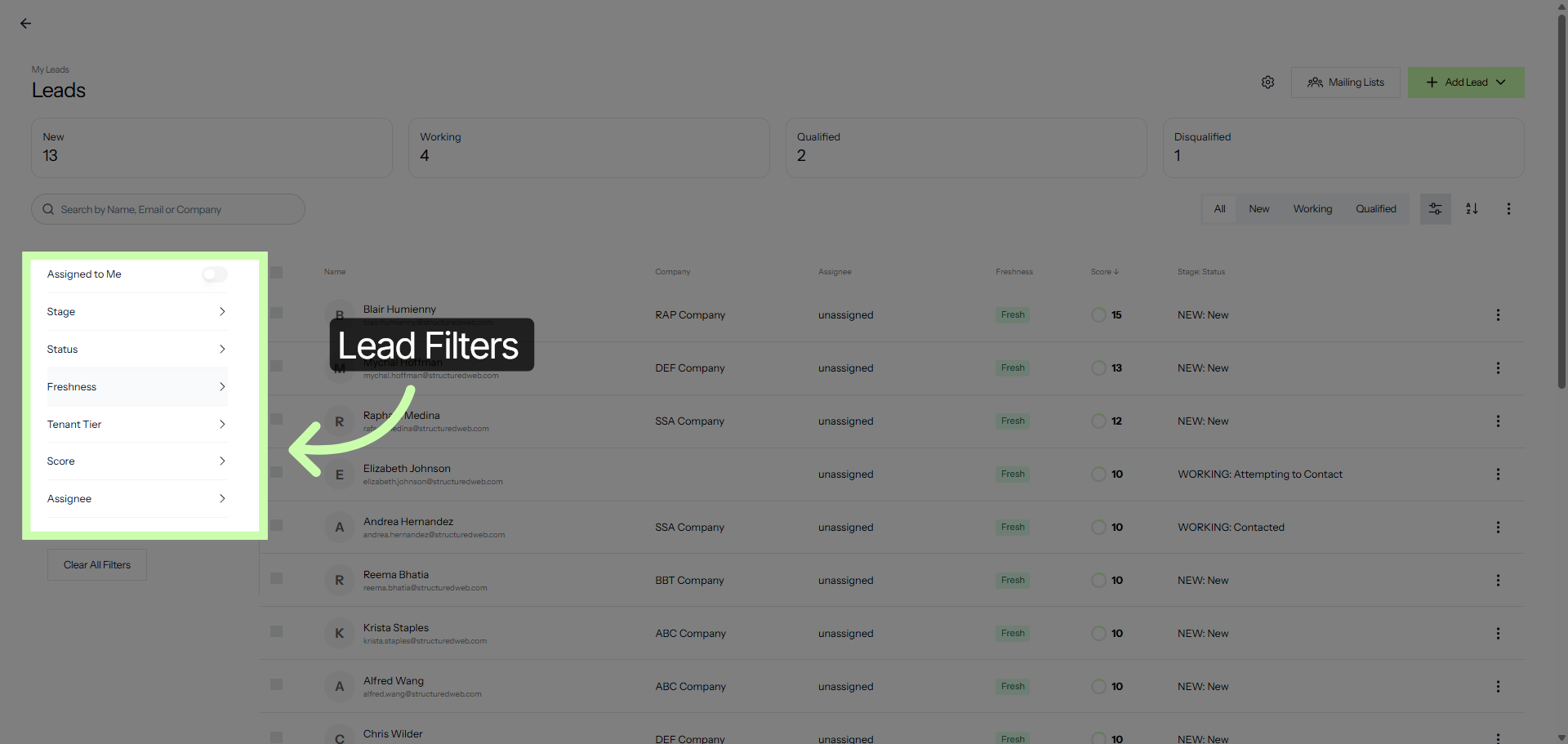
6. Access Filter Options
Use filters to find leads by status, score, or freshness.
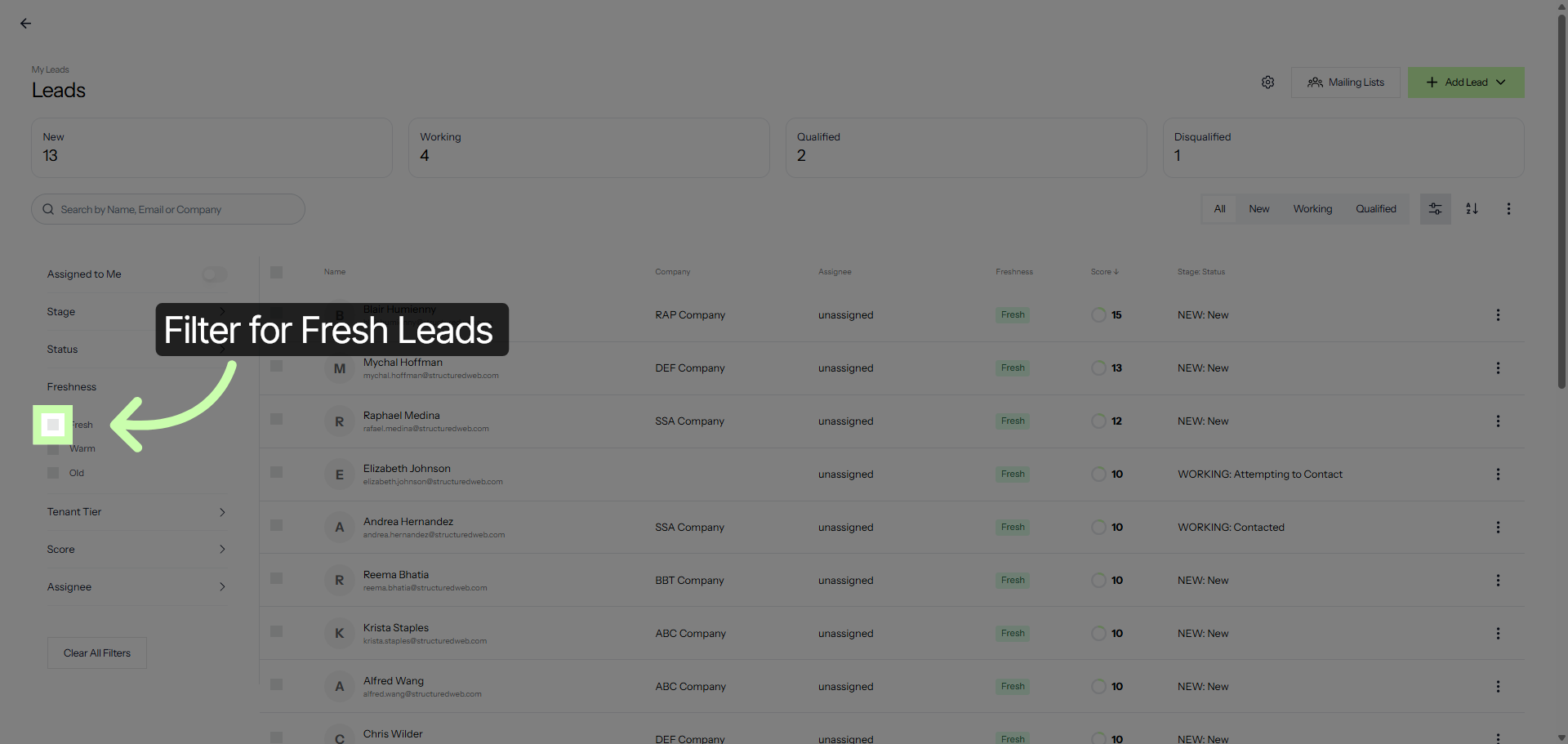
7. Select Fresh Leads
For example I can filter for all my fresh leads to learn who I should contact immediately.
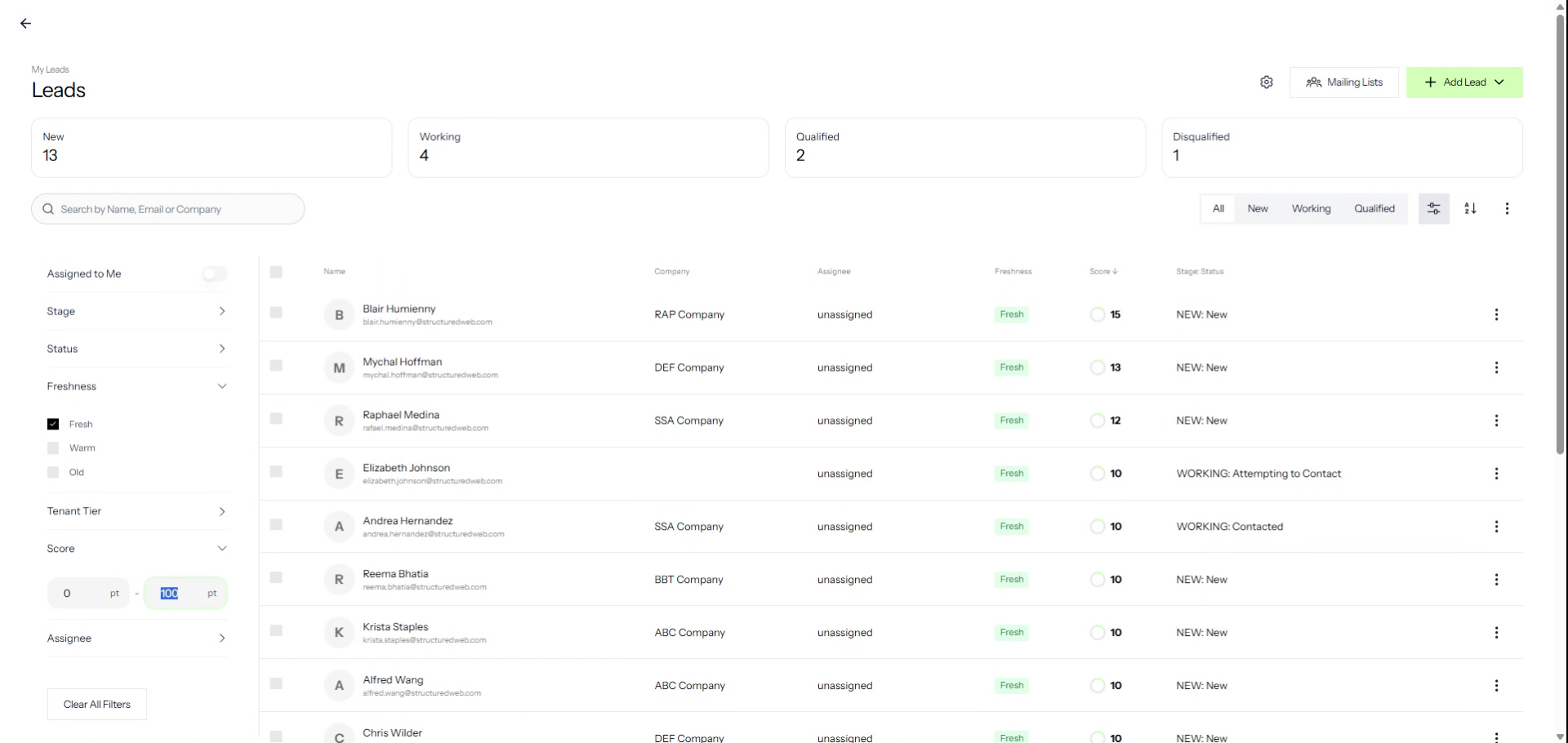
8. Set Maximum Score Value
Or filter by a lead score of 10 to gauge interest level.
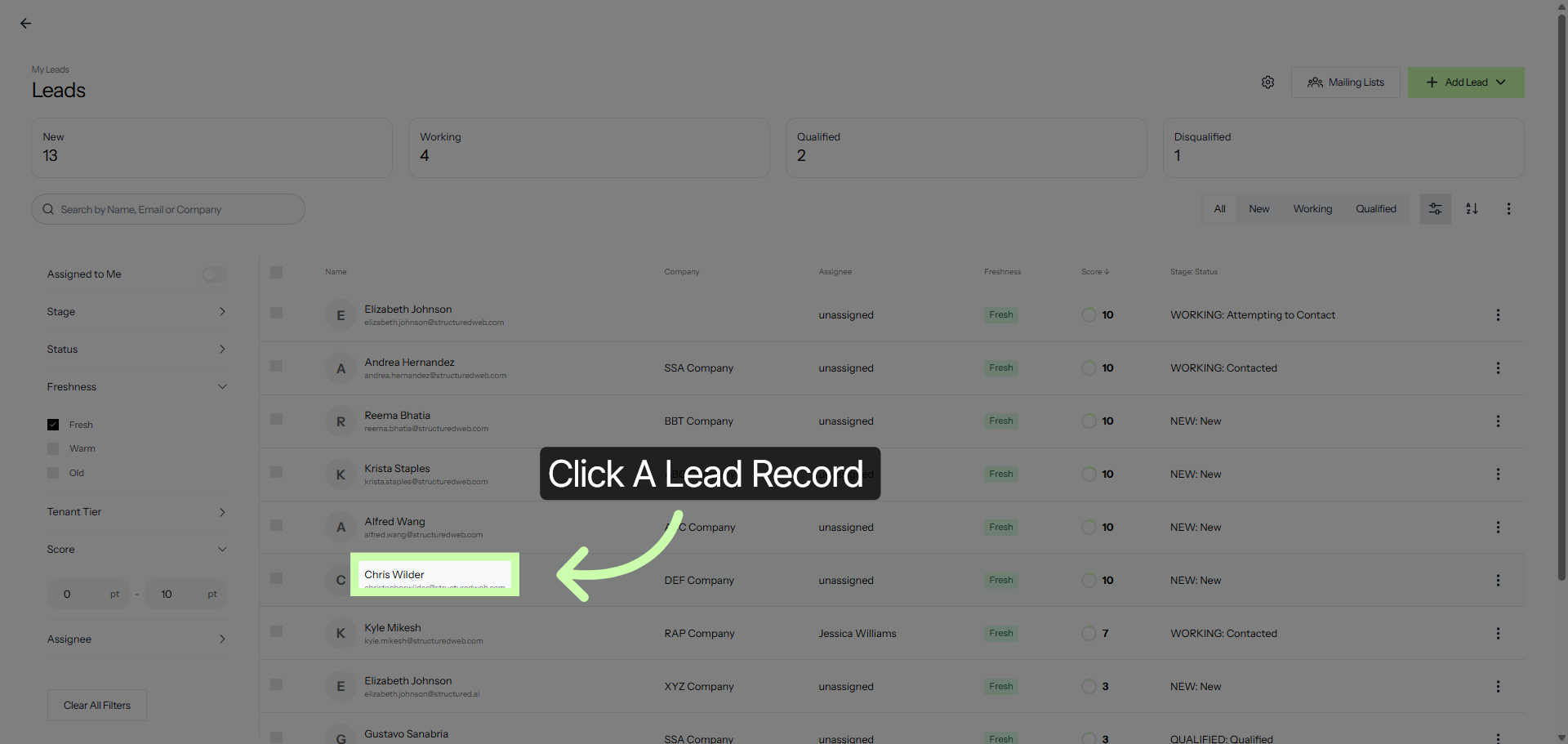
9. Click an Individual Lead Record
To ensure nothing falls through the cracks, you can assign leads to specific users in your account. Simply click on a lead.
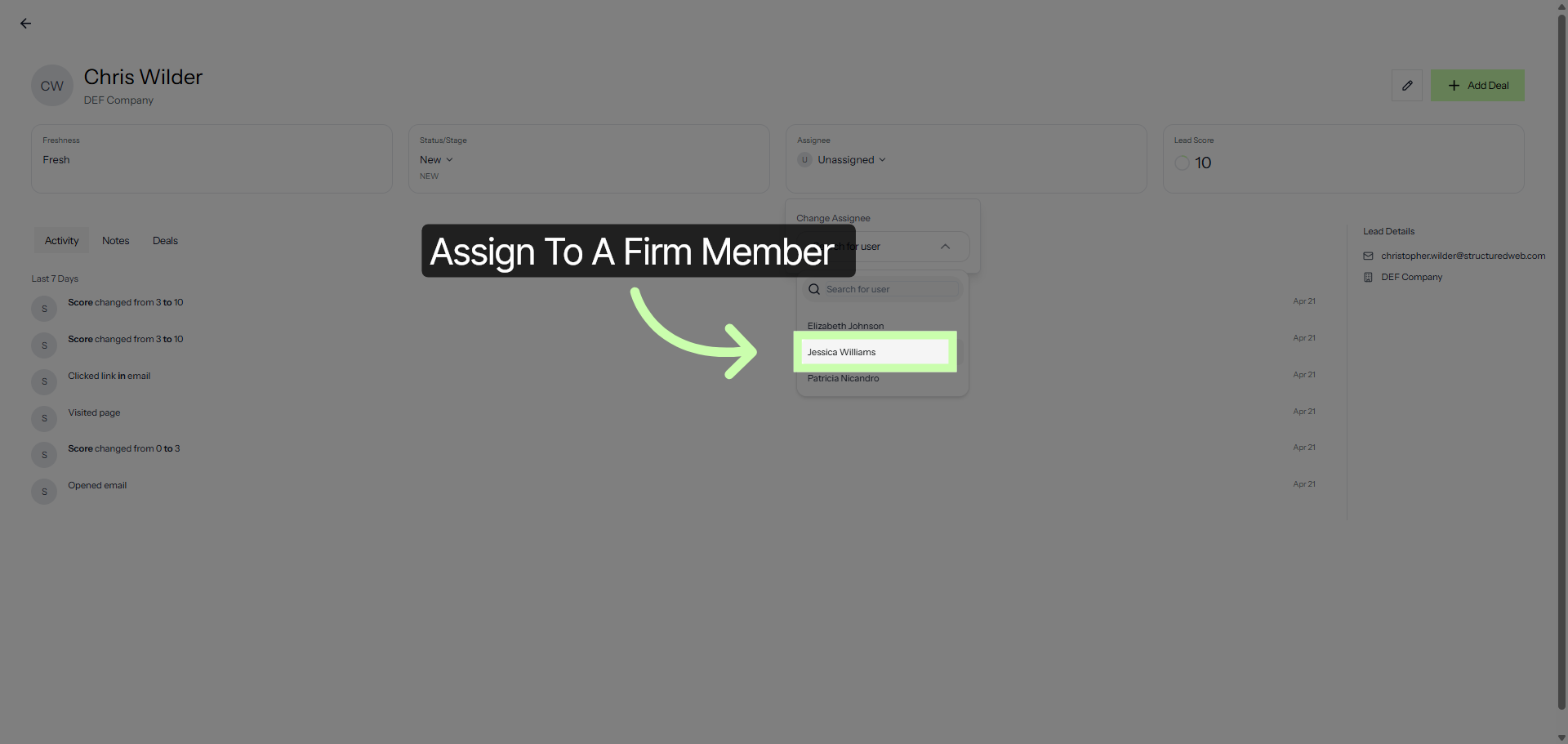
10. Assign to a Firm Member
Here, you can assign them to a member of your firm.
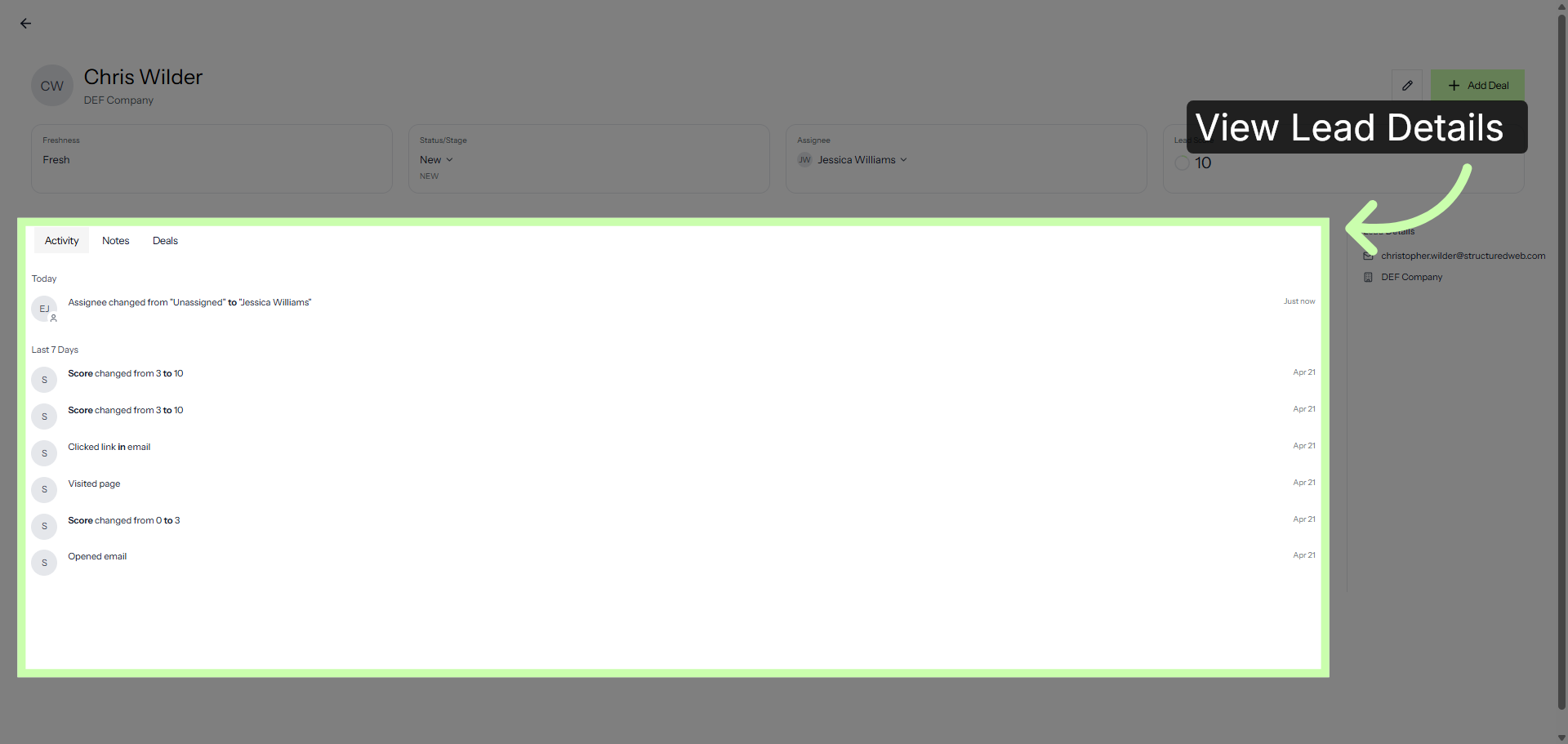
11. View a Timeline of activity
Want the full story? Click inside any lead record and view a complete timeline of activity.
This dashboard gives you everything you need to work leads and keep them moving. The final tutorial shows you how to manage your deals to close.
You've Completed this Training - Move to the Next Training →