
Estimated Time
~15 minutes
What You'll Accomplish
- This tutorial introduces you to the workspace for emails, landing pages and custom documents.
|
Before you begin — open your account This is a hands-on, learning-by-doing session. Open app.structured.ai in your browser and log in to your Account so you can follow along and apply each step in real time. |
 Follow Our Step-By-Step Training
1. Introduction
For landing pages, emails, and custom documents, your workspace offers two paths: AI or Manual.
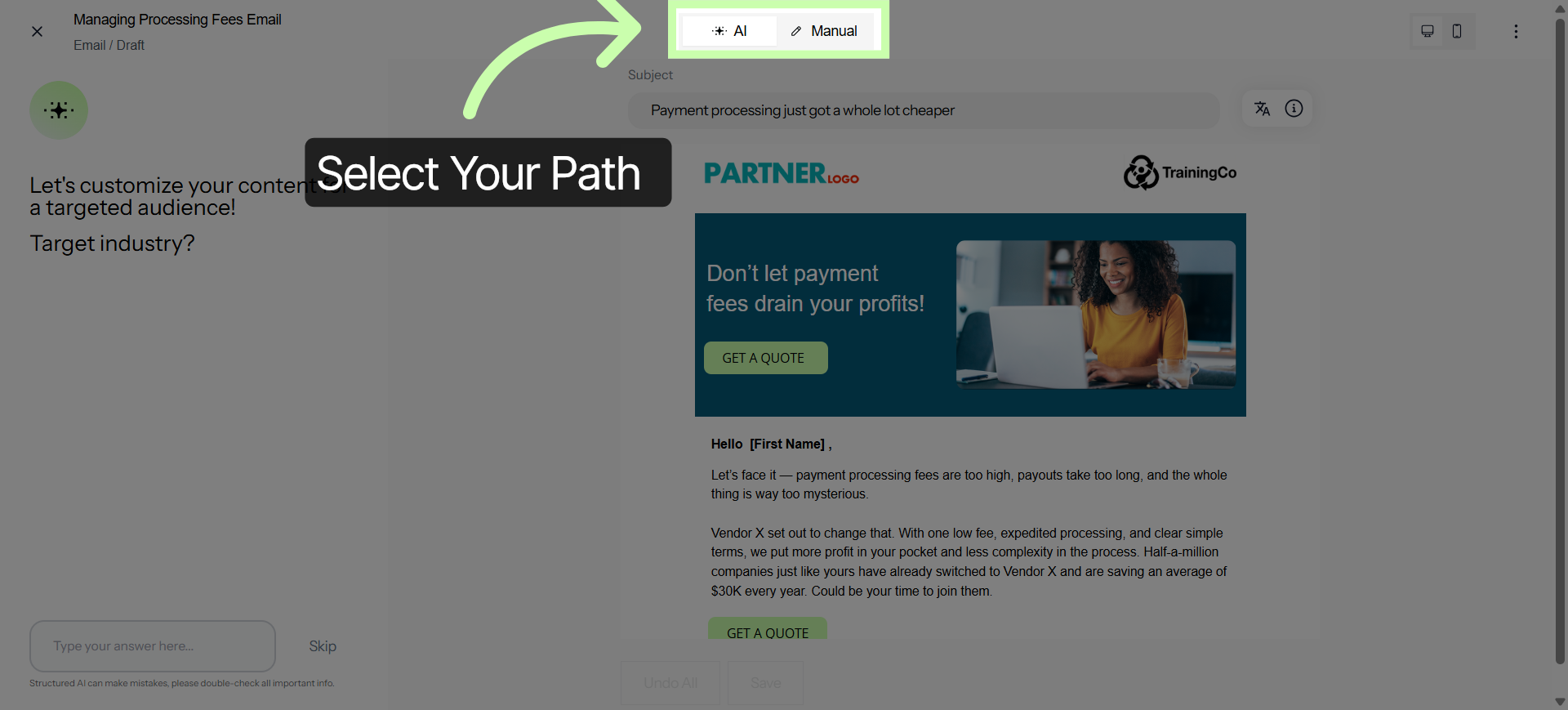
2. Click AI Mode for Personalization
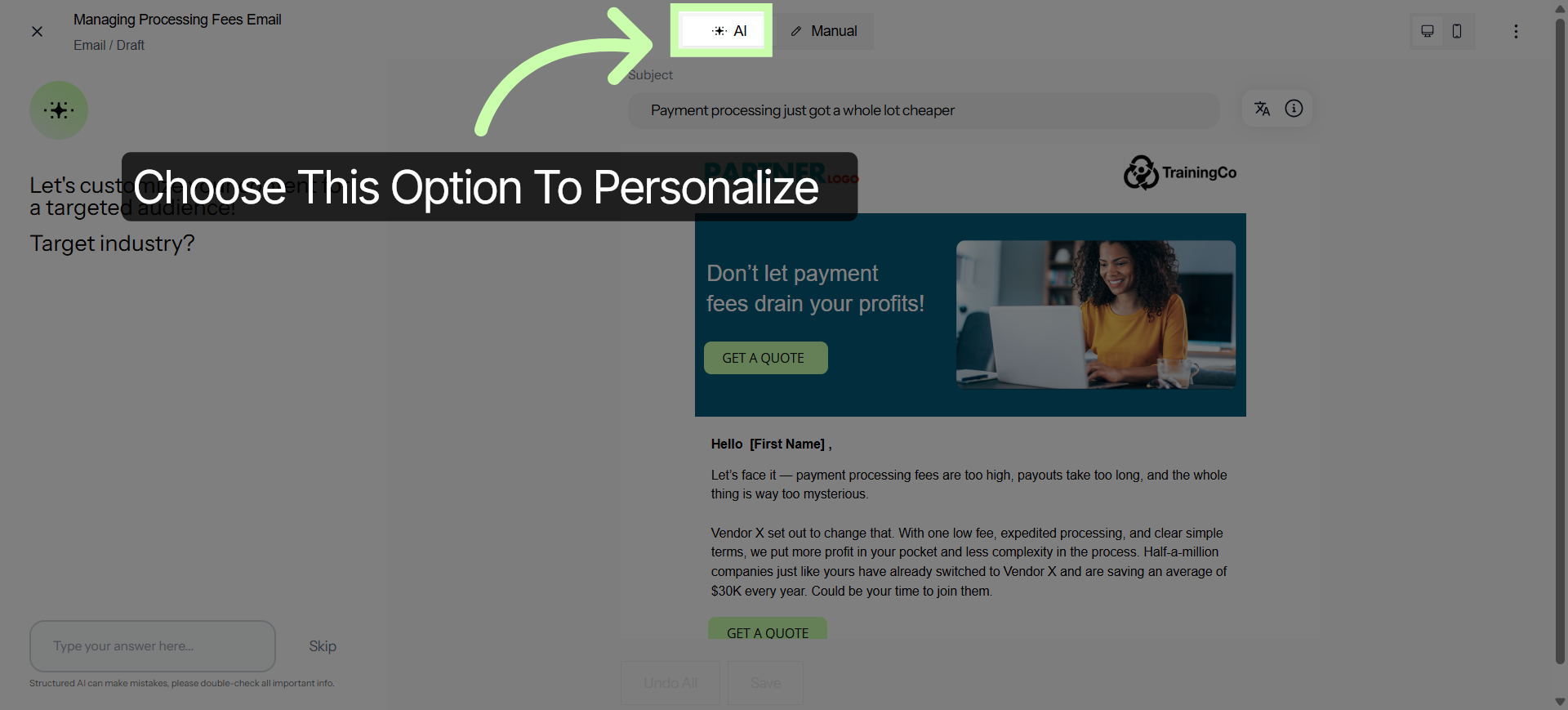
When you need to personalize for a specific audience or industry, choose AI Mode.
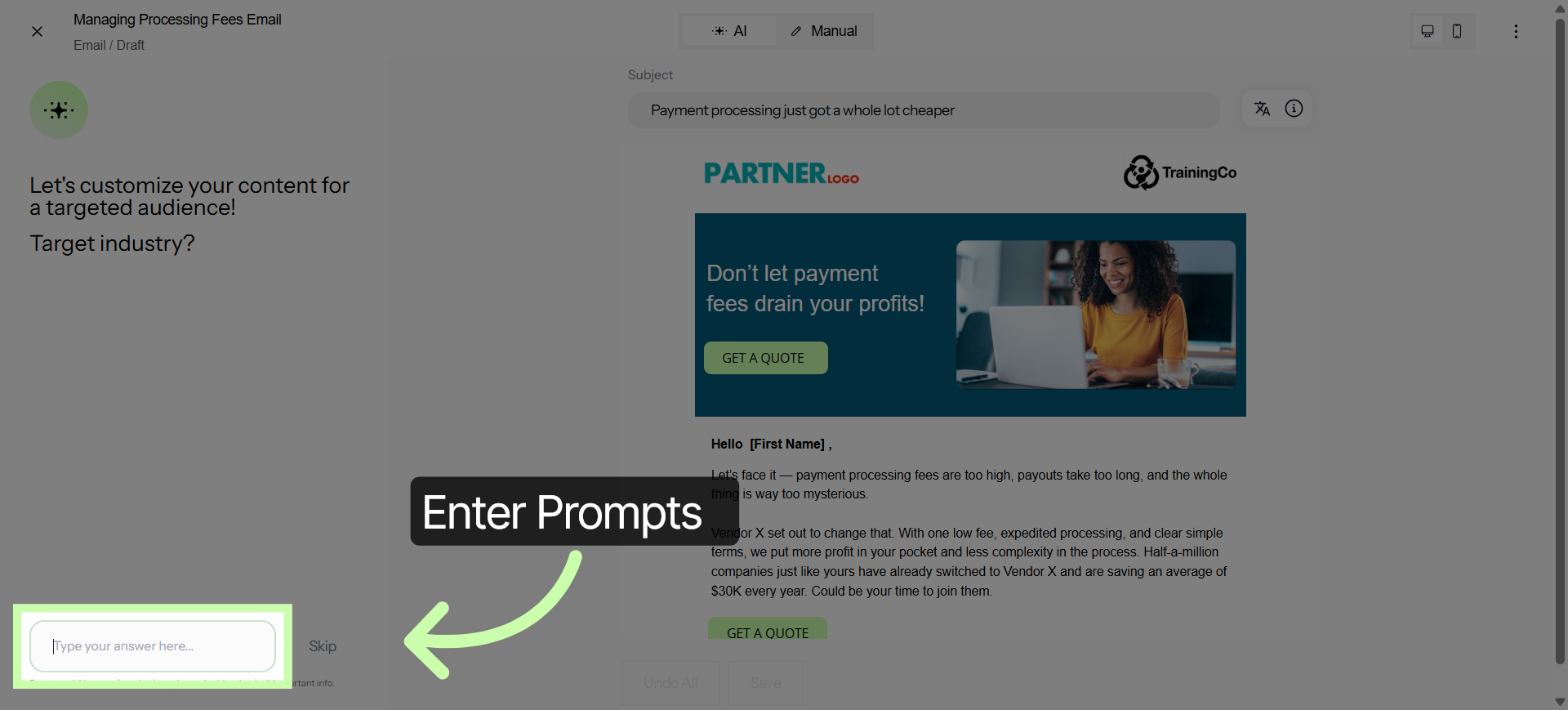
3. Enter Prompt Answers
For each question, enter your prompt.
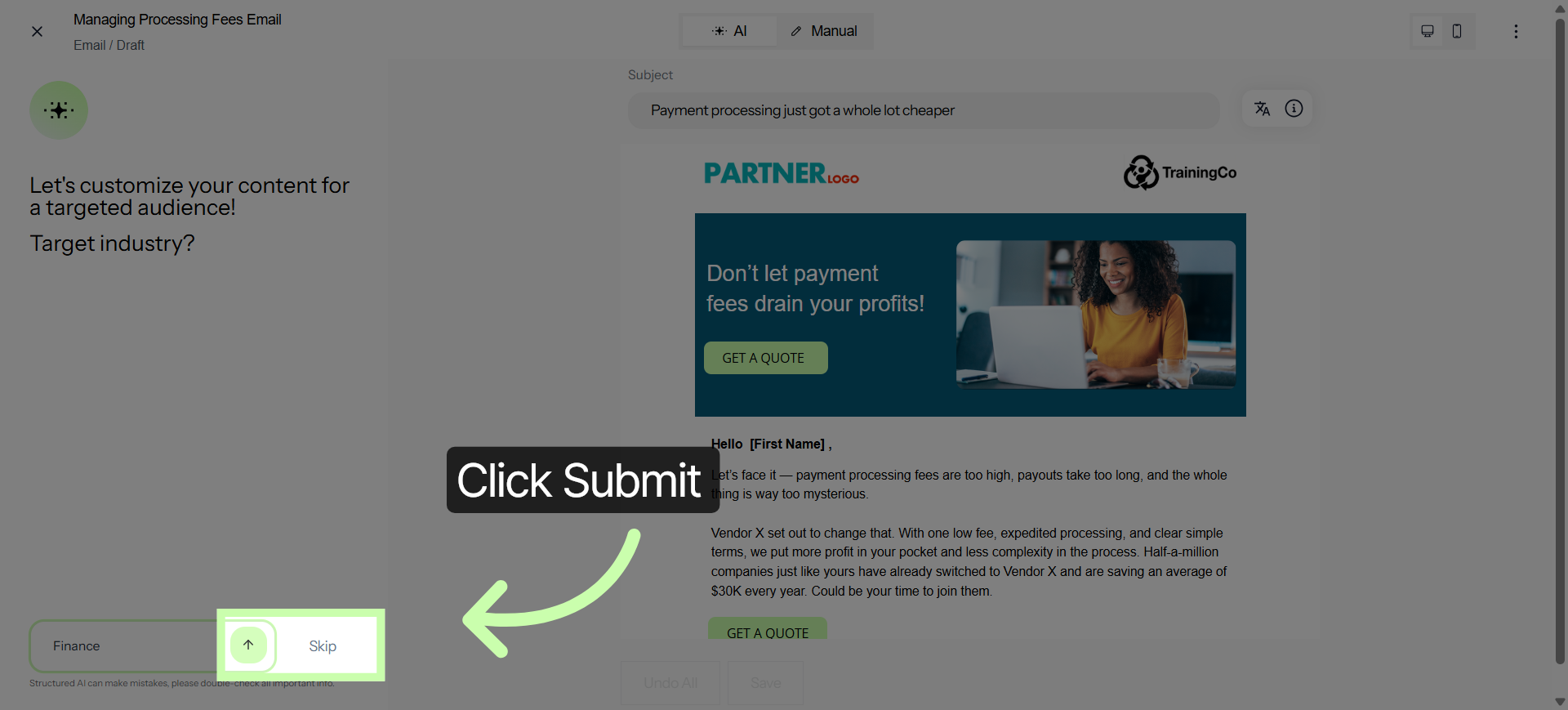
4. Submit Entry
Then click Submit. Or, skip it if the question isn't relevant to you.
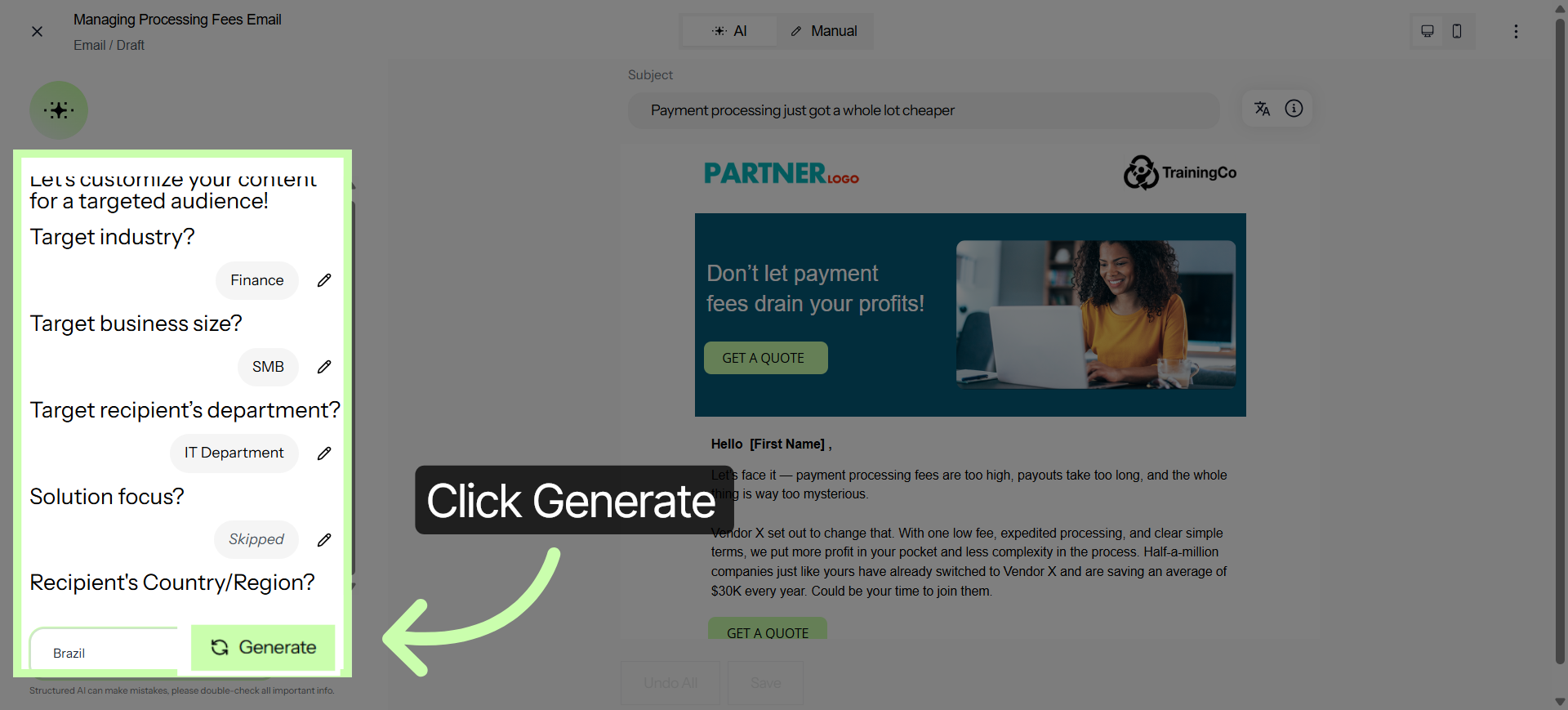
5. Click Generate
Once you enter all prompts, click Generate.
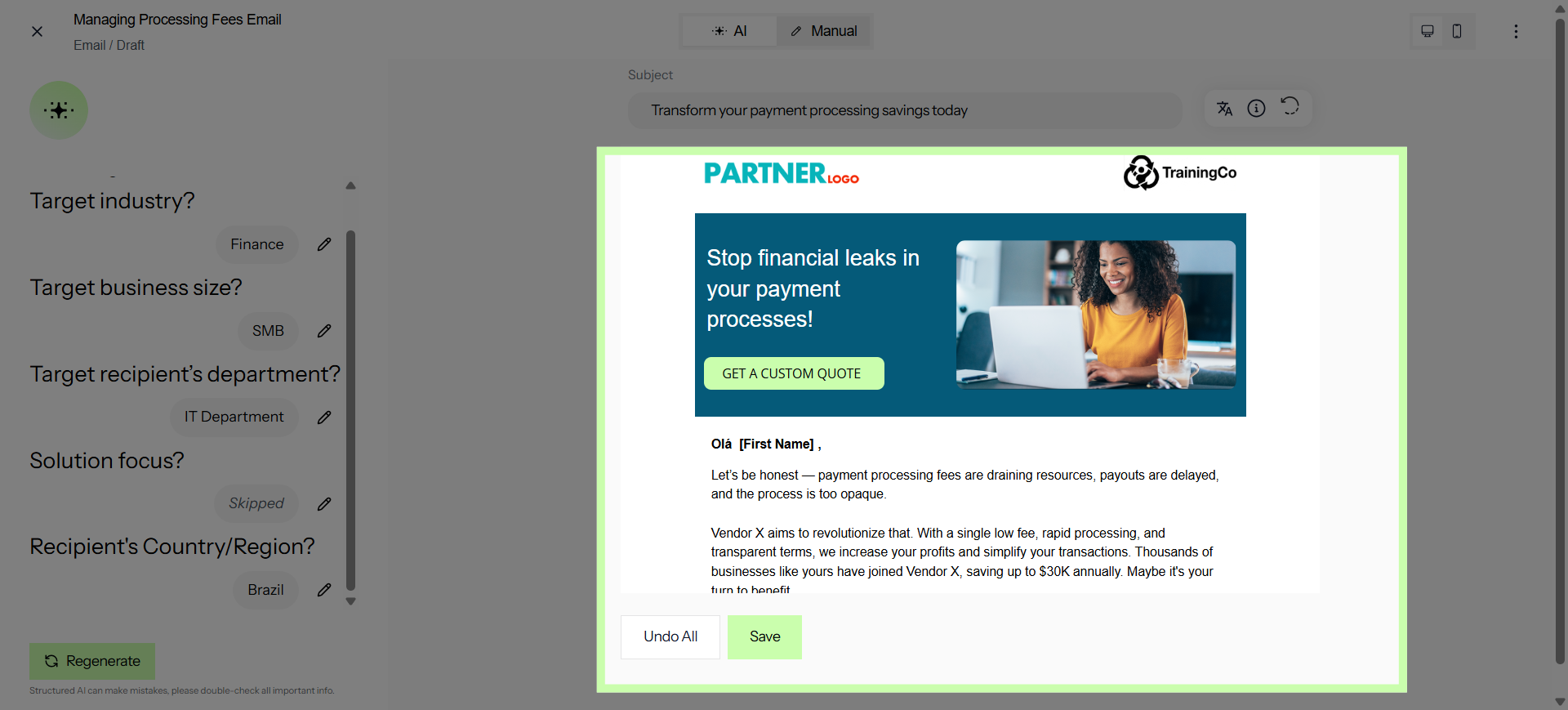
6. Personalized Content Preview
And the Wizard automatically tailors the content across your entire asset—ensuring the message stays consistent while the impact is maximized.
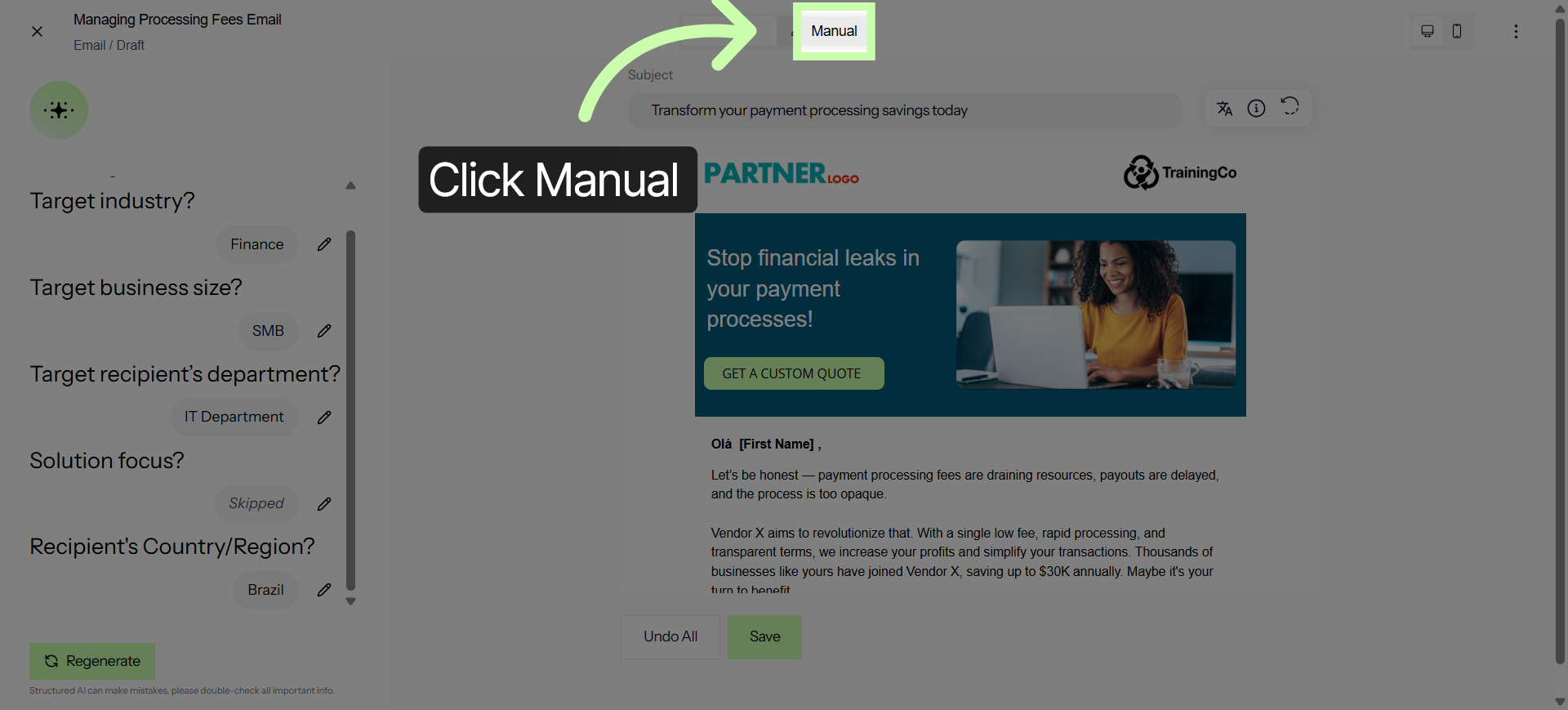
7. Switch to Manual Mode
If you prefer total creative control, switch to Manual Mode.
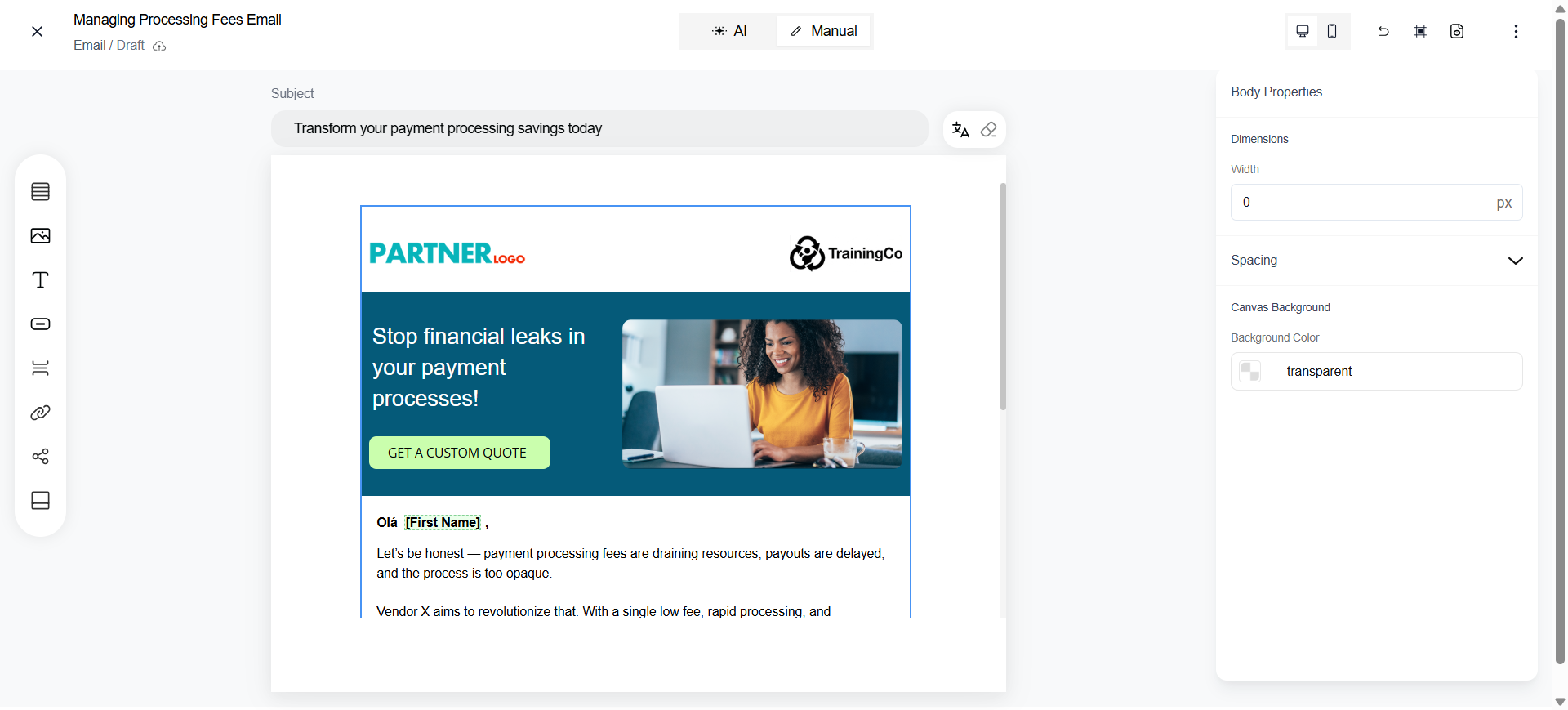
8. Open the Drag & Drop Editor
This opens the drag-and-drop editor where theworkspace is organized into four intuitive areas:
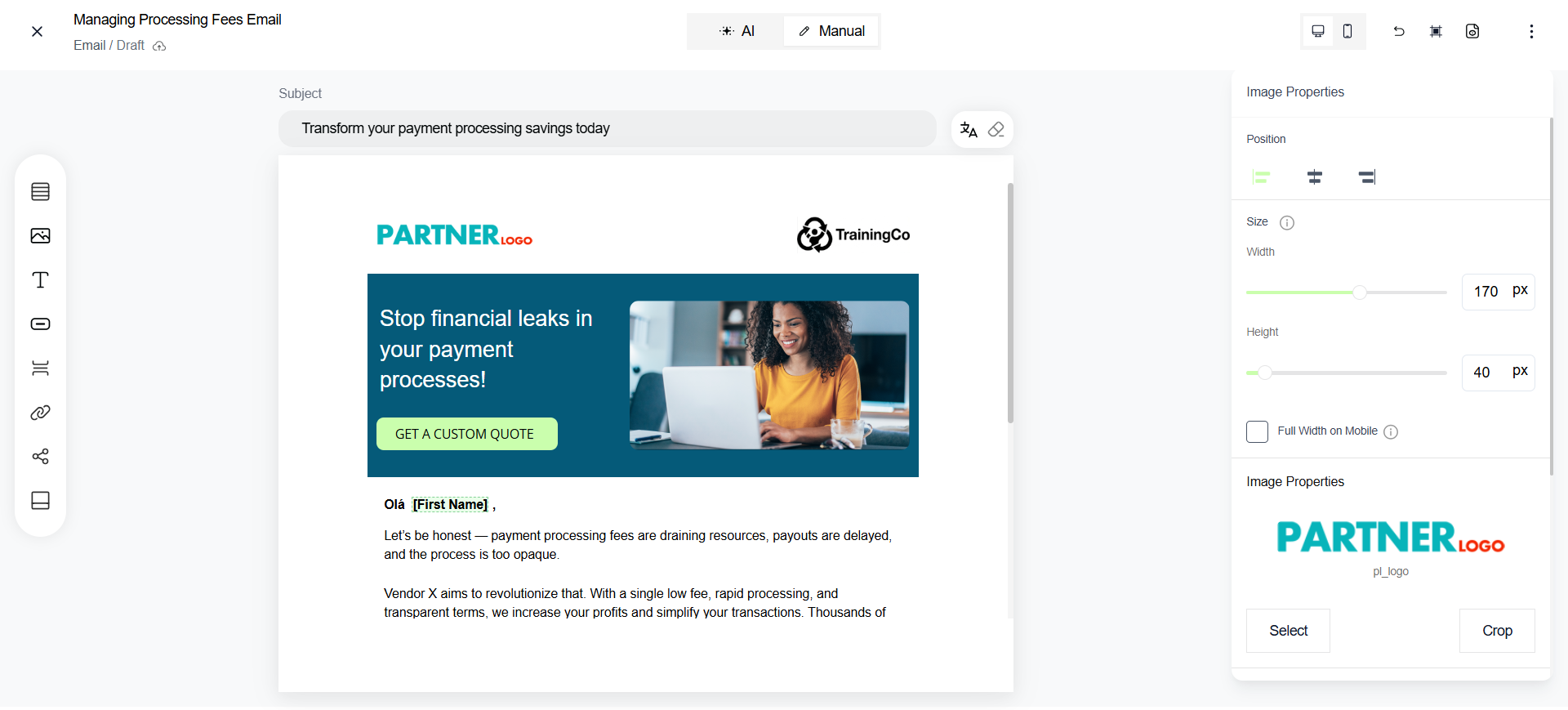
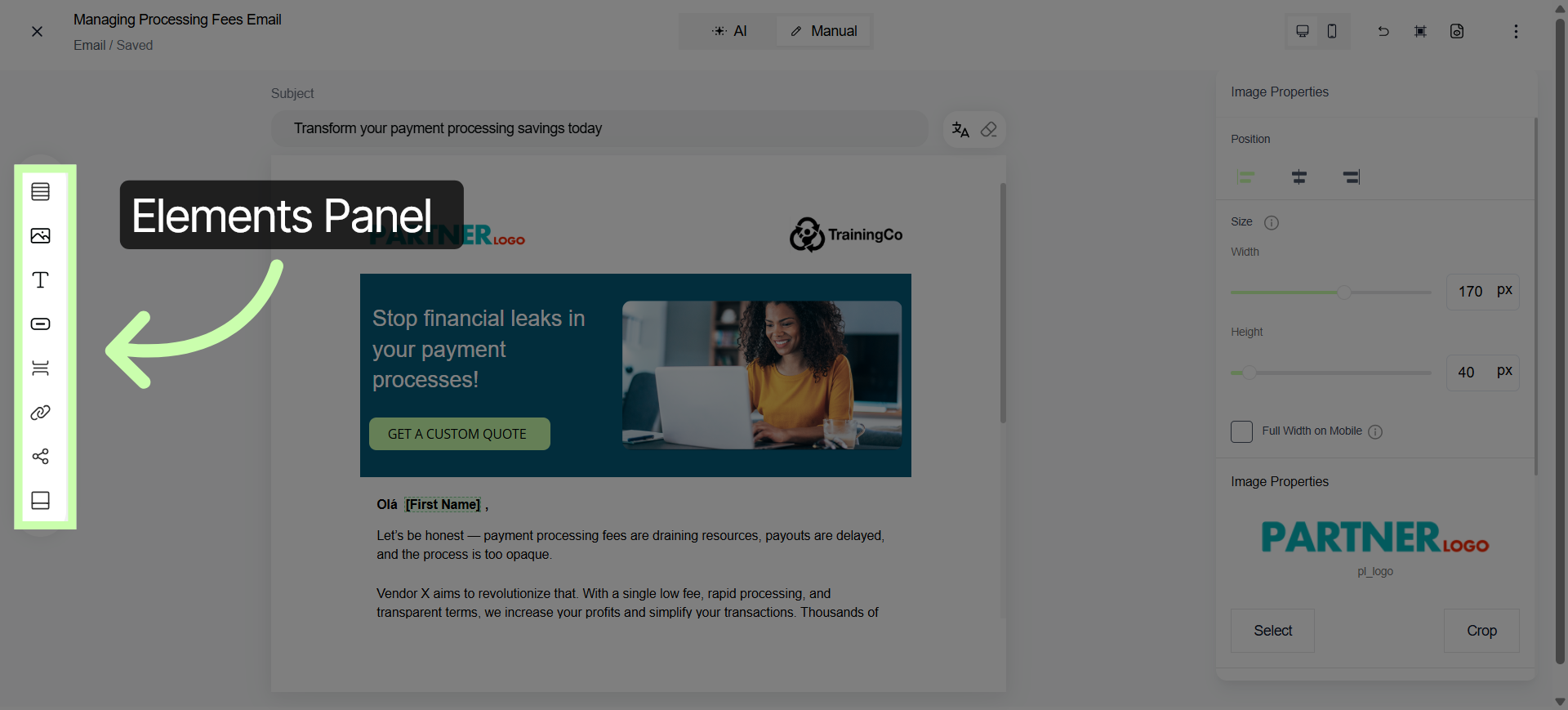
9. Elements Panel
The elements panel where you drag elements onto the canvas.
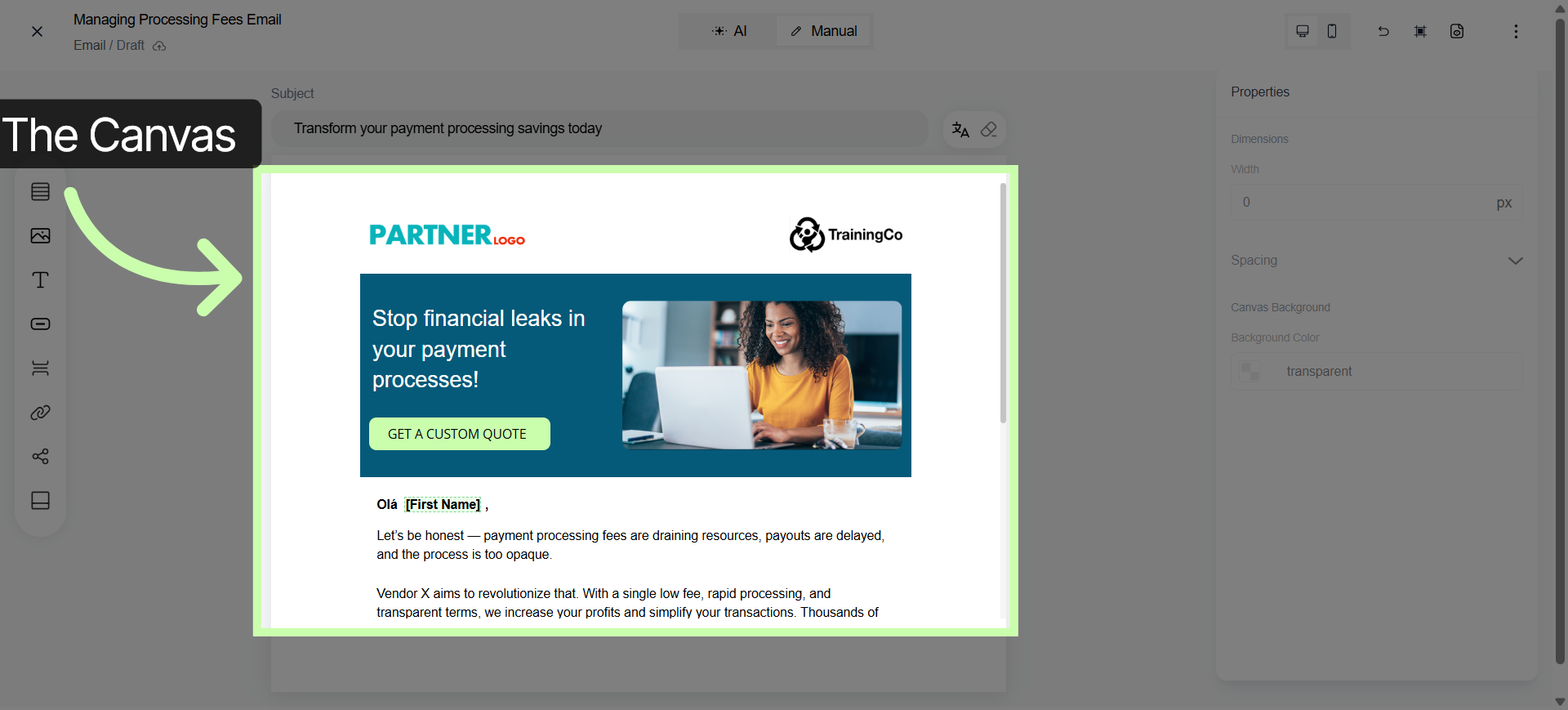
10. The Canvas
The canvas where you design your asset.
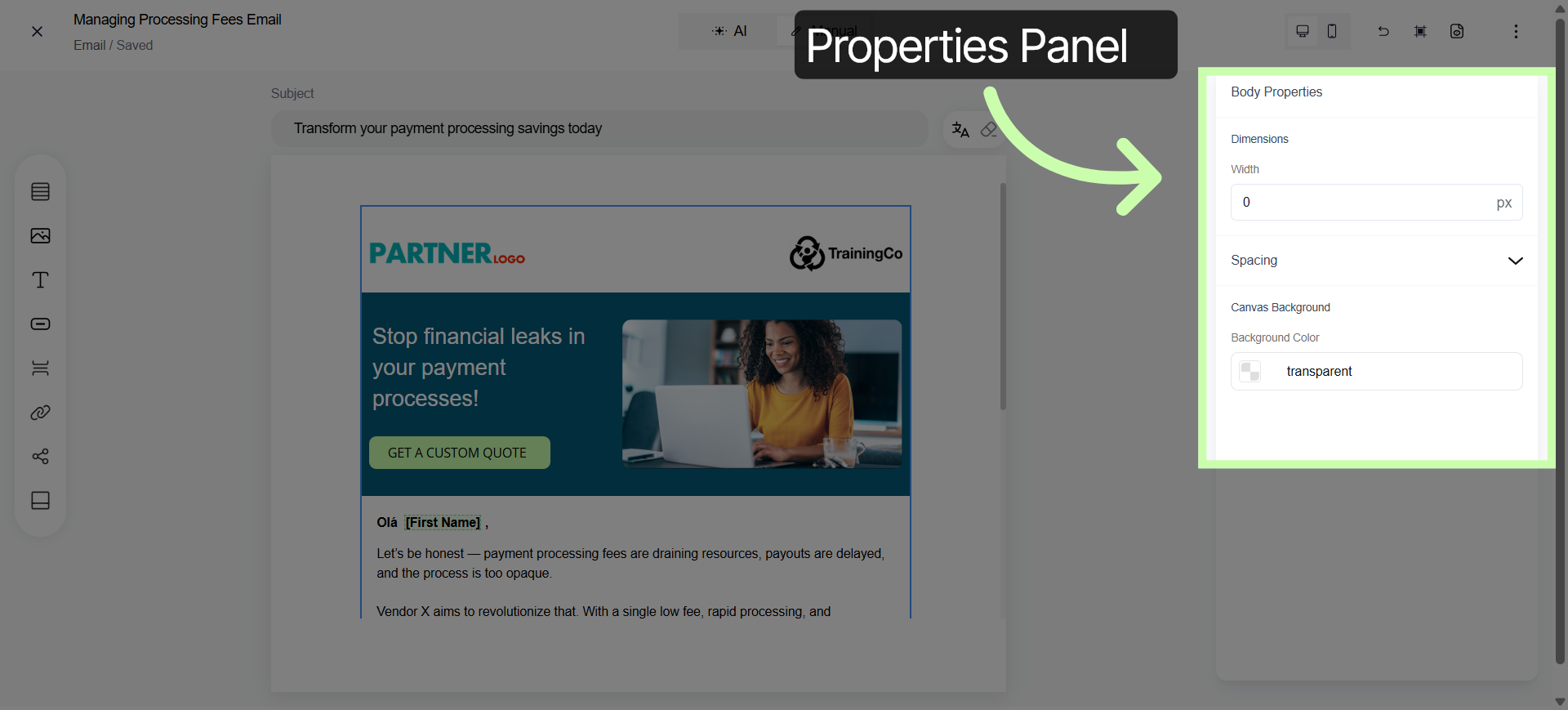
11. Properties Panel
The properties panel where you refine your design.
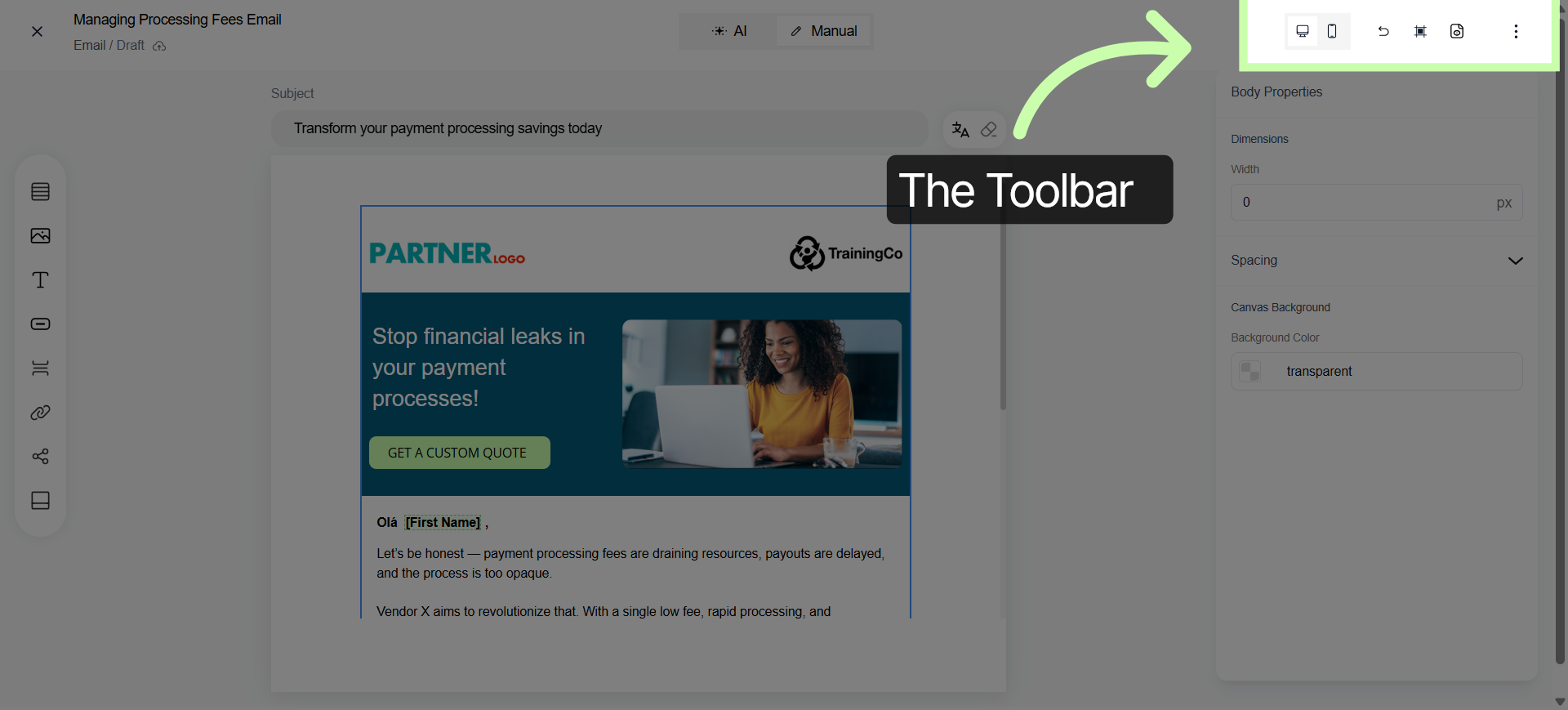
12. Toolbar
and the tool bar where you preview, turn on grid lines and more.
13. The Workspace
This workspace is the perfect balance of automation and customization.
The next tutorial demonstrates how to customize an email.
You've Completed this Training - Move to the Next Training →