
Estimated Time
~15 minutes
What You'll Accomplish
- This tutorial guides you through designing and downloading Banner Ads.
|
Before you begin — open your account This is a hands-on, learning-by-doing session. Open app.structured.ai in your browser and log in to your Account so you can follow along and apply each step in real time. |
 Follow Our Step-By-Step Training
1. Introduction
Banner ads help you expand your reach beyond the inbox. You can add these to newsletters and presentations, or even embed them directly on your website.
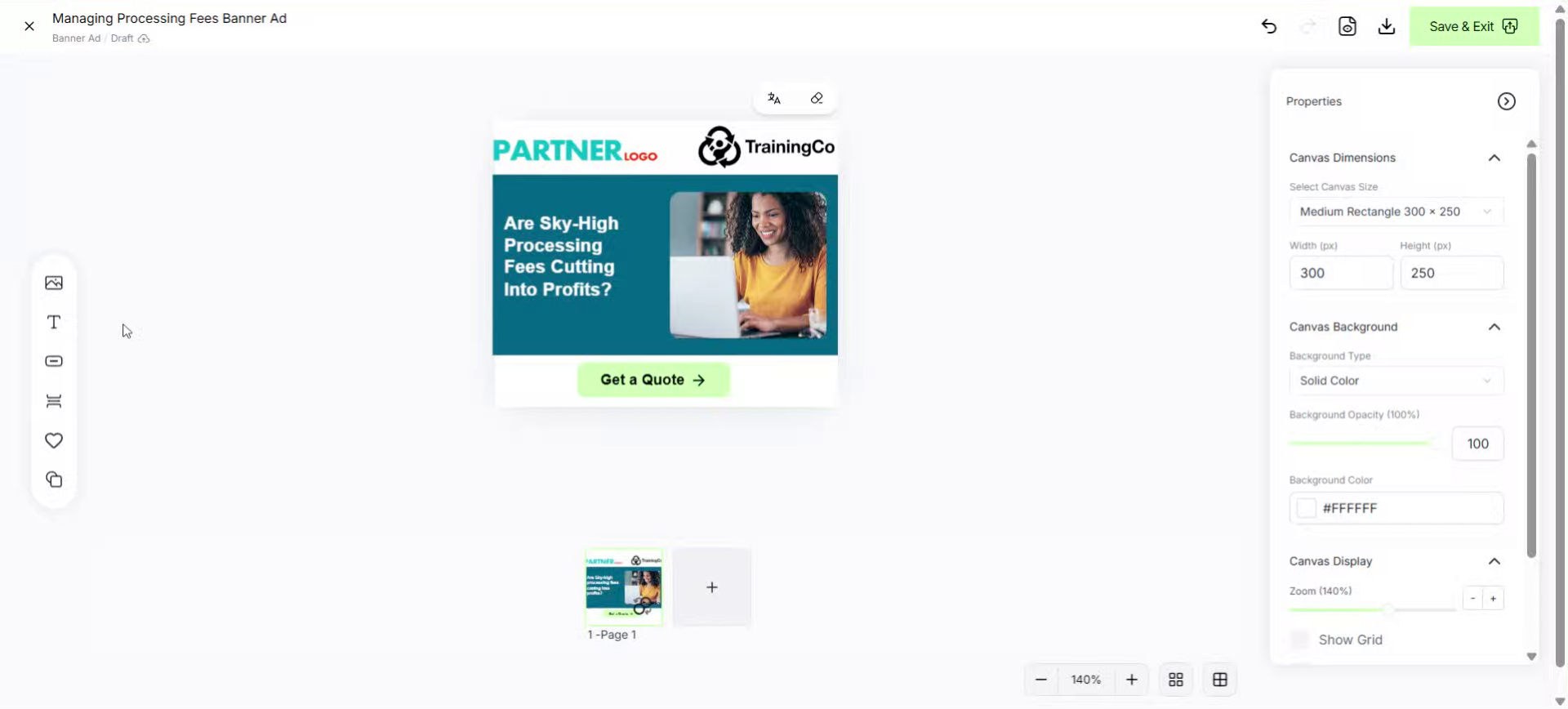
2. Elements Panel
When you open a banner, you’ll land on the Banner Ad editor. On the left you find elements.
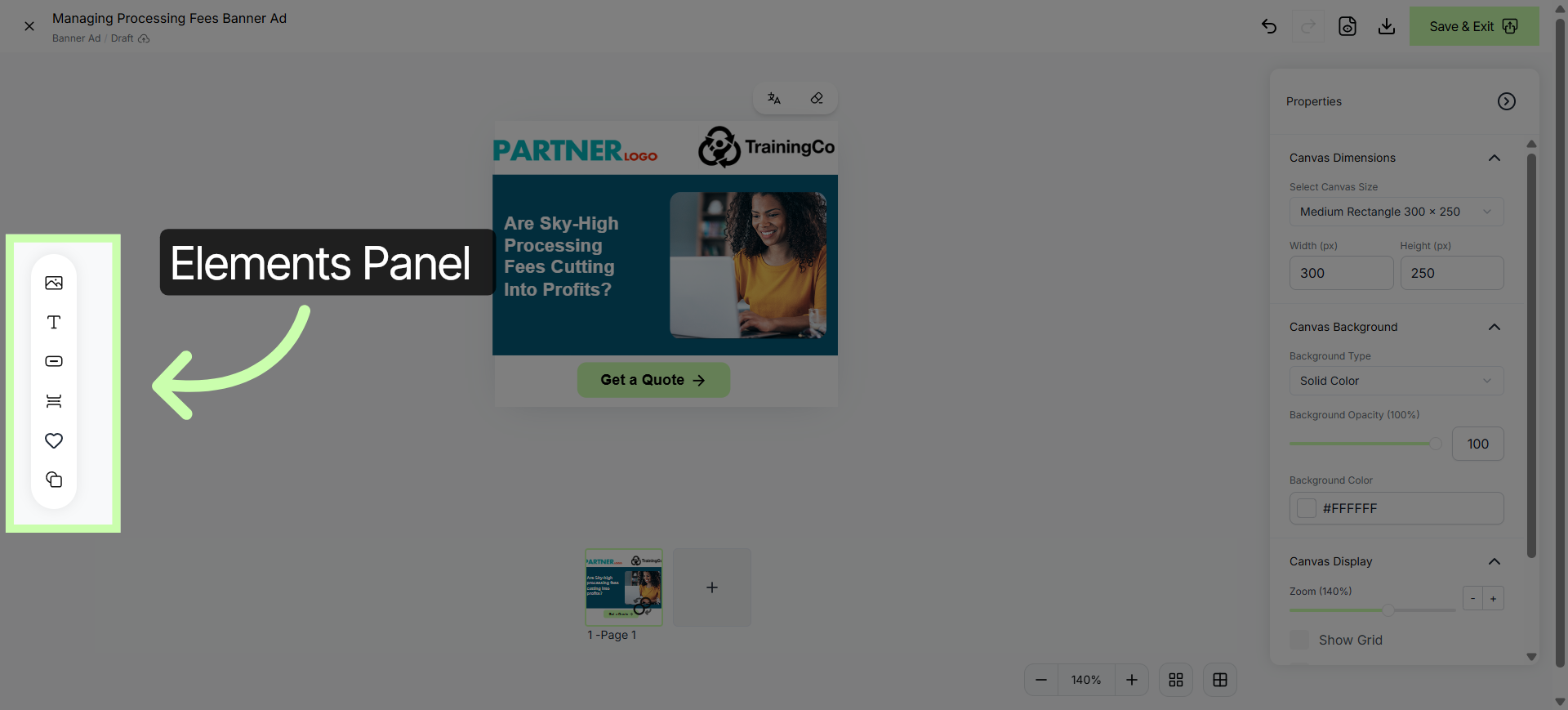
3. Design Canvas
In the center the design canvas.
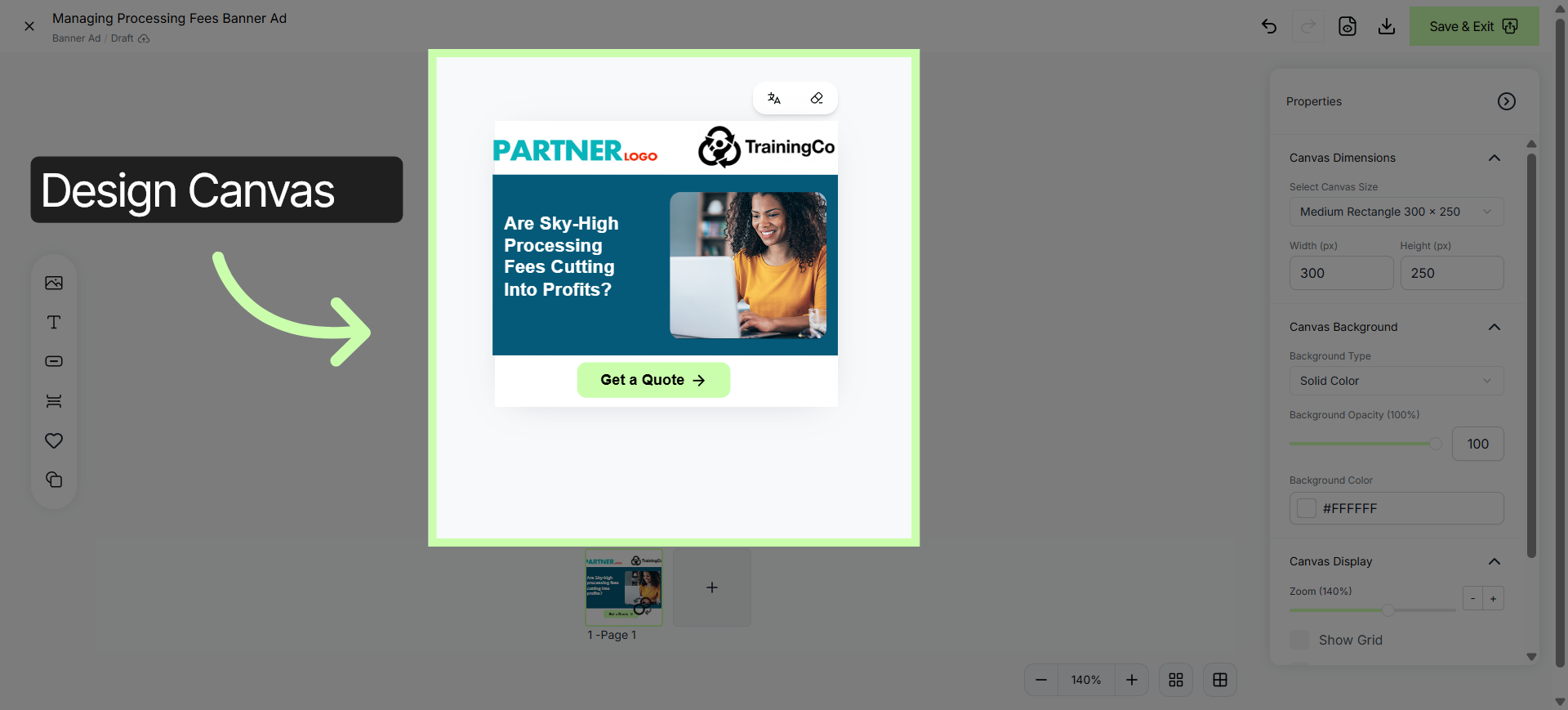
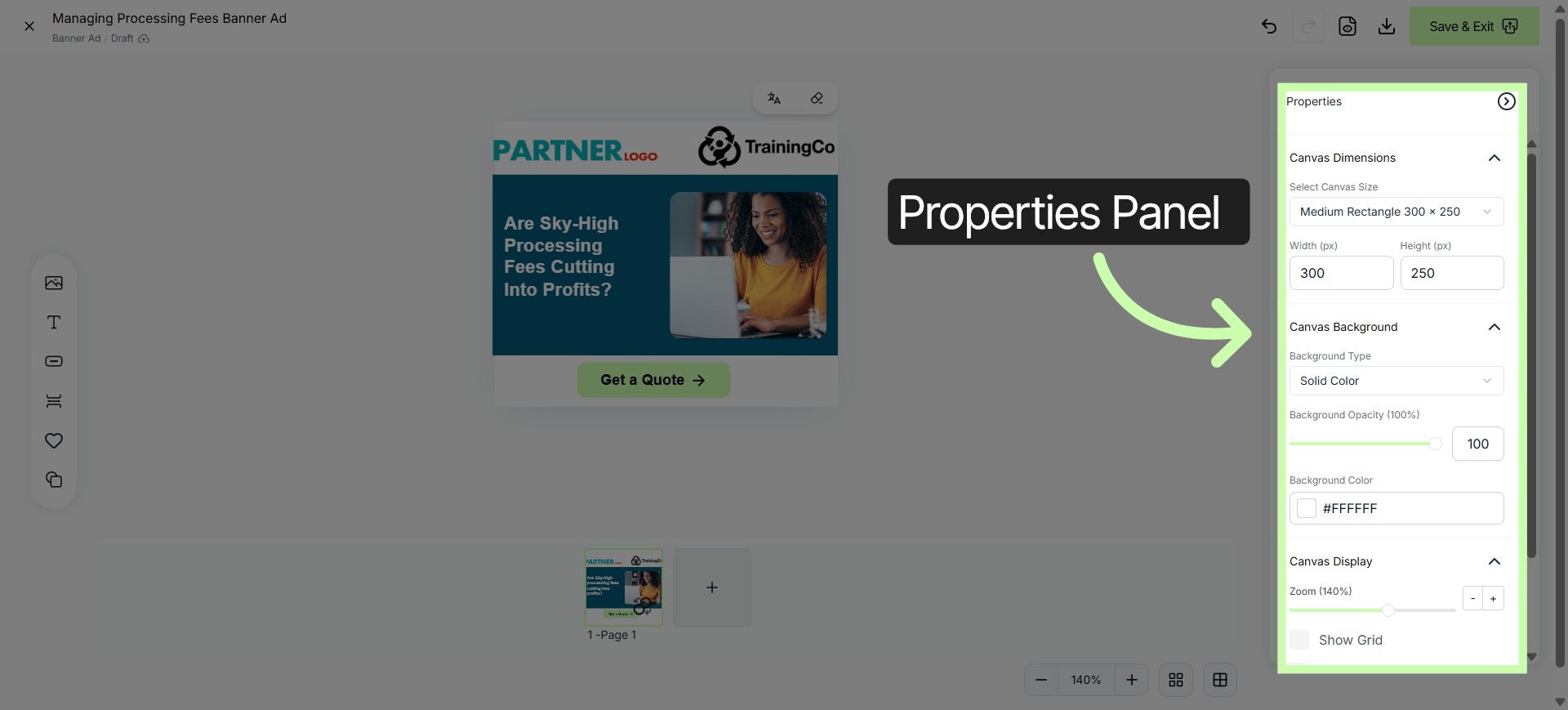
4. Properties
On the right, properties.
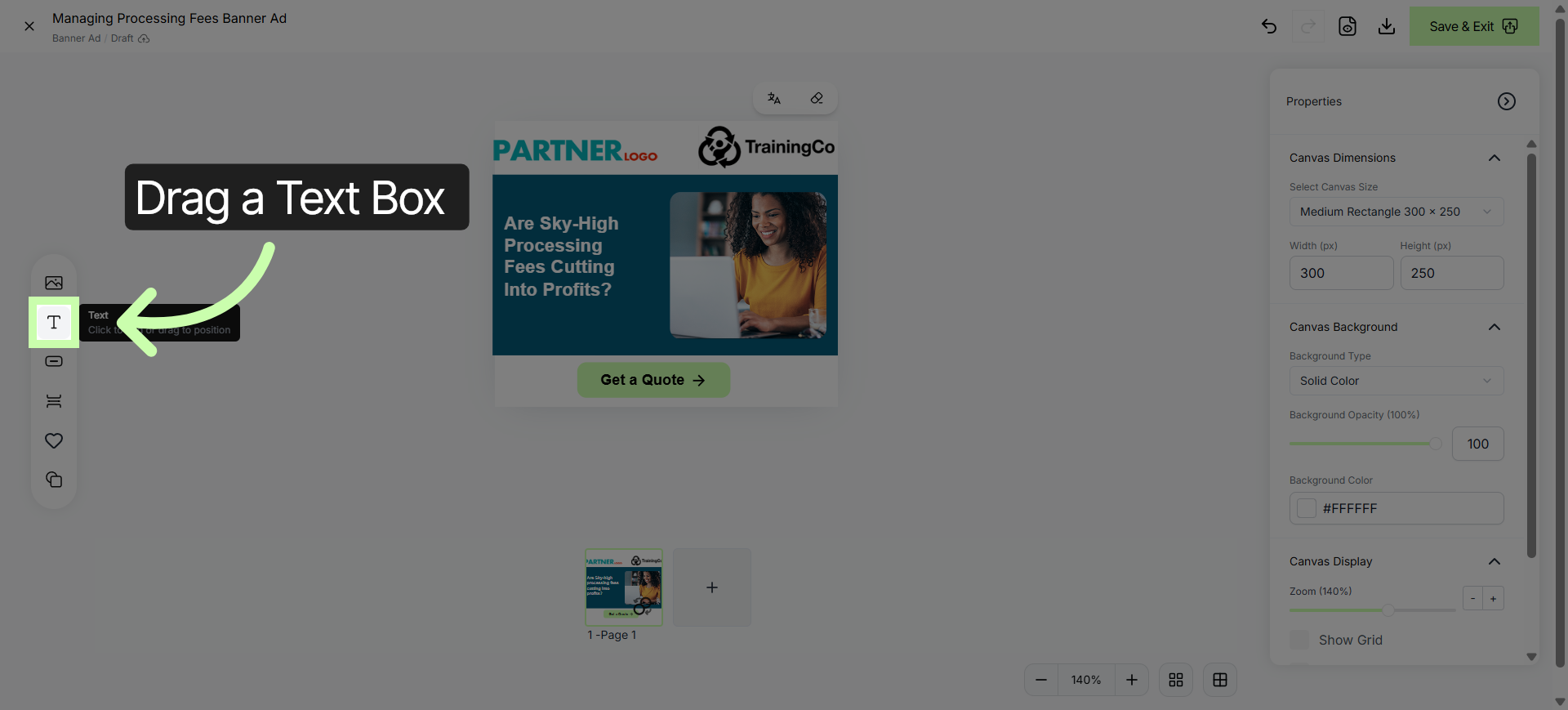
5. Click Content Editing Area
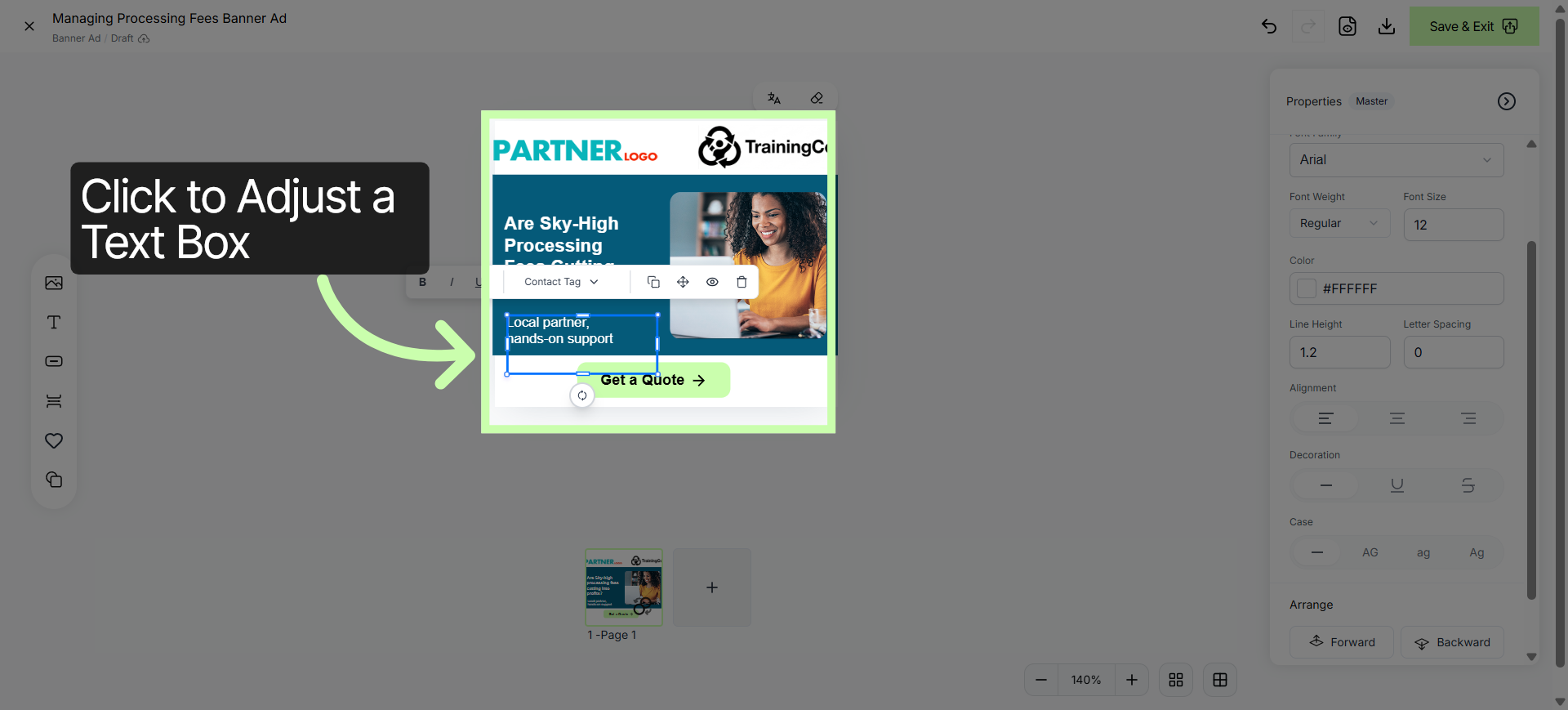
You can update text by adding a text box onto your canvas.
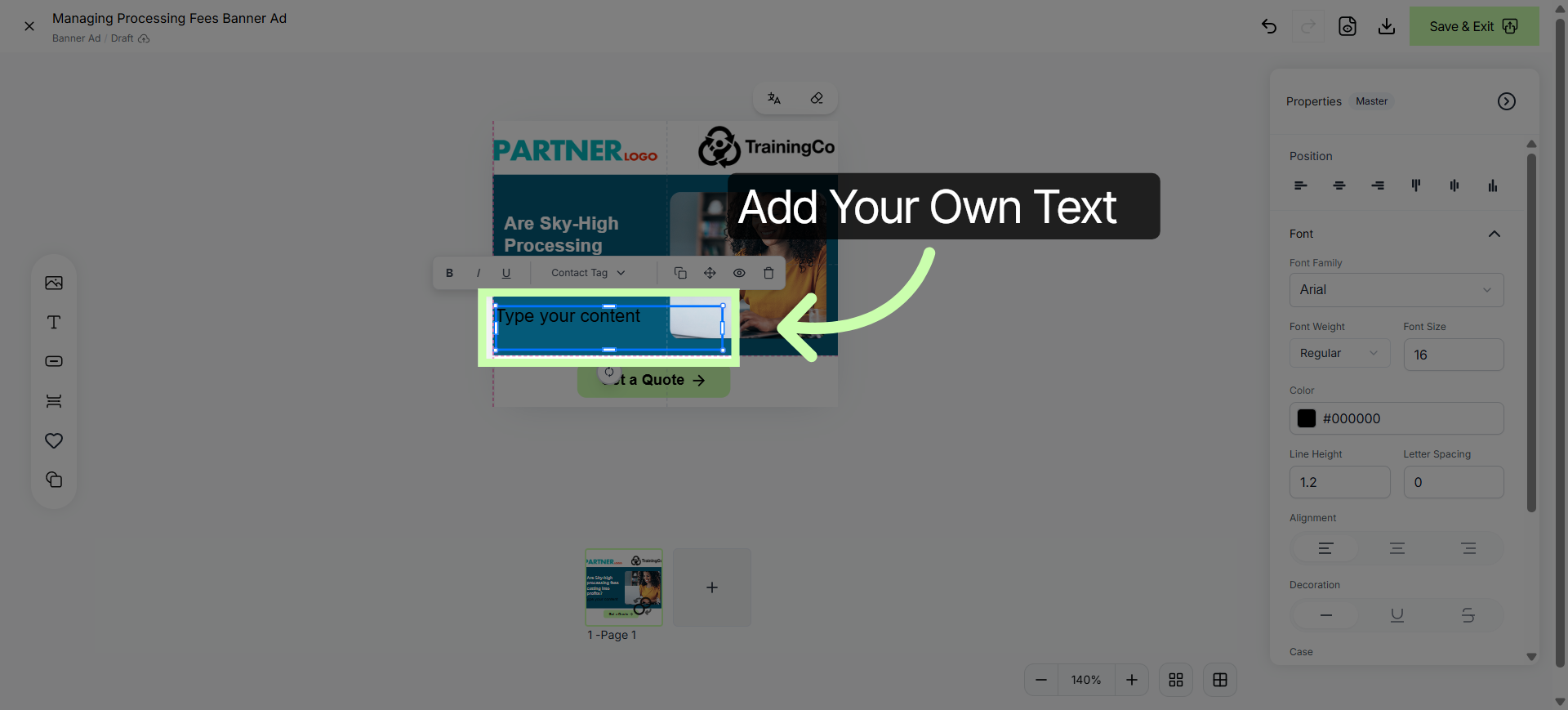
6. Add New Content
In this example, I'll add my value proposition.
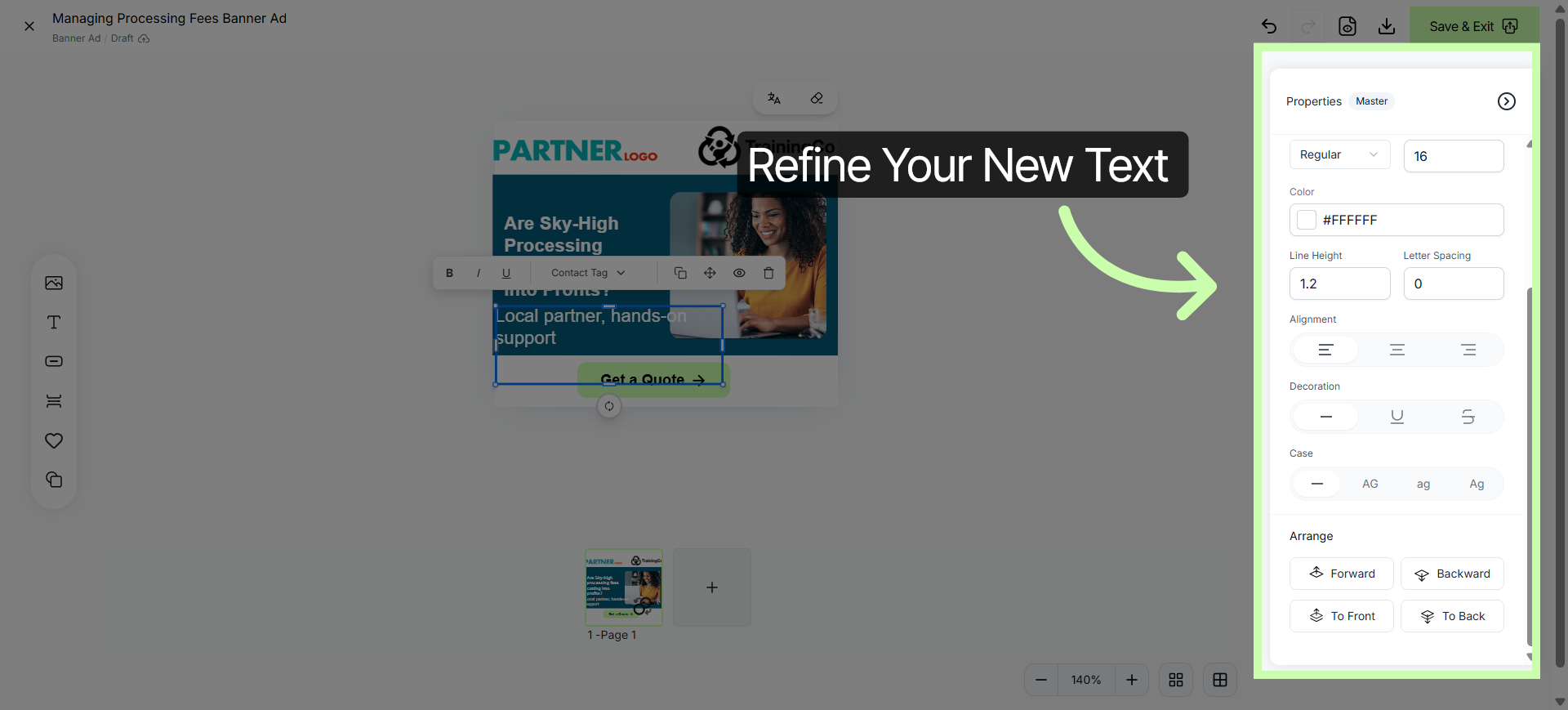
7. Refine Content on Properties
And refine my text within the properties panel.
8. Adjust Positioning
You can adjust positioning right on the canvas.
9. Replace an Image
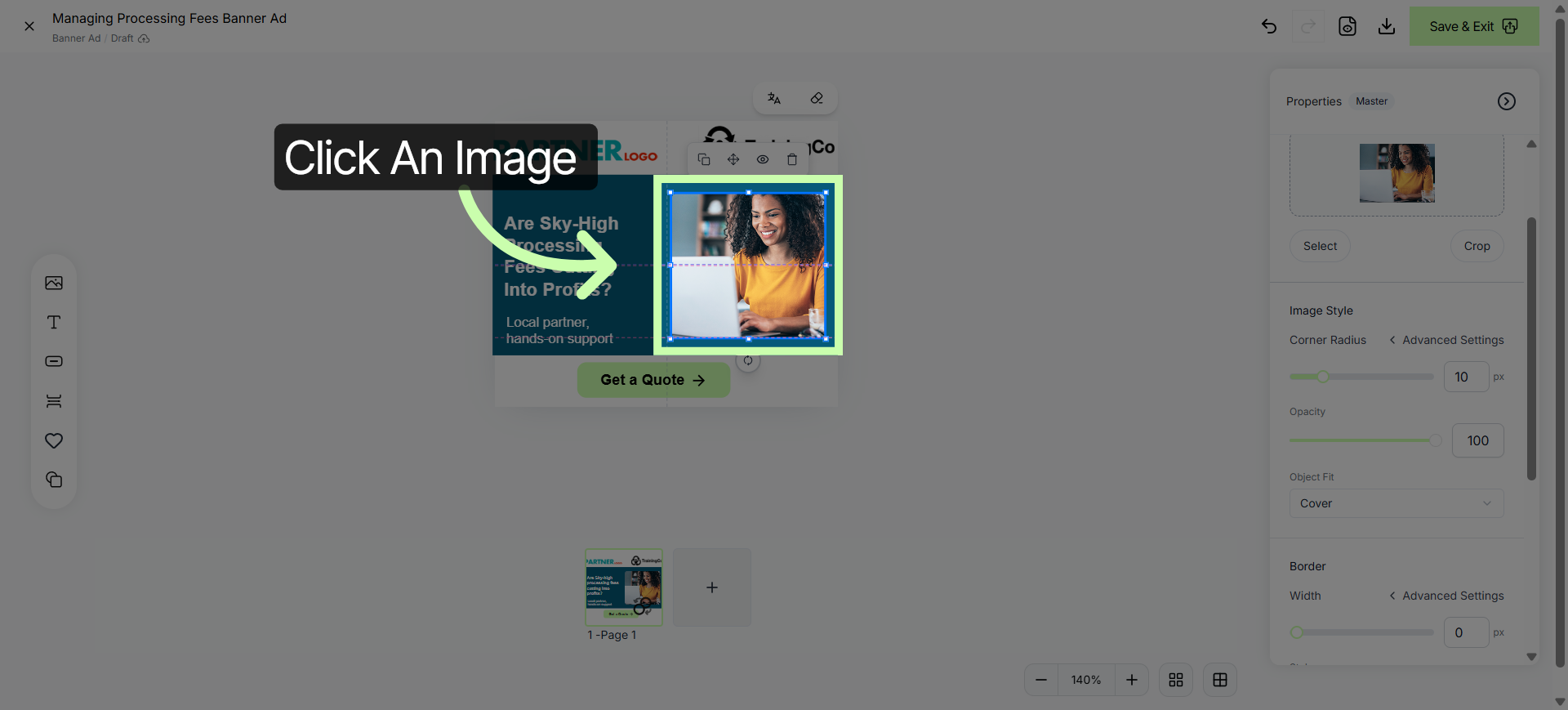
To swap out an image, click directly on an image.
10. Click Select From Properties
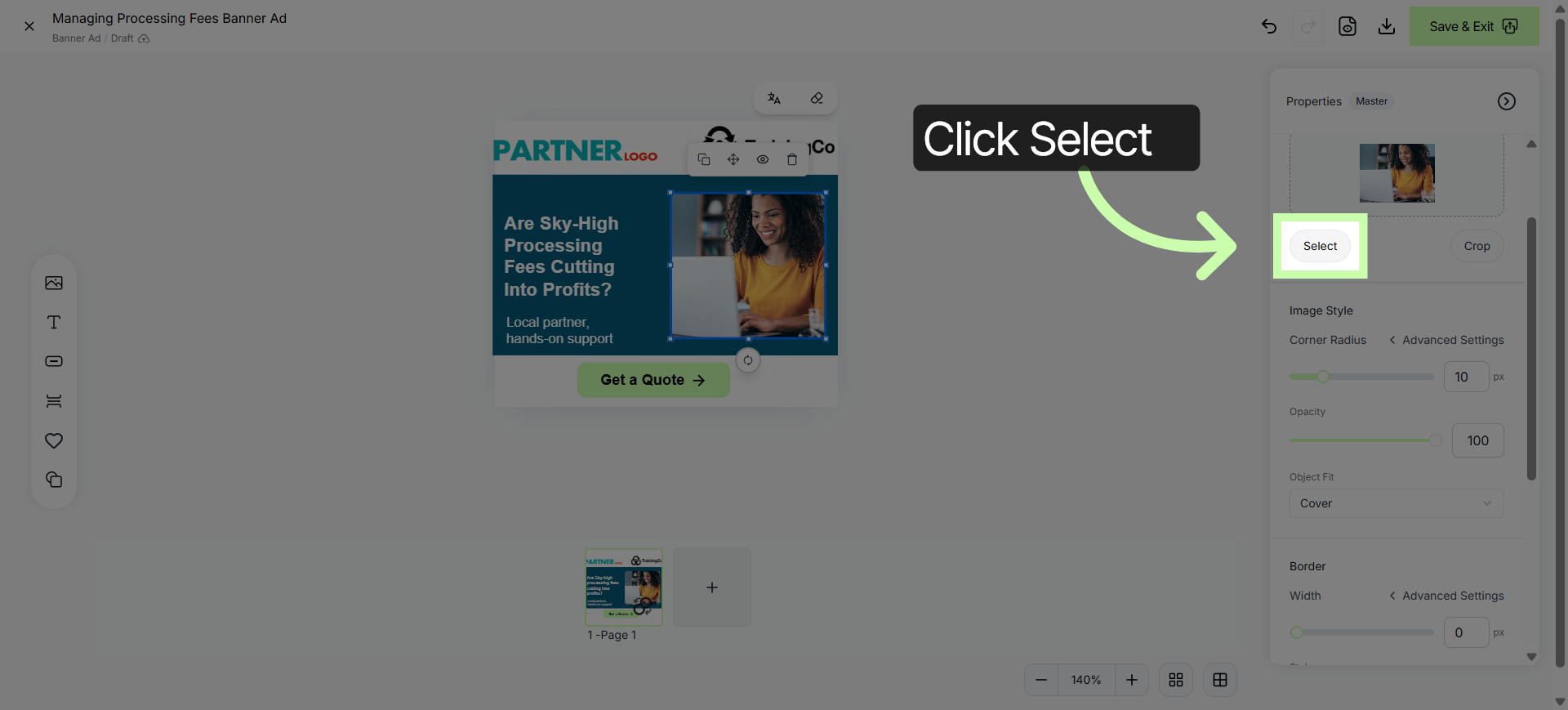
Click Select from the properties panel.
11. Add Selected Image
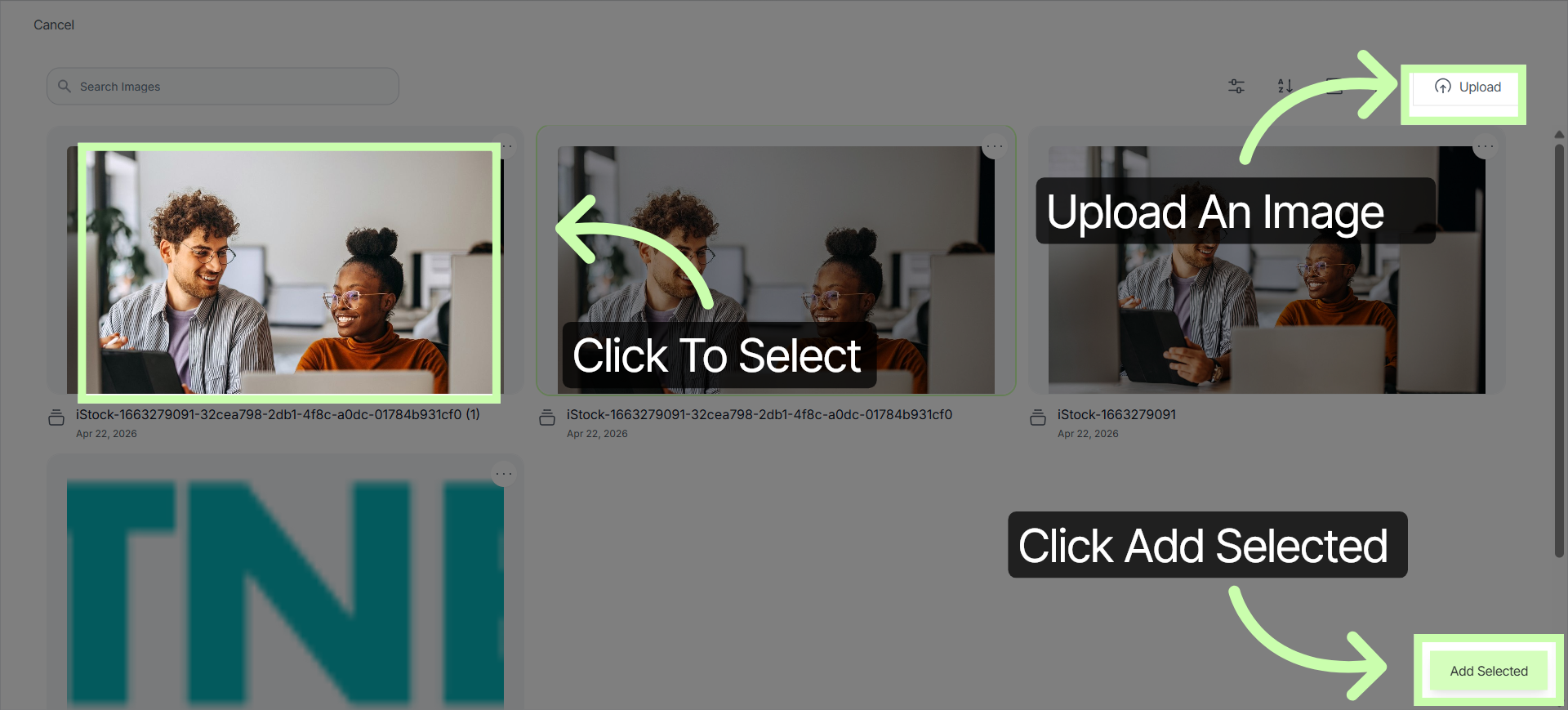
Upload from your hard drive, then click to select your image. Then click Add Selected.
12. Add New Layouts
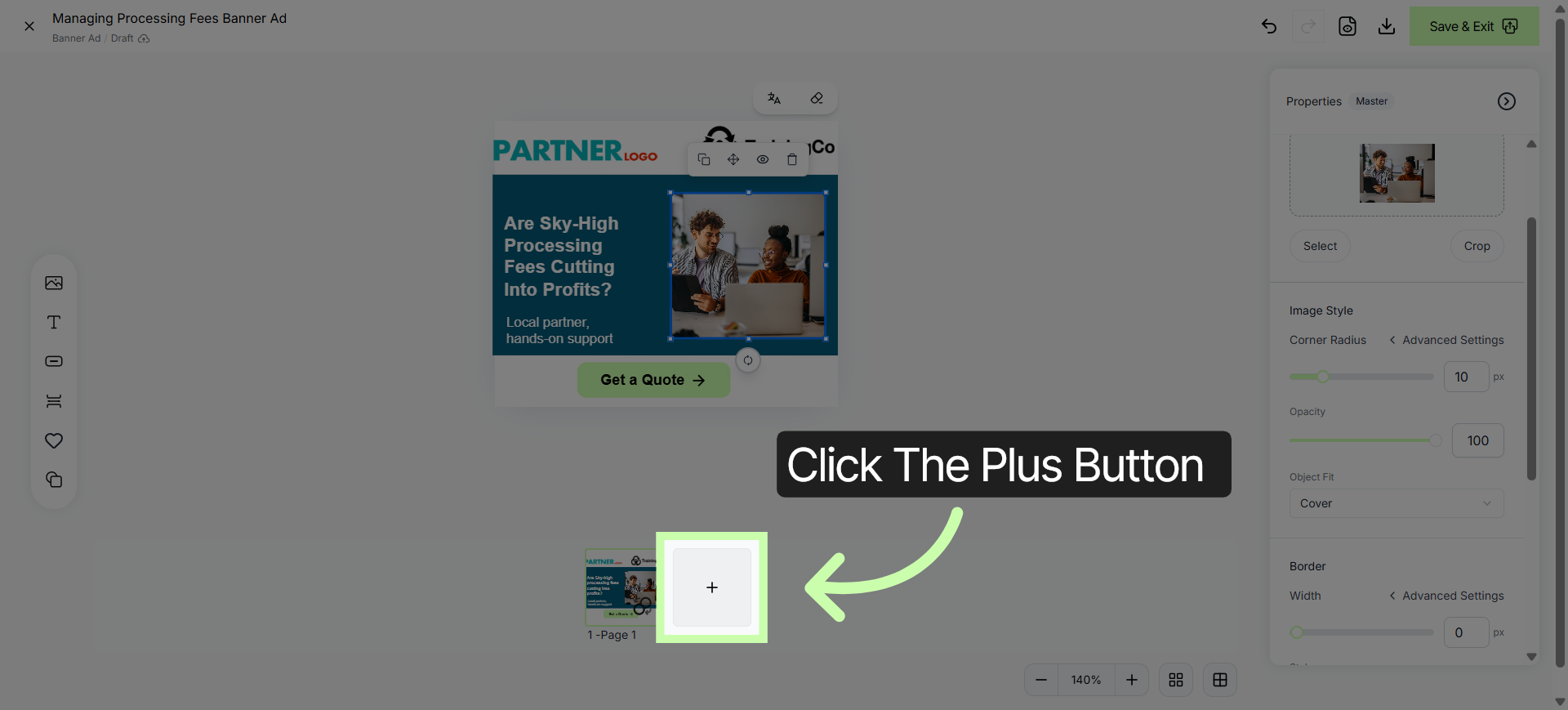
To scale your campaign, click the + button to add new layouts.
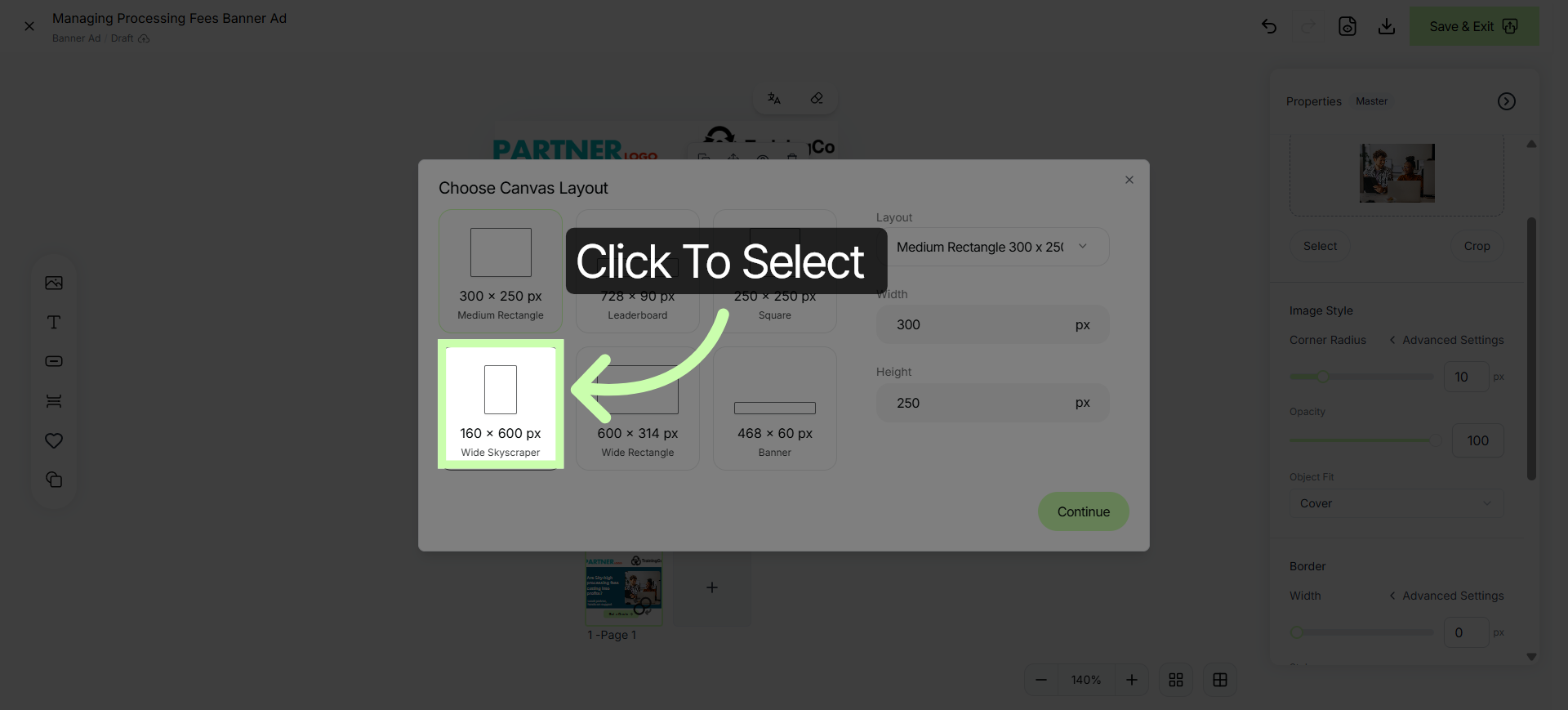
13. Choose a Size
Click to select your new size.
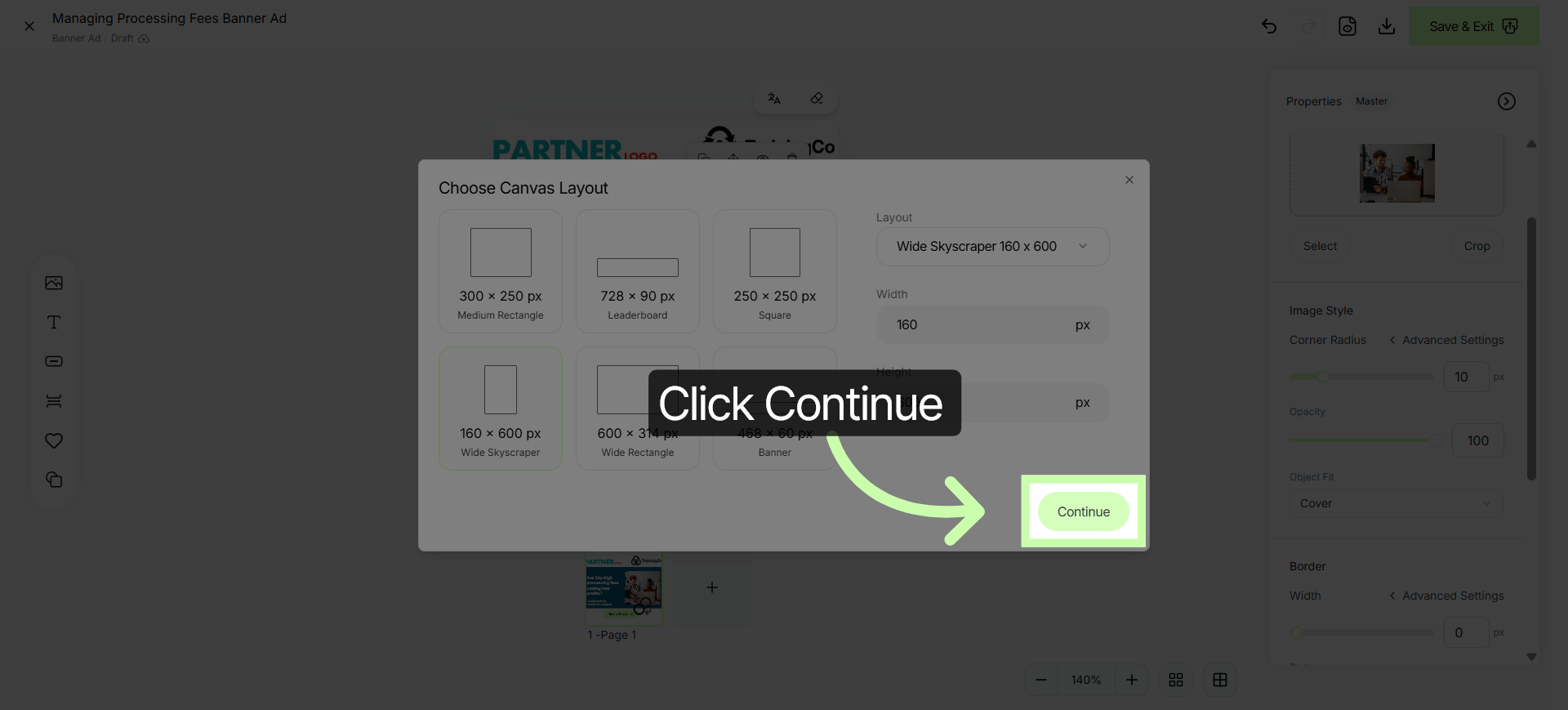
14. Continue Editing
Click Continue to proceed.
15. Adjust Elements to New Size
You may need to adjust your contents to accommodate the new size.
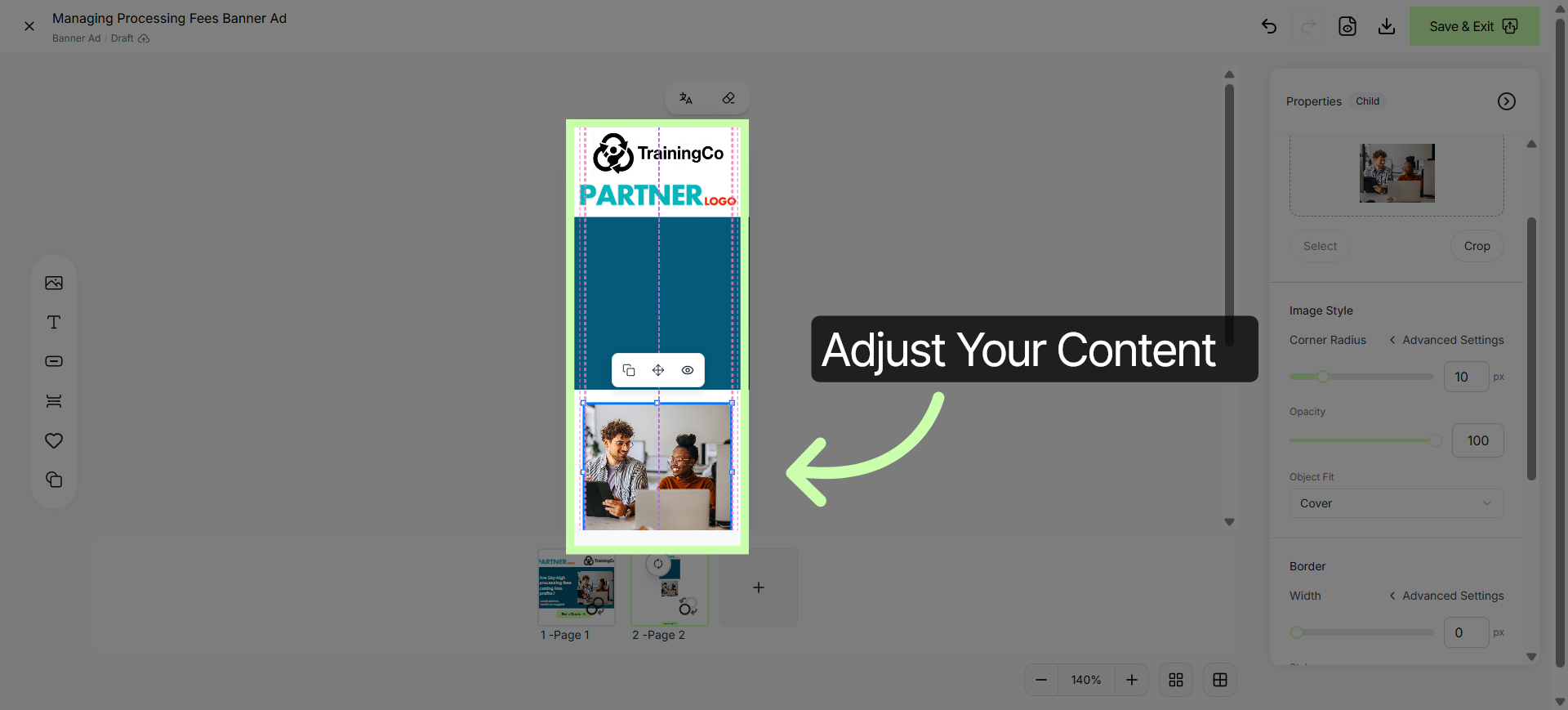
16. Adjust Elements Cont.
Each size serves a different purpose, like social posts or website banners.
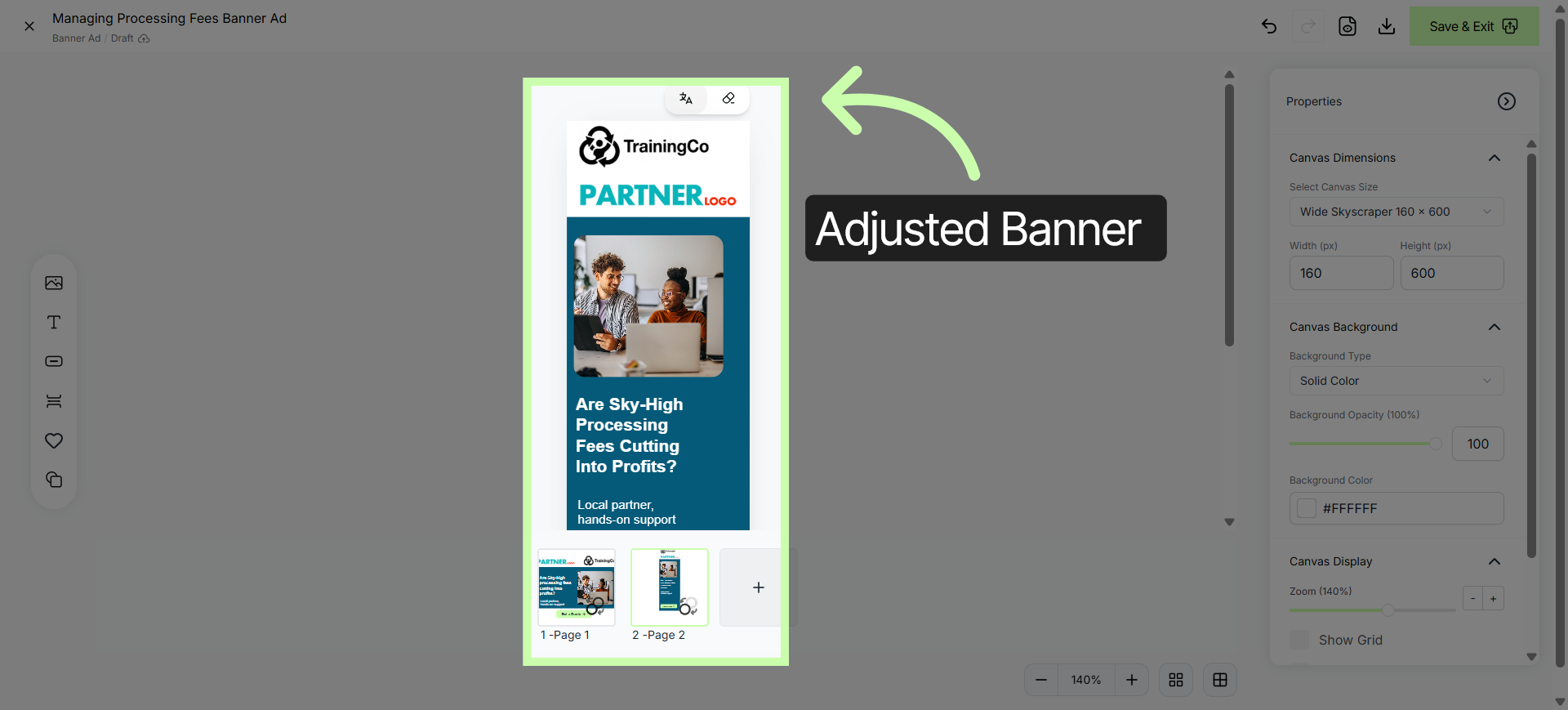
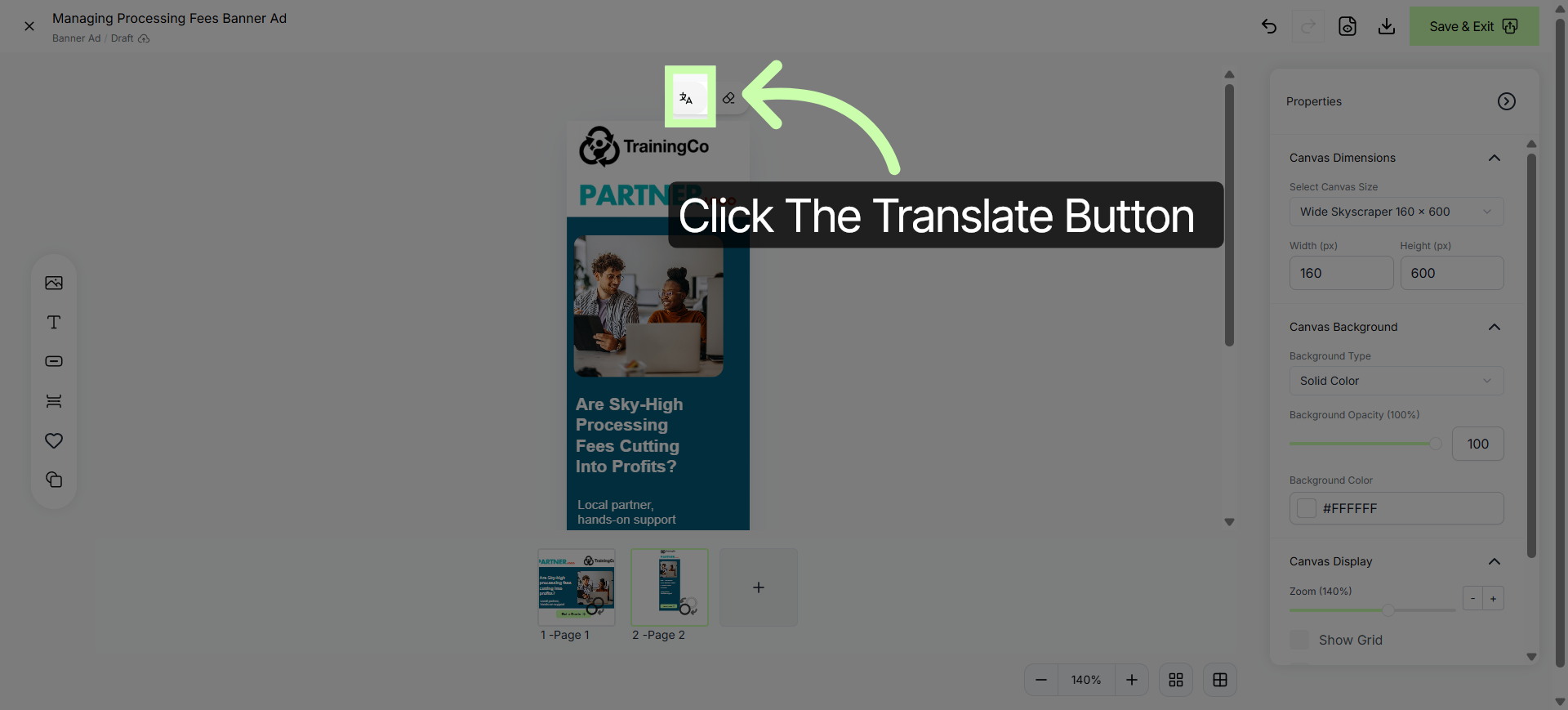
17. Translate Banner
Translate your banner to extend your reach.
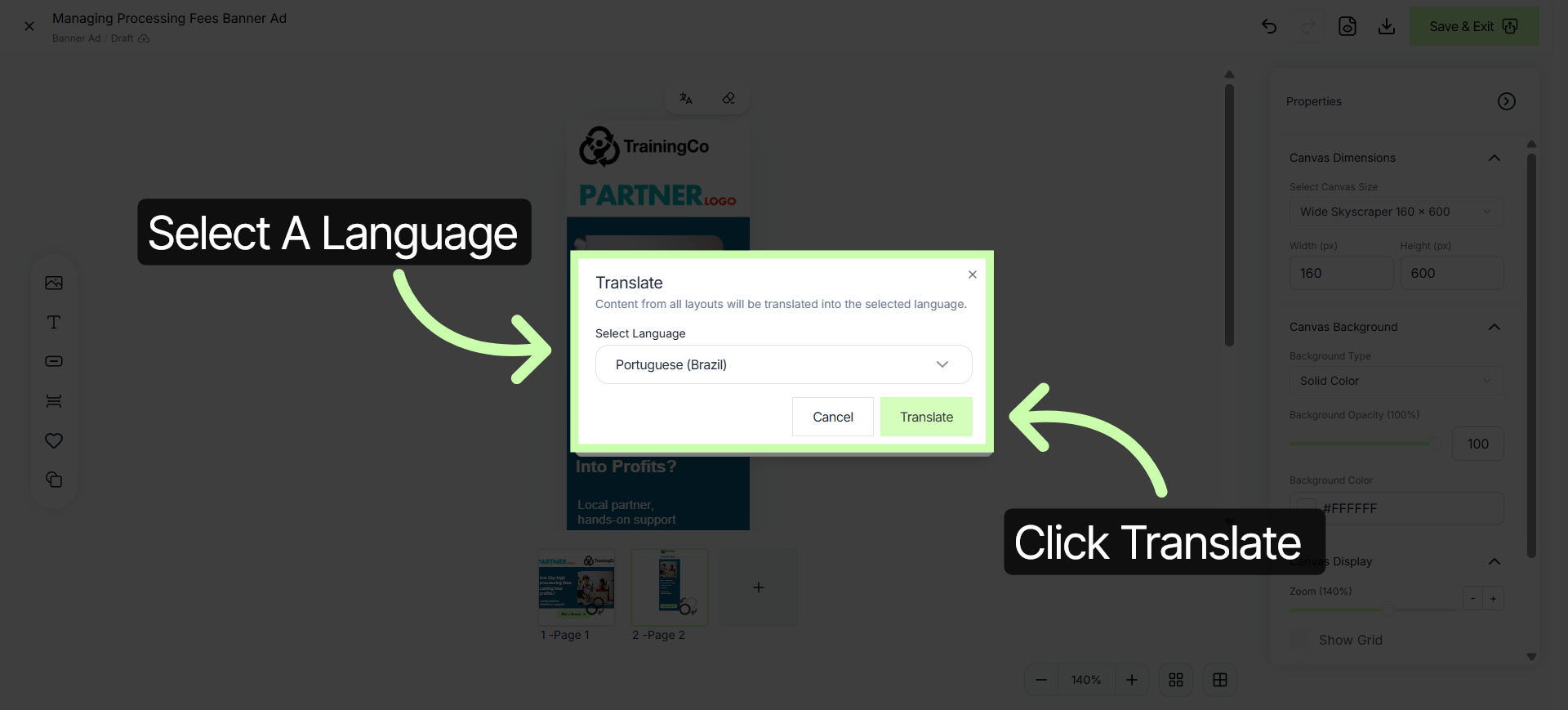
18. Select a Language
Select a language, such as Portuguese, and click translate.
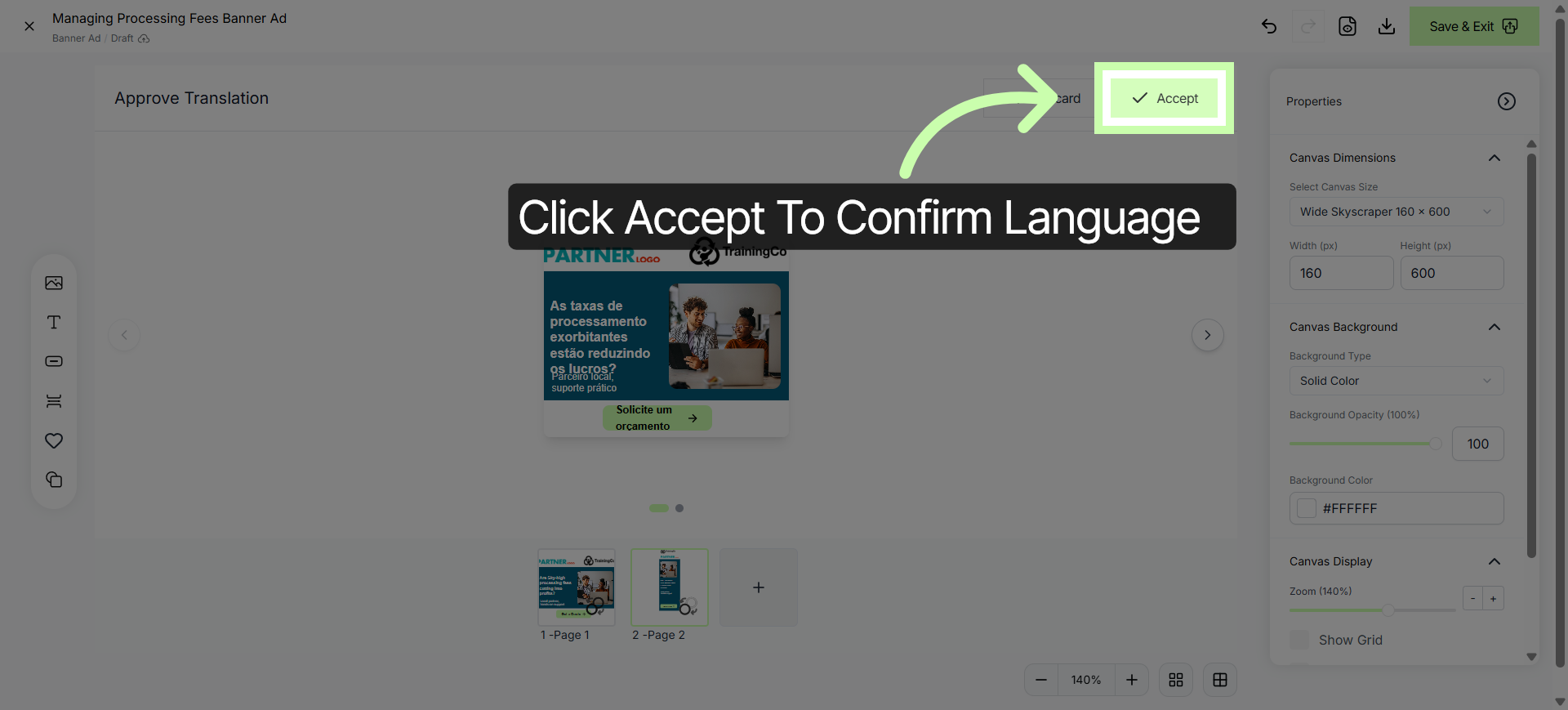
19. Accept Translation
Click Accept to confirm and apply the translated banner text.
20. Export Translated Banner
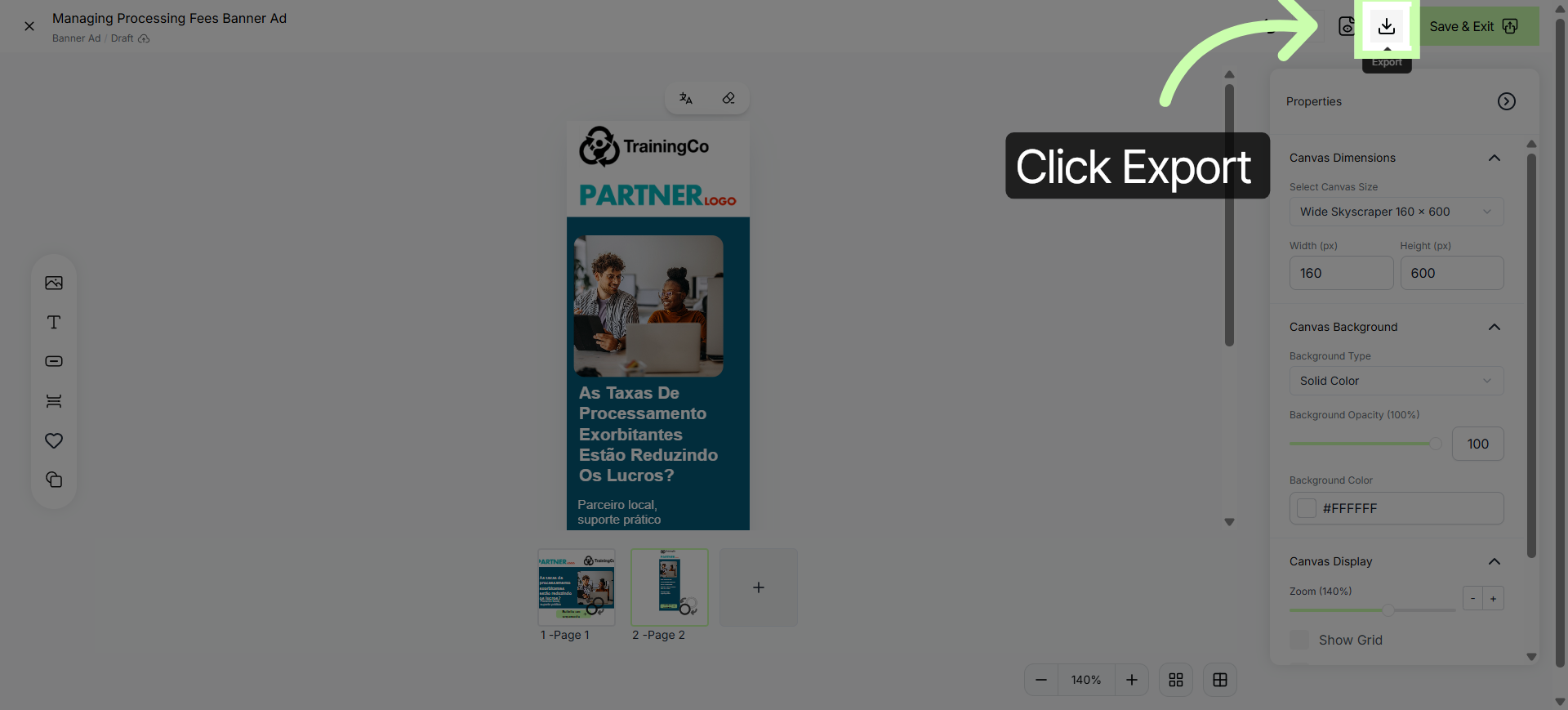
When your design is ready, click the Download button.
21. Confirm Export
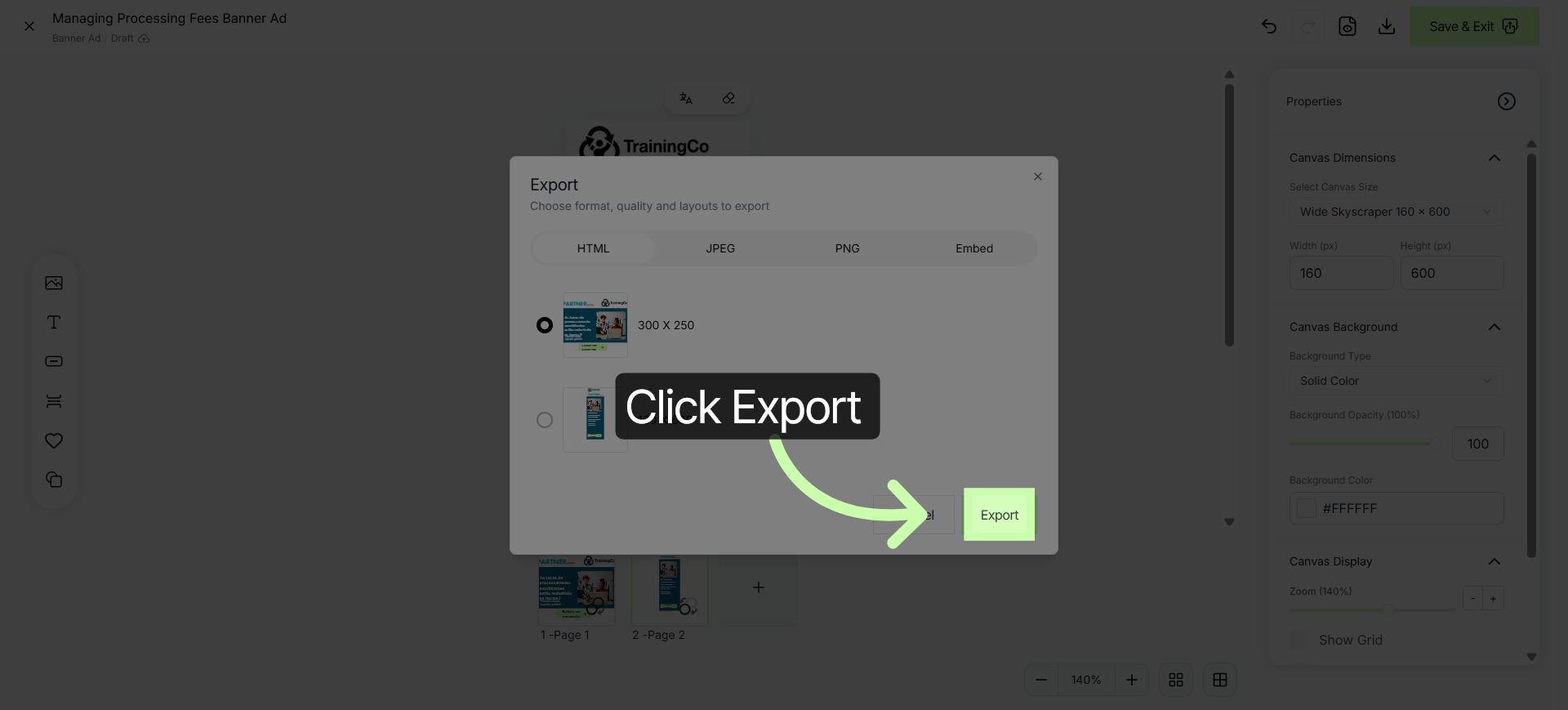
Choose your export format and click Download.
22. Click x to
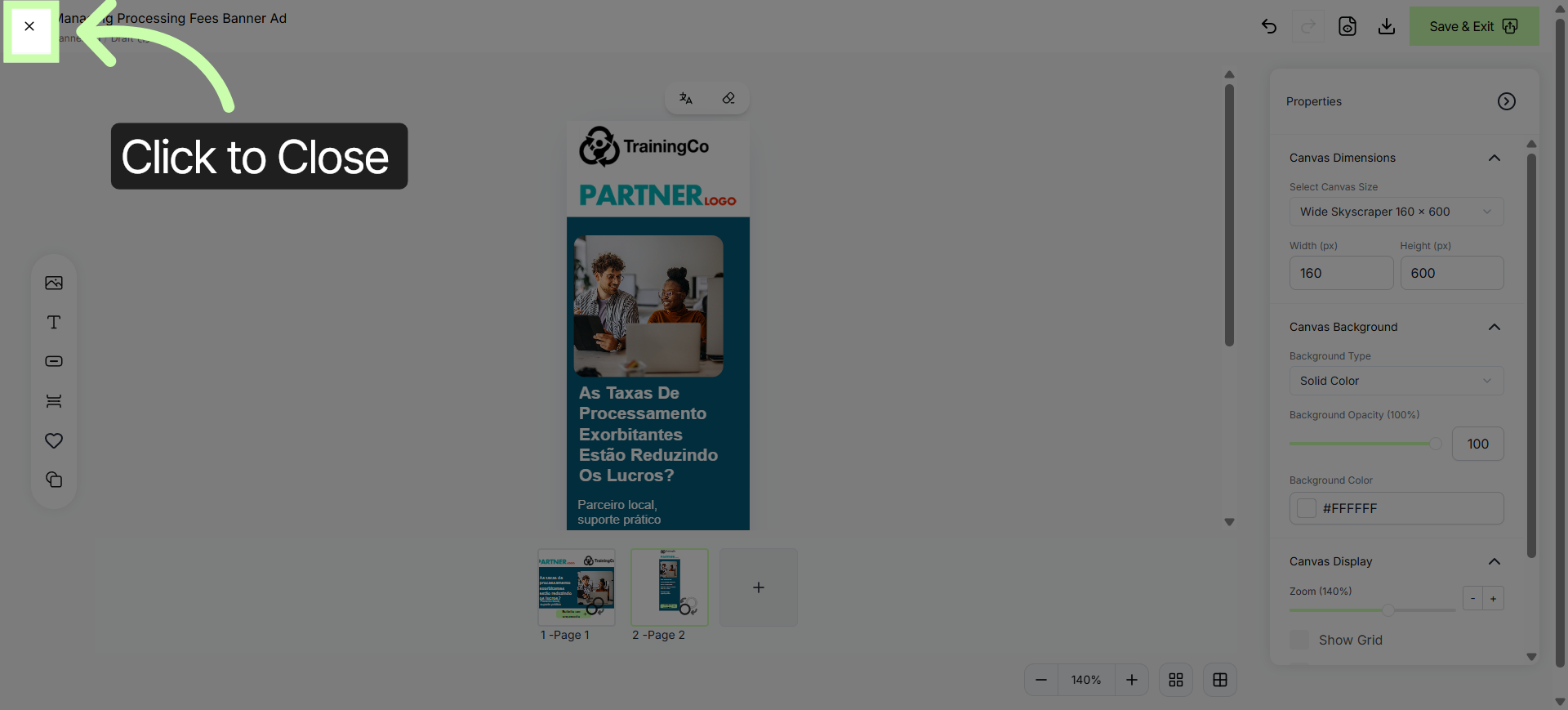
Click X to close.
You've Completed this Training - Move to the Next Training →