
Estimated Time
~15 minutes
What You'll Accomplish
- This tutorial guides you through personalizing custom documents.
|
Before you begin — open your account This is a hands-on, learning-by-doing session. Open app.structured.ai in your browser and log in to your Account so you can follow along and apply each step in real time. |
 Follow Our Step-By-Step Training
1. Introduction
Customizing a document is a powerful way to deliver content that feels relevant, polished, and uniquely yours. Whether it’s an infographic, e-book, or another asset, your document comes pre–co-branded, but you have full control to edit and tailor it to your audience.
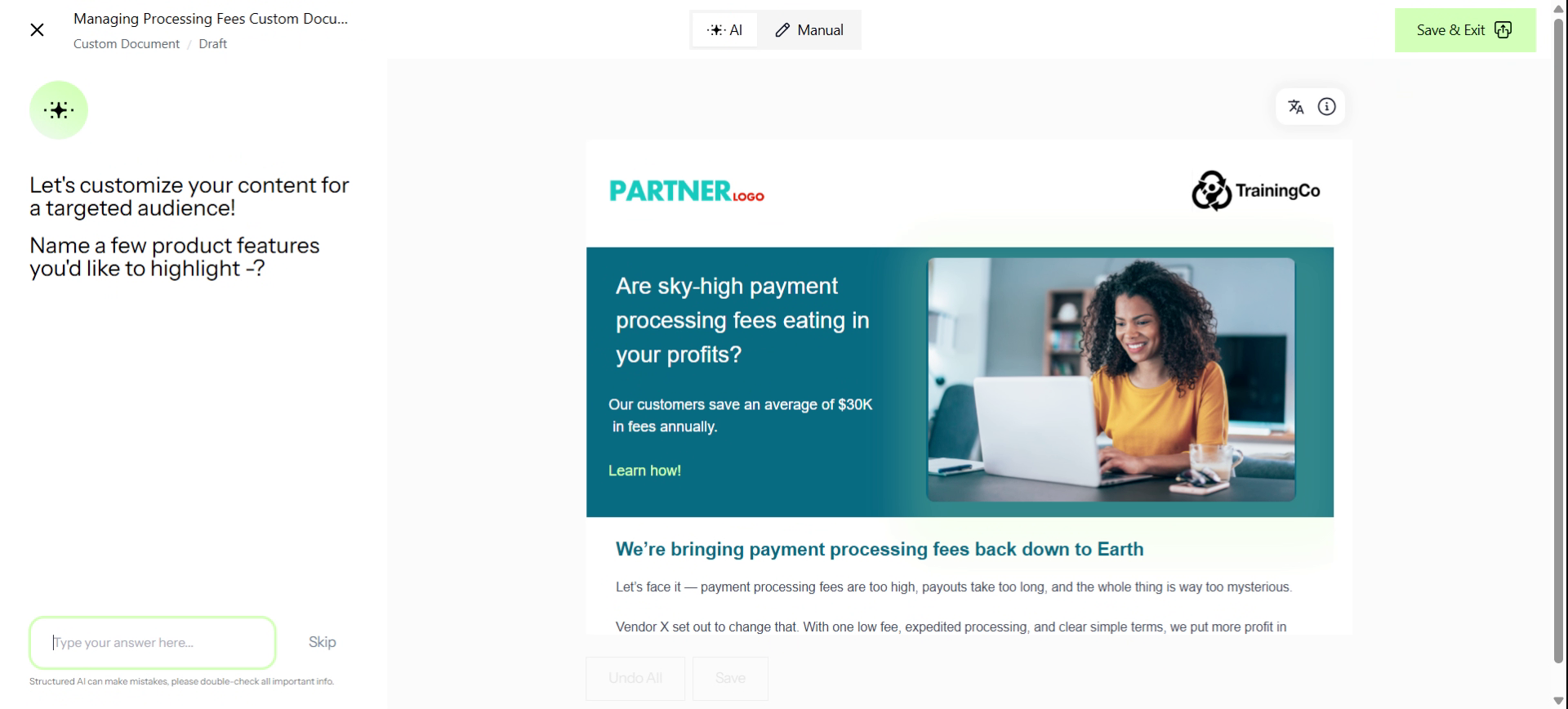
2. Select Manual Mode
To start, from the workspace, click the Manual Tab.
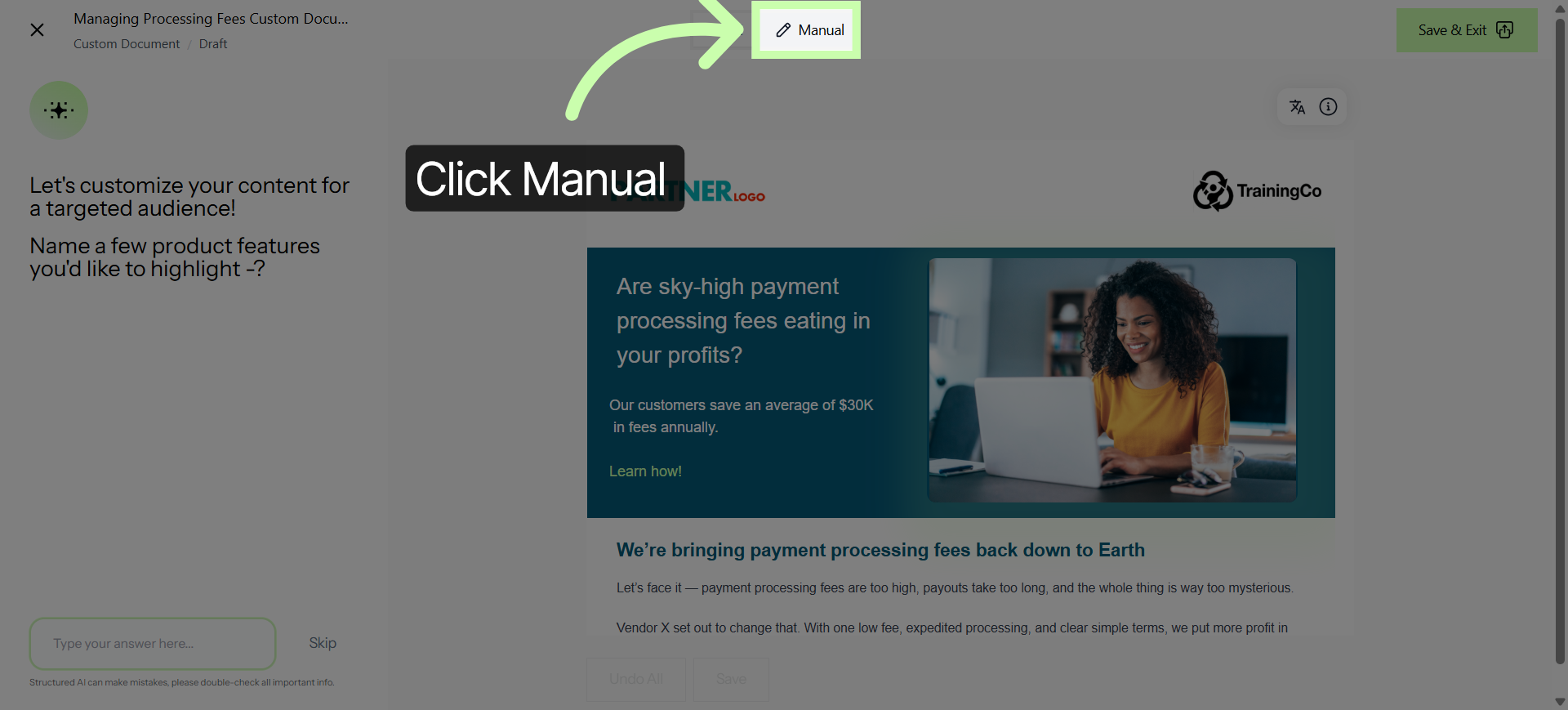
3. Choose Page
On the left, you’ll see all the pages in your custom document. Simply click any page to start personalizing.
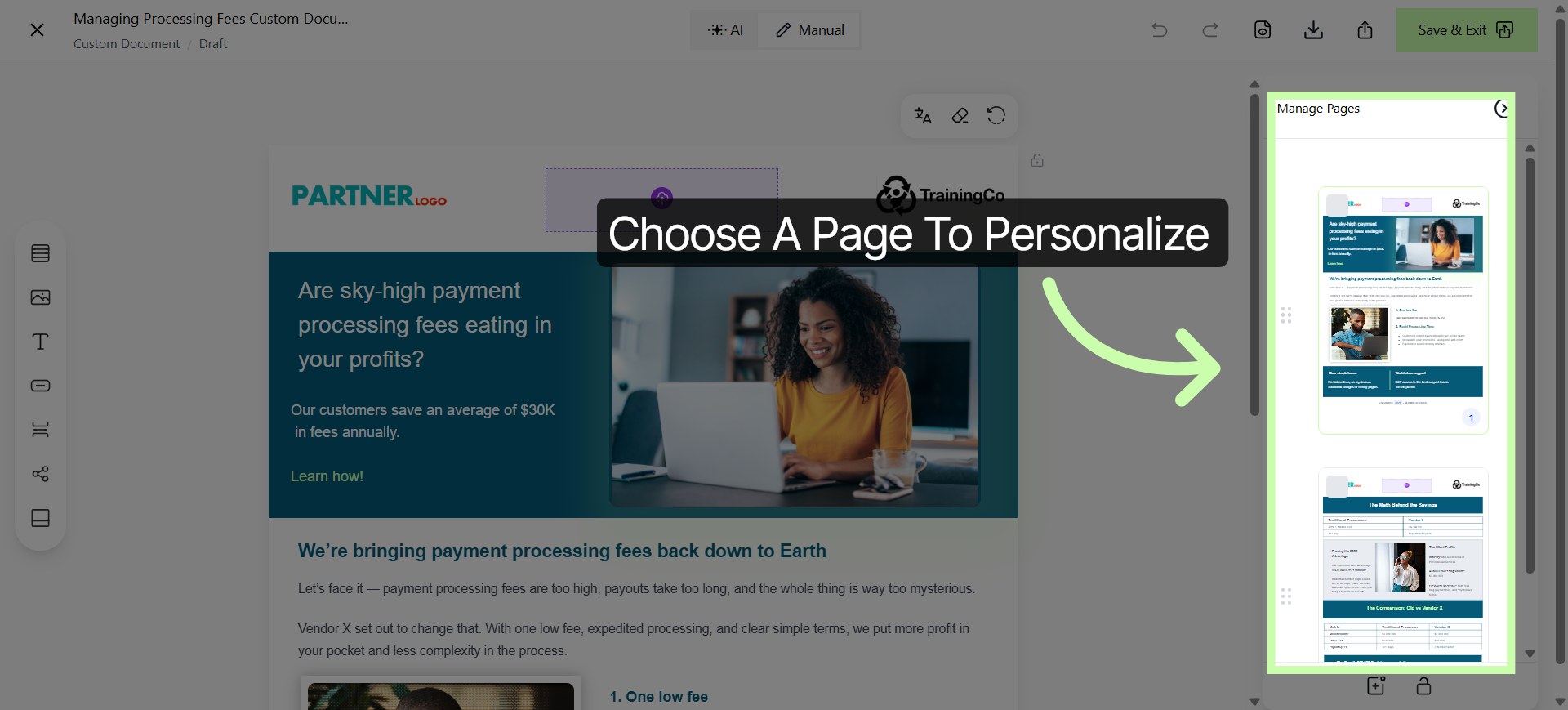
4. Click Text Box To Customize
From the page you selected, on the canvas, click inside any textbox to add your own value statements or local proof points.
5. Enter Customer Benefits Text
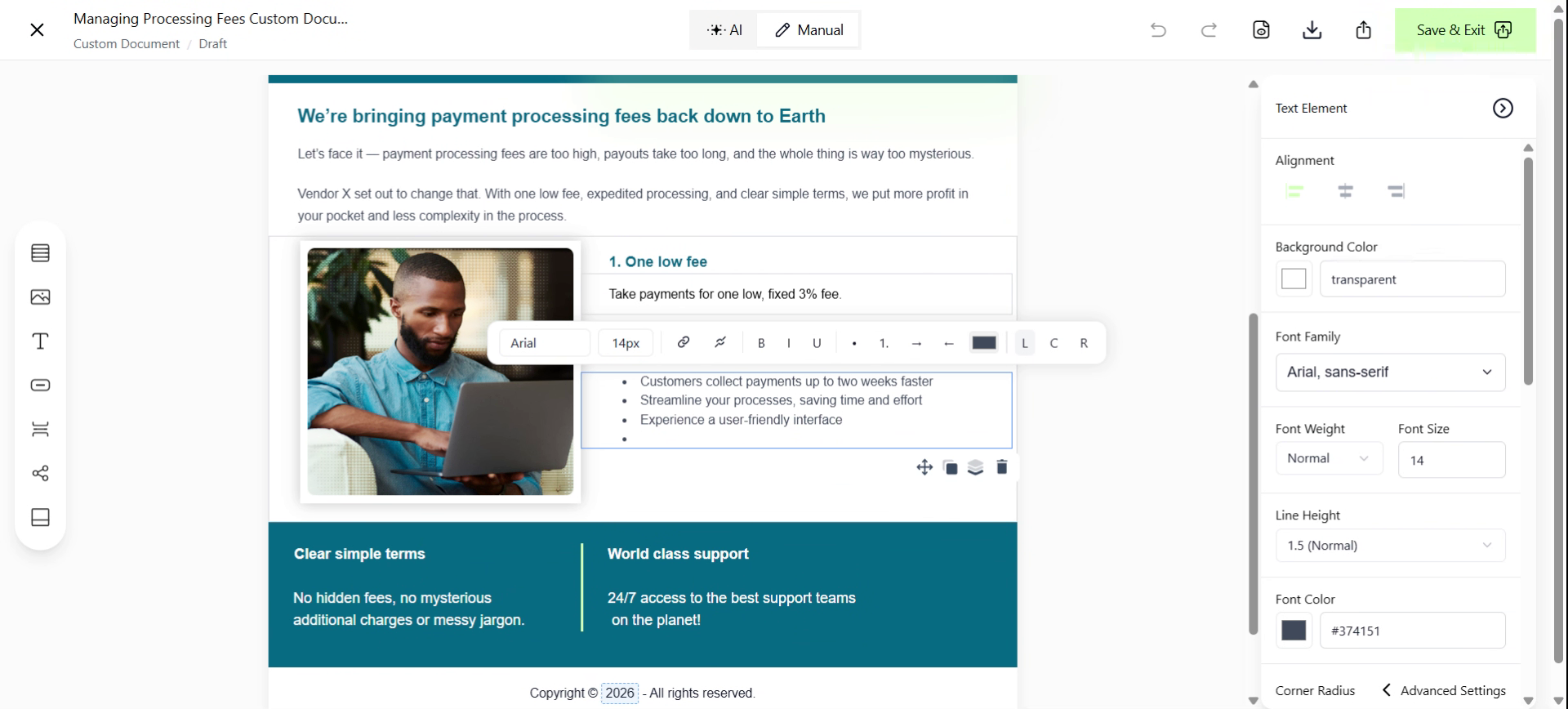
In this example, I'll add As your local partner, we provide the hands-on support and customized implementation you need to get the most out of Vendor X’s solution.
6. Update Customer Benefits Content
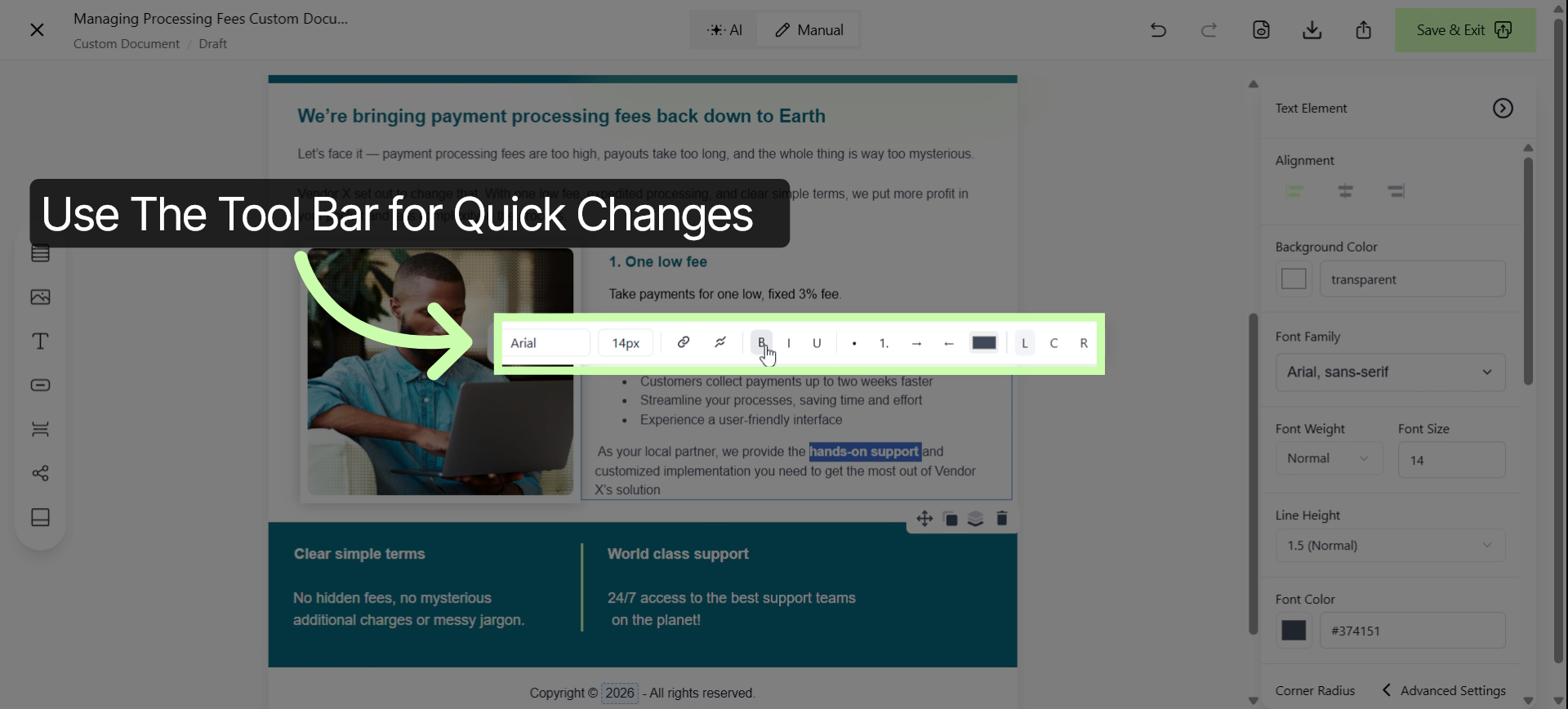
Use the Toolbar for quick changes, like bolding key phrases or adding hyperlinks.
7. Use the Properties Panel
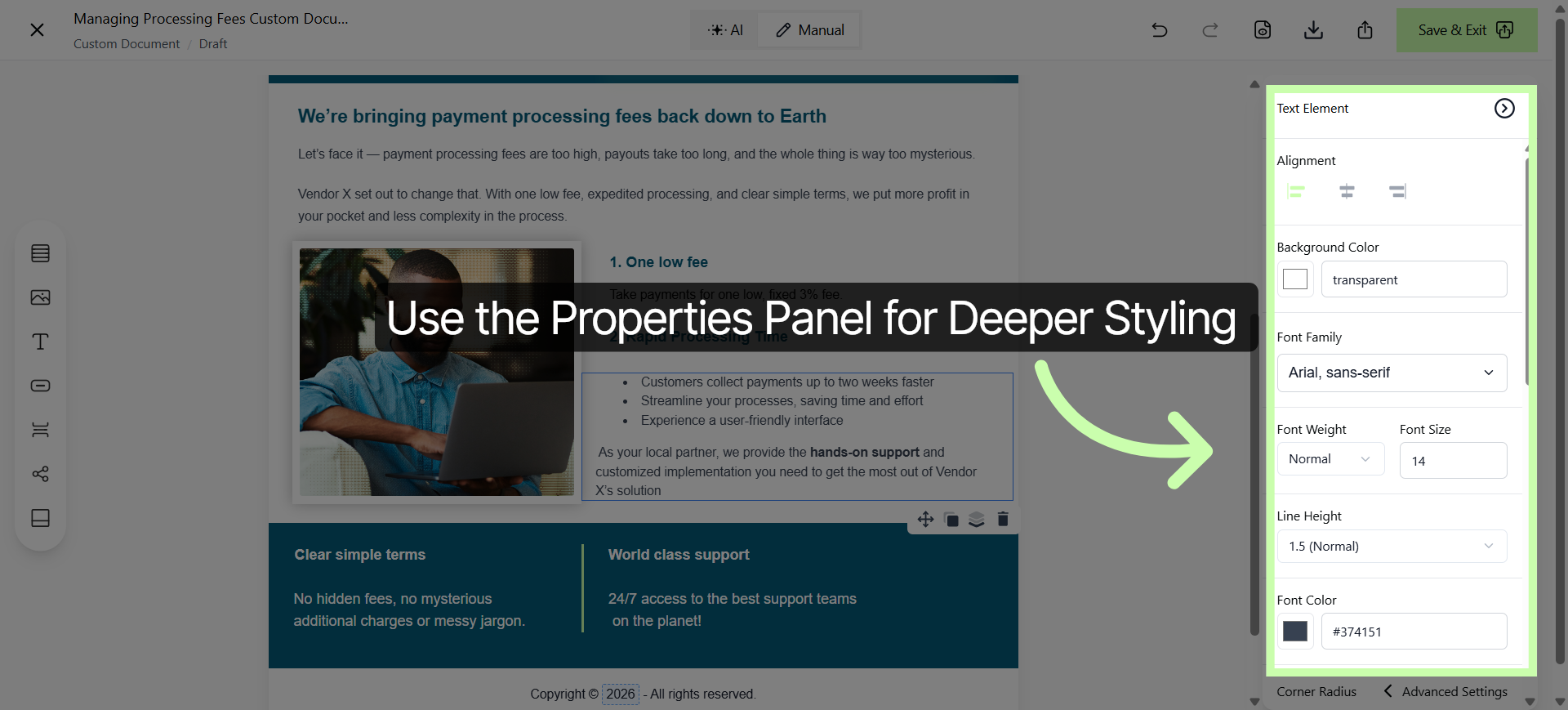
For deeper styling, use the Properties Panel to update the entire text box, including brand colors and fonts.
8. Select Font Color Option
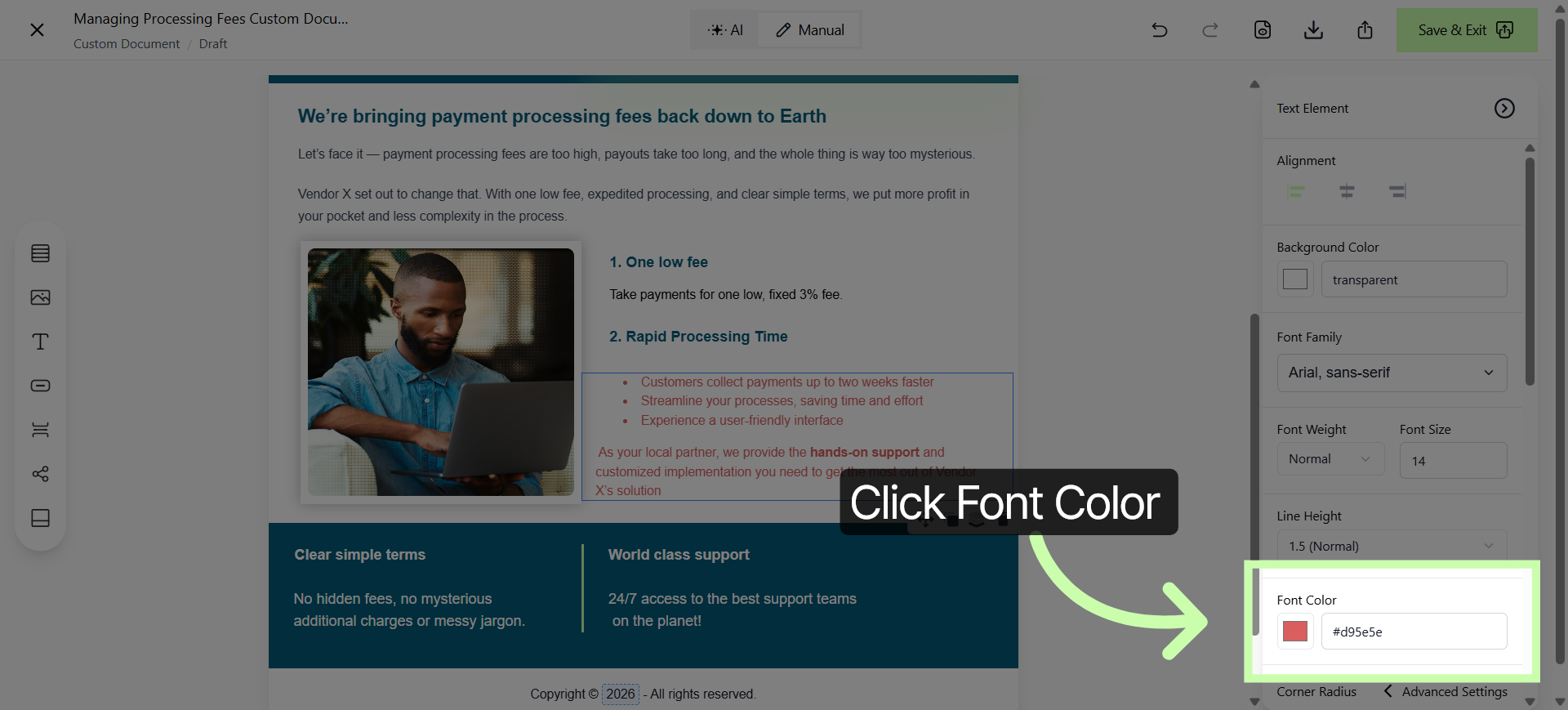
In this example, I'll turn my entire text box red.
9. Open Translation Options
To reach a broader audience, use the Translate button on the toolbar.
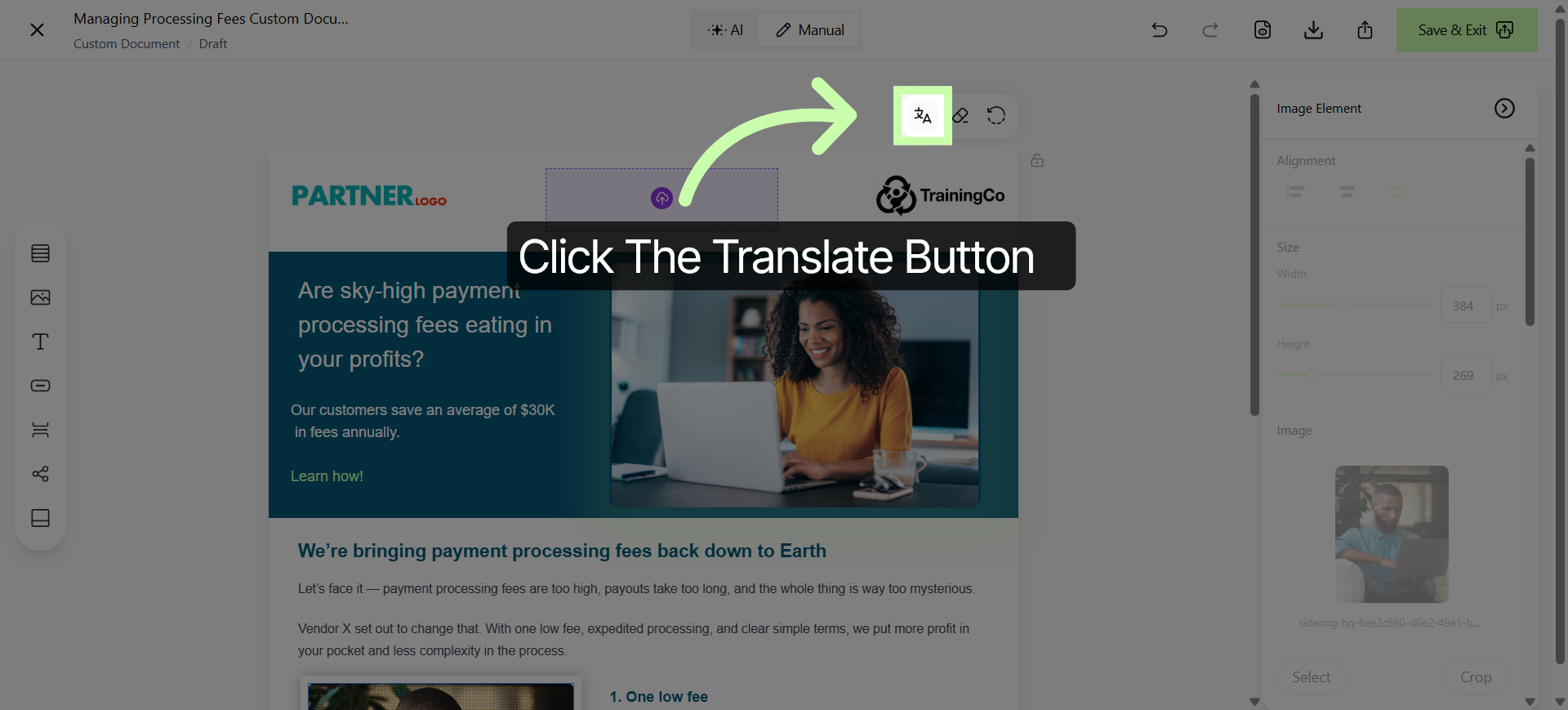
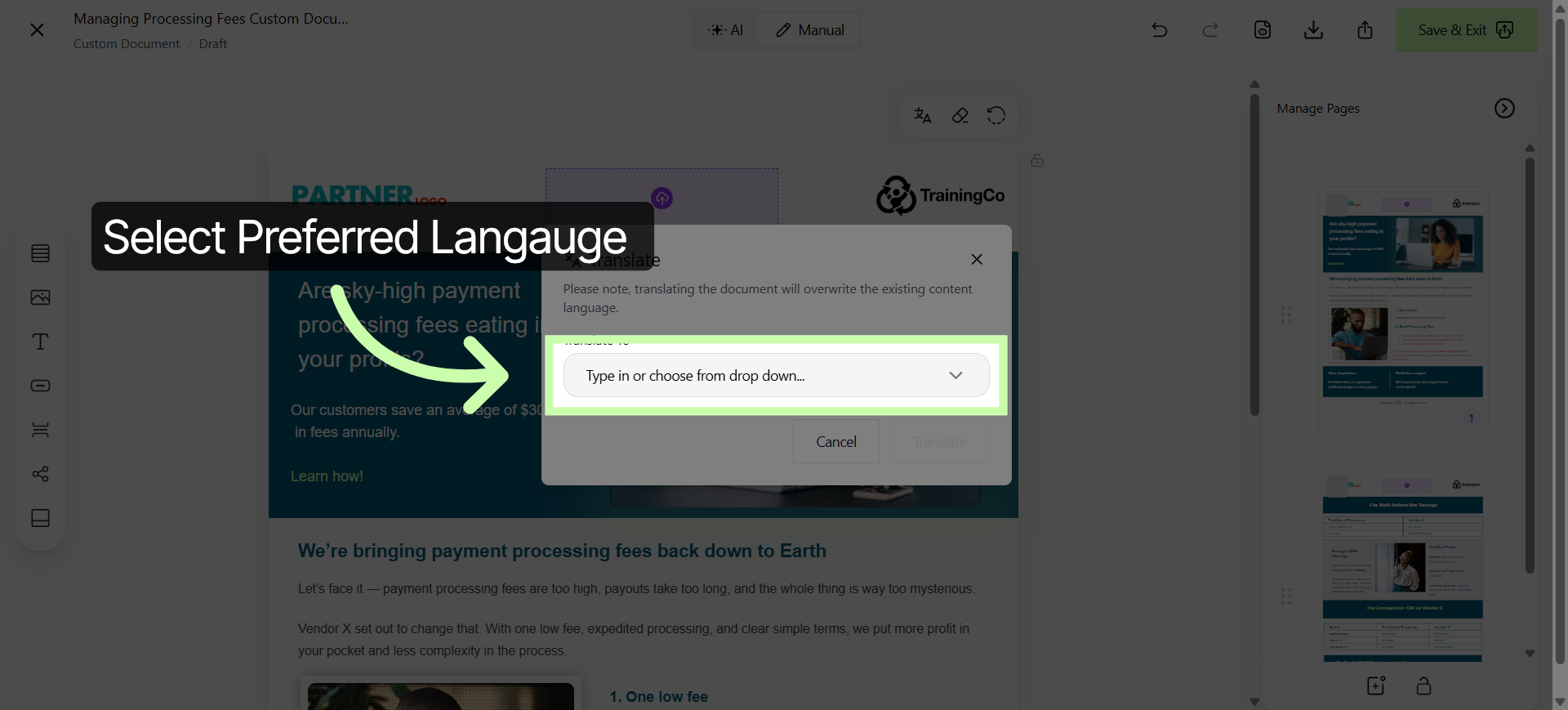
10. Select Language Dropdown
Choose from up to 130 languages!
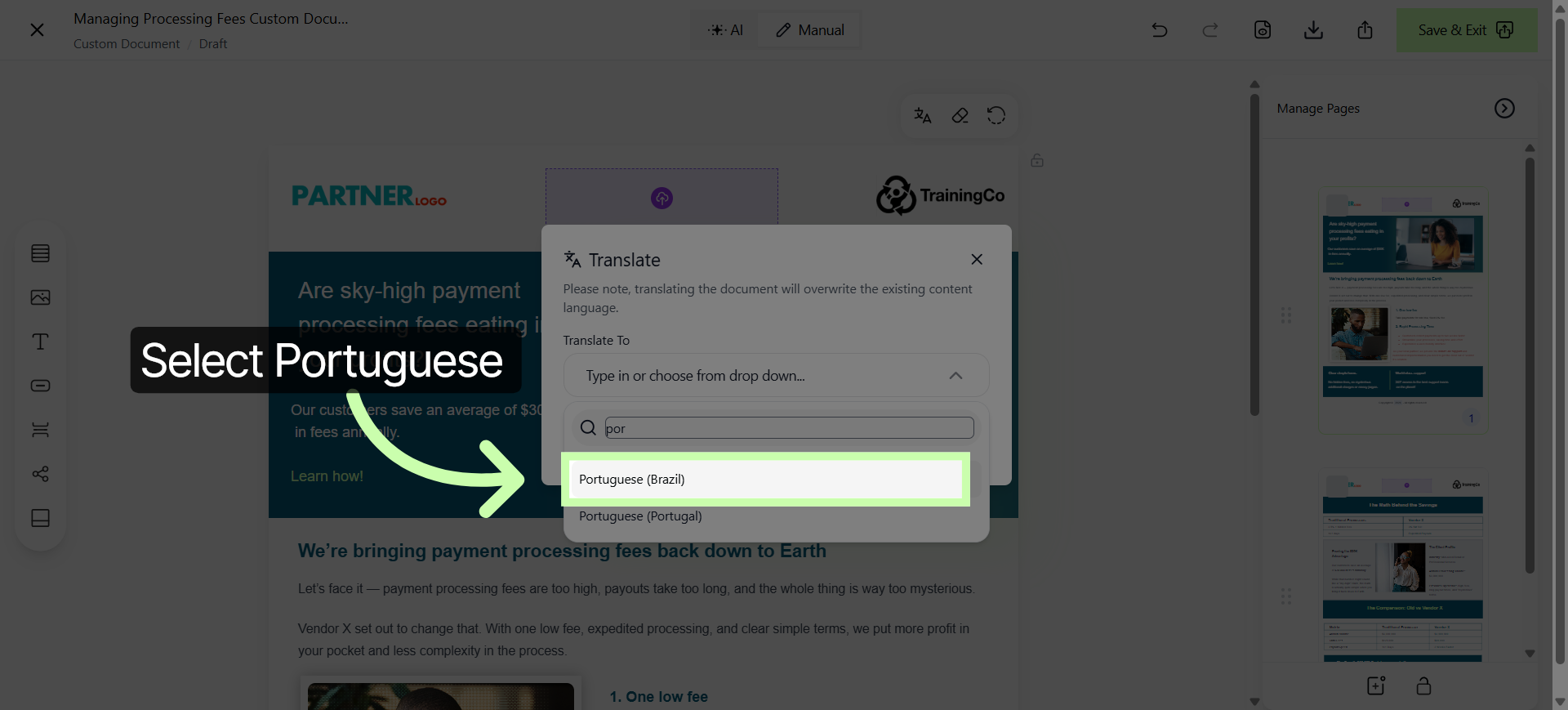
11. Choose Preferred Language
In this example, I'll choose Portuguese.
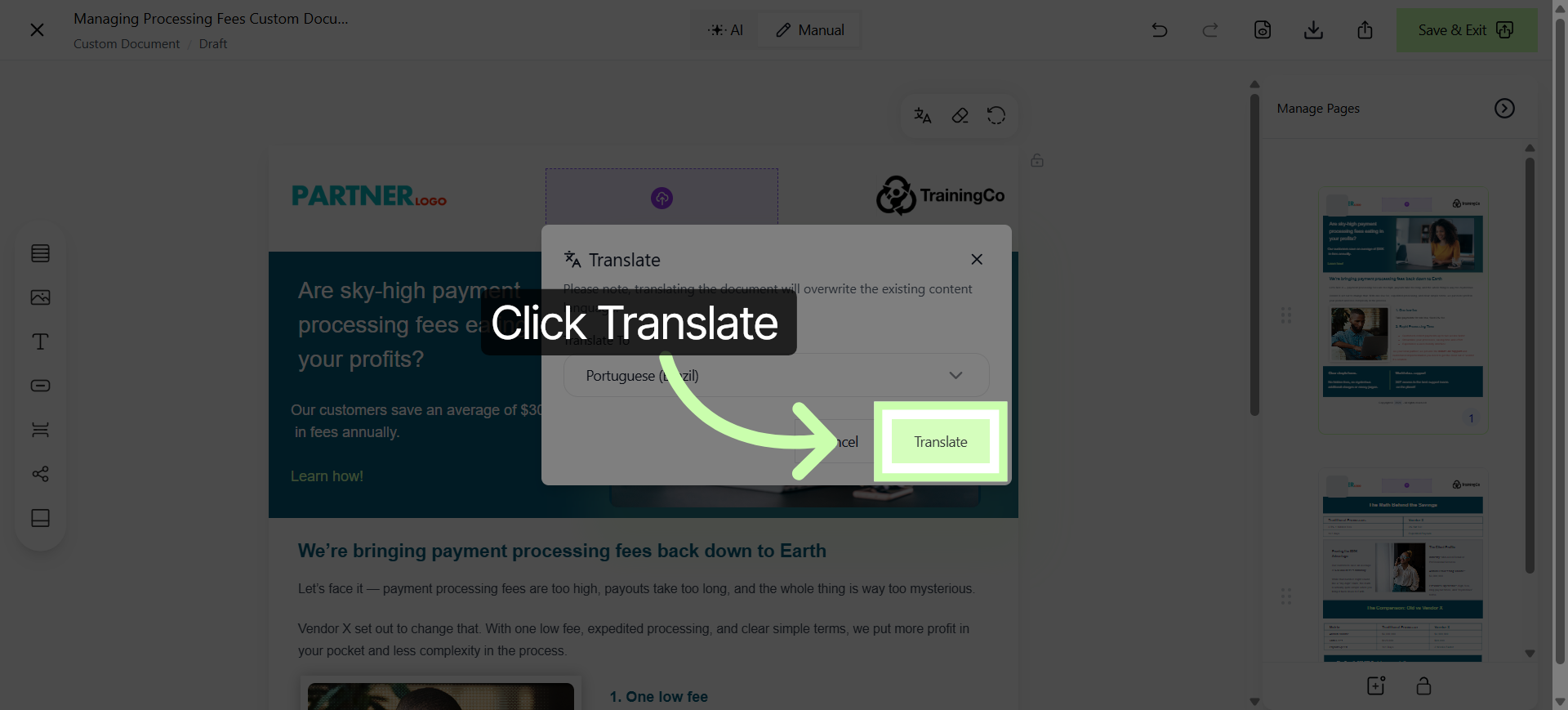
12. Initiate Translation
Click Translate to start translating the document into the selected language.
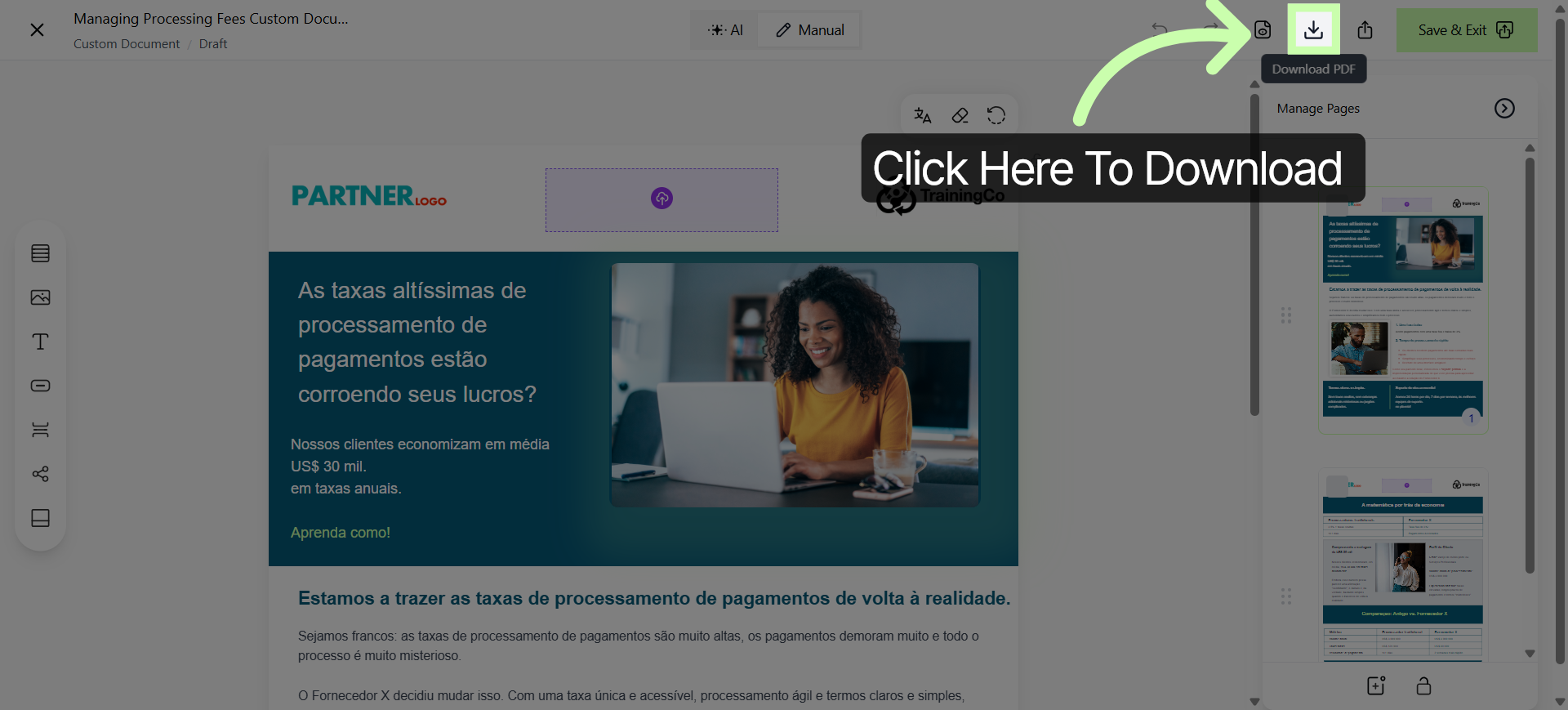
13. Download Document
Click this button to download your document.
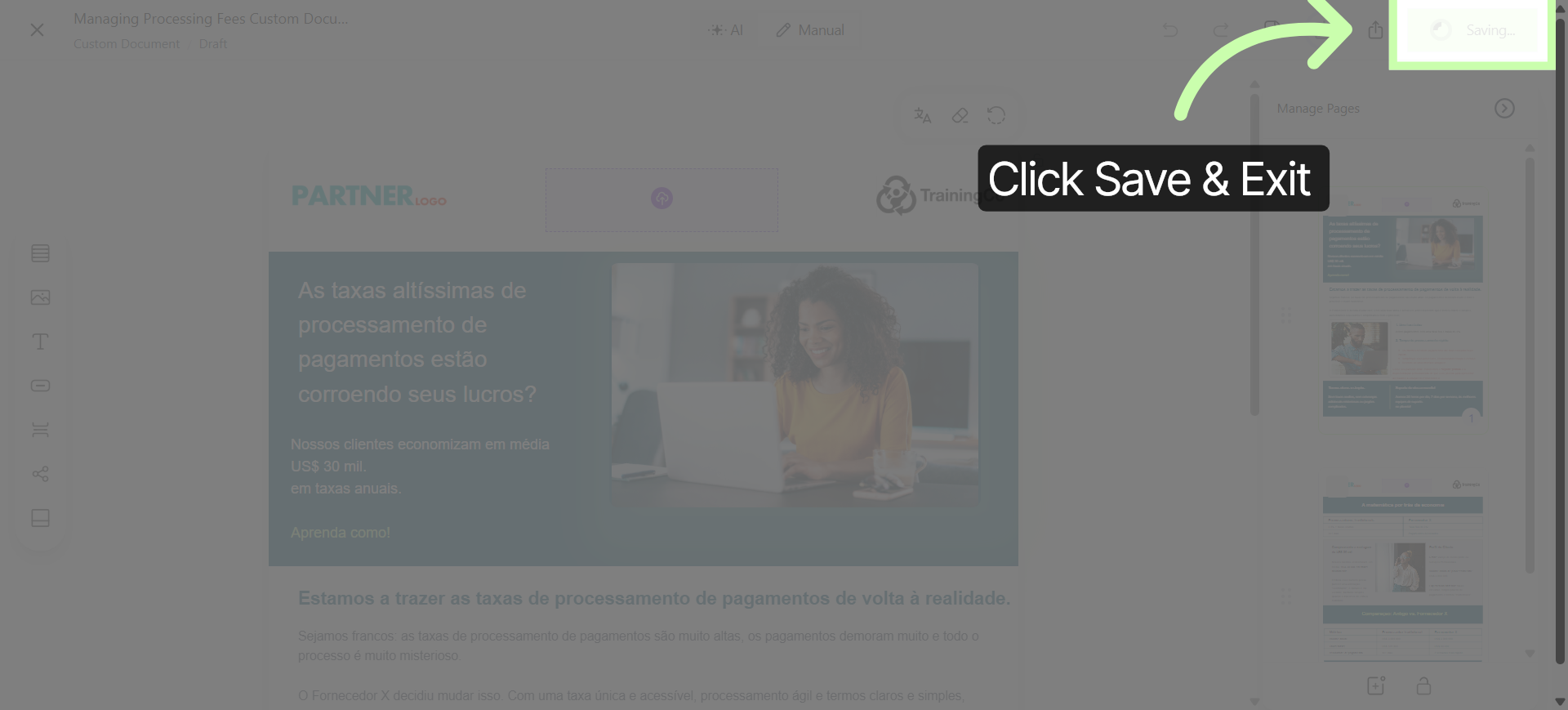
14. Save And Exit Editor
Or, click Save & Exit to save your changes and close the document editor.
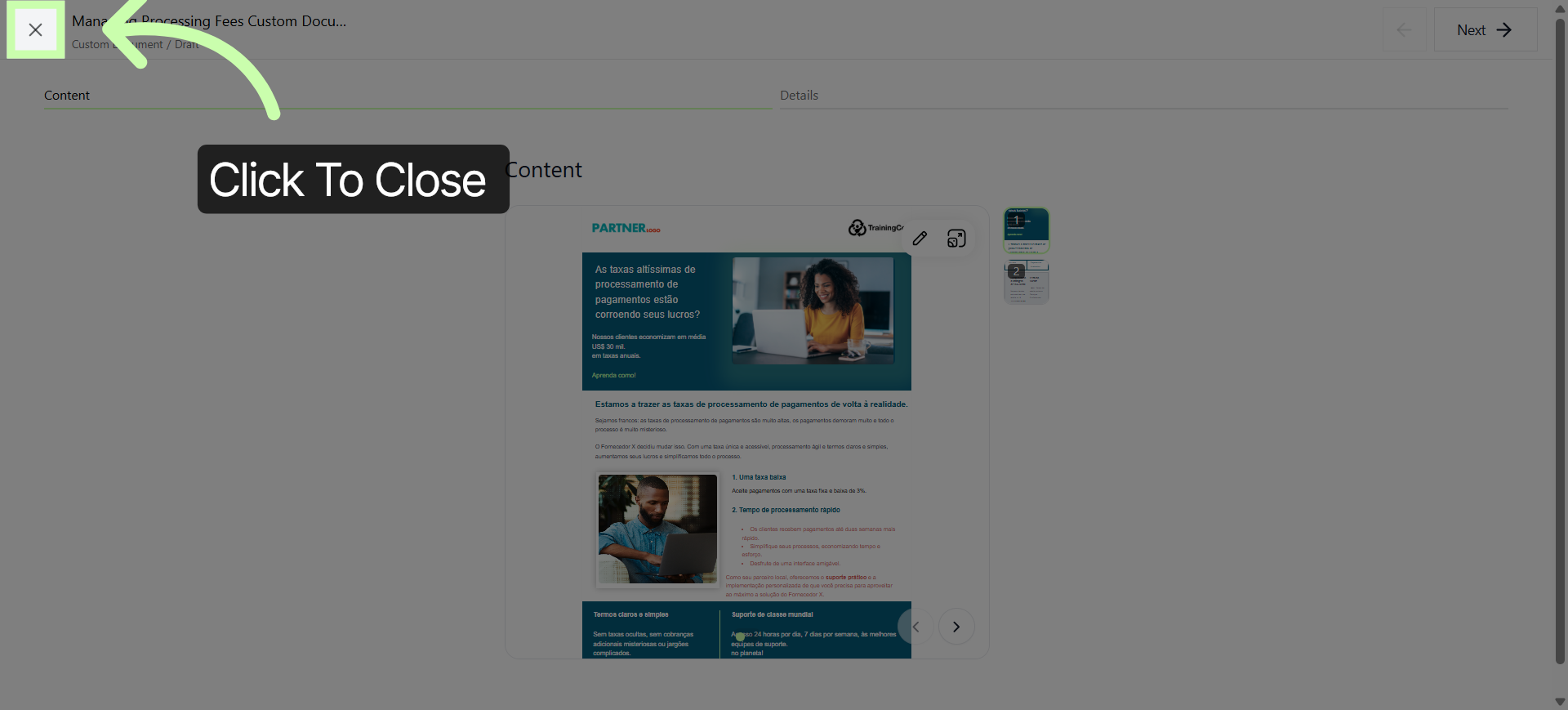
15. Complete Editing Session
Click here to finalize the editing session and return to the main interface.
Personalizing documents is a simple and flexible way to make your content shine. Next learn how to customize other assets within the Customizing Content Series.
You've Completed this Training - Move to the Next Training →