
Estimated Time
~15 minutes
What You'll Accomplish
- This tutorial guides you through editing and downloading Branded PDFs.
|
Before you begin — open your account This is a hands-on, learning-by-doing session. Open app.structured.ai in your browser and log in to your Account so you can follow along and apply each step in real time. |
 Follow Our Step-By-Step Training
1. Introduction
Branded PDFs are high-value assets, like e-books and infographics, provided directly by your tenant.
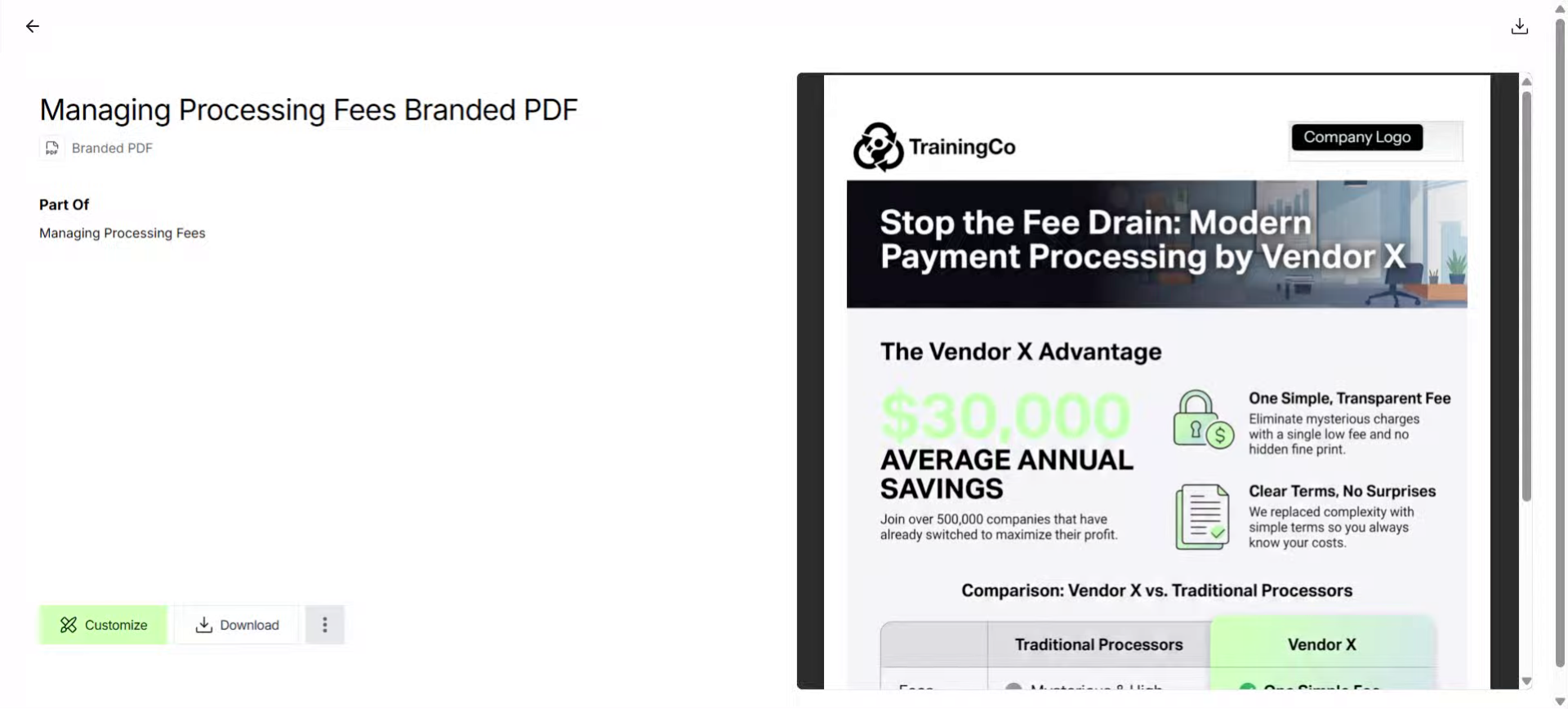
2. Open PDF Customization Panel
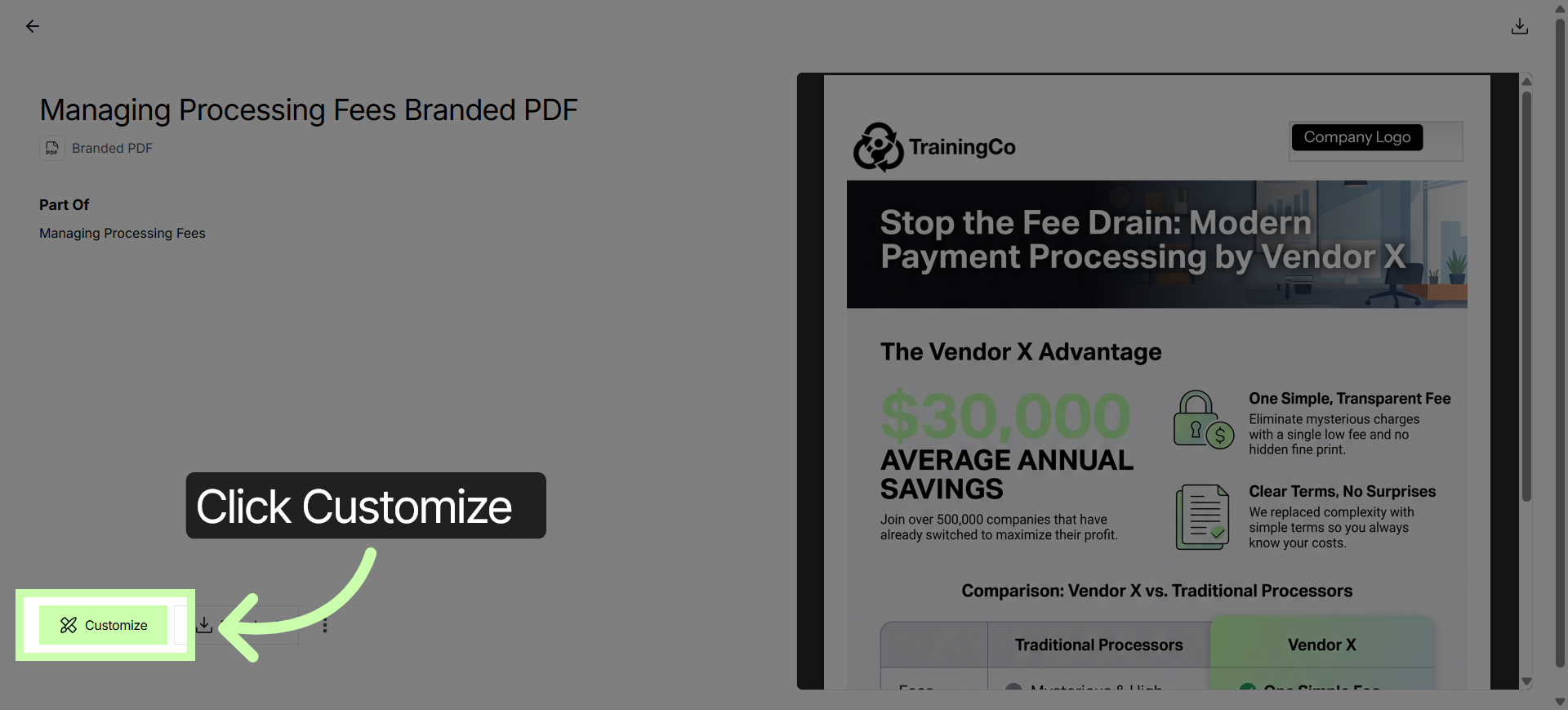
The best part? Most of the personalization happens automatically. To start, click Customize.
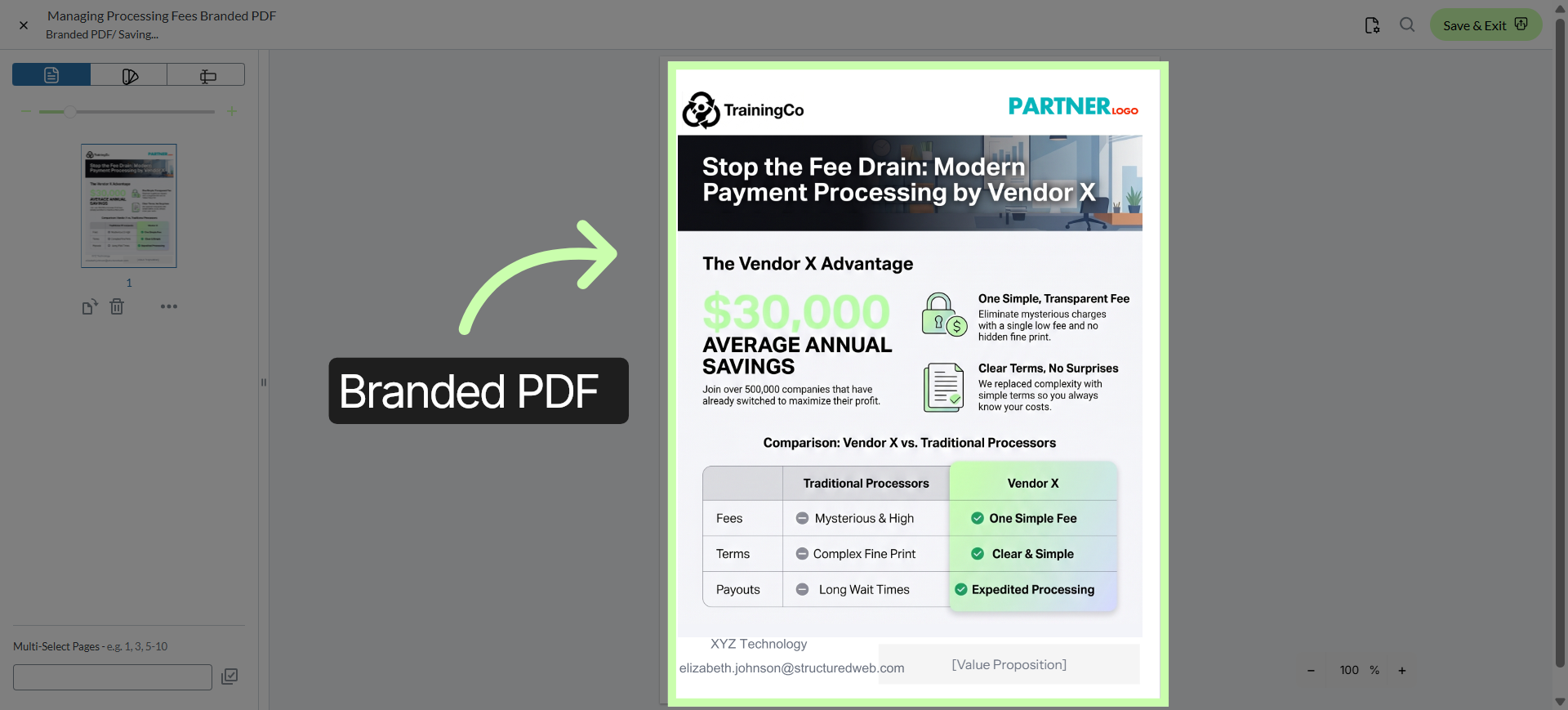
3. Initiate Editing Mode
Key details flow into the document instantly based on your Account Settings, saving you time while staying on-brand.
4. Confirm Style Changes
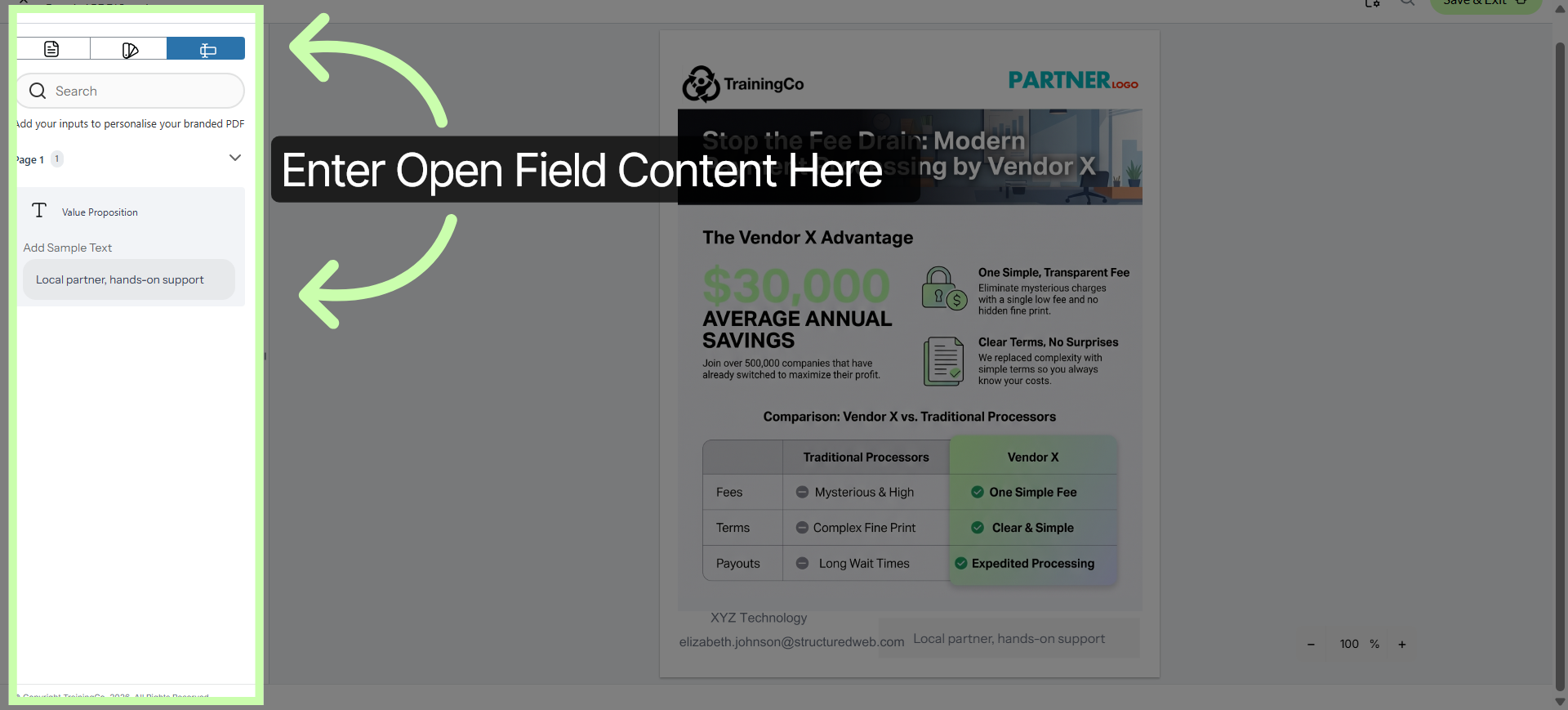
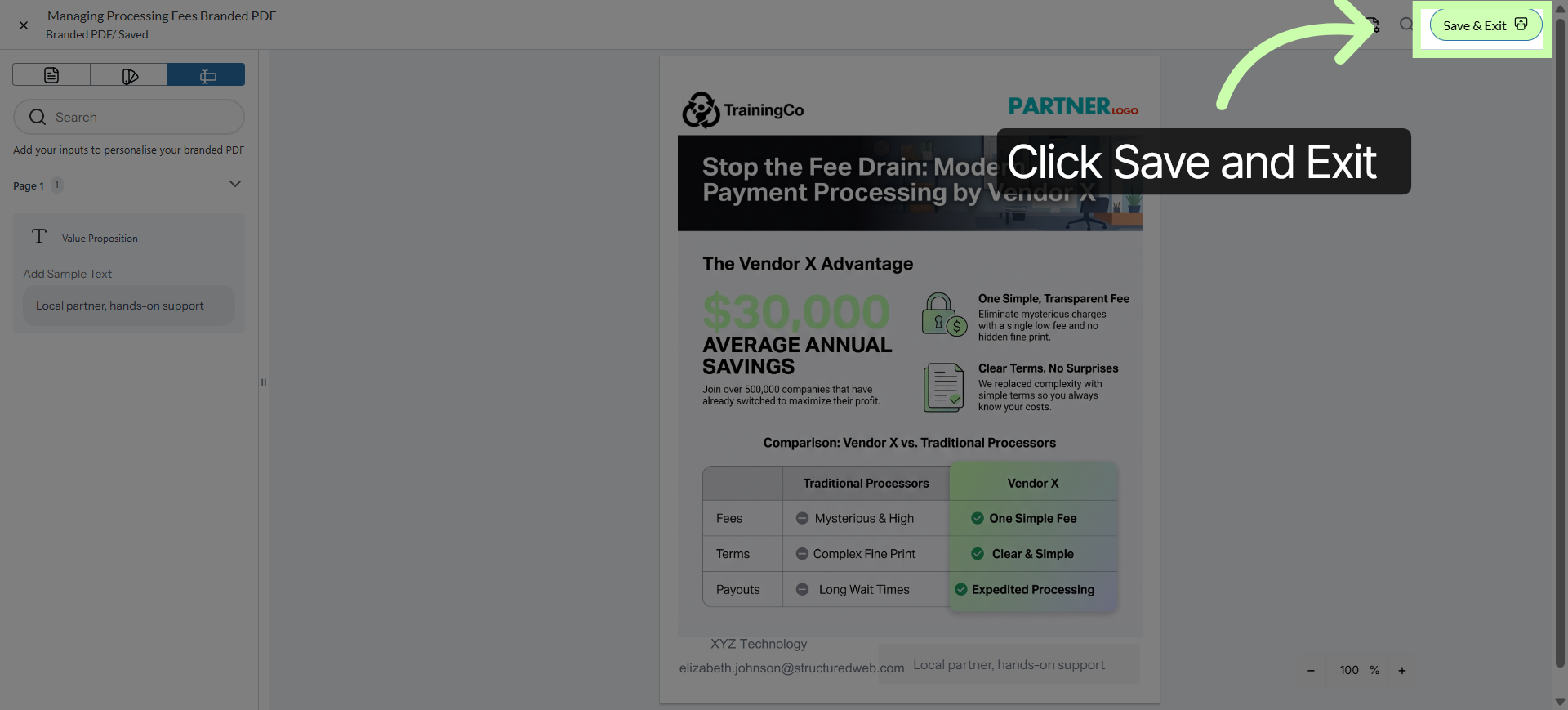
In some cases, your tenant will include specific User Input fields for a personal touch. Simply select the User Input tab to enter your own unique value statement or contact info into the provided field.
5. Review PDF Customization
Click Save and Exit.
6. Prepare PDF For Download
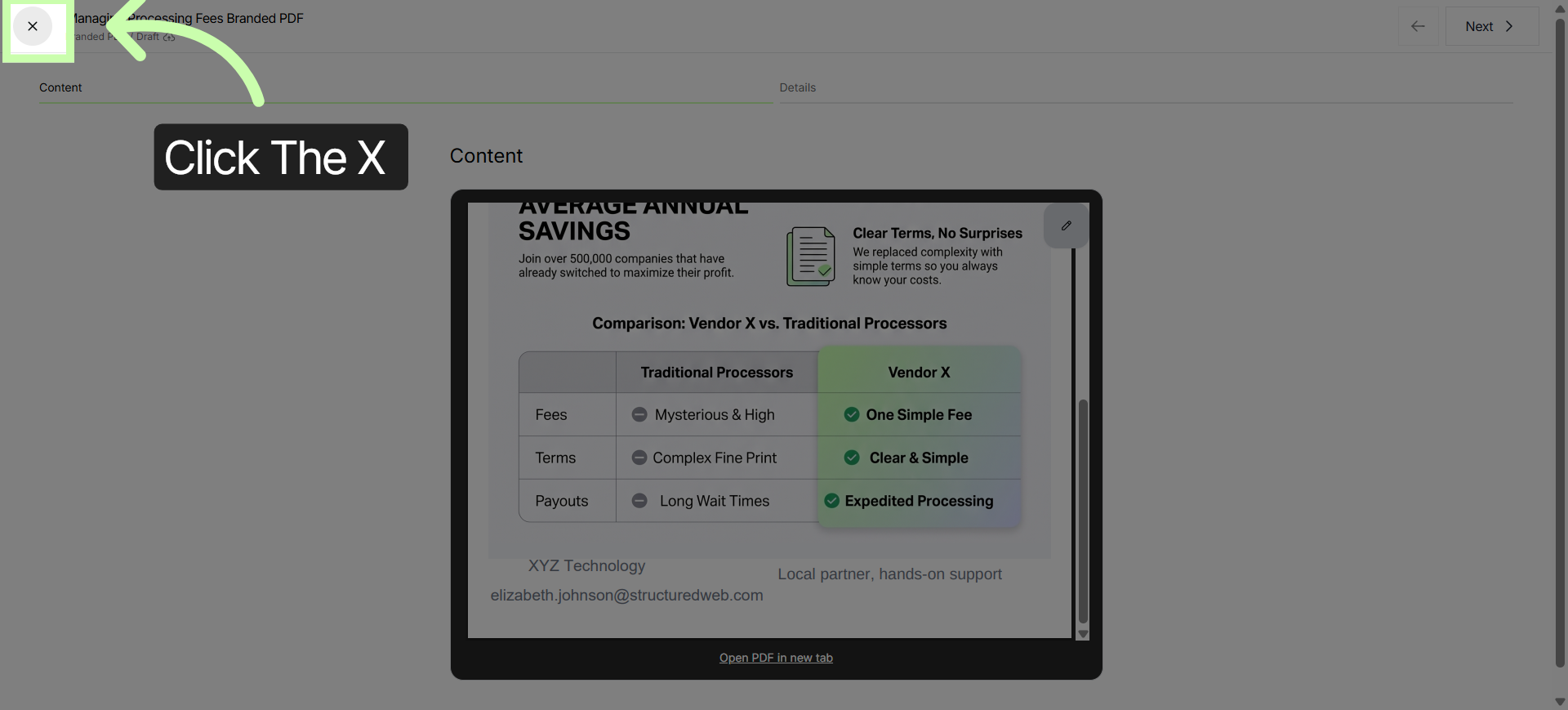
Then the X to prepare to download.
7. Download Customized PDF
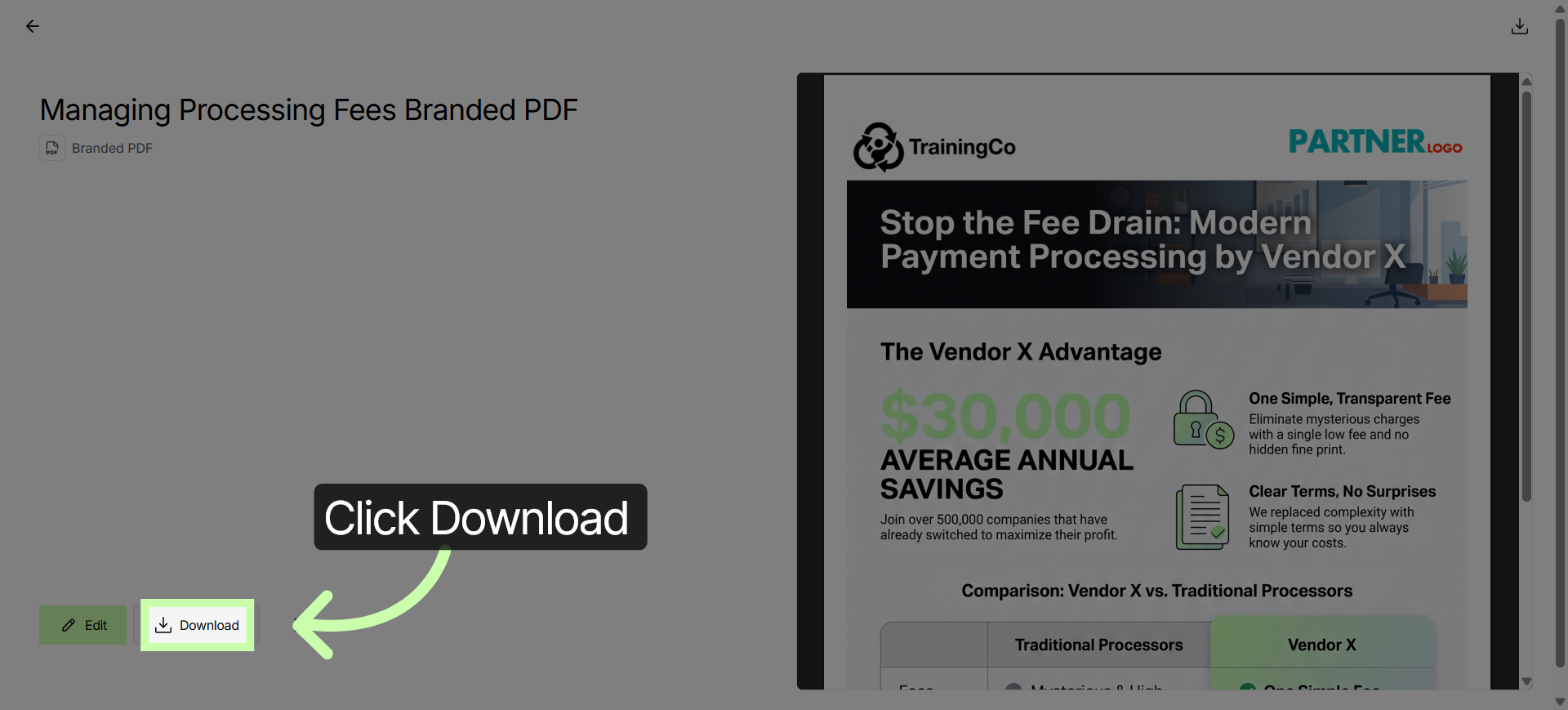
Click the "Download" button to save your customized PDF to your device.
In just a few clicks, you have professional, tenant-backed content with your own personal Branding. Next learn how to customize other assets within the Customizing Content Series.
You've Completed this Training - Move to the Next Training →