
Estimated Time
~15 minutes
What You'll Accomplish
- This tutorial demonstrates how to personalize custom videos.
|
Before you begin — open your account This is a hands-on, learning-by-doing session. Open app.structured.ai in your browser and log in to your Account so you can follow along and apply each step in real time. |
 Follow Our Step-By-Step Training
1. Introduction
Personalizing a video is a powerful way to deliver content that feels relevant, polished, and uniquely yours. Whether it’s a product teaser, promo, or another asset, your video comes pre–co-branded—but you have control to tailor it to your audience.
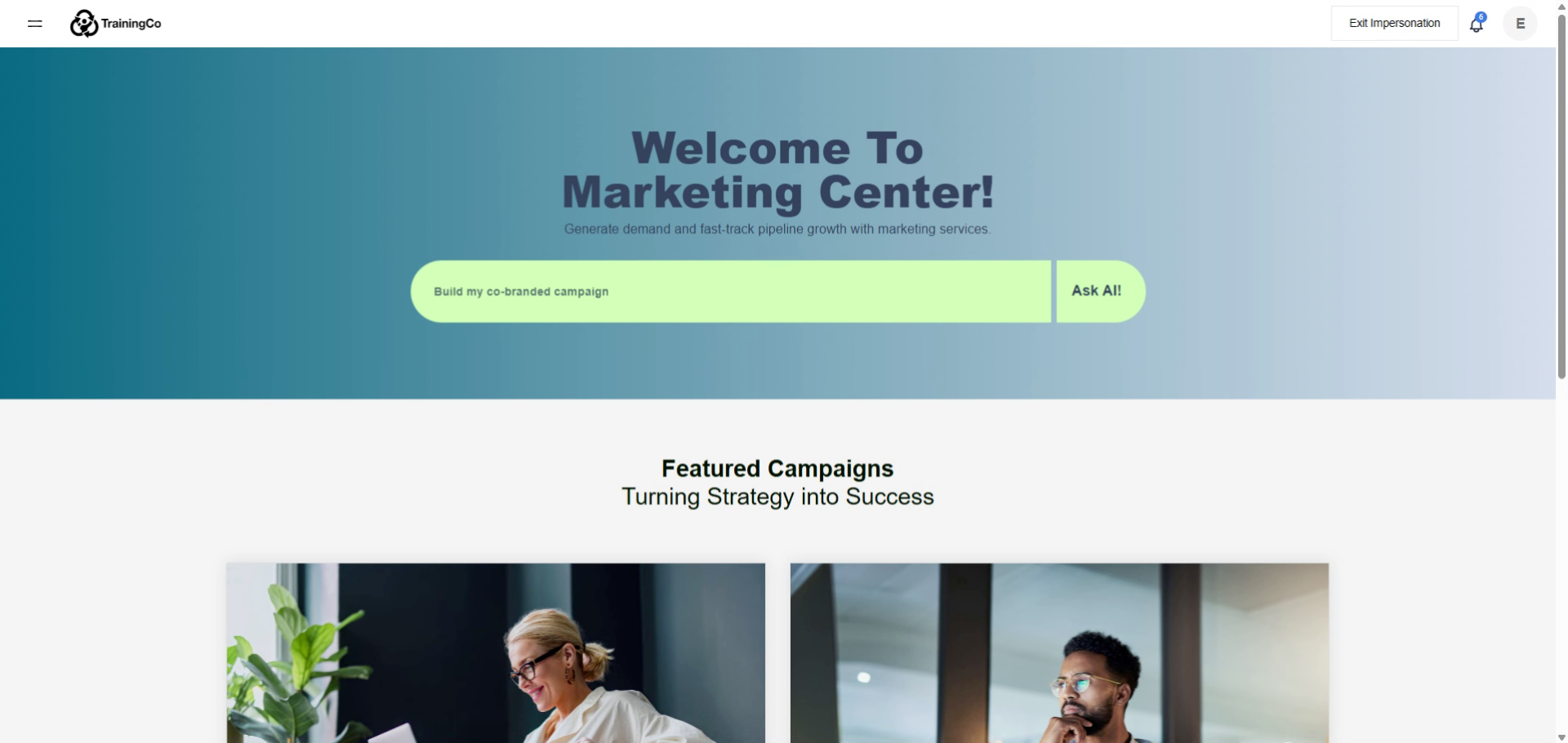
2. Access Main Menu
To start, click the Main Menu.
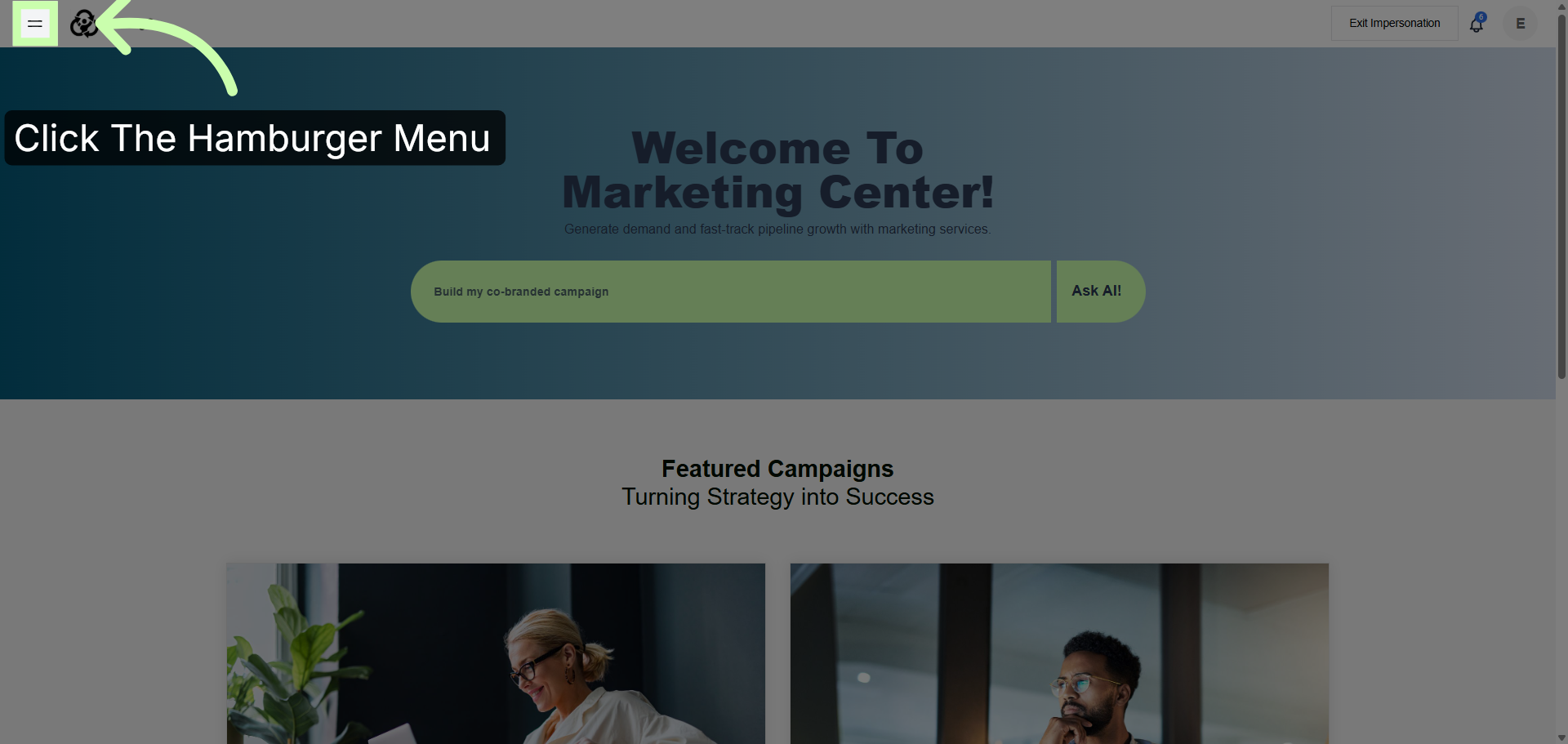
3. Open Content Library
Then, select Content Library.
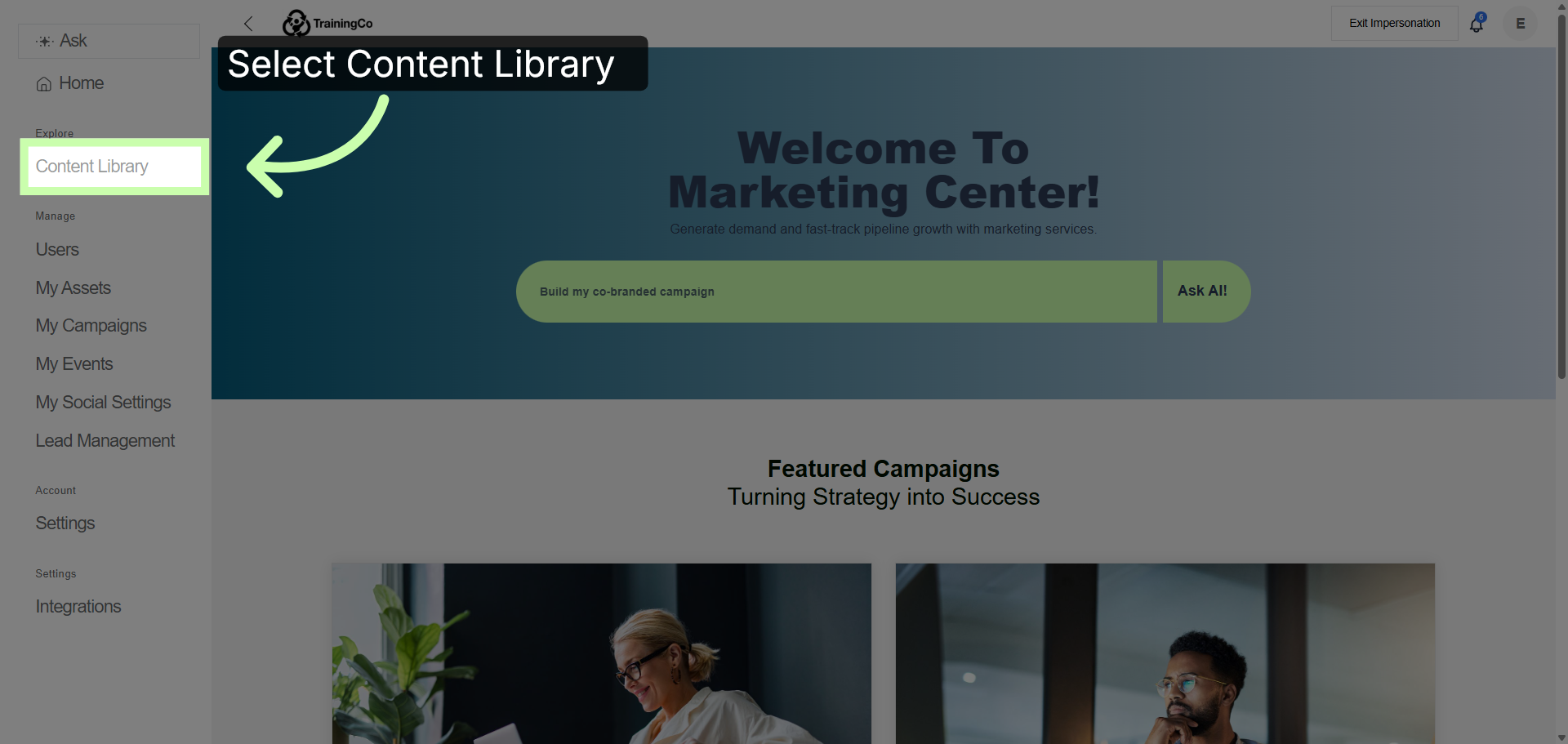
4. Select Custom Video Option
Choose the Custom Video tab.
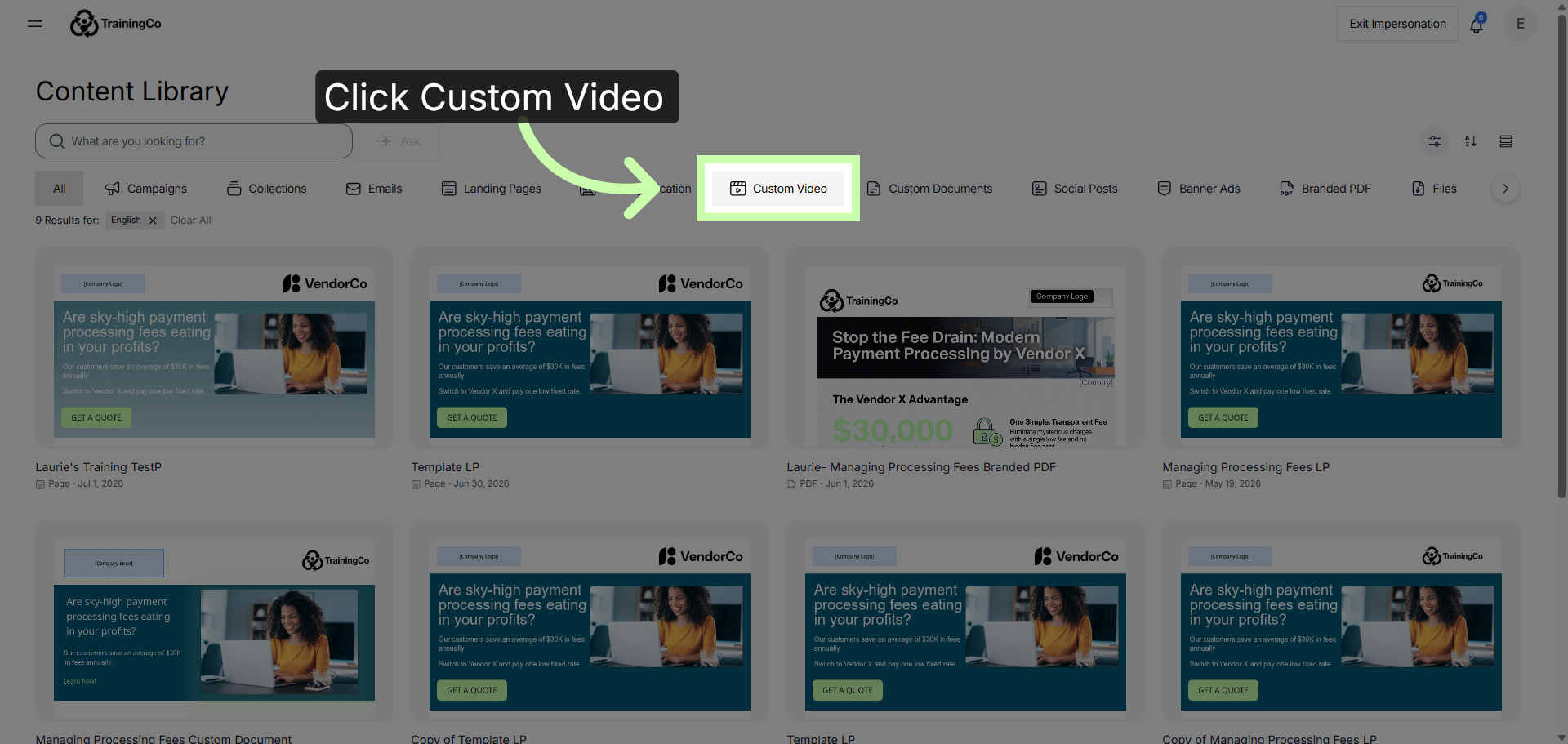
5. Open Video Creation Menu
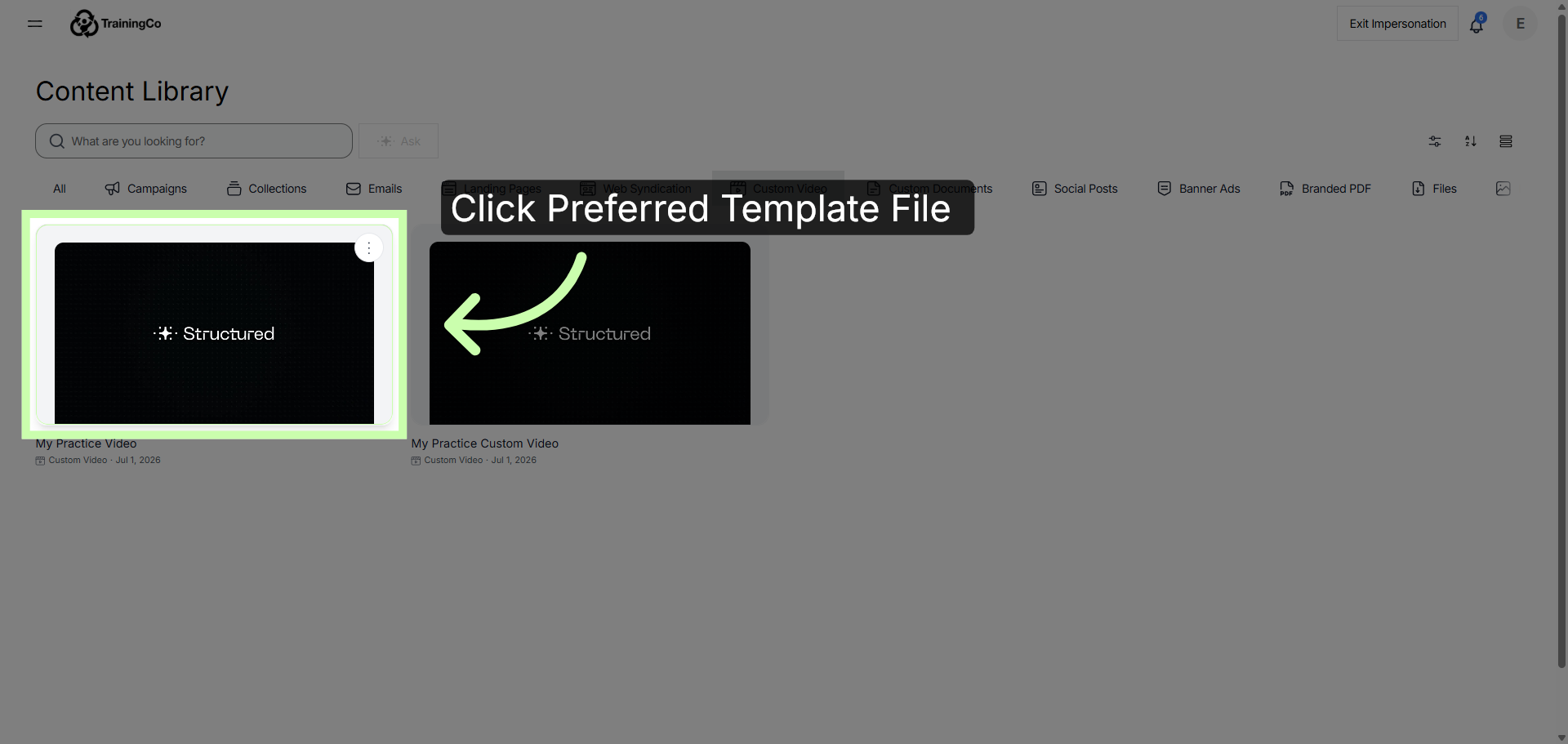
And click to select your preferred custom video template.
6. Start Customizing Video
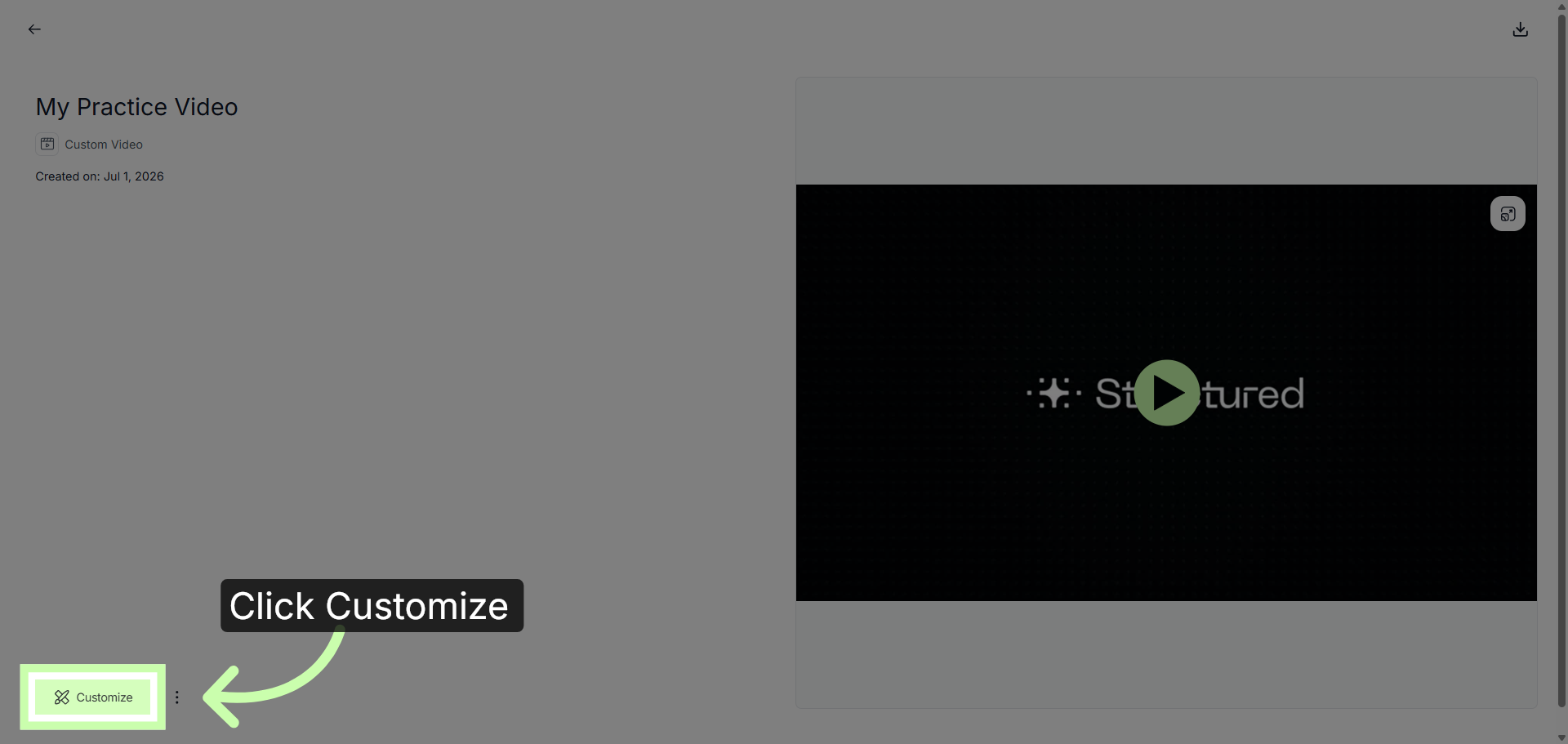
After previewing the video, click Customize to personalize it to your own unique audience.
7. Co-Branded Banner
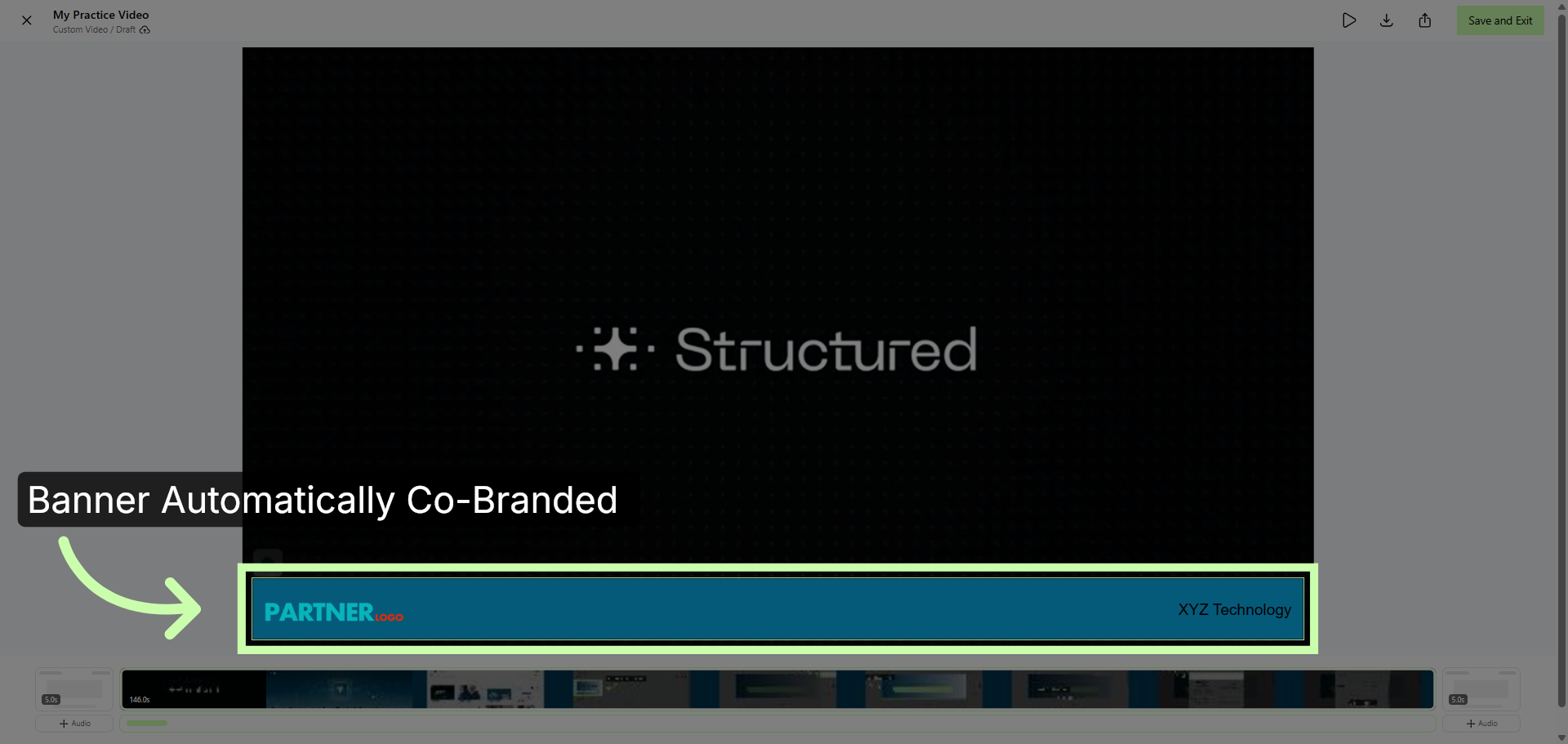
On the editor, you’ll see that the video banner is automatically co-branded with your company-specific information.
8. Change Banner Color
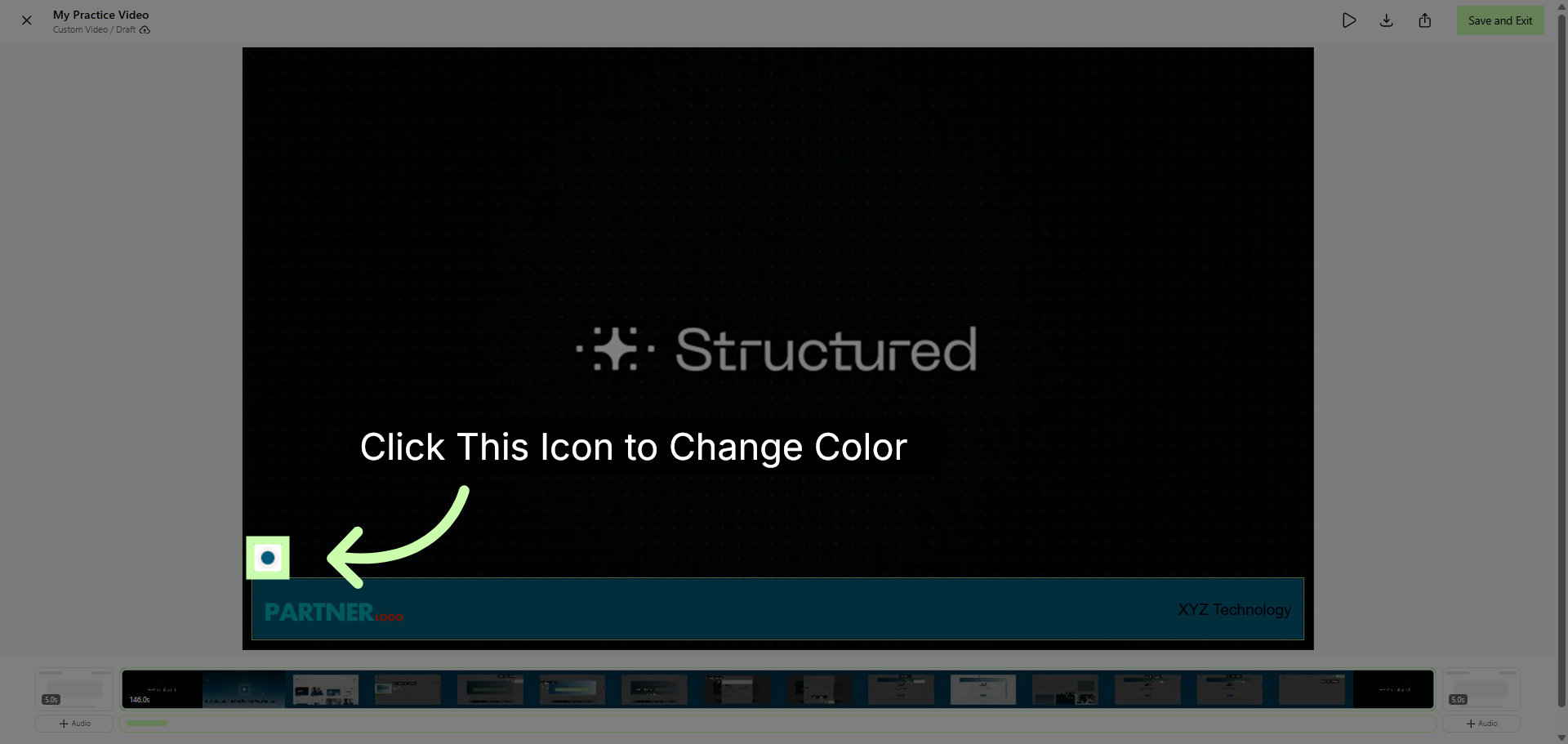
However, you have the option to change the background color to match your own brand.
9. Open Intro Editor
Now, let’s take a look a the Intro.
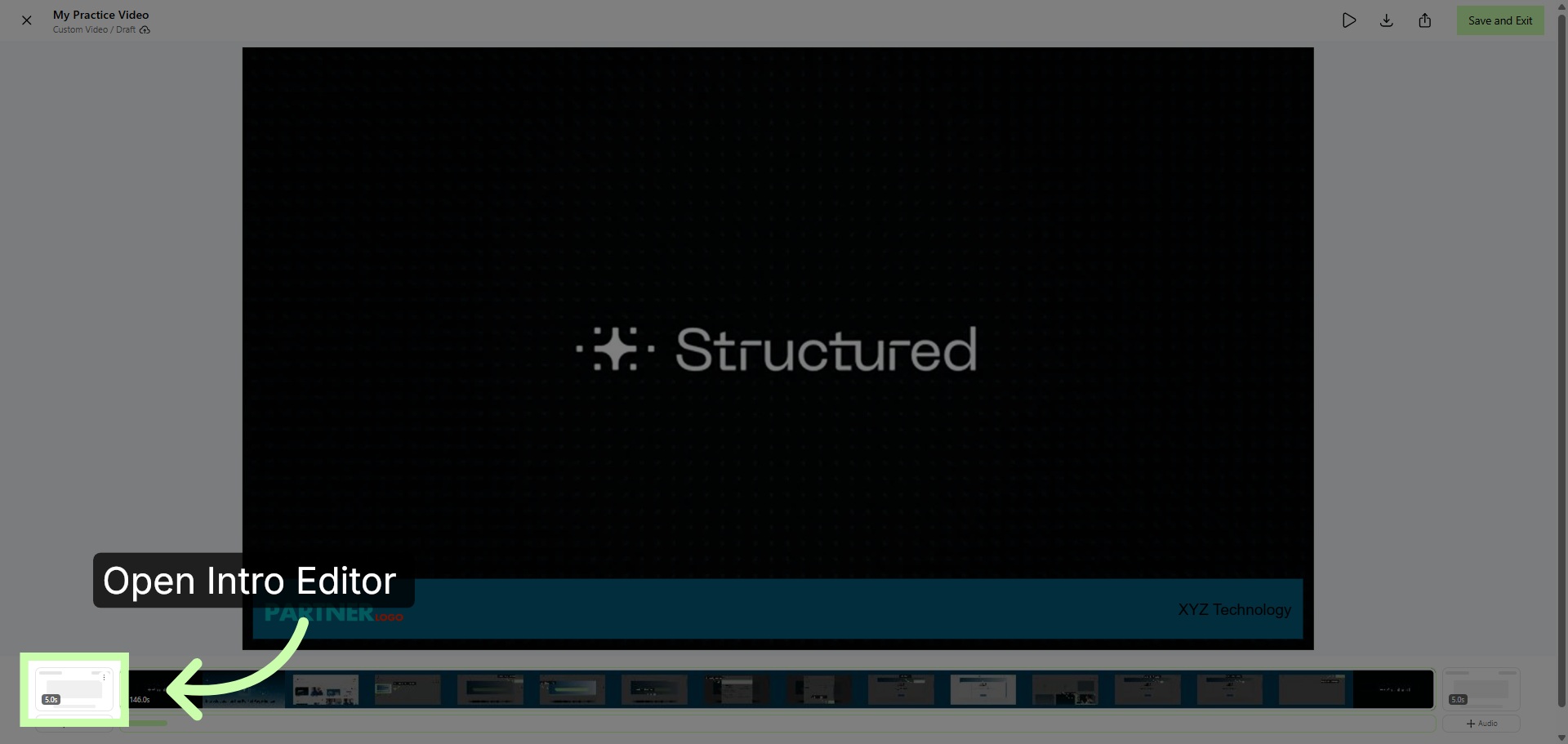
10. Co-Branded Intro
Once again, you’ll find your intro automatically co-branded, but here is where the magic happens.
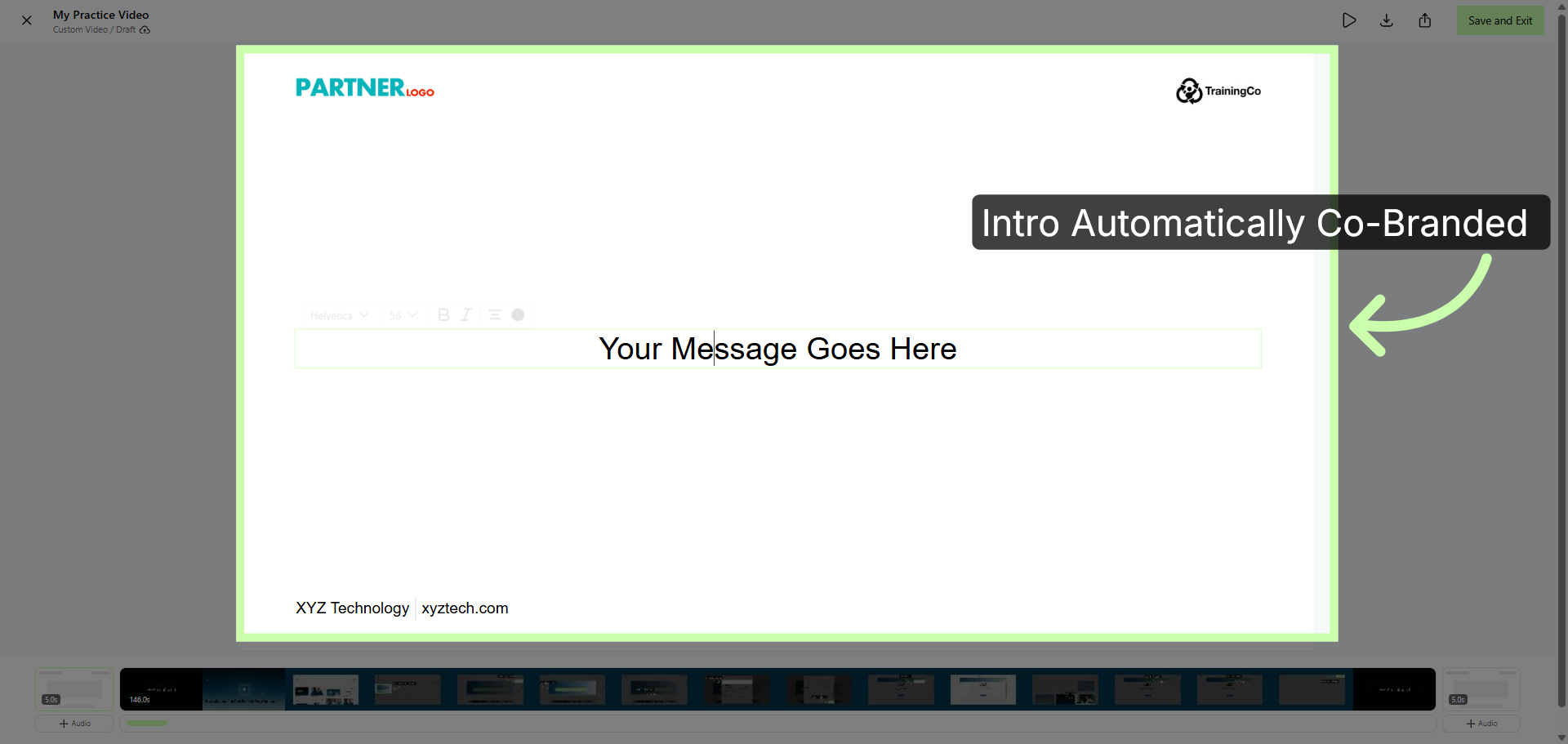
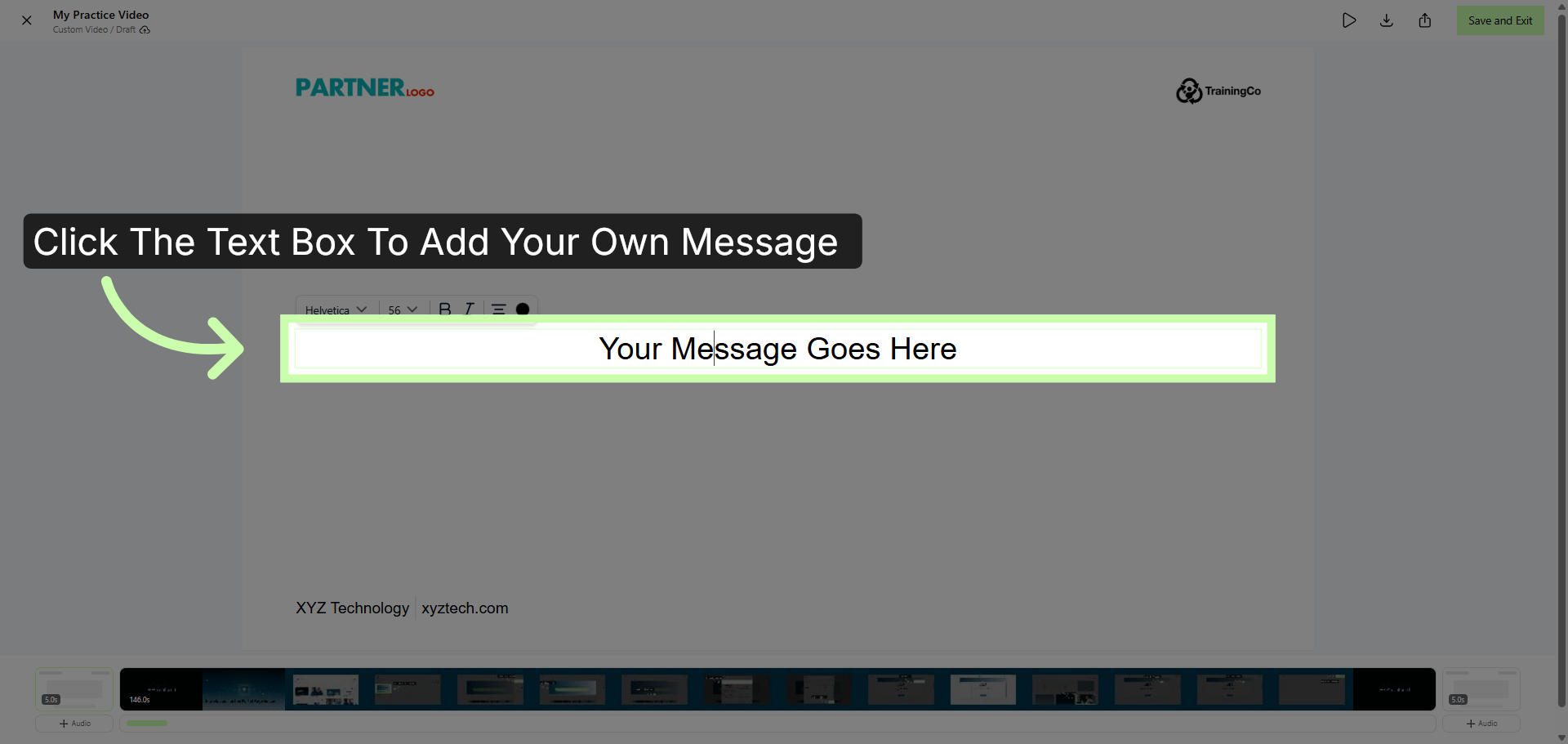
11. Select Message Text
Within the text box, you can add your own personal greeting, such as a personalize intro statement or your personal value proposition.
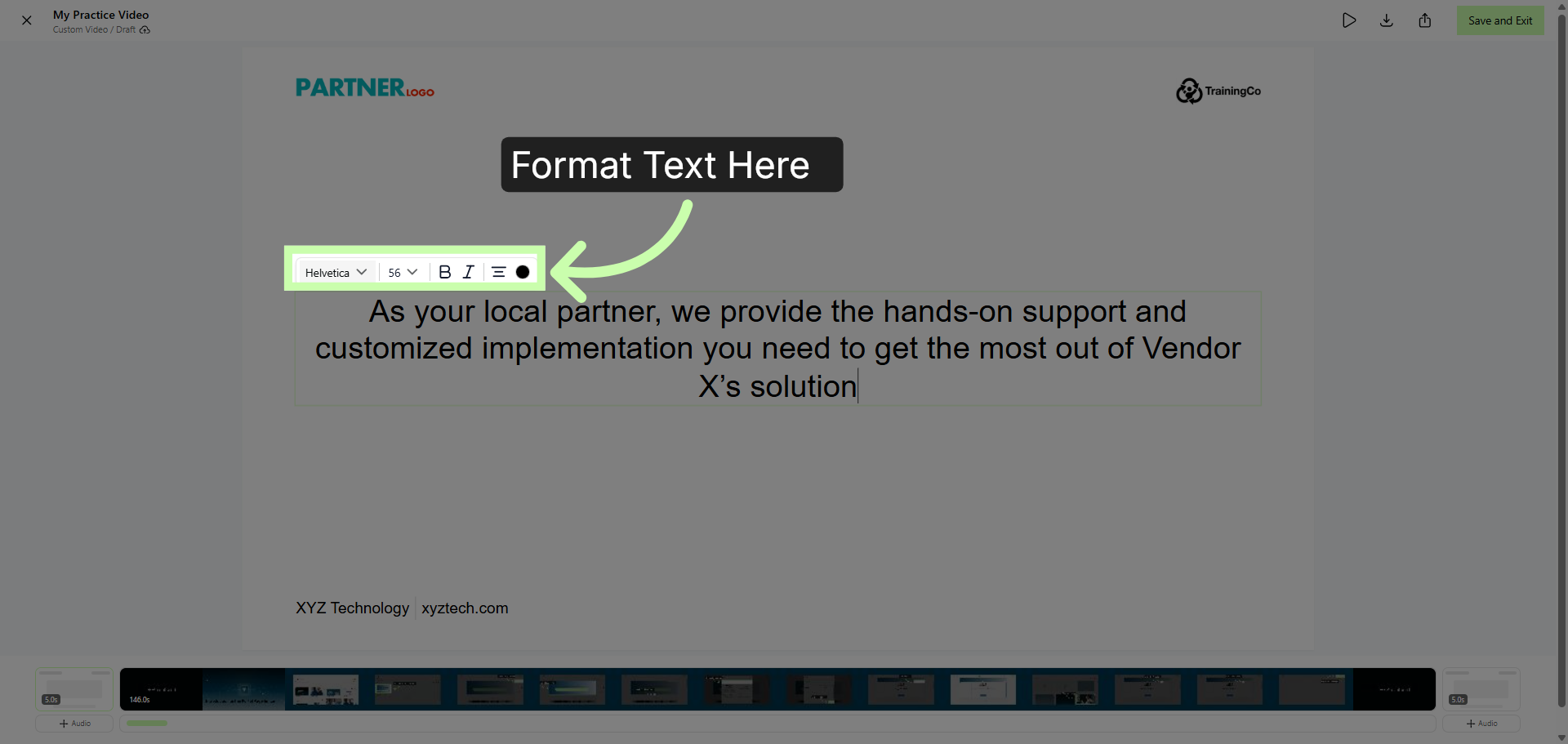
12. Choose Font Style
Use the tool bar format your text.
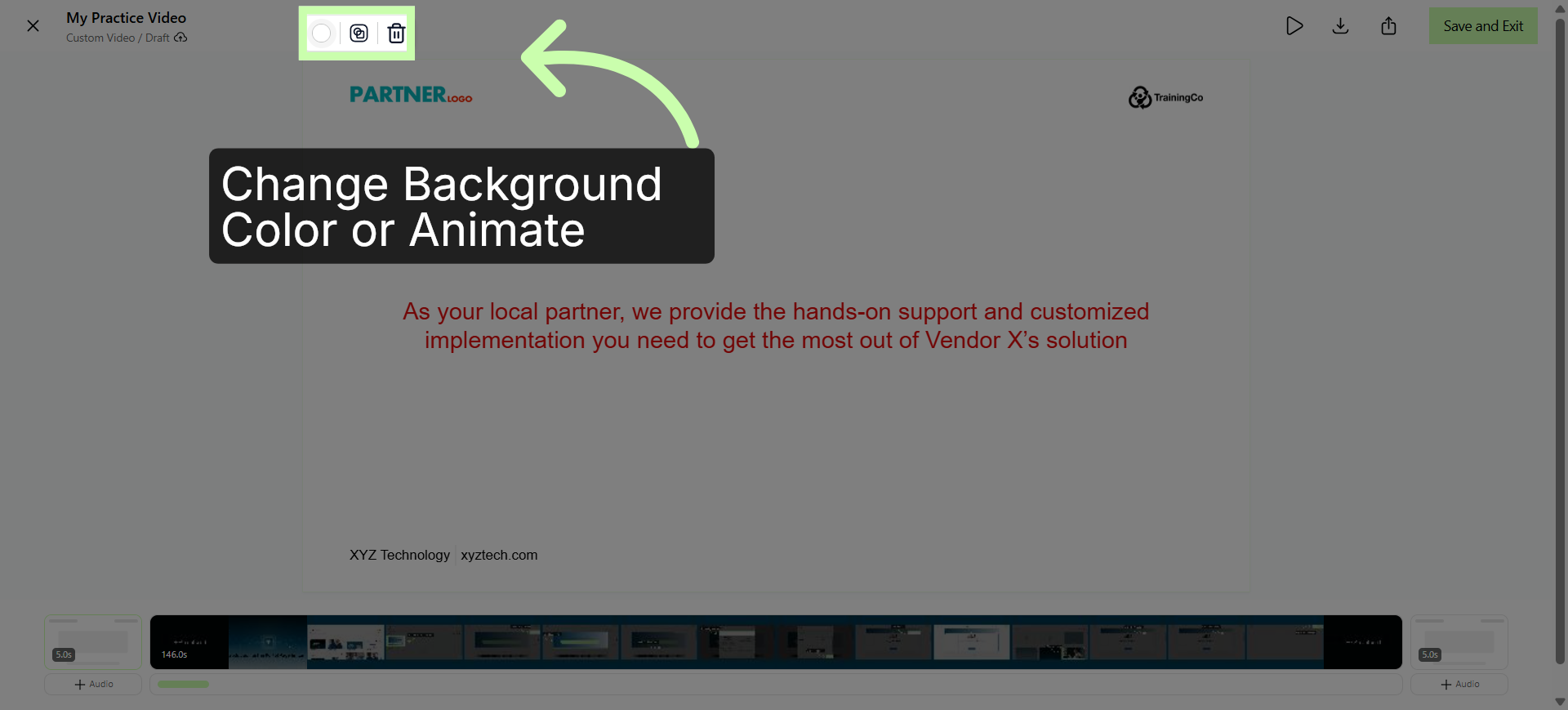
13. Open Color Selection Menu
Change the background color or add an animation using this menu.
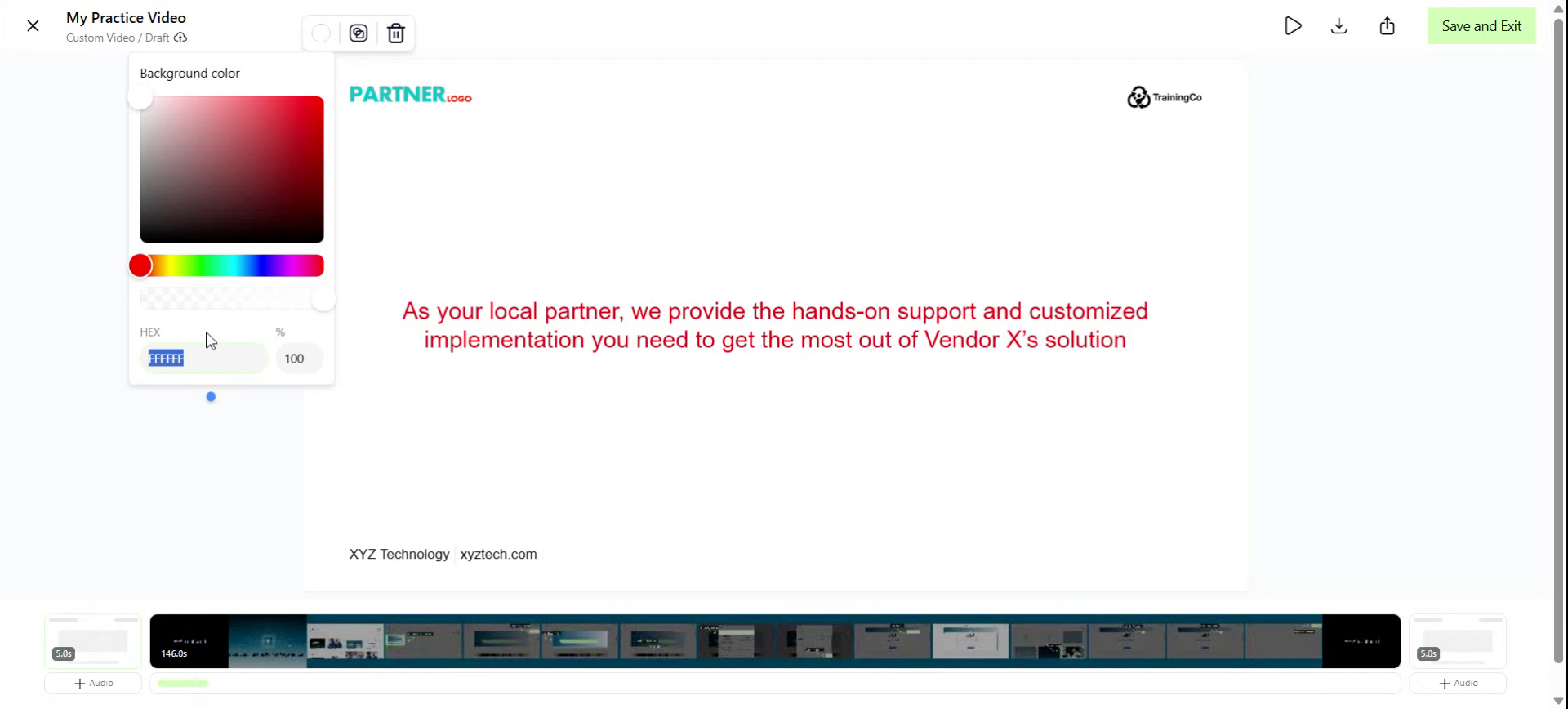
14. Enter HEX Color Code
Enter a Hex code to match your unique brand colors.
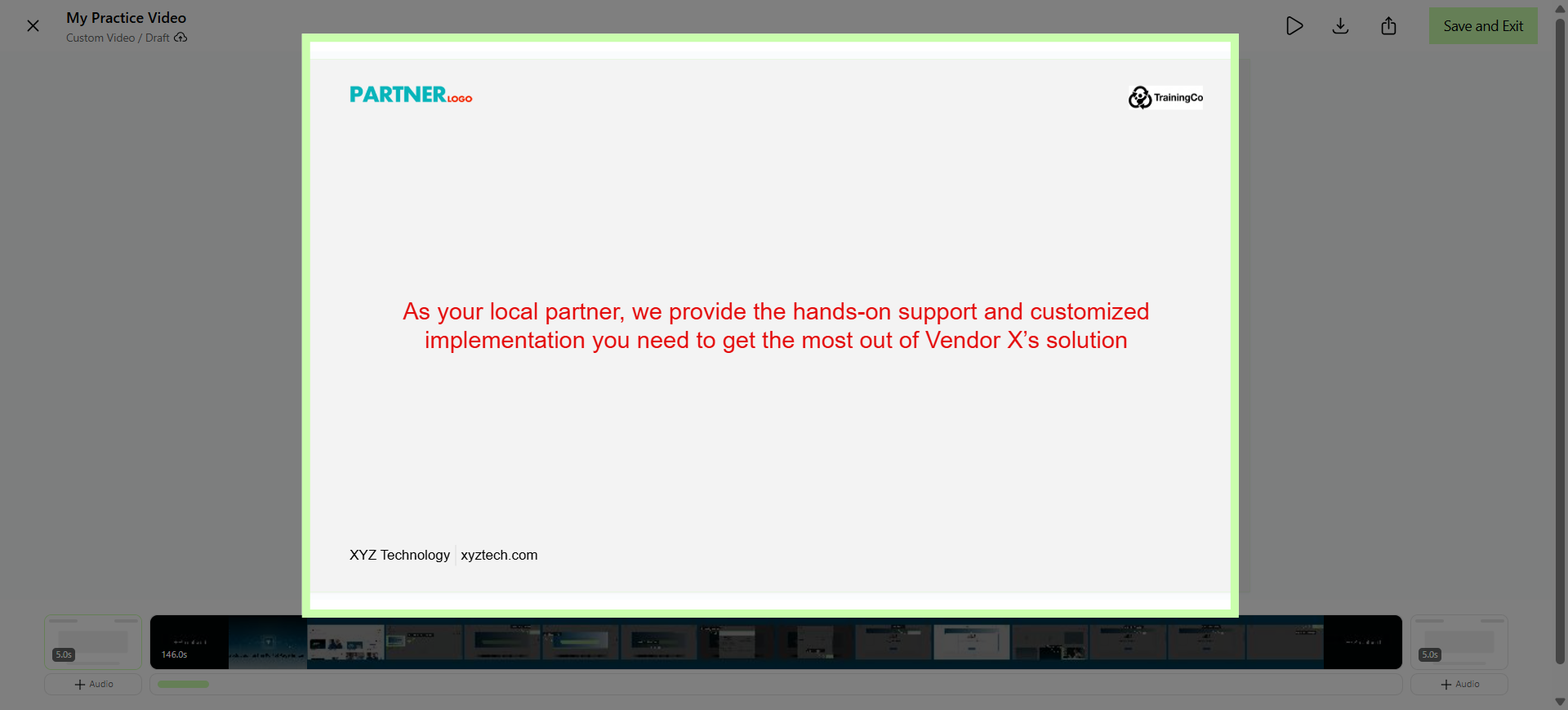
15. Completed Introduction
Your personalized intro is automatically attached to the video.
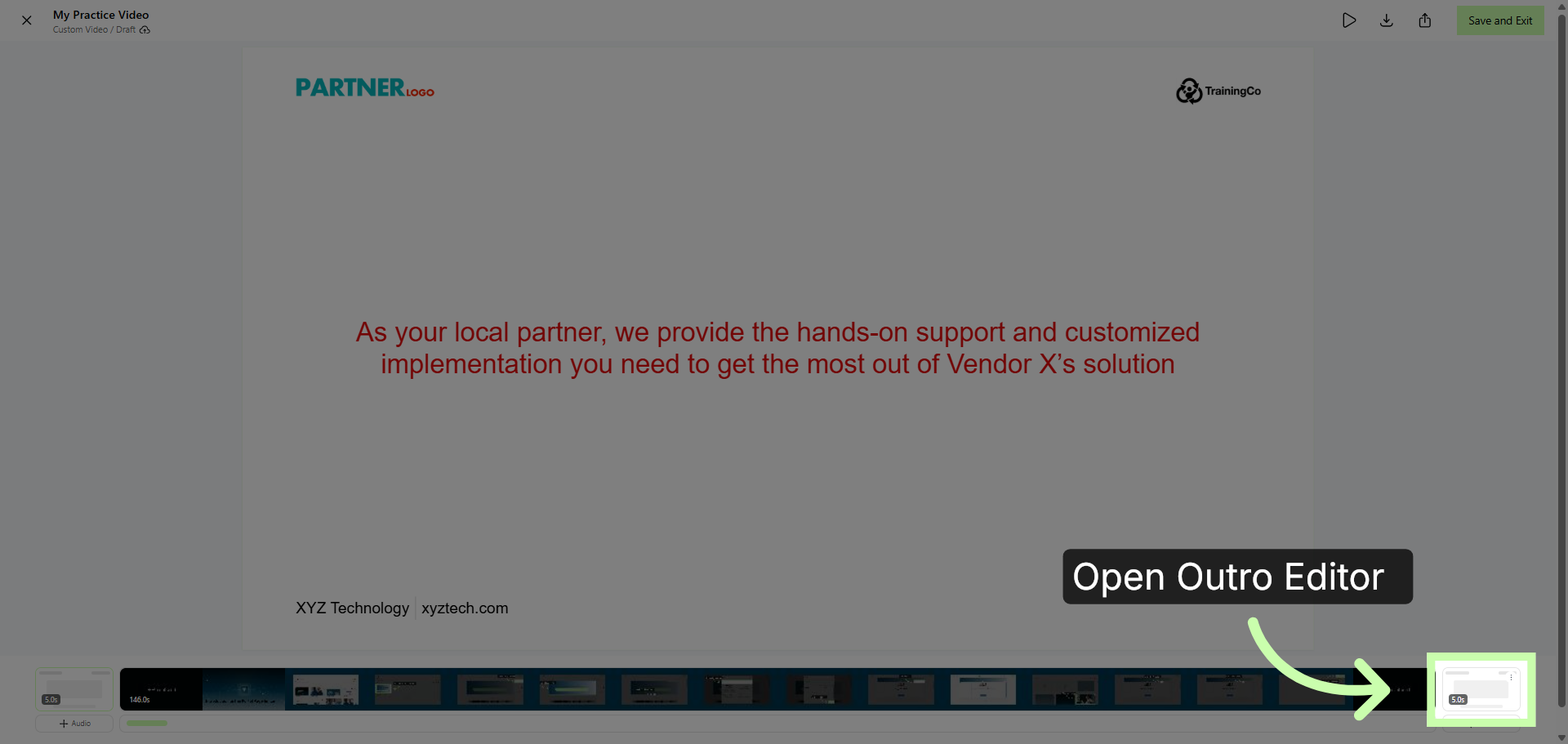
16. Repeat Steps 9 - 15 for Outro
Repeat these steps for your outro. Be sure to apply any formatting options you chose for your intro.
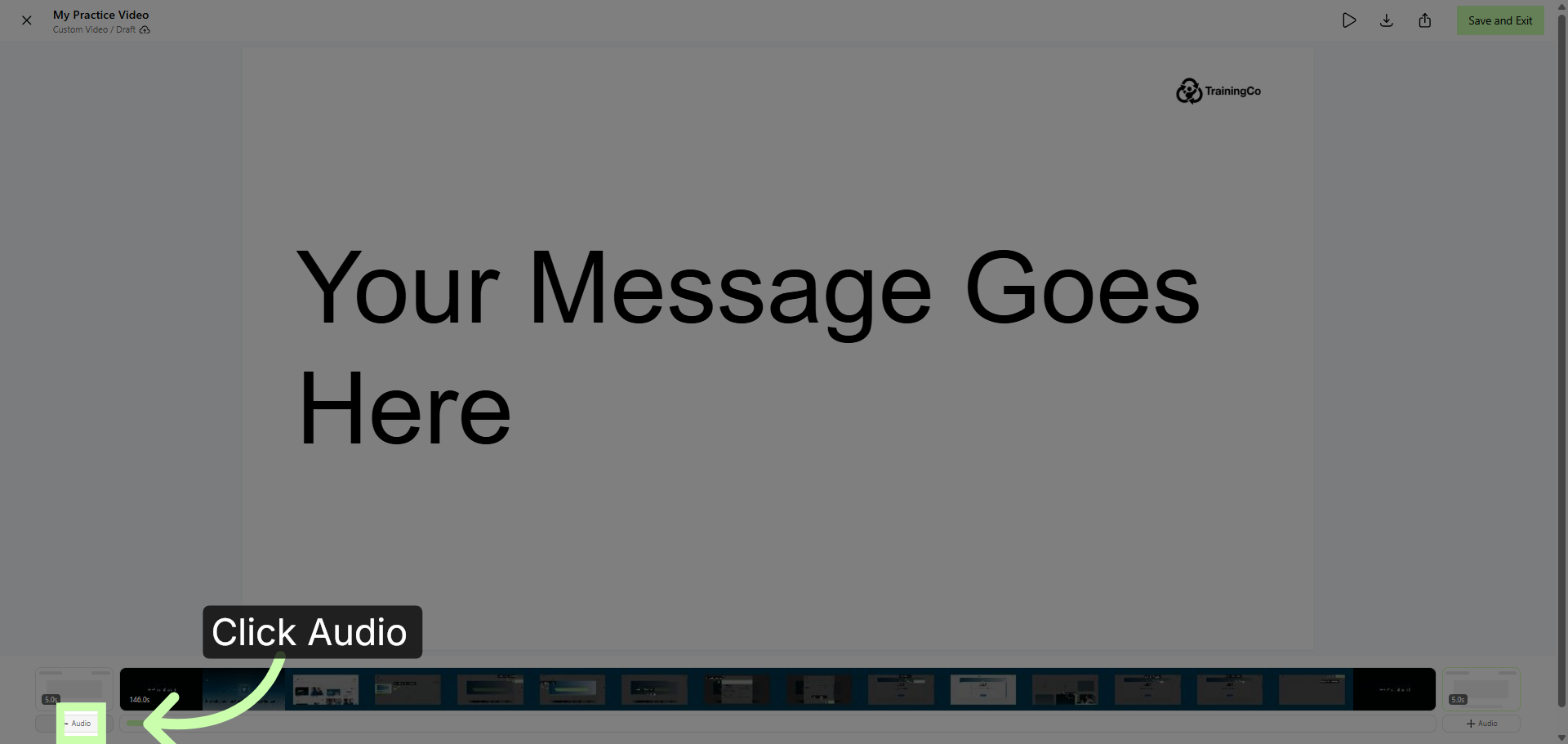
17. Open Audio Settings
If desired, you can also add your own audio tracks.
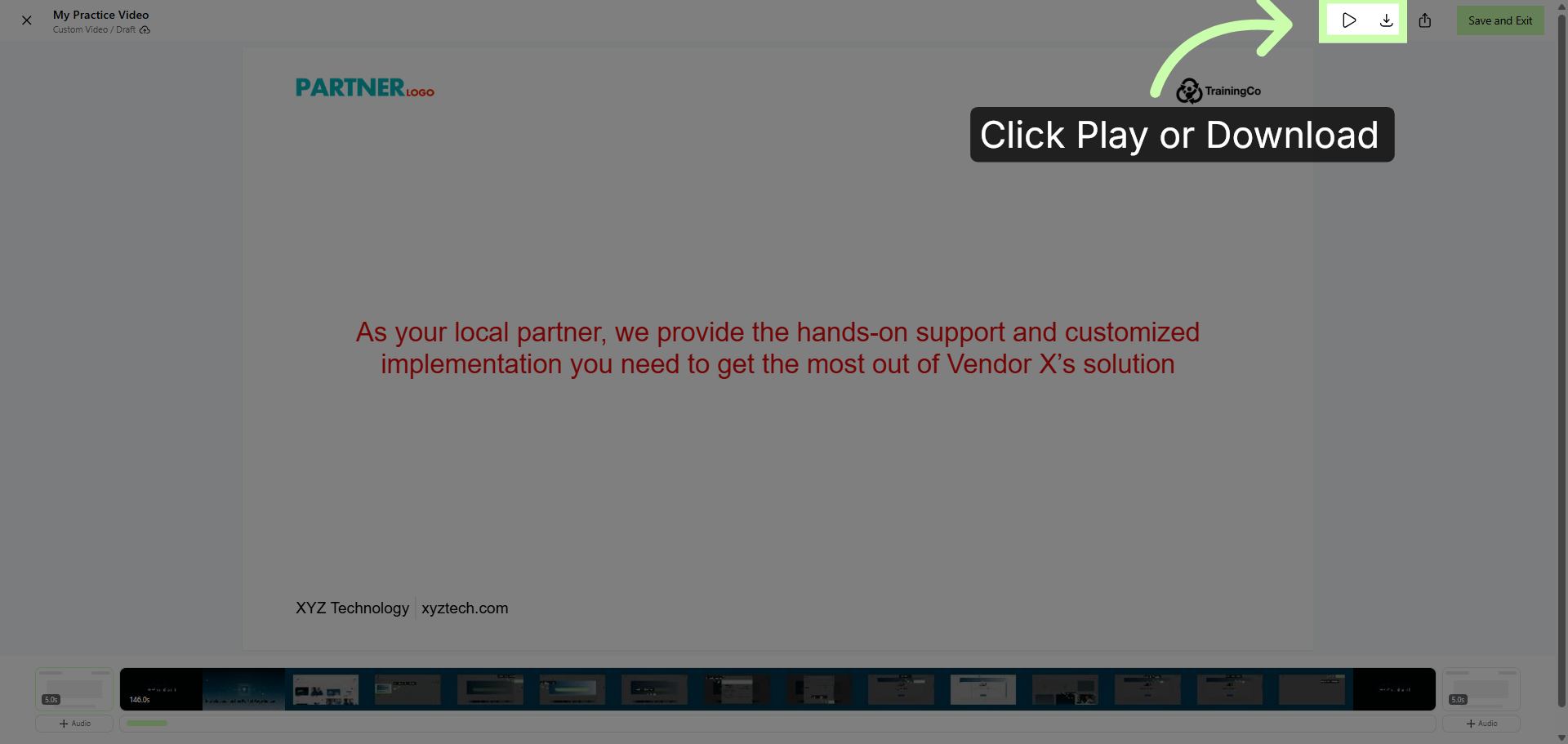
18. Click to Preview or Download
Once complete you can preview by clicking the play icon, or render and download by clicking the download icon.
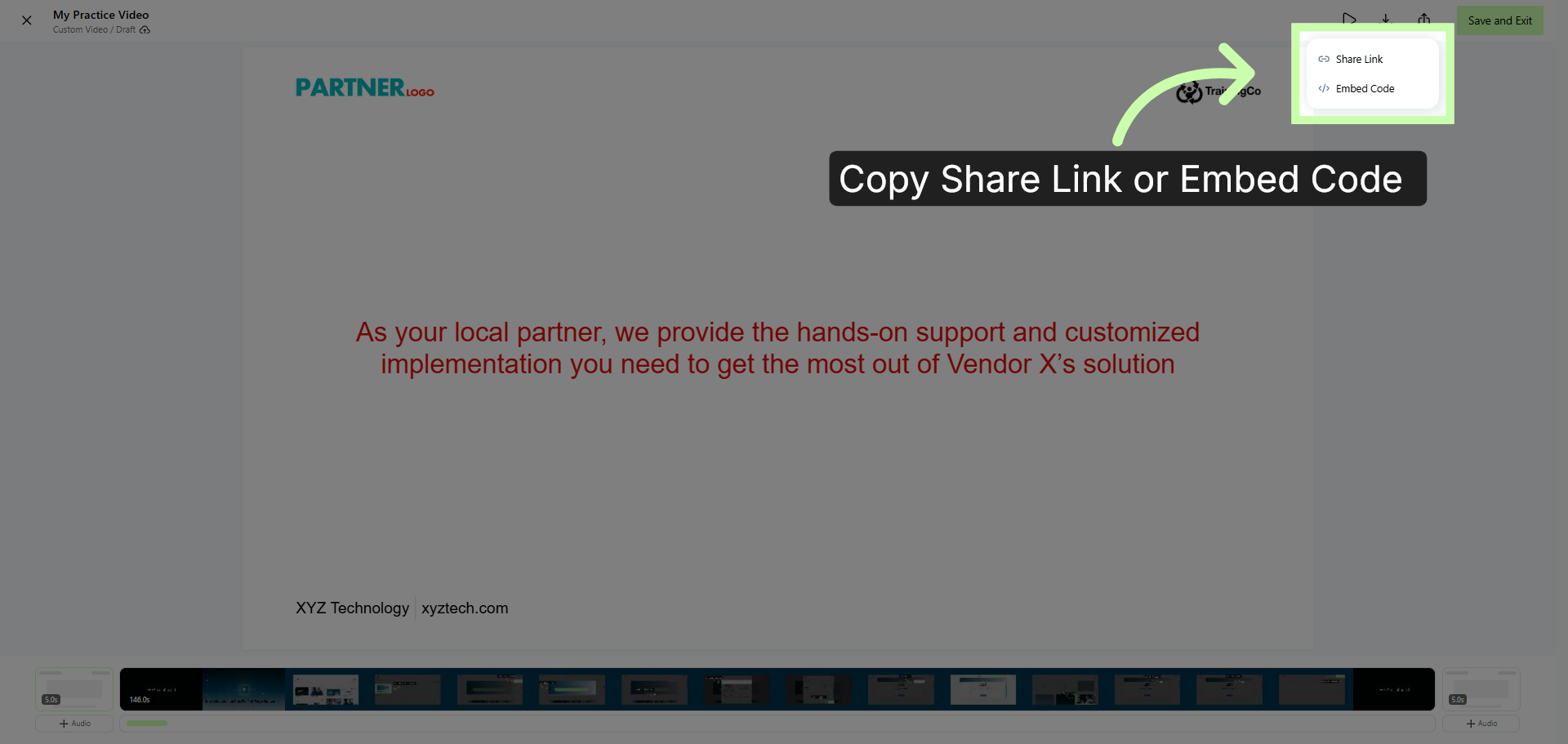
19. Open Share Options
Or, click here to copy a shareable link, or retrieve the embed code for your website.
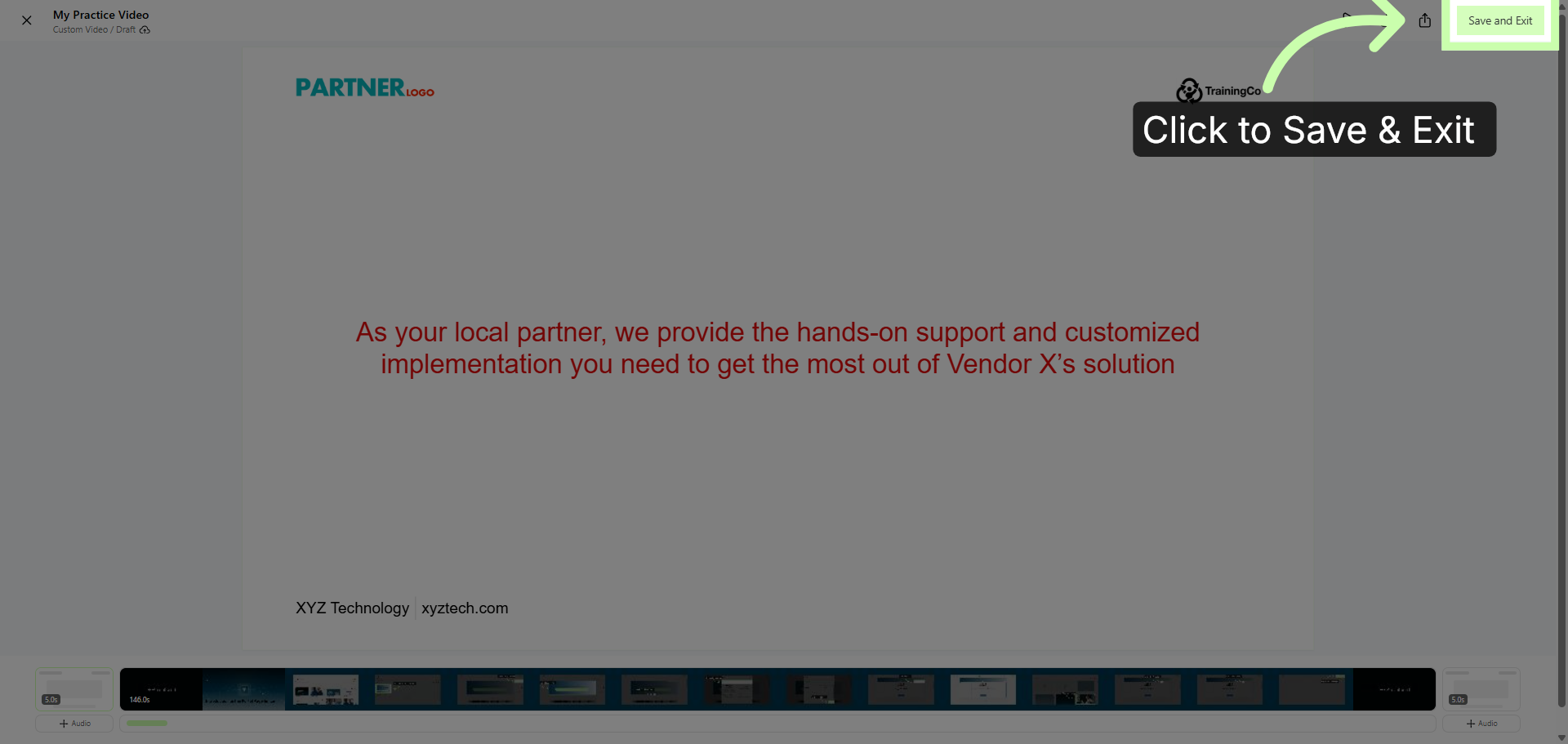
20. Click Save & Exit
Once complete, click Save and Exit.
Personalizing Custom Videos is simple, flexible, and built to make your content stand out. Next learn how to customize other assets within the Customizing Content Series.